

Data migration
Data migration is typically performed as part of Phase 3 (User rollout) or in parallel with vault structure setup (Phase 2). Import all existing credentials before inviting end users so that passwords are available on day one.
Decide on the target vault and folder structure (Phase 2) before importing. Import destinations are chosen during the import process — importing into a flat structure and reorganizing afterwards is time-consuming.
Supported import formats
| Format | Source systems | Notes |
|---|---|---|
| JSON (Passwork) | Passwork 6 / Passwork 7 export | Preserves full vault hierarchy and all fields |
| KeePass XML | KeePass, KeePassXC | Preserves folder structure |
| CSV | Any password manager, spreadsheets | Requires field mapping; no hierarchy |
| Bitwarden JSON | Bitwarden / Vaultwarden | Via dedicated import script |
| LastPass CSV | LastPass | Export as CSV |
| 1Password CSV | 1Password | Export as CSV |
Prepare your export file
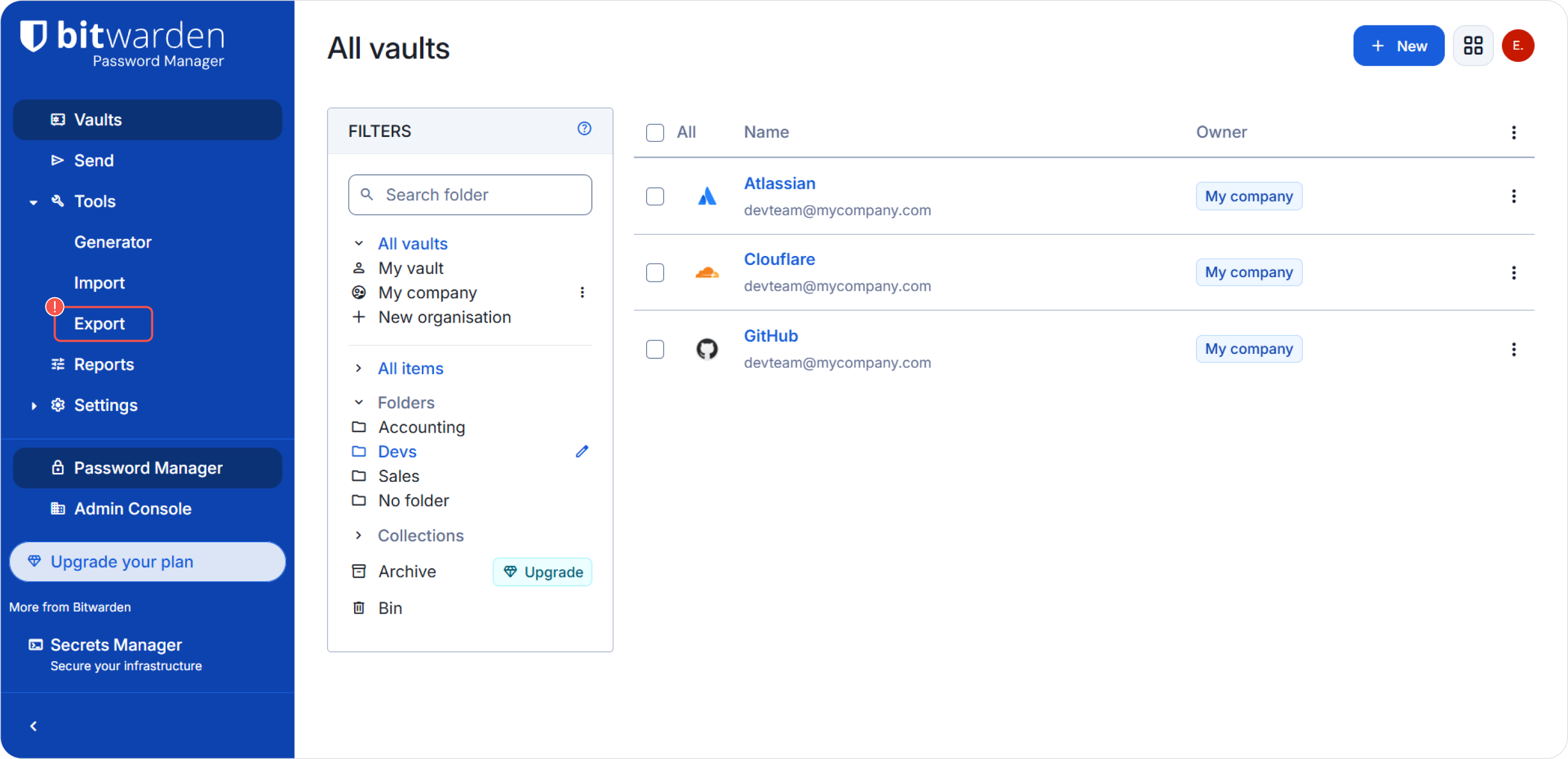
Bitwarden
Export your Bitwarden vault before decommissioning it:
- In Bitwarden, go to Tools → Export vault.
- Choose JSON format (not encrypted JSON — use plain JSON for Passwork compatibility).
- Save the file securely.
For the complete Bitwarden → Passwork migration guide, see Import from Bitwarden.
LastPass
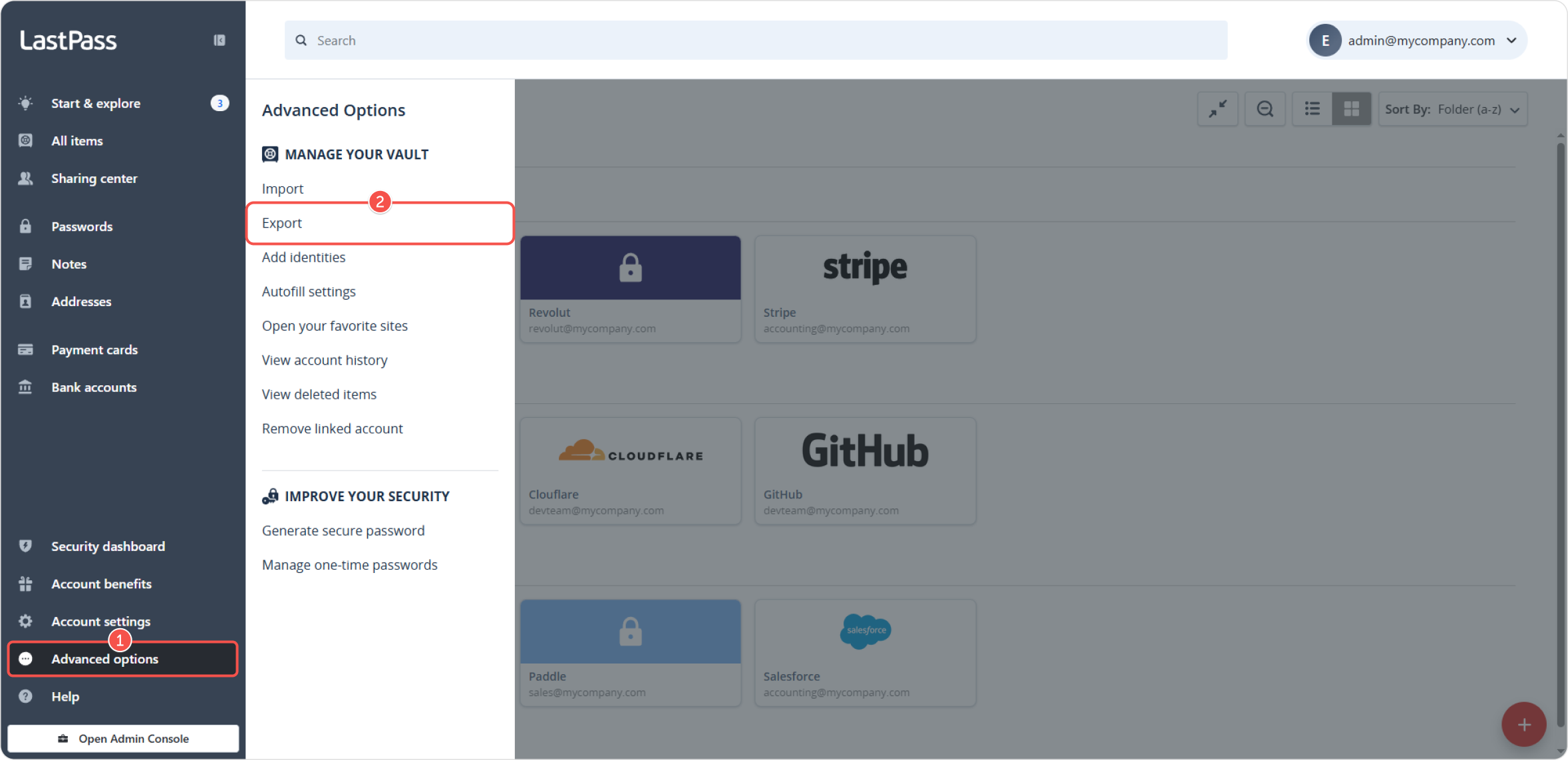
- In LastPass, go to Account Options → Advanced → Export → LastPass CSV File.
- The file downloads as a CSV.
KeePass / KeePassXC
- Open your database in KeePass or KeePassXC.
- Go to File → Export → KeePass XML (2.x).
- Save the exported XML file.
Generic CSV
Any password manager that supports CSV export can be used. The minimum required columns are name, password, URL and login.
Import into Passwork
Web interface import
- Open Account settings (top-right profile icon).
- Click Import data.
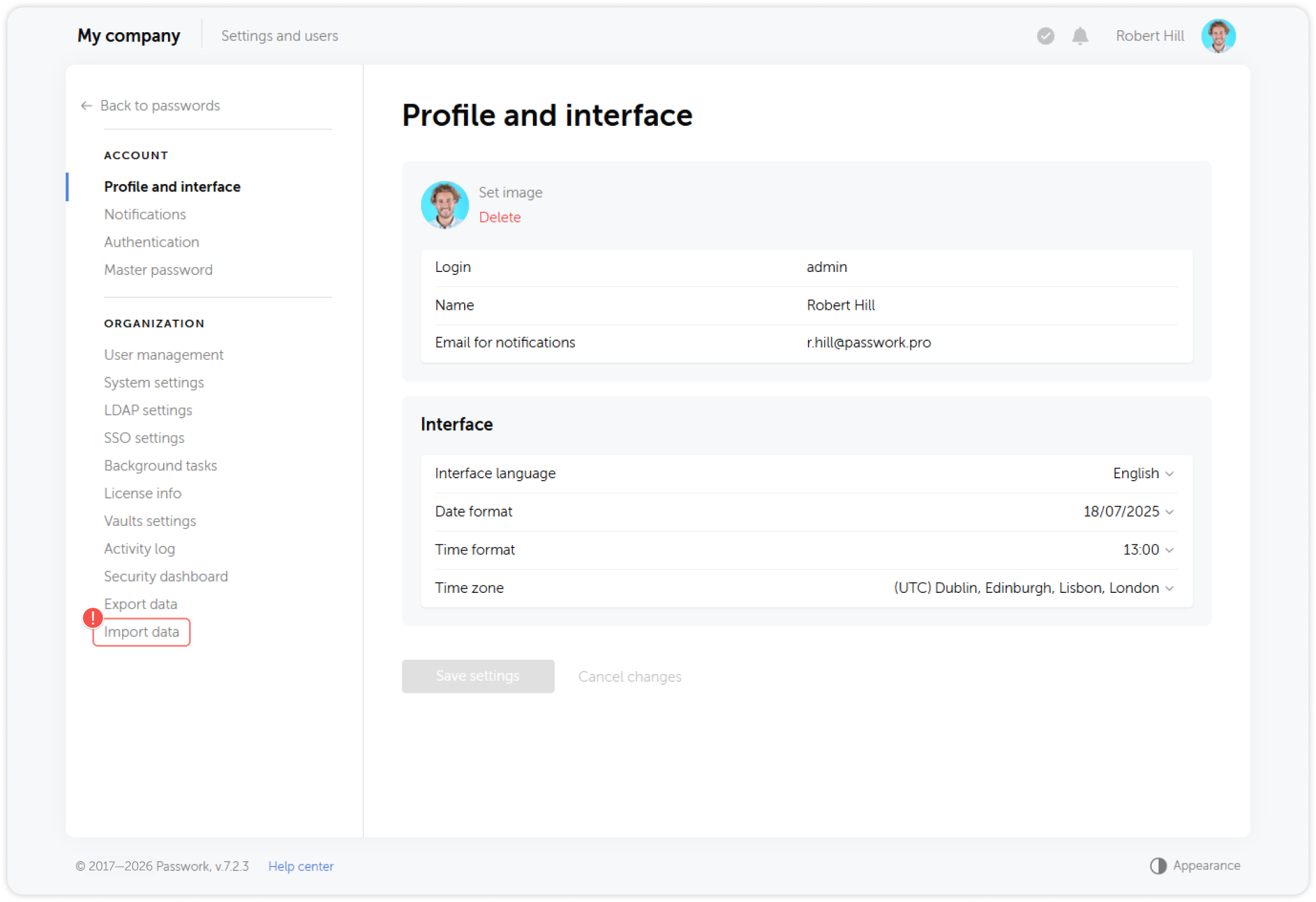
- Click Choose file and upload your export file (JSON, KeePass XML, or CSV).
JSON and KeePass XML
After uploading, select which vaults to import and choose the import method:
| Import method | When to use |
|---|---|
| Save structure → specific directory | Import into an existing vault, preserving folder hierarchy as subfolders |
| Ignore structure → specific directory | Flatten all passwords into a single vault or folder |
| Save structure → root directory | Recreate the full vault hierarchy at the top level (use for full migrations) |
CSV
A preview of the parsed data appears. Select the delimiter (comma or semicolon), map each column to the correct Passwork field (Name, Login, Password, URL, Notes), confirm the mapping, and choose the target vault or folder.
API-based bulk import
For large datasets (thousands of entries) or automated migrations, use the Passwork API or the Python Connector.
The API supports creating vaults, folders, and password records programmatically, making it suitable for scripted migrations from custom databases or proprietary systems.
Example use cases:
- Migrating from an internal credentials database (MySQL, PostgreSQL)
- Importing from a secrets management system not supported by the built-in import
- Scripting the creation of a standard vault structure with pre-populated entries across multiple departments
Migration strategy for large organizations
For organizations with hundreds of users and multiple departments, a phased migration reduces risk.
| Phase | Action |
|---|---|
| 1. Admin/IT credentials | Import shared IT infrastructure credentials first. Verify that the vault structure is correct before proceeding. |
| 2. Department vaults | Work with department managers to export and import their team's credentials. One department at a time. |
| 3. User private vaults | Guide individual users to import their personal credentials after they activate their accounts. |
| 4. Decommission old system | Only after all credentials are verified in Passwork and users are using it actively. |
Run Passwork and the previous system in parallel for 2–4 weeks. Decommission the old system only after the Security Dashboard shows no weak or missing entries and user feedback confirms they are working in Passwork.
Post-import verification
After completing the import:
- Ask a representative from each department to verify that their expected credentials are present and accessible.
- Run the Security Dashboard analysis to identify any weak or duplicate passwords that were carried over from the old system — these should be rotated.
- Check for any records that imported without a URL — add URLs to enable autofill.
- Remove any test entries or placeholder credentials that were created during the vault structure setup phase.