

Phase 1: Infrastructure and authentication
Estimated time: ~4 hours
Responsible: Server Admin, LDAP Admin, IdP/SSO Admin
Outcome: Users can authenticate via corporate credentials; global security policies are enforced.
1.1 Configure LDAP / Active Directory integration
LDAP integration enables users to sign in to Passwork using their domain credentials, and allows automatic import of user lists and security groups from Active Directory.
Add an LDAP server
- In Passwork, go to Settings and users → LDAP settings.
- Click Add server and enter the LDAP server connection parameters.
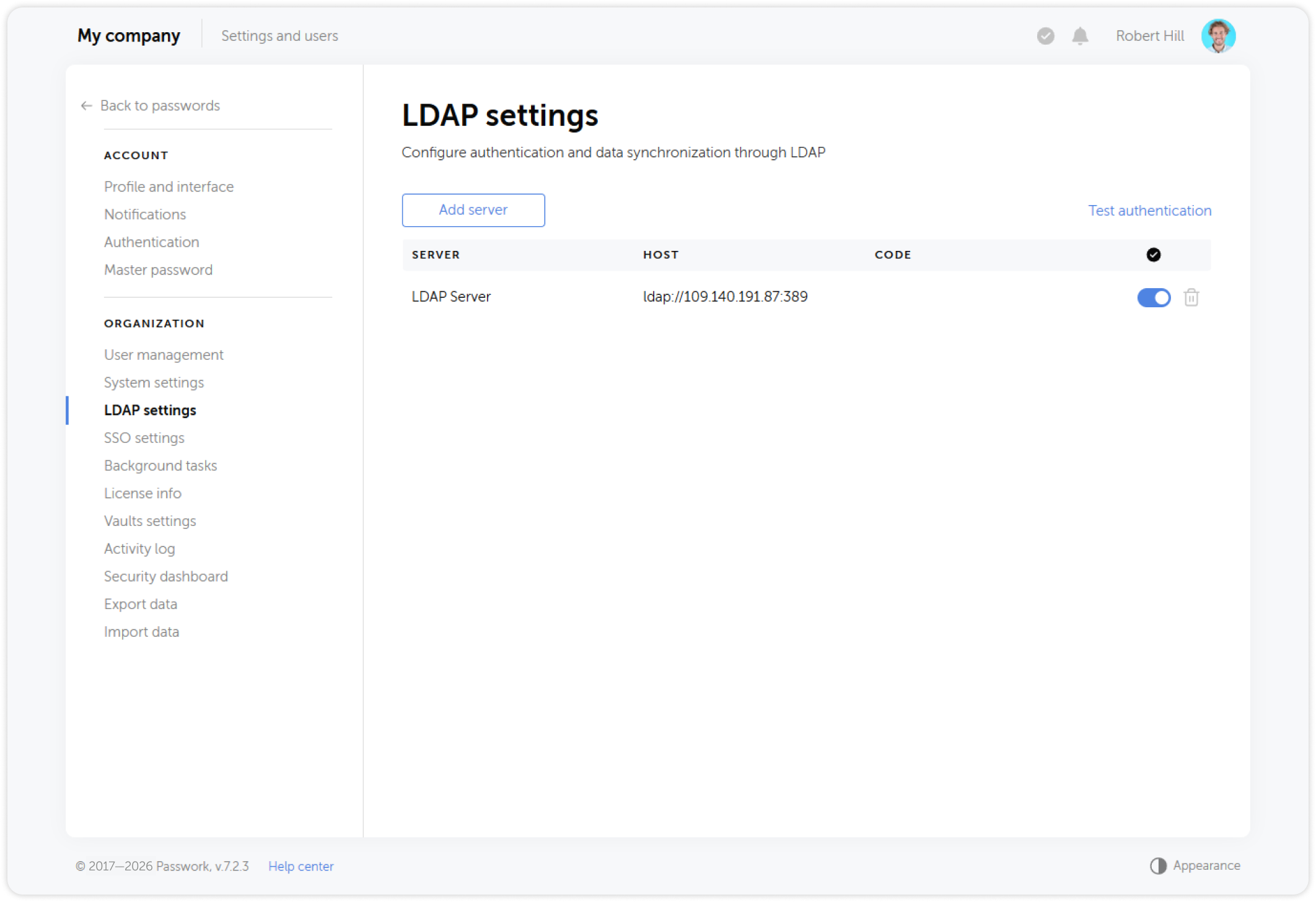
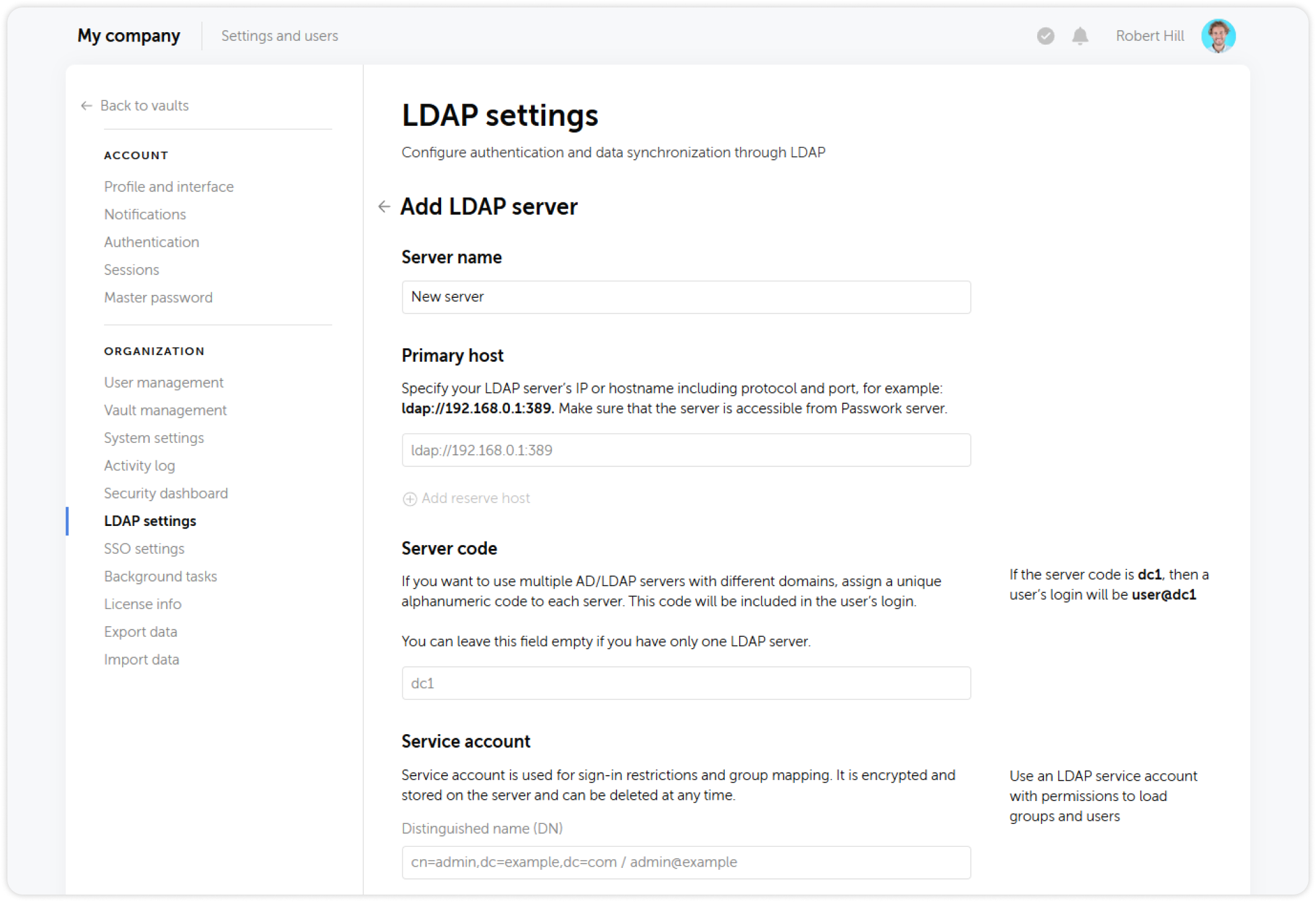
Required parameters:
| Parameter | Description |
|---|---|
| Server address | LDAP server hostname or IP (e.g., ldap://dc.corp.local or ldaps://dc.corp.local:636) |
| Port | 389 for LDAP, 636 for LDAPS |
| Bind DN | Service account distinguished name |
| Bind password | Service account password |
| Base DN | Root distinguished name for user and group search |
For LDAPS (encrypted LDAP over TLS), see LDAPS Configuration.
Configure user synchronization
After adding the server, configure which user attributes map to Passwork fields and define the DN filter to scope which users are imported.
See LDAP Users and DN Filters for detailed instructions.
Link LDAP security groups to Passwork groups
Map Active Directory security groups to Passwork groups so that group membership is maintained automatically.
See LDAP groups and LDAP synchronization.
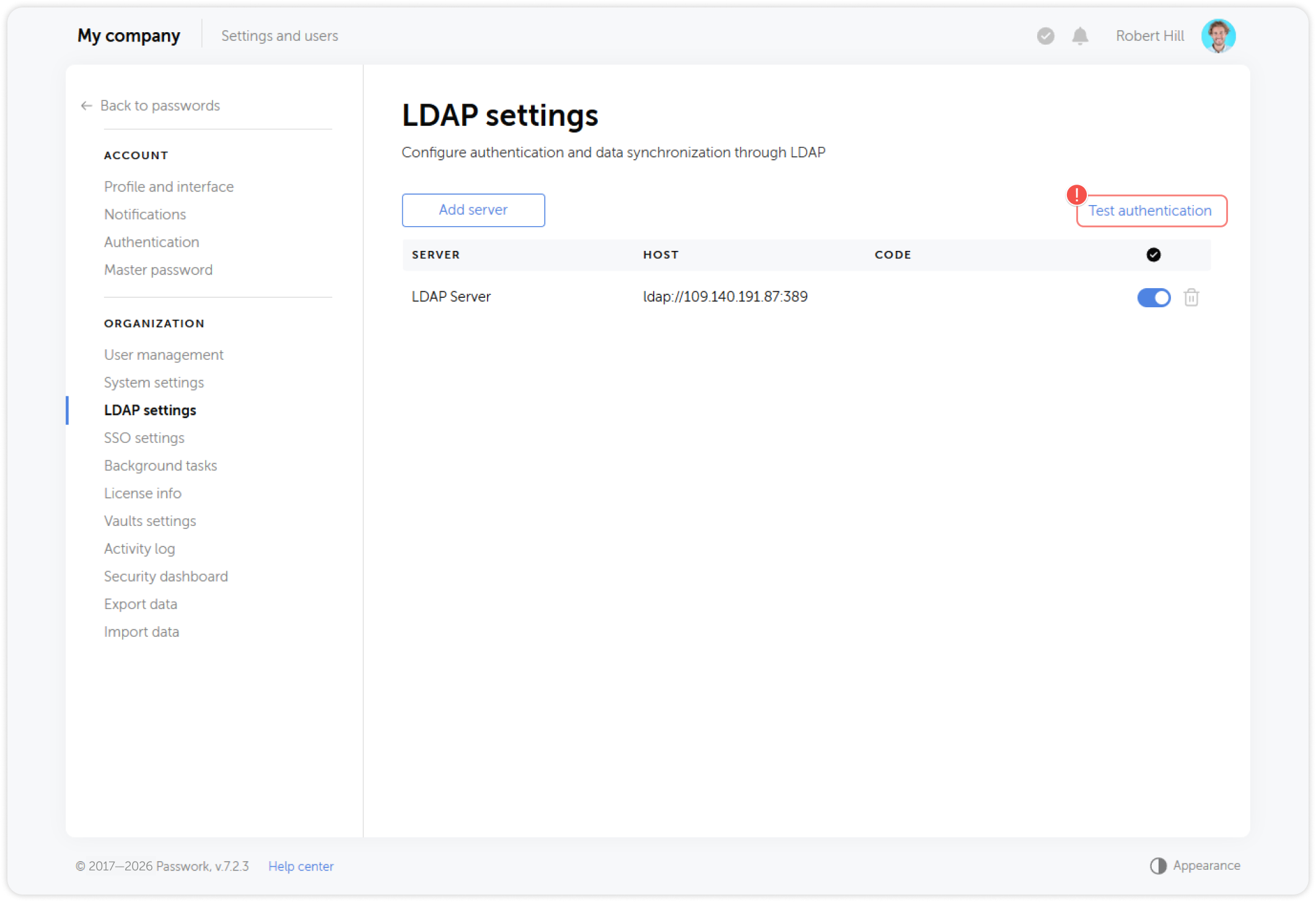
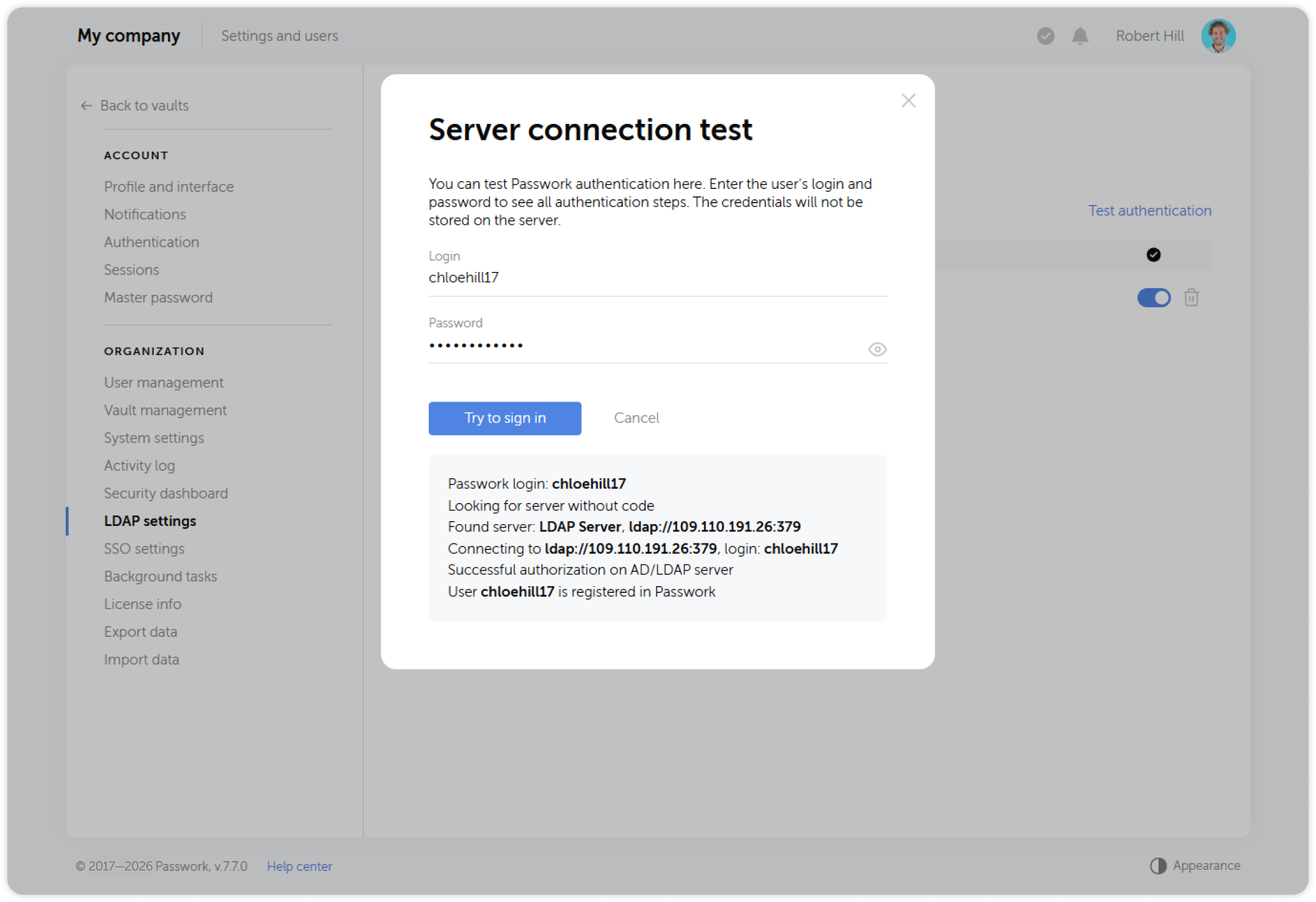
Test the LDAP connection
After configuration, run an authorization test to verify the connection and confirm that a test user can authenticate.
1.2 Configure SSO (Single Sign-On)
SSO integration allows users to sign in to Passwork using their existing identity provider session, with no separate Passwork password required.
Passwork supports SAML 2.0 and OIDC. Supported identity providers include:
- Microsoft Entra ID (Azure AD)
- AD FS
- Keycloak
- Any SAML 2.0 or OIDC-compliant IdP
SSO configuration steps (overview)
- Create a SAML or OIDC application in your identity provider for Passwork.
- In Passwork, go to Settings and users → SSO Settings.
- Enter the IdP metadata or endpoint URLs and the client credentials.
- Configure SSO as the priority login method if required.
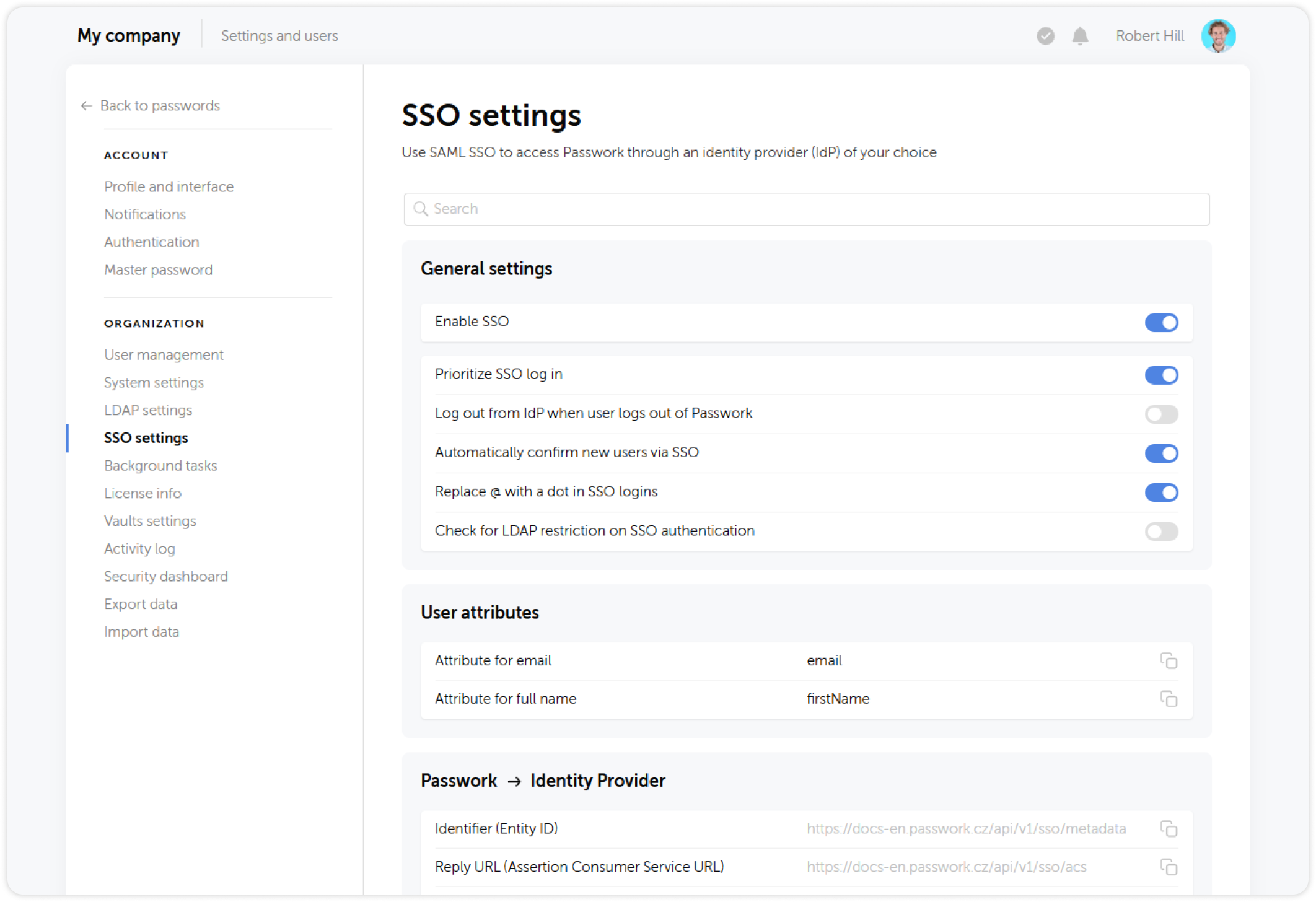
For provider-specific instructions:
For cloud-hosted instances, the SSO callback URL (Assertion Consumer Service URL) is provided by Passwork during tenant provisioning. For on-premise installations, it is based on your configured APP_URL.
1.3 Configure global authentication policies
Global authentication policies apply to all users on the Passwork instance. Configure them before inviting users.
Navigate to Settings and users → System settings → Authorization and security.
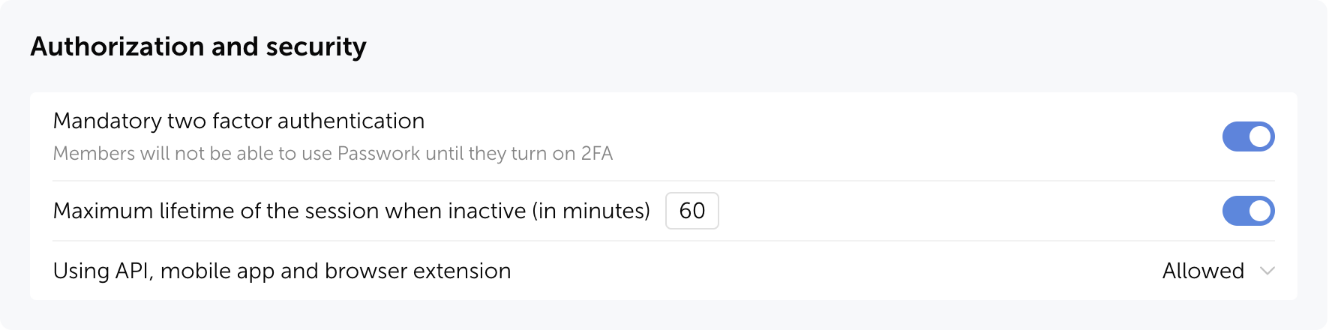
Mandatory two-factor authentication
Enable the Require 2FA toggle to make two-factor authentication mandatory for all users. When enforced, users are prompted to set up 2FA on their next login before they can access any vaults.
Account lockout policy
Configure the maximum number of failed authentication attempts before an account is locked. A locked account requires administrator intervention to unlock.
Recommended setting: 5 failed attempts, lock duration 15 minutes or until manual unlock.
Session management
Set the session timeout (auto sign-out after inactivity) and the maximum session lifetime. For organizations handling sensitive data, a session timeout of 30–60 minutes is recommended.
Master password complexity policy
If client-side encryption is enabled, configure the minimum complexity requirements for the master password: minimum length, required character classes.
See Client-side encryption for details on enabling and managing client-side encryption.
1.4 Configure email notifications (SMTP)
Email is required for invite delivery, password reset notifications, and security alerts. Configure SMTP before inviting any users — without it, invite emails will not be delivered.
Navigate to Settings → System settings → Email service settings.
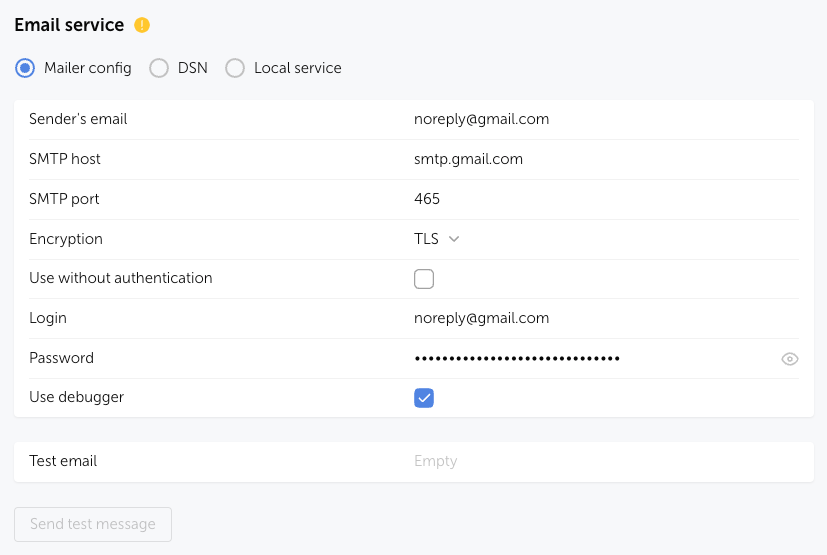
Configuration options
Passwork supports two email configuration methods:
Manual configuration — specify SMTP server host, port, encryption (TLS/STARTTLS), username, and password directly. Use this for internal SMTP relays (Exchange, Postfix) or cloud SMTP services (SendGrid, Amazon SES, Mailgun).
DSN (Data Source Name) — configure via a connection string. Suitable for automated deployments.
For detailed configuration instructions by platform:
- Manual SMTP configuration
- DSN configuration
- Postfix relay (Linux)
- Postfix relay (Docker)
- Windows SMTP relay
Test email delivery
After saving the configuration, send a test email from Settings → System settings → Email service settings to verify that messages are delivered and are not blocked by spam filters.
Check the sender domain's SPF record and ensure the SMTP relay is authorized to send on behalf of your APP_SENDER_EMAIL address. invite emails landing in spam are one of the most common reasons for low user activation rates.
Phase 1 completion criteria
- LDAP or SSO authentication tested successfully with at least one user
- Mandatory 2FA policy configured (enabled or explicitly deferred)
- Account lockout policy configured
- Session timeout configured
- SMTP configured and test email delivered successfully
- A test user can sign in via corporate credentials and access Passwork
Proceed to Phase 2: Structure and roles.