

Phase 3: User rollout
Estimated time: ~2 hours for the first 100 users; scale linearly
Responsible: Project Lead, LDAP Admin
Outcome: All target users have active Passwork accounts with access to the appropriate vaults.
3.1 Rollout strategy
Choose the approach that matches your deployment model. Most organizations use LDAP group synchronization as the primary method, with manual invitations for users or service accounts that are not in Active Directory.
| Method | Best for |
|---|---|
| LDAP group synchronization | Organizations with Active Directory; large user counts; automated ongoing management |
| Bulk invite | Smaller organizations; users without AD accounts; phased rollout by department |
| Individual invite | New hires; contractors; exceptions |
A phased rollout reduces help desk load. Recommended sequence:
- Pilot group (5–20 users, IT + one department): 1–2 weeks
- Department wave 1 (largest or most critical department): 1 week
- Full organization: remaining departments in waves of ~50–100 users/week
3.2 Synchronize users via LDAP groups
If Active Directory is configured (Phase 1), use LDAP group synchronization to add users automatically.
Link LDAP groups to Passwork groups
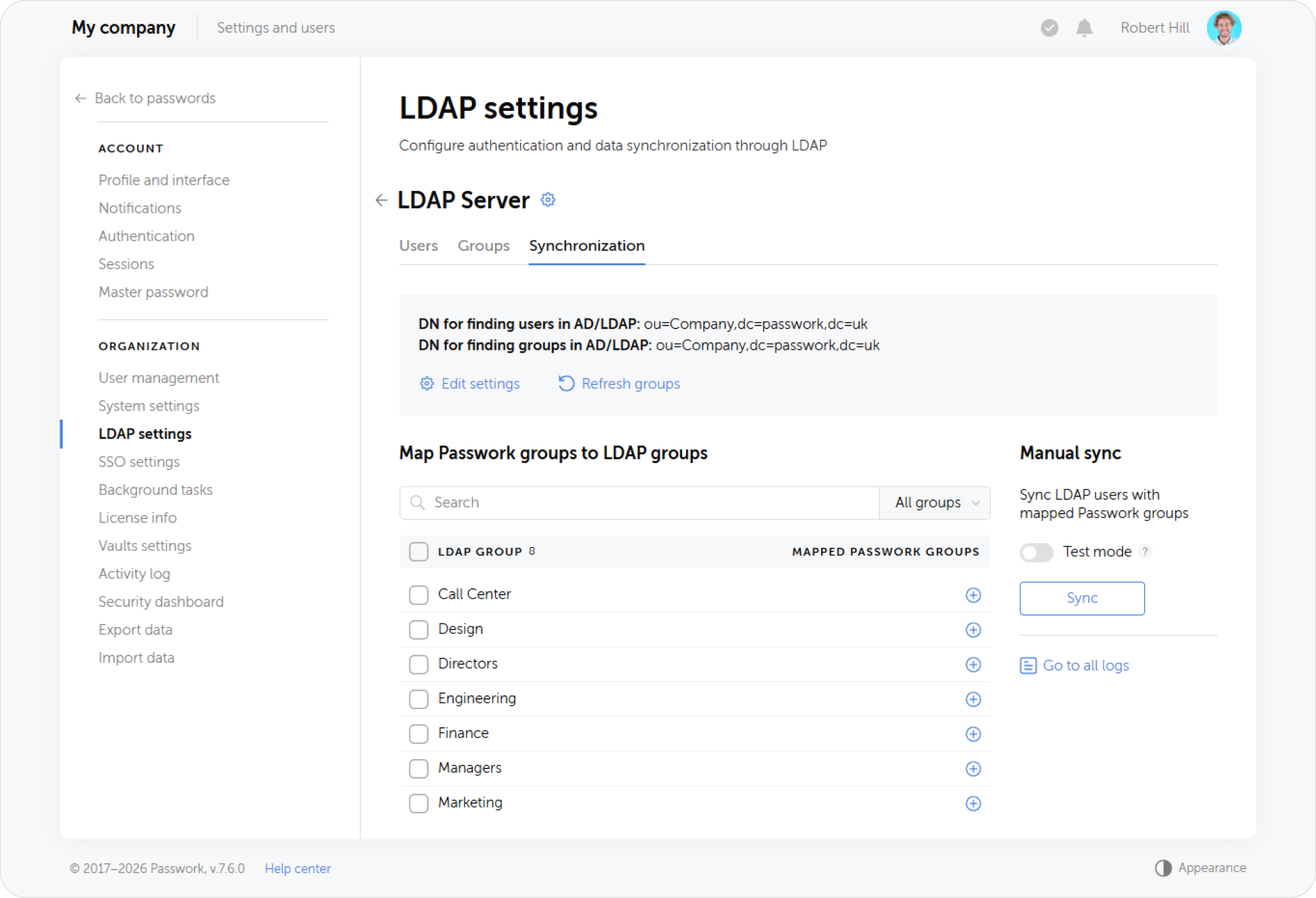
- In Passwork, go to Settings and users → LDAP settings.
- Open the configured LDAP server and navigate to the Synchronization tab.
- For each LDAP security group, link the corresponding Passwork group.
Configure and run synchronization
Set the synchronization schedule (automatic background task) or trigger a manual sync.
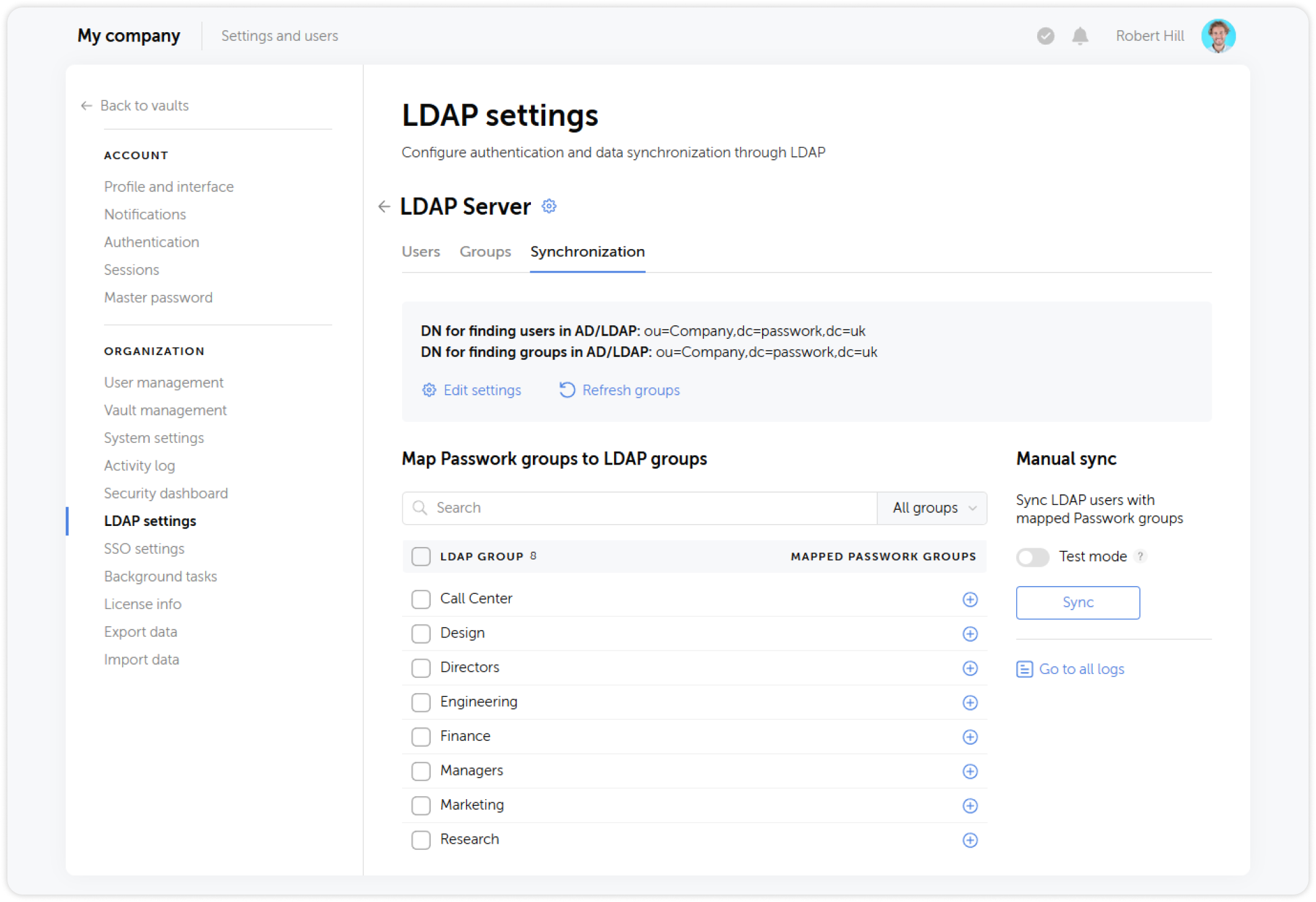
After synchronization completes, users in the linked LDAP groups appear in Passwork with the appropriate group memberships, and vault access is inherited based on the group-vault assignments configured in Phase 2.
For full LDAP synchronization documentation, see LDAP synchronization.
3.3 Add users via bulk invite
For users not managed through LDAP, or for organizations without Active Directory:
Invite from the administrator dashboard
- Go to Settings and users → Invites.
- Click *Create invite.
- Choose invite type (link or invitation email) and pre-assign a group.
- Click Create.
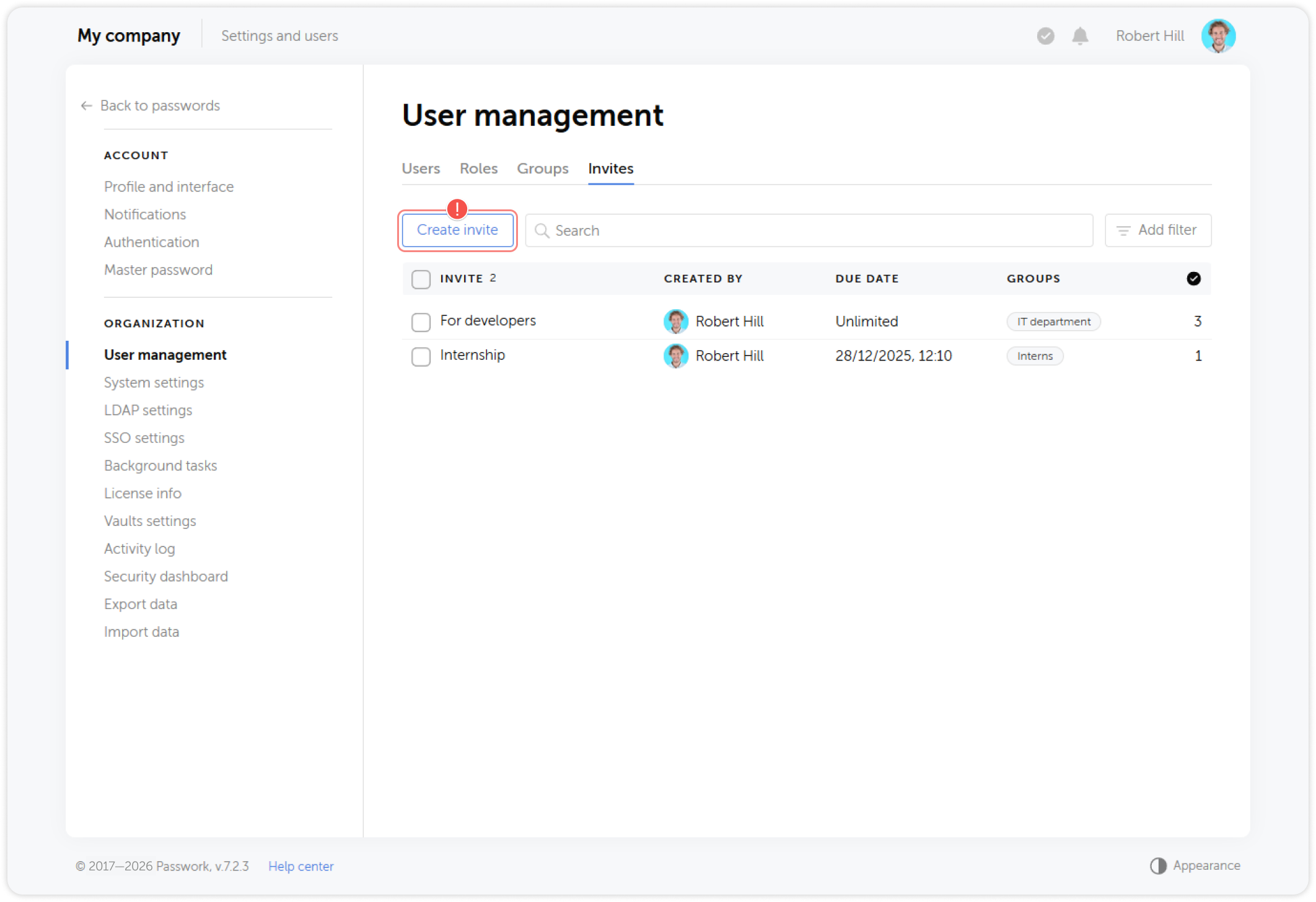
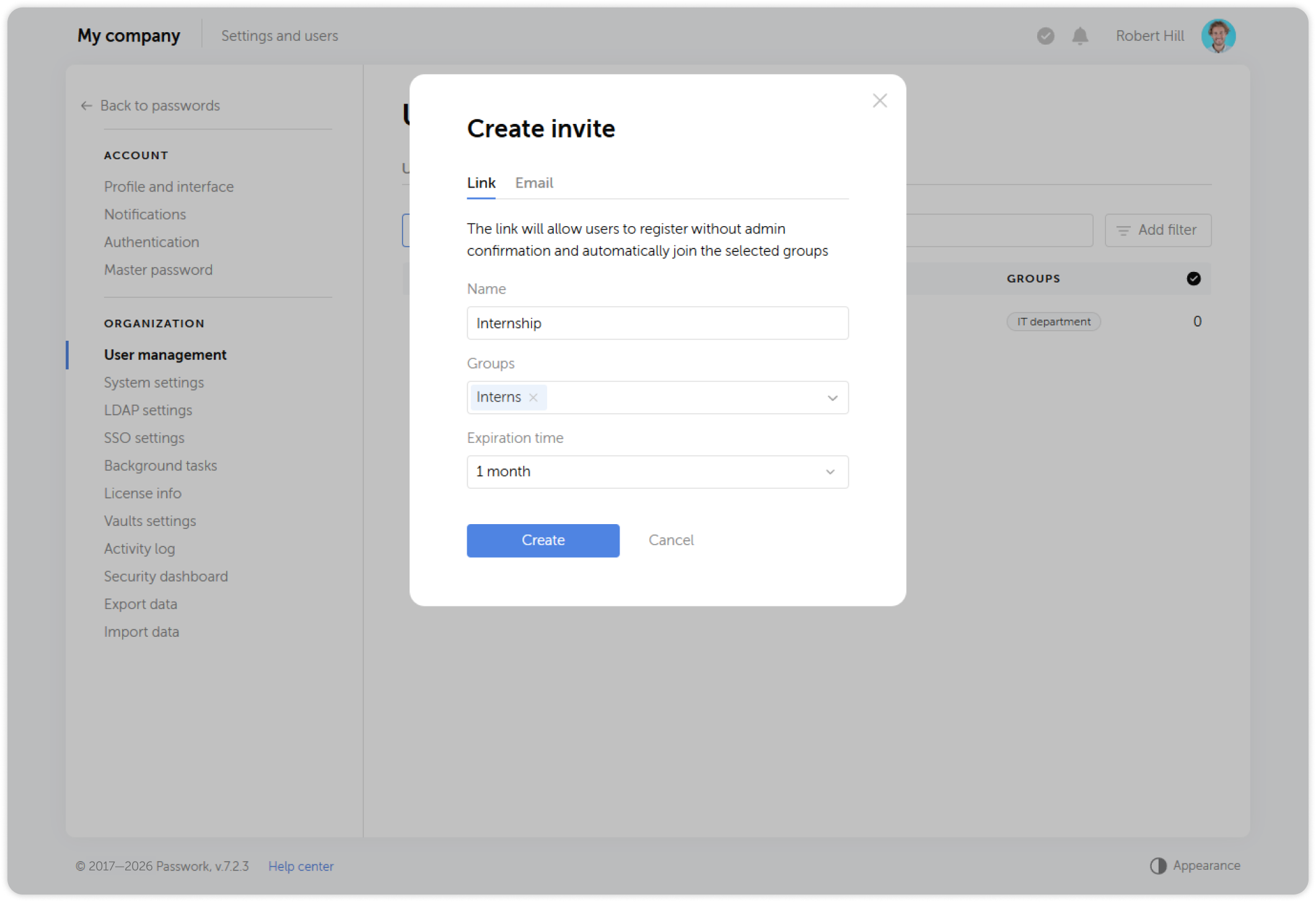
Each invited user receives a link to the registration page an email with an activation link, depending on the invite type you chose. Monitor which users have accepted their invitations and which have not. Follow up with users who have not activated after 2–3 days.
3.4 Auto-assign users to groups and vaults
After users are created (via LDAP sync or invite), assign them to the appropriate Passwork groups to grant vault access automatically.
If LDAP group synchronization is configured, group assignment is handled automatically when the sync runs. No manual steps are needed.
For manually created users:
- Go to Settings and users → Users.
- Open the user's profile.
- In the Groups section, click Add to group and select the relevant groups.
Alternatively, manage group membership from the group side:
- Go to Settings and users → Groups.
- Open the target group.
- Click Add users and search for the users to add.
Vault access follows group membership. When a user is added to a group that already has vault access, they inherit the group's vault permissions without any additional configuration.
3.5 Verify rollout completion
Before declaring Phase 3 complete, verify the following for a sample of users across departments:
- User can sign in with their assigned authentication method (SSO, LDAP, or local)
- User sees the correct vaults on their side
- User can open and copy passwords from their department vault
- User receives invite email within 5 minutes of being invited
- Users in LDAP groups appear in Passwork after synchronization
Phase 3 completion criteria
- All target users have active accounts or have been invited
- LDAP group sync tested and verified (if applicable)
- Users assigned to correct groups and vaults
- Pending invite follow-up process defined (who monitors, when to resend)
- Sample of users verified to have correct access
Proceed to Phase 4: Communication and activation.