

Access management
Invite users to a vault
To give a team member access to your department vault:
- Open the vault in the navigation pane.
- Click the Vault control panel — the user/group icon displayed under the vault name.
- In the Users tab, click Add user.
- Find the user by name or login and choose their access level.
- Click Save.
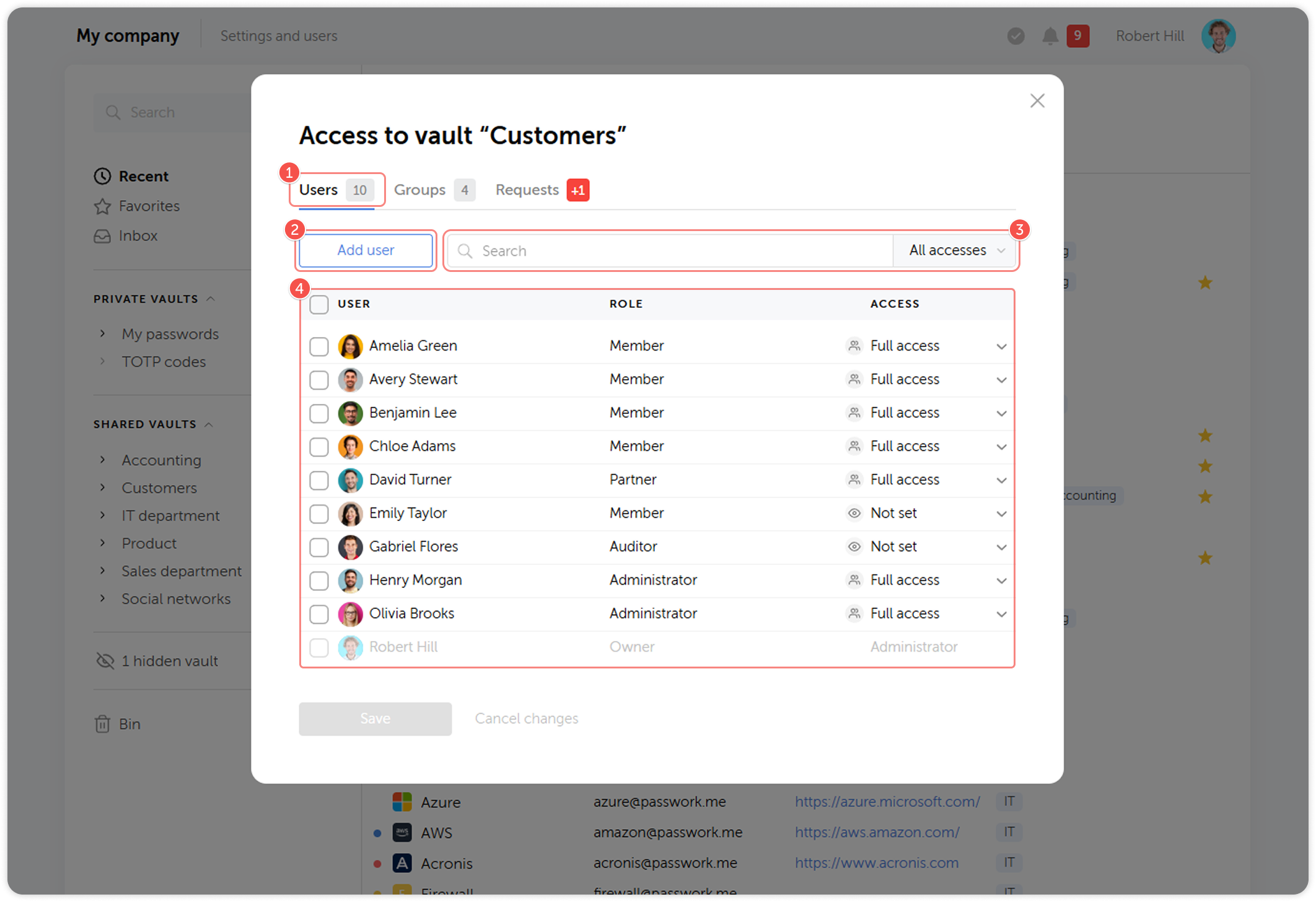
If your organization uses client-side encryption, adding a new user generates an access request that must be confirmed in the Requests tab of the vault access panel before the user can see vault contents.
Access levels
Passwork uses five access levels for vaults and folders. Assign the minimum level required for each user's role.
| Access Level | View passwords | Copy to clipboard | Edit passwords | Delete passwords | Manage access |
|---|---|---|---|---|---|
| Read Only | Yes | Yes | No | No | No |
| Read and Edit | Yes | Yes | Yes | No | No |
| Full Access | Yes | Yes | Yes | Yes | No |
| Administrator | Yes | Yes | Yes | Yes | Yes |
| Forbidden | No | No | No | No | No |
Forbidden explicitly denies access to a vault or folder, overriding group-level permissions. Use it to restrict a specific user from a sub-folder within a vault they otherwise have access to.
Grant access at folder level
Access can be configured independently for each folder within a vault. A user can have Read only access to the vault root while having Full access to a specific subfolder.
To configure folder-level access:
- Open the folder in the content pane.
- Click on the user count at the top to open the Folder access dashboard
- Add users or groups and set their access level for this folder.
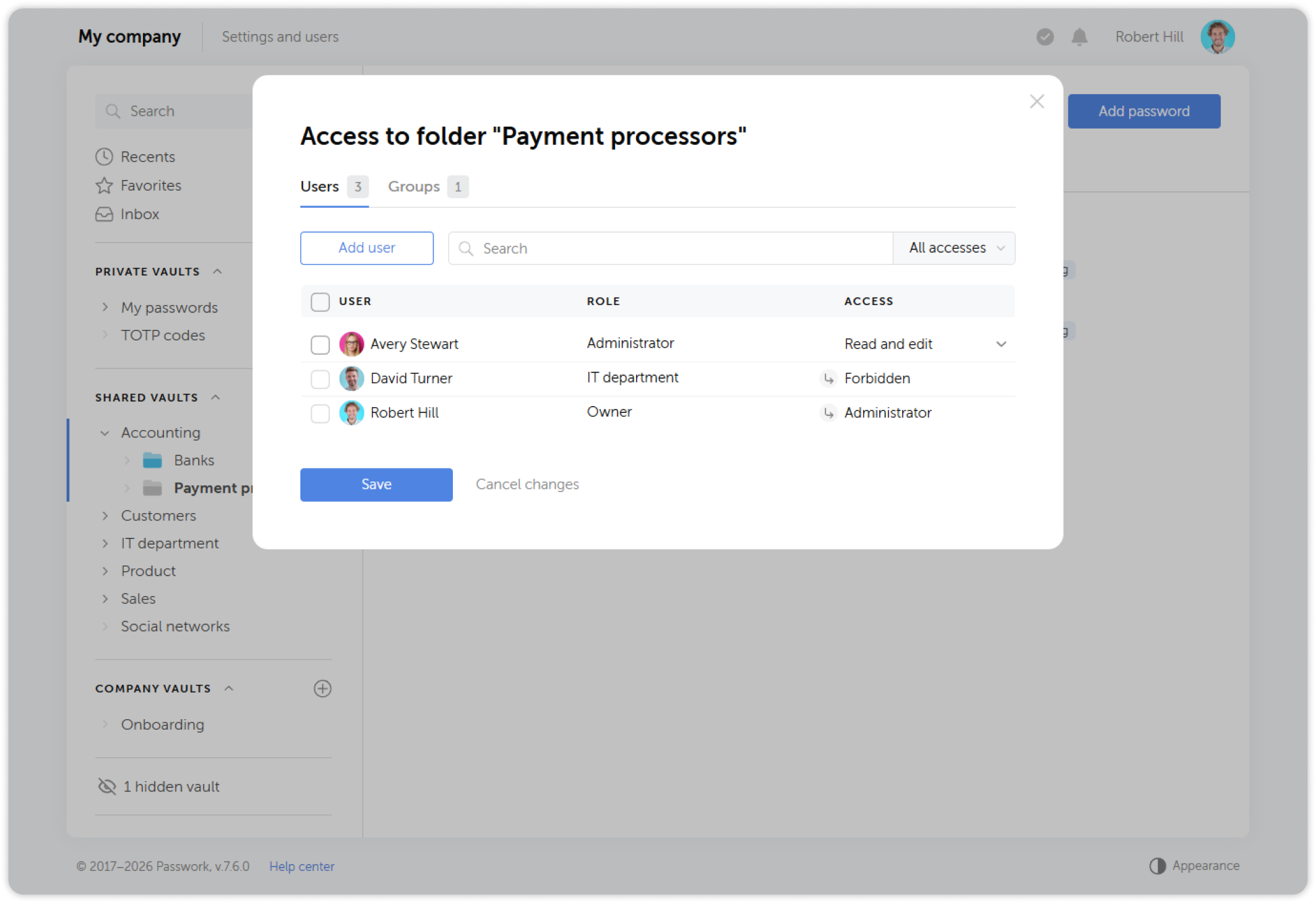
For full documentation, see Folder access rights.
Grant access via groups
If users are organized into LDAP groups or Passwork groups, you can grant vault access to an entire group at once. This is the recommended approach for large teams.
- Open the vault access dashboard and go to the Groups tab.
- Click Add group, select the group, and assign its access level.
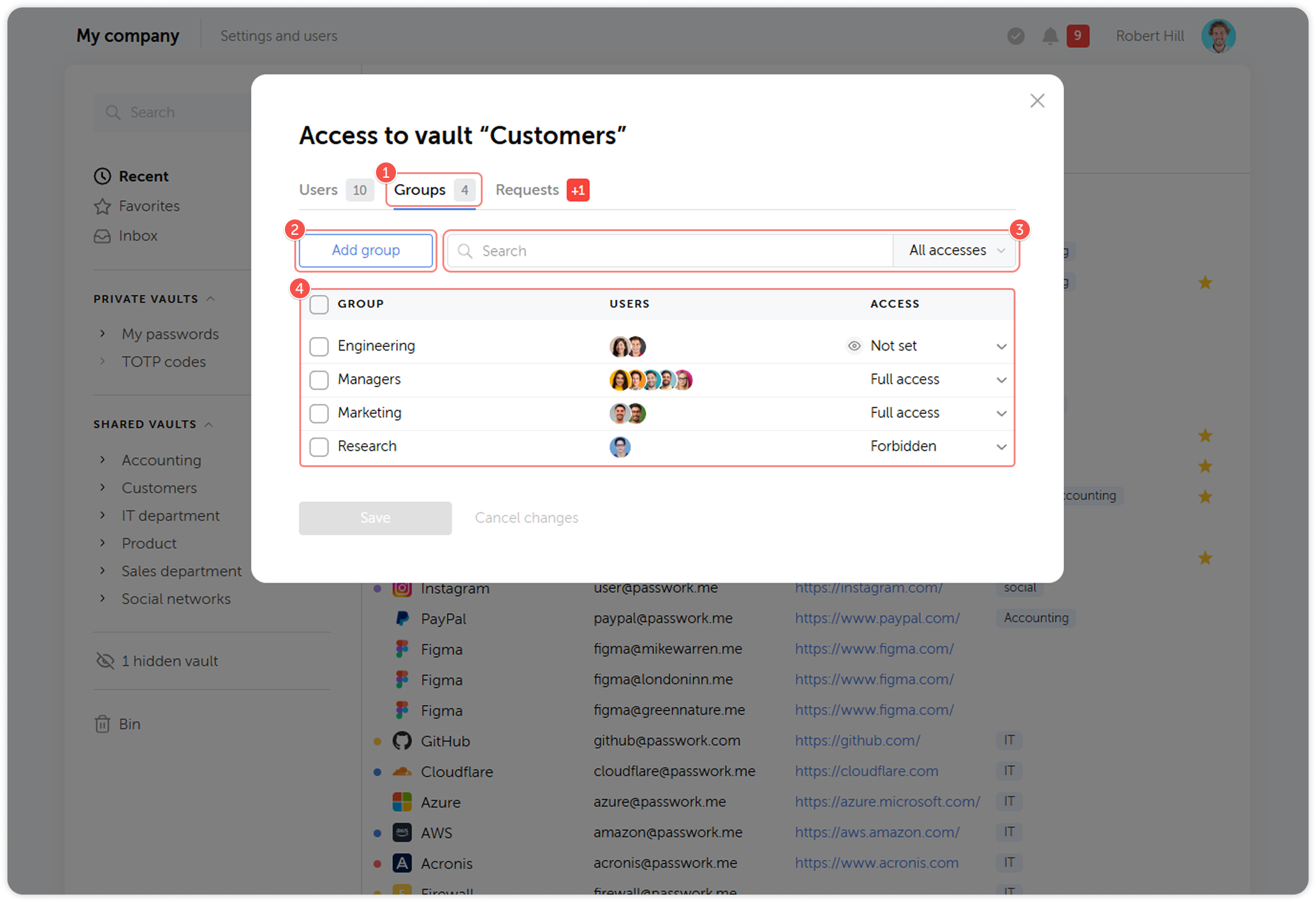
When a new employee joins a group that already has vault access, they automatically inherit the group's permissions without needing individual configuration.
Review access at a glance
To see who has access to a vault, hover over the user/group icon to the right of the vault name in the navigation pane. This shows a quick summary of users and groups with their access levels.
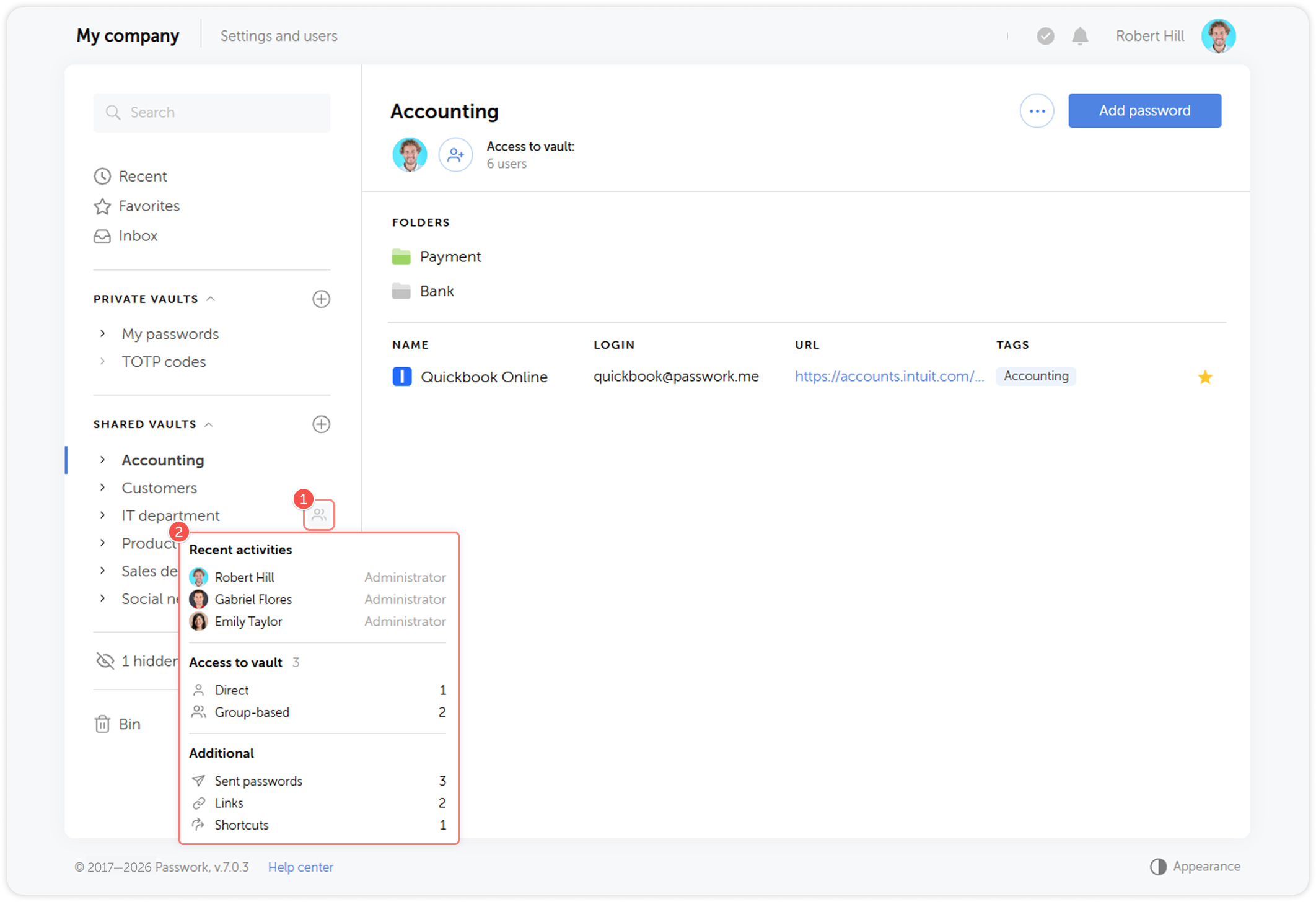
Next step
Proceed to Password sharing to learn how to share individual credentials securely.