

Password sharing
Passwork provides three ways to share a password: send it to a Passwork user, create a shareable link for external recipients, or create a shortcut in another vault or folder.
Send a password to a user or group
Use this method to share a credential with a colleague who already has a Passwork account.
- Open the password card and click the Share icon.
- Select Send to users.

- Find users by name and choose their access level.

- Click Send.
The recipient finds the shared password in their Inbox.
Users with Read and Edit access can modify the password, and changes apply to the original record. Grant Read Only if the recipient should not be able to edit the credential.
Create a shareable link
Use a link to share a credential with someone who does not have a Passwork account, such as an external contractor or a client.
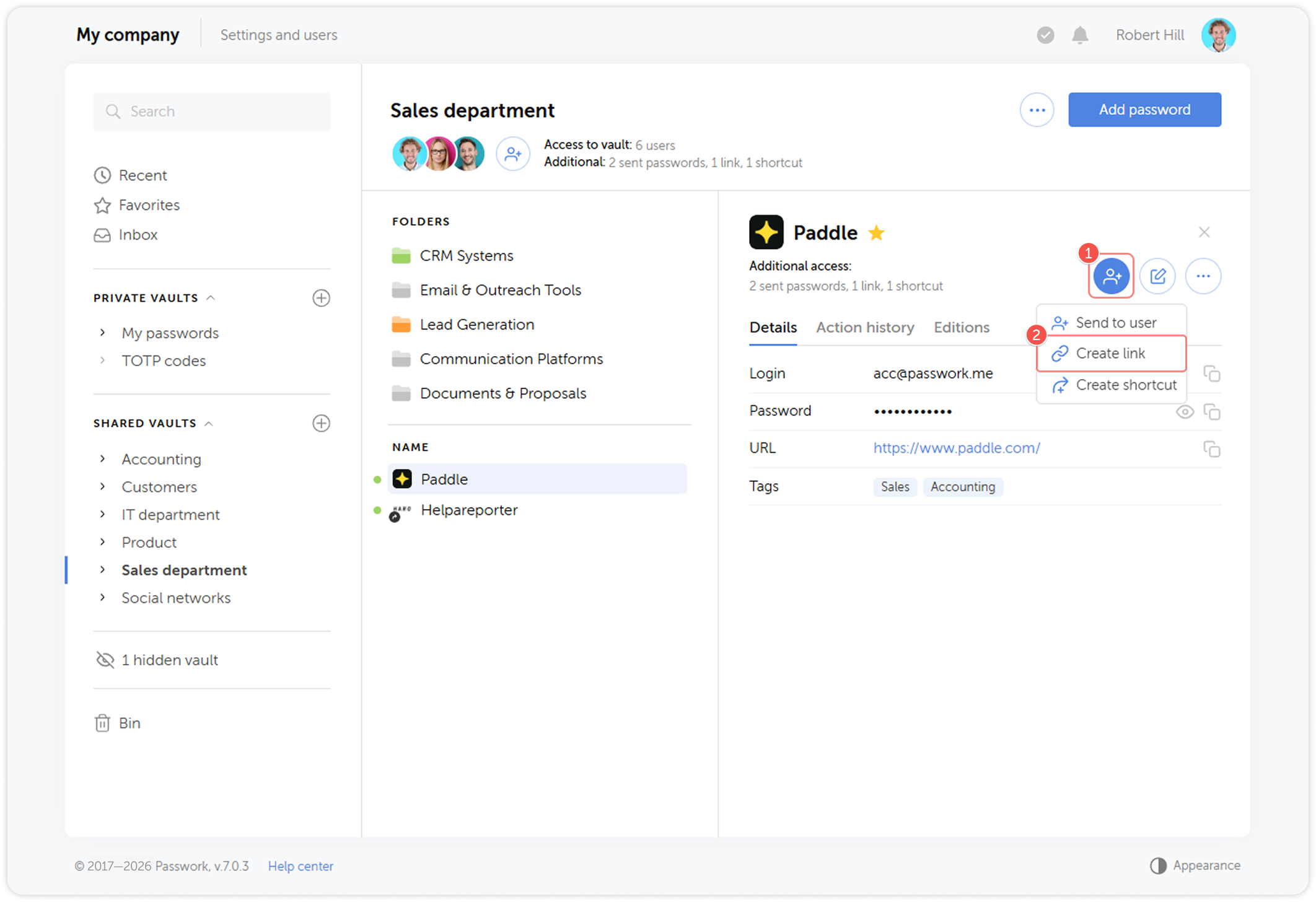
- Open the password card and click the Share icon.
- Select Create link.
-
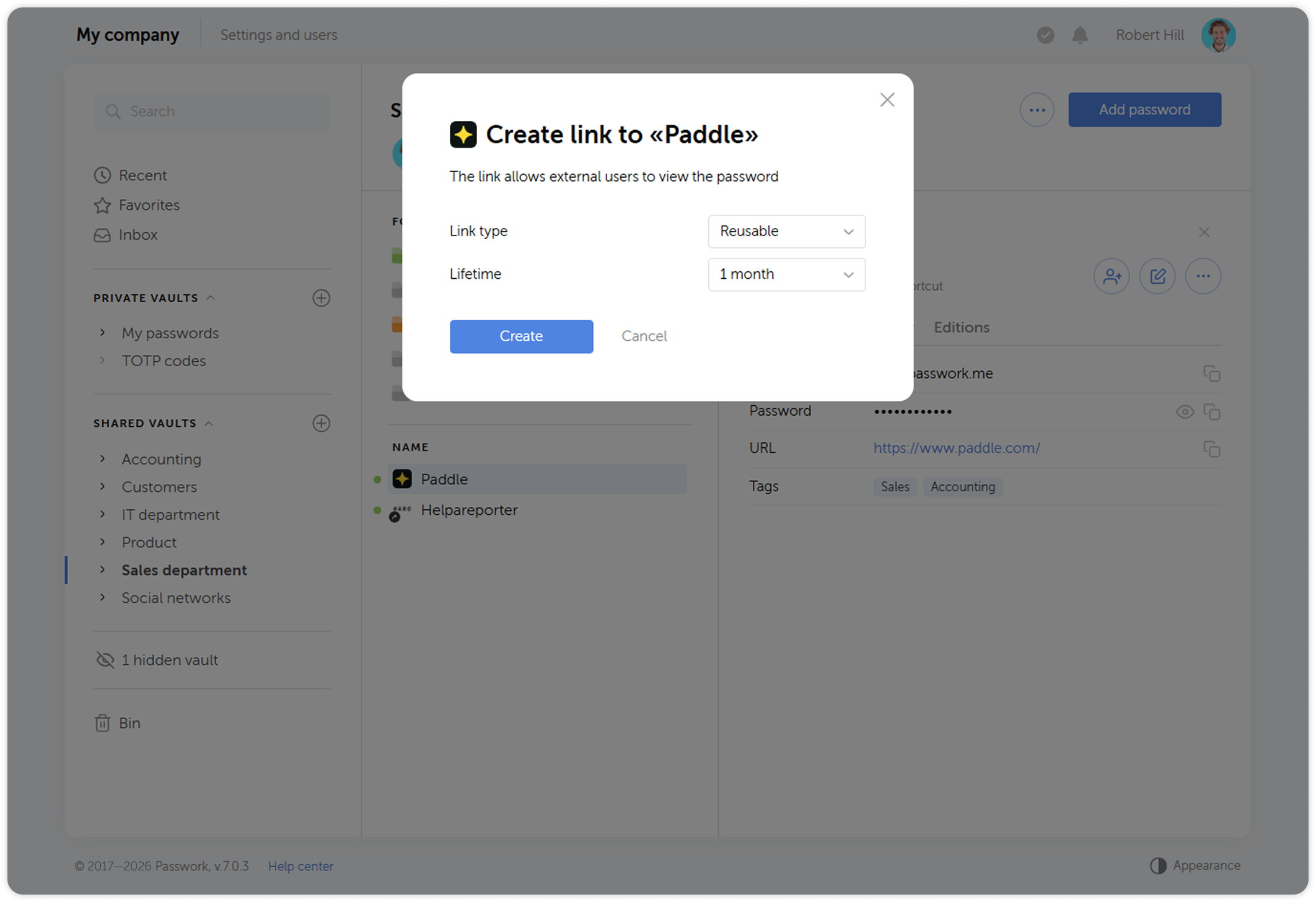
Choose the link type:
- Reusable — the link can be opened multiple times until it expires
- Single-use — the link expires three minutes after the recipient opens it
-
Set the expiration period: one hour, one week, one month, or unlimited.
-
Click Create and copy the generated link.
Shareable links do not require authentication. Anyone with the link can view the credential. Use single-use links or short expiration periods for sensitive credentials. Revoke the link immediately after the recipient has used it.
Create a shortcut
A shortcut places a reference to a password in another vault or folder. Users in the target location can view and use the shortcut based on their access rights there, without the original password being copied or moved.
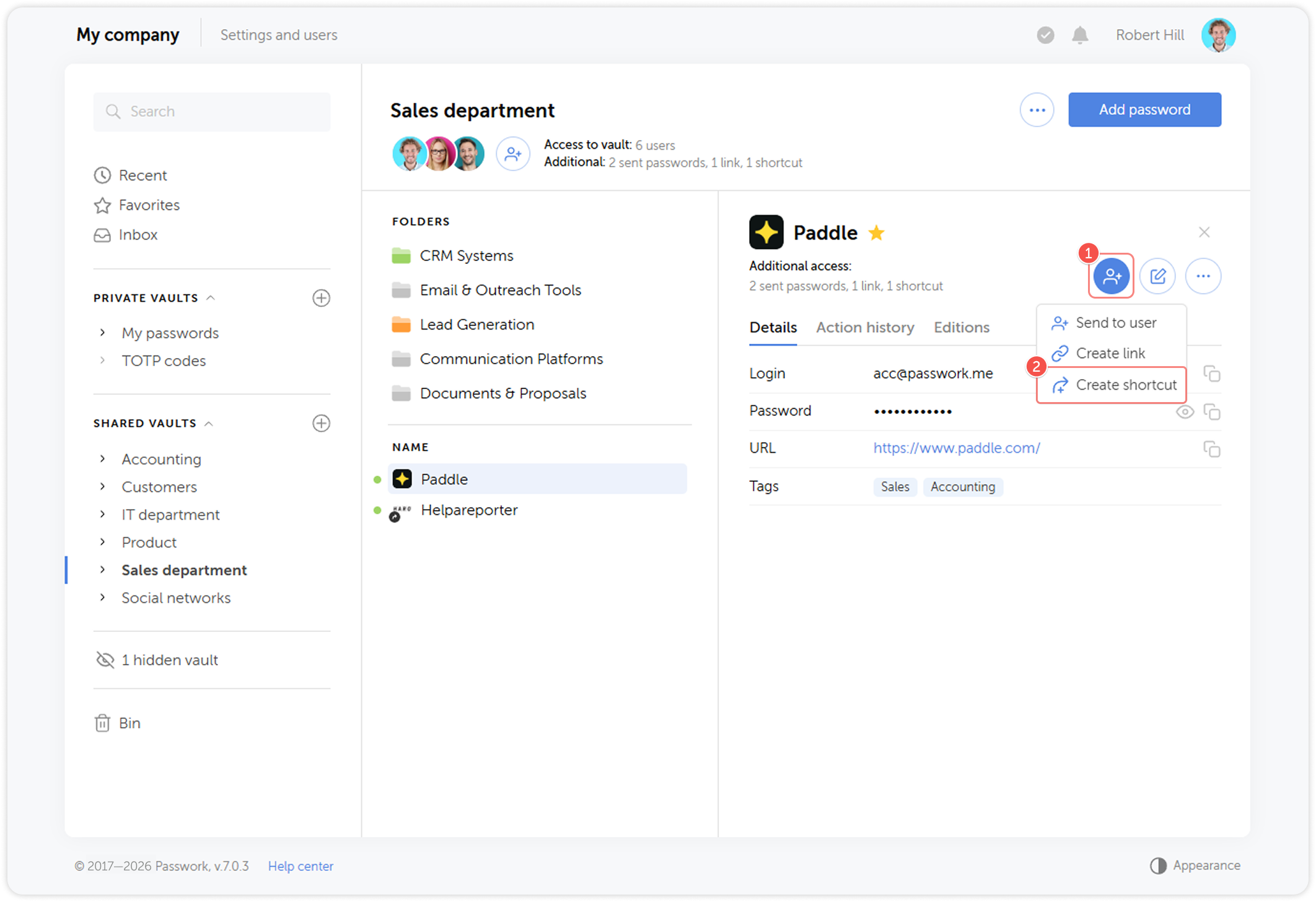
- Open the password card and click the Share icon.
- Select Create shortcut.
- Choose the destination vault and folder.
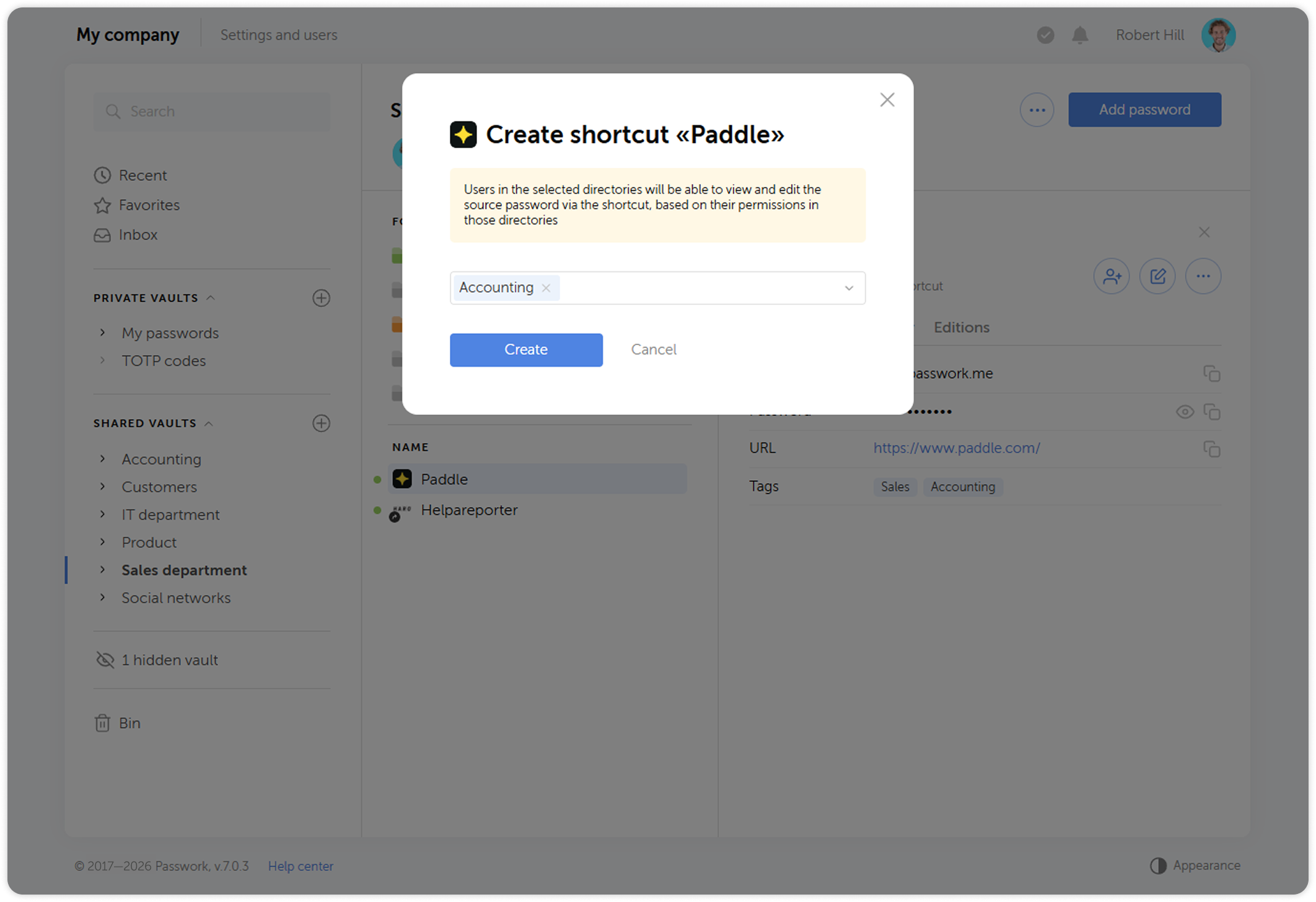
Use shortcuts to make a credential available in multiple team contexts without duplicating records.
Contractor access
For contractors who need access to Passwork for a defined project period:
- Create a dedicated folder in your vault (e.g.,
External Contractors — Agency Name). - Add the contractor's Passwork account to that folder with the appropriate access level.
- Place only the credentials the contractor needs in that folder.
- When the engagement ends, remove the contractor's access from the folder and rotate the credentials they had access to.
If the contractor does not have a Passwork account, use shareable links with short expiration windows for individual credentials.
For full sharing documentation, see Share password.
Next step
Proceed to Audit and offboarding to learn how to review access history and handle employee departures.