

Access shared vaults
Corporate vaults contain credentials shared across your organization or department. You can view and use passwords in any vault or folder you have been granted access to.
Navigate to a shared vault
Shared vaults appear in the Navigation pane on the left side of the main window, beneath your private vaults. Your administrator or department manager controls which vaults are visible to you.
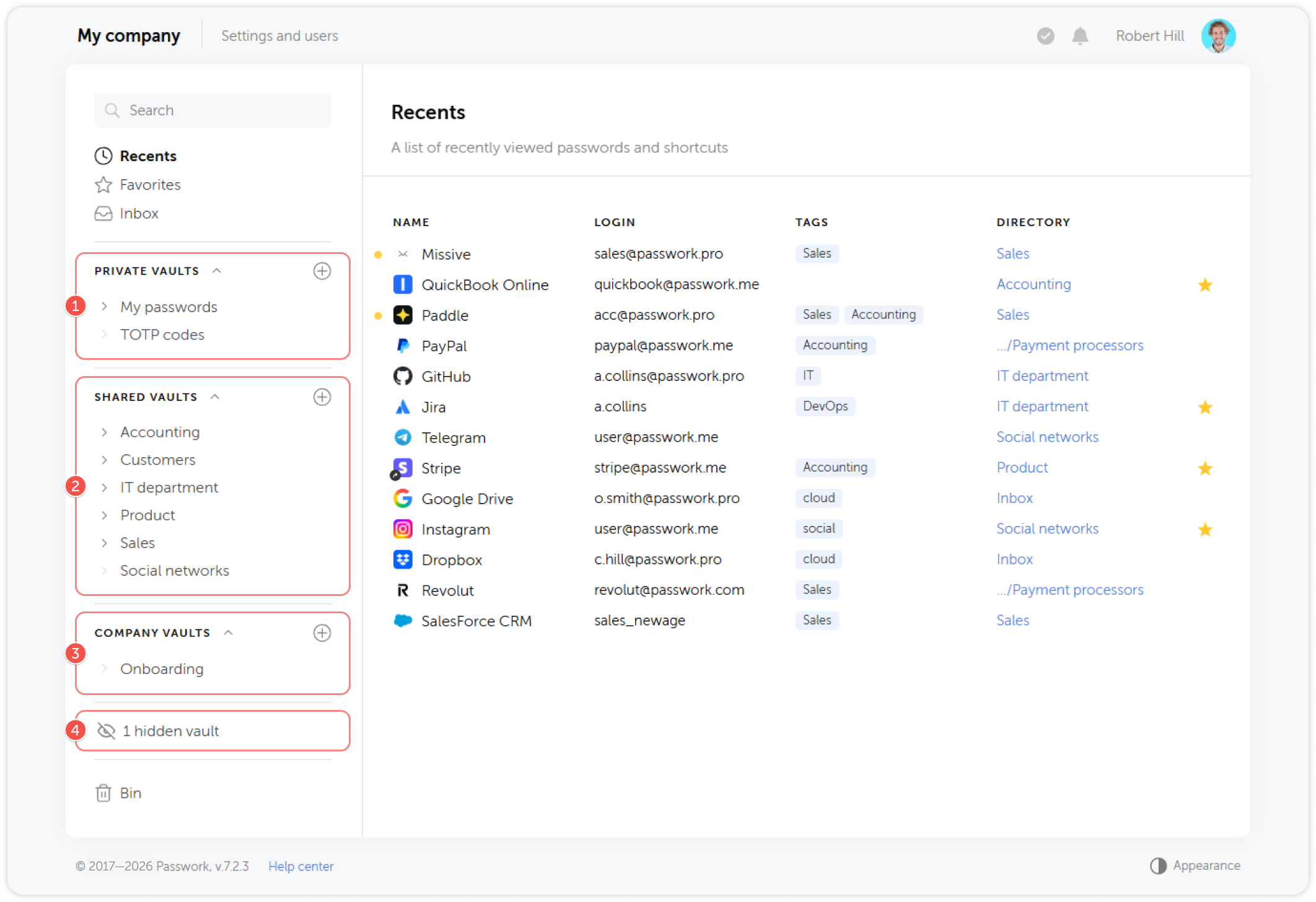
If you cannot see a vault you expect to have access to, contact your department manager. They can grant access to specific vaults or folders.
Find a password
Search
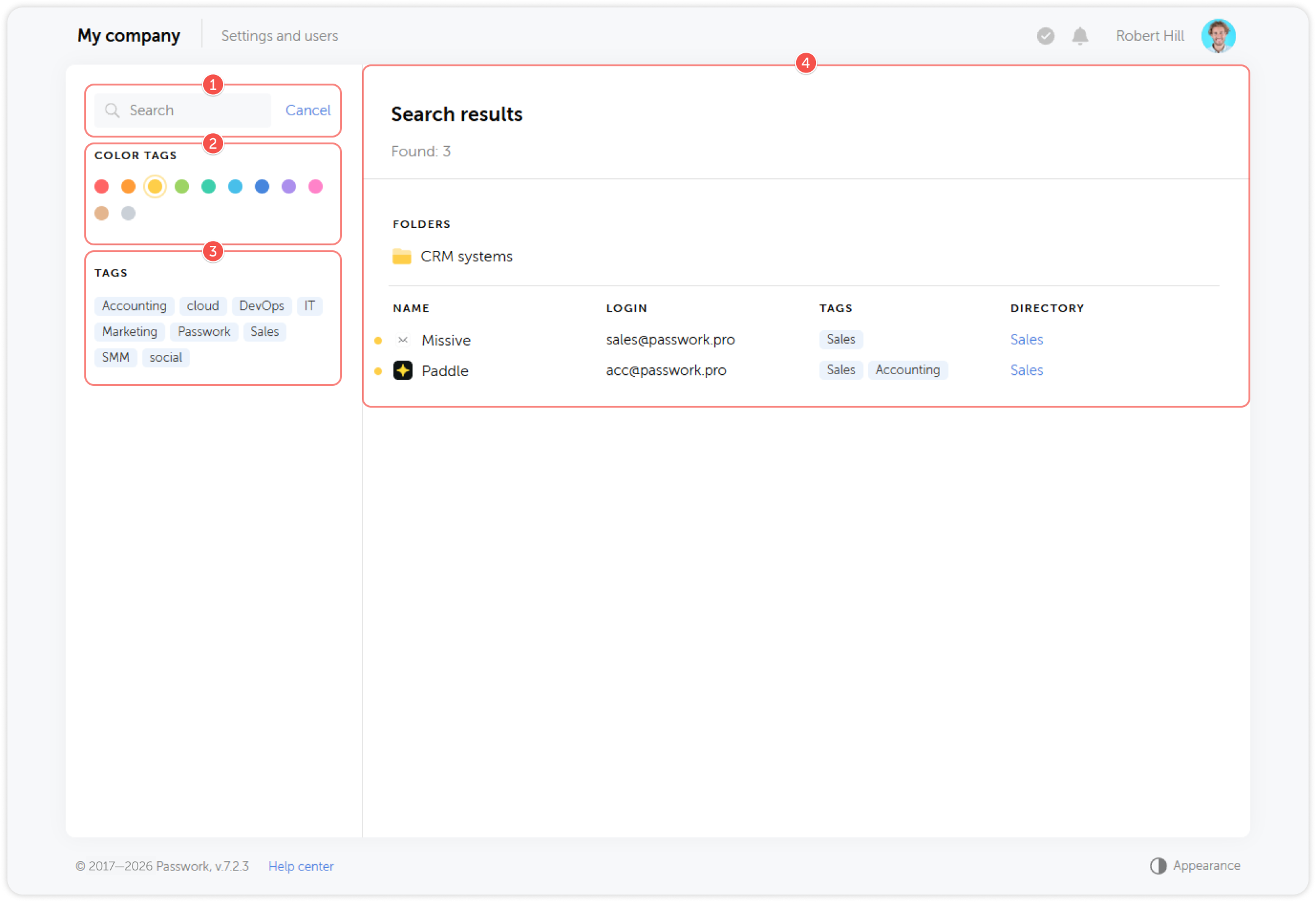
Use the Search field in the navigation pane to find passwords by name, login, URL, or description. Search works across all vaults and folders you have access to.
Color tags
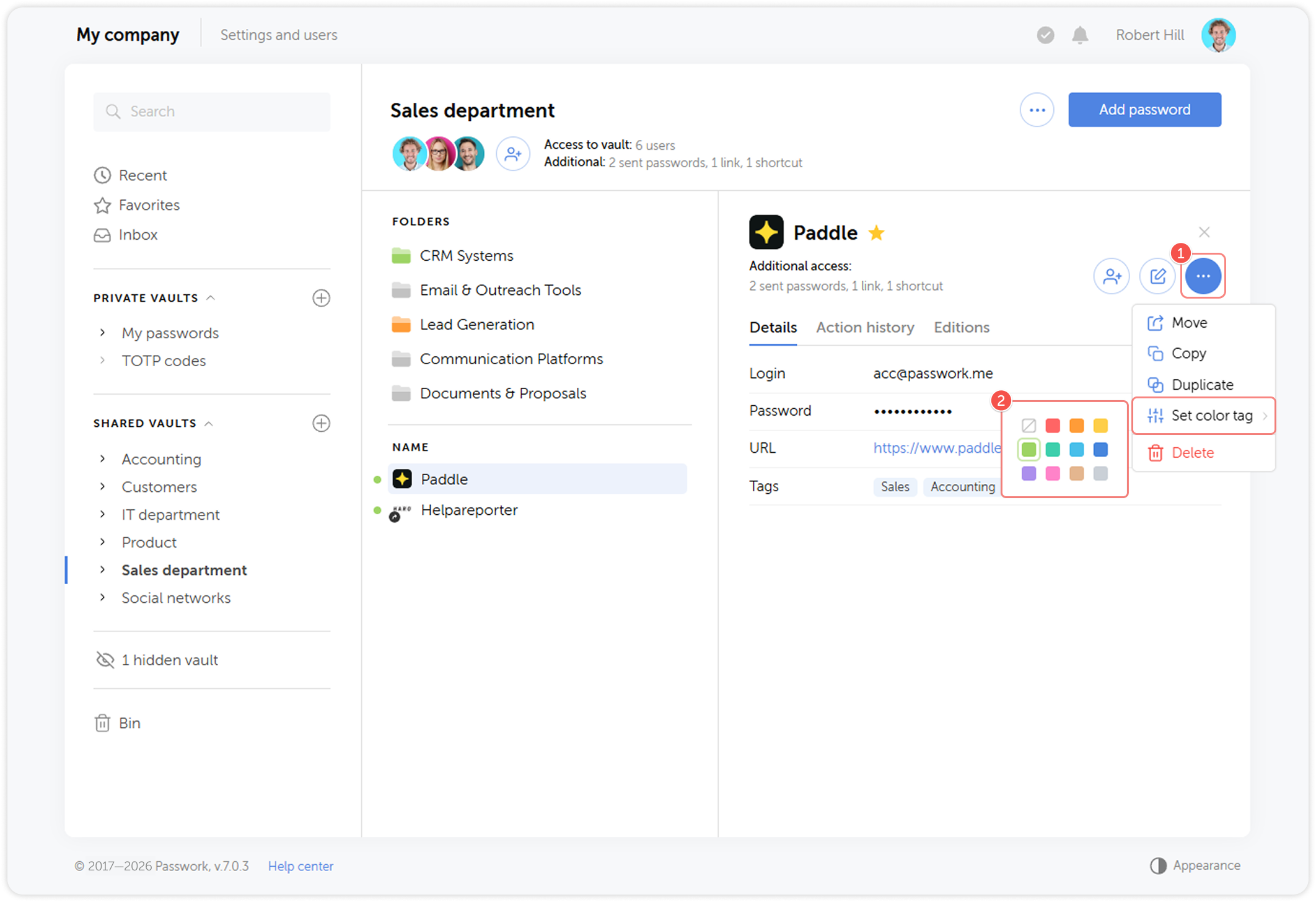
Passwords can be tagged with color labels for quick visual identification. To filter by color, click the color indicator in the navigation pane filters.
Browse folders
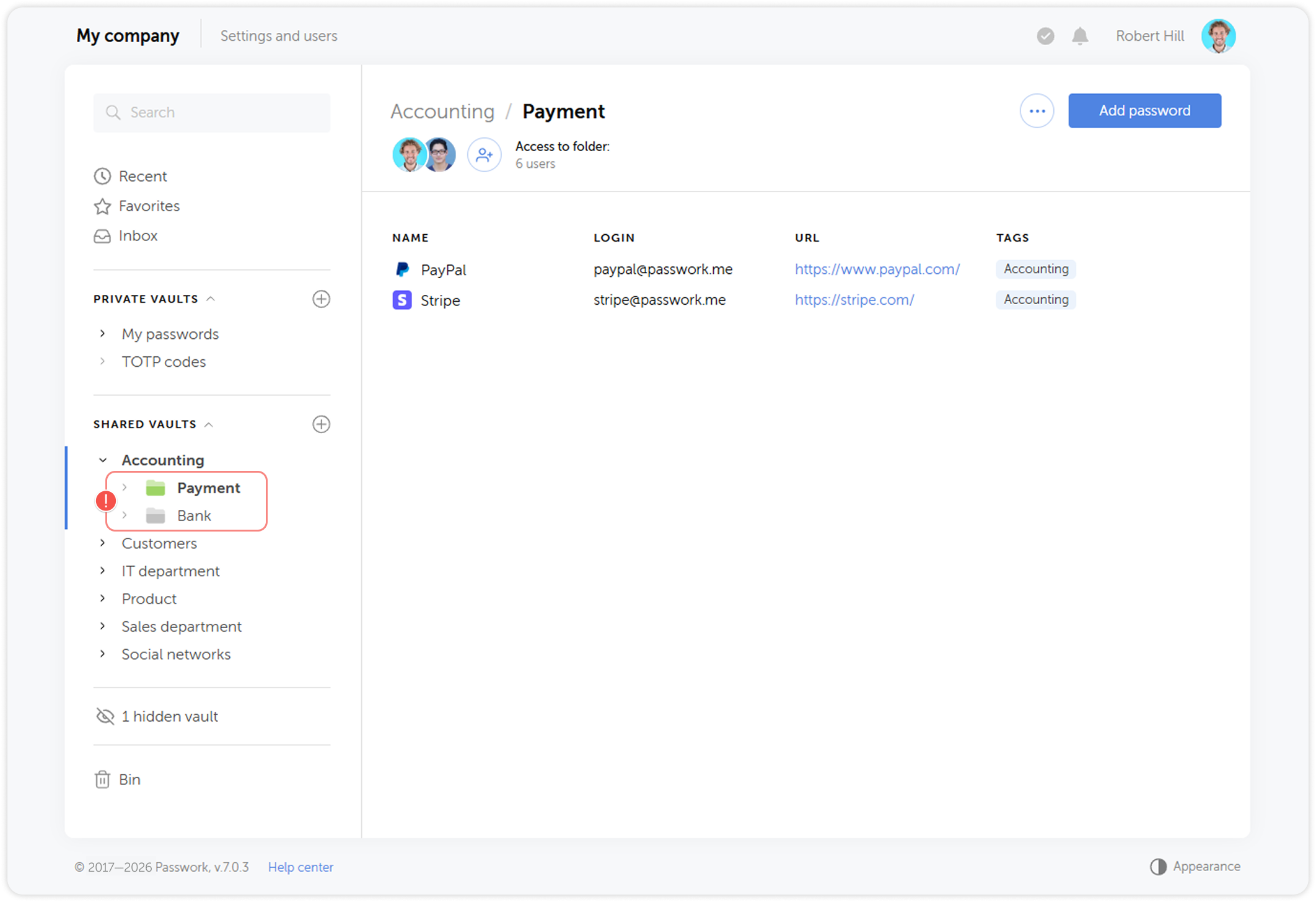
Open a vault from the navigation pane and navigate through its folder structure. The content pane displays the passwords in the selected folder.
Copy and use a password
Click a password record to open its card. From the card you can:
- Click the copy icon next to the password field to copy it to the clipboard
- Click the copy icon next to the login field to copy the username
- Use the browser extension to autofill the credential directly on the target website
Private vaults vs. company vaults
Understanding the distinction prevents accidental data exposure.
| Private vault | Corporate vault | |
|---|---|---|
| Visibility | Only you | All users with access to that vault |
| Use case | Personal credentials, notes | Team credentials, shared service accounts |
| Access control | Not shared | Managed by vault owner/admin |
| Backup | Included in server backup | Included in server backup |
If you save a shared service account or team credential to your private vault, your colleagues cannot access it if you are unavailable. Always save shared credentials to the appropriate company vault or folder.
Request access to a vault
If you need access to a vault or folder that is not visible to you:
- Identify the vault name or ask your manager for the exact name.
- Contact your department manager or Passwork administrator.
- Provide your Passwork username (or the email address associated with your account).
Your manager can grant access at the vault or folder level with the appropriate permission level.
For more about vaults and how they are organized, see Vaults and Folders.
You have completed all five steps of the Member onboarding. Your account is now fully configured. If you encounter issues or need additional access, contact your department manager or IT administrator.