

Account activation
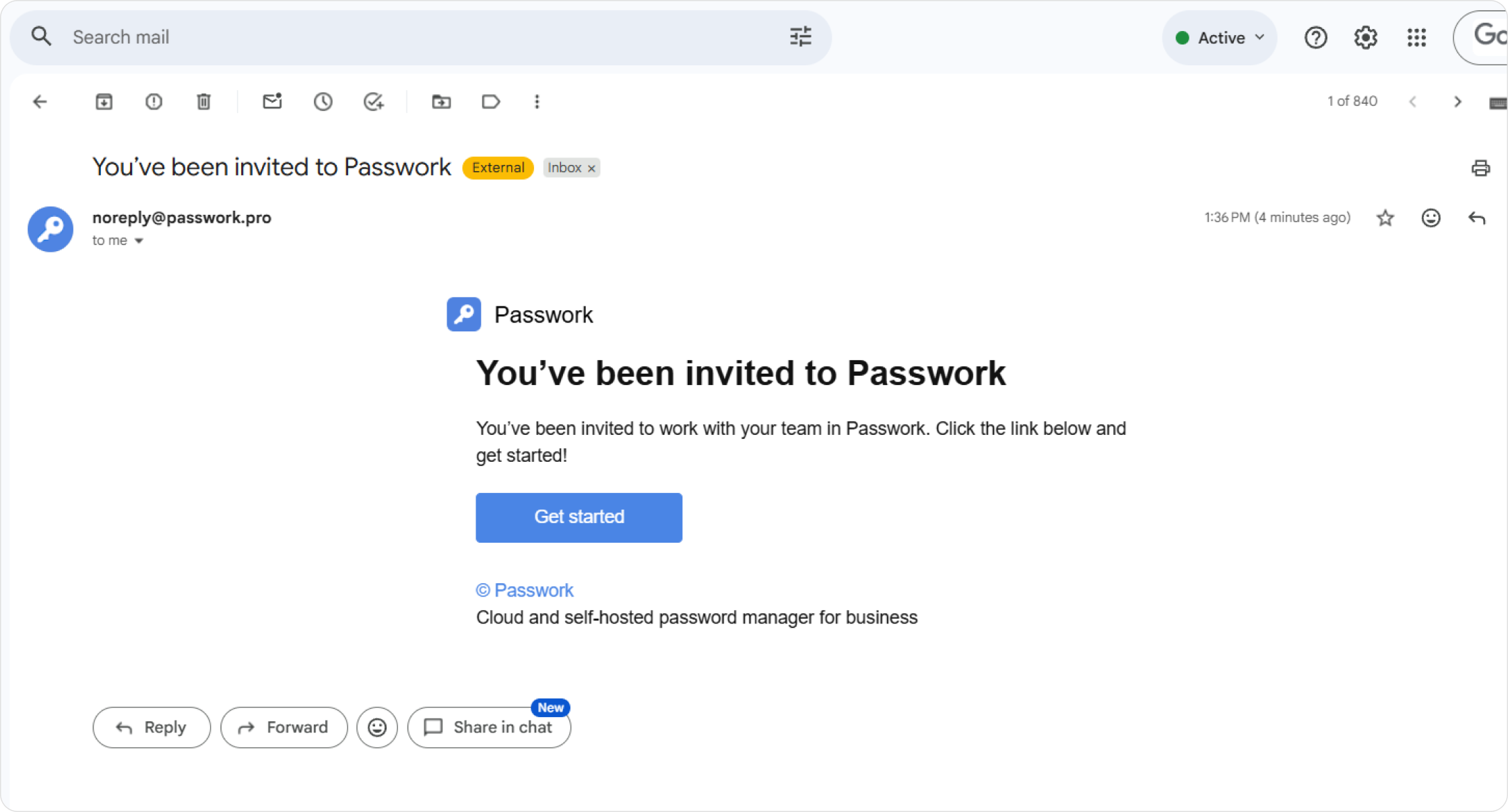
Step 1 — Accept the invite
Your administrator sends an invite via email or provides a direct URL to the Passwork sign-in page. Open the link to register.
If you did not receive an invite email, check your spam folder or ask your administrator to resend it. Invitations expire after a period set by the administrator.
Step 2 — Choose your sign-in method
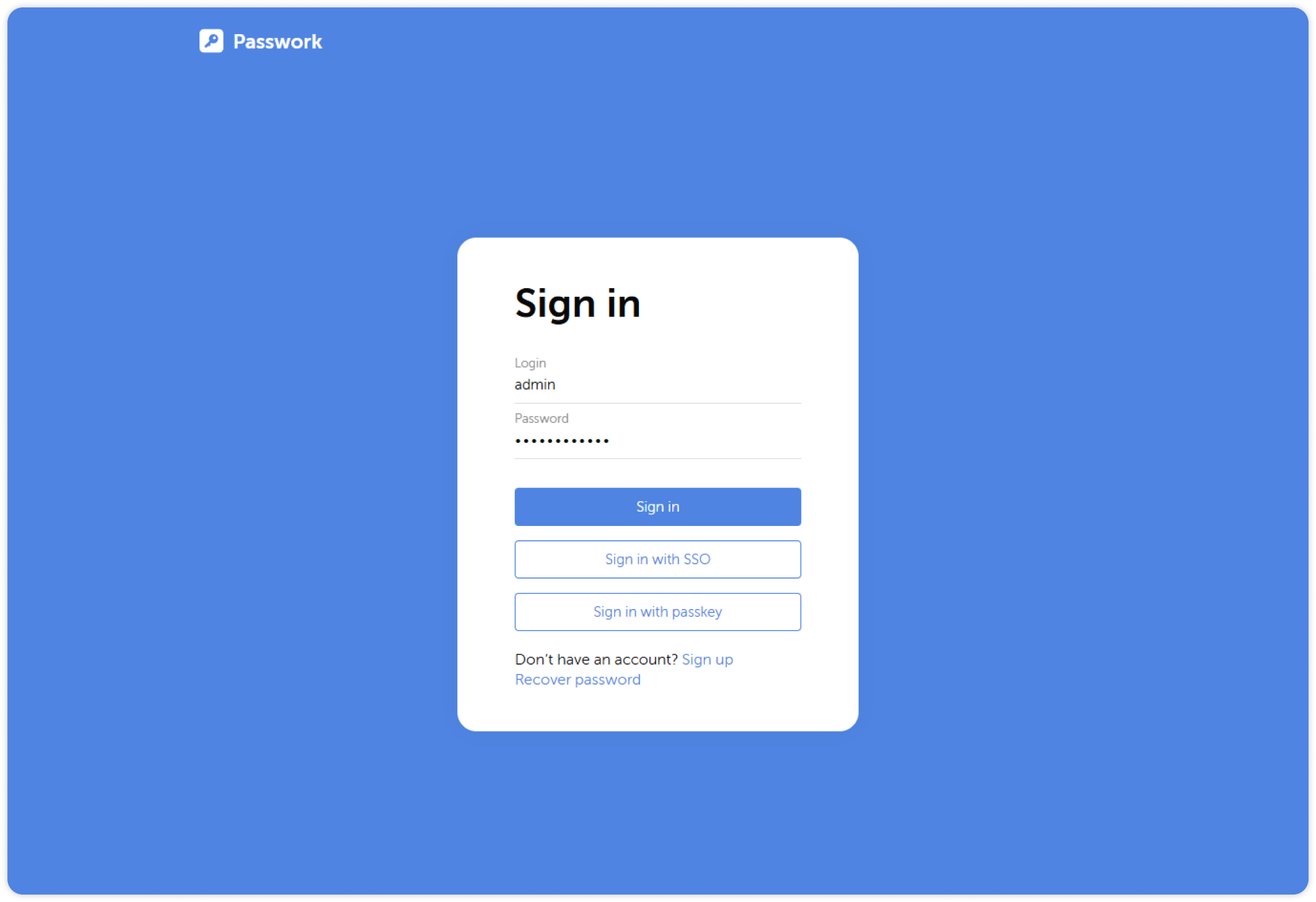
Passwork supports three authentication methods. The available options depend on your organization's configuration.
SSO (Single Sign-On)
If your organization uses an identity provider such as Microsoft Entra ID (Azure AD), AD FS, or Keycloak, you will see an SSO sign-in button on the login page. Click it to authenticate with your corporate credentials.
No separate Passwork password is required when signing in via SSO.
LDAP (Active Directory)
If LDAP integration is enabled, sign in with your domain username and password — the same credentials you use to log in to your workstation.
Local account
If your organization does not use SSO or LDAP, create a local Passwork account:
- Go to the sign-up page provided by your administrator.
- Enter your login, password, and email address.
- Click Sign up.
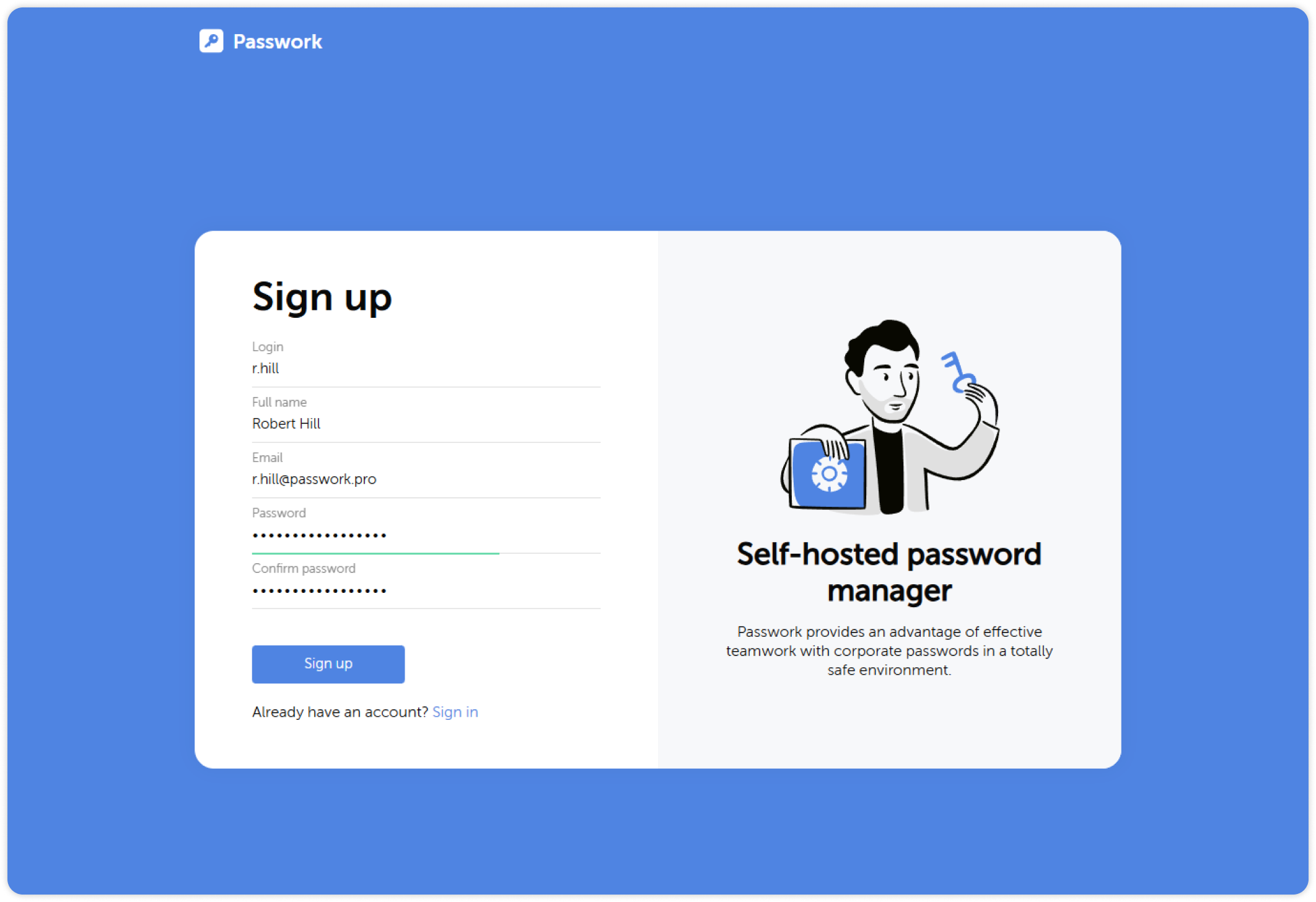
Depending on your organization's settings, account registration may require administrator approval before you can sign in.
Step 3 — Set up the master password (if required)
If your organization has client-side encryption enabled, Passwork will prompt you to create a master password immediately after your first successful login.
The master password encrypts your private key on your device. It is never transmitted to the server and cannot be recovered by anyone — including your administrator. If you forget it, your encrypted data cannot be decrypted.
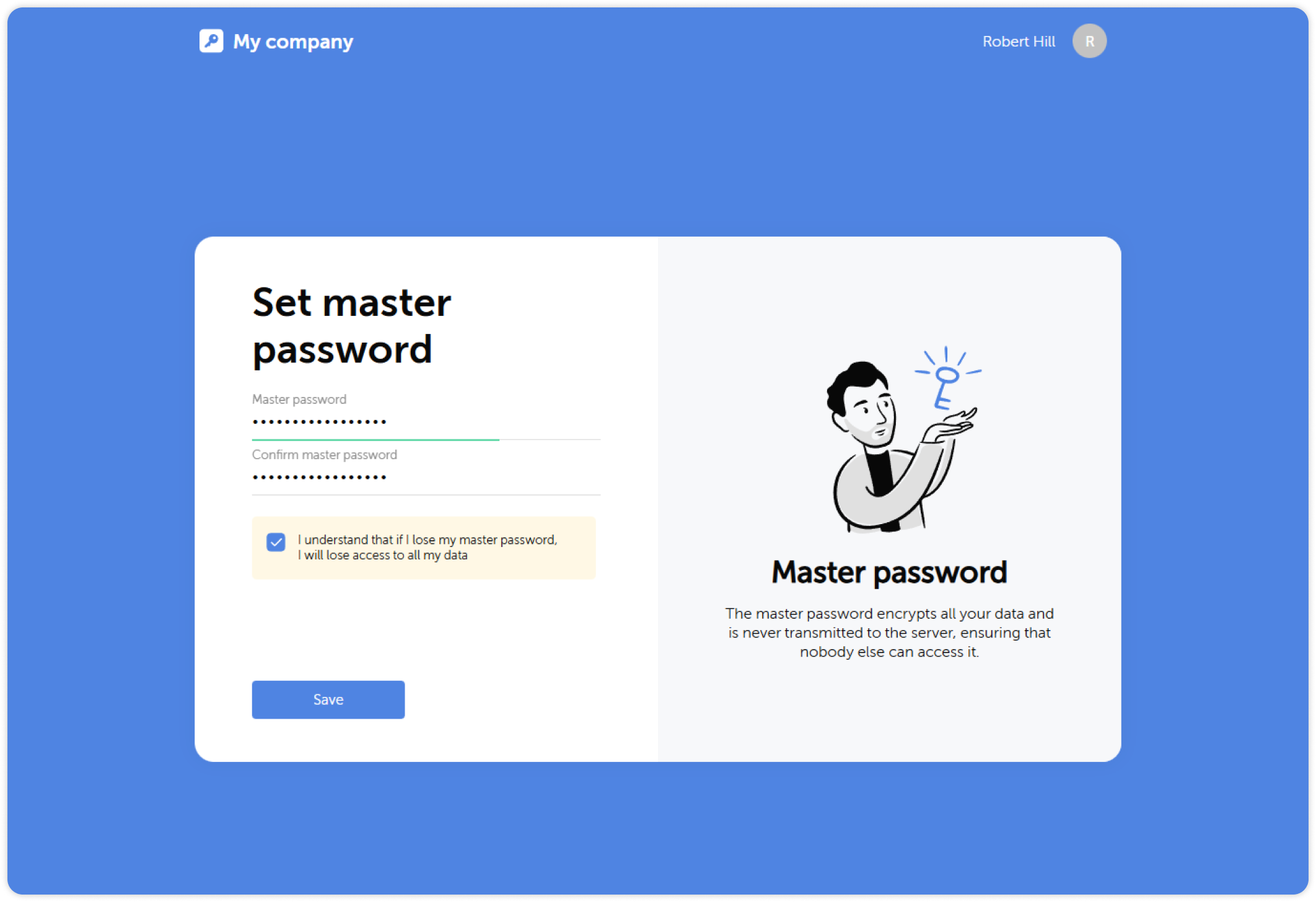
The master password must be at least 8 characters long (your organization may enforce a higher minimum), mix uppercase and lowercase letters with digits and special characters, and must not match your Passwork login password or your domain/SSO password.
Write down the master password and store it in a physically secure location (e.g., a printed document in a locked drawer). Do not store it in a digital notes app or email draft
There is no recovery mechanism for master passwords, but if you forgot it, your Passwork administrator can perform a reset, but all your private data will be lost.
After setting the master password, you will be redirected to the main Passwork interface.
Next step
Proceed to Install tools to set up the browser extension and mobile app.