

Basic operations
This page covers the three operations you will use most frequently: adding a password, using autofill, and generating a secure password.
Add a password to your vault
- Open Passwork and navigate to the vault or folder where you want to save the password.
- Click Add password in the top-right corner of the content pane.
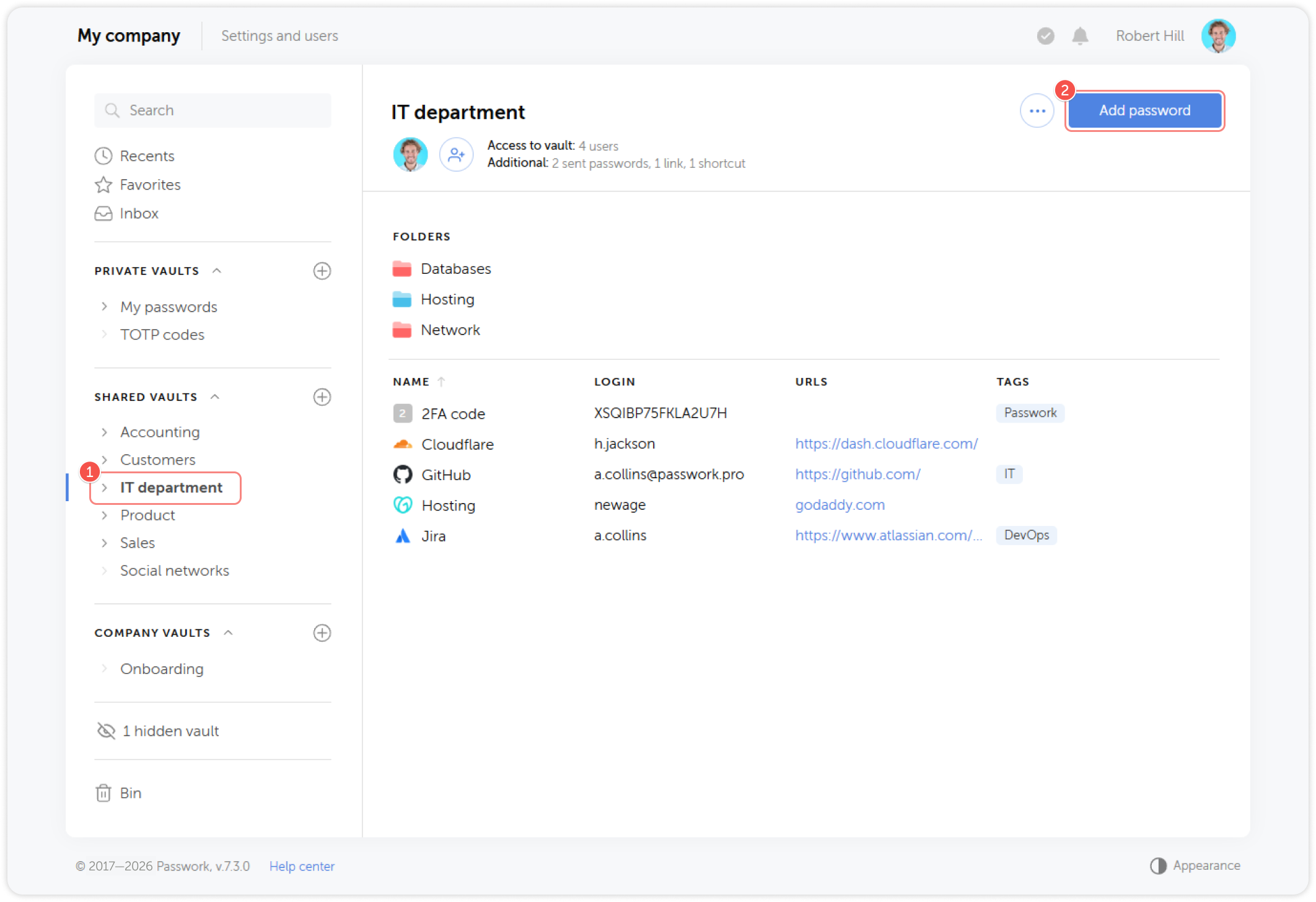
- Fill in the required fields:
| Field | Description |
|---|---|
| Name | Descriptive name for the entry (e.g., "Jira — John Smith") |
| Login | Username or email address |
| Password | The credential. Use the generator (see below) for new accounts |
| URL | Website or service address. Enables autofill matching |
| Description | Optional notes |
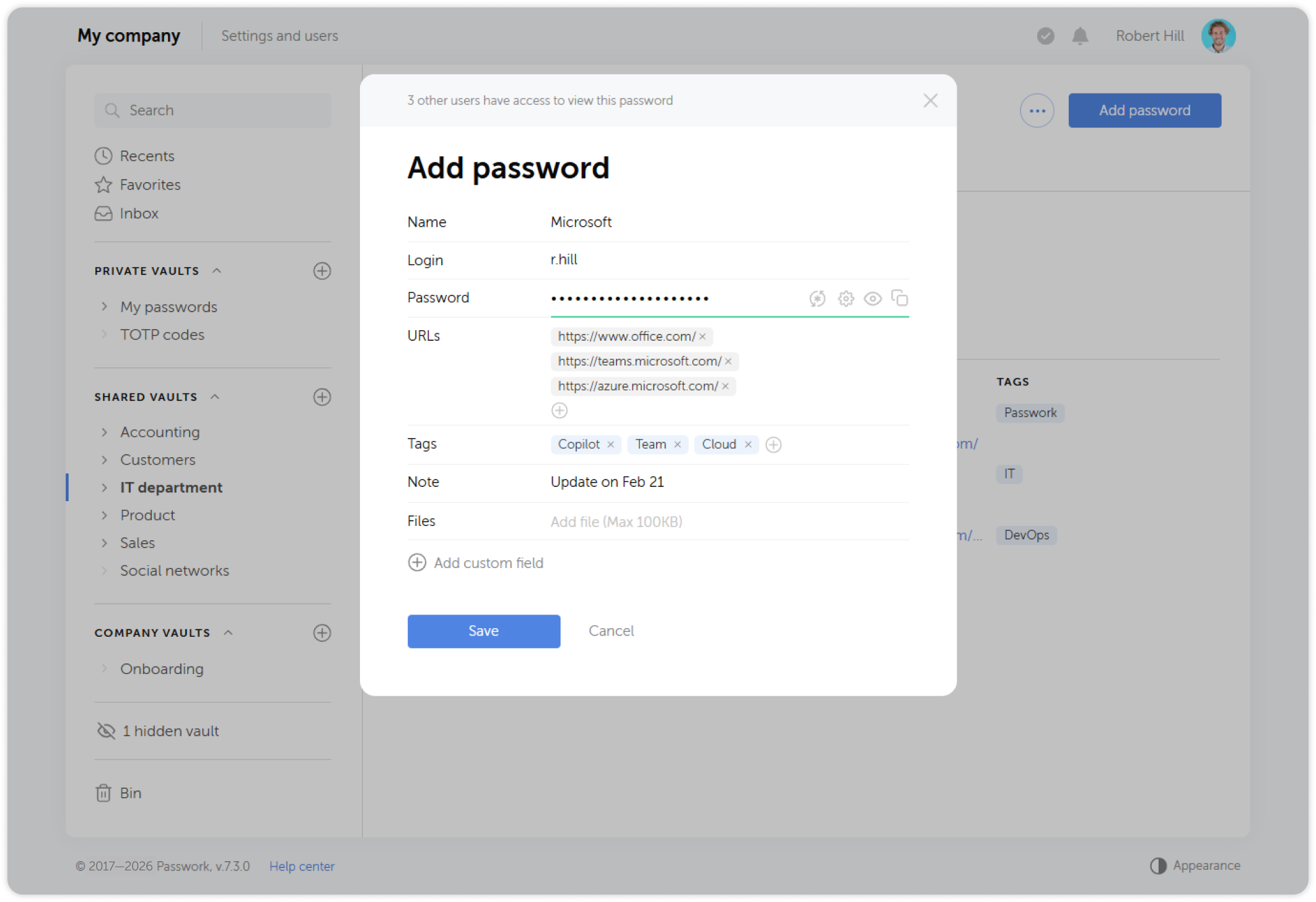
- Click Save.
Your Private vault is visible only to you. Save personal credentials there. For credentials shared with your team, save to the appropriate company vault or folder — ask your manager which one to use.
Use autofill in the browser extension
Autofill lets you sign in to websites with a single click, without manually copying and pasting credentials.
When you visit a page that has a saved password associated with it, Passwork will prompt you to autocomplete the sign-in fields.
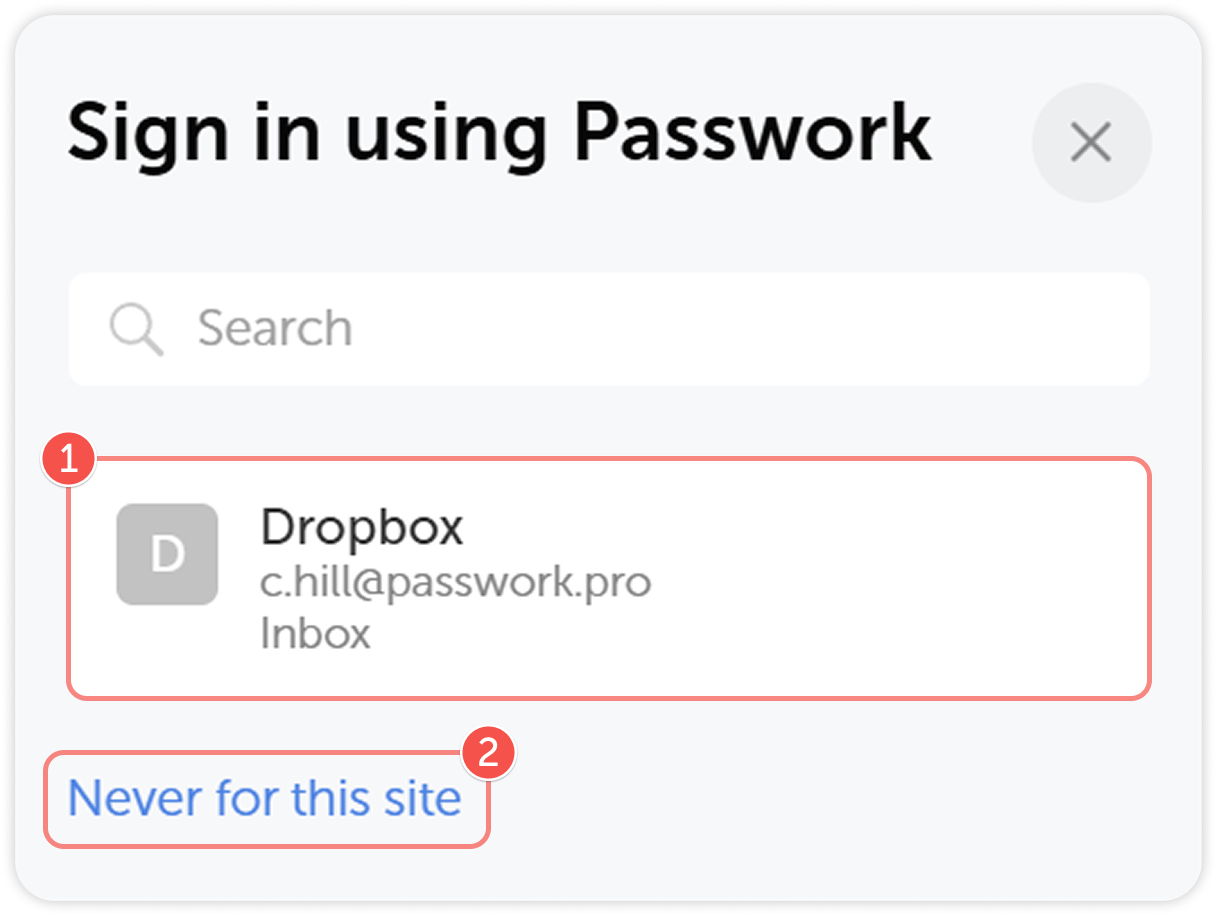
If no matching entry appears, the URL stored in the password record may not match the current page. Edit the password record and verify the URL field.
For full autofill instructions, see Save and use password.
Generate a strong password
Use the built-in password generator whenever you create a new account or need to reset a credential.
From the Add password form
Click the Generate icon next to the Password field. The generator creates a strong password and fills the field automatically.
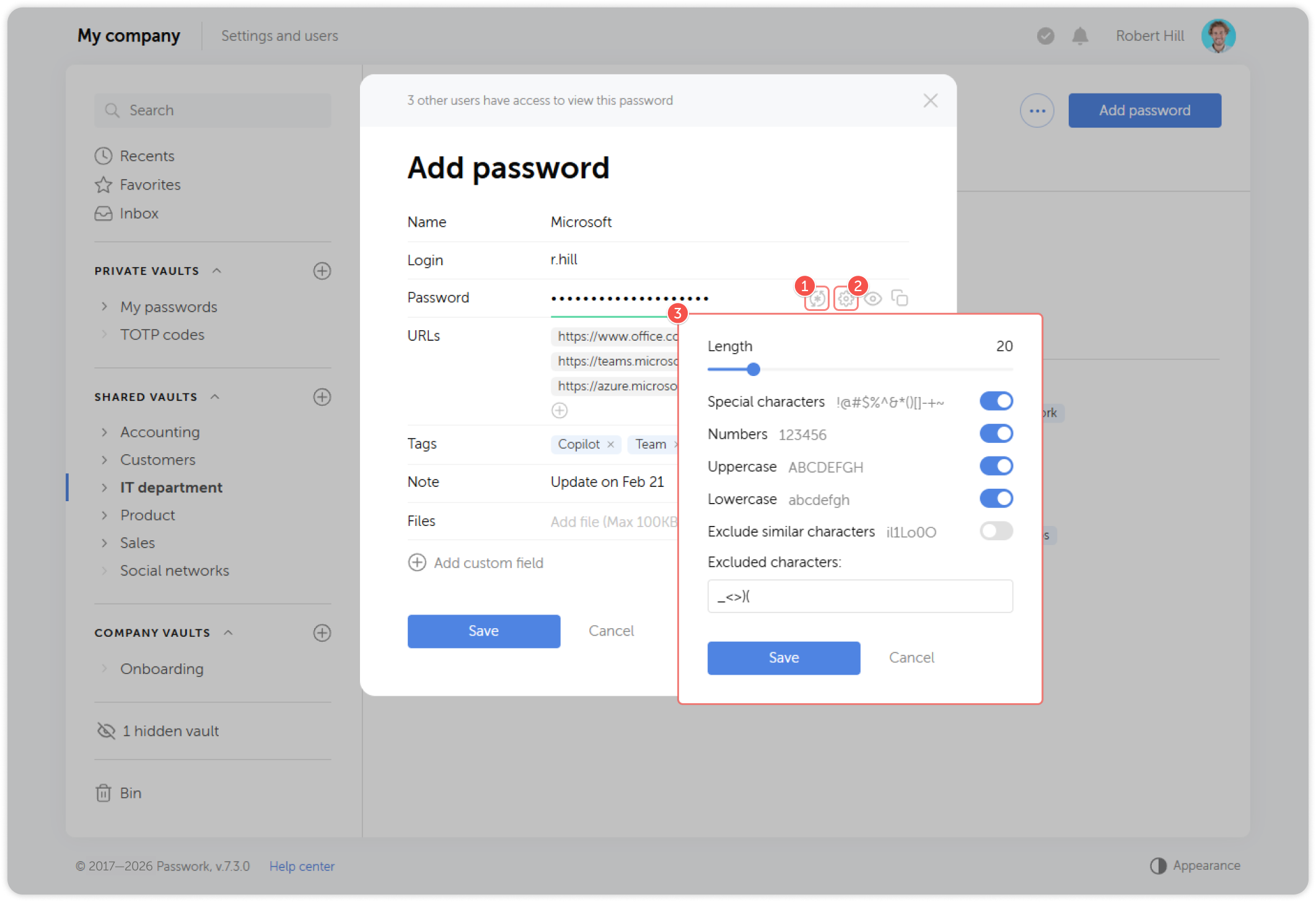
From the browser extension
Open the extension and click the Generator tab. Customize length, character sets (uppercase, lowercase, digits, symbols), and click Copy to use the result.
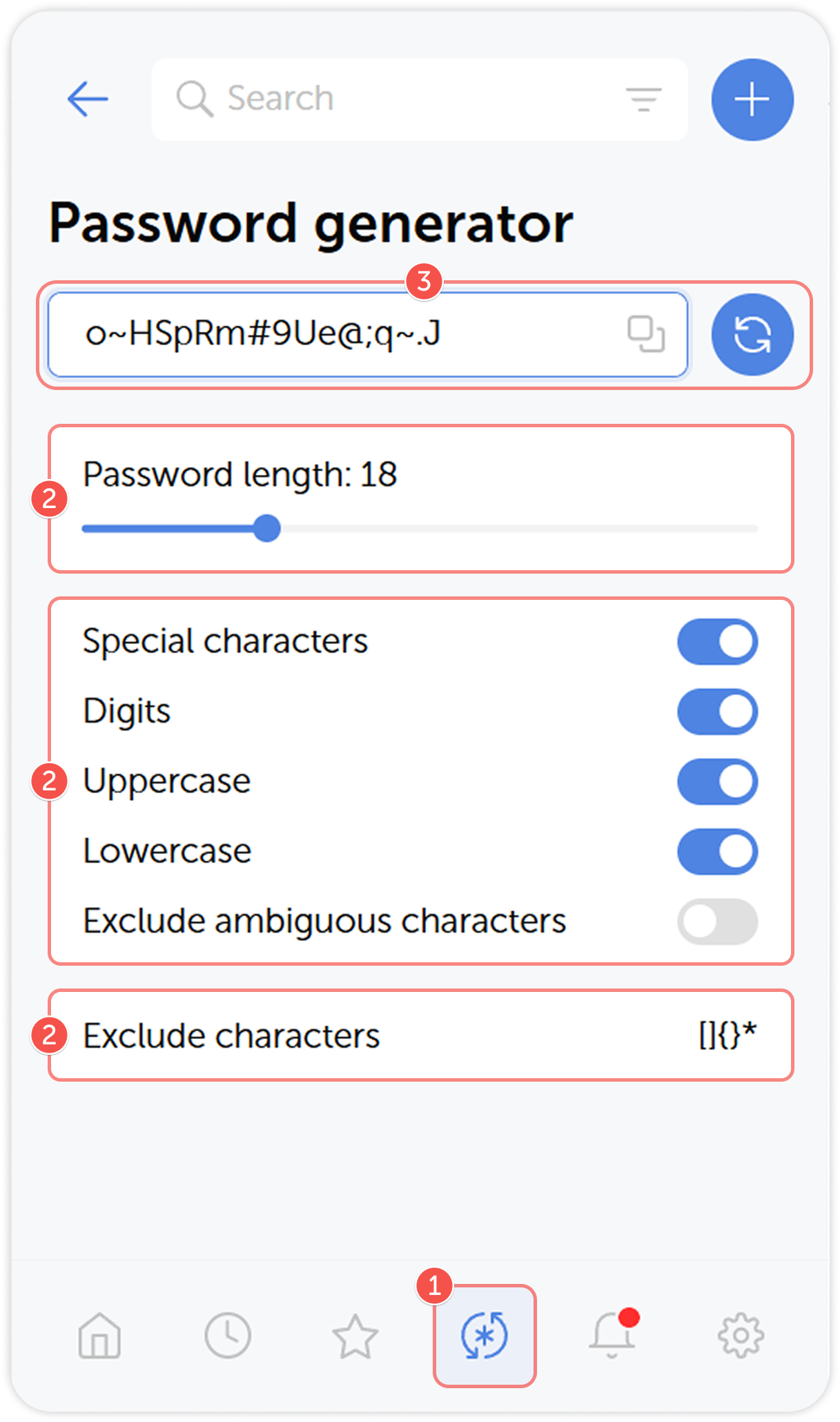
For a strong password: at least 16 characters, with uppercase and lowercase letters, digits, and at least one special character. Avoid dictionary words, names, or predictable patterns.
Next step
Proceed to Access shared vaults to learn how to find and use your organization's shared credentials.