

Install tools
Installing the browser extension and mobile app gives you access to Passwork from any device. Both tools support autofill, password generation, and full vault access.
Browser extension
The Passwork browser extension is available for all major browsers.
| Browser | Download |
|---|---|
| Google Chrome | Chrome Web Store |
| Mozilla Firefox | Firefox Add-ons |
| Microsoft Edge | Edge Add-ons |
| Apple Safari | App Store |
Only users with sufficient permissions can install and use the browser extension. If the extension is not available to you, contact your administrator.
Connect the extension to Passwork
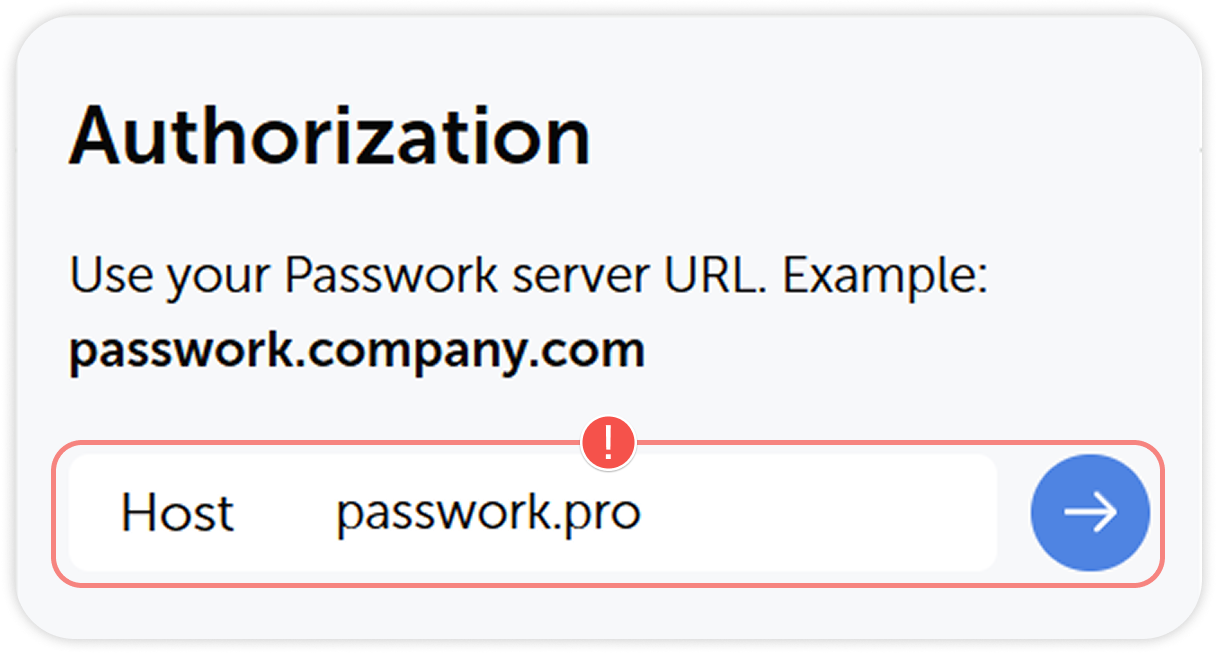
After installing the extension from your browser's store, open it and enter your organization's Passwork URL (e.g., https://passwork.yourcompany.com) in the host address field. Click the blue arrow, then sign in with your credentials.
Disable the browser's built-in password manager
Built-in browser password managers can interfere with Passwork autofill. Disable the browser's own password manager after installing the extension.
For step-by-step instructions for Chrome, Firefox, Edge, and Safari, see Browser Extension: Getting Started.
Mobile app
The Passwork Self-hosted app is available for iOS and Android.
| Platform | Download |
|---|---|
| iOS | App Store |
| Android | Google Play |
Connect the app to Passwork
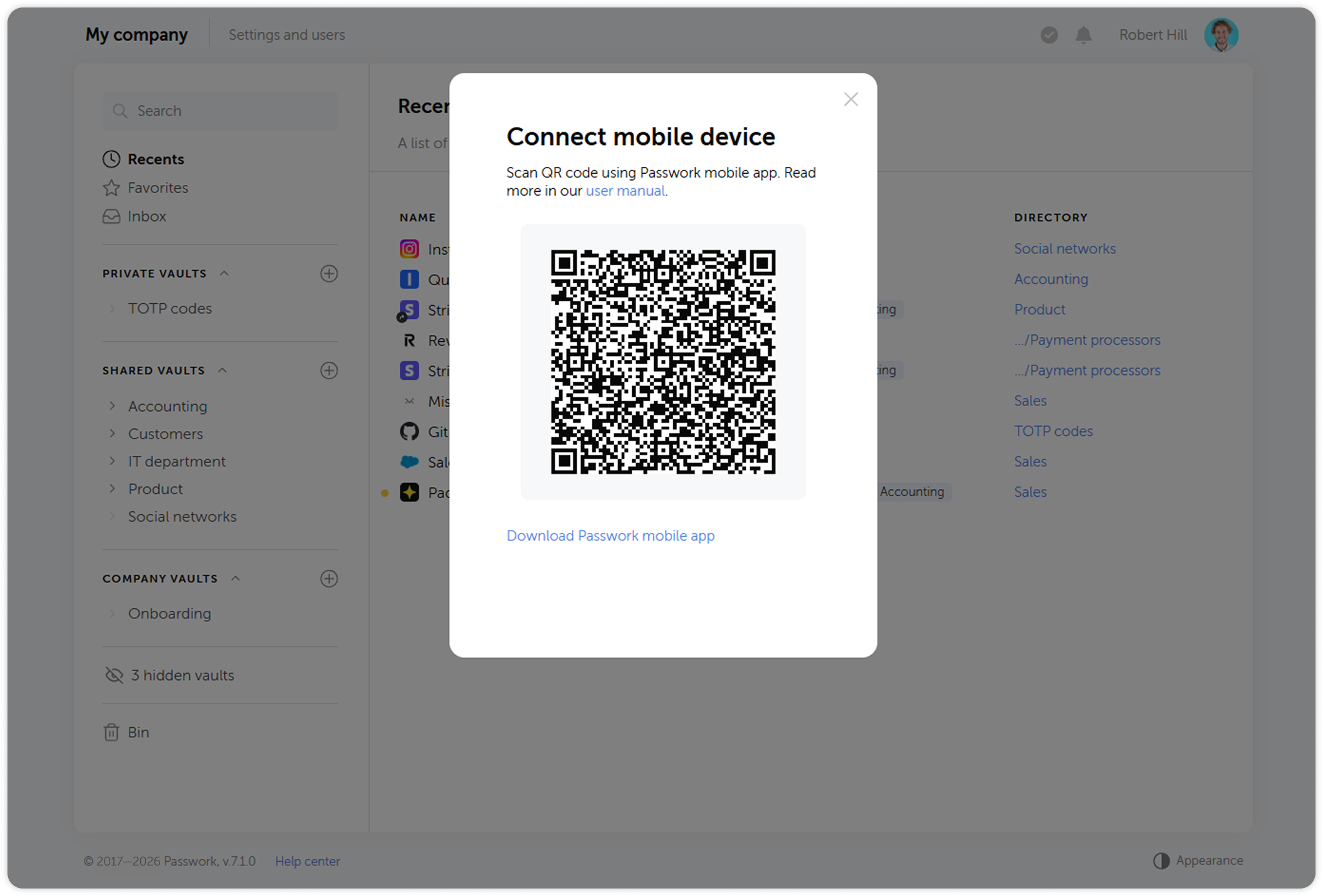
- Go to the Settings and users menu in the desktop version and click Connect mobile device.
- Open the installed app and scan the QR code from the pop-up window to complete the authorization.
For full mobile app setup instructions, see Passwork Self-hosted — Getting started.
Desktop app
A native desktop application is available for Windows and Linux for environments where a browser extension is not suitable. Ask your administrator whether the desktop app is deployed in your organization.
See Desktop application for download and installation instructions.
Next step
Proceed to Security setup to enable two-factor authentication.