

Security setup
Two-factor authentication (2FA) adds a second verification step when signing in to Passwork. Even if your password is compromised, an attacker cannot access your account without the second factor.
Your administrator may not enforce 2FA as a mandatory policy. To ensure proper security, set it up immediately after activating your account rather than wait for it to become mandatory.
Open the 2FA settings
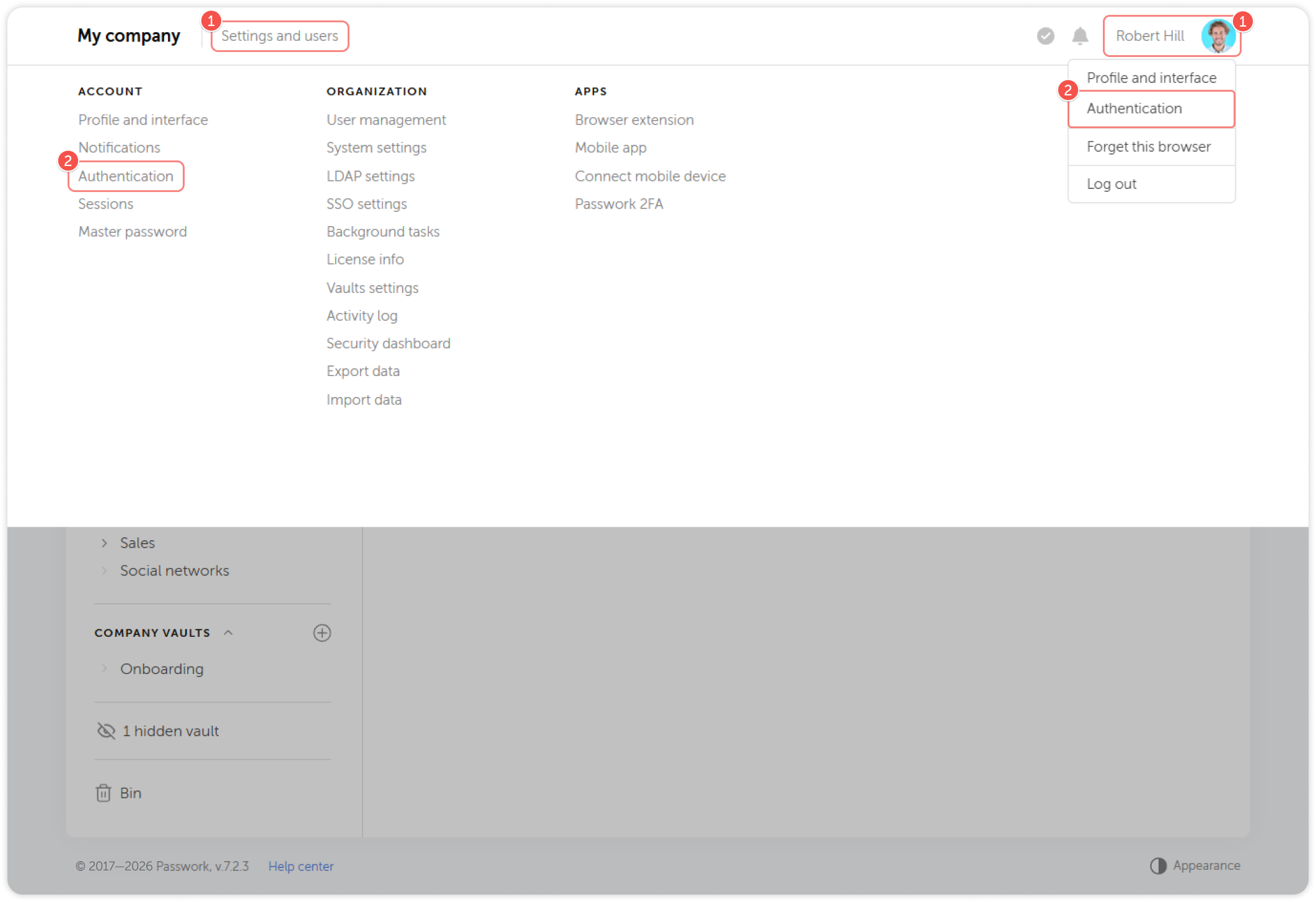
- Click your profile icon or Settings and users at the top of Passwork interface.
- Open the Authentication page.
- Scroll to the Two-factor authentication (2FA) section.
To make changes, click the lock icon in the top-right corner of the page to unlock it for editing.
Connect a TOTP authenticator app
Use the Passwork 2FA app or any third-party app that supports TOTP (Time-based One-Time Passwords), such as Google Authenticator or Microsoft Authenticator.
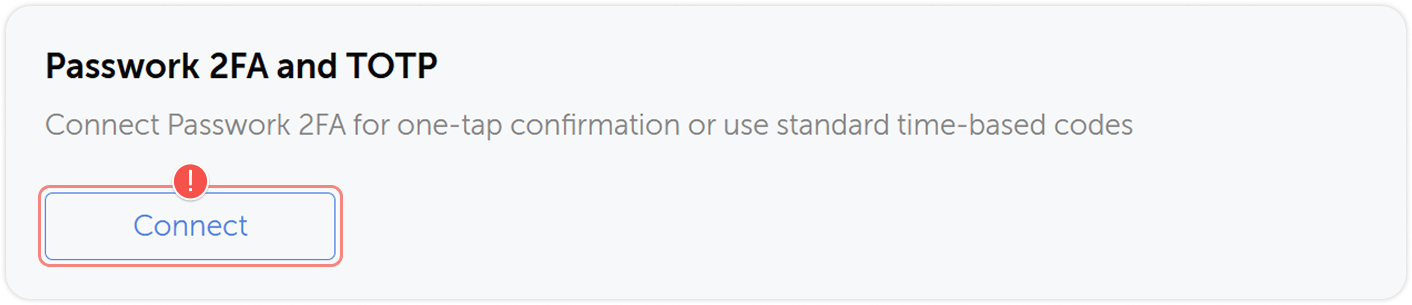
- In the Passwork 2FA and TOTP section, click Connect.
- And choose the 2FA method you want to use.
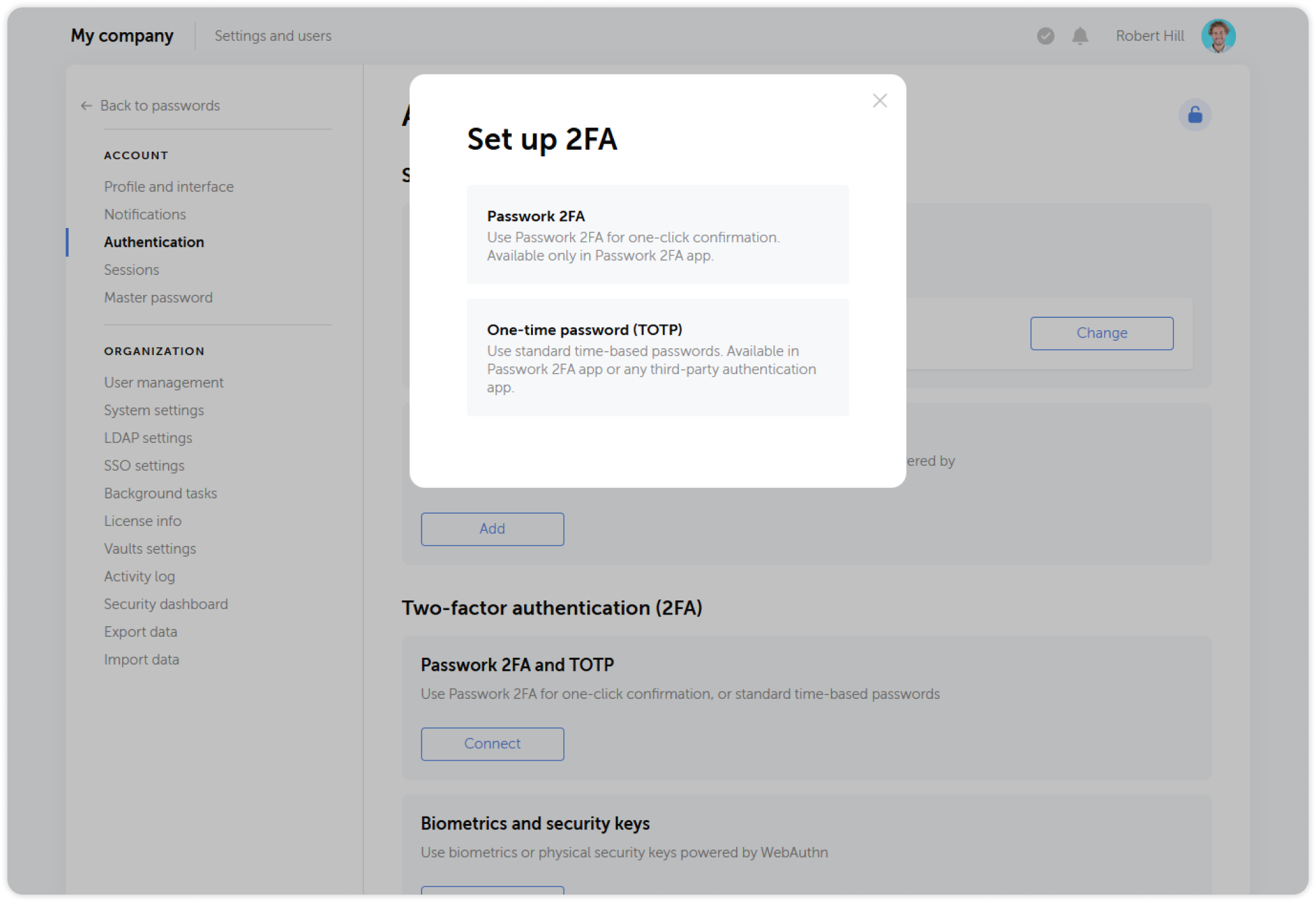
Passwork 2FA app
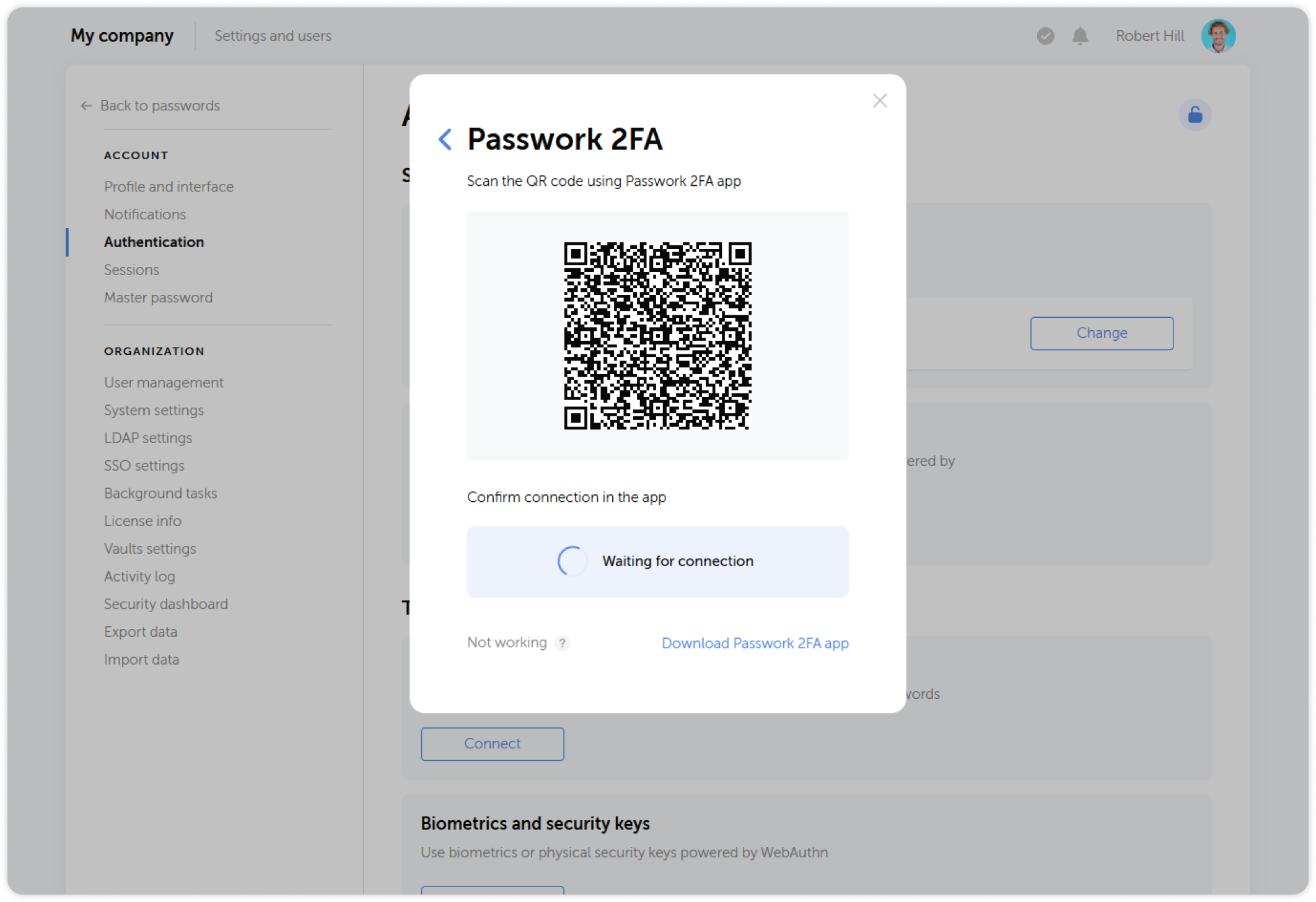
If your Passwork server is connected to the Internet and you wish to log into Passwork in one tap, choose the Passwork 2FA option and scan the QR code using the app.
If the application is not yet installed on your mobile device, you can get it from App Store or Google Play
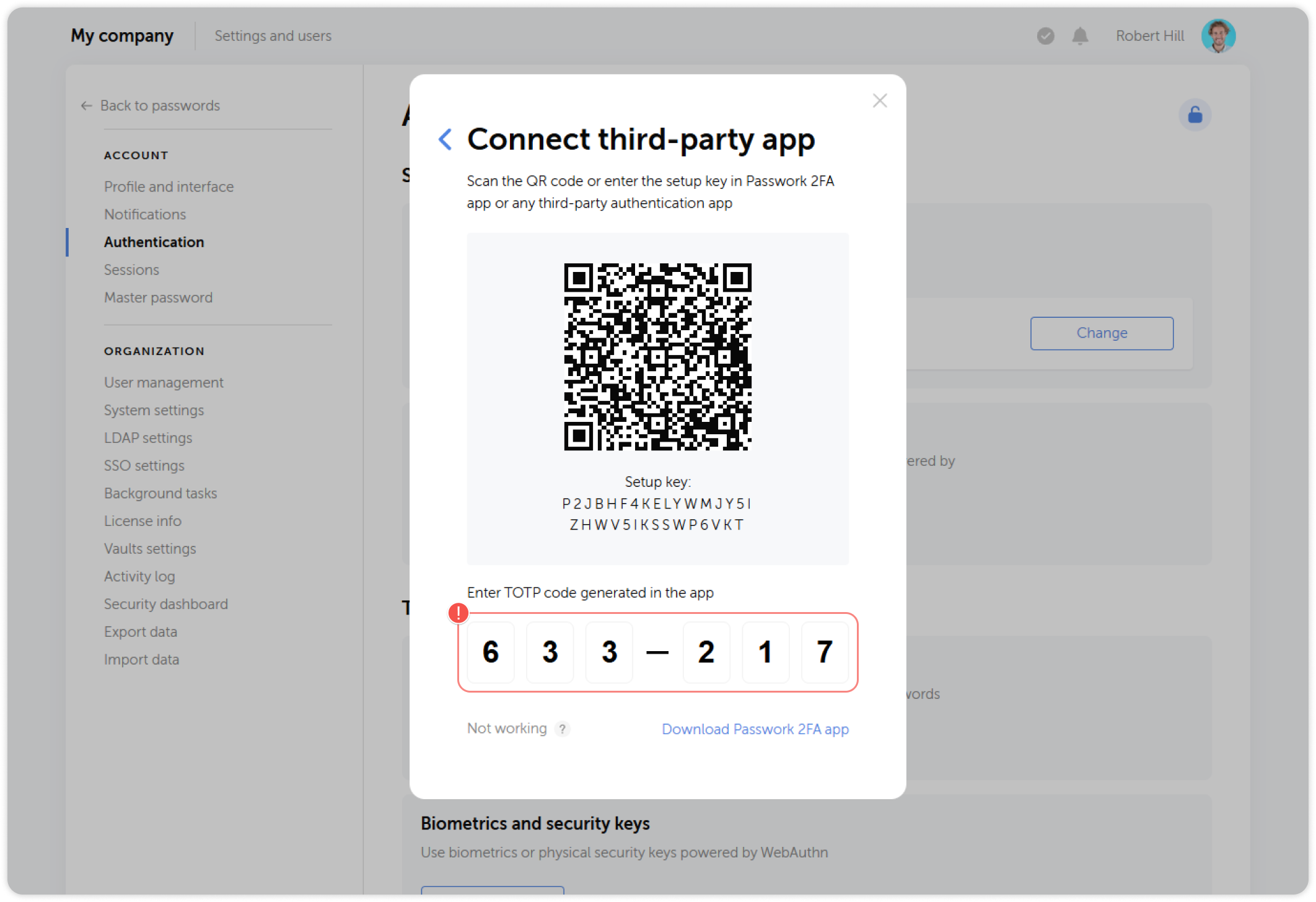
Third-party TOTP app (Google Authenticator, Microsoft Authenticator, etc.)
Select One-time password, then scan the QR code using your authenticator app. Enter the 6-digit code shown in the app to confirm the connection.
Connect a hardware security key or biometrics
Passwork supports WebAuthn-compatible devices, including physical security keys (YubiKey, FIDO2) and biometric authentication (fingerprint, Face ID).
In the Biometrics and security keys section, click Add and follow the on-screen instructions.

Managing your 2FA connection
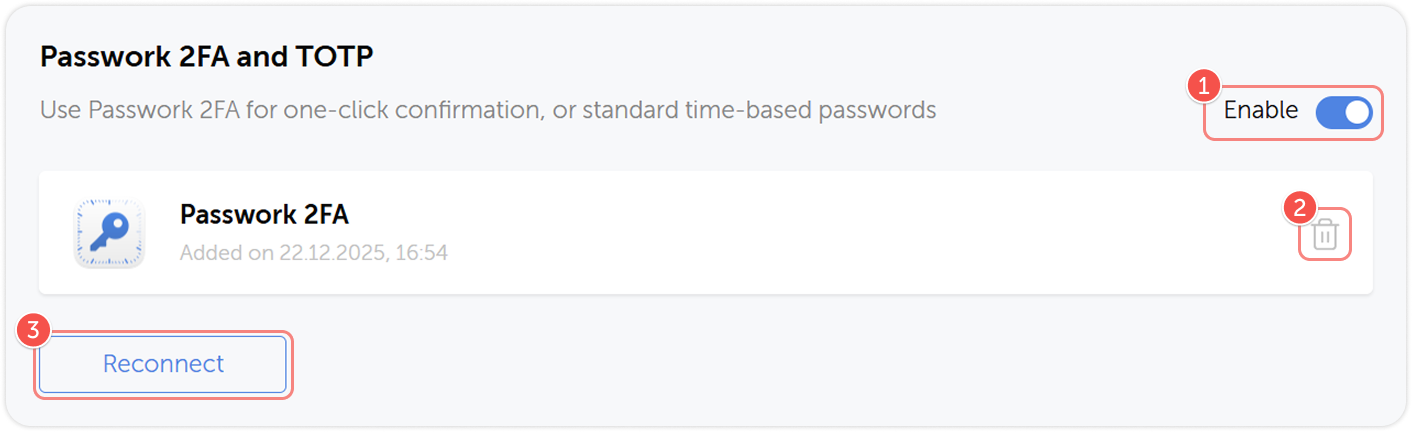
After 2FA is set up, you can:
- Enable or disable 2FA temporarily (if your organization's policy allows it)
- Remove the connected method and replace it with a new one
- Set up a new connection
For full 2FA documentation, see Two-factor authentication.
Passkeys — passwordless sign-in
In addition to 2FA, Passwork supports passkeys: a modern, phishing-resistant authentication method that replaces the password entirely. A passkey uses your device's biometrics (Face ID, Touch ID, Windows Hello) or a physical security key (YubiKey, FIDO2) to verify your identity.
Passkeys as a sign-in method must be enabled by your administrator in your role settings. If you do not see the option below, contact your IT administrator.
Add a passkey
- Go to Account settings → Authentication.
- Click the lock icon to unlock the page for editing.
- In the Passkey section, click Add.
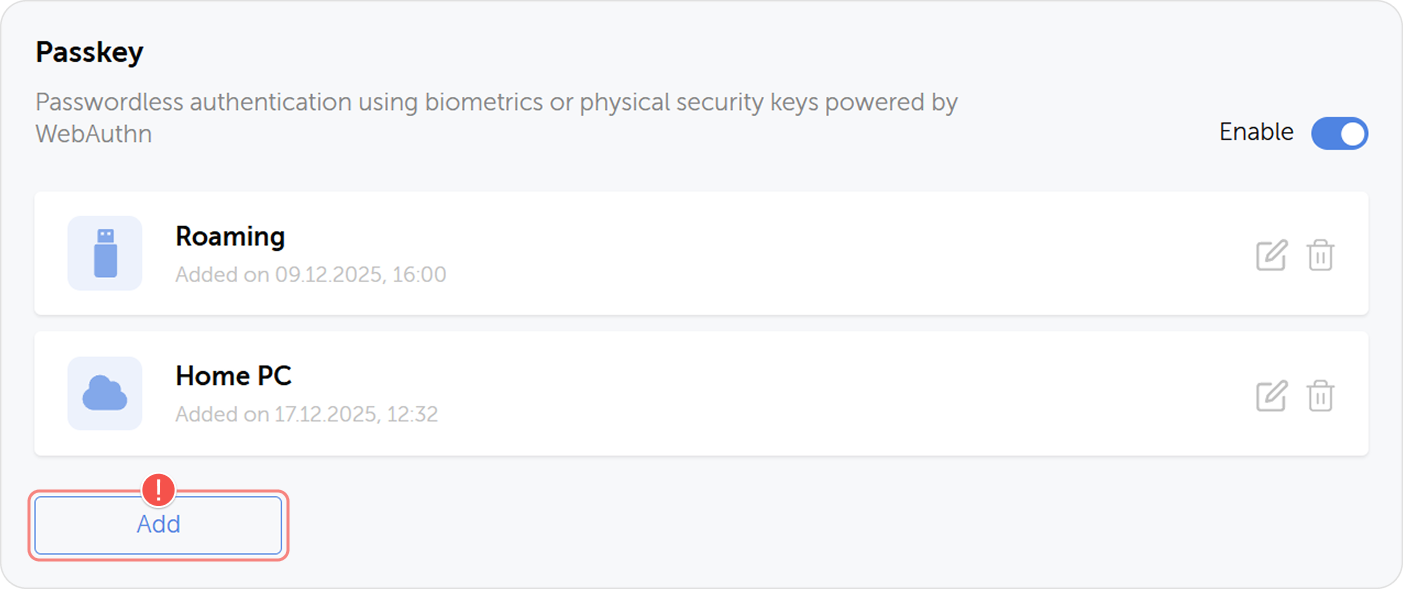
- Follow the system prompt to register your device's biometric sensor or physical security key.
Once added, you can sign in to Passwork by clicking Sign in with passkey on the login page — no password required.
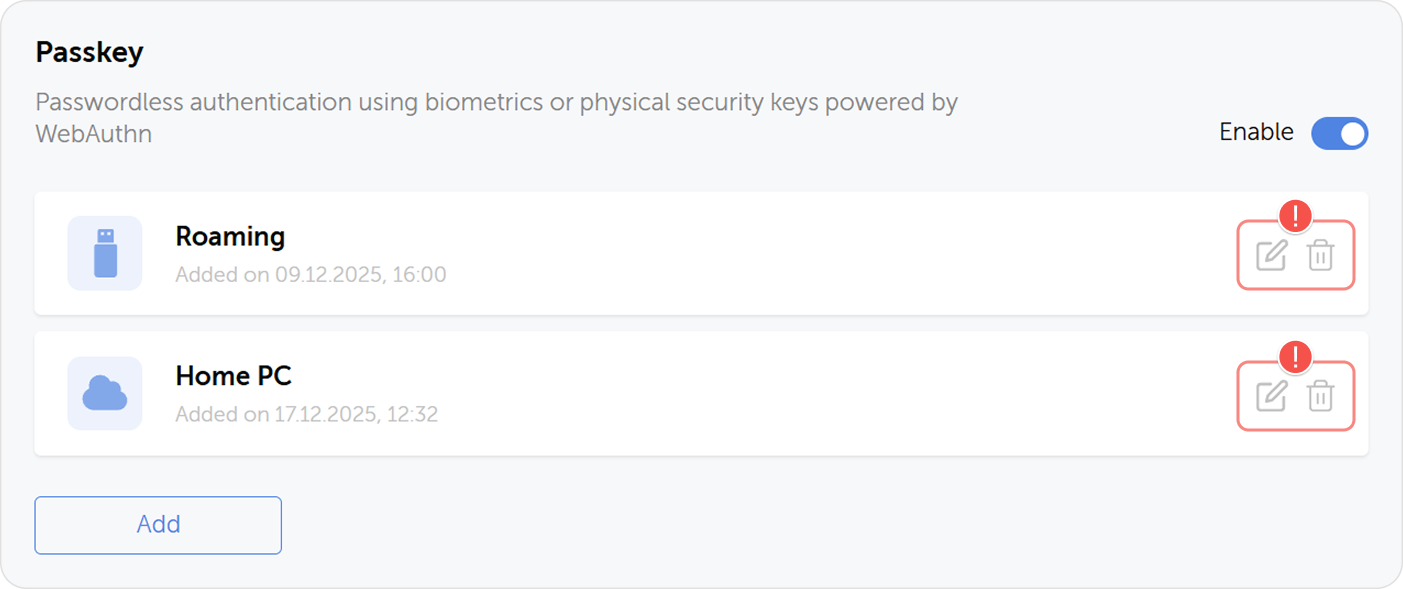
Manage passkeys
You can add multiple passkeys — for example, one on your laptop and one on a physical security key stored securely. If you lose access to one, you can sign in with another without needing an administrator reset.
For full documentation, see Sign-in methods.
Next step
Proceed to Basic operations to save your first password and use autofill.