

Monitoring and incident response
Effective monitoring allows security incidents to be detected and contained quickly. This section verifies that Passwork's logging and monitoring capabilities are correctly configured and that the organization has documented response procedures for key security events.
1. Activity log
Passwork records all user and system actions in the Activity log. This log is the primary audit trail for investigating security incidents and demonstrating compliance.
1.1 Verify the audit log is enabled
Navigate to Settings → Activity log.
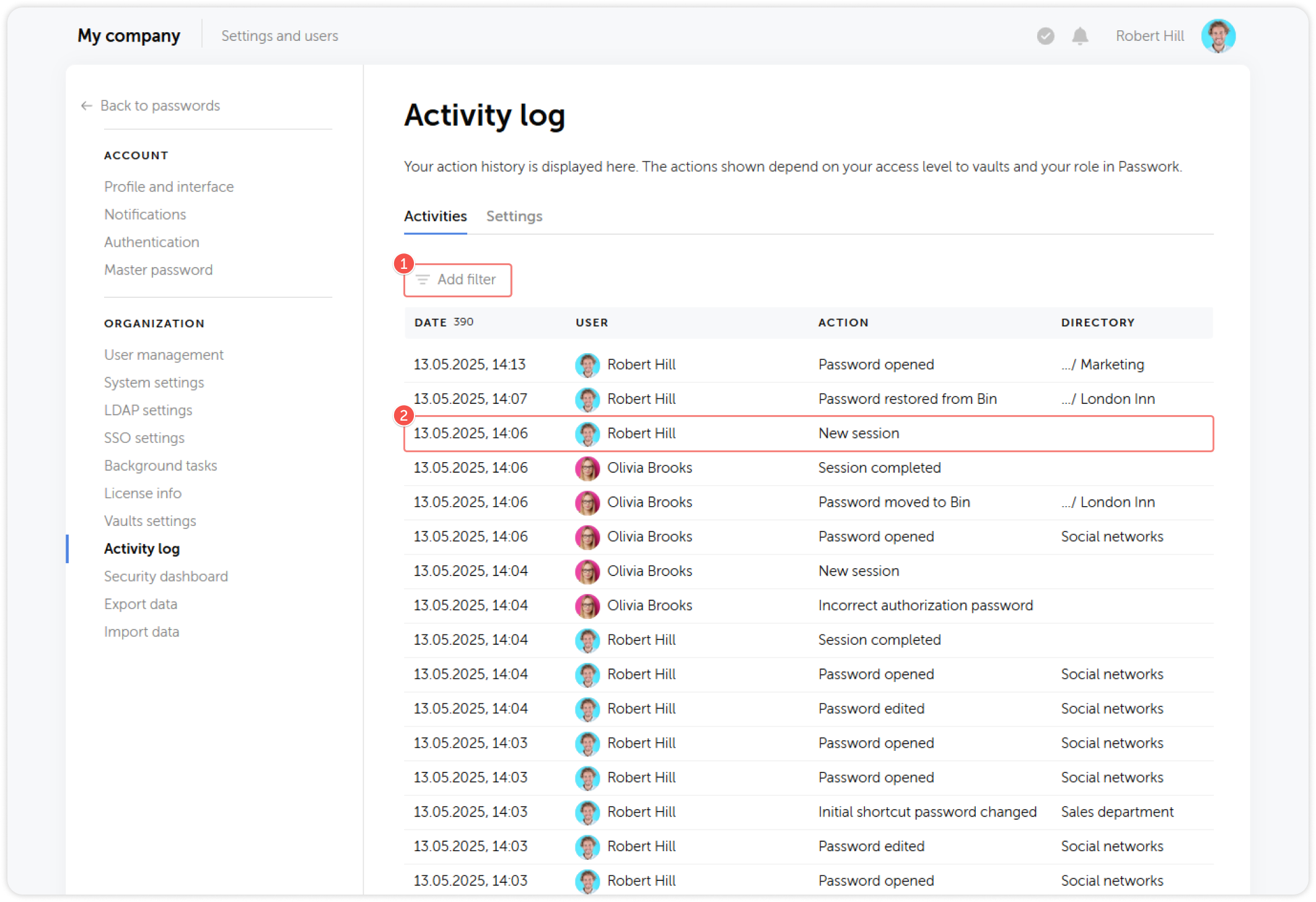
Verify that the action history is recording events. If the log is empty or very sparse for an active system, investigate whether a configuration issue is suppressing events.
1.2 Retention period
Verify the audit log retention period. Navigate to Settings → Activity log → Settings.
| Regulatory requirement | Minimum retention |
|---|---|
| General (no specific mandate) | 90 days minimum |
| ISO 27001 | 1 year recommended |
| GDPR Art. 5(2) accountability | Duration of processing + investigation period |
| PCI-DSS | 1 year (with 3 months immediately available) |
If the built-in retention is insufficient, configure Syslog forwarding to an external SIEM with longer retention (see Section 2).
1.3 Key event categories to monitor
Passwork logs events across all object types. The following categories are most security-relevant:
| Event category | Security relevance |
|---|---|
| Authentication failures | Brute-force attempts, credential stuffing |
| Admin actions (role changes, user creation/deletion) | Privilege escalation, unauthorized account creation |
| Vault access changes (user added/removed) | Unauthorized access grants |
| Password exports | Data exfiltration |
| API token creation | Unauthorized API access setup |
| Emergency mode activation | Critical — must trigger immediate investigation |
| User blocking/unblocking | Verify all unblocks are authorized |
| LDAP sync results | Identify sync failures that may leave stale access |
Full event list: Activity log event list
2. SIEM integration via Syslog
2.1 Verify Syslog forwarding is configured
Navigate to Settings → Activity log → Settings and verify that Write activity logs to the syslog or Windows event log is enabled.
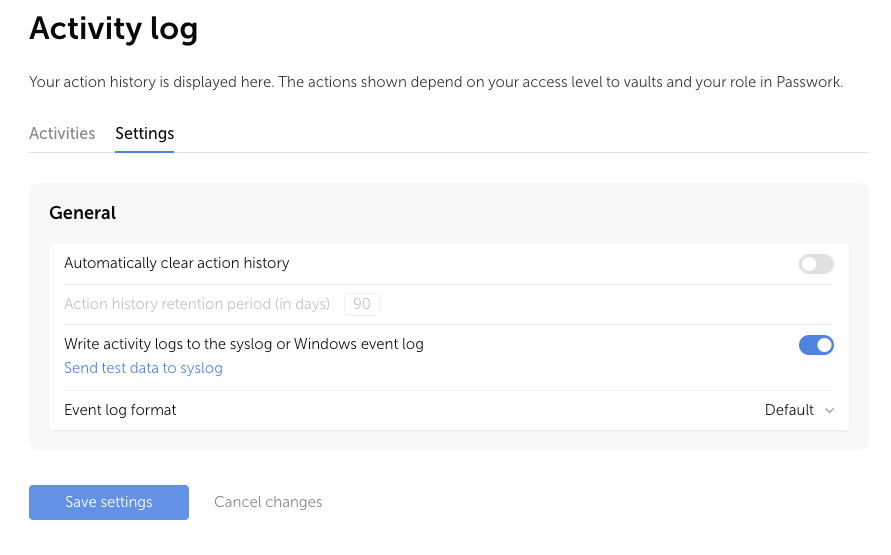
Events are written in CEF (Common Event Format), which is compatible with major SIEM platforms (Splunk, QRadar, Microsoft Sentinel, Elastic SIEM, ArcSight).
Log file locations by platform:
| Platform | Log file |
|---|---|
| Debian / Ubuntu / Astra Linux | /var/log/syslog |
| RHEL / CentOS / RED OS | /var/log/messages |
| Docker | /<passwork>/log/php/syslog |
| Windows Server | Windows Event Viewer |
For Windows Event Viewer configuration, see Event Viewer configuration.
2.2 Verify SIEM is receiving events
Confirm with the SIEM administrator that Passwork events are being ingested:
- Generate a test event: sign in to Passwork and perform a known action (e.g., view a password)
- Search the SIEM for the event using the Passwork source identifier within 5 minutes
- Verify the event fields (suid, suser, passworkIp, Event ID, Severity) are correctly parsed
If events are not appearing in the SIEM, check:
- Whether syslog-ng or rsyslog is installed and running on the server (
apt install syslog-ng -yon Debian) - Whether the SIEM collector is configured to receive from the Passwork server IP
- Network connectivity from the Passwork server to the SIEM collector endpoint
2.3 SIEM alert rules
Verify that alerts are configured for the following high-priority events in your SIEM:
| Alert | Trigger condition | Recommended response SLA |
|---|---|---|
| Repeated authentication failures | ≥ 5 failures from one source in 5 minutes | Investigate within 1 hour |
| Admin account sign-in outside business hours | Any admin login 22:00–06:00 local time | Investigate within 1 hour |
| Emergency mode activation | Any event containing IS_EMERGENCY_RESET_ENABLED change or owner password reset | Immediate |
| Bulk vault access grant | More than 10 users added to a vault in < 1 minute | Investigate within 4 hours |
| Role escalation | User role changed to Owner or Admin | Investigate within 2 hours |
| API token creation | New API token generated | Review within 24 hours |
3. Security dashboard
The Security Dashboard analyzes all passwords in vaults you administer and identifies security risks.
3.1 Run the analysis
Navigate to Settings → Security dashboard and click Analyze.
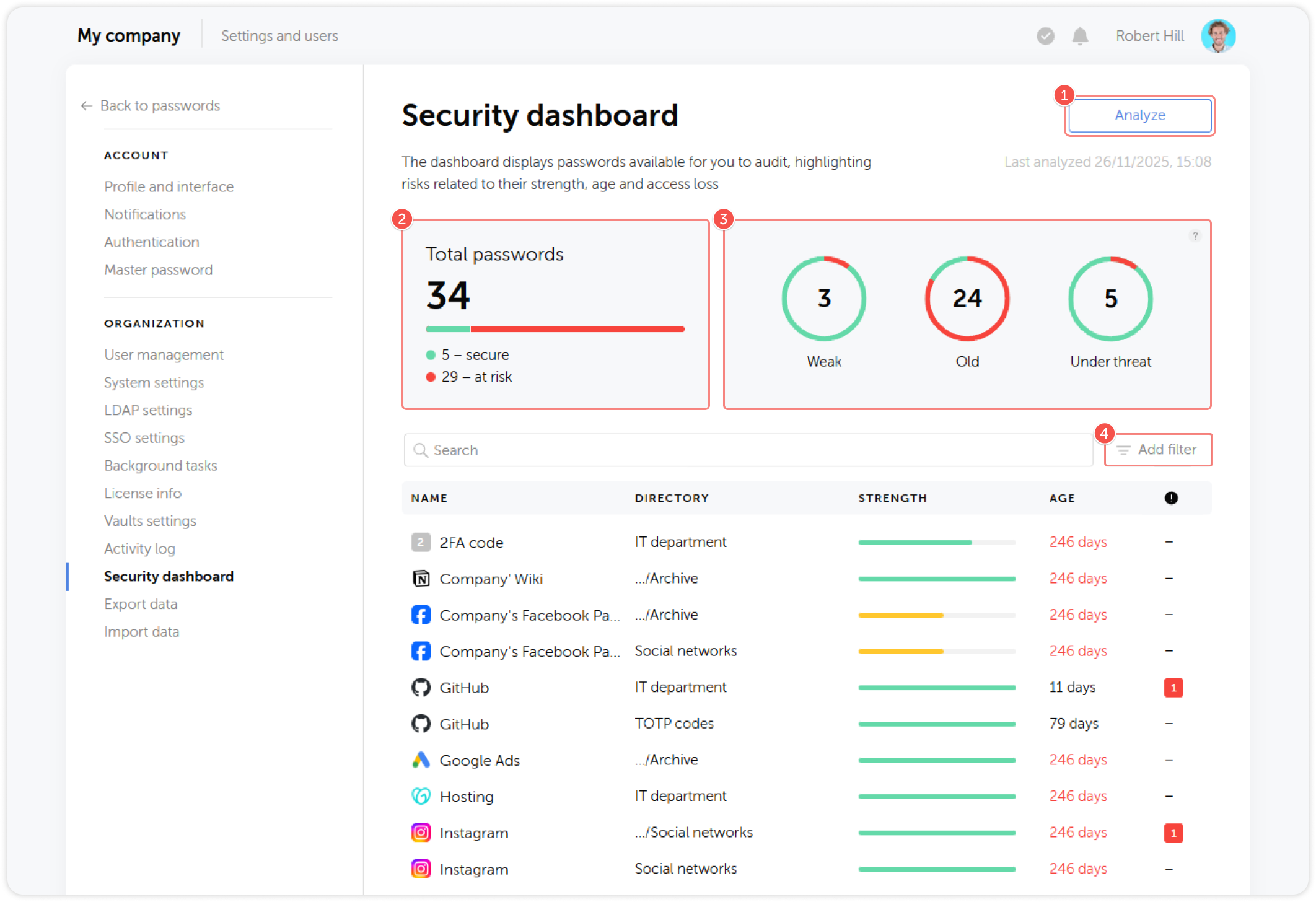
3.2 Review findings by category
| Finding type | Definition | Action required |
|---|---|---|
| Weak | Password score below threshold | Notify responsible team; require update within 30 days |
| Old | Not updated in > 180 days | Review and rotate; prioritize service accounts |
| Compromised | User had access revoked but password not changed | Immediate rotation required |
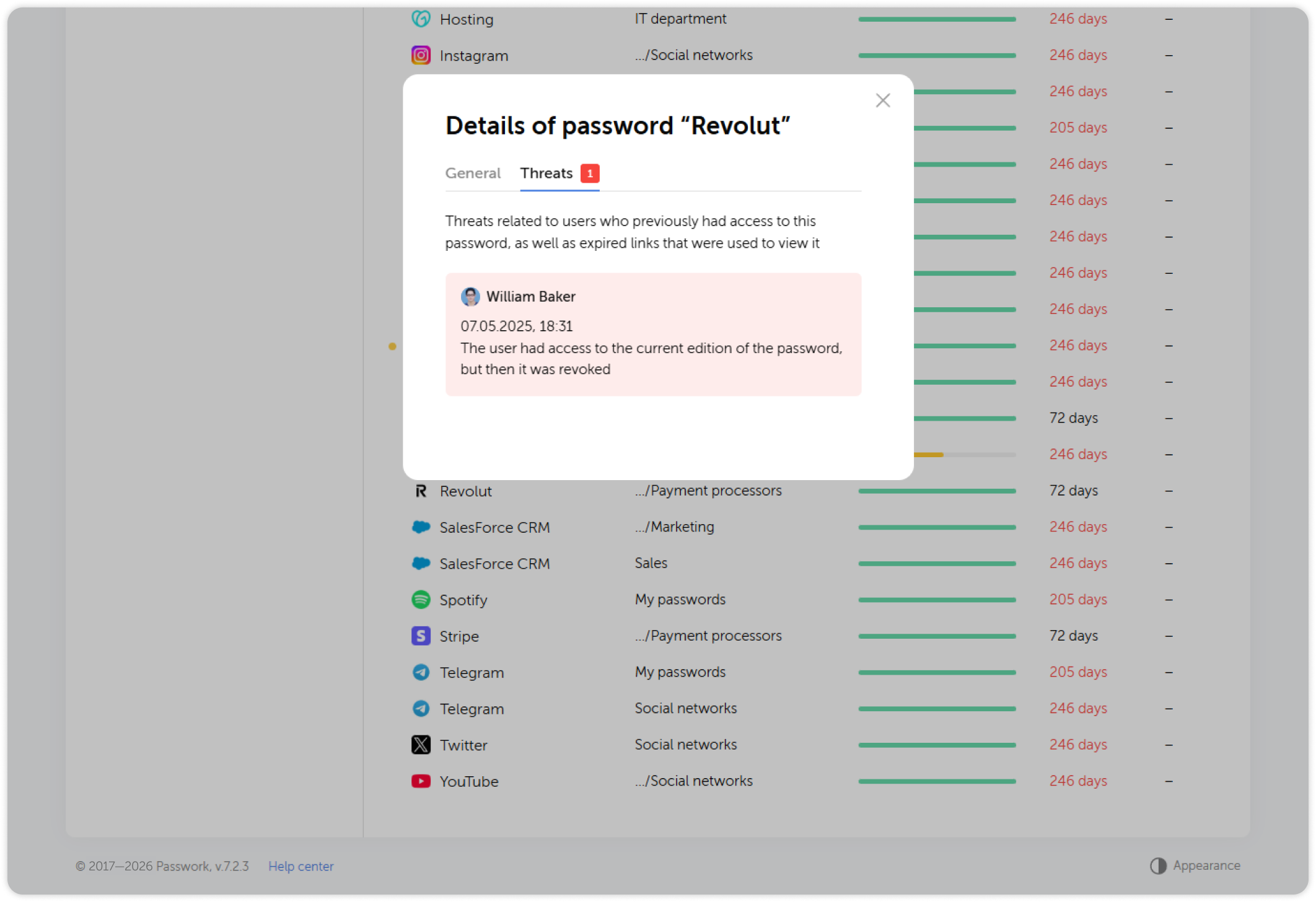
"Compromised" passwords are a critical finding. They represent credentials that were accessible to users whose access was revoked — either through offboarding, group removal, or vault access change — but where the credential was not subsequently changed. Any authorized user who previously had access may still have the credential memorized or stored externally.
3.3 Establish a baseline
After the initial analysis and remediation:
- Document the baseline state (zero compromised, zero critical weak)
- Schedule recurring analysis (recommended: monthly)
- Assign ownership of each vault type's Security Dashboard results to a named administrator
4. Incident response procedures
4.1 Suspected credential compromise
Trigger: User reports suspicious access, unusual activity observed in audit log, or external threat intelligence indicates credential exposure.
| Step | Action | Responsible |
|---|---|---|
| 1 | Block the affected user account immediately | IT Admin |
| 2 | Terminate all active sessions for the affected user | IT Admin |
| 3 | Run Security Dashboard filtered by the affected user | Security Lead |
| 4 | Rotate all credentials the user had access to (prioritize privileged accounts) | Vault Admins |
| 5 | Review audit log for the user's actions in the last 30 days | Security Lead |
| 6 | Revoke all active shared links created by the user | Vault Admins |
| 7 | Notify affected departments | Project Lead |
| 8 | Document findings in incident record | Security Lead |
4.2 Unauthorized administrative access
Trigger: An admin action appears in the audit log that cannot be attributed to an authorized person, or an admin account is used from an unexpected location or time.
| Step | Action |
|---|---|
| 1 | Identify all actions performed under the account (audit log) |
| 2 | Change the account's password and revoke all active sessions |
| 3 | Review all changes made: role assignments, vault access grants, system settings |
| 4 | Reverse any unauthorized changes |
| 5 | Determine the initial access vector: credential compromise, stolen session, insider |
| 6 | File a security incident report |
4.3 Bulk data access or export
Trigger: Audit log shows a user accessing or exporting an unusually large number of passwords in a short period.
| Step | Action |
|---|---|
| 1 | Preserve the audit log entries for the incident period |
| 2 | Identify all vaults and records accessed |
| 3 | Contact the user and their manager for explanation |
| 4 | If unauthorized: block the account, rotate all accessed credentials |
| 5 | Review and tighten vault export permissions in the affected role |
4.4 Server compromise (on-premise)
Trigger: Evidence of unauthorized server access: unexpected processes, modified configuration files, unauthorized SSH keys, abnormal outbound connections.
| Step | Action |
|---|---|
| 1 | Isolate the server from the network (do not power off — preserve memory) |
| 2 | Assume all server-side data is compromised |
| 3 | Rotate the server encryption key (requires full data re-encryption — contact Passwork support) |
| 4 | Require all users to change their Passwork passwords |
| 5 | If CSE was disabled: treat all stored passwords as compromised; notify all vault owners |
| 6 | If CSE was enabled: passwords are client-side encrypted; server breach exposes only unencrypted metadata (record names, URLs, etc.) |
| 7 | Restore from a clean backup after server forensics are complete |
5. Periodic review schedule
| Activity | Frequency | Responsible |
|---|---|---|
| Security Dashboard analysis | Monthly | Security Lead |
| Audit log review for anomalies | Weekly | Security Lead |
| SIEM alert rule review | Quarterly | SIEM Admin |
| Full security review (this checklist) | Quarterly or after major changes | Security Lead |
| Vault access rights audit | Quarterly | Vault Admins + Security Lead |
| Backup restoration test | Semi-annually | Server Admin |
| External penetration test | Annually | External vendor |
Summary checklist
| # | Control | Status |
|---|---|---|
| 1.1 | Activity log is enabled and recording events | |
| 1.2 | Audit log retention meets regulatory requirements | |
| 2.1 | Syslog/Event Log forwarding is enabled | |
| 2.2 | SIEM is receiving and parsing Passwork CEF events | |
| 2.3 | SIEM alert rules configured for priority security events | |
| 3.1 | Security Dashboard analysis has been run | |
| 3.2 | Zero "Compromised" passwords in Security Dashboard | |
| 3.3 | Security Dashboard baseline established and review scheduled | |
| 4 | Incident response procedures documented and communicated | |
| 5 | Periodic review schedule established with named owners |