

Roles and permissions
Access control misconfiguration is one of the most common causes of data exposure incidents. This section verifies that roles, vault types, and user permissions follow the principle of least privilege and that administrative duties are appropriately separated.
Navigate to Settings → User management for most controls in this section.
1. Default roles — permission review
Passwork includes three built-in roles: Owner, Administrator, and Member (User). Additionally, your organization may have custom roles.
For each role, open the role settings and review the enabled permissions against the matrix below.
Owner role
There is exactly one Owner. The Owner role cannot be modified and grants the highest level of access, including the ability to change other users' roles.
What to verify:
- Only one user is assigned the Owner role
- The Owner account has 2FA enabled
- The Owner's credentials are stored in the emergency service account or in a sealed offline record (see Phase 2 of the Admin Rollout)
- The Owner account is used only for administrative tasks, not for daily credential access
Administrator role
Administrators can manage users, configure settings, and access all vaults for which they are corporate administrators.
What to verify:
| Permission | Expected for Admin | Security concern if enabled for all |
|---|---|---|
| Manage all system settings | Yes | Low — expected for admin role |
| View Activity log | Yes | Low |
| Manage LDAP settings | Yes | Low |
| Manage SSO settings | Yes | Low |
| Manage all vault types | Yes (global admins) | High — scope to relevant types only for dept admins |
| Access to all vaults | Only via corporate admin assignment | High — admins should not see all vaults by default |
| User management (all users) | Yes (global admins) | Medium — dept admins should only manage their role's users |
Member role
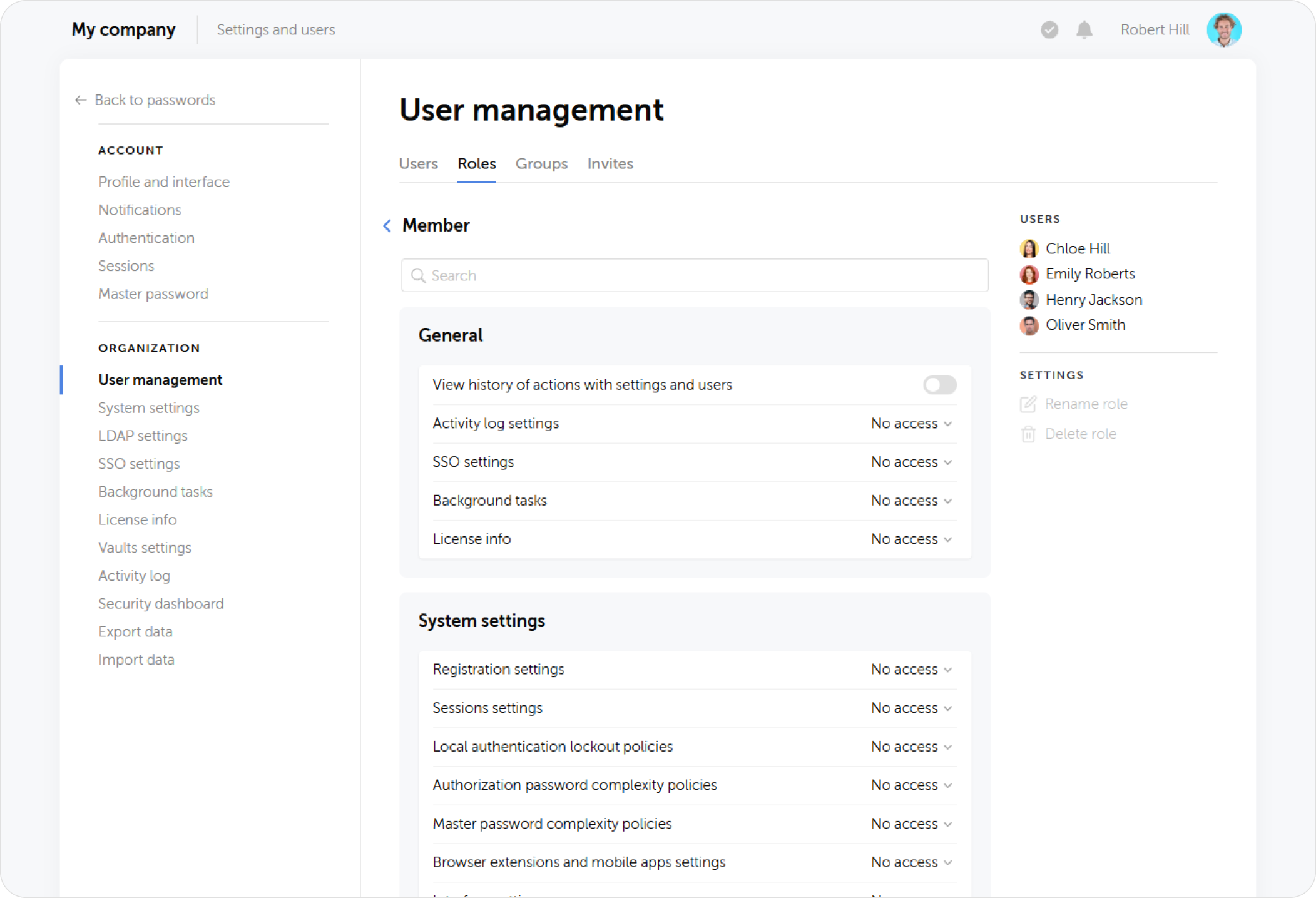
The default role for all end users. Must not have access to administrative functions.
Verify the Member role does not have:
- Access to System settings
- Access to User management
- Vault creation (unless your policy allows user-created vaults)
- Action History access (unless your policy requires user-level audit)
- API token generation (unless required for a specific use case)
2. Custom roles — principle of least privilege
For each custom role, verify:
- Minimum necessary permissions only — each permission enabled in the role should have a documented business justification.
- Role-based user management scope — if a custom admin role can manage users, verify that the Role-based user management setting restricts it to managing only users in the corresponding member role (not all users in the system).
- No "catch-all" admin roles — avoid roles that grant access to all vault types and all settings. Department-level admin roles should be scoped.
Separation of duties matrix
For organizations with compliance requirements (ISO 27001, SOC 2), verify the following separations exist:
| Duty pair | Should be separate roles | Risk if combined |
|---|---|---|
| Granting vault access / Accessing vault content | Yes | Self-authorization |
| Managing users / Approving vault access requests | Yes | Privilege escalation |
| Configuring LDAP / Using LDAP credentials | Yes | Credential exposure |
| Configuring audit log / Accessing audit log | Yes | Audit tampering |
| Creating API tokens / Using API tokens | Context-dependent | Over-permissioned automation |
3. Vault types and corporate administrators
3.1 Corporate administrators on all vault types
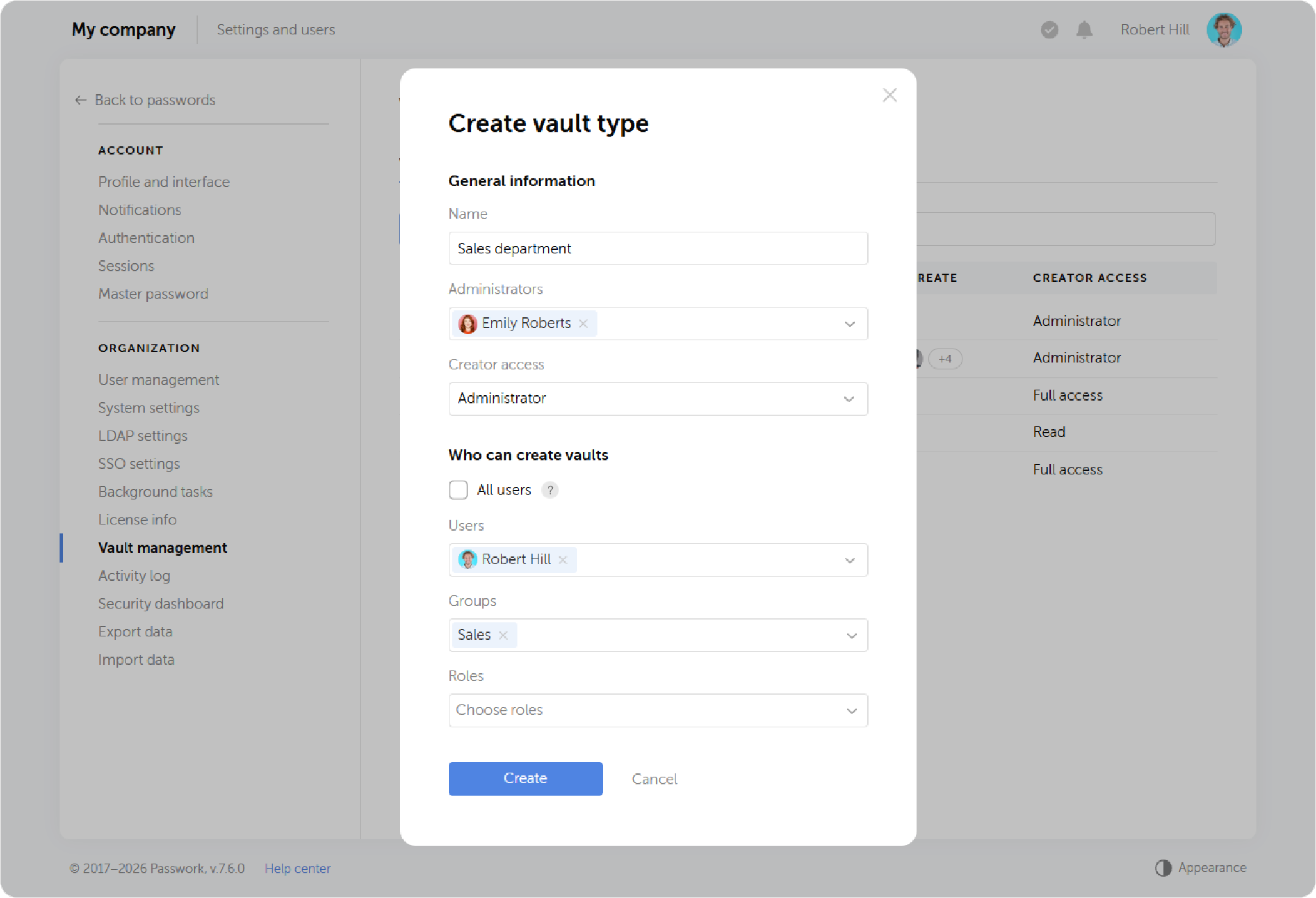
Every vault type should have at least one corporate administrator — an account that is automatically added to all vaults of that type and cannot be removed by vault owners. This ensures emergency access and prevents vault orphaning.
Navigate to Settings → Vault management → Vault types.
For each vault type, verify:
- At least one corporate administrator is assigned
- The corporate administrator is either the service account (see Section 4) or a named, active administrative account
- Corporate administrators are not users who may change roles or leave the organization without a succession plan
3.2 Private vault restrictions
Evaluate whether unrestricted private vault creation is appropriate for your organization.
Risk: Users who create private vaults and store corporate credentials there make those credentials inaccessible to IT during audits, offboarding, or incident response.
Navigate to Settings → Vault management→ User vaults type → Who can create vaults.
| Policy option | When to use |
|---|---|
| All users can create private vaults | Low-risk environments; users store only personal credentials |
| Restricted to specific roles/users | Medium/high-risk environments; prevents credential hoarding |
| Prohibit adding users to private vaults | Ensures private vaults cannot become impromptu shared vaults |
3.3 Vault ownership audit
Run a review of all existing vaults:
In Settings → Vault management → All vaults, verify:
- Each vault has an active owner (not a deleted or blocked user)
- Corporate administrators are assigned to each vault as expected from the vault type
- No "orphaned" vaults exist (vaults with no active users)
4. Service account (emergency access)
As configured in Phase 2: Structure and Roles, a service account must exist for emergency vault recovery.
What to verify
- A dedicated service account exists
- The service account is assigned as a corporate administrator on all critical vault types
- The service account is blocked in Passwork — it cannot sign in under normal circumstances
- The service account credentials and master password (if CSE enabled) are stored in a physically secure offline location
- Access to the physical credentials record is documented (who can access it, under what conditions)
- The service account has 2FA disabled (blocked account cannot sign in, so 2FA is irrelevant, but confirms no active sessions exist)
The service account must never be used for day-to-day administrative tasks. All use must be logged in the organization's IT incident record system. After each use, the account must be re-blocked and credentials must be rotated.
5. API access review
The Passwork API allows programmatic access to vault data. Compromised API tokens are equivalent to compromised user credentials.
What to verify
Navigate to Settings → Users and review users who have API tokens:
- Each API token has a documented owner and purpose
- Tokens for decommissioned integrations have been revoked
- API tokens follow a rotation schedule (see API token rotation)
- The role assigned to API service users restricts their permissions to the minimum required (e.g., read-only access to specific vaults)
- API access is disabled for standard user roles if no integration requires it
6. Excessive vault access review
A user should only have access to the vaults and folders needed for their current role.
What to verify
For a sample of users (especially those with administrative roles):
- Open the user's profile in Settings → Users.
- Check the Access tab — this shows all vault and folder access for that user.
- Verify that each access grant corresponds to a current business need.
Look specifically for:
- Former department membership (access not revoked after transfer)
- Contractor access remaining after project end
- Admin access to vaults with no operational need
For full access rights documentation, see User access rights.
Summary checklist
| # | Control | Status |
|---|---|---|
| 1.1 | Exactly one Owner account exists | |
| 1.2 | Owner account has 2FA enabled | |
| 1.3 | Member role has no admin permissions | |
| 2 | Custom roles follow least privilege; dept admins are scope-limited | |
| 2 (SoD) | Administrative duties separated per matrix above | |
| 3.1 | All vault types have a corporate administrator | |
| 3.2 | Private vault creation policy is intentional and documented | |
| 3.3 | No orphaned vaults; all vaults have active owners | |
| 4 | Service account exists, is blocked, credentials stored offline | |
| 5 | All API tokens are active, documented, and rotated | |
| 6 | Sample user access review completed; no excess permissions found |