



Issuing trusted certificate with win-acme (Let’s Encrypt)
Overview
This article provides an example of configuring and issuing a trusted public certificate using win-acme (Let’s Encrypt) on Windows Server.
Preparing IIS
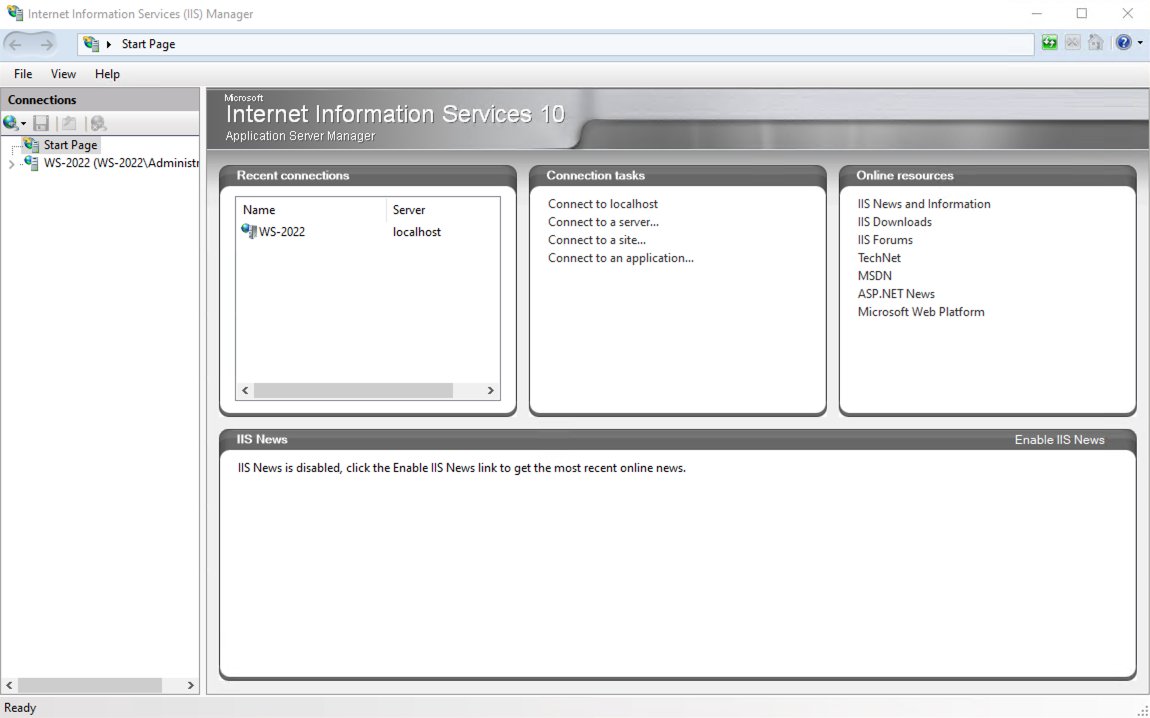
Open — Server Manager → Tools → IIS Manager:
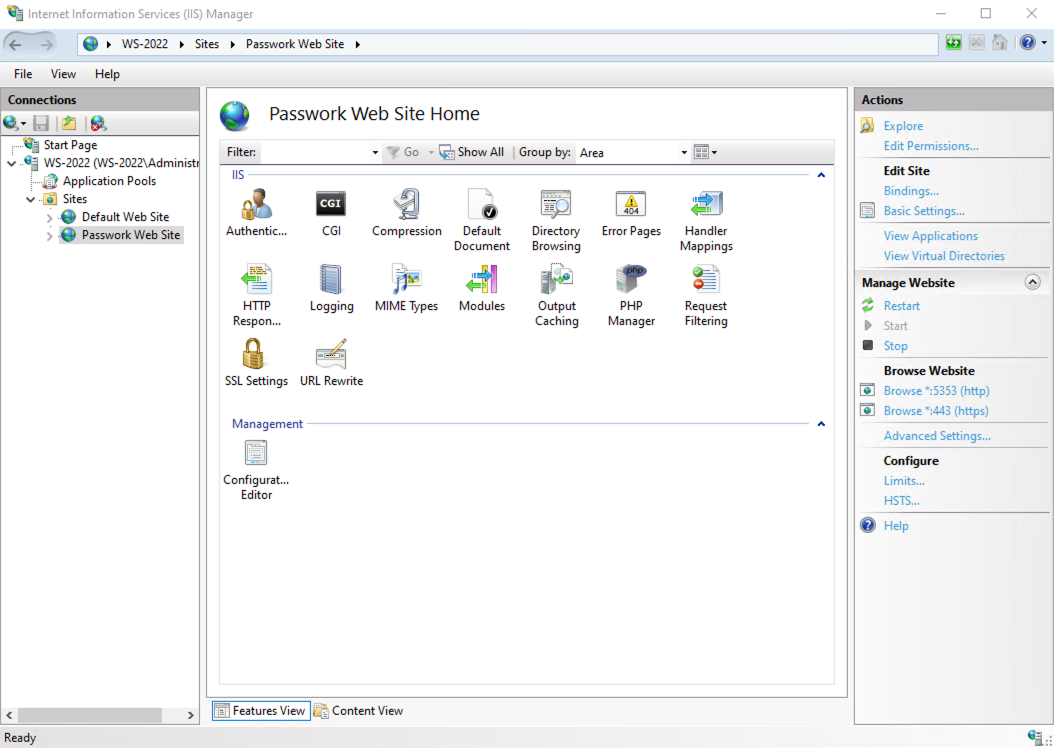
Navigate to the Passwork website:
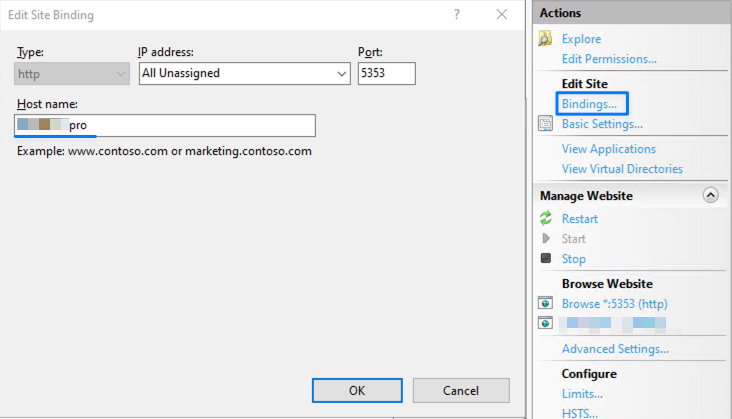
In the right panel Actions → Bindings... edit the HTTP protocol binding, specify in Host name: the domain or subdomain that will be used for connections to the Passwork web interface:
Configuring and Issuing a Trusted Certificate
Obtaining and Running win-acme
Open PowerShell as “Administrator”:
Using the Start context menu
- Right-click the Start icon in the lower-left corner of the screen.
- Select “Windows PowerShell (Administrator)” from the context menu.
Using the Start menu
- Left-click the Start icon in the lower-left corner of the screen.
- Type
powershell - Open PowerShell as “Administrator” by pressing
Ctrl + Shift + Enter
When using Windows Server 2016, you need to enable the TLS 1.2 security protocol with the following command:
- PowerShell
[Net.ServicePointManager]::SecurityProtocol = [Net.SecurityProtocolType]::Tls12
Download the archive — win-acme.v2.2.9.1701.x64.pluggable.zip to the current working directory of the shell:
- PowerShell
if (-not (Test-Path "$pwd\win-acme.v2.2.9.1701.x64.pluggable.zip")) {
    (New-Object System.Net.WebClient).DownloadFile(
        "https://github.com/win-acme/win-acme/releases/download/v2.2.9.1701/win-acme.v2.2.9.1701.x64.pluggable.zip",
        "$pwd\win-acme.v2.2.9.1701.x64.pluggable.zip"
    )
    Write-Host "Archive successfully downloaded"
} else {
    Write-Host "Archive already downloaded"
}
Extract the contents into a separate directory — win-acme:
- PowerShell
Expand-Archive `
    -Path "$pwd\win-acme.v2.2.9.1701.x64.pluggable.zip" `
    -DestinationPath "$pwd\win-acme\"
Run wacs.exe to issue the trusted certificate:
- PowerShell
try {
    Start-Process `
        -FilePath "$pwd\win-acme\wacs.exe" `
}
catch {
    Write-Host "Application launch failed with error: $_" -ForegroundColor Red
}
Issuing the Certificate
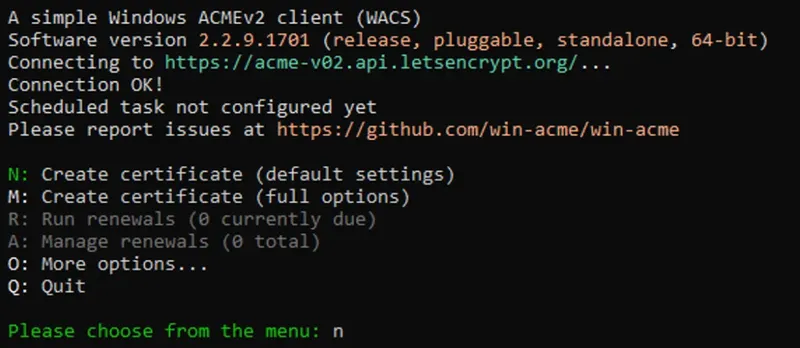
After opening wacs.exe in CMD.exe:
- Create a certificate:
- Select the Passwork website:
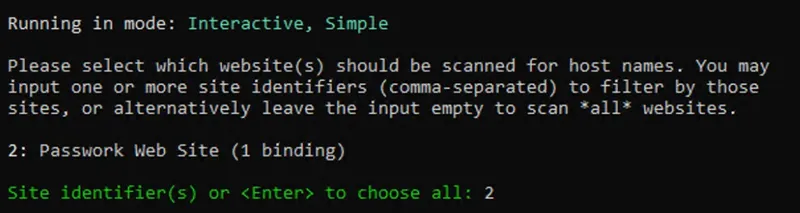
- Use a single binding for the website:
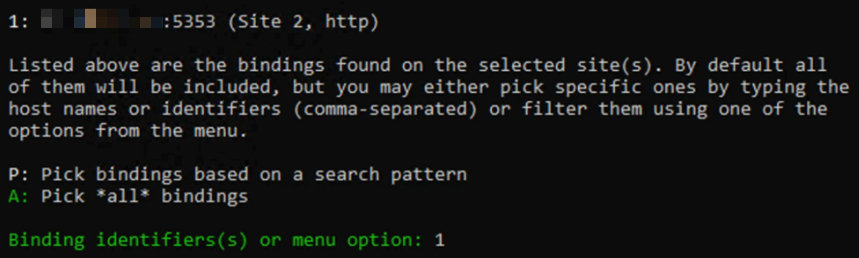
- Confirm actions, accept the terms of use, and provide an email for notifications:

- After completing these steps, a trusted certificate will be issued for the Passwork website, which will be available on port 443:
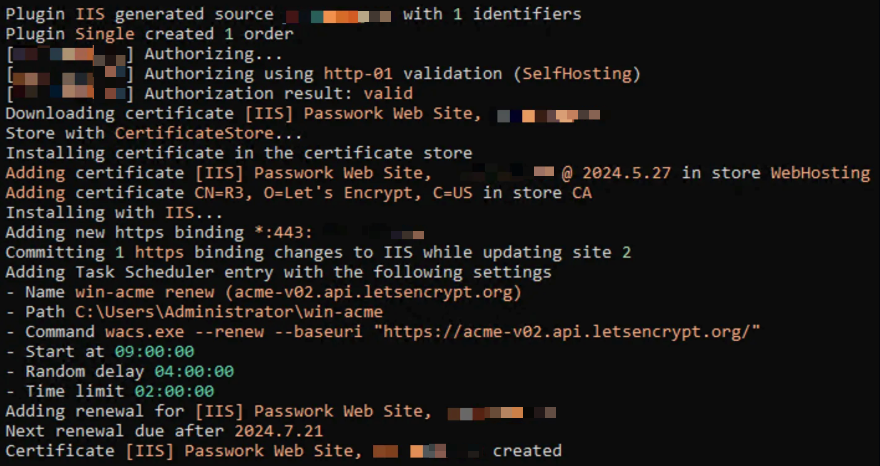
As a result, Passwork will be accessible via HTTPS protocol using a certificate from Let’s Encrypt.