

Import aus Bitwarden
Passwork 7 unterstützt die Migration von Bitwarden mithilfe eines Python-Skripts, das auf dem offiziellen Python-Connector aufbaut. Der Prozess basiert auf der API und hilft dabei, Ihre Datenstruktur beim Umzug zu einer On-Premise-Passwork-Instanz zu erhalten.
Erstellen Sie vor dem Import ein Backup der Passwork-Datenbank und testen Sie den Prozess in einer Staging-Umgebung.
Was importiert wird und was nicht
Importiert
- Bitwarden-Elemente vom Typ
loginundsecure note; - Bitwarden-Sammlungen;
- Ordner aus einem Export des persönlichen Bitwarden-Tresors;
- Elementname, Notizen (
description), Benutzername und Passwort; - URLs aus
login.uris(als URL-Liste); - TOTP (als benutzerdefiniertes Feld mit dem Typ
totp); - benutzerdefinierte Felder:
type 0undtype 2->text;type 1->password.
Nicht importiert
- Bitwarden-Anhänge;
- andere Elementtypen als
loginundsecure note(werden übersprungen); - nicht unterstützte Typen benutzerdefinierter Felder (eine Warnung wird ins Protokoll geschrieben).
Dateien
Schritt 1. Daten aus Bitwarden exportieren
Diese Anleitung verwendet Bitwarden Web Vault als Beispiel, da der Organisationsexport in der Weboberfläche verfügbar ist.
Wenn Sie einen individuellen (persönlichen) Tresor aus der Browser-Erweiterung, der Desktop- oder der mobilen App exportieren müssen, verwenden Sie den entsprechenden Abschnitt der Bitwarden-Dokumentation.
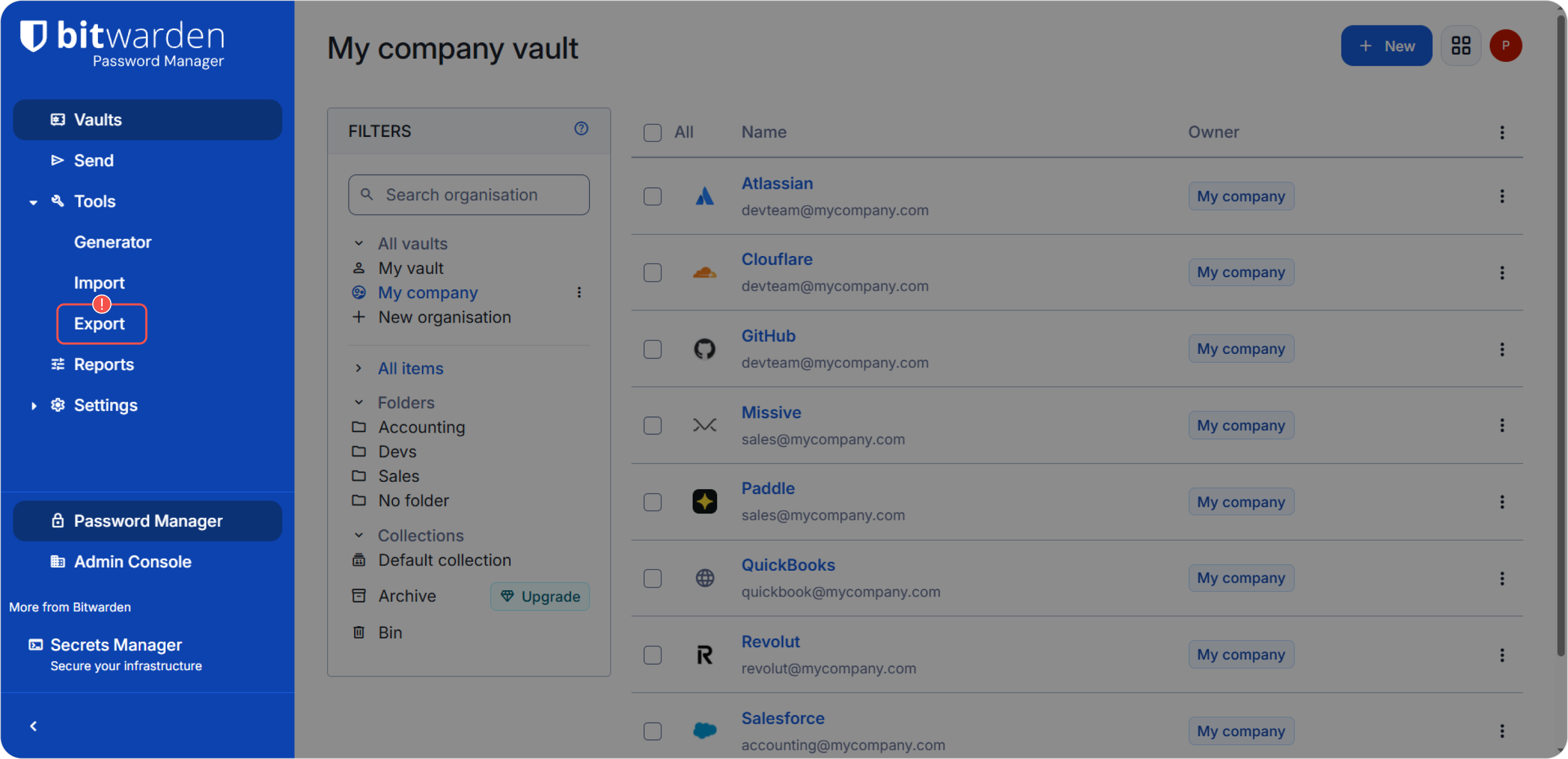
- Öffnen Sie Bitwarden und gehen Sie zu Tools → Export.
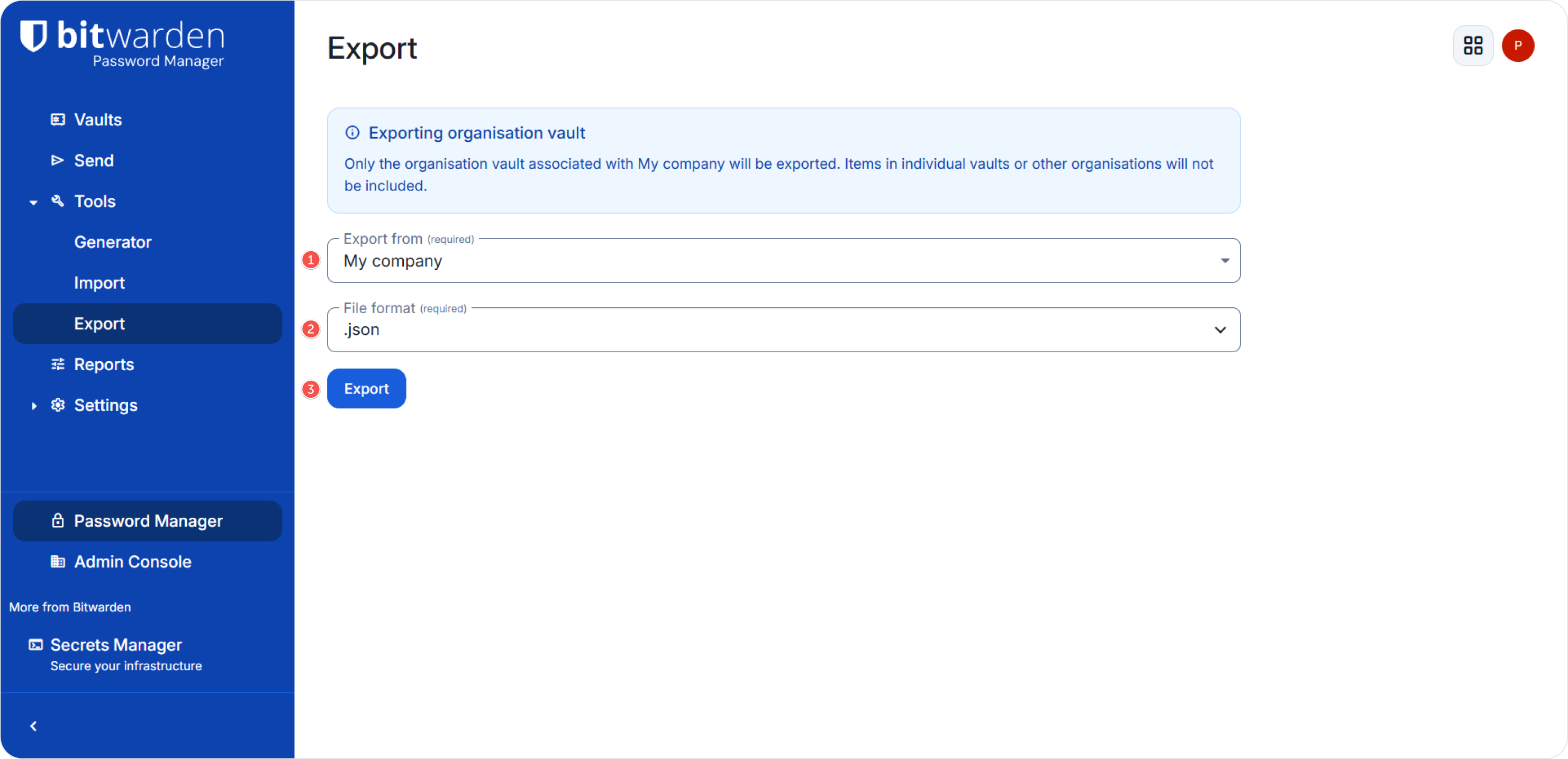
- Wählen Sie den Organisationsexport oder den Export eines bestimmten Tresors und wählen Sie JSON → Export.
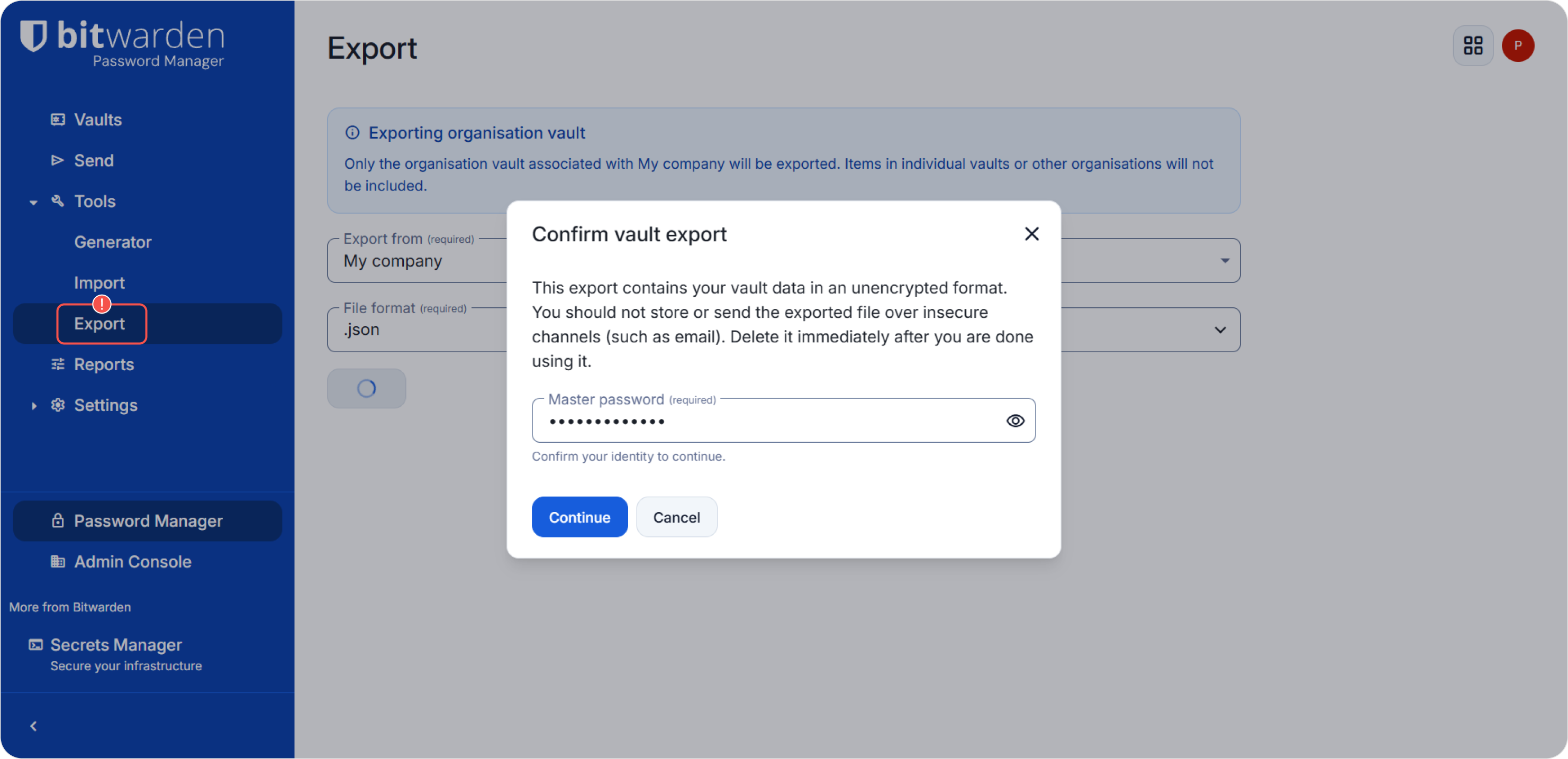
- Bestätigen Sie den Export, indem Sie Ihr Bitwarden-Masterpasswort eingeben.
- Stellen Sie sicher, dass die Datei
.jsonerfolgreich heruntergeladen wurde. Diese Datei wird als Eingabe fürimport.pyverwendet.
Schritt 2. Umgebung vorbereiten und Skript ausführen
- Linux / macOS
- PowerShell
python3 -m venv .venv
source .venv/bin/activate
pip install -r requirements.txt
python3 import.py ./bitwarden_export.json --host "https://passwork.example.com" --token "YOUR_ACCESS_TOKEN"
python -m venv .venv
.venv\Scripts\Activate.ps1
pip install -r requirements.txt
python import.py .\bitwarden_export.json --host "https://passwork.example.com" --token "YOUR_ACCESS_TOKEN"
Skriptparameter
Erforderlich
file— Pfad zur Bitwarden-JSON-Exportdatei;--host— URL des Passwork-Hosts;--token— Zugriffstoken (accessToken).
Optional
--master-key— Masterschlüssel (wenn die clientseitige Verschlüsselung aktiviert ist);--refresh-token— Refresh-Token (refreshToken);--vault-id— ID eines vorhandenen Tresors als Importziel;--collections— durch Kommas getrennte Liste von Sammlungsnamen oder -IDs.
Ausführungsbeispiele
Import in separate Tresore (nach Sammlungen)
- shell
python3 import.py ./bitwarden_export_org.json \
  --host "https://passwork.example.com" \
  --token "YOUR_ACCESS_TOKEN"
Nur ausgewählte Sammlungen importieren
- shell
python3 import.py ./bitwarden_export_org.json \
  --host "https://passwork.example.com" \
  --token "YOUR_ACCESS_TOKEN" \
  --collections "Collection 1,Collection 2"
Import in einen vorhandenen Tresor
- shell
python3 import.py ./bitwarden_export_org.json \
  --host "https://passwork.example.com" \
  --token "YOUR_ACCESS_TOKEN" \
  --vault-id "VAULT_ID"
Schritt 3. Interaktive Eingabeaufforderungen
Wenn optionale Argumente nicht über die CLI angegeben werden, fragt das Skript sie möglicherweise interaktiv ab:
Input comma-separated list of collection IDs or names to export (optional):
Input Passwork vault ID to import data to (optional):
Drücken Sie Enter, um eine Eingabeaufforderung zu überspringen.
Schritt 4. Bestätigung und Protokollierung
Bevor der Import beginnt, gibt das Skript eine Zusammenfassung aus und fordert eine Bestätigung an:
The following collections will be exported: Private vault
Continue operation? (Y/N):
Während der Ausführung erstellt das Skript eine Protokolldatei im aktuellen Verzeichnis:
import-YYYY-MM-DD_HH-MM-SS.log
Das Protokoll enthält die erstellten Tresore/Ordner, die Schritte beim Importieren von Elementen und Warnungen zu übersprungenen Daten.
Argumente
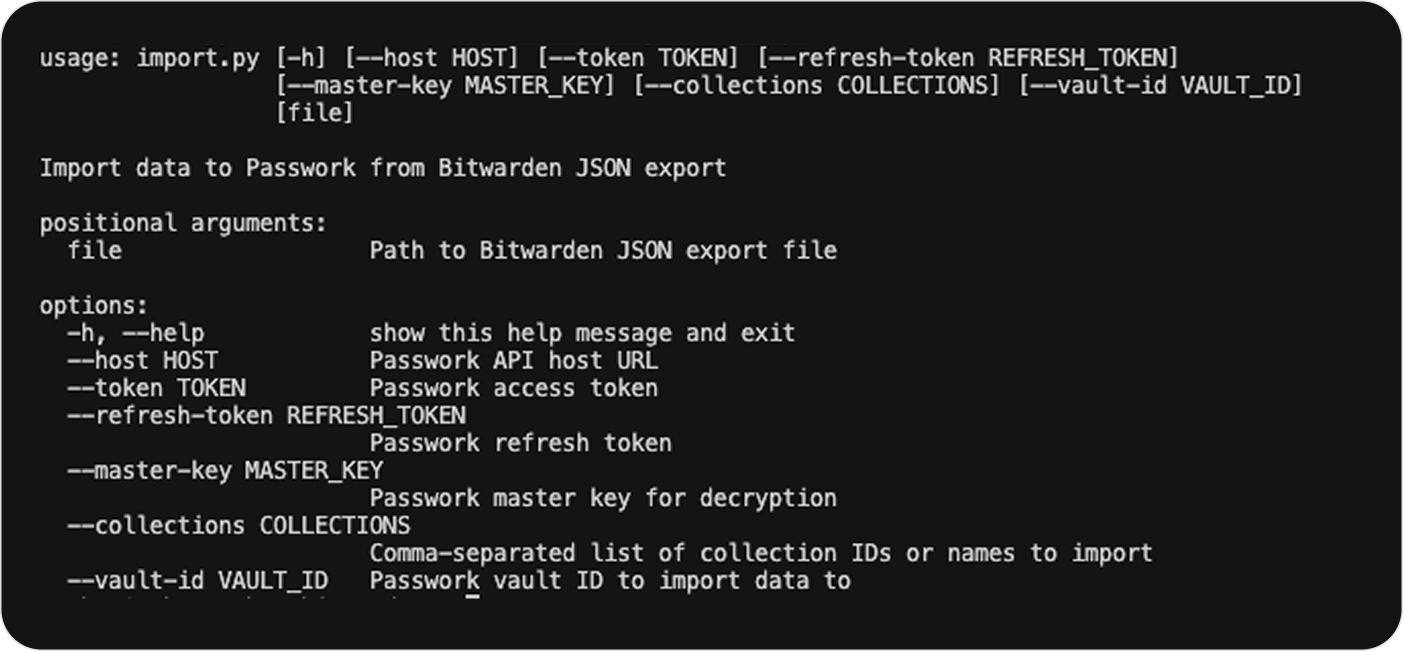
Um alle verfügbaren Argumente anzuzeigen:
- shell
python3 import.py --help