


Windows Server
Descarga del archivo
Abra el navegador en el servidor donde está instalado Passwork y descargue el último paquete de PHP.
Este archivo contiene la compilación de PHP x64.
Extraiga el archivo en C:\Program Files\, reemplazando los archivos existentes:
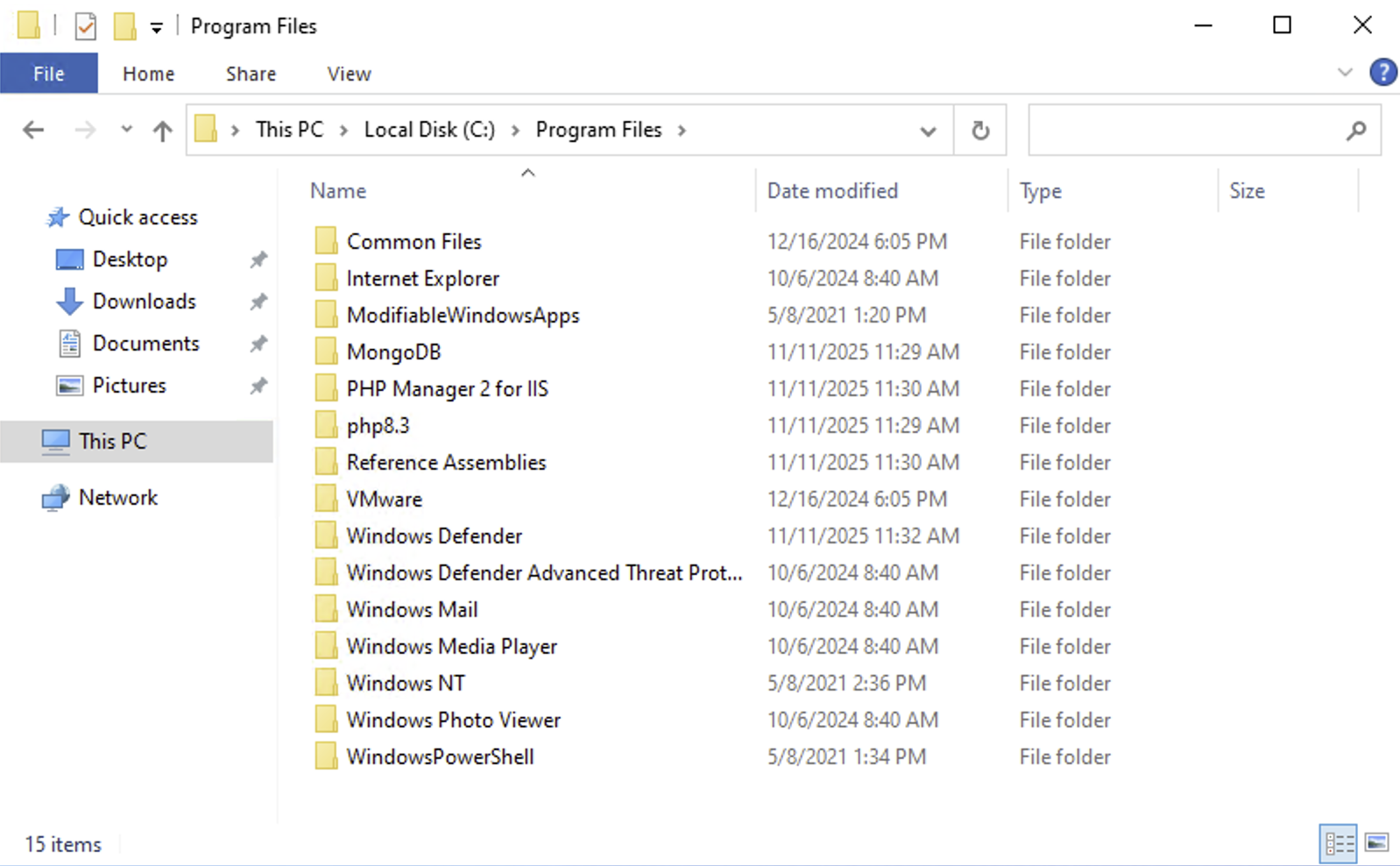
Cambio de la versión de PHP en IIS
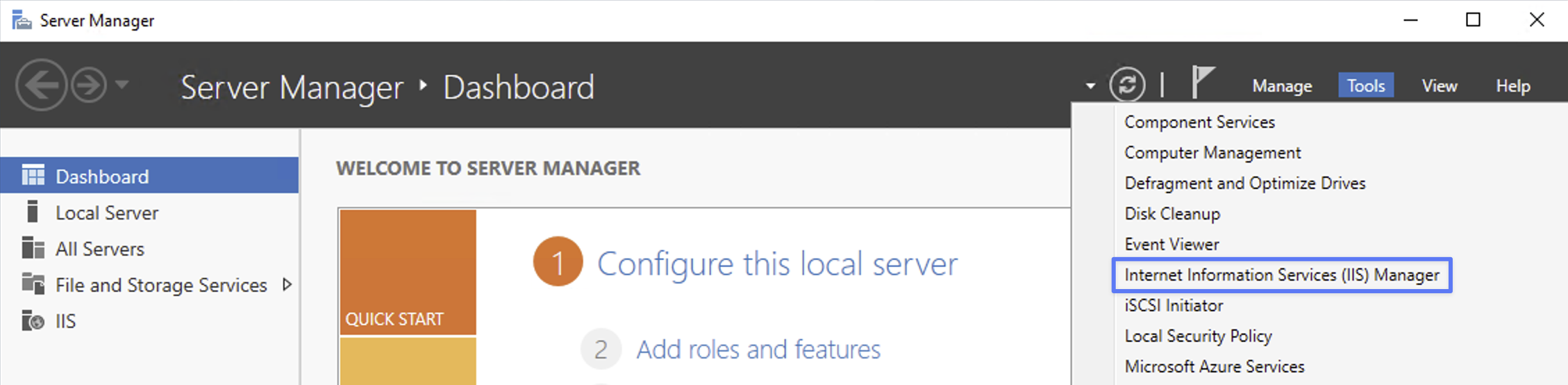
Abra Administrador del servidor → Herramientas → Administrador de IIS:
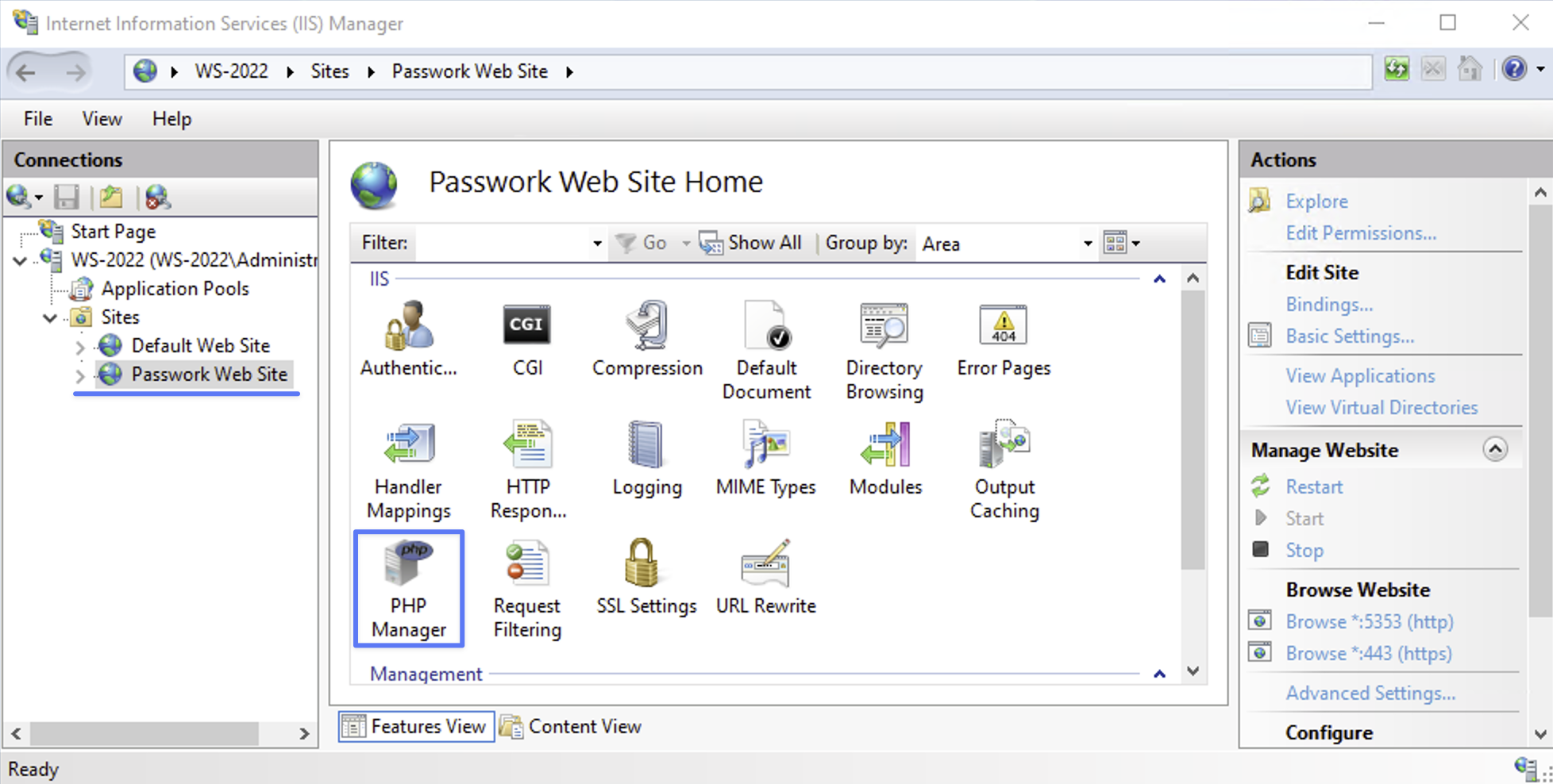
Expanda el sitio de Passwork y abra PHP Manager:
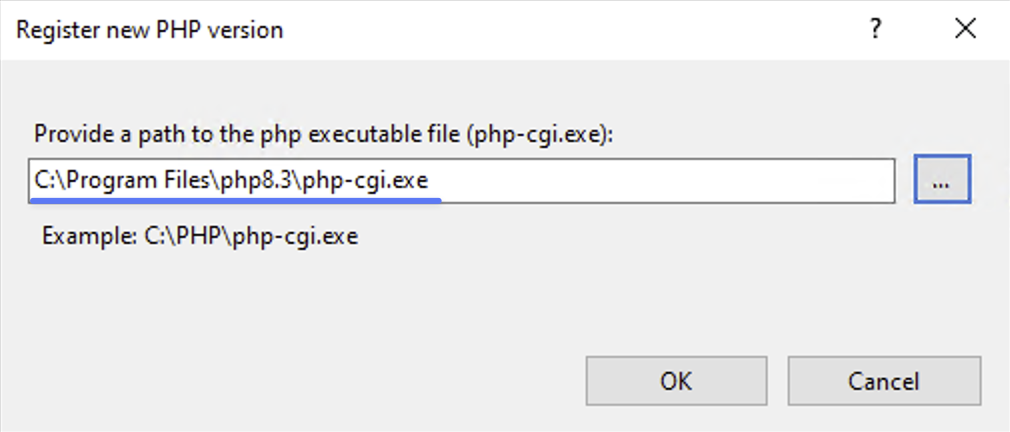
Seleccione Register new PHP version y establezca la ruta a C:\Program Files\php8.3\php-cgi.exe:
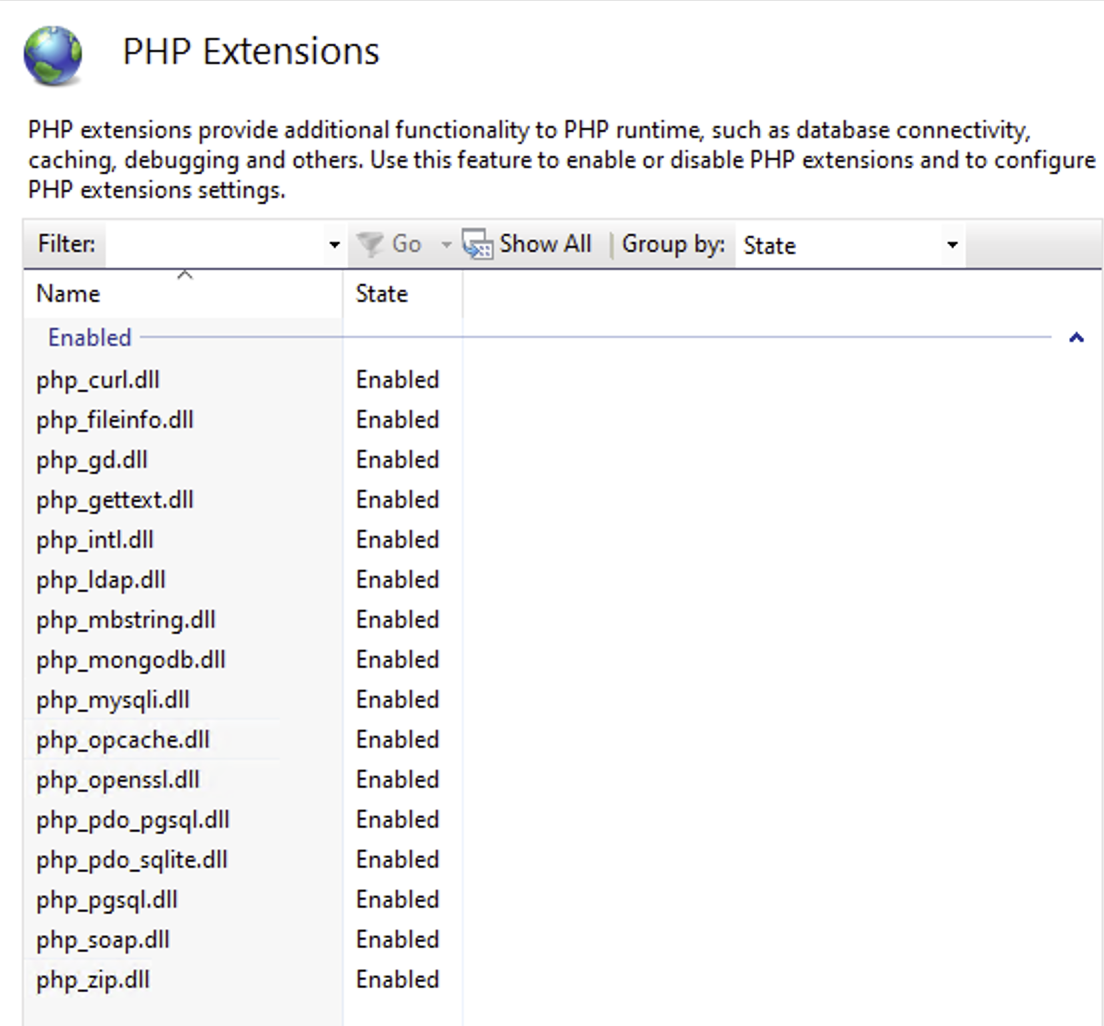
Desplácese hacia abajo hasta Turn extensions on or off y habilite las extensiones que se muestran en la captura de pantalla:
Actualización de verbos del controlador y reinicio del sitio
Abra PowerShell como «Administrador»:
Usando el menú contextual de Inicio
- Haga clic derecho en el icono de Inicio en la esquina inferior izquierda de la pantalla.
- Seleccione «Windows PowerShell (Administrador)» en el menú contextual.
Usando el menú Inicio
- Haga clic en el icono de Inicio en la esquina inferior izquierda de la pantalla.
- Escriba
powershell - Abra PowerShell como «Administrador» presionando
Ctrl + Shift + Enter
Obtenga la versión de PHP actualmente registrada:
- PowerShell
$phpVersion = (php -v | Select-String 'PHP\s+(\d+\.\d+\.\d+)').Matches[0].Groups[1].Value
Actualice la lista de verbos HTTP permitidos para el controlador de PHP:
- PowerShell
# Change the path if Passwork is installed in a custom directory
$webConfigPath = "$env:SystemDrive\inetpub\wwwroot\passwork\public\web.config"

if (Test-Path $webConfigPath) {
  [xml]$webConfig = Get-Content $webConfigPath
  $handler = $webConfig.SelectSingleNode("//system.webServer/handlers/add[@name='php-$phpVersion']")
  if ($handler) {
      $handler.verb = "GET,HEAD,POST,PUT,DELETE,OPTIONS,PATCH"
      $webConfig.Save($webConfigPath)
  } else {
      Write-Host "PHP handler in web.config not found" -ForegroundColor Red
  }
}
Reinicie el sitio de Passwork:
- PowerShell
Import-Module WebAdministration
Stop-WebSite  -Name "Passwork Web Site"
Start-WebSite -Name "Passwork Web Site"