


Migrating from the legacy Docker build (Passwork 6) to the current build and Passwork 7
Backup
- Copy the
config.iniconfiguration file (full path/server/sites/prod/app/config/config.ini) to a directory outside/server. - Create a database backup.
- Without authorization
- With authorization
cd /server/docker-compose
docker-compose exec -T db sh -c 'mongodump --archive' > "./before65.dump"
cd /server/docker-compose
docker-compose exec -T db sh -c 'mongodump --archive --authenticationDatabase admin --username=your-admin --password=your-password' > "./before65.dump"
- If you are using a virtual machine, take a snapshot of it before the update.
Updating to Passwork 6.5
- shell
cd /server/sites/prod/
git pull
git checkout v6
Initial data migration in the interface
- Open Settings and users → Migration to Passwork 7:
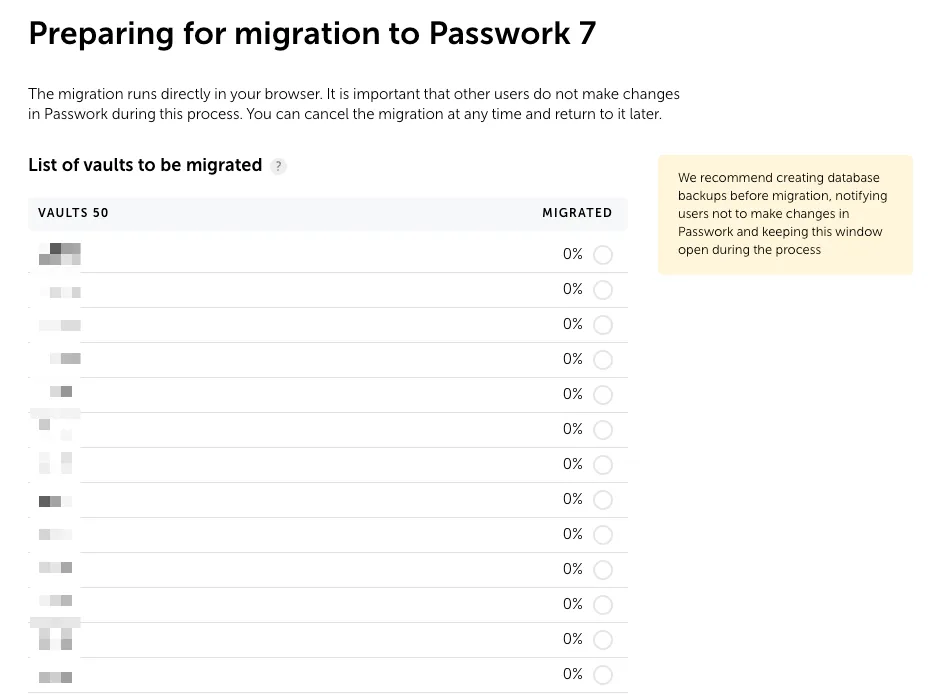
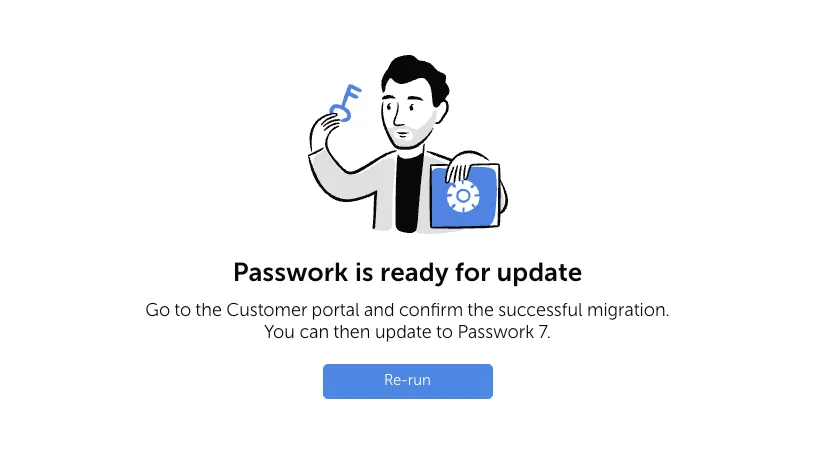
- Start the migration in the Passwork web interface and wait for it to finish:
Preparing to move to the updated Docker build
- Create a directory and change into it:
- shell
mkdir /server/migr_dir && cd /server/migr_dir
- Create a database backup:
- shell
cd /server/docker-compose
docker-compose exec -T db sh -c 'mongodump --archive' > "/server/migr_dir/p65.dump"
- Convert the version 6 configuration file into a version 7 configuration and a key file:
- shell
cd /server/migr_dir
wget https://repos.passwork.pro/repository/linux/scripts/config_convert.sh
chmod +x config_convert.sh
./config_convert.sh -i "/server/sites/prod/app/config/config.ini" -o "./"
rm config_convert.sh
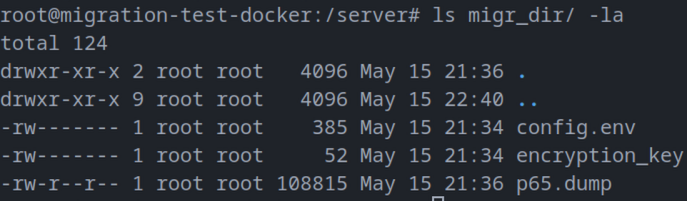
Example of the directory contents after the conversion:
- If you use certificates, additionally:
- Copy the SSL certificate and key:
(shopt -s nullglob; cp -f /server/conf/ssl/*.{crt,pem,key} .) - Copy the LDAPS CA certificate:
(shopt -s nullglob; cp -f /server/conf/php8/*.{crt,pem} .)
- Copy the SSL certificate and key:
aviso
We recommend performing the migration on a new server: it means less downtime, a clean installation, and the ability to roll back.
When migrating on the same server:
- The current Docker build requires Docker 18.06.0 and docker compose (instead of docker-compose).
- Choose an installation path outside /server
- Stop the current installation: cd /server/docker-compose && docker-compose down nginx.
Installing the current Docker build and Passwork 7
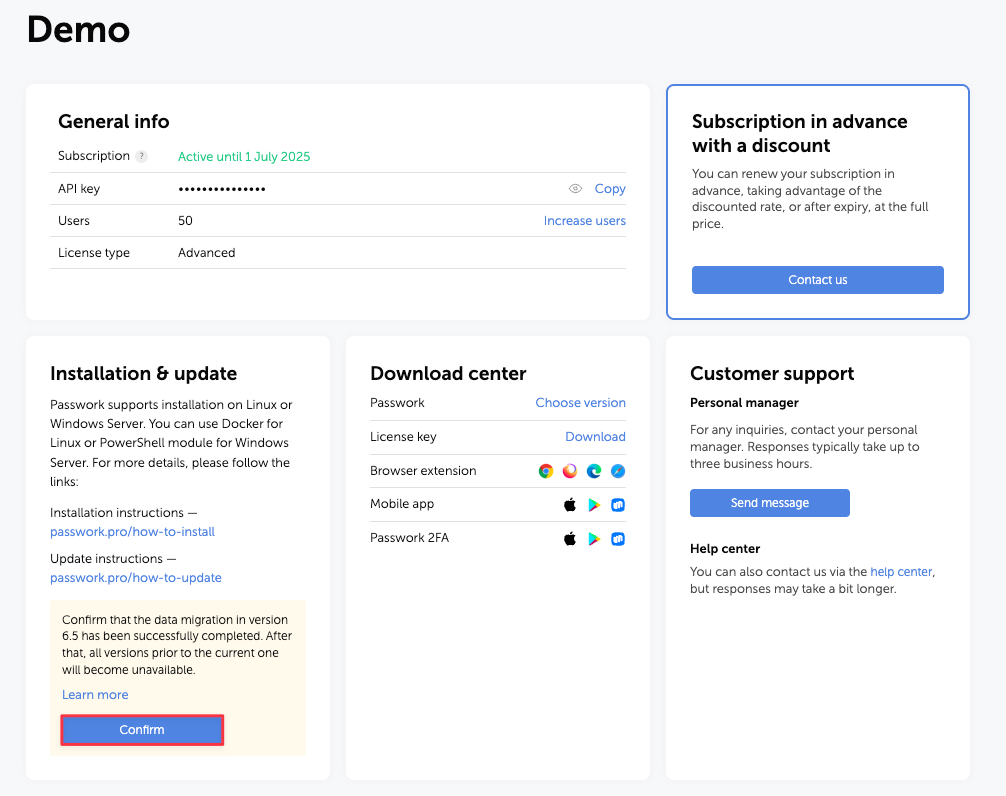
- Confirm the migration in the Passwork Customer Portal:
- Install the current Docker build without going through the setup wizard — follow the installation instructions up to the "Setup wizard" step.
peligro
Do not open the web interface and do not run the setup. Otherwise the migration will be considered already completed and will not start, so as not to overwrite the data.
- Copy
config.envandencryption_keyfrom themigr_dirdirectory into/<passwork>/conf/keys/of the new installation. - If necessary, copy from
migr_dir:- The SSL certificate to
/<passwork>/conf/ssl/fullchain.pem - The SSL key to
/<passwork>/conf/ssl/privkey.pem - The root certificate for LDAPS to
/<passwork>/conf/custom_ca/
- The SSL certificate to
- Create the
/<passwork>/backupdirectory and move thep65.dumpdump into it. - Restore the database from the backup:
./db-restore.sh p65.dump - Apply the changes:
docker compose down && docker compose up -d - Wait about a minute for the containers to start completely.
- Start the migration:
- shell
docker compose exec -T php-fpm sh -c "cd /server/www && yes | php -d memory_limit=-1 bin/console database:v6:migration"
- After a successful migration, open
/<passwork>/conf/keys/config.envin an editor:- Make sure
APP_URLcontains the final DNS address of the Passwork server. - Remove the block that was only used for the migration:
- Make sure
