


Passing attribute values from Keycloak to Passwork
An example of configuring Passwork with Keycloak so that the user's full name attribute is taken from Active Directory/LDAP and delivered over SAML.
Checking the user attribute
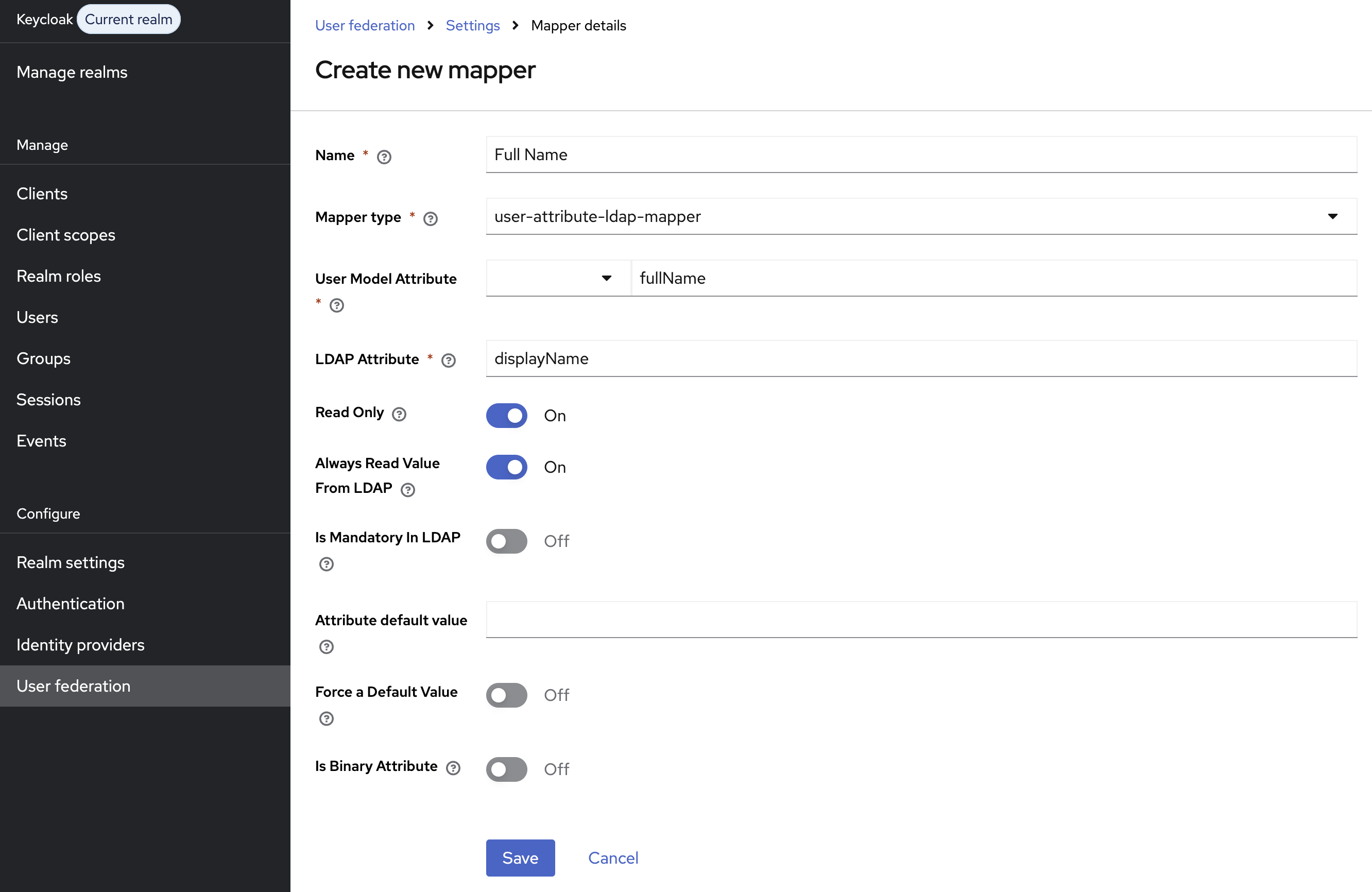
The LDAP user must have the attribute that holds the full name filled in. This example uses displayName: the value of this attribute is passed from LDAP to Keycloak as fullName, and then sent to Passwork in the SAML Response.
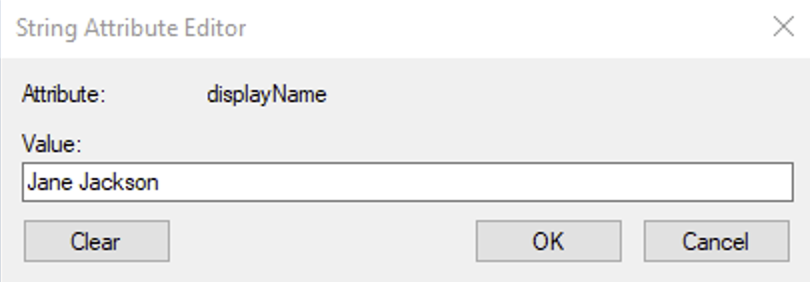
You can use not only displayName to pass the full name, but any other LDAP user attribute that stores the required value. What matters is that the attribute contains a ready-to-use value for Passwork rather than a single part of the name.
Example of the user's values:
displayName = Jane Jackson
givenName   = Jane
sn          = Jackson
mail        = [email protected]
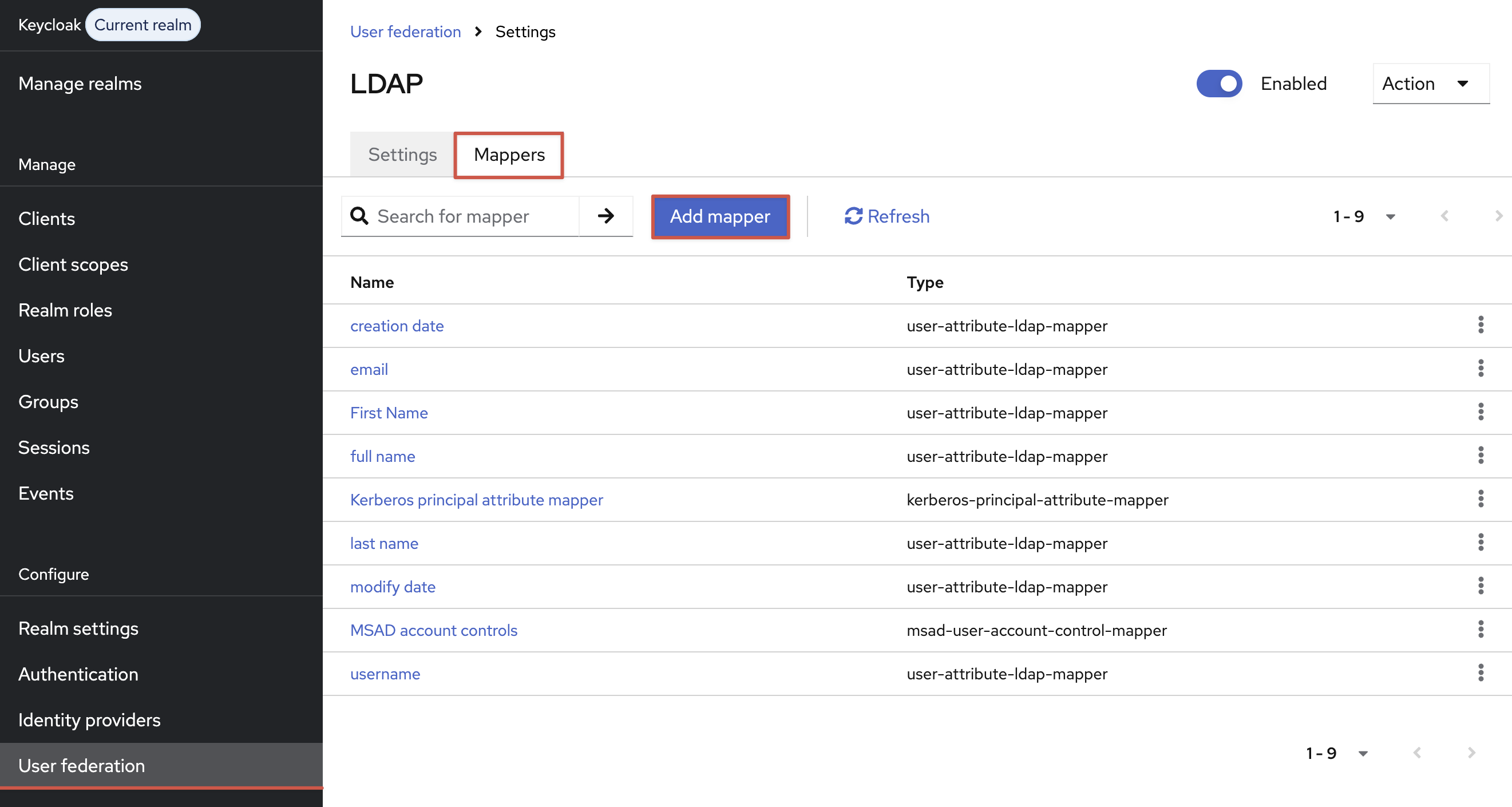
Creating an LDAP mapper
In Keycloak, open the LDAP provider settings:
Create a Mapper that passes the selected LDAP attribute into the fullName Keycloak user attribute:
Adding fullName to the User Profile
Open the User Profile section:
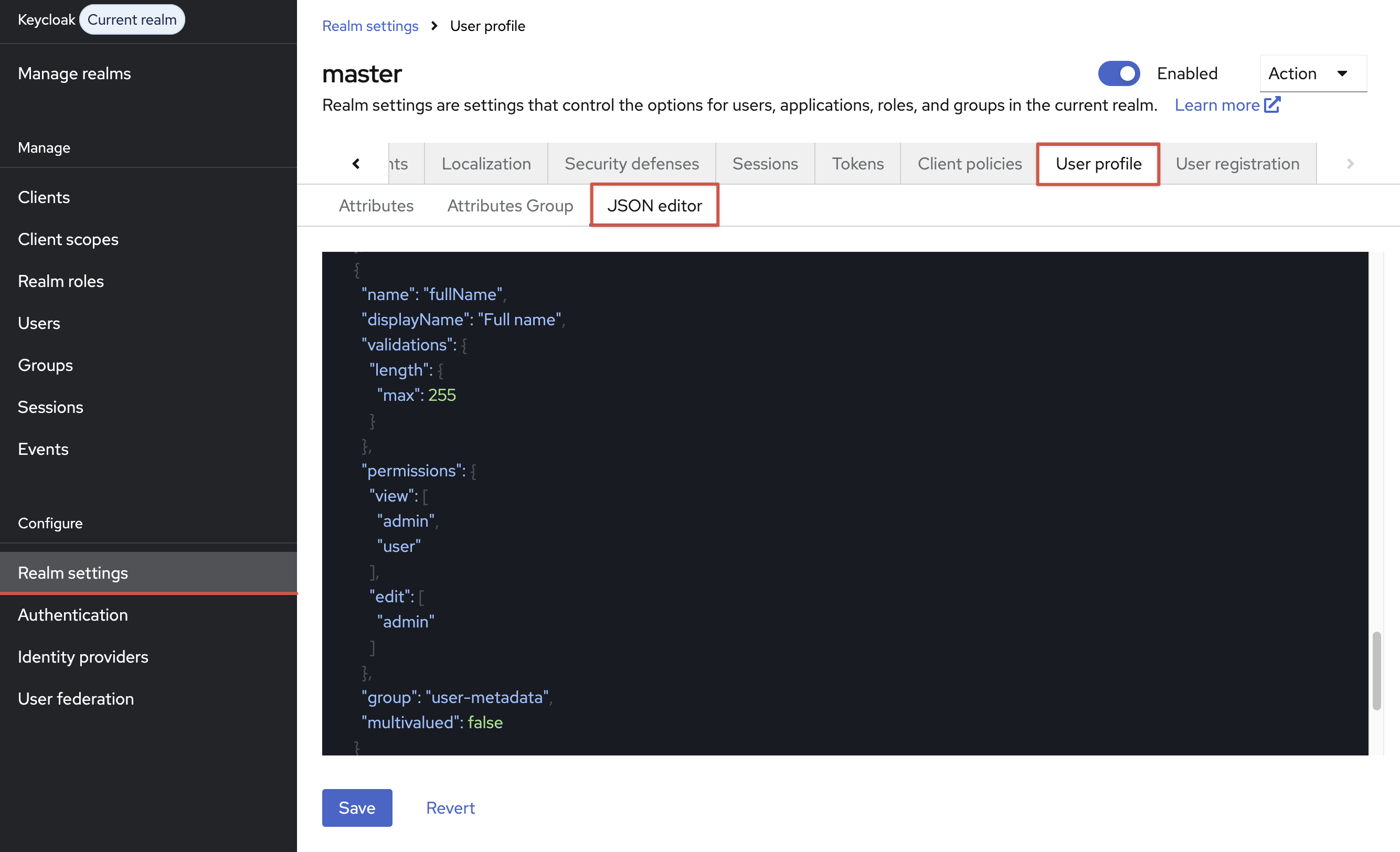
And add the fullName attribute to the attributes array. Example code block for the JSON Editor section:
- JSON
{
  "name": "fullName",
  "displayName": "Full name",
  "validations": {
    "length": {
      "max": 255
    }
  },
  "permissions": {
    "view": [
      "admin",
      "user"
    ],
    "edit": [
      "admin"
    ]
  },
  "multivalued": false,
  "group": "user-metadata"
}
Without this, Keycloak may show the user attribute as an unmanaged attribute or hide it in the interface.
Synchronizing users
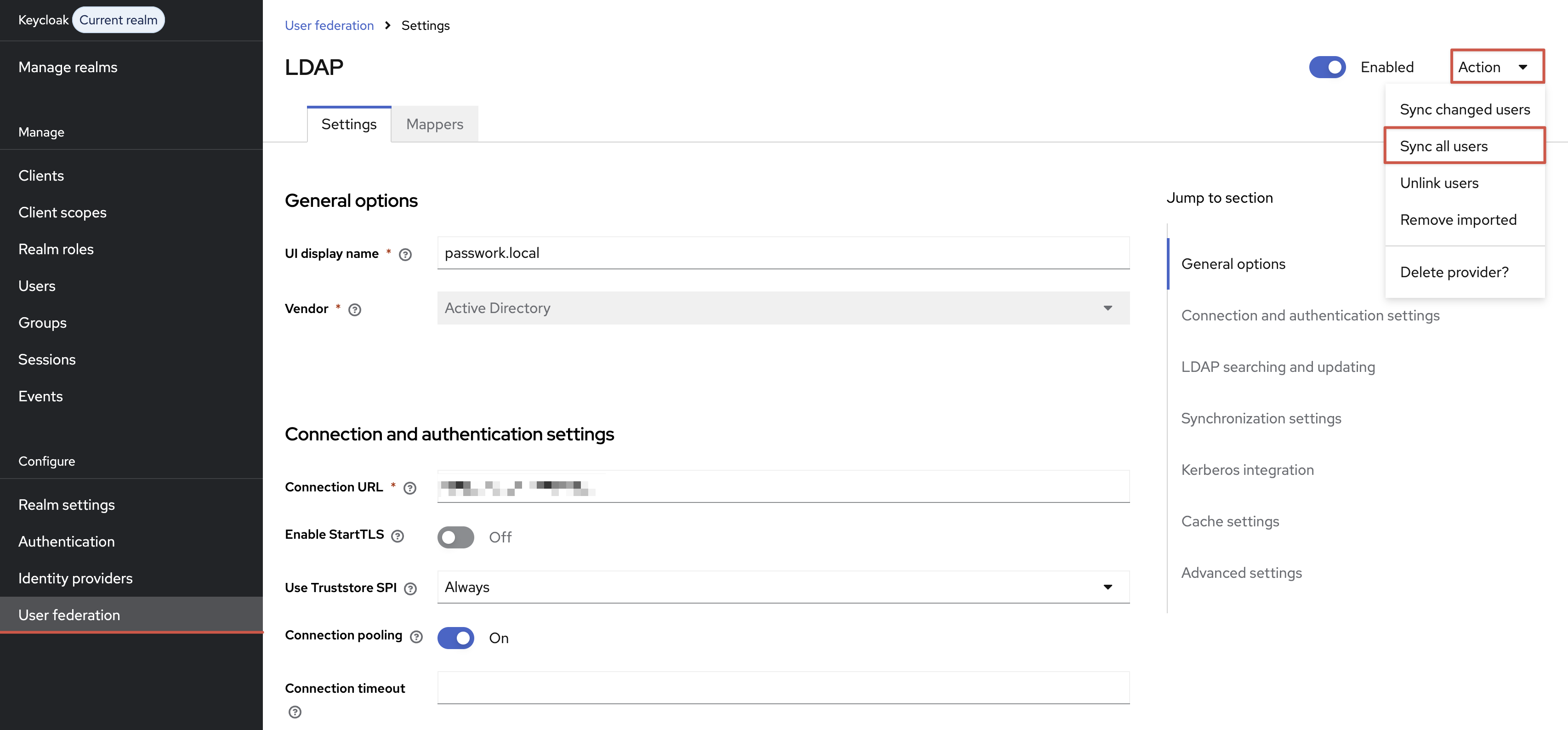
After configuring the LDAP mapper, synchronize the users:
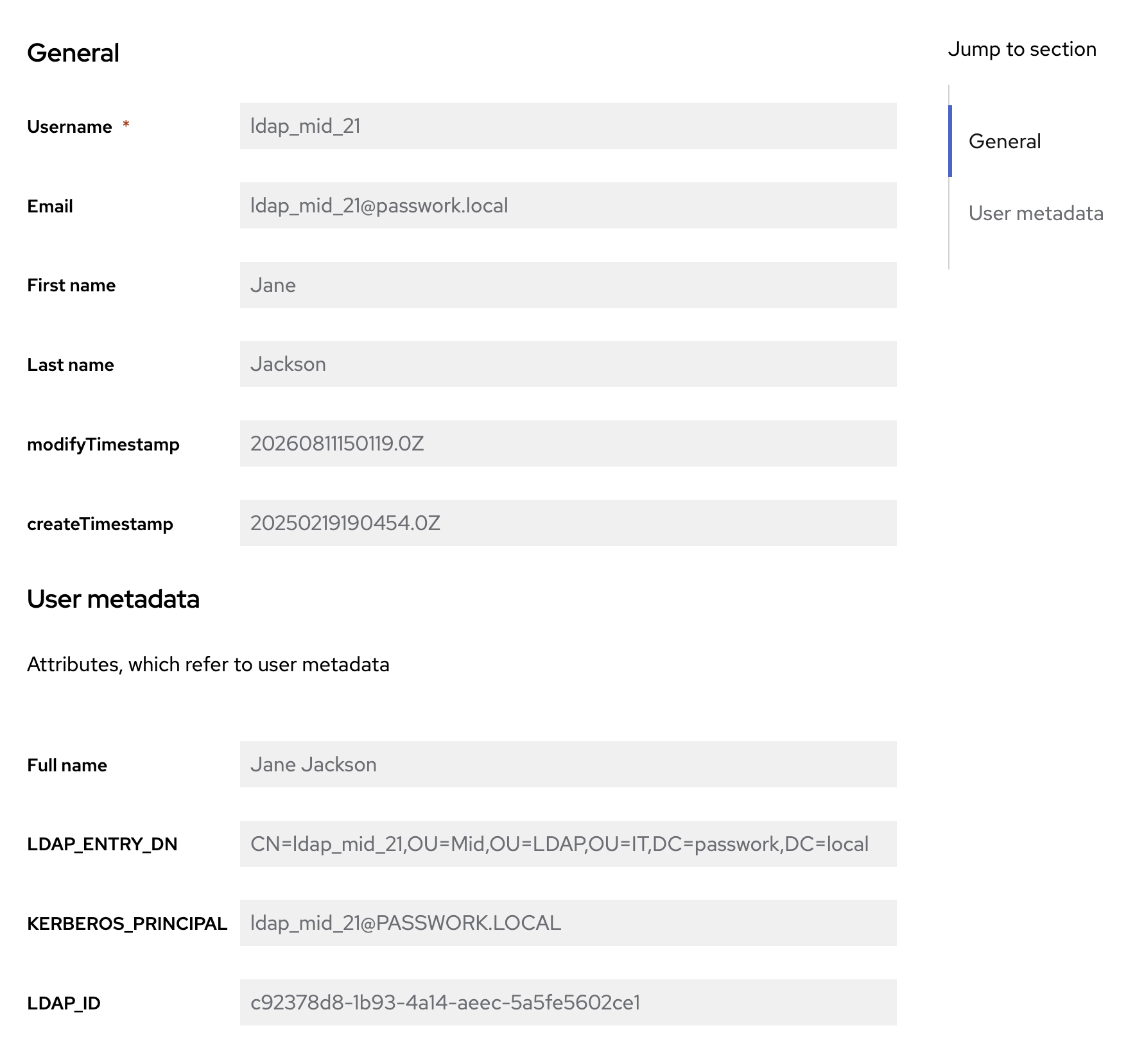
To verify, open an imported user. The Full name value should be shown in the User metadata section:
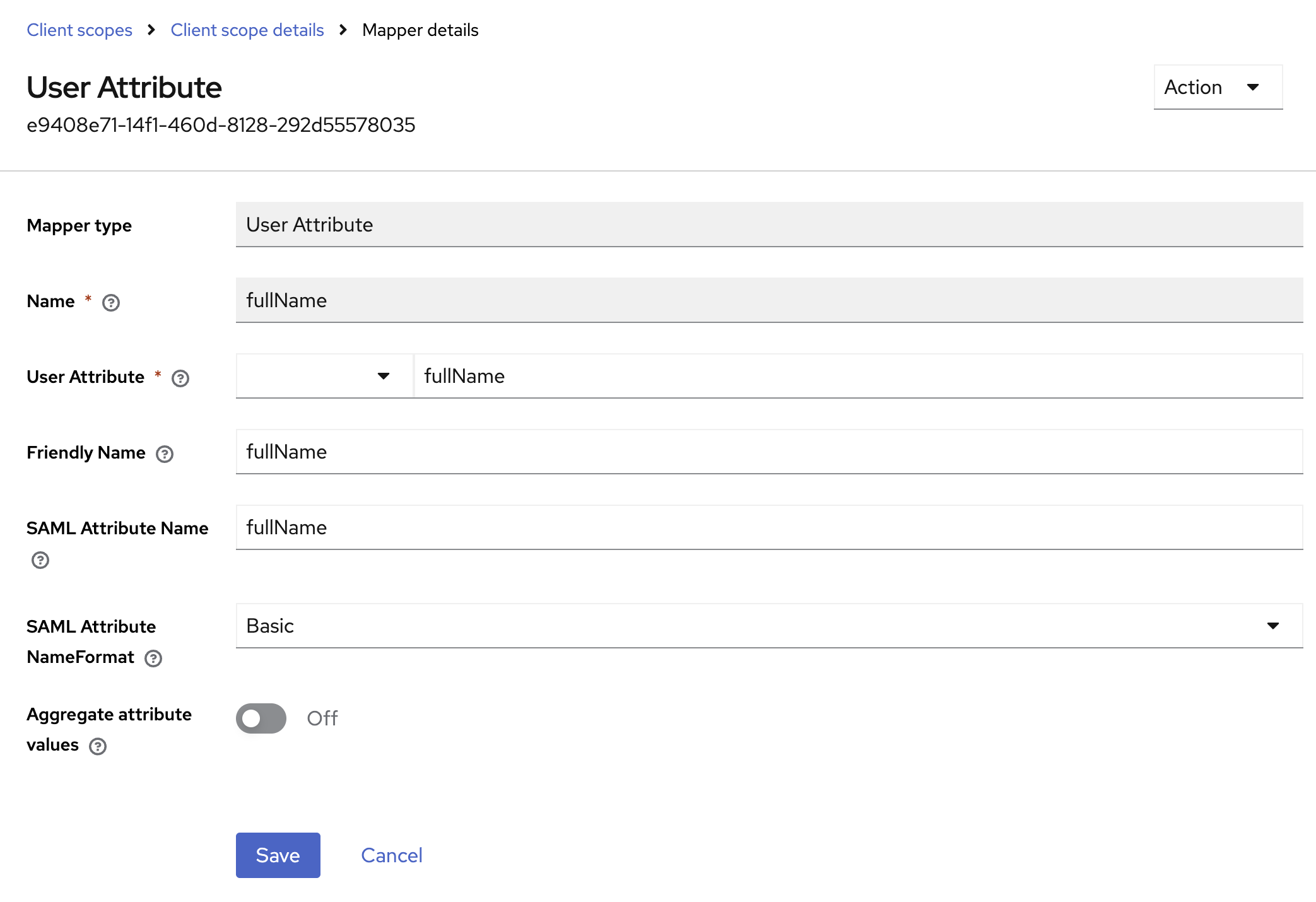
Editing the SAML mapper for Passwork
Open the Client scope assigned to the Passwork application:
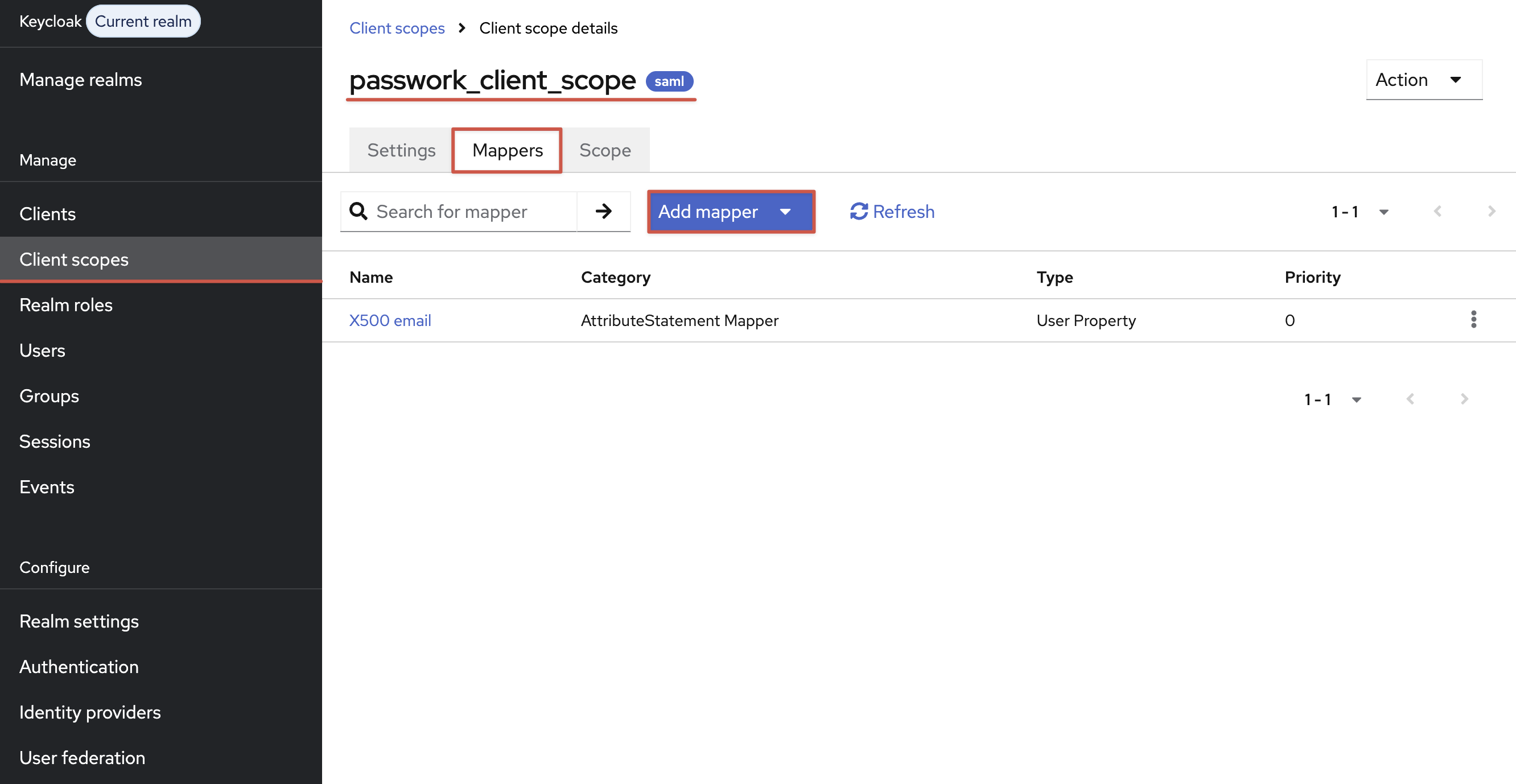
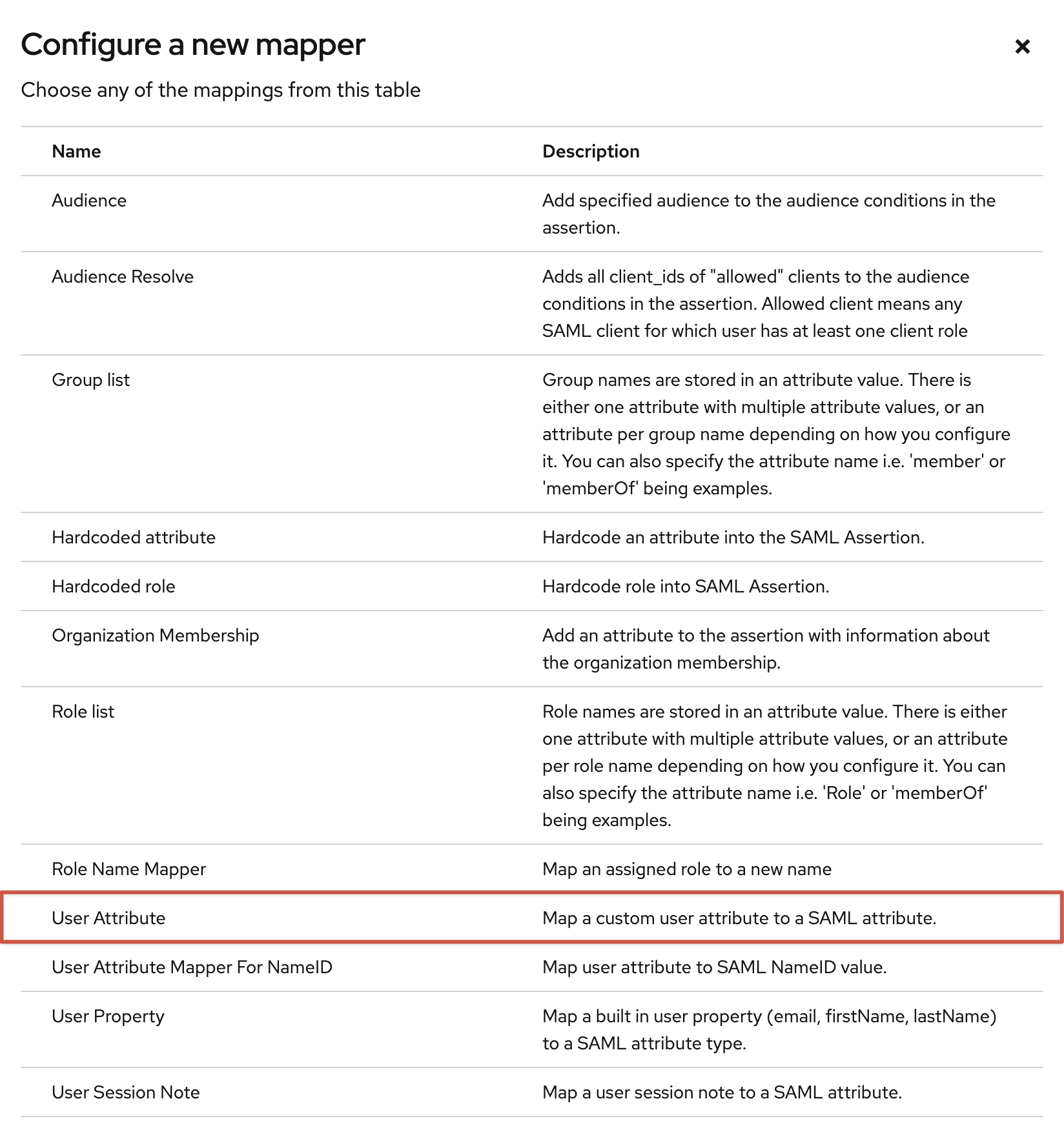
Select Add mapper → By configuration → User Attribute:
Fill in the parameters:
Configuring the attribute in Passwork
In the Passwork web interface, open Settings and users → SSO settings. In the User attributes section, set the Full name attribute parameter to fullName:

Checking the SAML Response
Once configured, log in to Passwork through SSO and inspect the SAML Response using SAML-Tracer or a similar tool.
A correct SAML attribute must contain FriendlyName, Name, and NameFormat:
<saml:Attribute FriendlyName="fullName" Name="fullName" NameFormat="urn:oasis:names:tc:SAML:2.0:attrname-format:basic">
  <saml:AttributeValue>Jane Jackson</saml:AttributeValue>
</saml:Attribute>
An incorrect variant:
<saml:Attribute FriendlyName="fullName" NameFormat="urn:oasis:names:tc:SAML:2.0:attrname-format:basic">
  <saml:AttributeValue>Jane Jackson</saml:AttributeValue>
</saml:Attribute>
The second example is missing Name="fullName". Because of this, Passwork rejects the SAML Response as not conforming to the SAML schema.