


Windows Server (PowerShell module)
Updating PowerShell module
Open PowerShell as "Administrator":
Using the Start context menu
- Right-click on the Start icon in the lower-left corner of the screen.
- Select "Windows PowerShell (Administrator)" from the context menu.
Using the Start menu
- Left-click on the Start icon in the lower-left corner of the screen.
- Type
powershell - Open PowerShell as "Administrator" by pressing
Ctrl + Shift + Enter
Download the PassworkModule.zip archive to the current directory:
- PowerShell
if (-not (Test-Path "$pwd\PassworkModule.zip")) {
    (New-Object System.Net.WebClient).DownloadFile(
        "https://repos.passwork.pro/repository/powershell/PassworkModule.zip",
        "$pwd\PassworkModule.zip"
    )
    Write-Host "Module successfully downloaded" -ForegroundColor Green
} else {
    Write-Host "Module archive already exists" -ForegroundColor Red
}
In case of errors, the archive can be downloaded manually: https://repos.passwork.pro/repository/windows-powershell/PassworkModule.zip
Extract the PowerShell module with file replacement:
- PowerShell
# Get the location of PowerShell modules
$windowsModulePaths = $env:PSModulePath -split ";" | Where-Object { $_ -like "C:\Windows*" }

# Extract the PowerShell module to the directory with overwrite
Expand-Archive `
    -Path "$pwd\PassworkModule.zip" `
    -DestinationPath $windowsModulePaths -Force

# Remove the PassworkModule.zip archive
Remove-Item "$pwd\PassworkModule.zip"
Deactivate and activate the PowerShell module to apply changes in the new version:
- PowerShell
# Deactivate the PowerShell module
Remove-Module -Name "PassworkModule"

# Activate the PowerShell module
Import-Module -Name "PassworkModule"
If Passwork is located in a closed network
If the server with Passwork is located in a closed network and has no internet access, you need to:
- Download PHP8.3 archive and transfer it to the Windows Server;
- Download version 7 archive from the Passwork Customer Portal and transfer it to the Windows Server.
The archives must be located in the directory from which the function to update PHP and Passwork will be executed:
- PowerShell
$PWD\php_latest.zip
$PWD\Passwork-xxxxxx.zip
Updating PHP and Passwork
Run the function in PowerShell:
- PowerShell
Update-Passwork-Environment
Actions performed
- Checking Passwork version
- Checking migration execution in the web interface
- Checking availability of the client portal
- Downloading archives or waiting for archives in
$PWD - Extracting PHP
- Removing old PHP versions from PATH
- Adding the new PHP version to PATH
- Creating a Passwork archive (6.5.x)
- Extracting the current version of Passwork
- Creating files with data filled from
config.ini - Registering PHP8.3 in the IIS web server
- Updating data in
.passwork_component
Function execution process
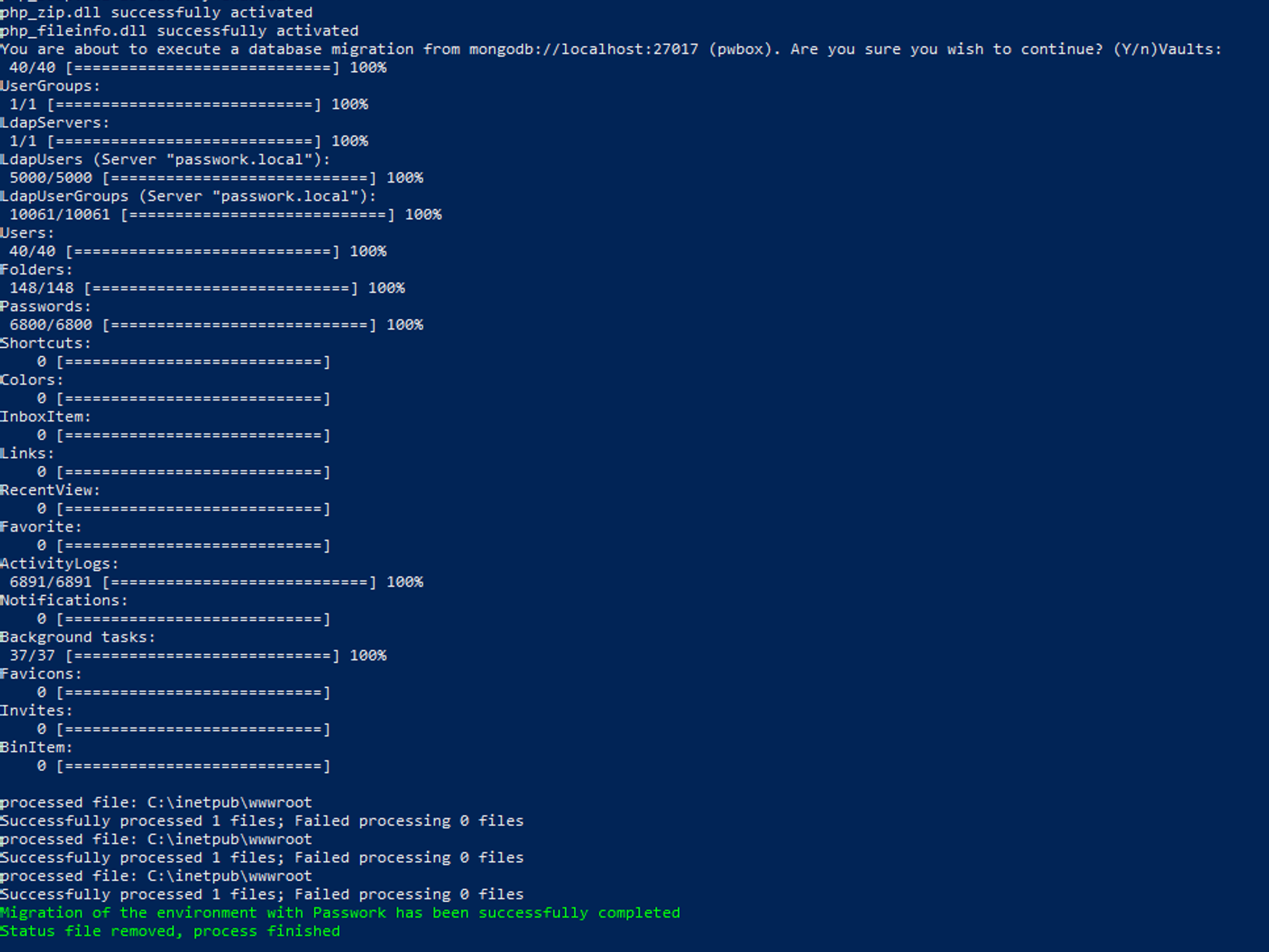
The function checks the execution of the initial migration in the Passwork web interface (6.5). It unpacks the current versions of Passwork and PHP, then creates configuration files. In case of errors, they are displayed in the PowerShell console:
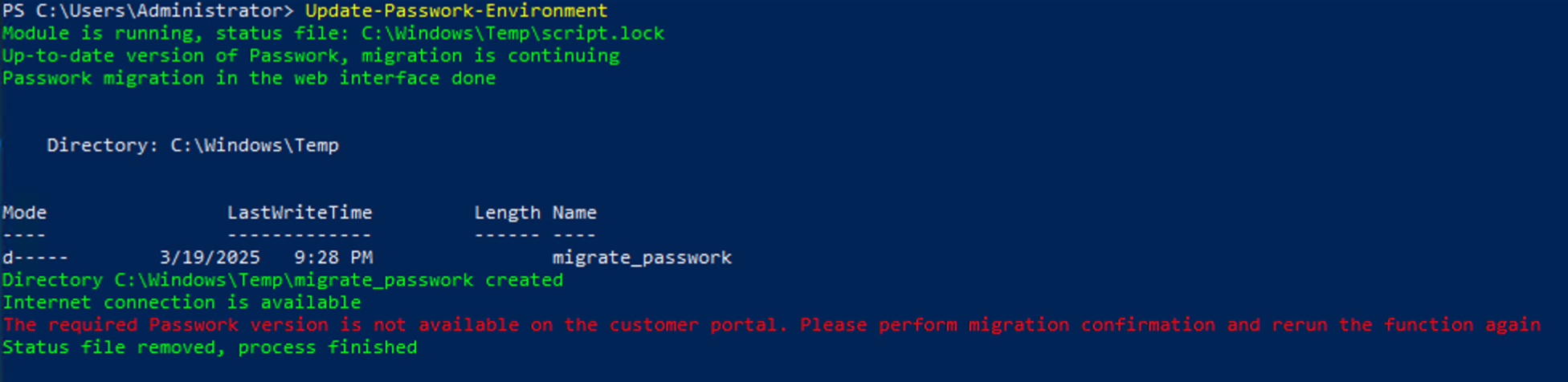
Upon completion, a message about the successful update of Passwork and PHP will be displayed. This is what a successful function completion looks like: