



Settings
Open the extension Settings by clicking the gear icon in the Action panel
General settings
In the General tab of extension settings you can change its language and appearance, and set up the locking feature to improve security.
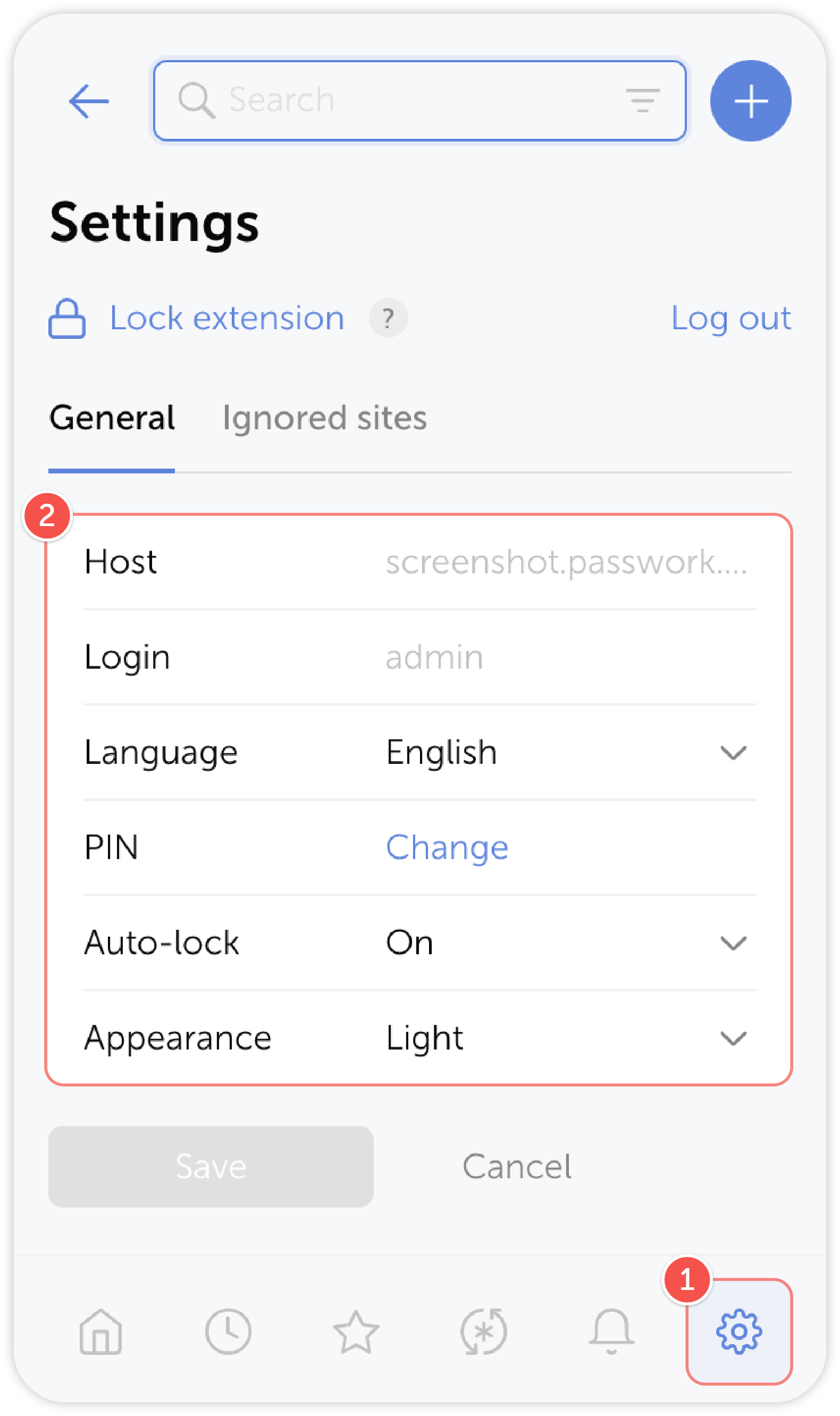
- Go to Settings by clicking the gear button
- Configure the necessary settings
Lock extension
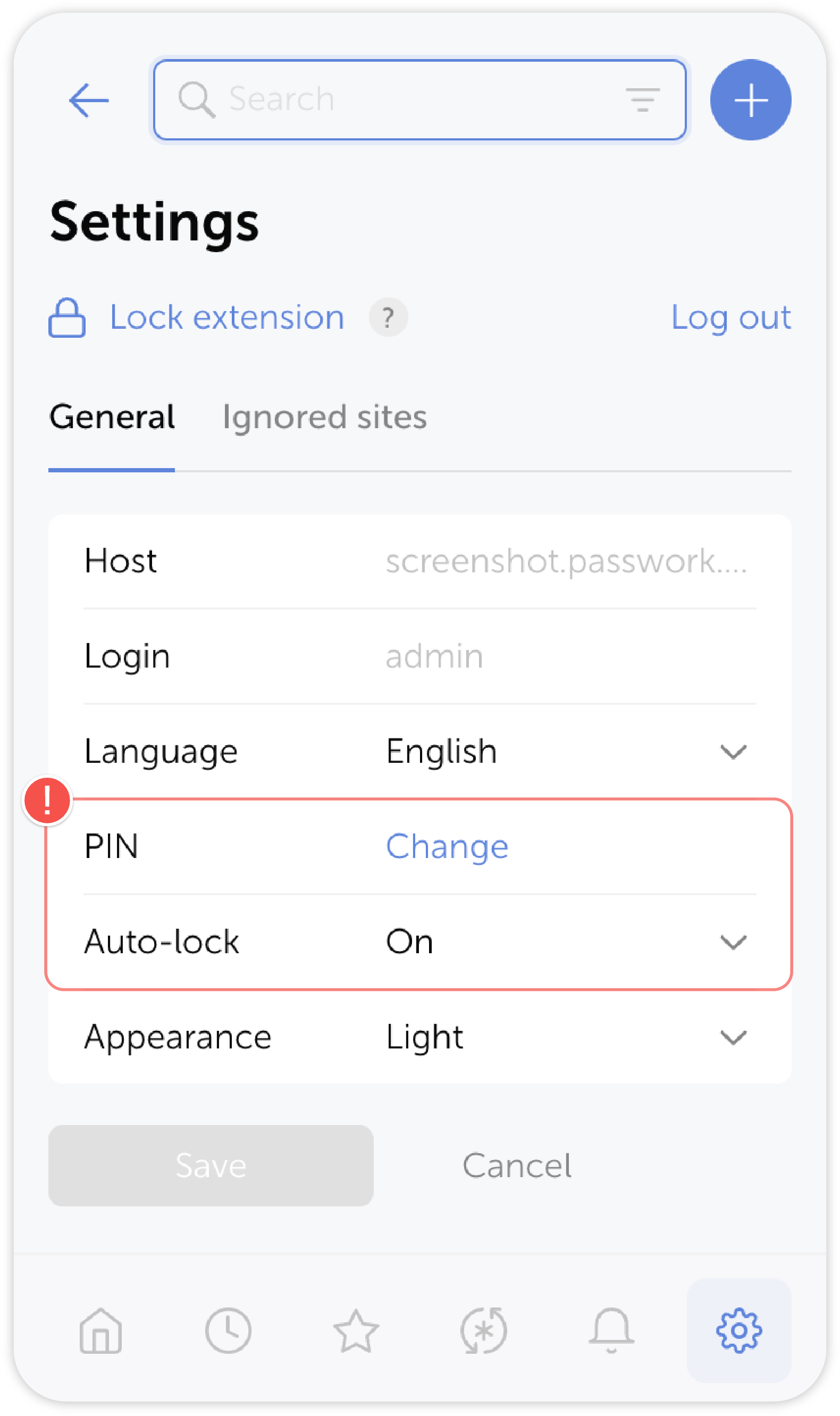
To improve security, you can lock the Passwork extension behind a 4-digit PIN and also enable an auto-lock after a period of inactivity. Administrators can make PIN mandatory for Passwork users, so that they wiill need to create one when logging in for the first time.
If you input the code incorrectly five times, the extension will automatically disconnect from your Passwork instance
Ignored sites
Ignored sites tab lists all the websites you added to Ignored. Passwork won't save or autofill passwords for sites you add to this list through the Save and use password prompts.