



Getting started
Overview
Passwork Self-hosted is the official mobile client for your self-hosted Passwork instance.
The app provides most of the functionality available in the desktop version of Passwork. With it you can:
- Access and manage your vaults, folders and passwords
- Search by text, colors and tags
- Share passwords with outside users
- Create strong passwords with an inbuilt generator
- Secure your data behind biometrics saved on your device
Technical overview of Passwork apps can be found on our documentation page.
Download the app
To use the mobile app, you need to enable Passwork API.
Passwork mobile app is available for iOS and Android.
To install the app, visit the corresponding application store using one of the links above, or scan the appropriate QR code to download the app:

Authorize the device
To start using the mobile app, you need to authorize it in Passwork first.
-
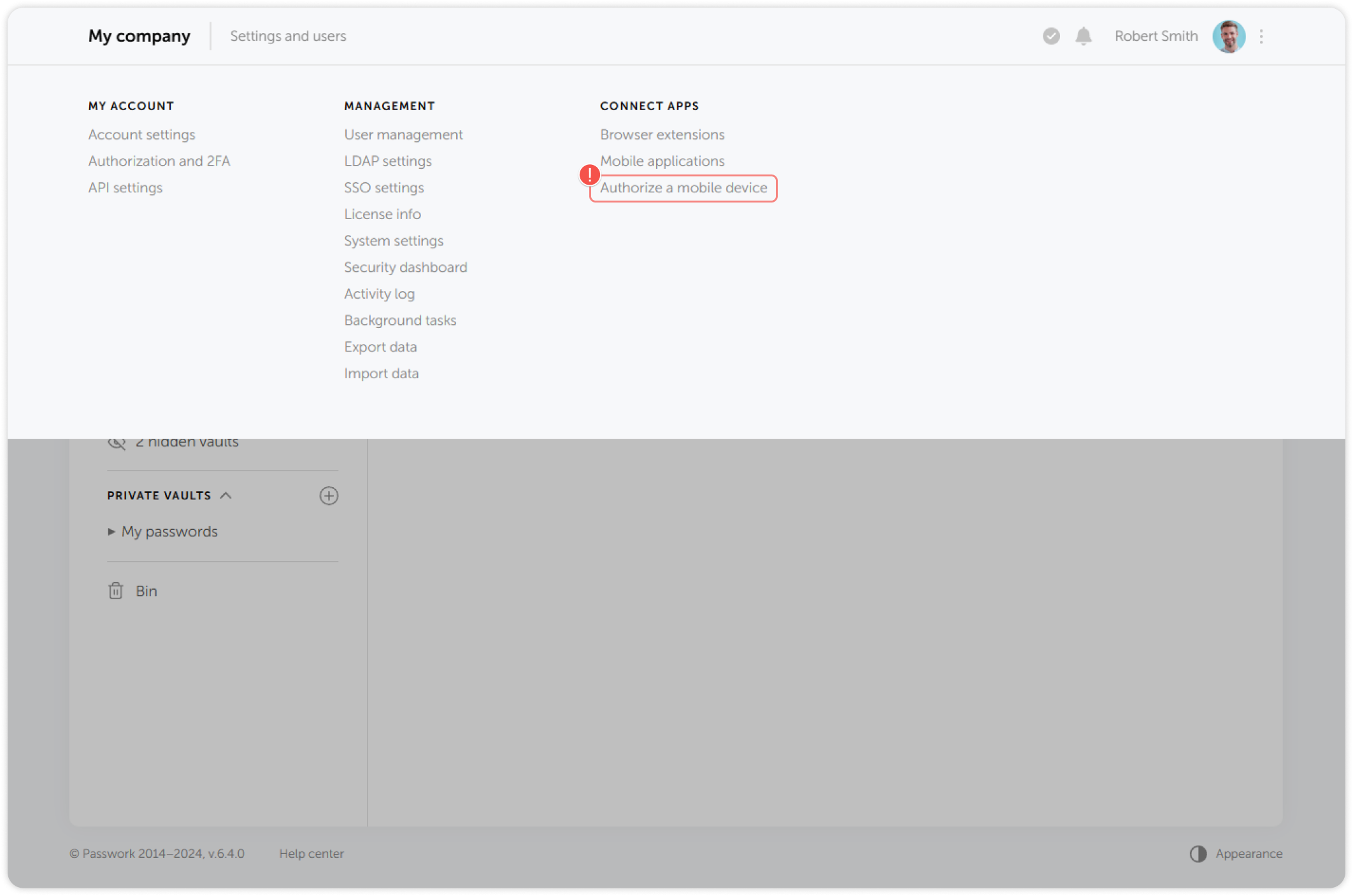
Open the Settings and users menu in the desktop version and click Authorize a mobile device. You may need to enter your authorization password.
-
Open the installed app and scan the QR code from the pop-up window to complete the authorization:
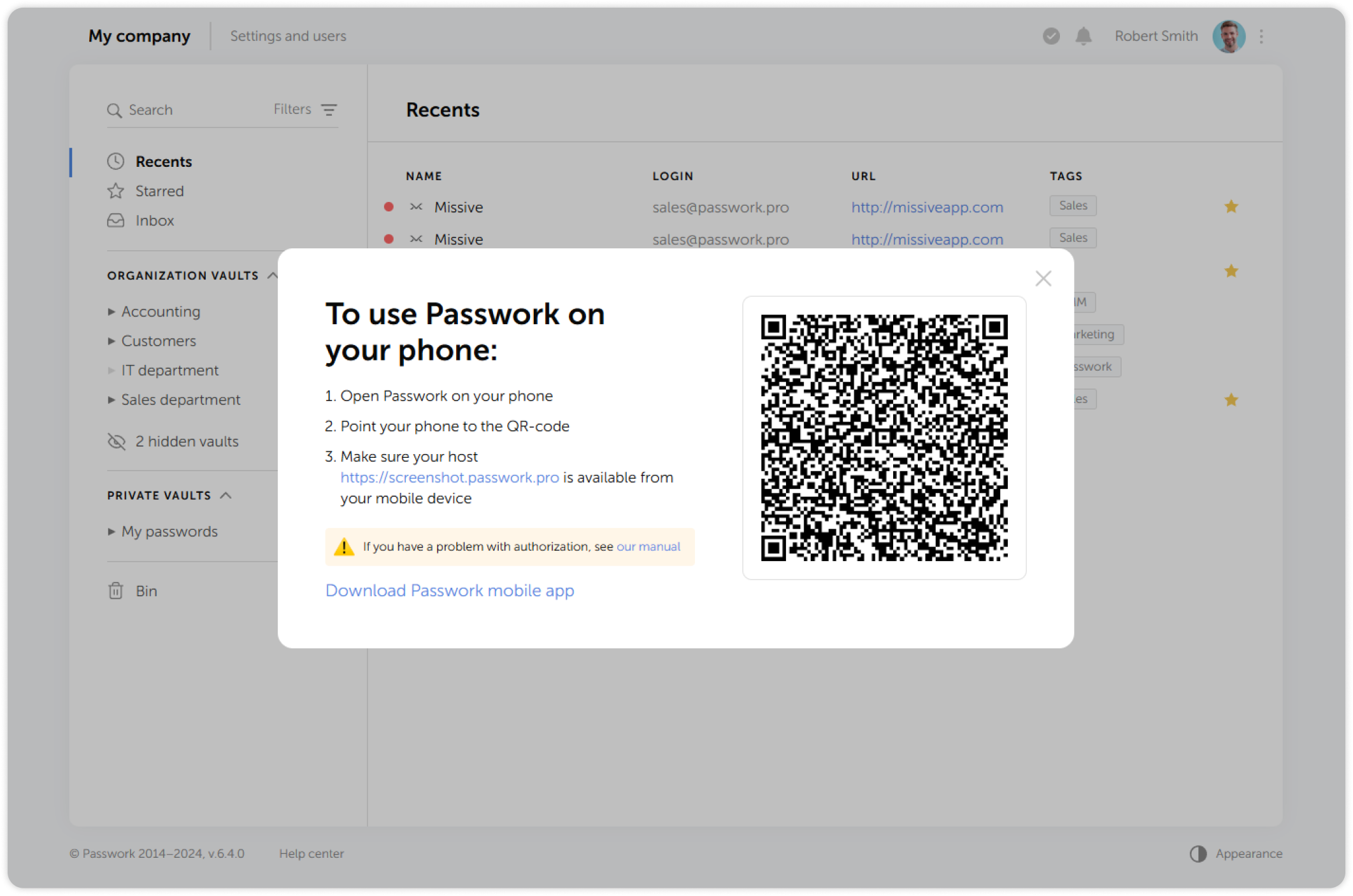
After scanning the QR code, you will be able to lock the app behind a PIN-code or biometric data. You can change the PIN-code in the Settings.