


Password card
Passwork was made to conveniently and securely store your passwords, along with other credentials.
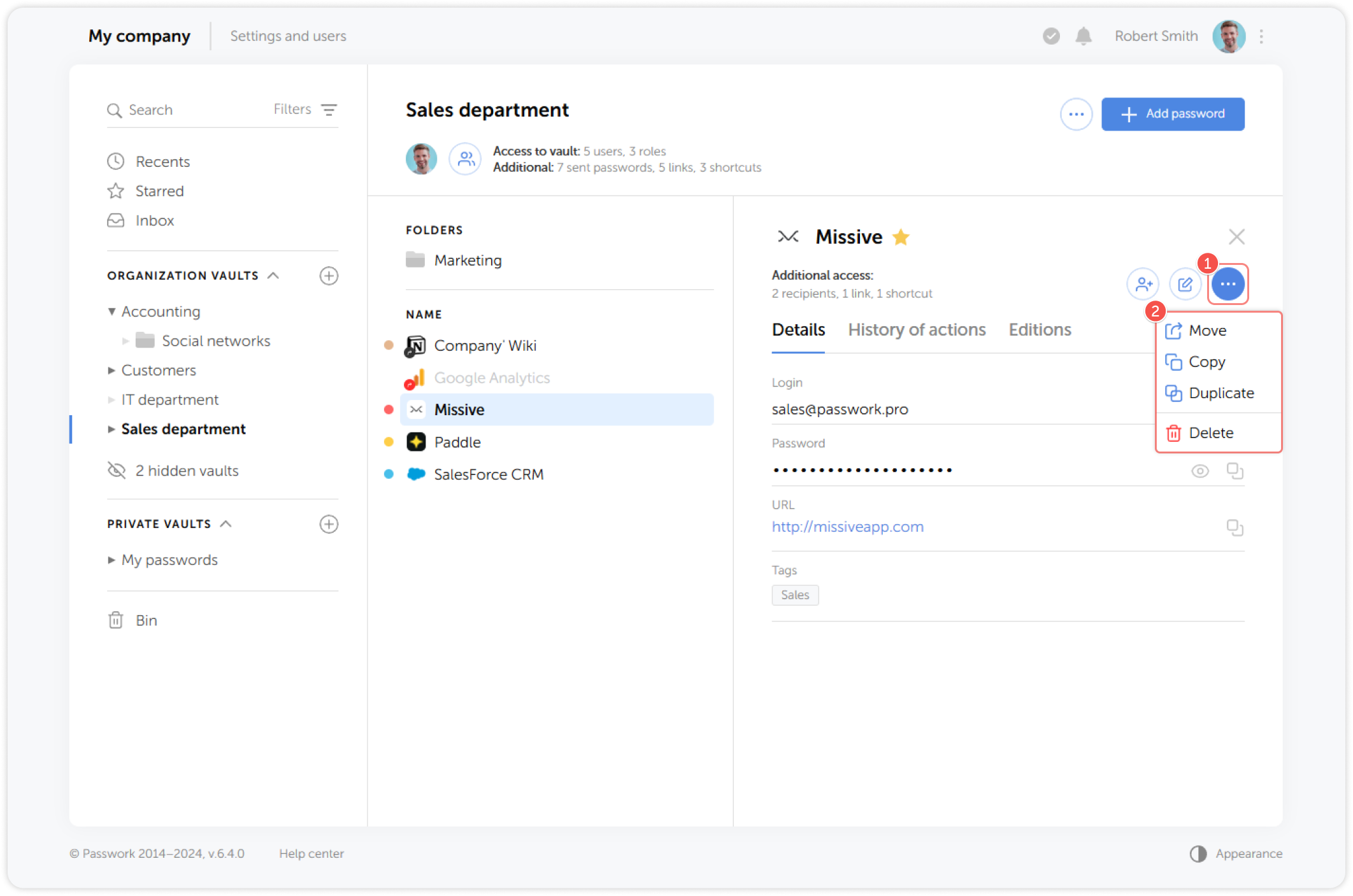
All password data is presented in the form of Password cards. A password card contains all the information about a particular password, including its previous versions and action history. Additionally, the card provides all the tools for managing a password.
Select a vault or a folder and click on any password to open the password card:
Password action panel
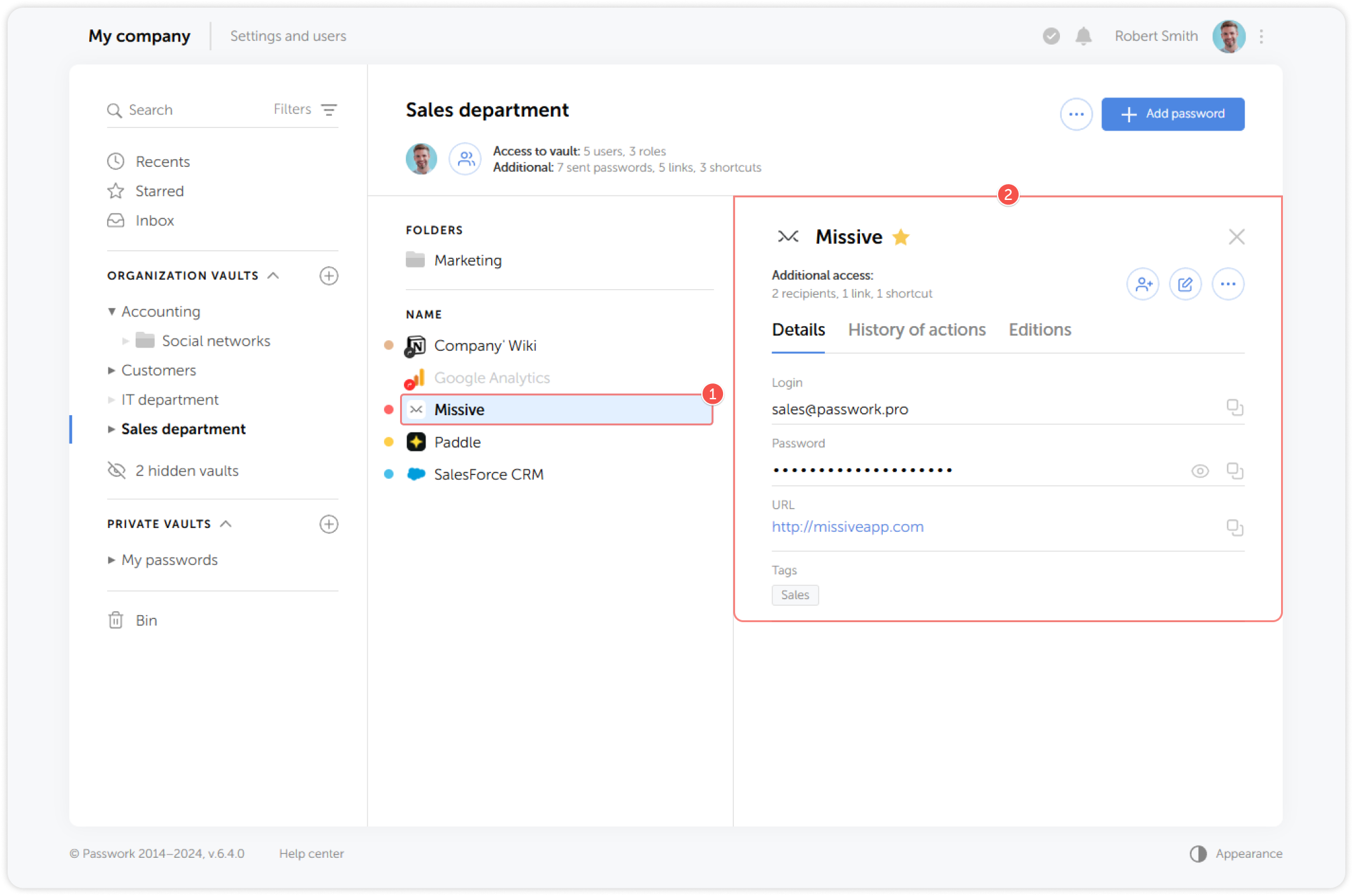
The Password action panel holds the controls for password management. It is found at the top of the card when you open one.
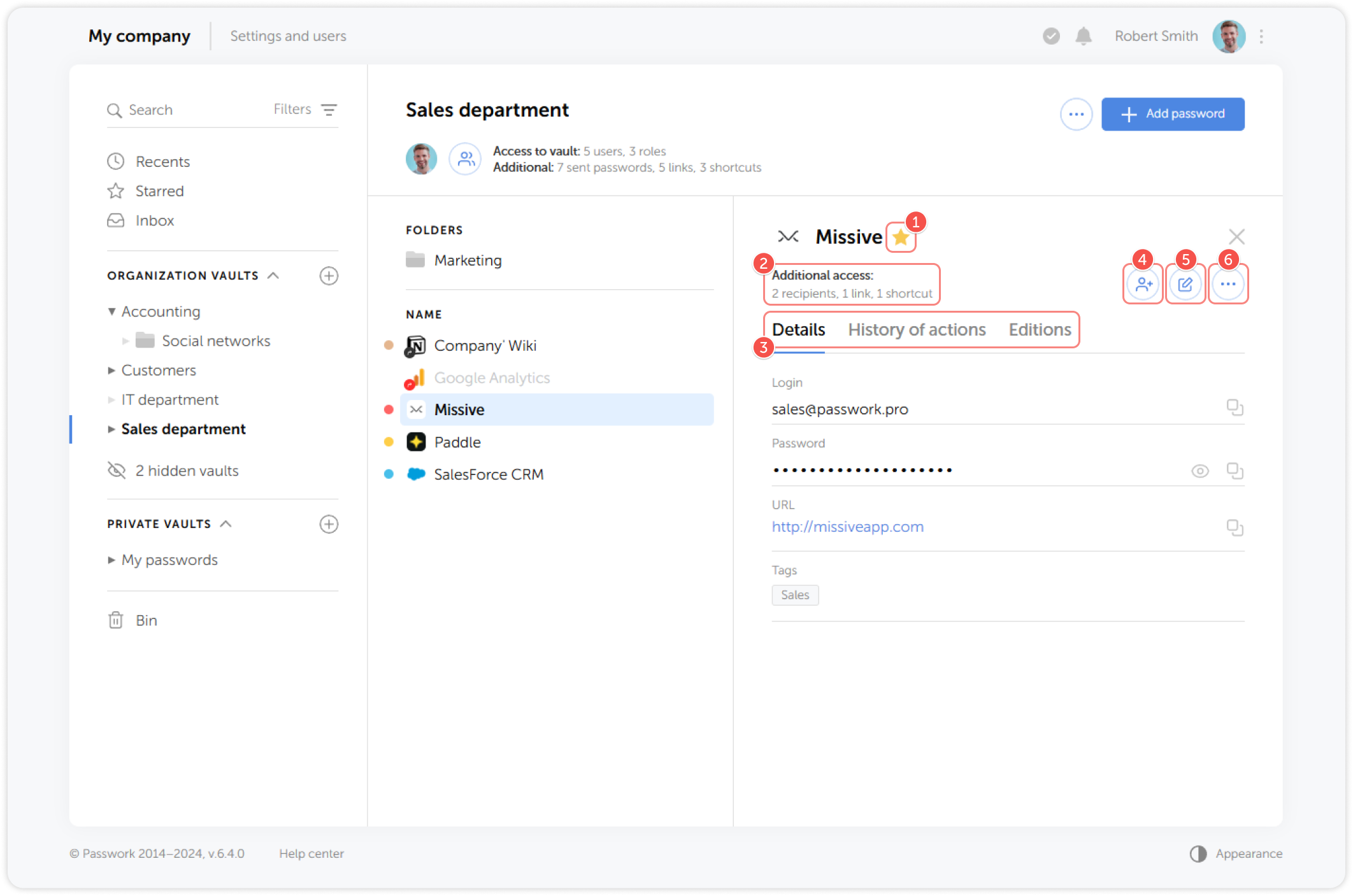
- Password name, favicon and Starred label
- Additional access information
- Password details, action history and Password editions
- Share password
- Edit password
- Password actions
Available actions displayed in Password action panel depend on the vault/folder user rights
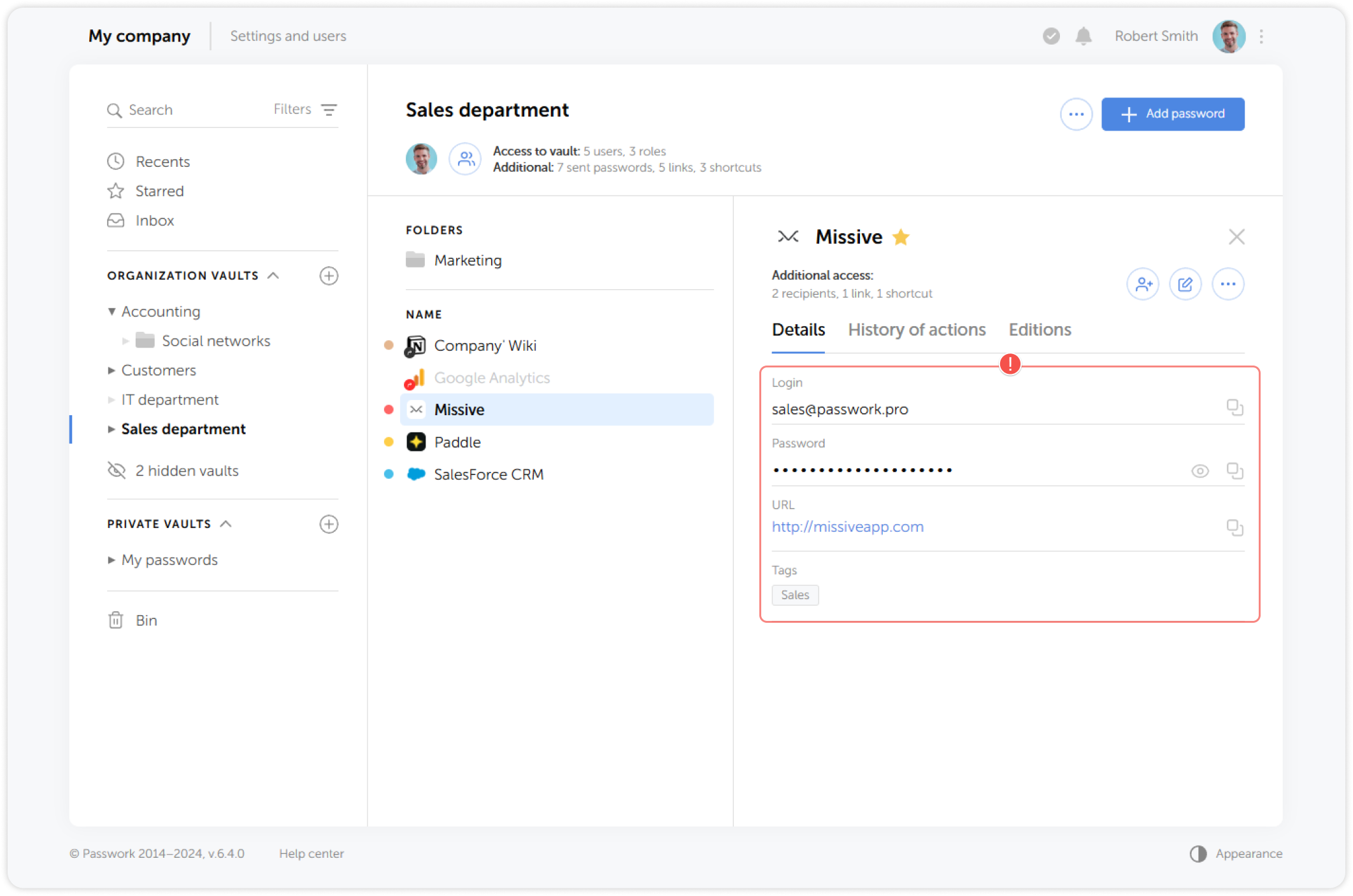
Password details
This section displays all the information about the password, such as login, password, URL, notes, tags, colored labels, and attached files.
Starred passwords
Starred is a list of passwords marked with a star label for quick access. Each Passwork user has their own list of starred passwords. You can add a password to Starred by clicking the Add to starred icon. For more details, see the Starred page.
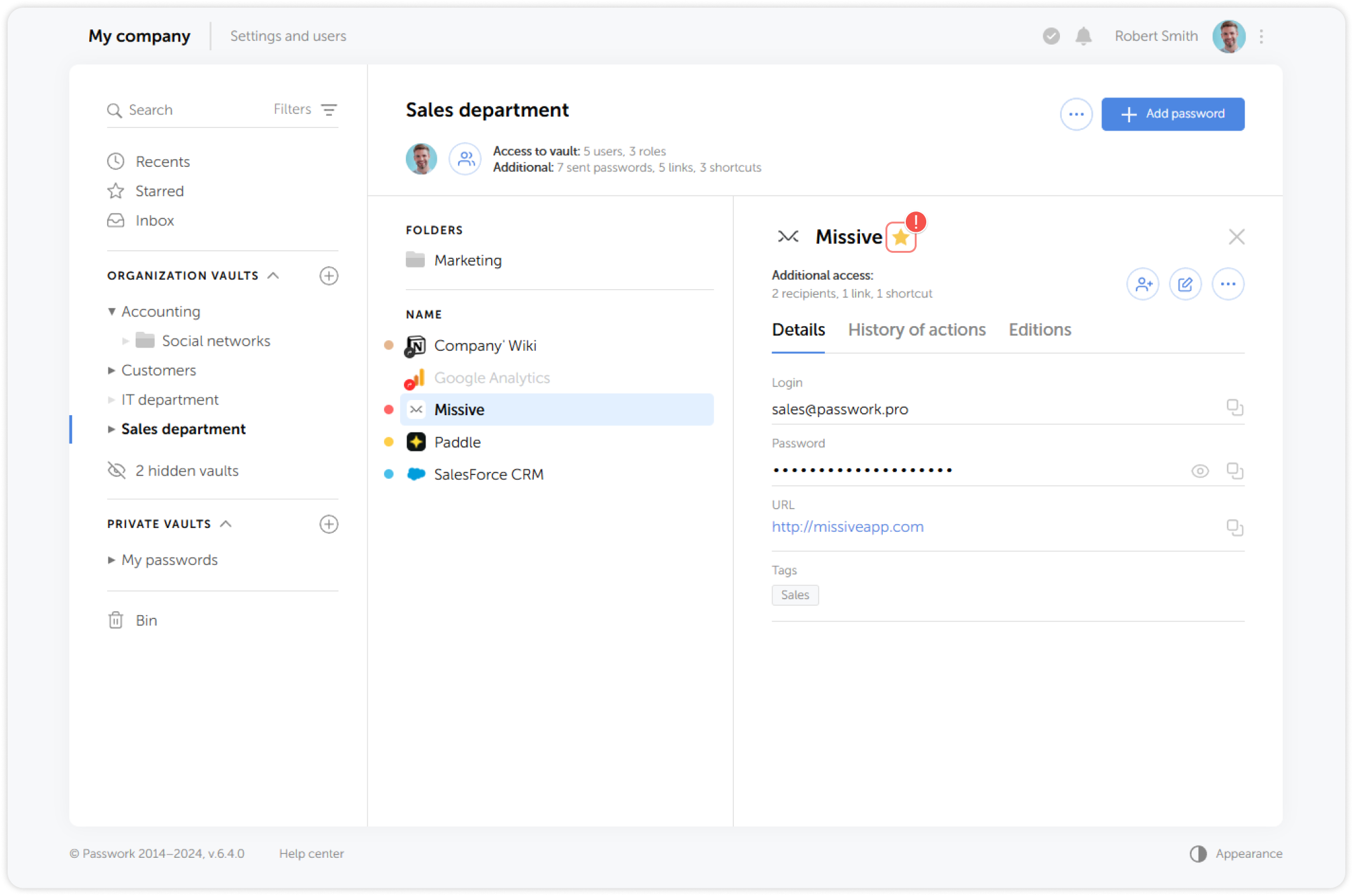
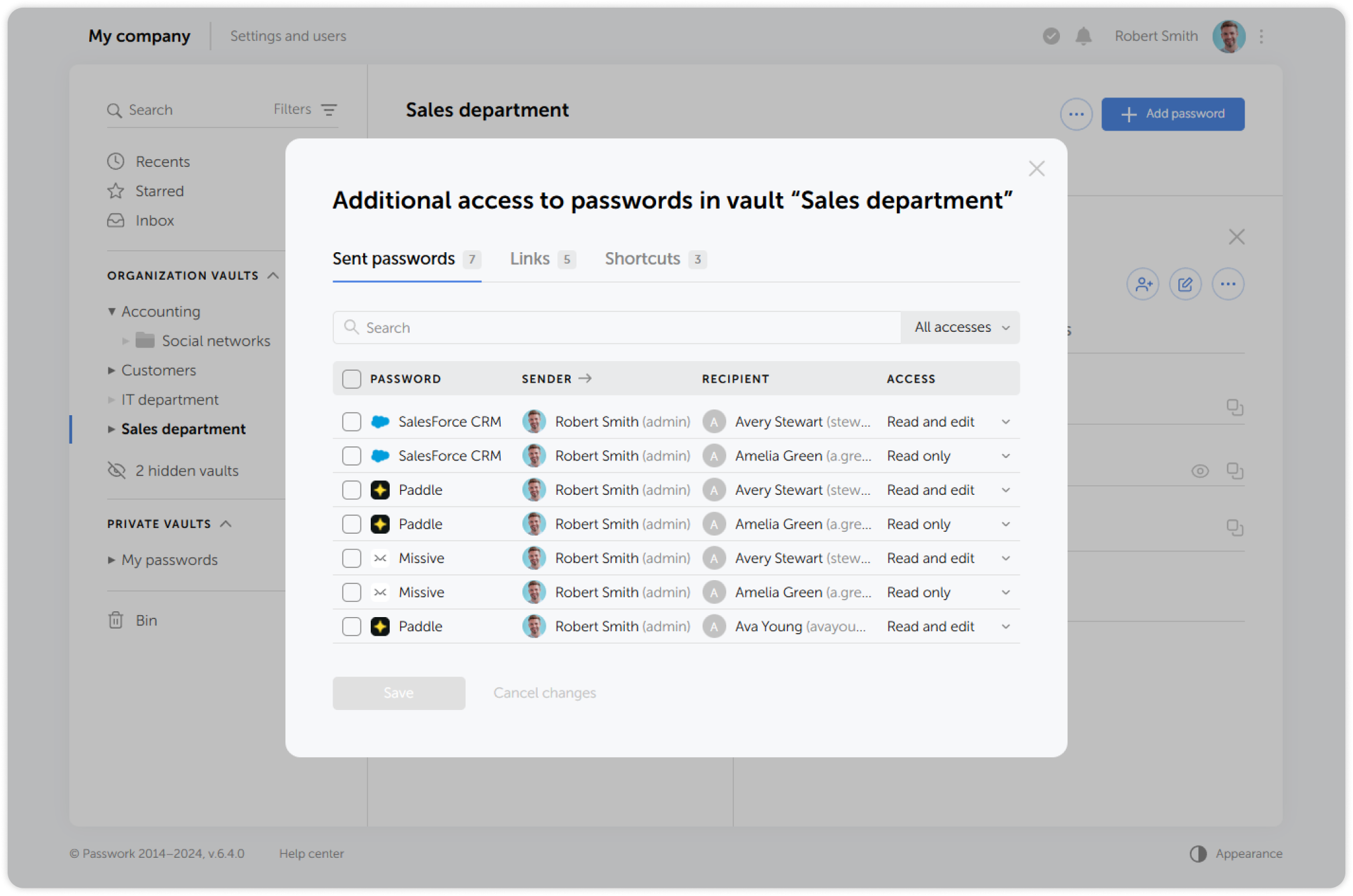
Additional access
Additional access window displays links, shortcuts, and users with whom the selected password was shared:
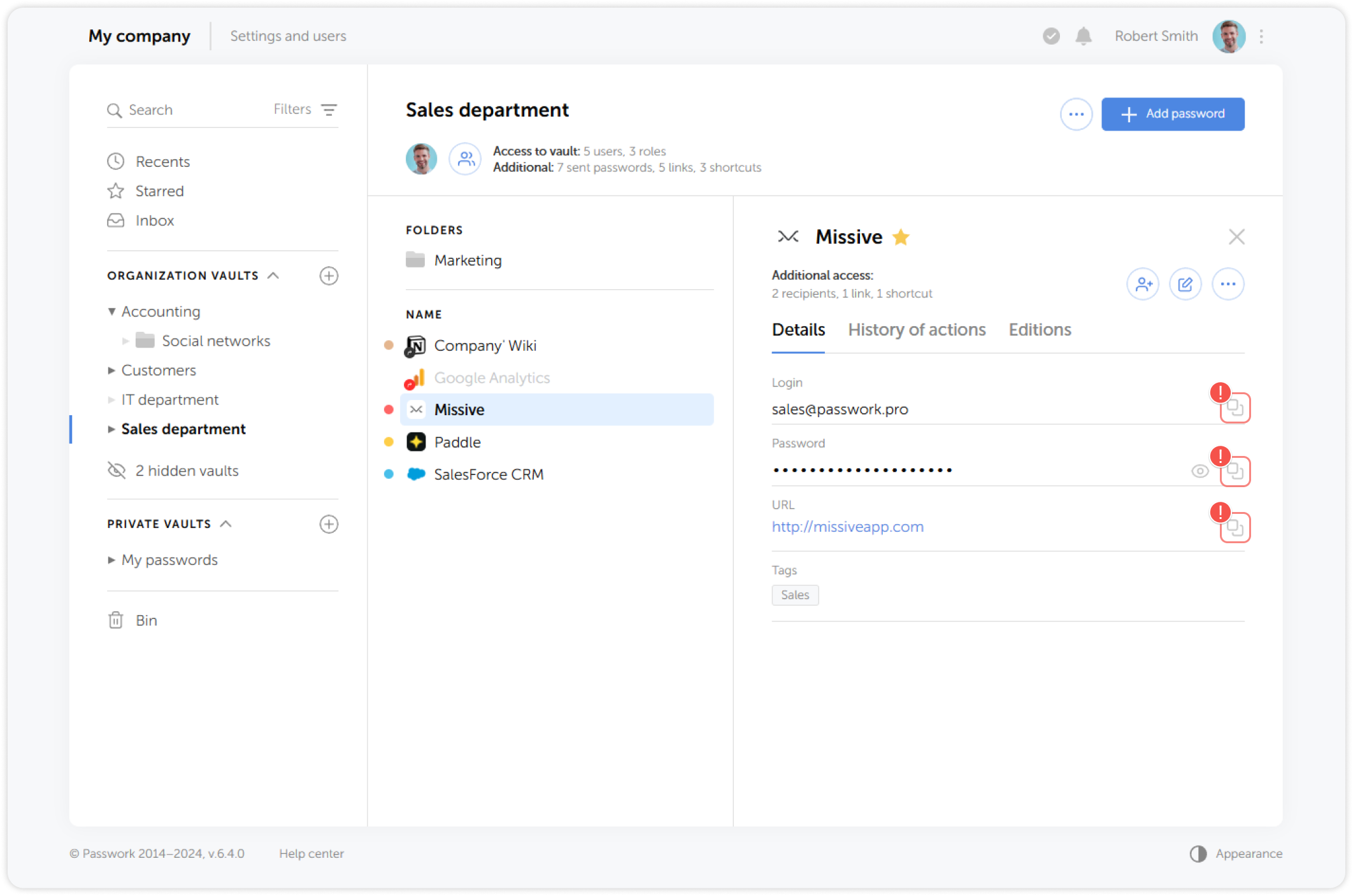
Copy to clipboard
You can quickly copy the login, password, or URL fields into the clipboard:
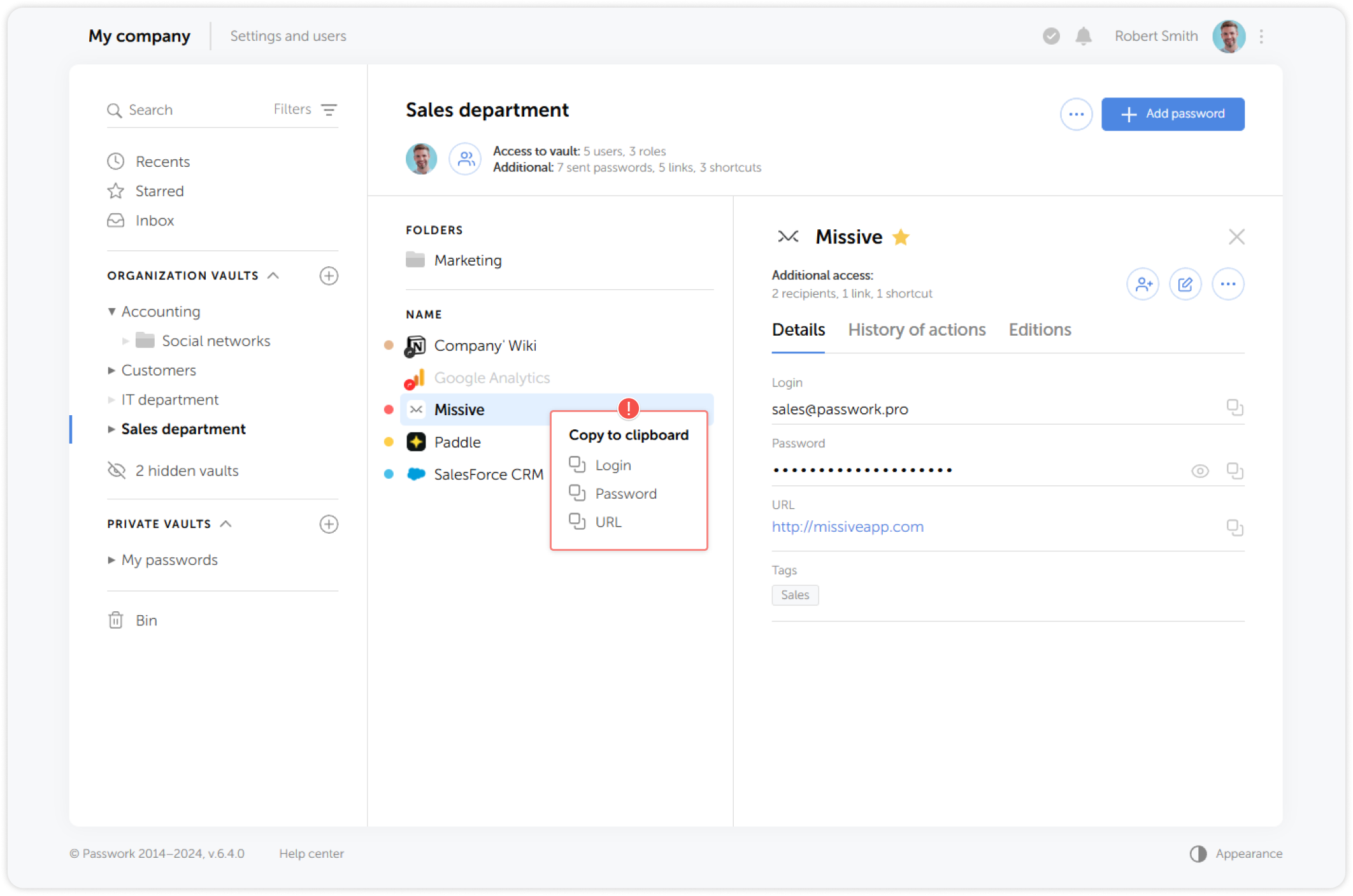
Additionally, you can copy the data to the clipboard by right-clicking on the password:
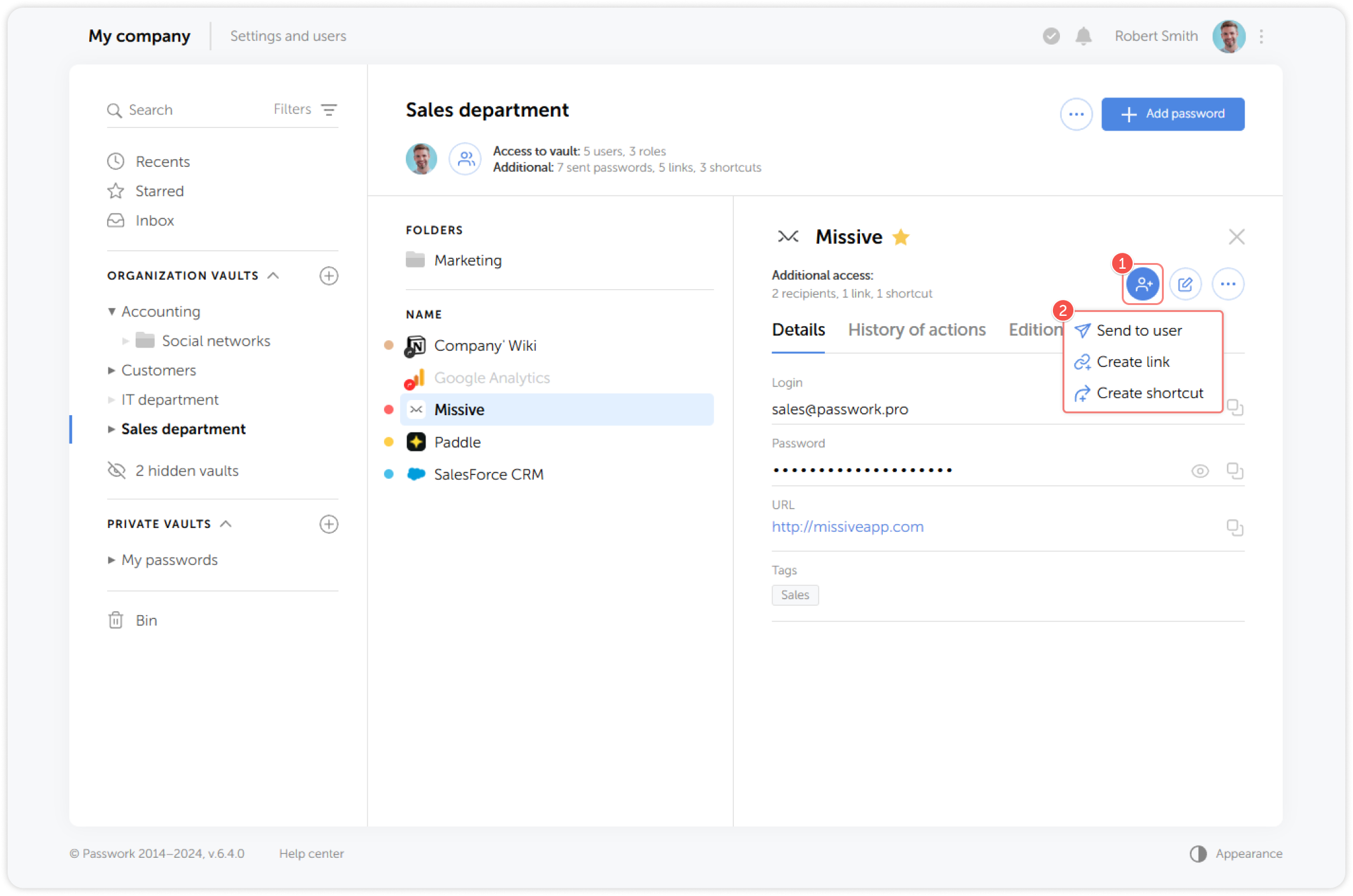
Share password
Share menu allows you to quickly send a password to another user, create a link, or a shortcut to the password. For more details, see the Share password section.
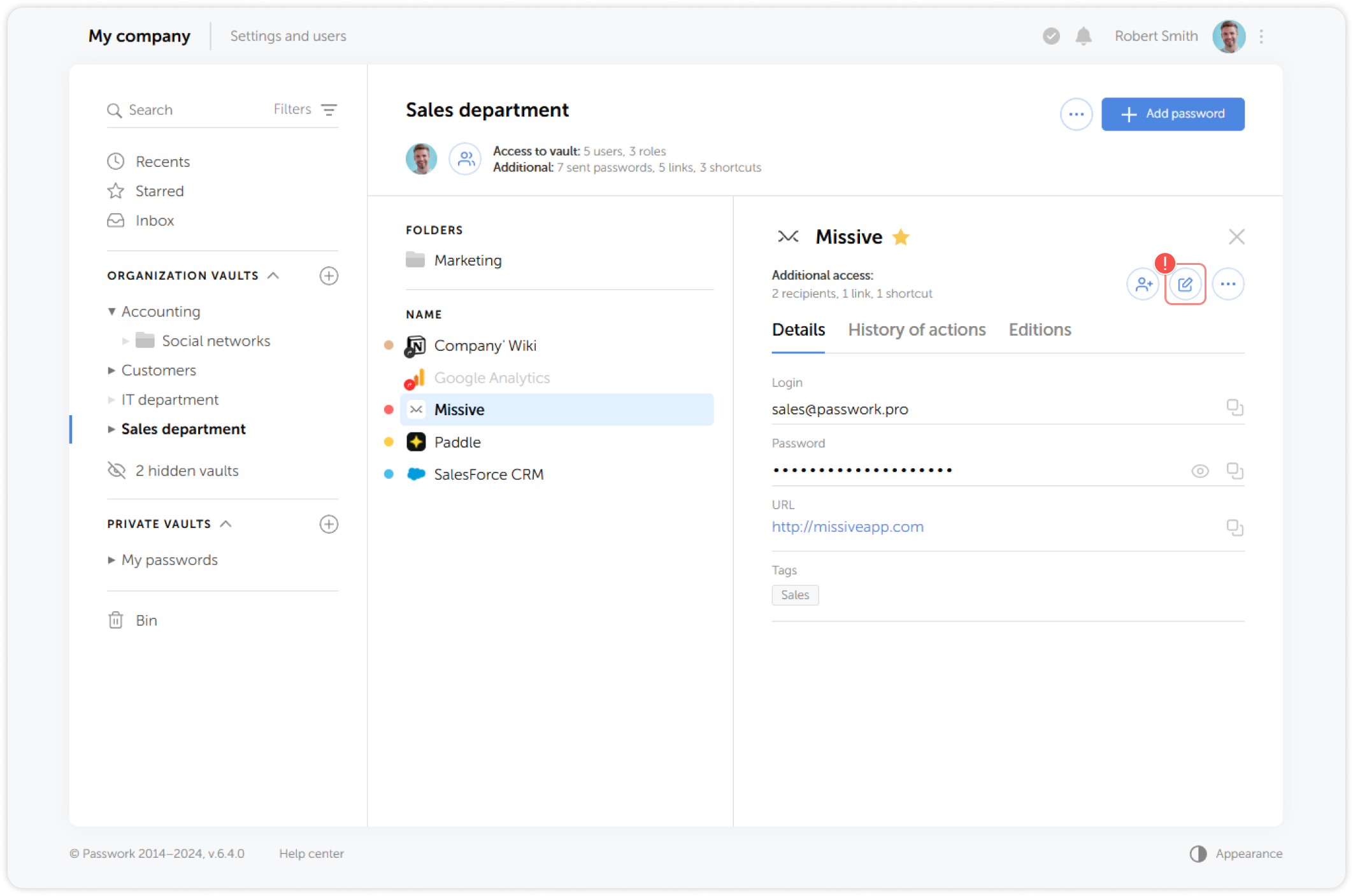
Edit password
Click the Edit password button to modify the password information:
Password editions and history of actions
In these tabs you can view the previous versions of the password and the history of recent actions with the selected password. See more about editions and action history here:
Password actions menu
The Password actions menu contains the following items: move, copy, duplicate and delete password.