


Edit role
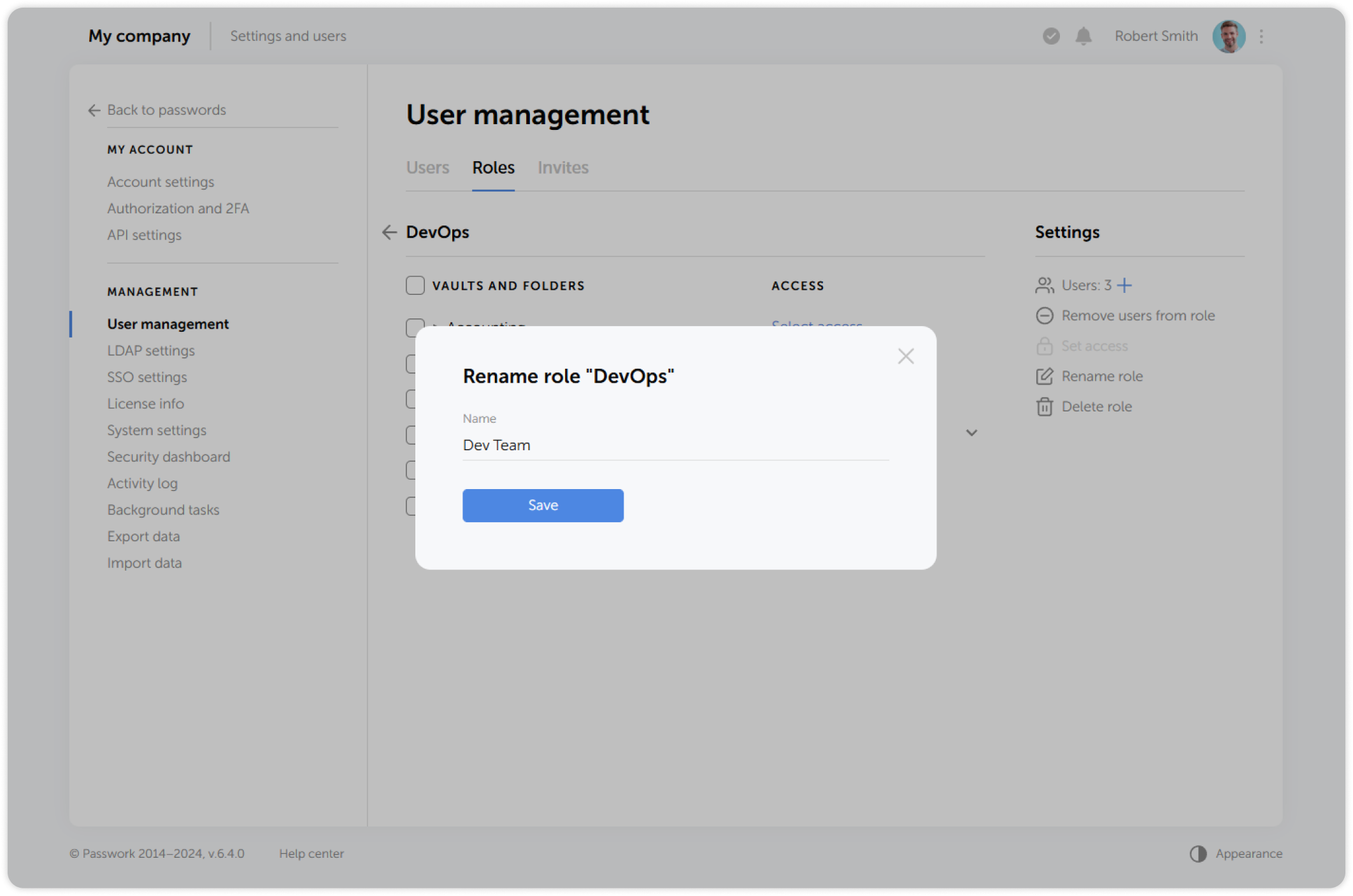
Passwork administrators and users with administrative rights can edit roles, their access rights and manage the assigned users. To edit a role, click on its name in the Roles tab:
Add users
You can create an unlimited number of roles and apply them to any number of users. A user can be associated with multiple roles.
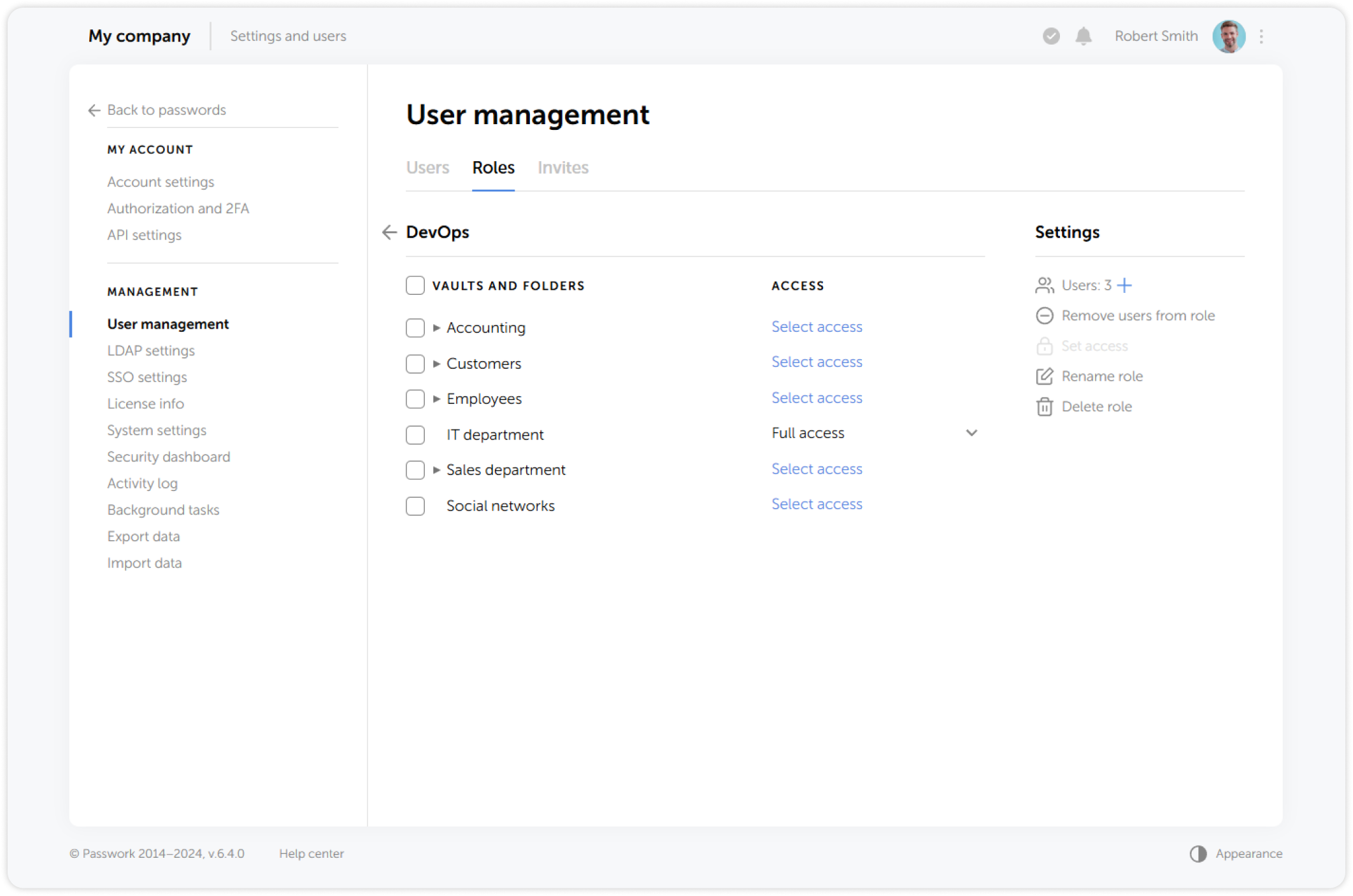
Click the plus icon in Role settings to add users to the role:
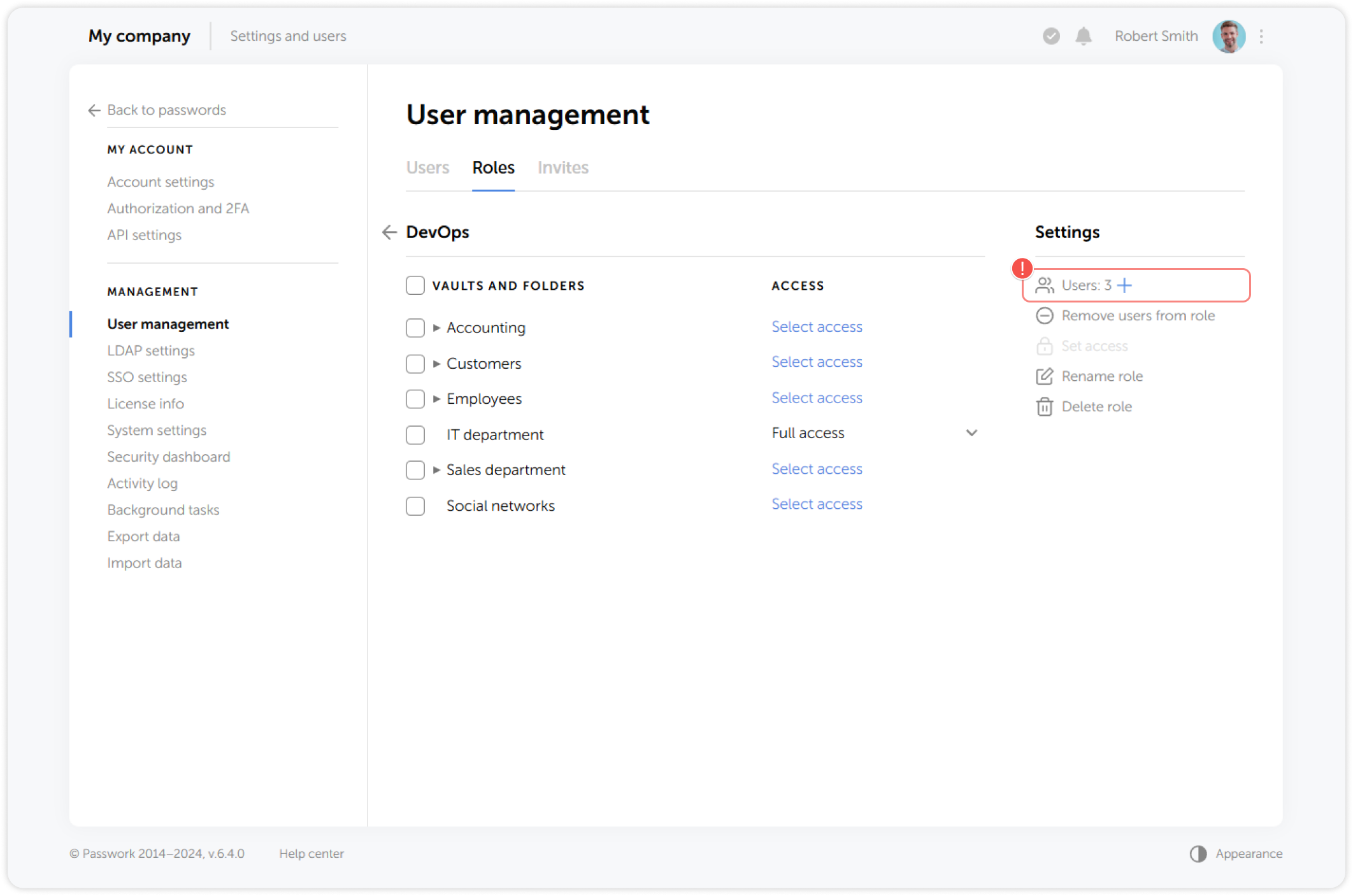
Select one or multiple users in the pop-up window and save the changes:
Remove users
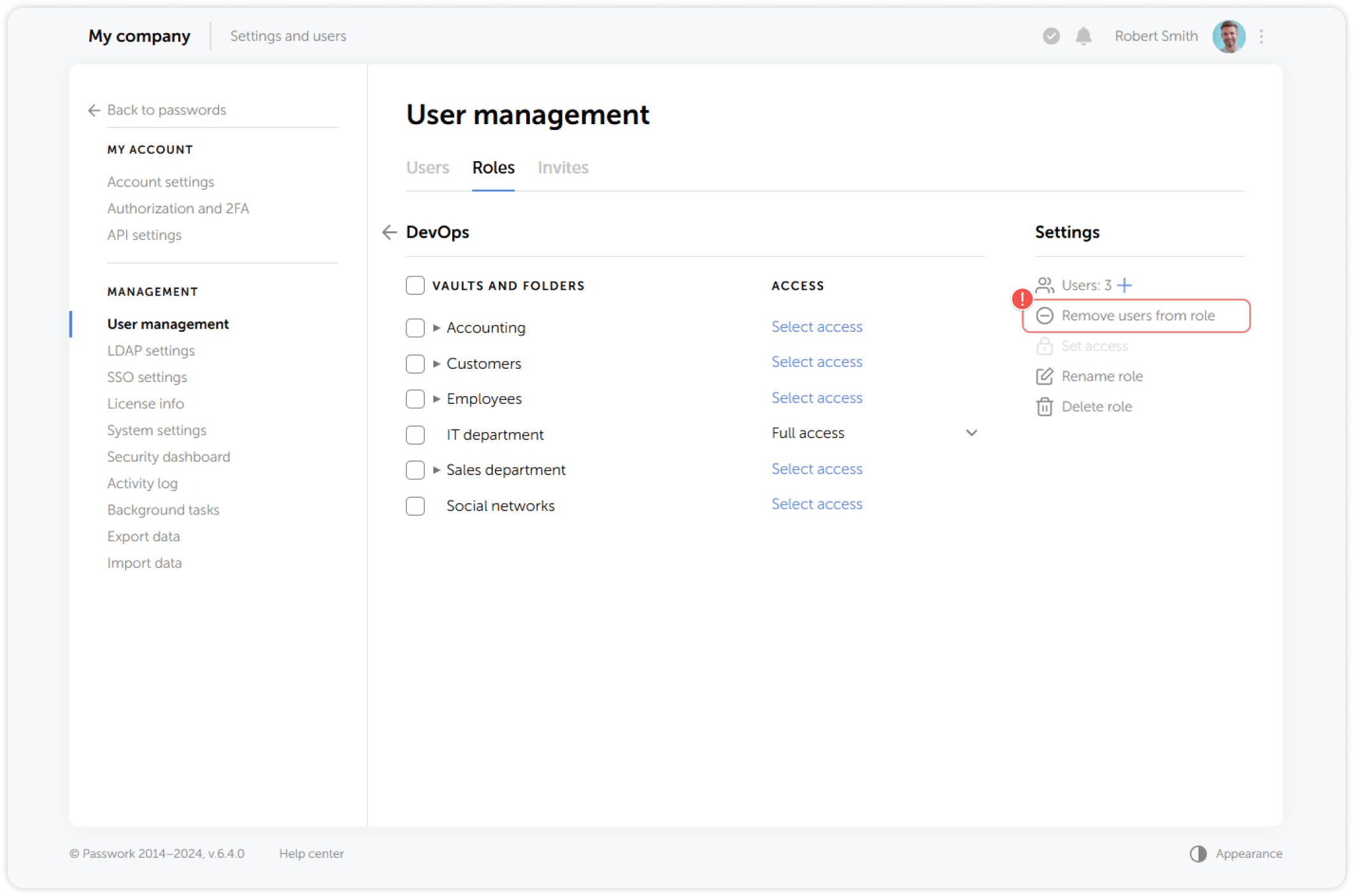
To remove users from role select a role and click Remove users from role in the Role Settings:
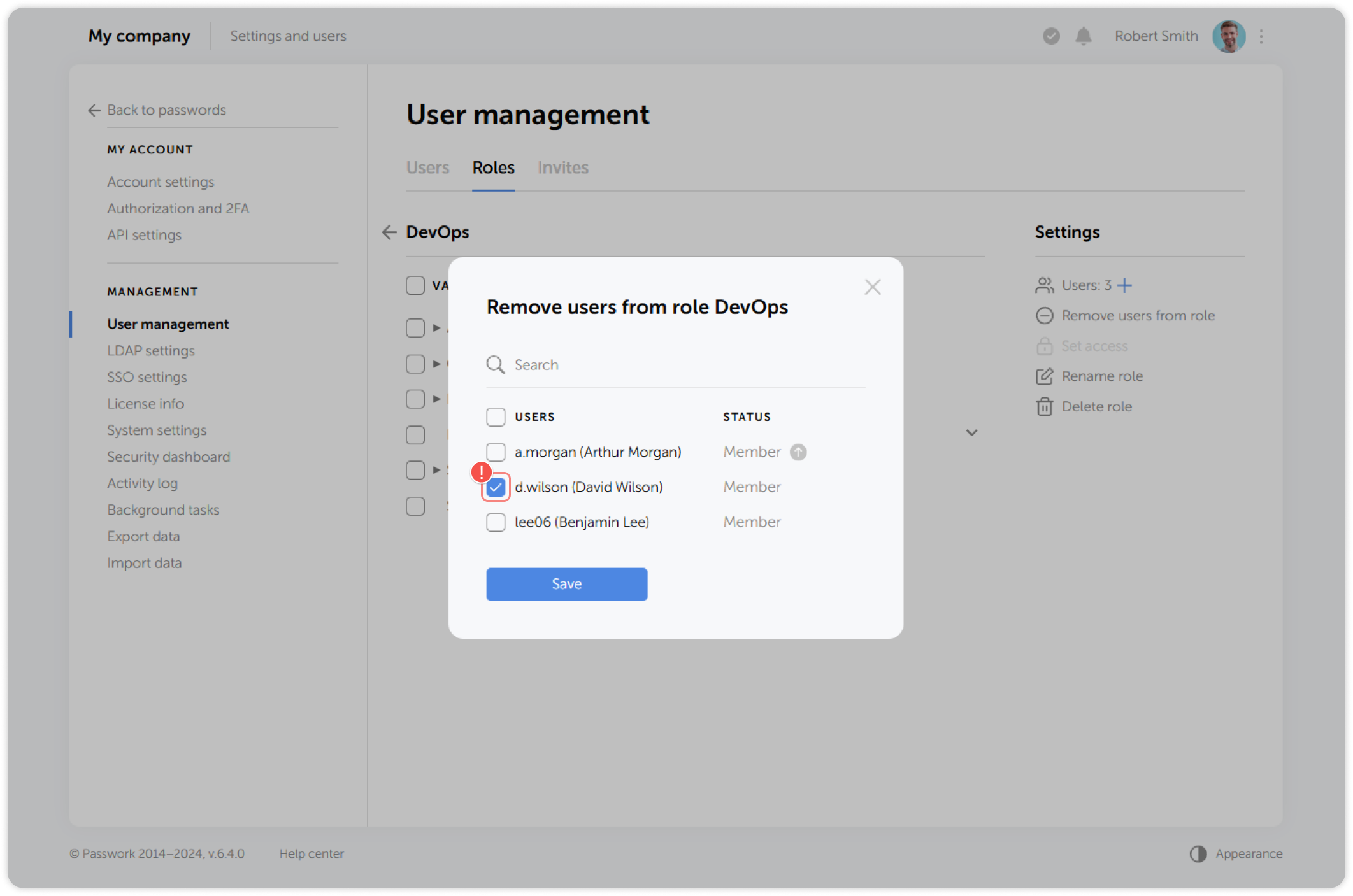
Select one or multiple users in the pop-up window and save the changes:
Set access rights
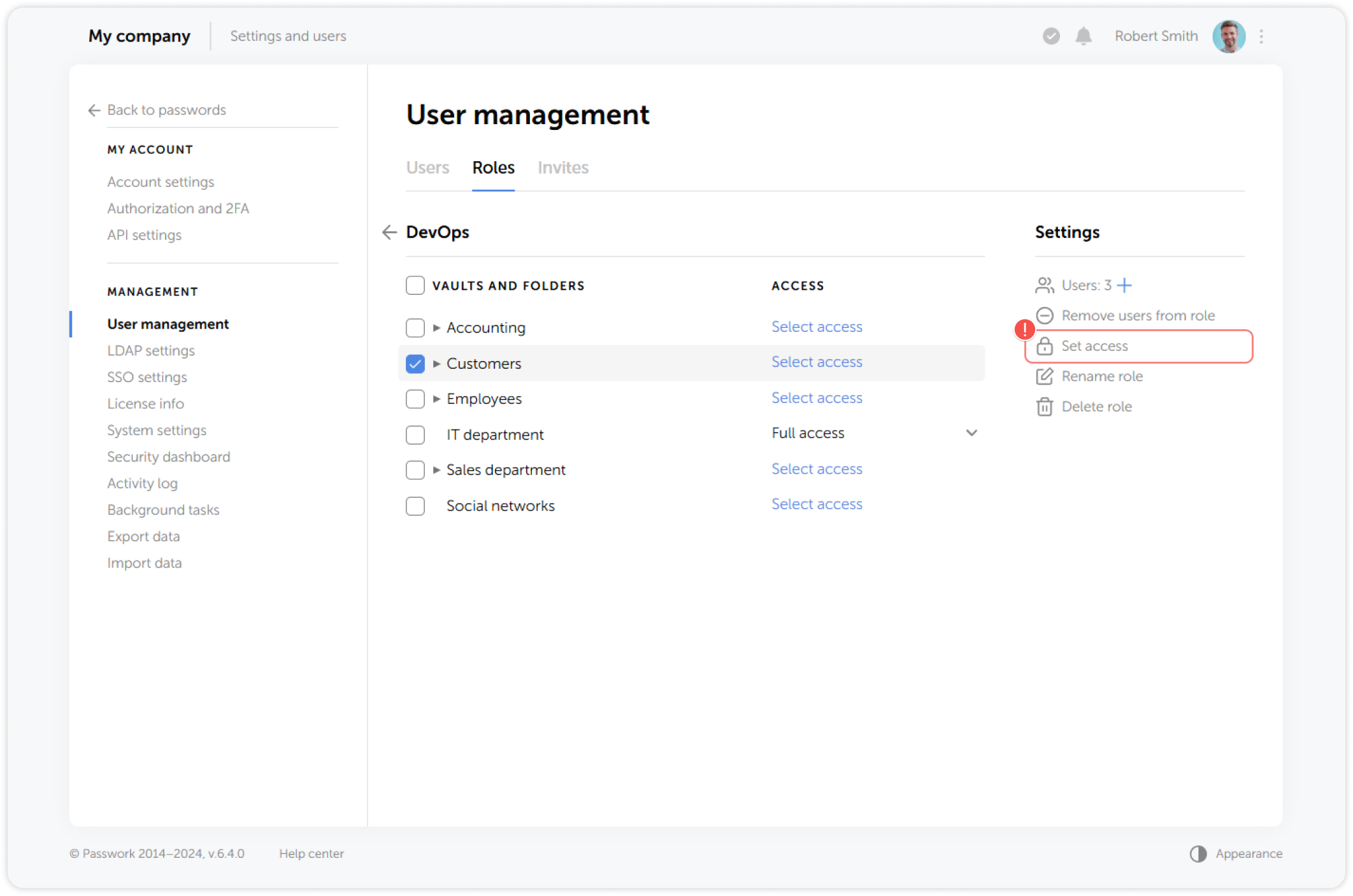
You can configure access rights for one or multiple vaults and folders by using the Set access button in the Role Settings:
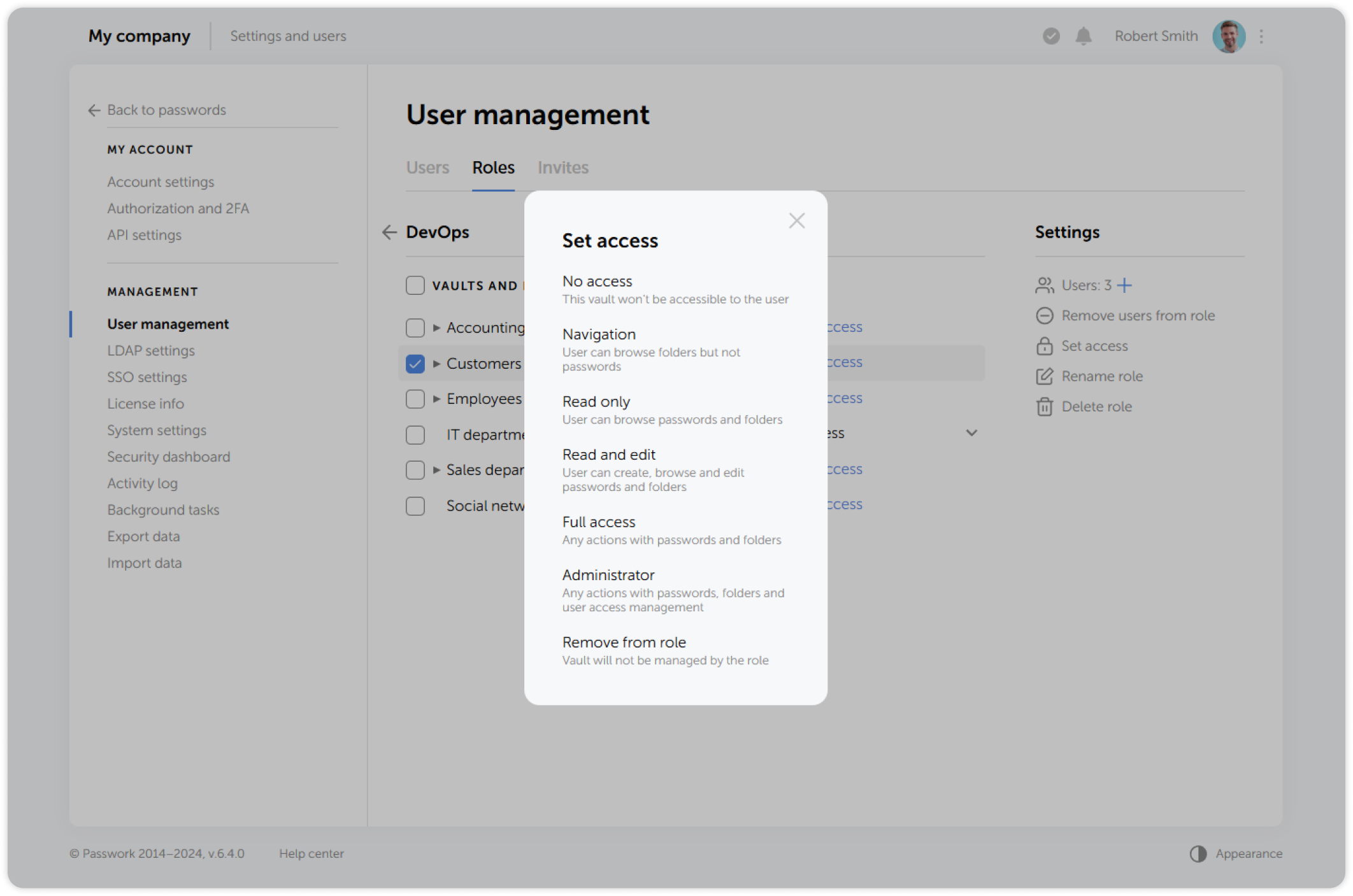
You will see a list of access levels that can be set for the selected vaults and folders:
- No access: A vault won't be accessible to the user.
- **Navigation: **Rights to browse folders but not passwords.
- Read only: Rights to browse passwords and folders.
- Read and edit: Rights to create, browse and edit passwords and folders.
- Full access: Rights to** **perform any actions with passwords and folders.
- Administrator: Rights to** perform **any actions with passwords, folders and user access management.
- Remove from role: Selected vault or folder will not be managed by the role.
Rename role
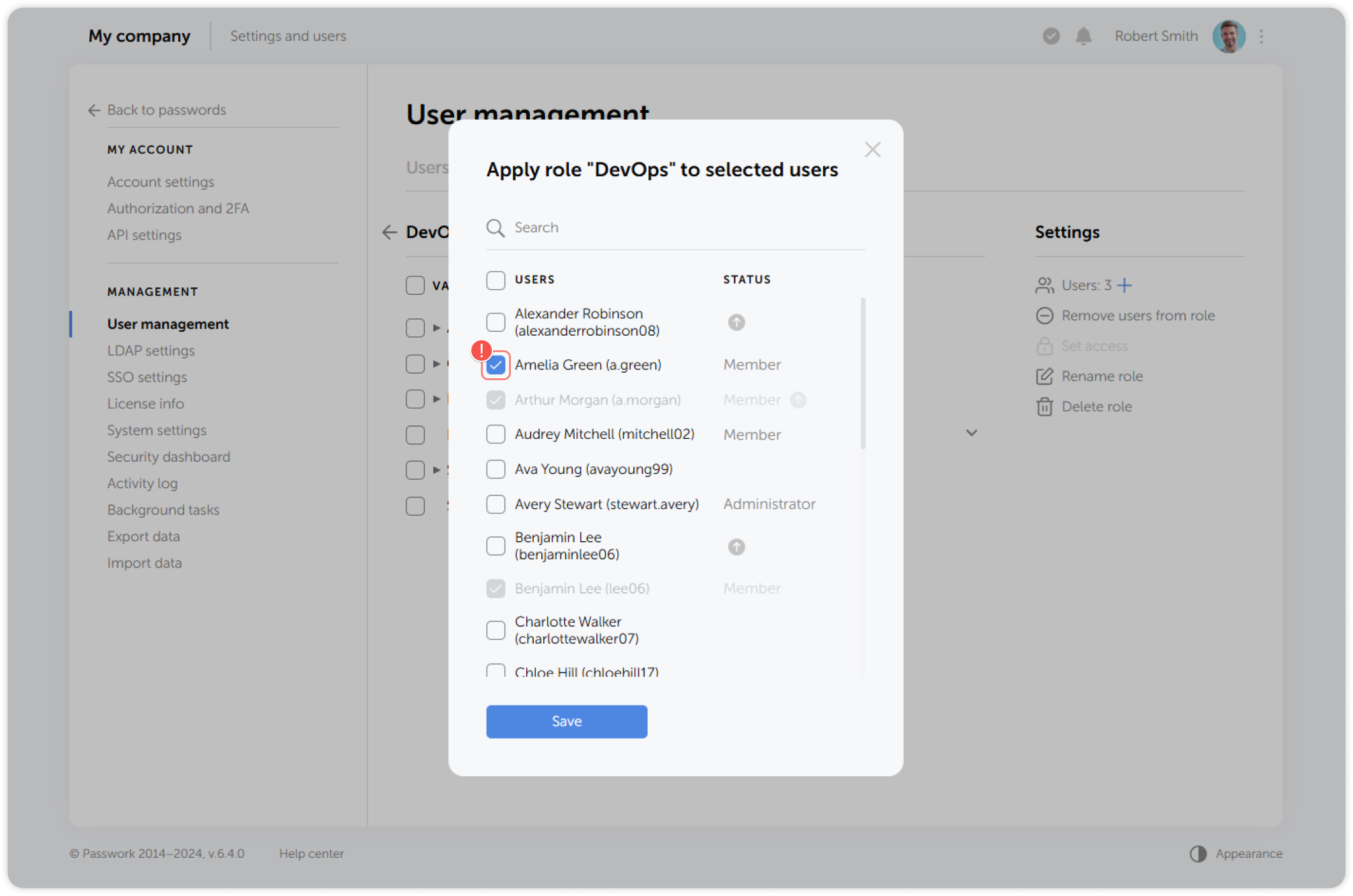
You can rename a role by selecting it in the Roles tab and then clicking the Rename role button:
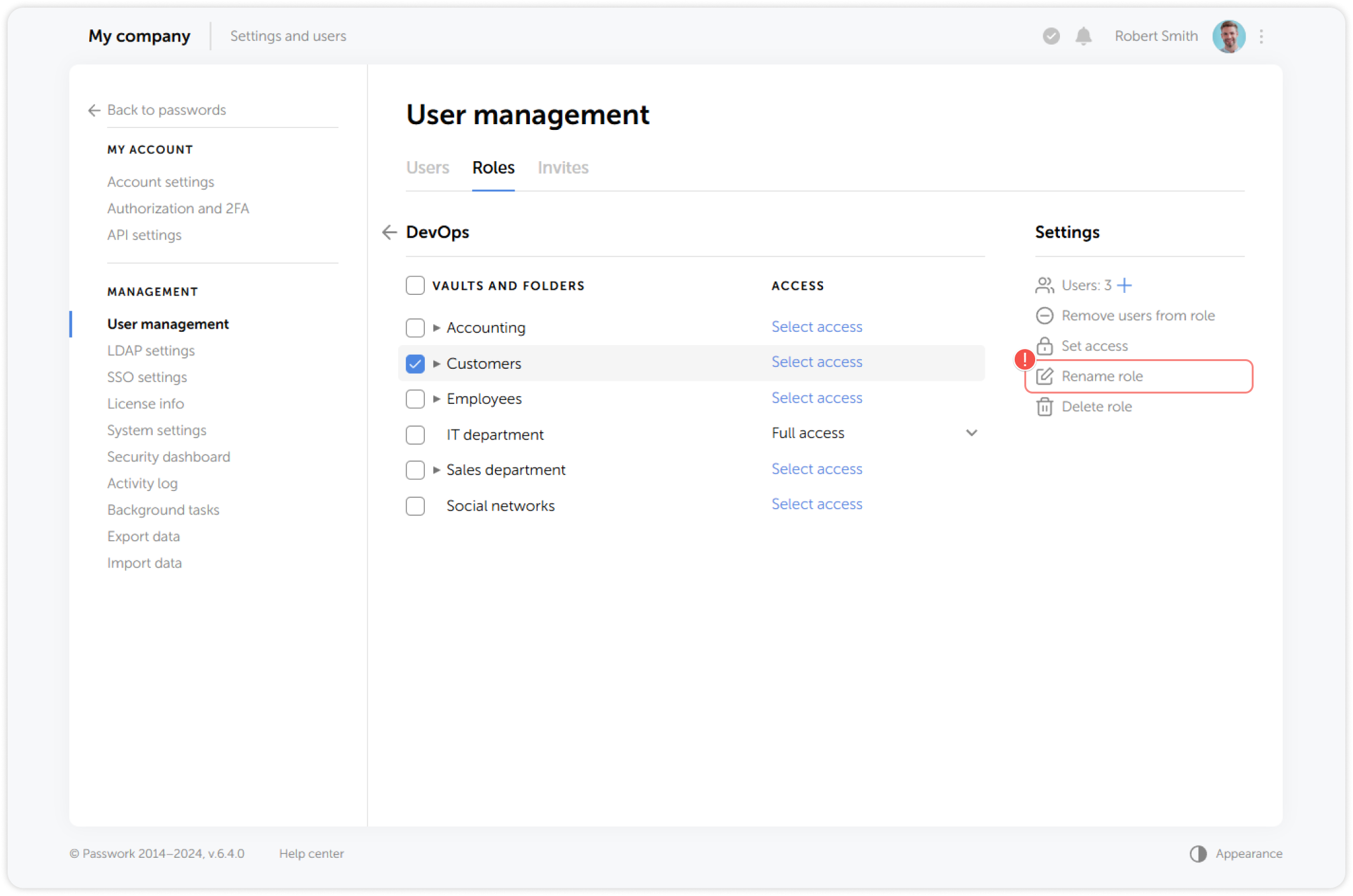
In the pop-up window, enter a new name for the role and confirm the changes: