


Access rights
You can grant users access to a specific vault or folder by configuring their Access rights.
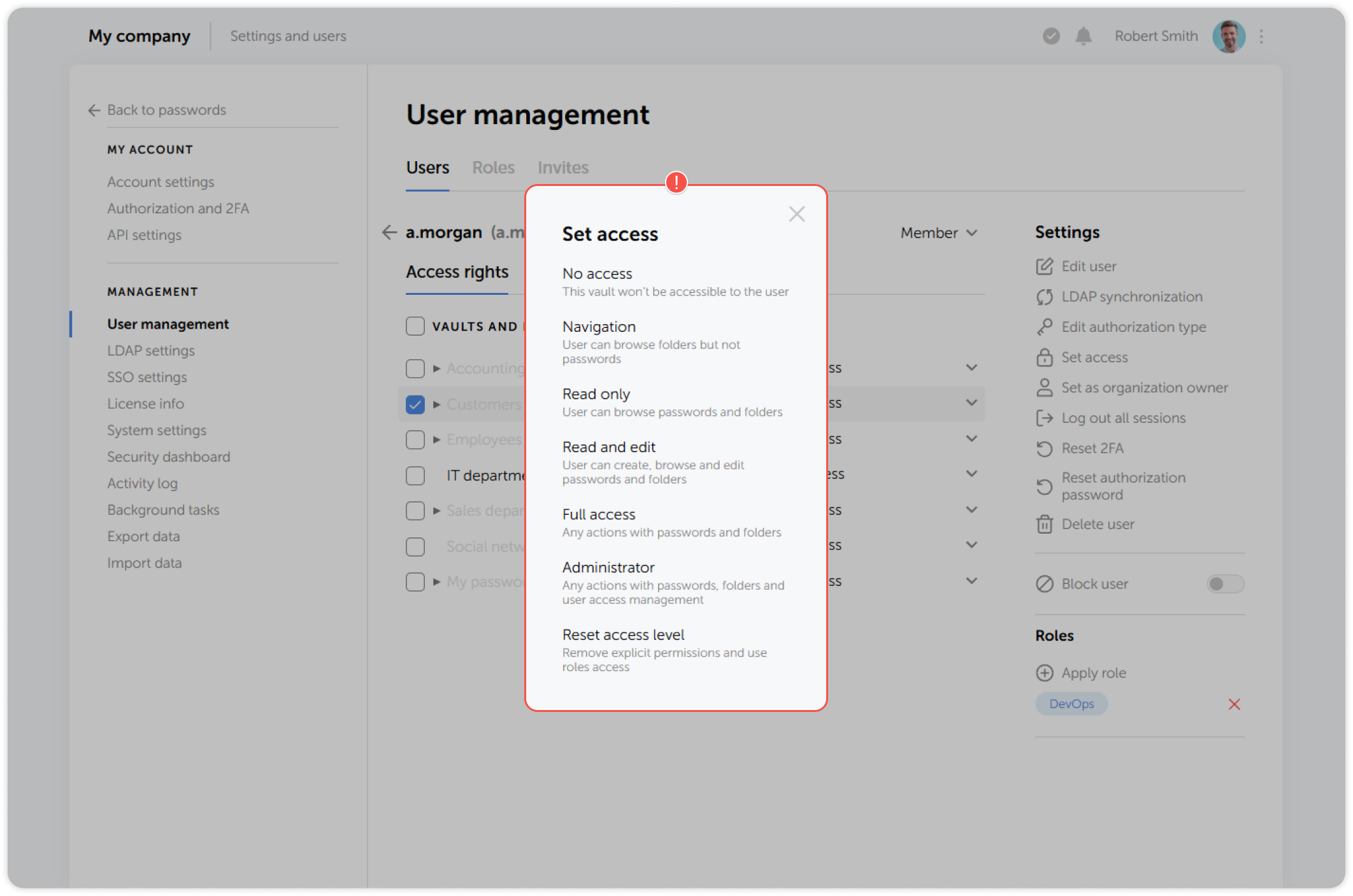
To do so, open a user's page from the list on the User management page:
tip
- Login and status of a selected user
- List of vaults and folders and the associated access level
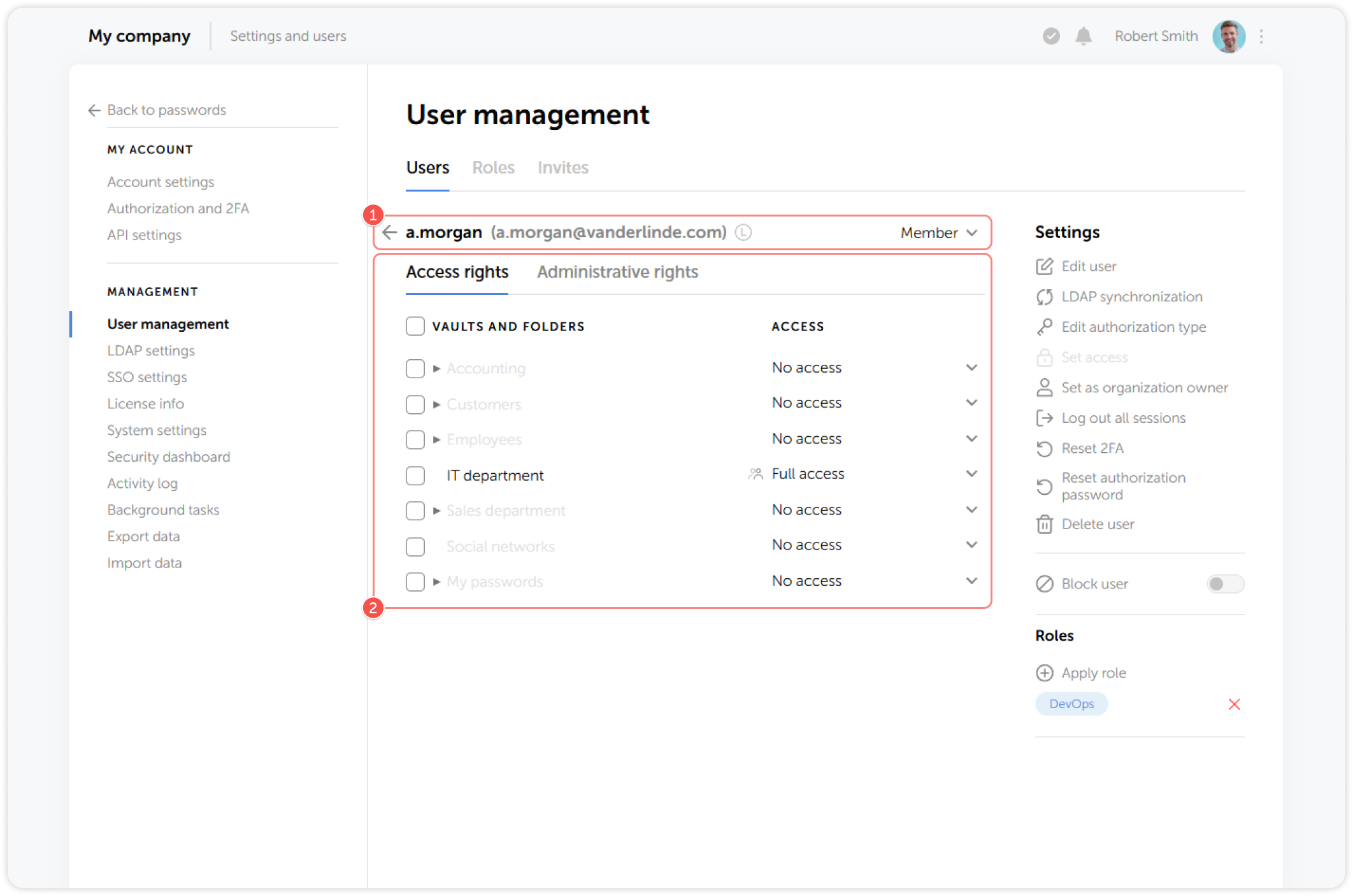
Select the required access level for a vault or a folder from the drop-down menu in the Access column:
You can apply one of the following access levels to a Passwork user:
- No access: A vault won't be accessible to the user.
- Navigation: Rights to browse folders but not passwords.
- Read only: Rights to browse passwords and folders.
- Read and edit: Rights to create, browse and edit passwords and folders.
- Full access: Rights to perform any actions with passwords and folders.
- Administrator: Rights to perform any actions with passwords, folders and user access management.
It is also possible to apply role-based access for a user by selecting Reset access level.
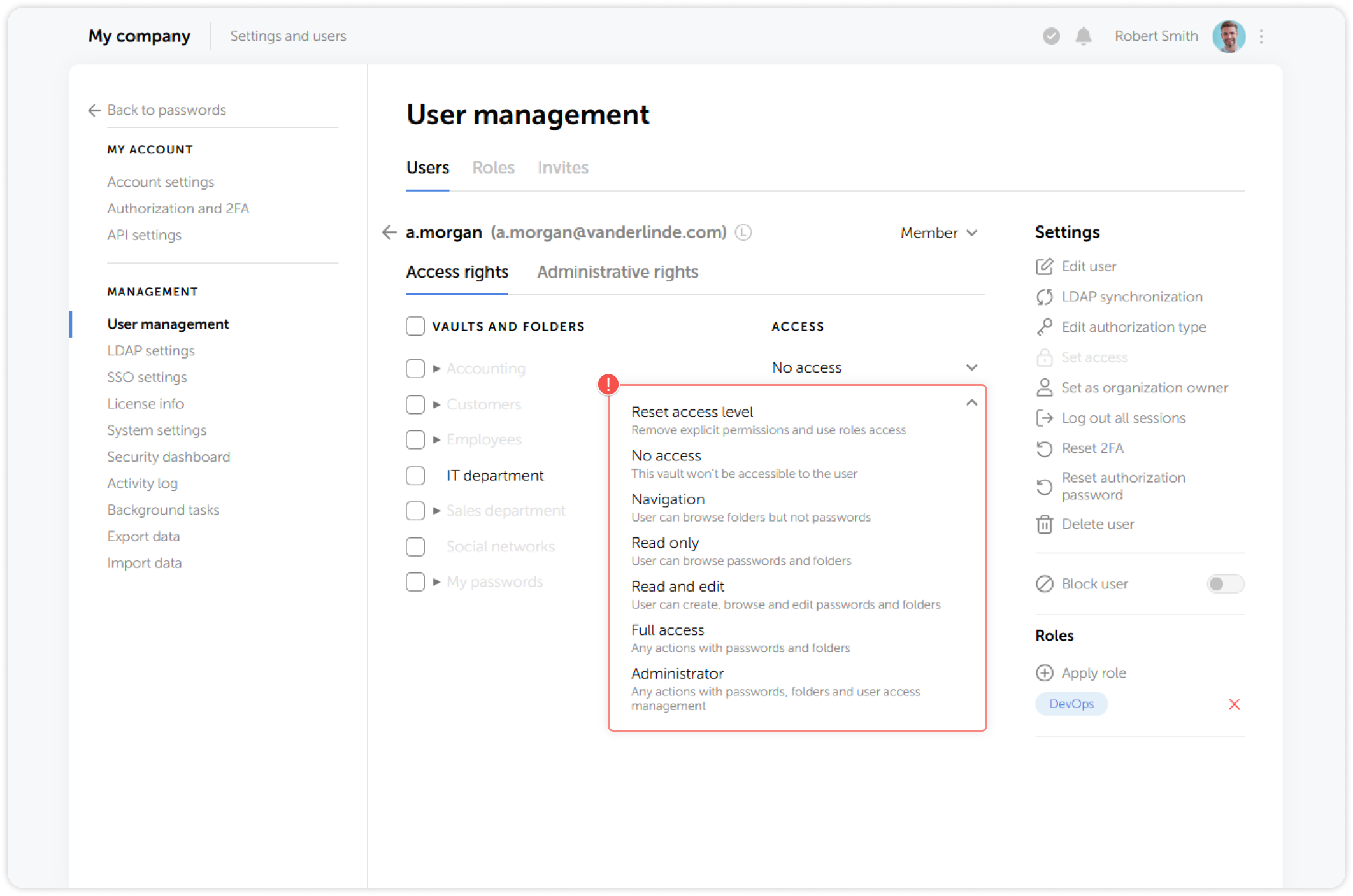
You can also change the access level for multiple vaults and folders simultaneously using the Set access button on the right panel. Select multiple locations and click on the Set access button to choose the appropriate access rights in the pop-up window: