



Copy folder
Copying a folder automatically duplicates the folder and all its contents to another vault or folder, including user access settings.
1
Select a folder you want to copy, then go to the Folder settings dropdown menu and click Copy:

2
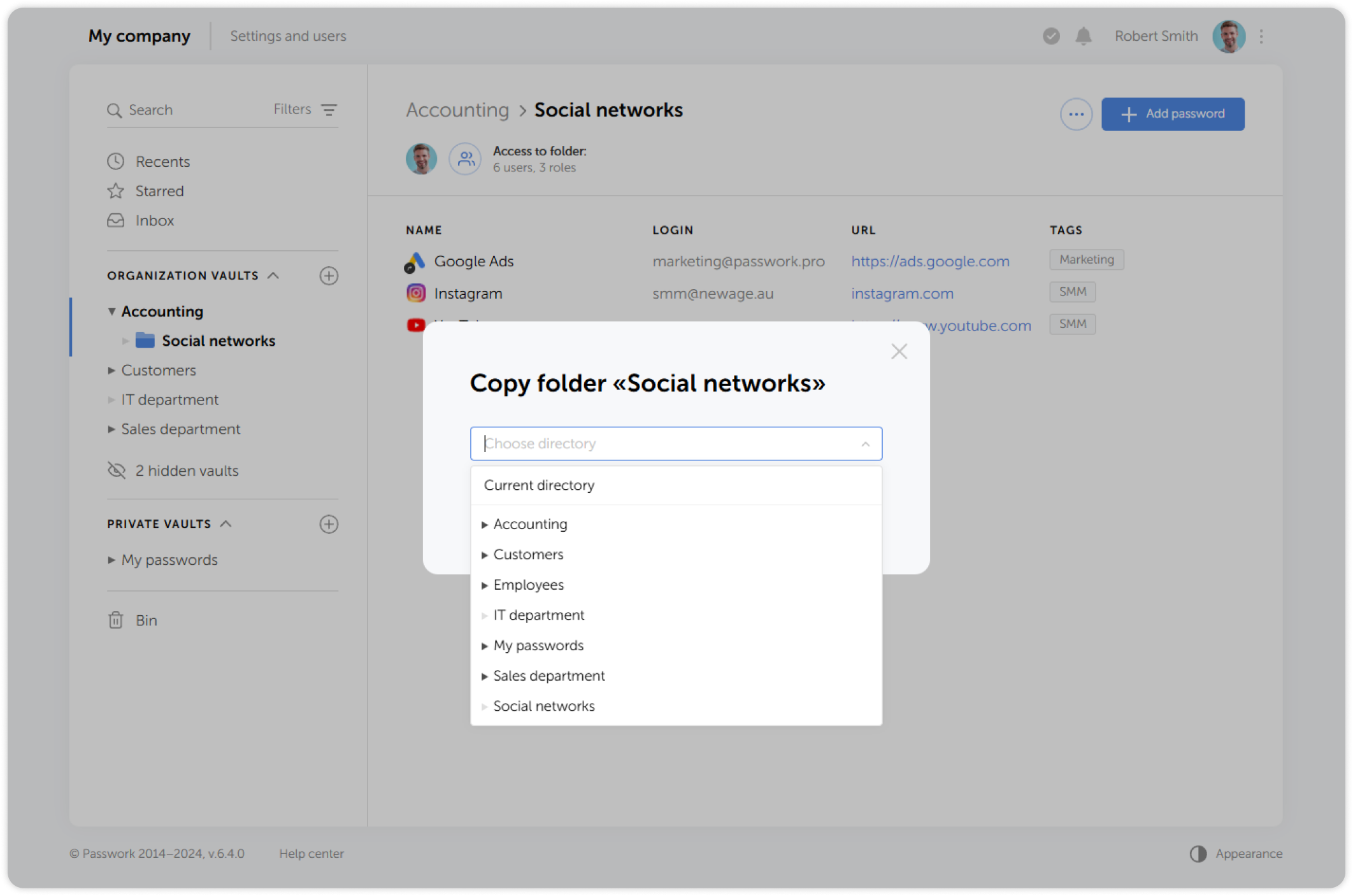
Choose one or more locations for the copy to be created in:
3
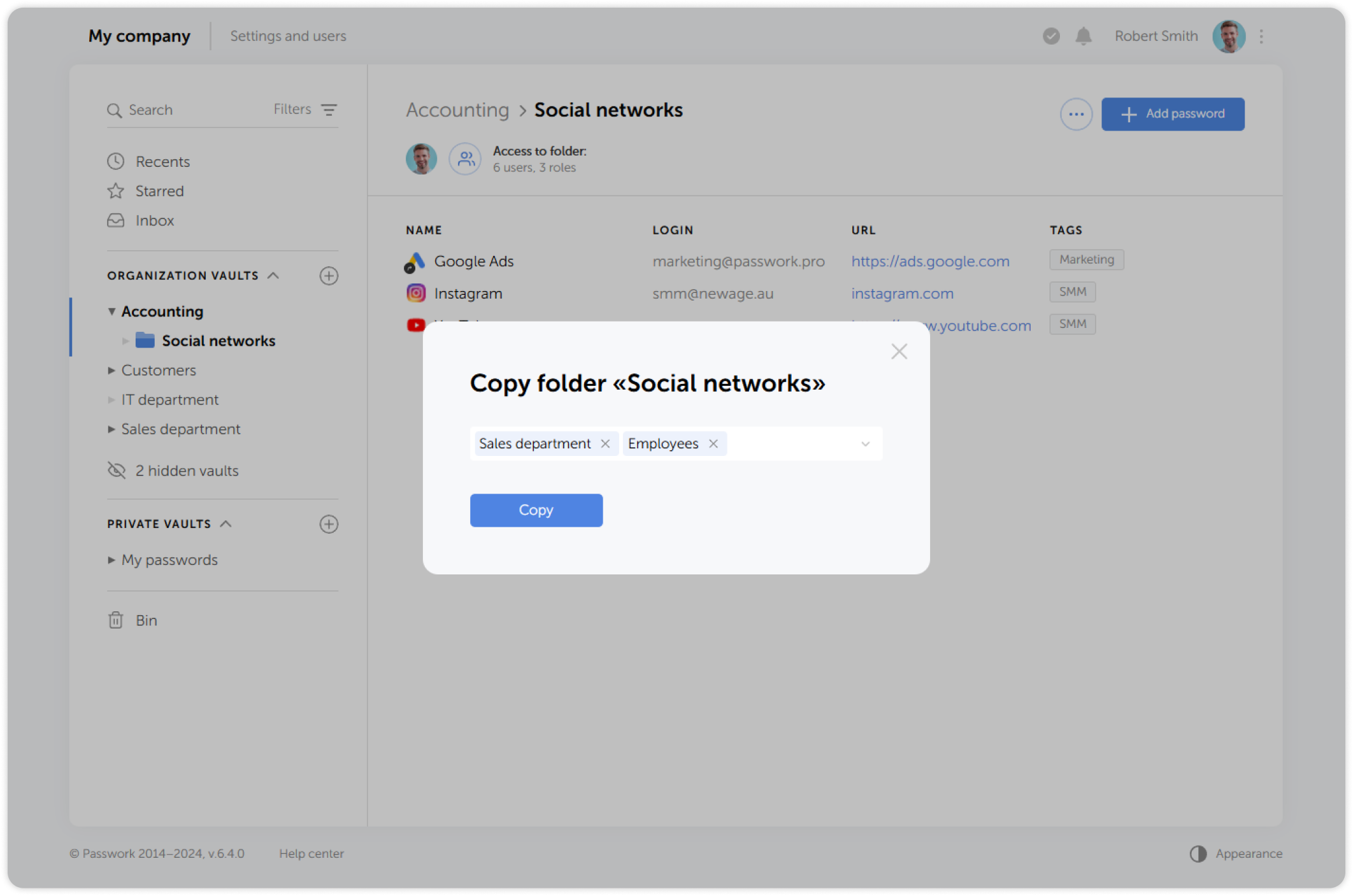
Check the destinations and confirm the action:
info
You can copy a folder by hovering over the folder icon on the Content pane and dragging it to another location. It's also possible to select multiple folders or passwords by holding down Ctrl and clicking on each one.