



Import data
Passwork lets you quickly import passwords kept in JSON, KeePass XML and CSV formats into a specific vault, folder, or into the Passwork root directory. JSON and XML files are used to transfer structured information, while CSV stores raw data as plain text.
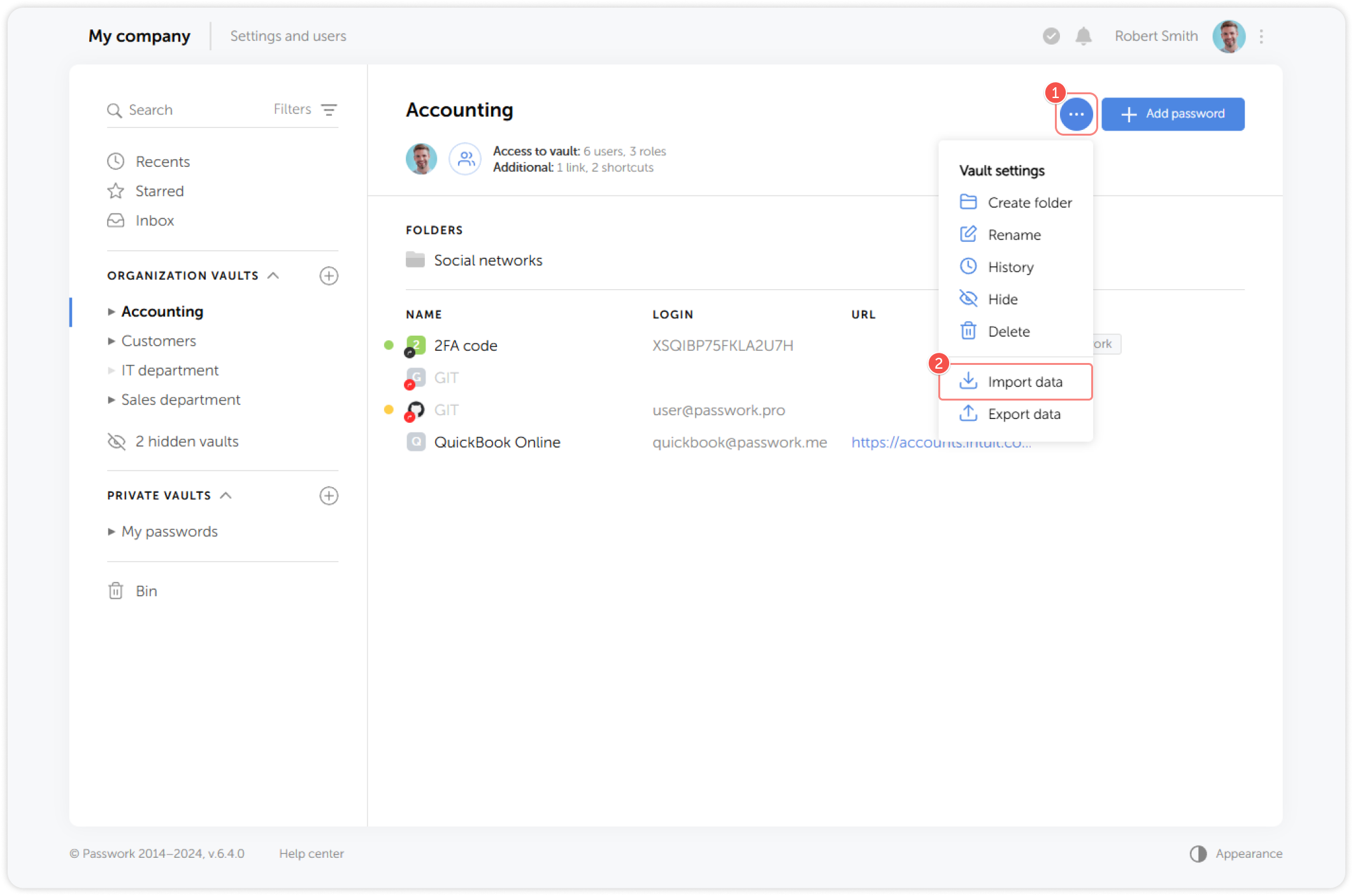
To set up the import, go to the settings menu of the vault or folder, open the Vault settings dropdown menu and click Import data:
Passwork JSON and KeePass XML
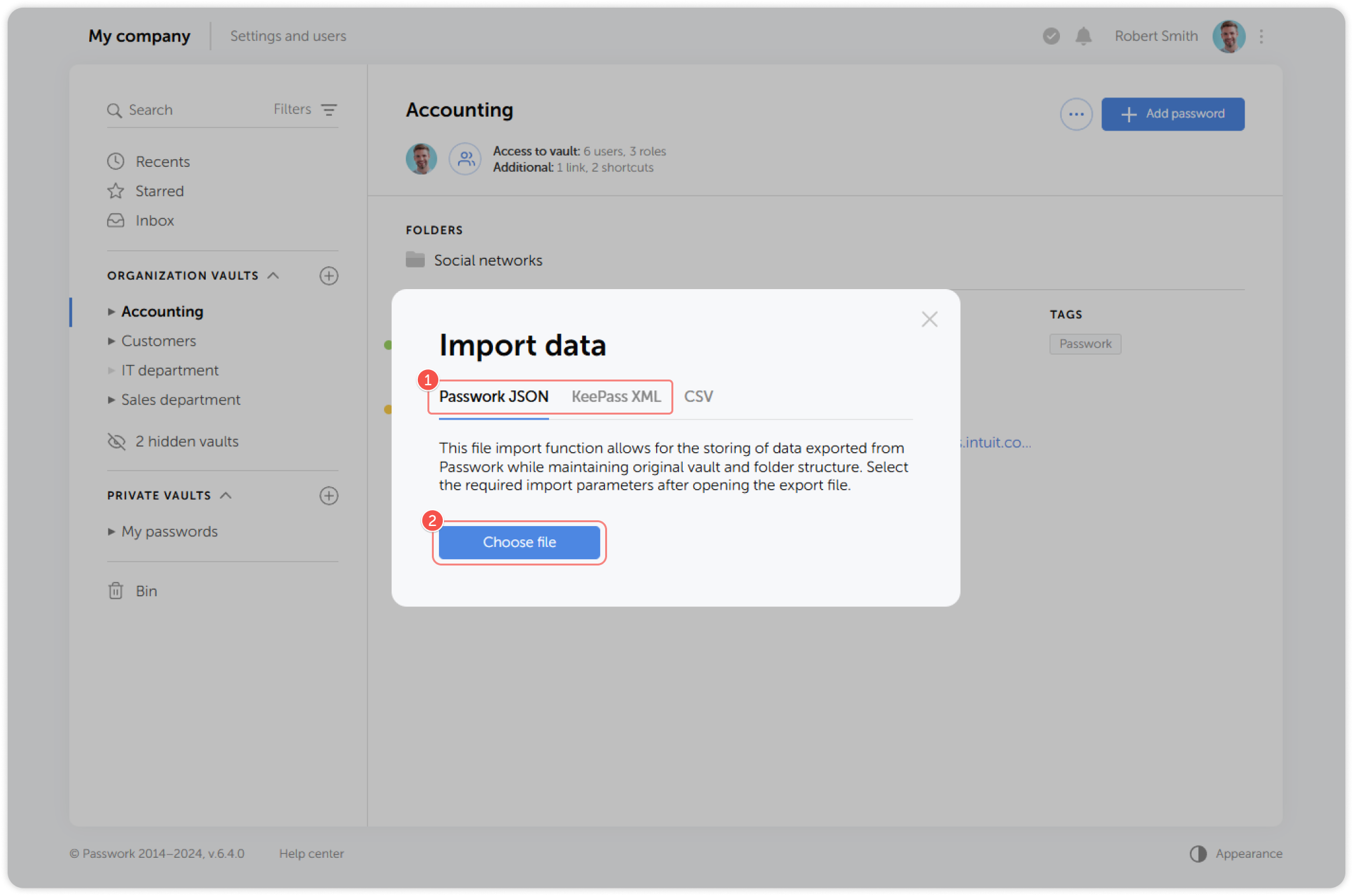
Passwork JSON and KeePass XML formats are able to store data exported from Passwork or KeePass while preserving the original vault and folder structure, making it easy to import.
To upload a file, select the tab with the required format in the Import data pop-up window. Afterwards you will be able to choose individual items and the structure import method
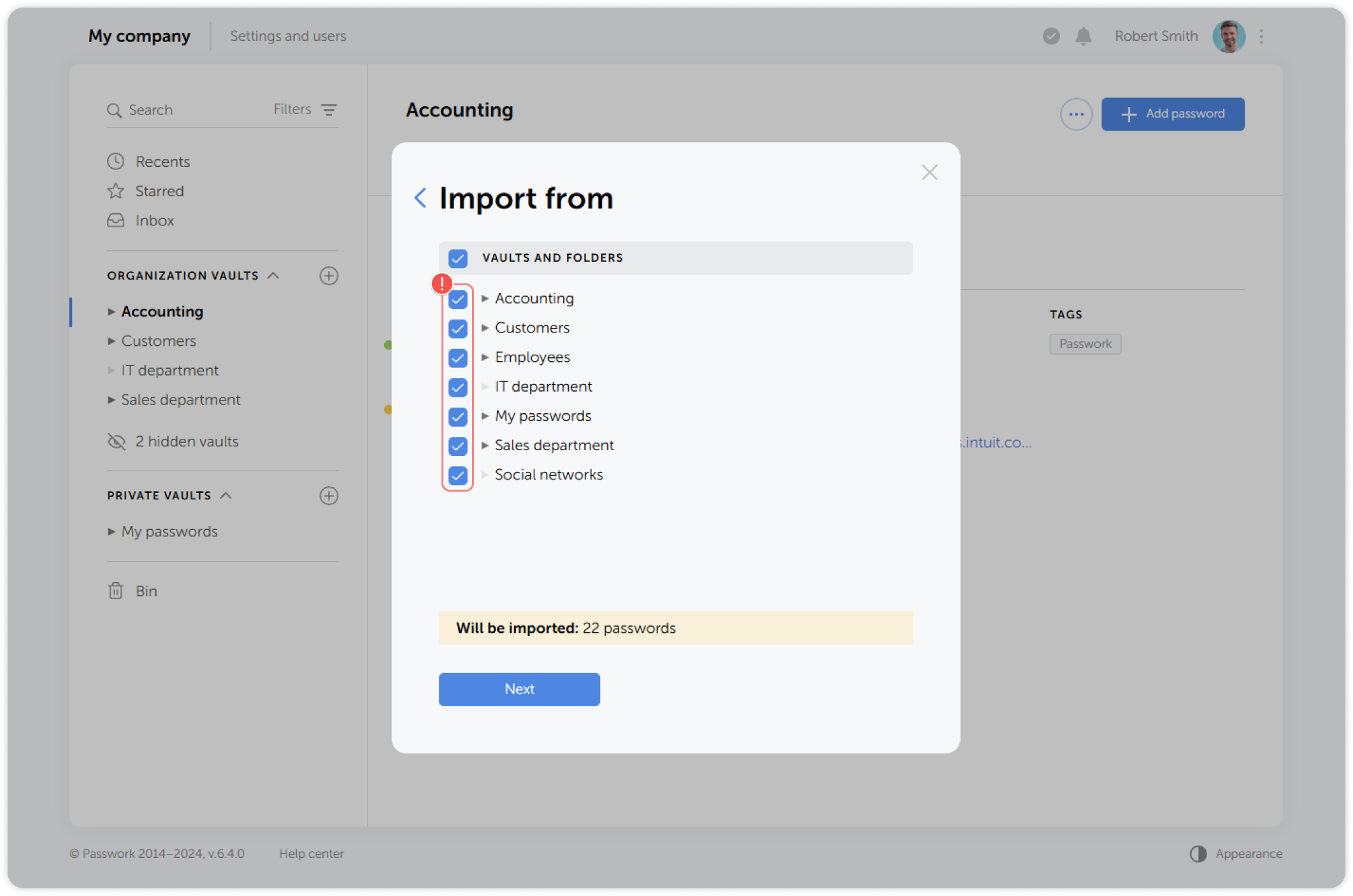
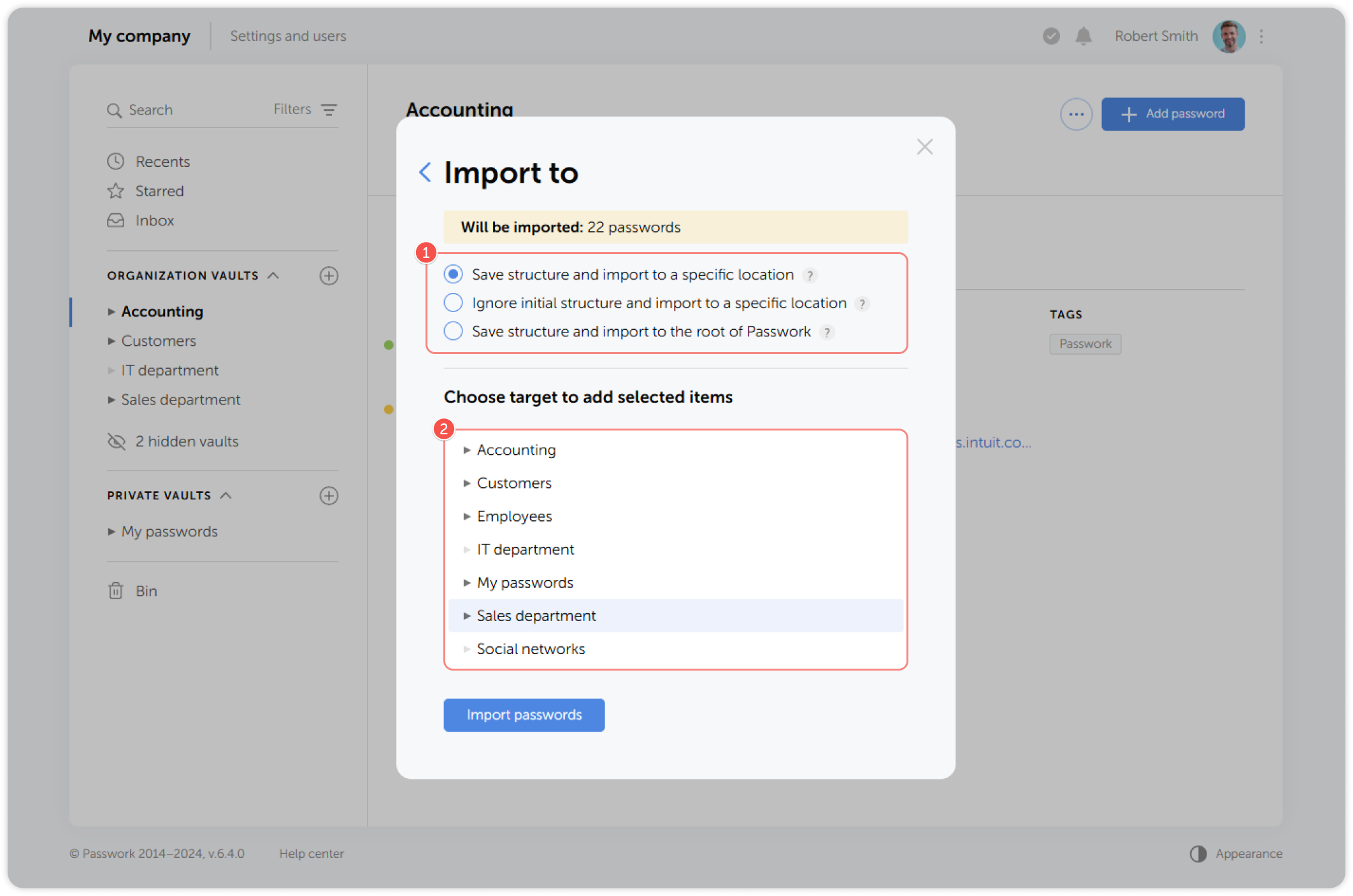
Files in Passwork JSON and KeePass XML formats preserve the document structure. When choosing a target location, you will be able to:
- Save structure and import to a specific location: All selected vaults will be turned into folders inside the target vault or folder. Folder structure will be restored and all passwords will remain in their original folders.
- Ignore initial structure and import to a specific location: All passwords will be saved to a specific vault or folder and no structure will be recreated.
- Save structure and import to the root of Passwork: All selected vaults and their structure will be recreated. Passwords will be saved in the folders they were exported from.
CSV
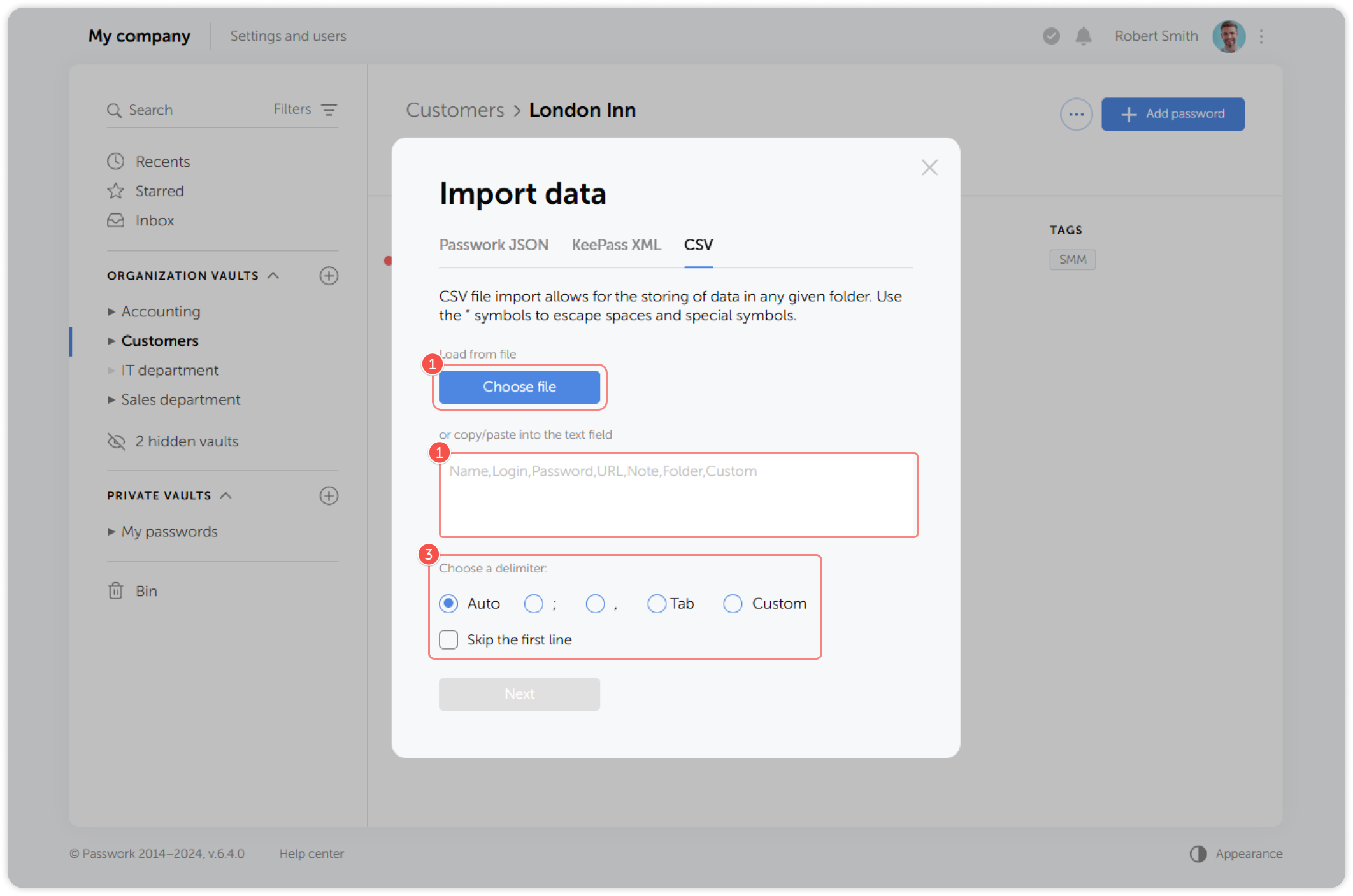
You can upload your existing data to Passwork from a CSV file, or paste it manually. For CSV files, no preparation is needed. Simply upload the file and Passwork will suggest columns from which data can be imported.
Upload a file or paste the data, then select a delimiter:
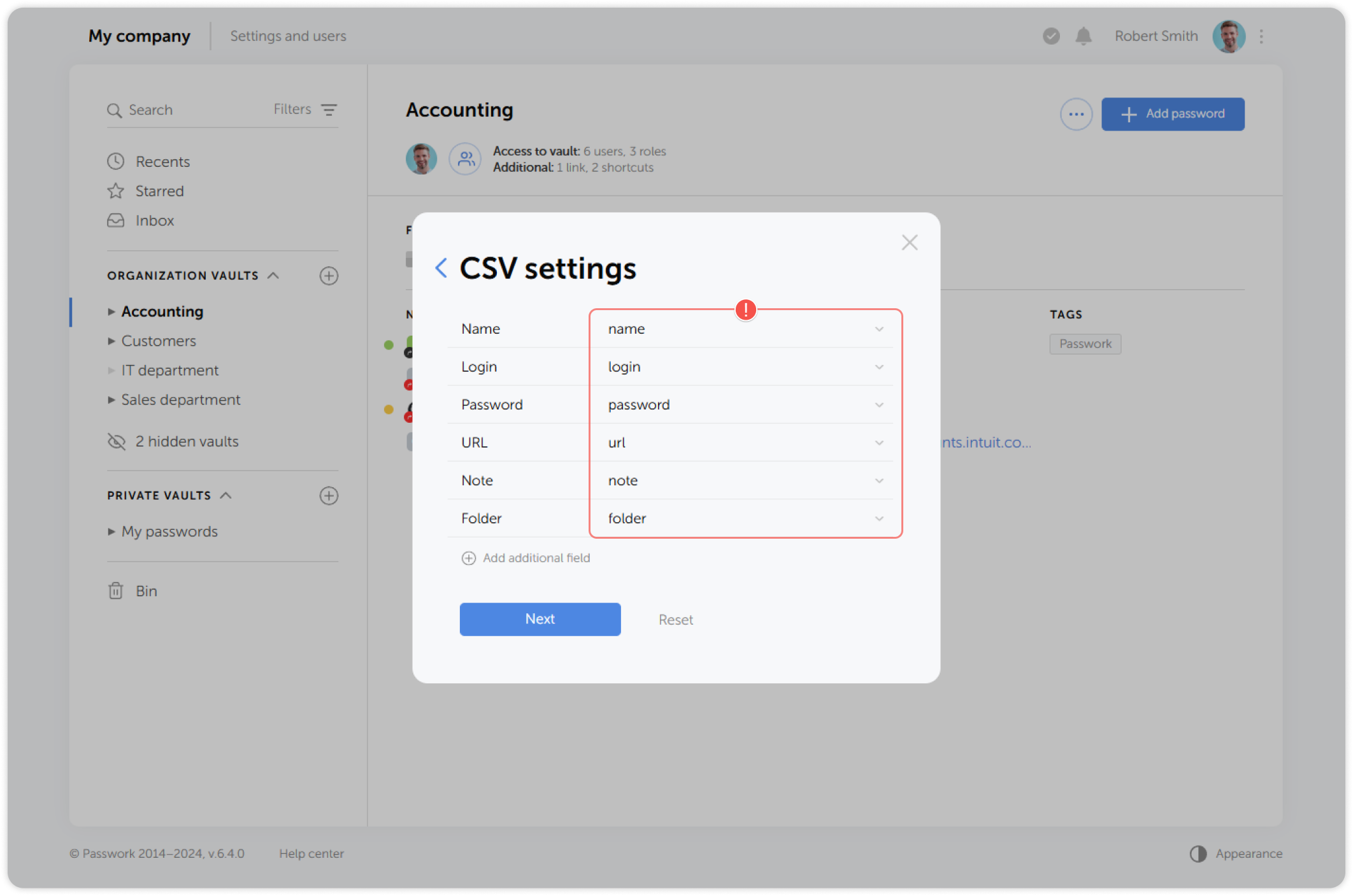
Match the Passwork fields with imported values. You can add as many fields as you need using the Add additional field button:
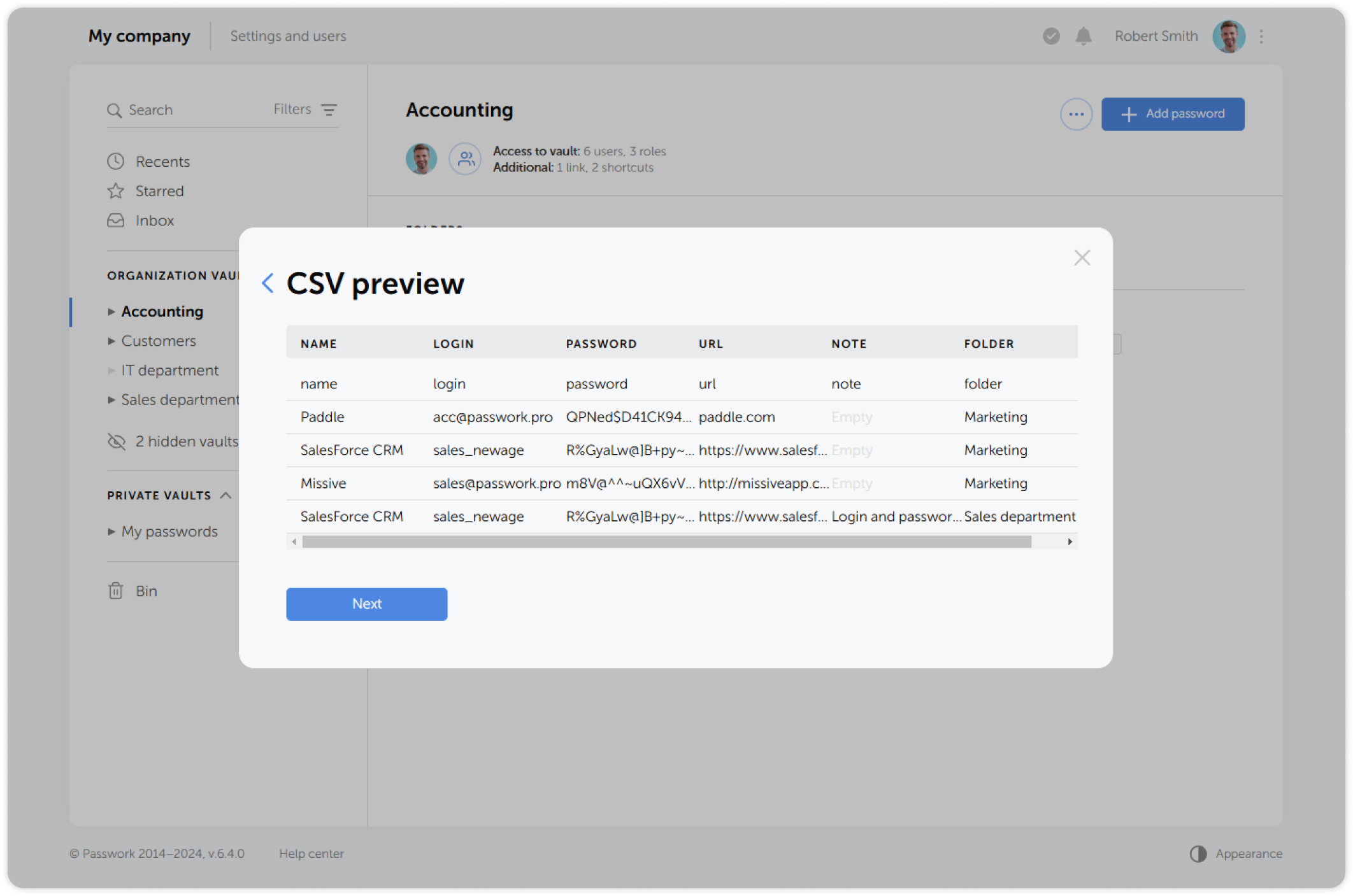
Preview the results:
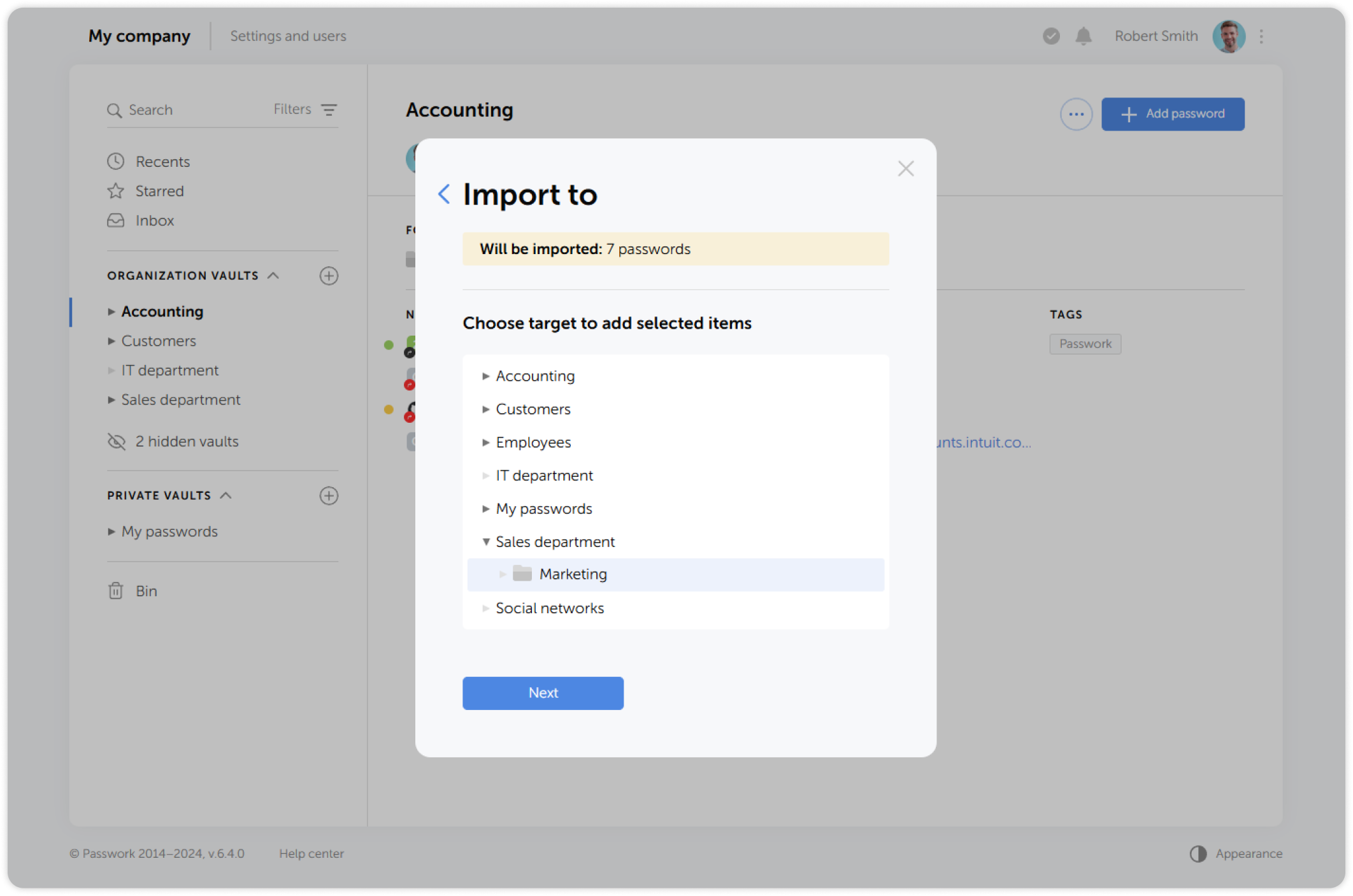
And select the import destination:
Administrator can restrict access to import and export features for specific users and user groups