


Vault access rights
In Passwork you can manage vault access rights using several tools. All of them can be found on the Vault control panel.
It contains the details about users and passwords connected to the vault. Click on any element of the Vault control panel to open the corresponding access settings:
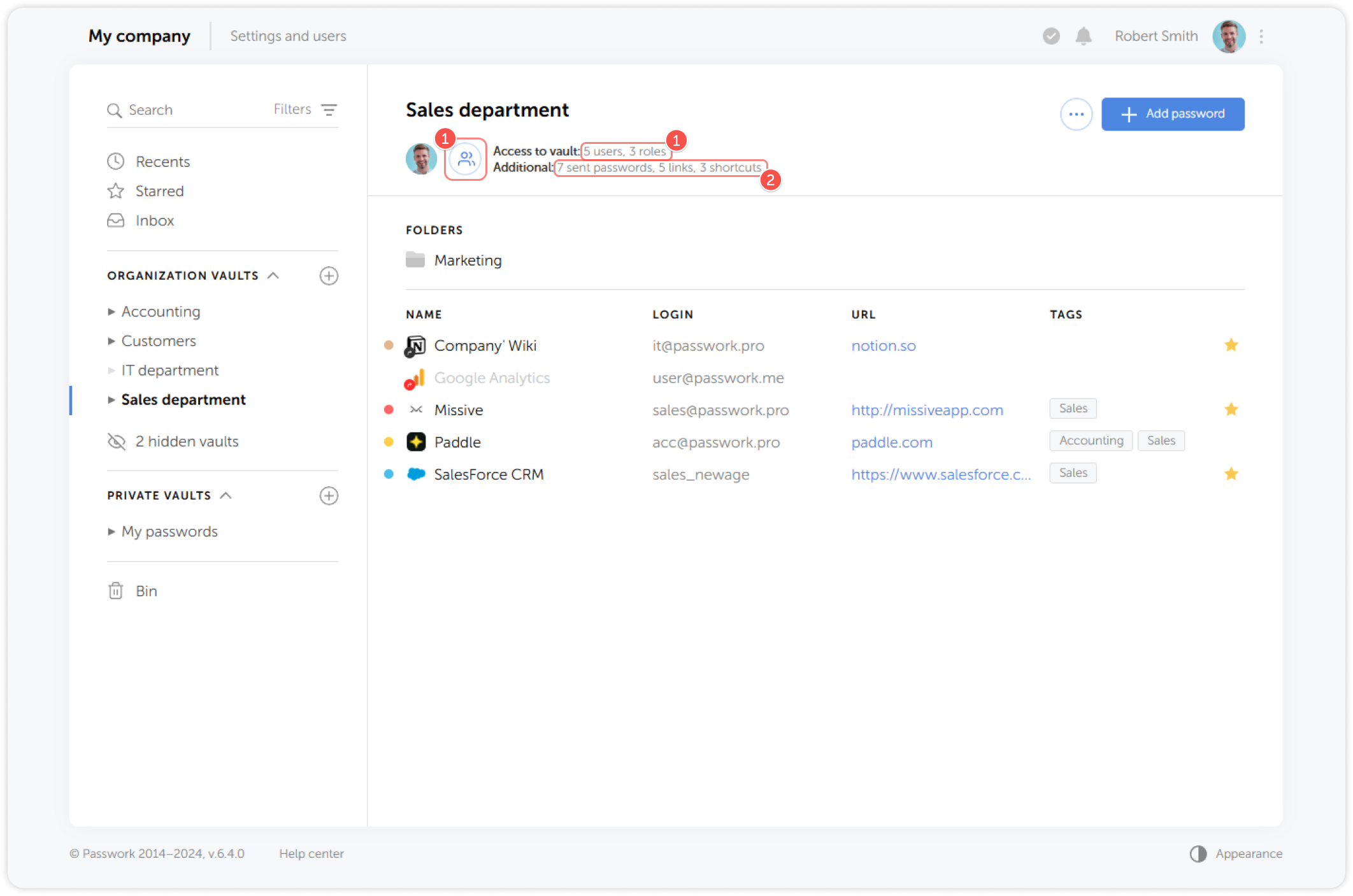
- User list
- Users and Roles dashboard
- Sent passwords, links and shortcuts
Manage user access
In the Vault access window, you can add or remove users from the vault, search through the user list and manage the access rights.
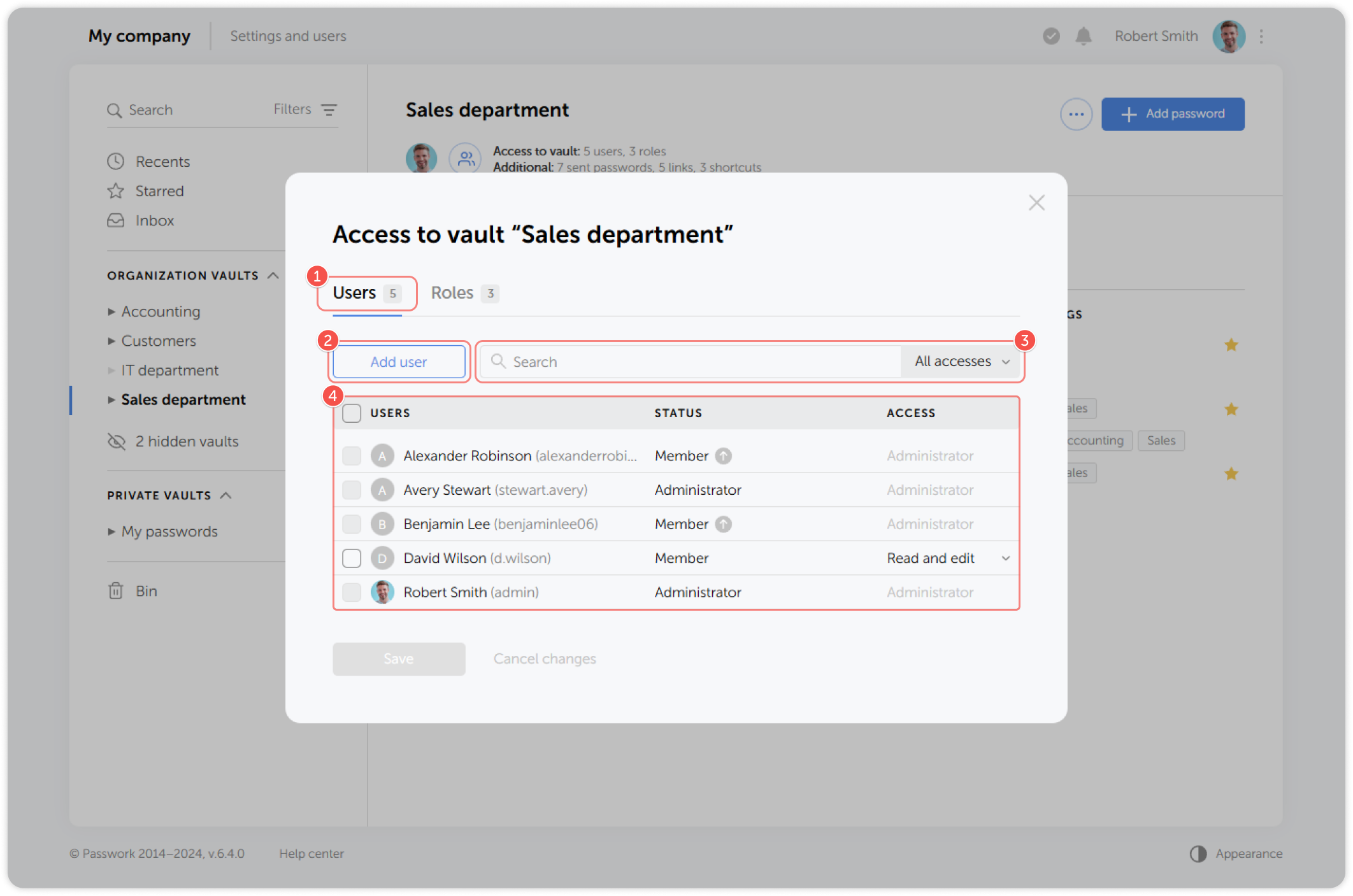
- Go to the Users tab
- Add more users if needed
- Search for users or filter them by access rights
- Select users and modify their permissions
Manage role access
In the Vault access window, you can add or remove roles from the selected vault, find the necessary roles and change their access rights.
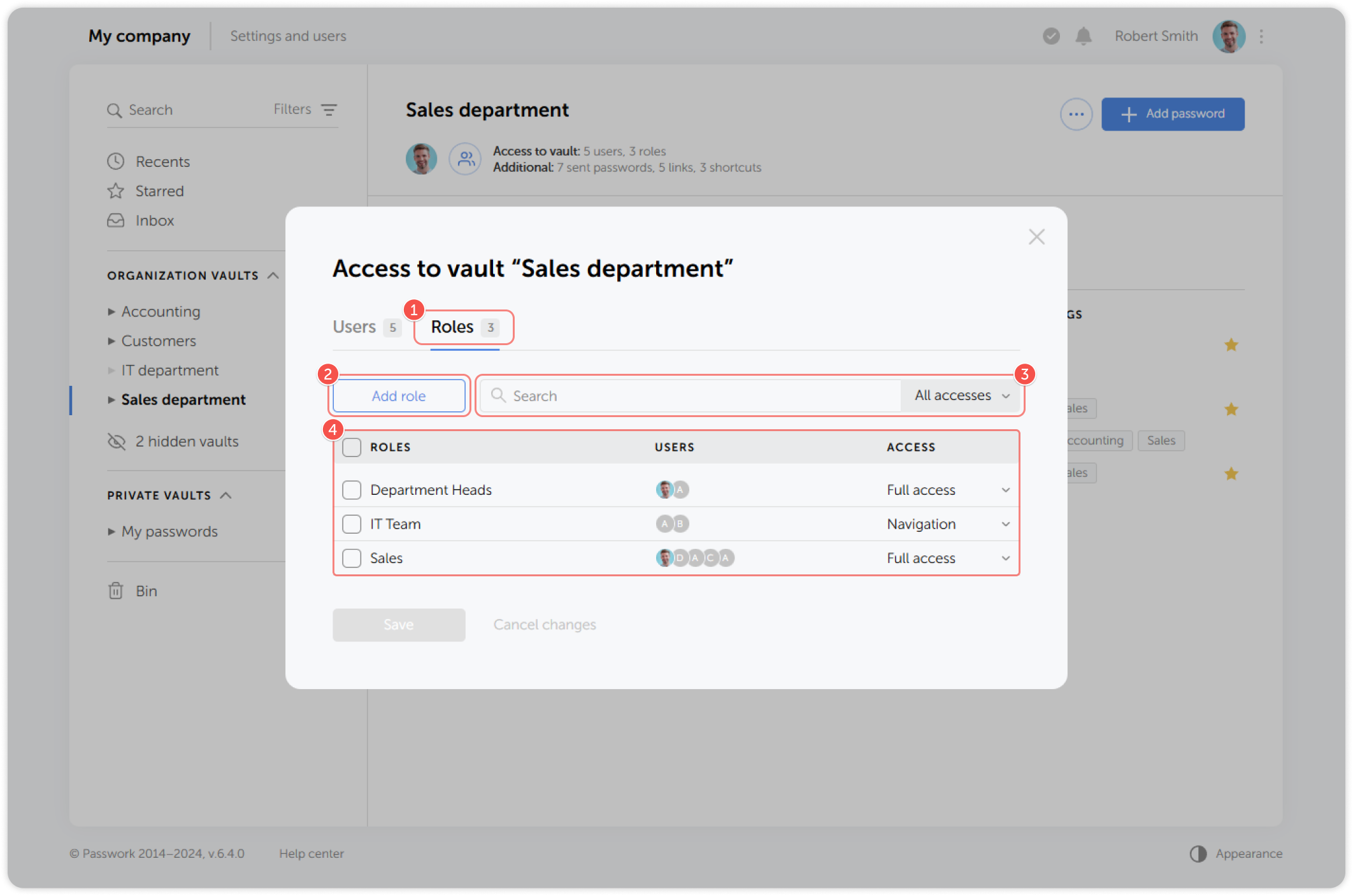
- Go to the Roles tab
- Add more roles if needed
- Search for roles or filter them by access rights
- Select roles and modify their permissions
Additional access dashboard
In the Additional access window you can view all shortcuts and password links created within a selected vault. It also provides details about all passwords that users of the vault have sent to others.
Select a vault, then click on the list of sent passwords, links and shortcuts:
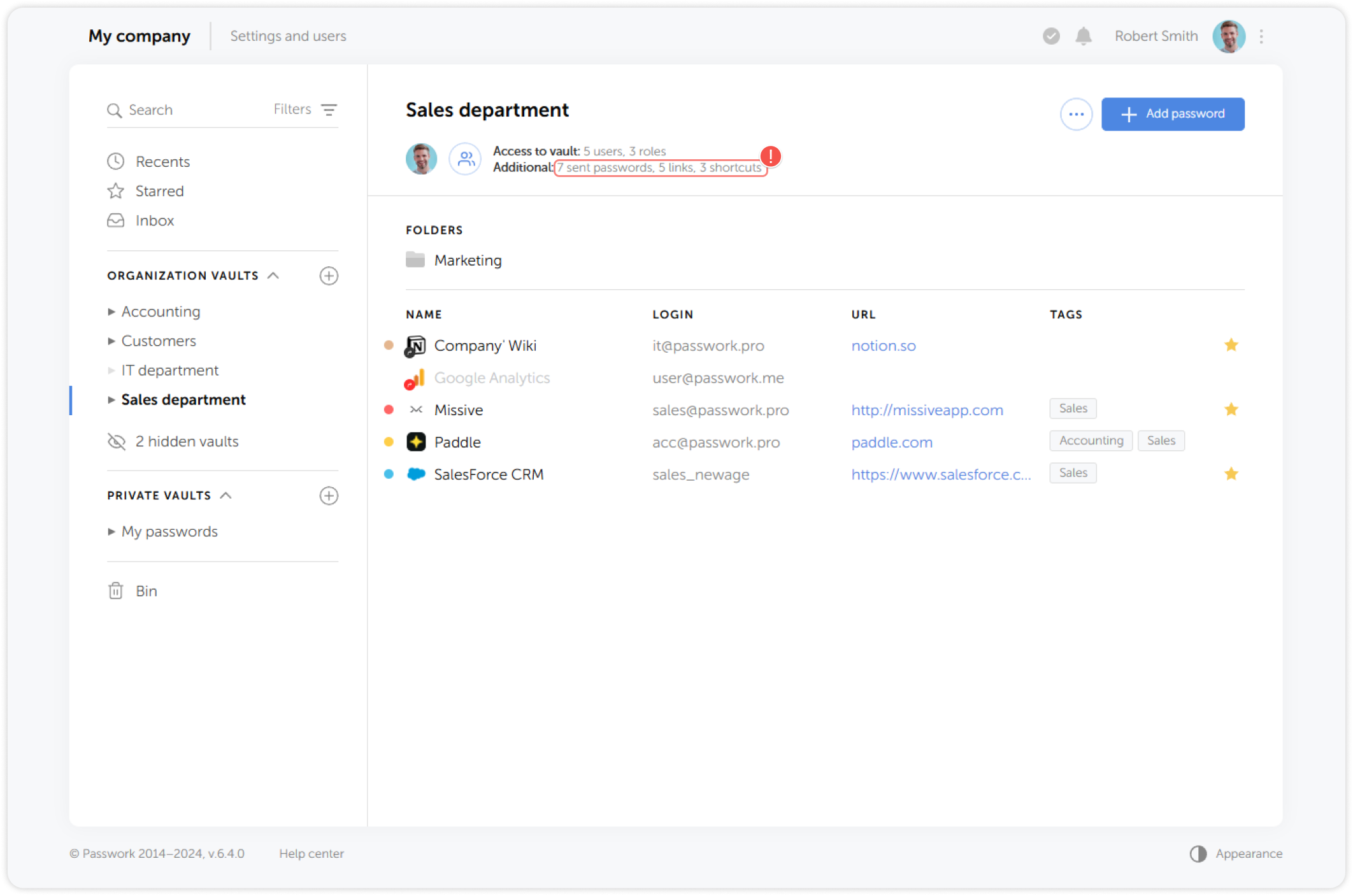
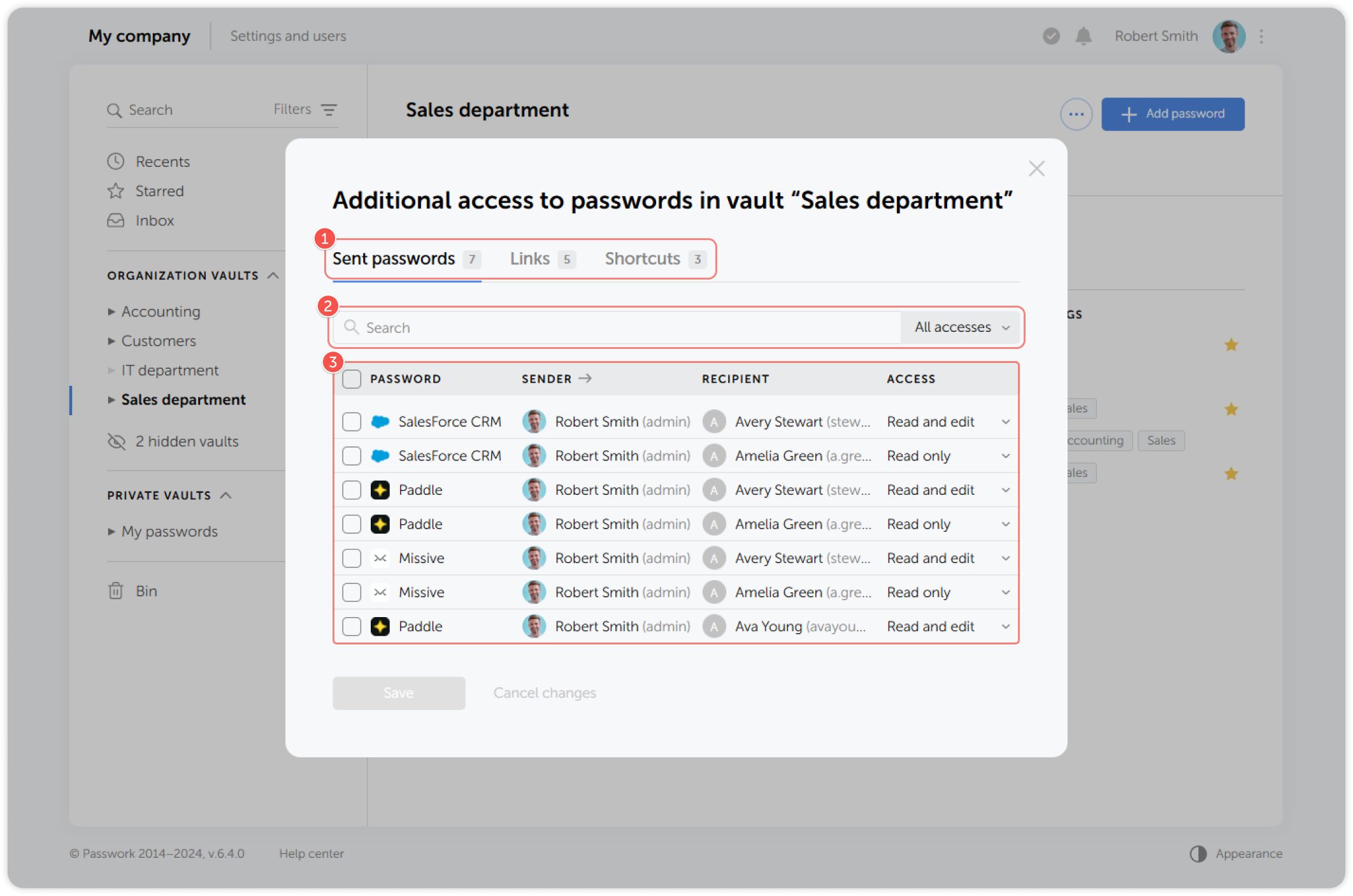
- View sent passwords, links and shortcuts
- Search and filter sent passwords, links or shortcuts
- Select a password, link or a shortcut and manage the access rights
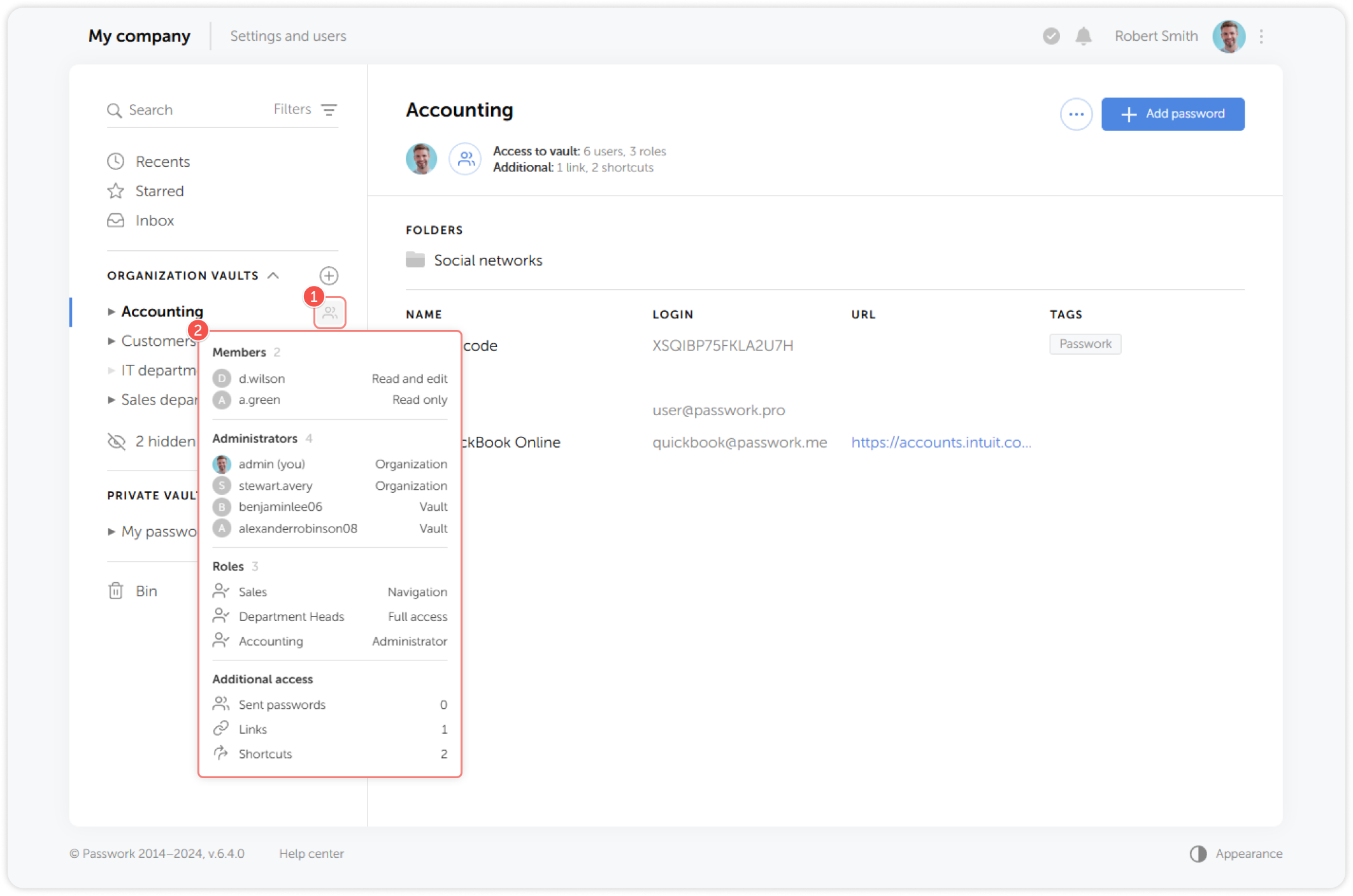
You can also quickly view the access rights of each vault by hovering over the icon to the right of the vault name: