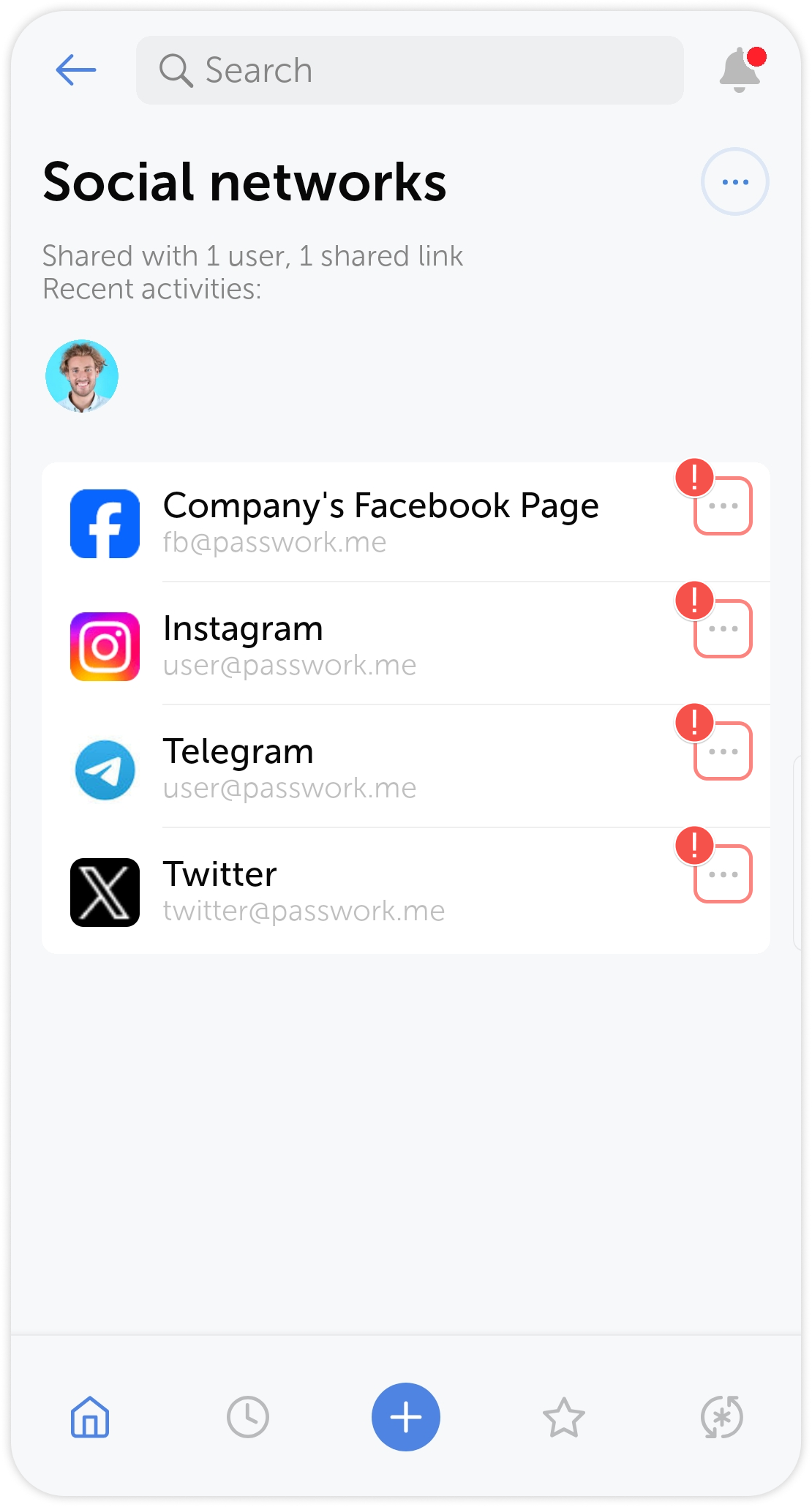



Add entry
To create a new entry, open a vault or folder where you want to add it to, and tap the  in the center of the Action panel:
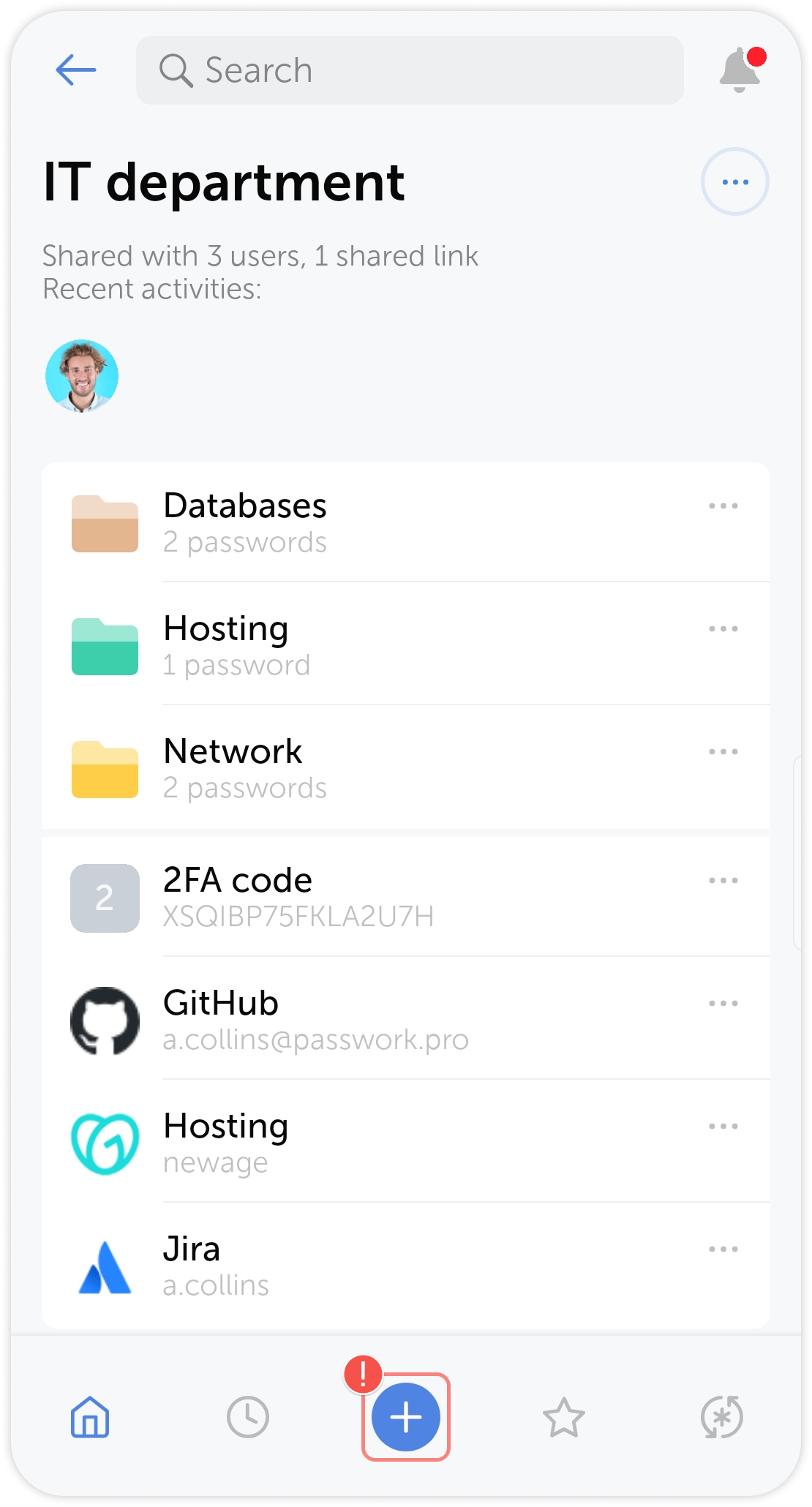
Alternatively, you can add an entry through the vault and folder actions menus:
Entry actions
Quick actions
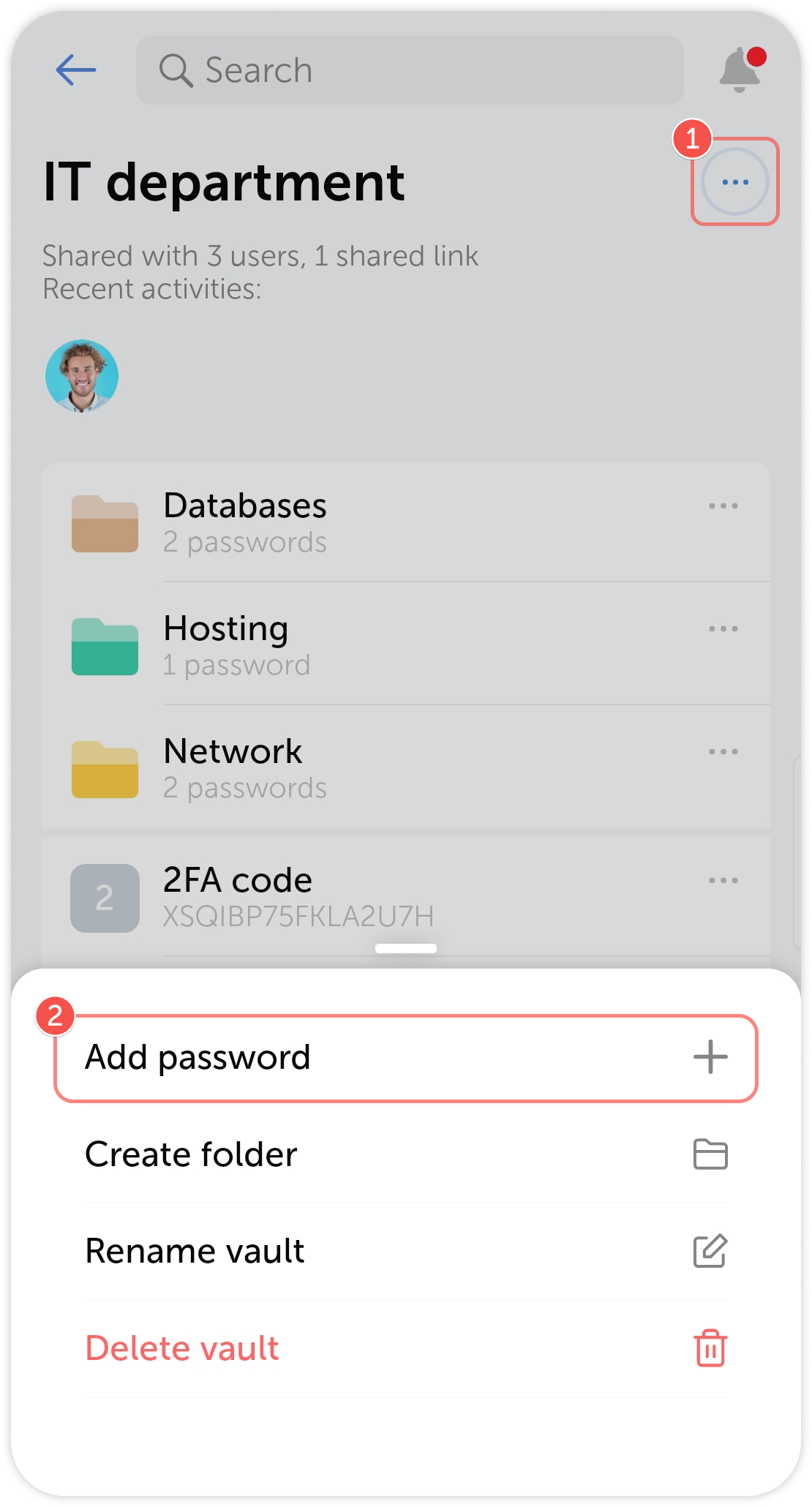
Some entry actions, such as adding it to favorites, sharing or saving it offline are available directly in the entry card. Editing, moving, copying, renaming and deleting entries is done through a separate entry extra actions menu.
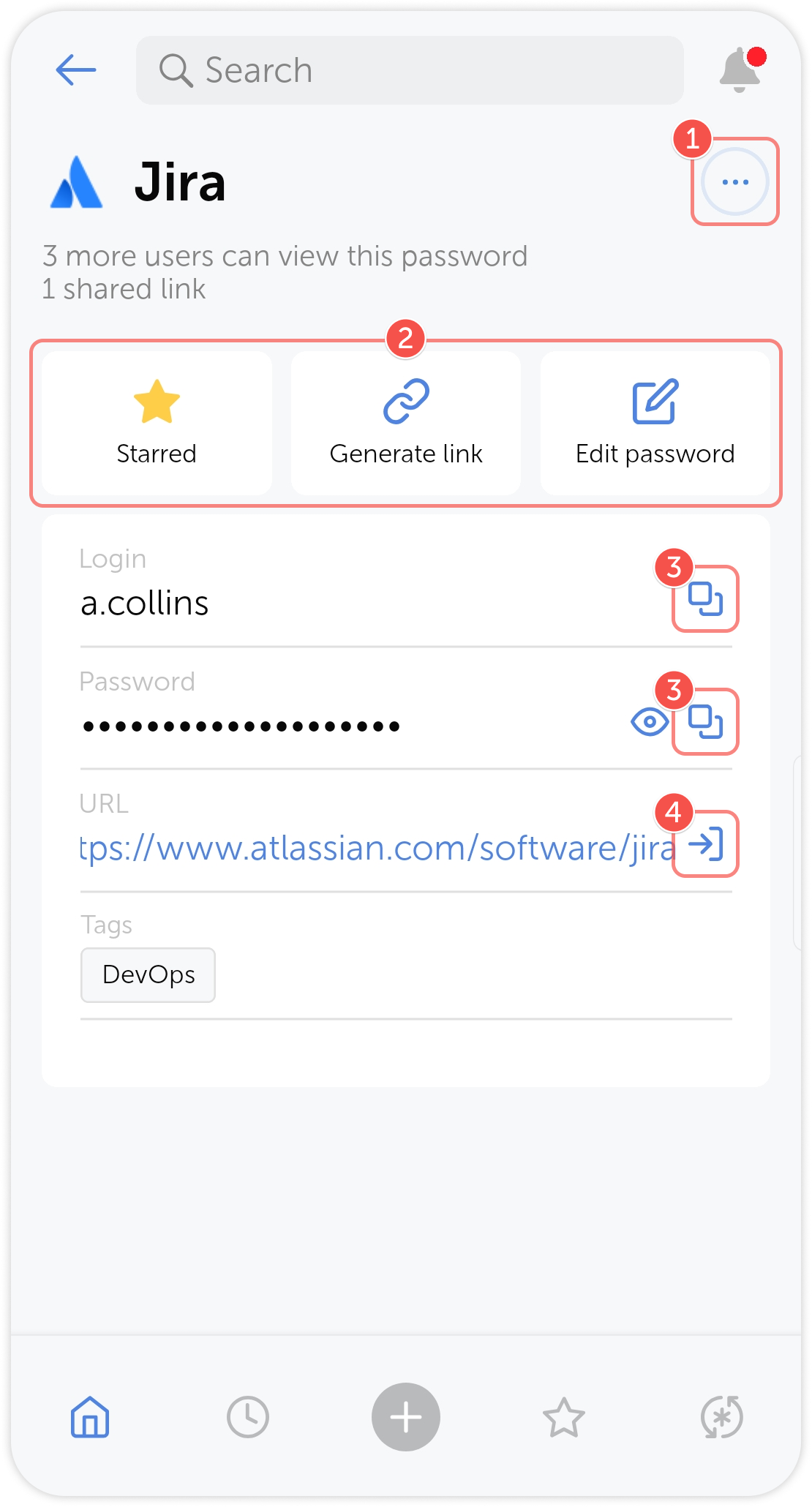
- Entry extra actions menu
- Entry quick actions
- Tap to copy field to clipboard
- Tap to view the password field
- Tap to open the associated website
Edit entry
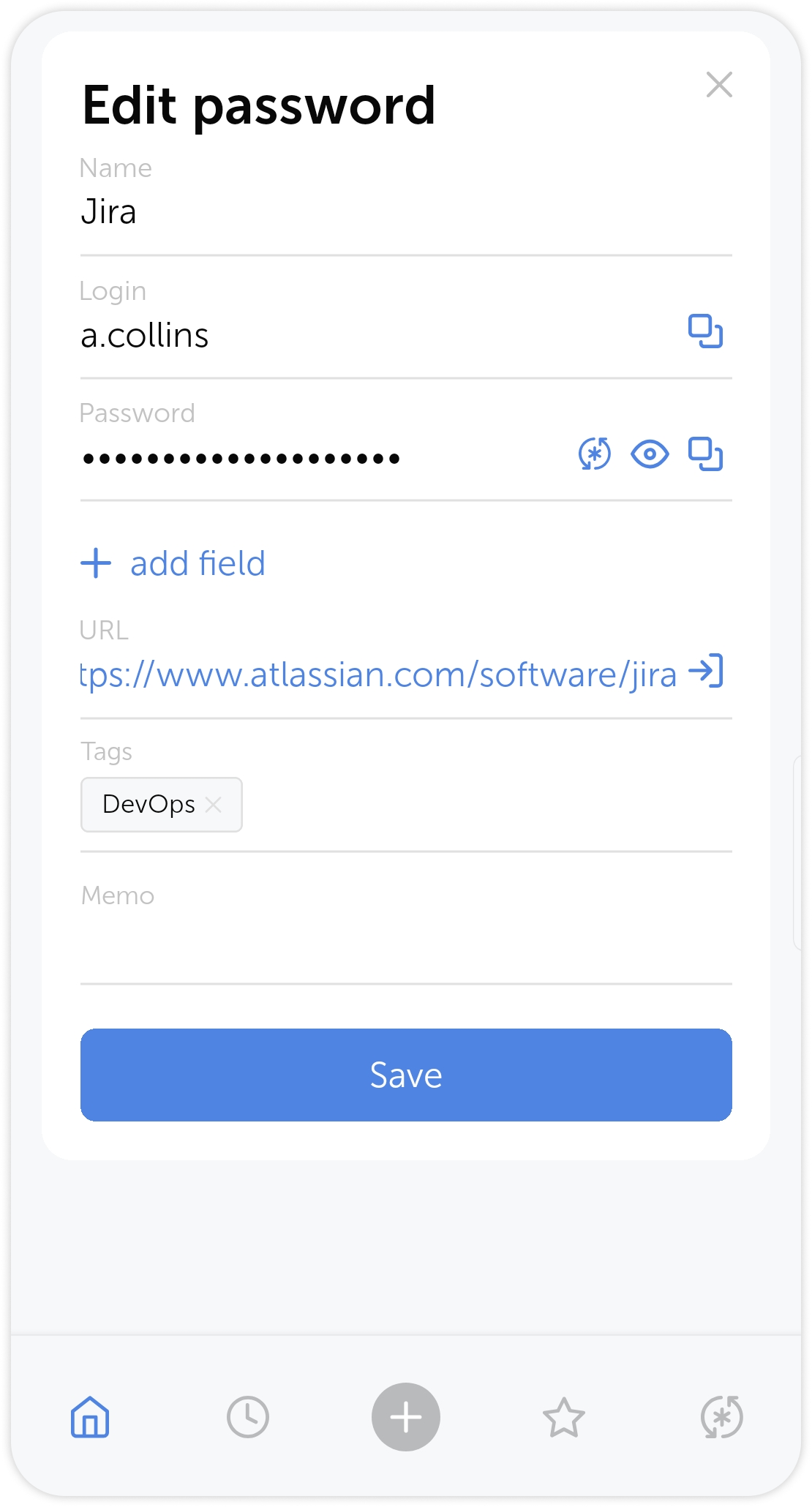
To edit an entry, open the Entry card menu, tap Edit entry and modify the necessary fields:
Share entry
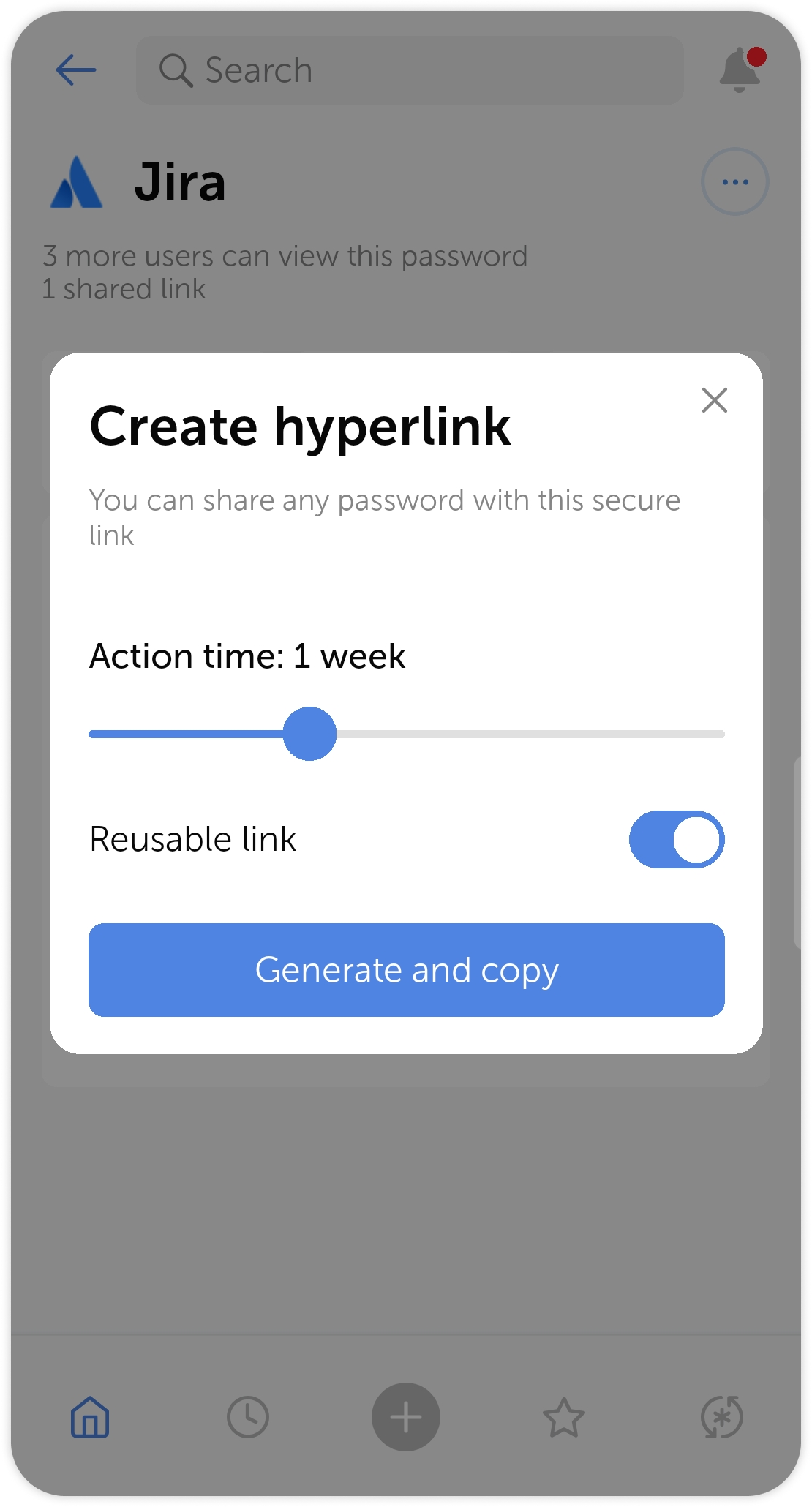
The mobile app lets you share the entry with someone outside Passwork. To do so, tap the Generate link button in entry quick actions.
In the pop-up window, set the expiration time and choose the link type: reusable and one-time. A one-time link expires in three minutes after the user opens it.
Bookmark entry
Tap  to add the entry to Favorites.
Extra actions
Open the extra actions menu to move, copy and delete entries.
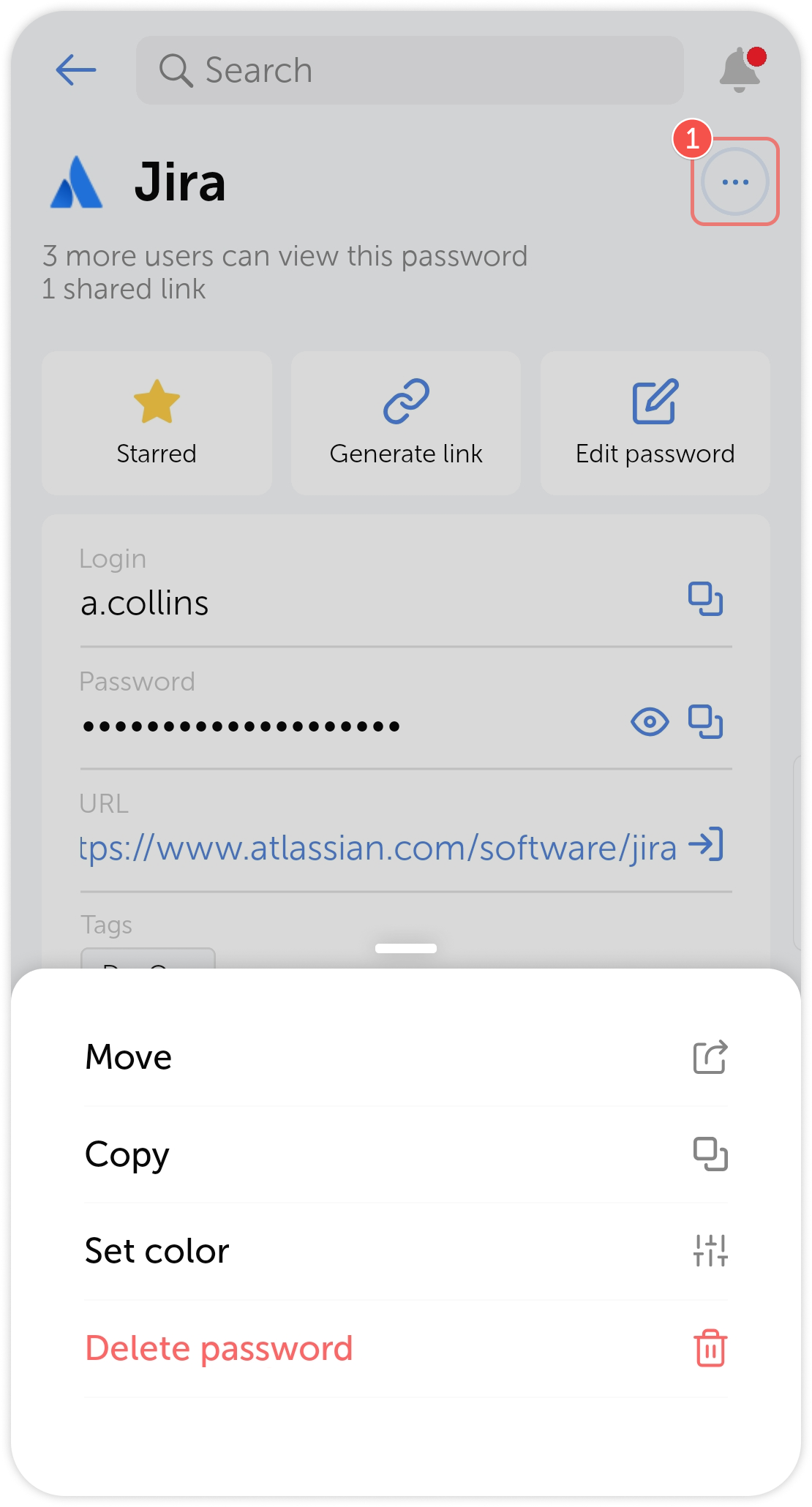
Alternatively, you can tap on the three dots in the entry preview block.