



Password management
Add password
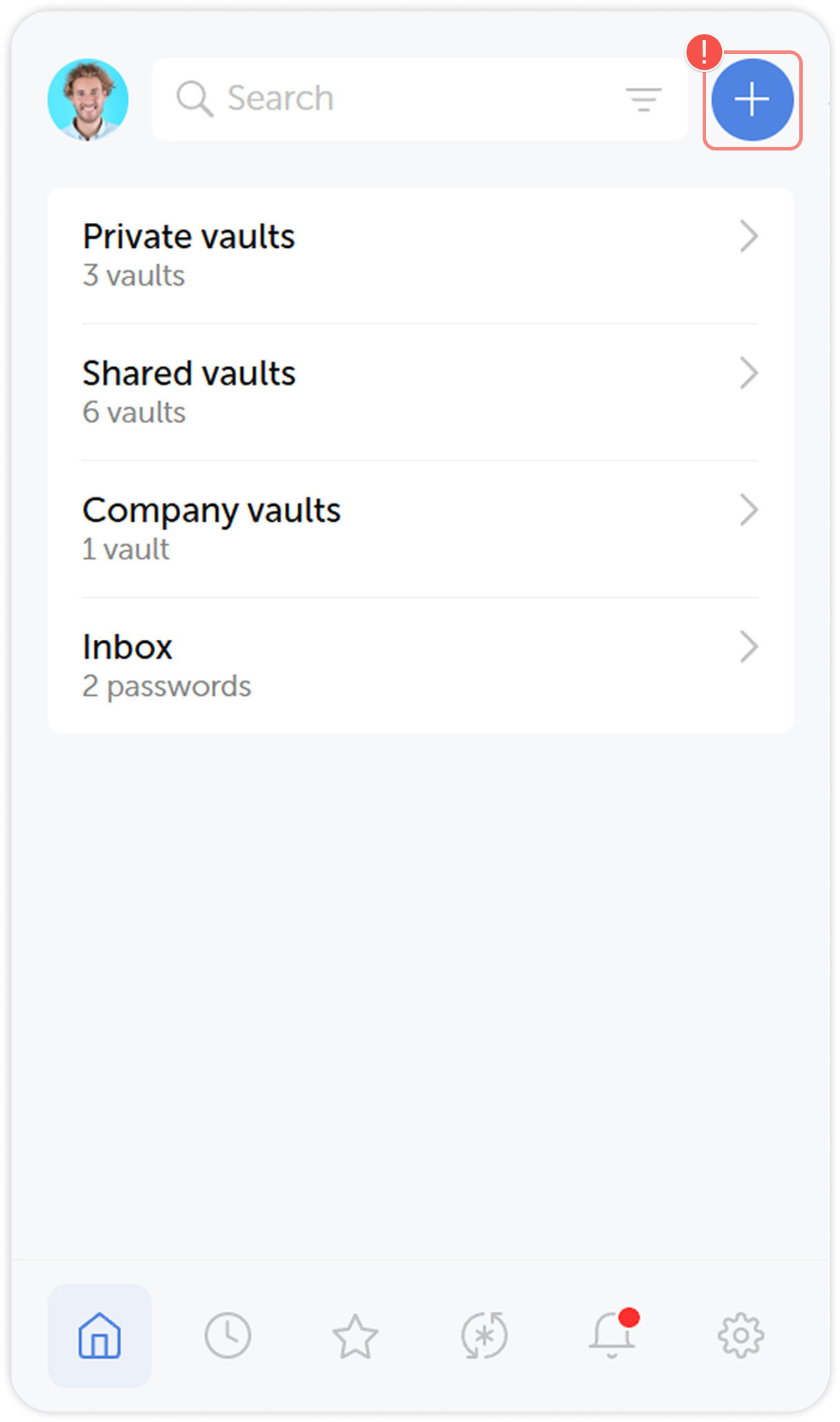
To create a new password, click the  icon in the top-right corner:
Choose a folder or vault you want to save the new password to, then fill in the required fields or use the Password Generator to create a unique password. The password will inherit the permissions set for the vault or folder you add it into.
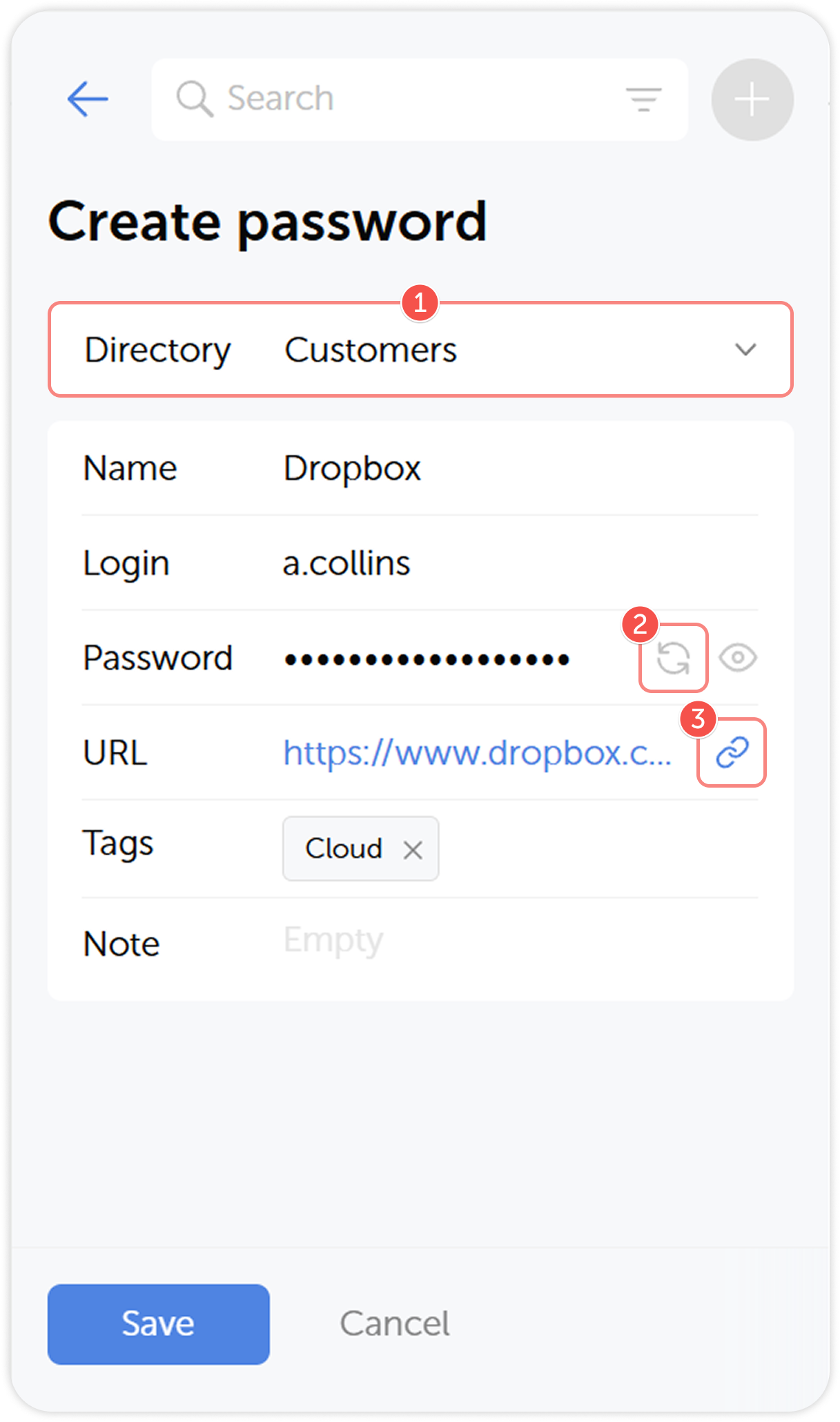
- Select a directory for the new password
- Use the Password generator to create a strong password
- Automatically fill the URL field with the current page address
Password actions
Click the  in the password card to open the Password actions menu. Here you can edit a password, move, copy and delete it.
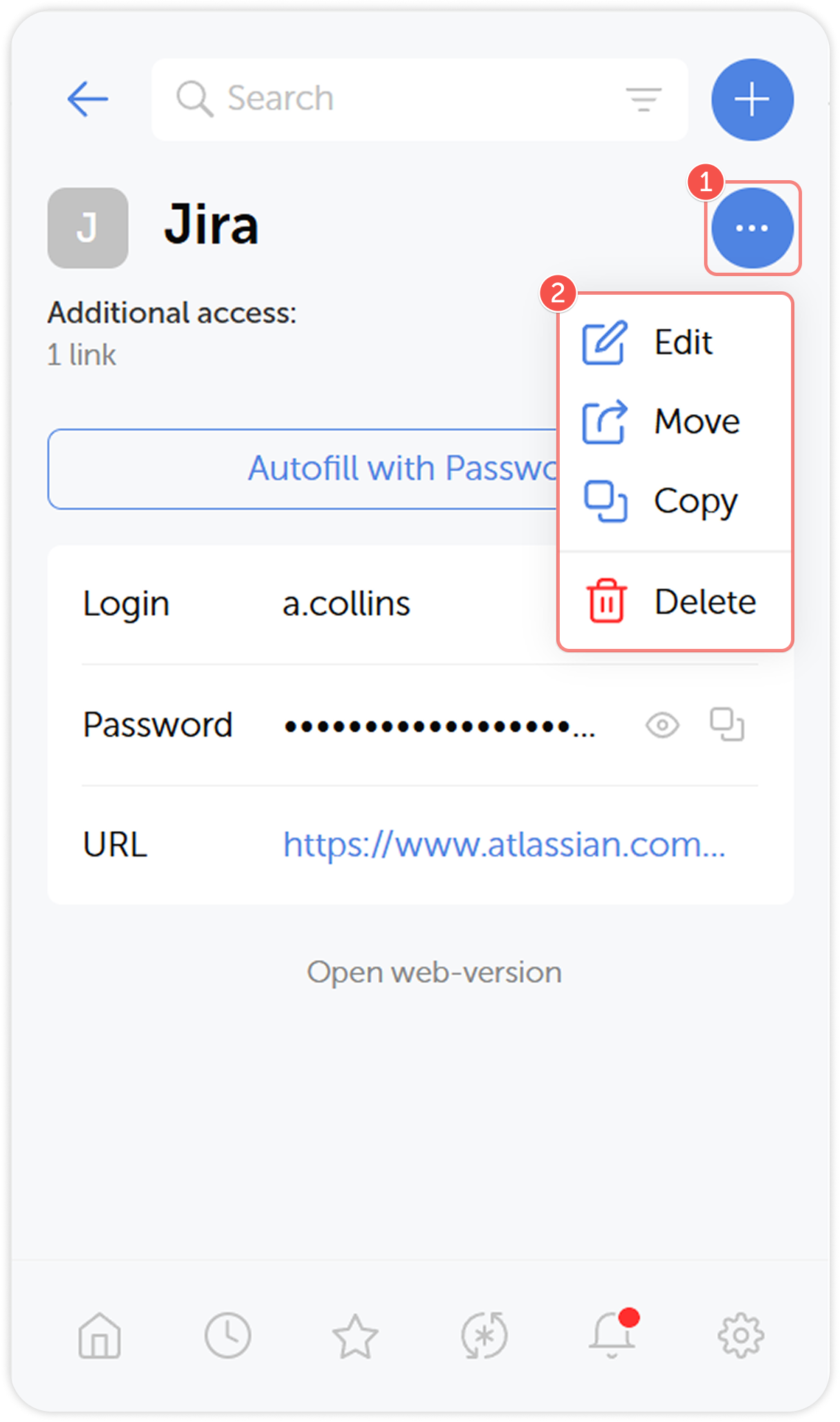
Edit
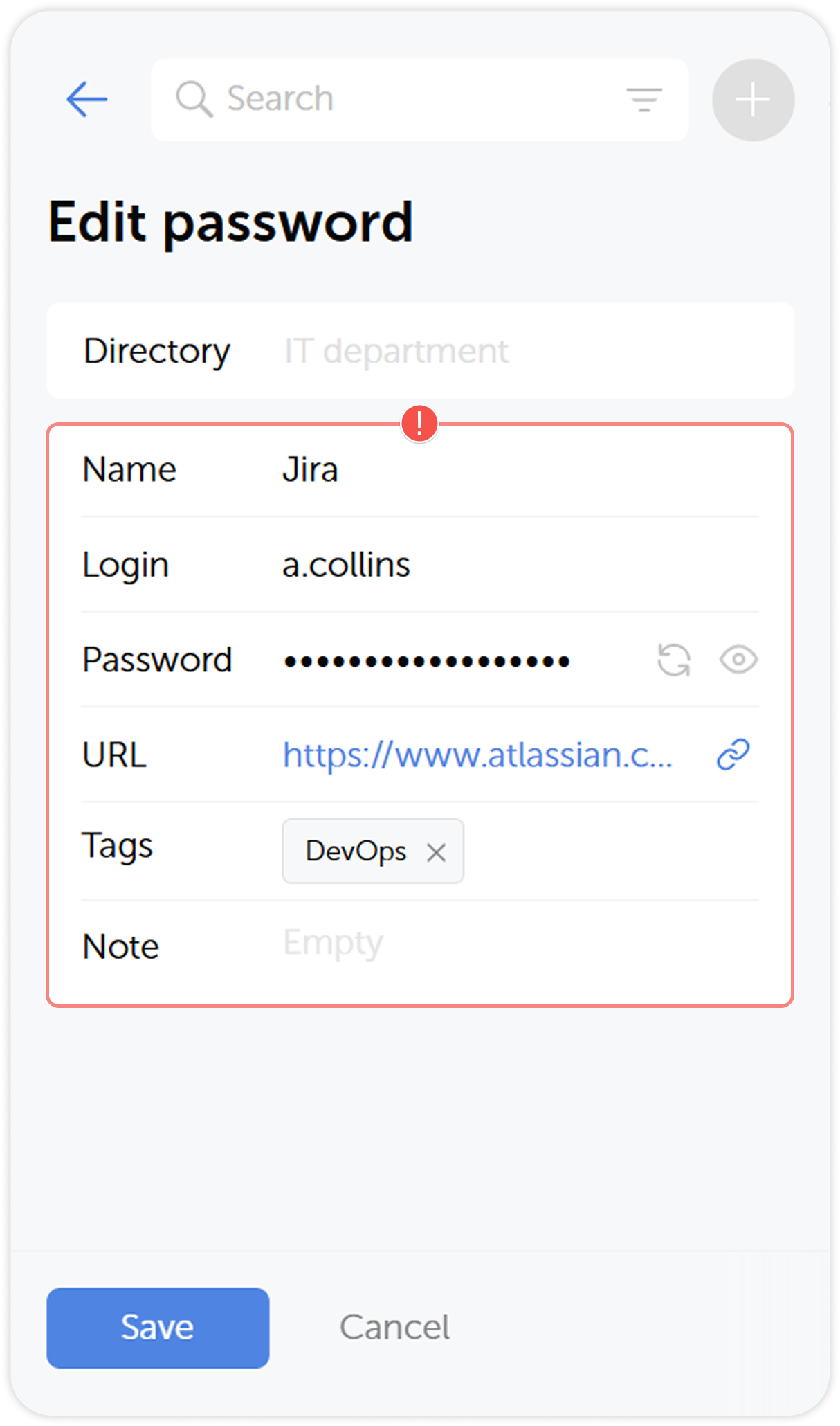
To edit a password, open the Password actions menu, click Edit and modify the necessary fields.
Move and copy password
Choose Move if you want to change the location the password is stored at, or choose Copy if you want to create a copy of the password in a different directory.
Delete password
To delete a password, click Delete in the Password actions menu, then confirm the action in the pop-up window.
Copy to clipboard
You can quickly copy and paste logins and passwords into clipboard. To do so, open a password and click on the  icon on the right.
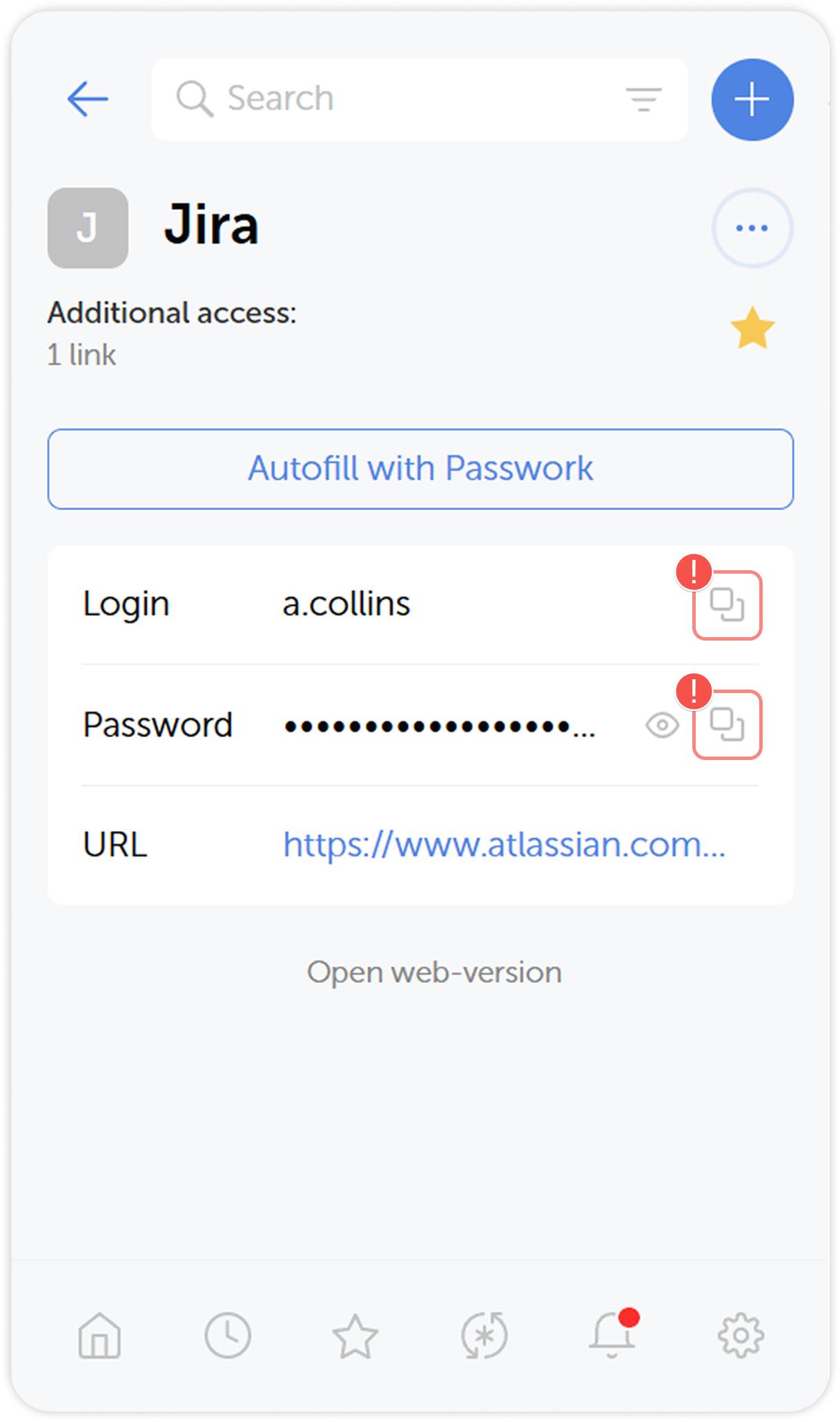
Alternatively, you can copy the credentials directly from the password list of a vault or folder.