


After the migration
After migration, we recommend reviewing your account security settings and preparing the new Cloud version for use.
This article explains how to configure two-factor authentication and automatic web session termination, as well as install the browser extension.
Two-factor authentication
Two-factor authentication (2FA) adds an extra sign-in confirmation and protects your account if its password has been compromised.
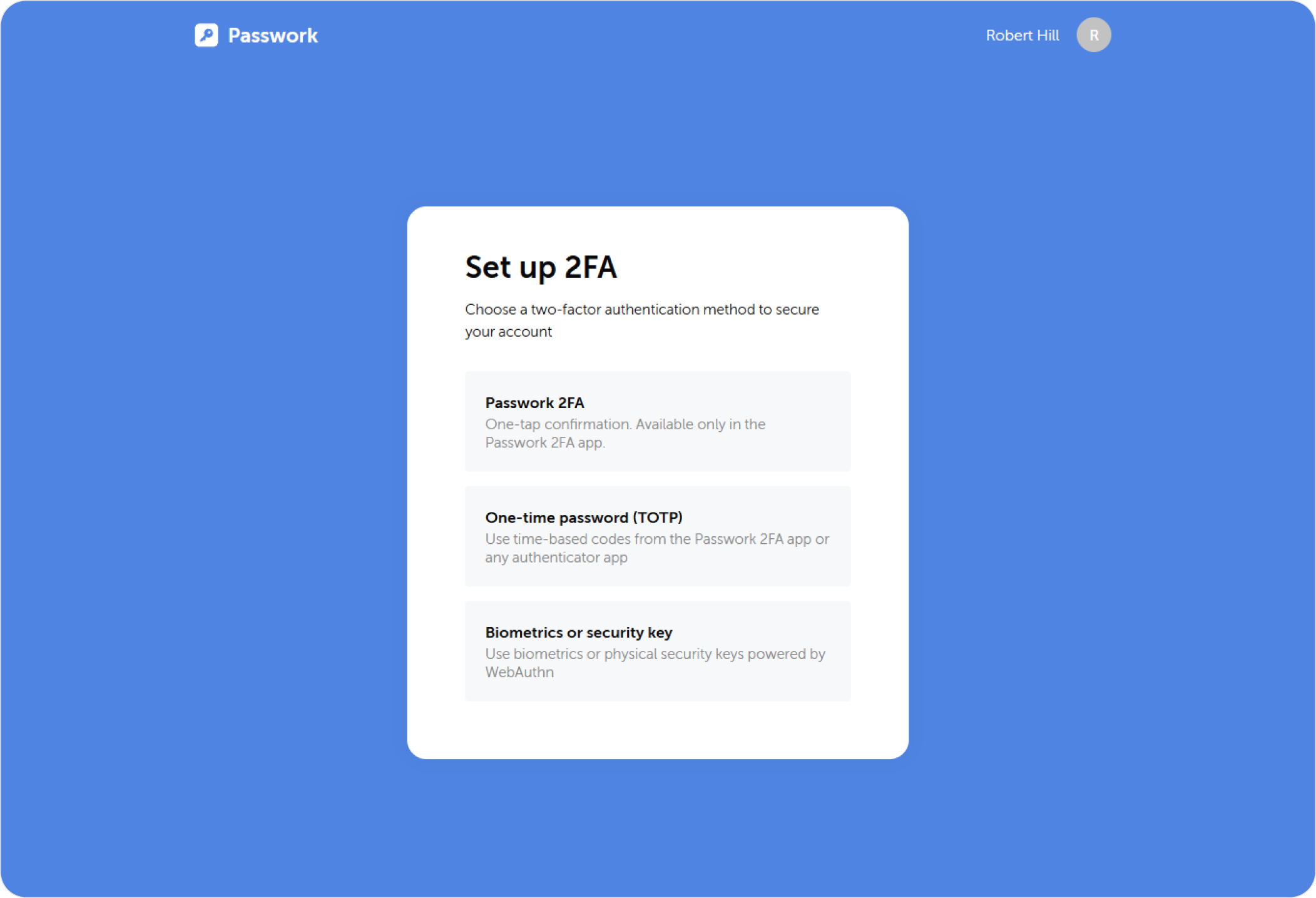
When you register a company in the new Cloud, Passwork automatically prompts you to choose a 2FA method to protect the owner's account. Follow the on-screen instructions and connect one of the available methods:
- Passwork 2FA — one-tap sign-in confirmation in the mobile app. Install Passwork 2FA from the App Store or Google Play, select Passwork 2FA, and scan the QR code in the app.
- One-time password (TOTP) — a code that changes at regular intervals. Select One-time password (TOTP) and scan the QR code or enter the key in Passwork 2FA or a third-party app, such as Google Authenticator or Microsoft Authenticator.
- Biometrics or security key — sign-in confirmation using biometrics or WebAuthn-based physical security keys. Select the corresponding option and follow the system instructions.
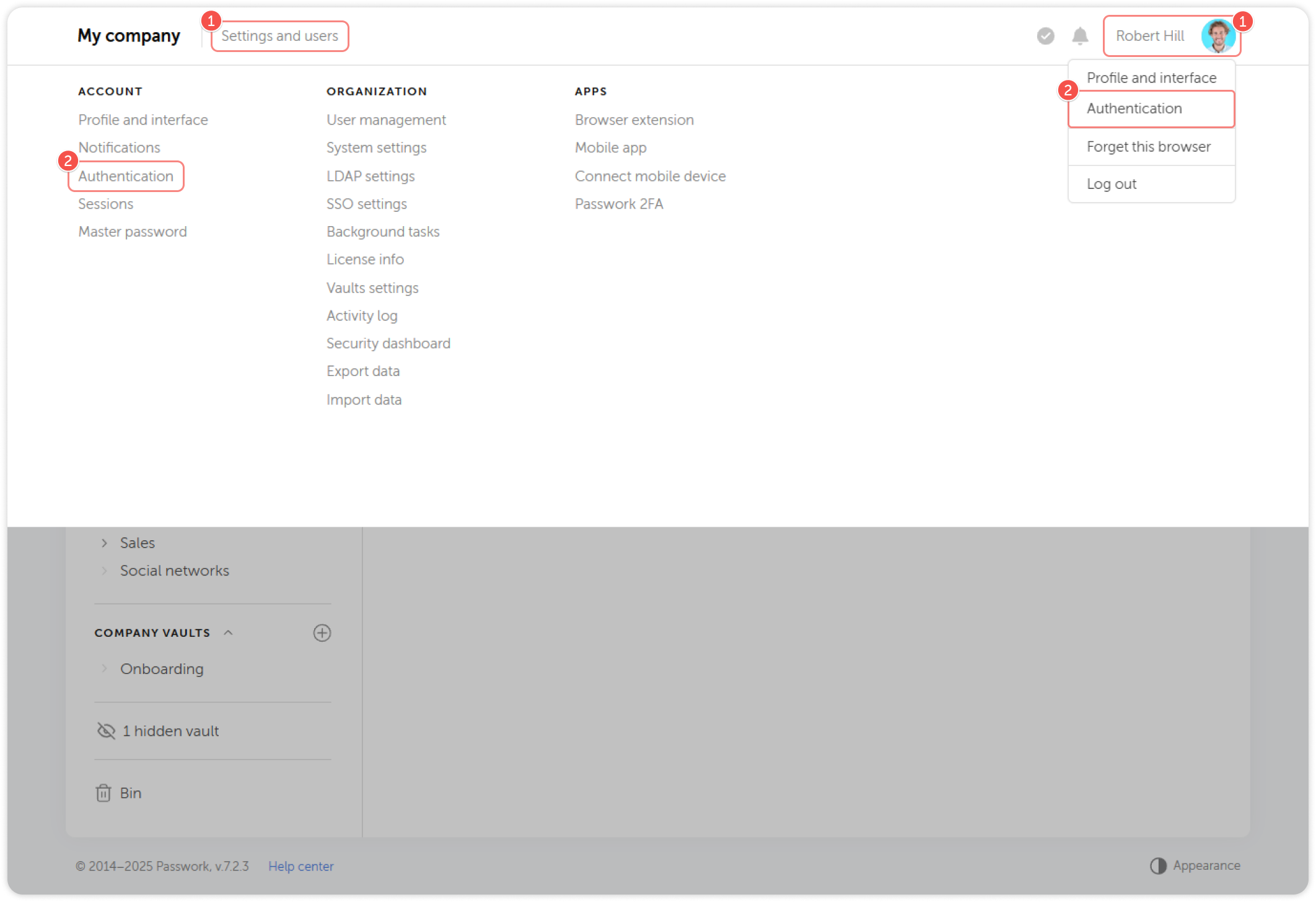
To configure or change 2FA after registration, open the Settings and users dropdown menu and select Authentication. Unlock the settings page to make changes.
For more information about all available methods, see Two-factor authentication.
Automatic web session termination
The inactivity period can be configured for an individual account and for a role. The role setting limits the maximum period that a user can select.
For your account
Open the Settings and users dropdown menu and select Sessions. In the Auto sign-out settings section, enable automatic logout after inactivity and specify the time period.
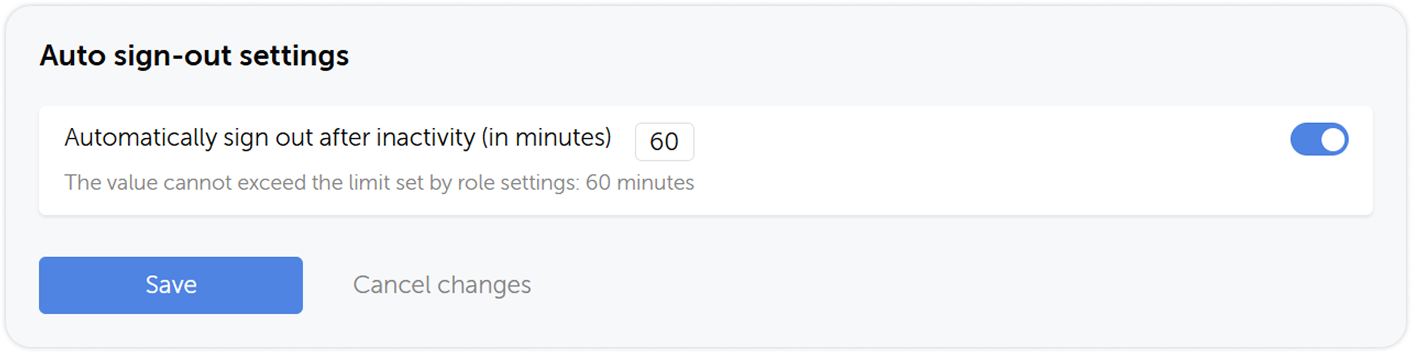
For more information about session settings and sign-in history, see Sessions.
For roles
Open the User management page and go to the Roles tab.
Select the role whose settings you want to change.
Scroll down to the Authentication section and set the maximum web session inactivity period.
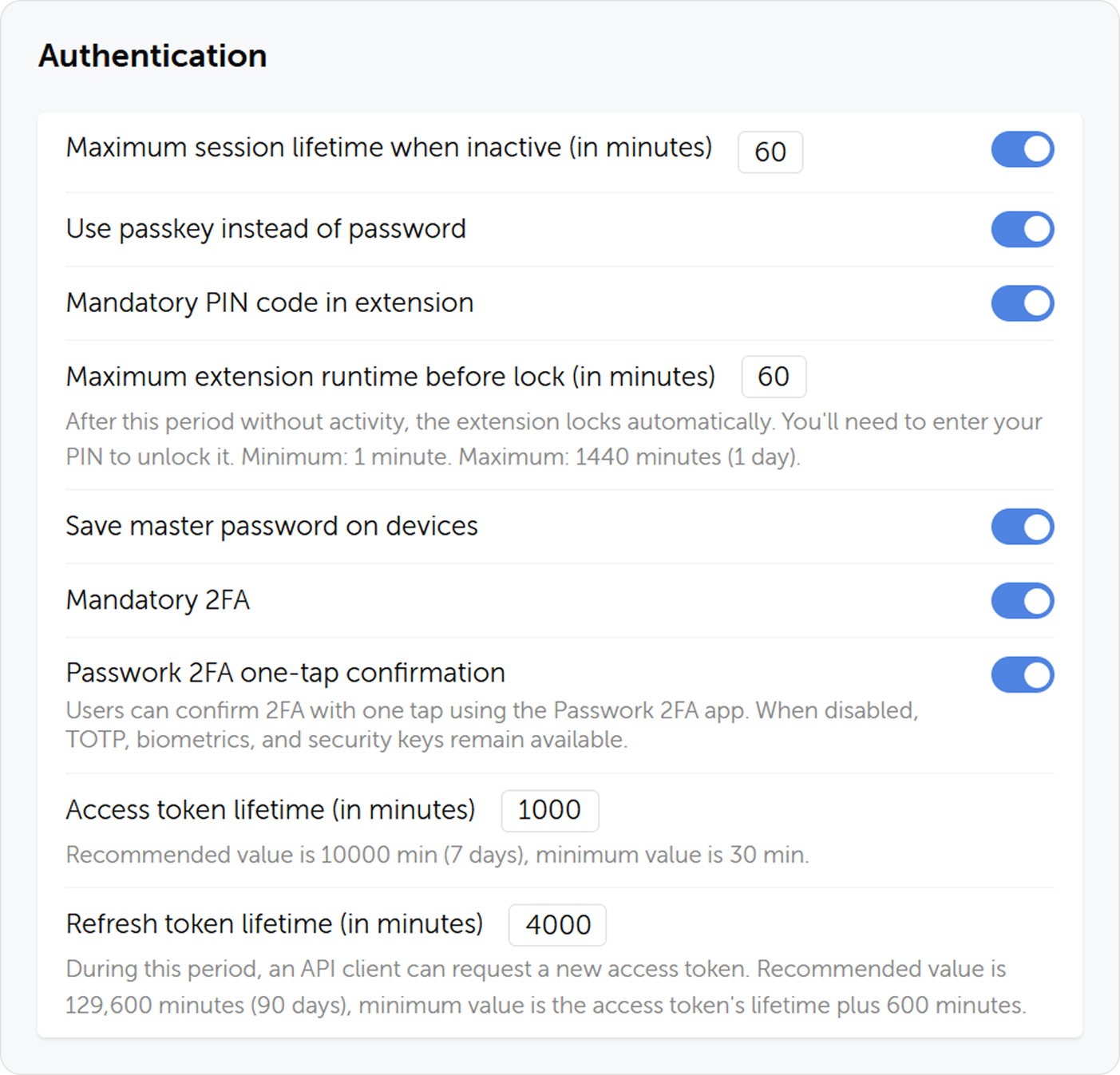
The setting applies to all users assigned to this role.
For more information about role settings, see Edit role.
Installing the browser extension
Install the latest Passwork extension for Safari, Google Chrome, Mozilla Firefox, or Microsoft Edge.
If the extension is already installed but connected to the old Cloud version, reconnect it manually.
After installation, open the extension and enter the address of the new Cloud version—the same address you use to access Passwork in your browser. Then sign in to your account.

For detailed installation and connection instructions, see Getting started with the browser extension.
If access is lost
If the organization owner loses access to their master password or two-factor authentication method, other organization administrators cannot reset it.
- If the owner loses access to the configured 2FA method, contact our Help Center.
- If the owner forgets the master password, it cannot be recovered because it is never sent to the server. In exceptional cases, Passwork specialists can perform an emergency master password reset.
An emergency master password reset does not decrypt data protected with the previous master password. Use this procedure only as a last resort.
Store the owner's master password in a secure location and add a backup two-factor authentication method in advance, such as a second security key.