


Password policies
Password policies allow you to set specific requirements for password fields in your entries, such as minimum length, required character types, and expiration dates. Policies can be applied to particular entries or to entire directories.
Access to the Password policies section is controlled by role settings.
Managing policies
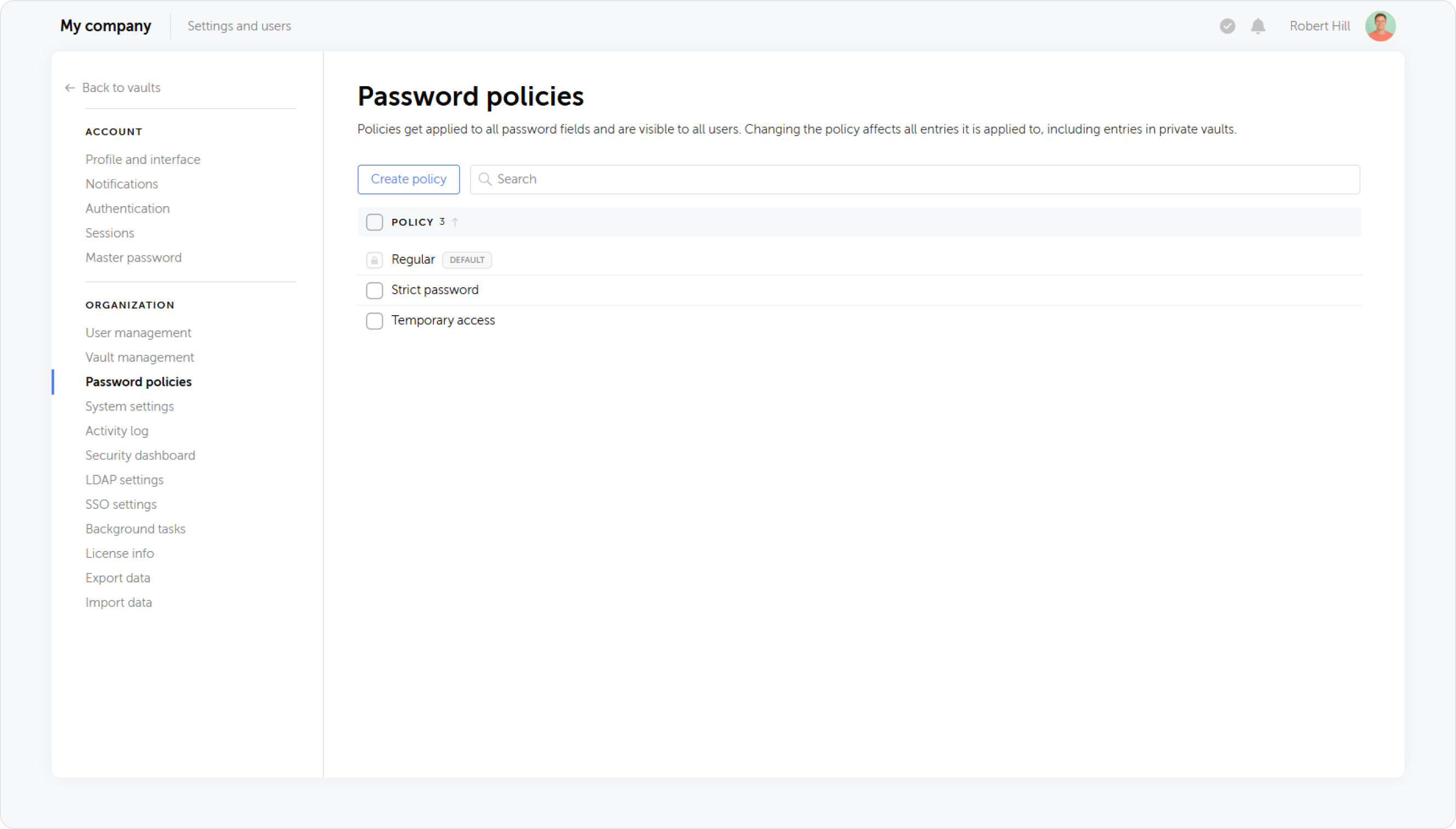
The Password policies page is located in the organization settings. Here you can view, create, edit, and delete policies.
The default policy is named Regular. It cannot be deleted or renamed, but its requirements can be edited.
Creating custom policies is available in the Advanced version of Passwork
Create policy
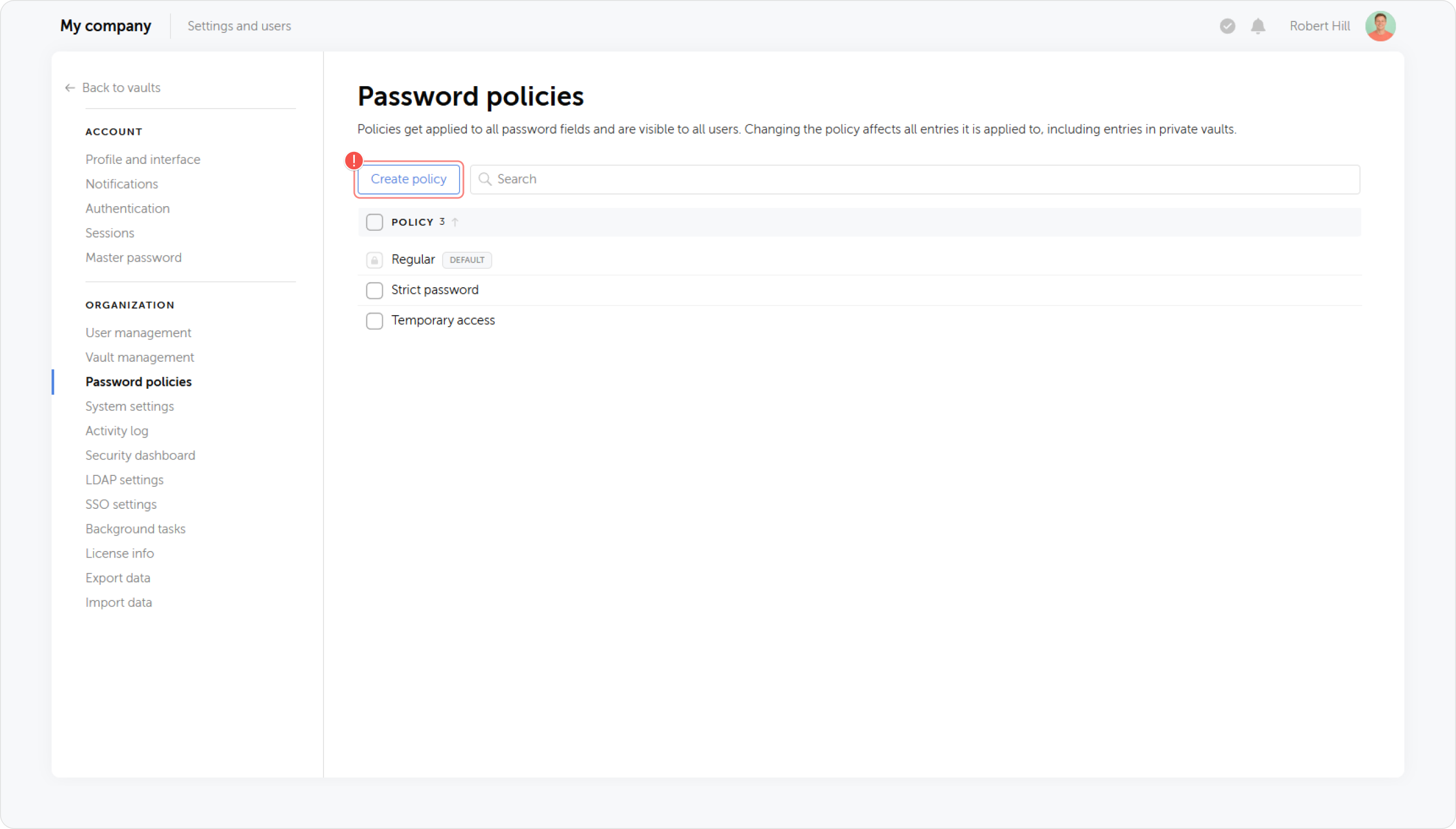
To create a new policy, click Create policy. Enter a unique name and click Create.
Edit policy
To edit an existing policy, choose the policy you want to change from the list.
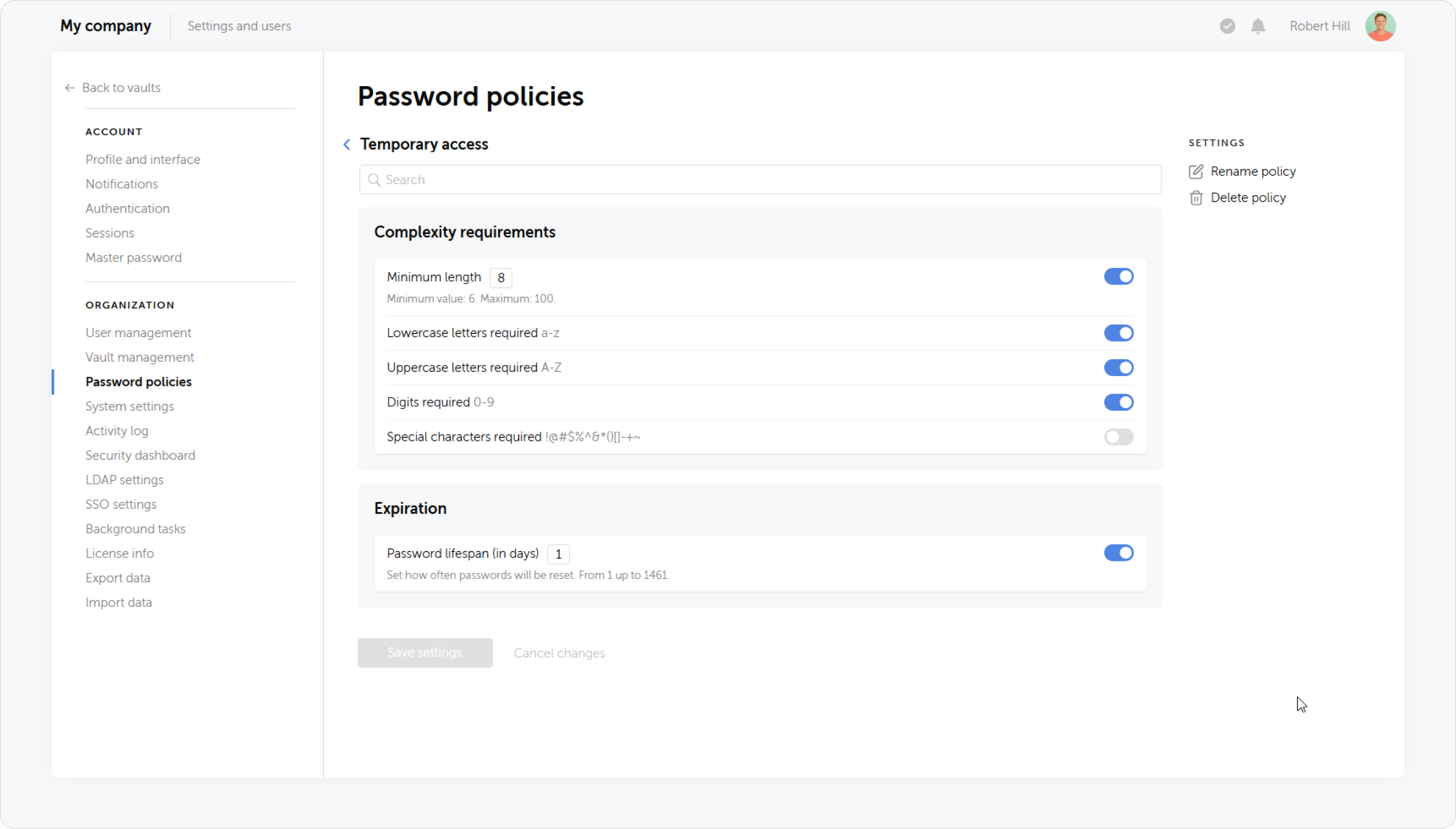
Policy settings are divided into two blocks: complexity and expiration.
Complexity requirements
This block sets the rules for the characters used in password fields. If an entry does not meet these requirements, it will be marked as weak in the Security dashboard. You can configure:
- Minimum length (from 6 to 100 characters)
- Mandatory lowercase letters
- Mandatory uppercase letters
- Mandatory digits
- Mandatory special characters
Expiration
This block sets the lifespan of password fields. If a password exceeds this period, the entry will be marked as old in the Security dashboard.
- Password lifespan (in days) defines how often passwords should be updated (from 1 to 1461 days)
Delete policy
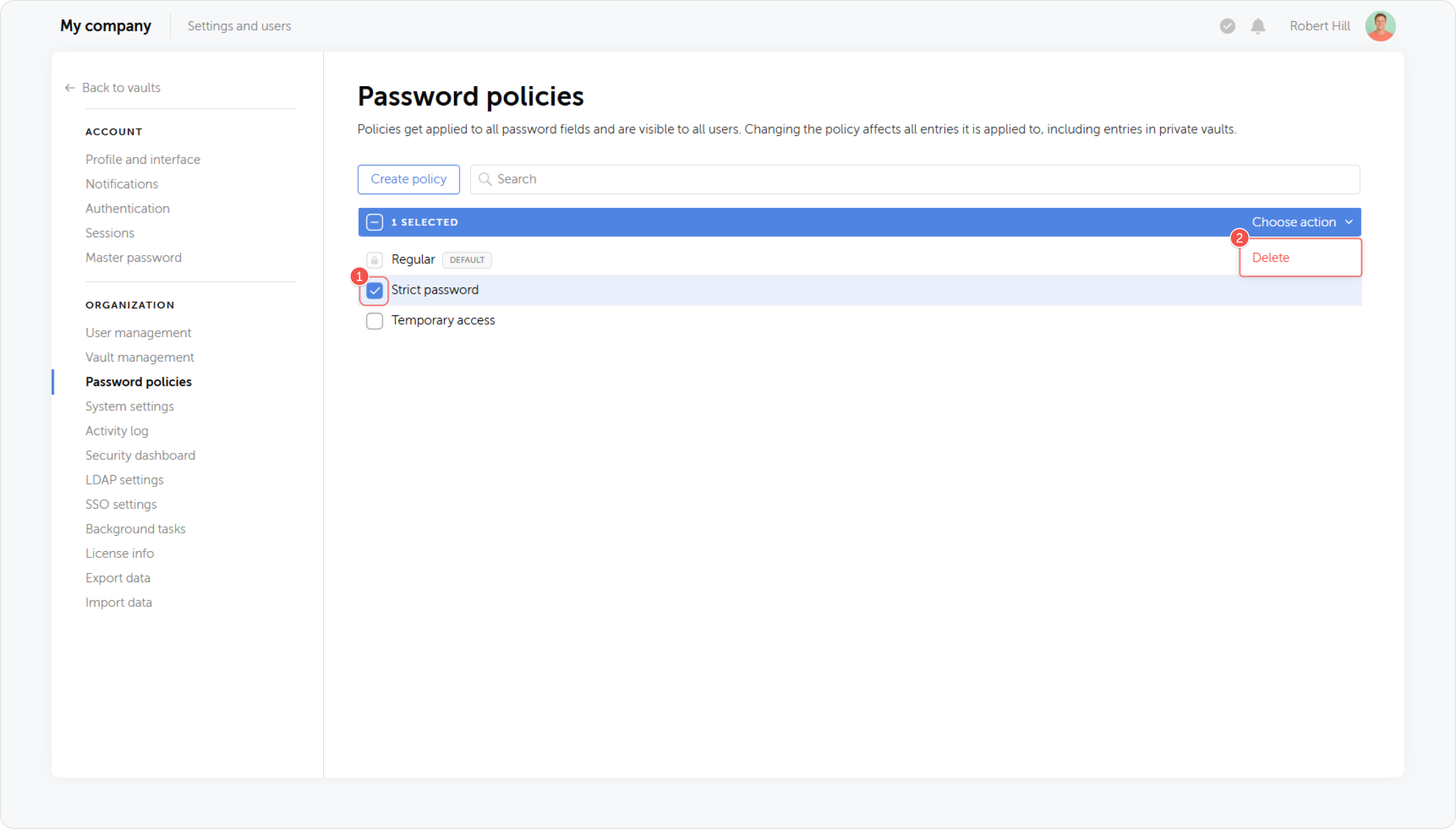
To delete a policy, select one or more policies and click Delete in the dropdown menu.
Assigning policies
To vaults and folders
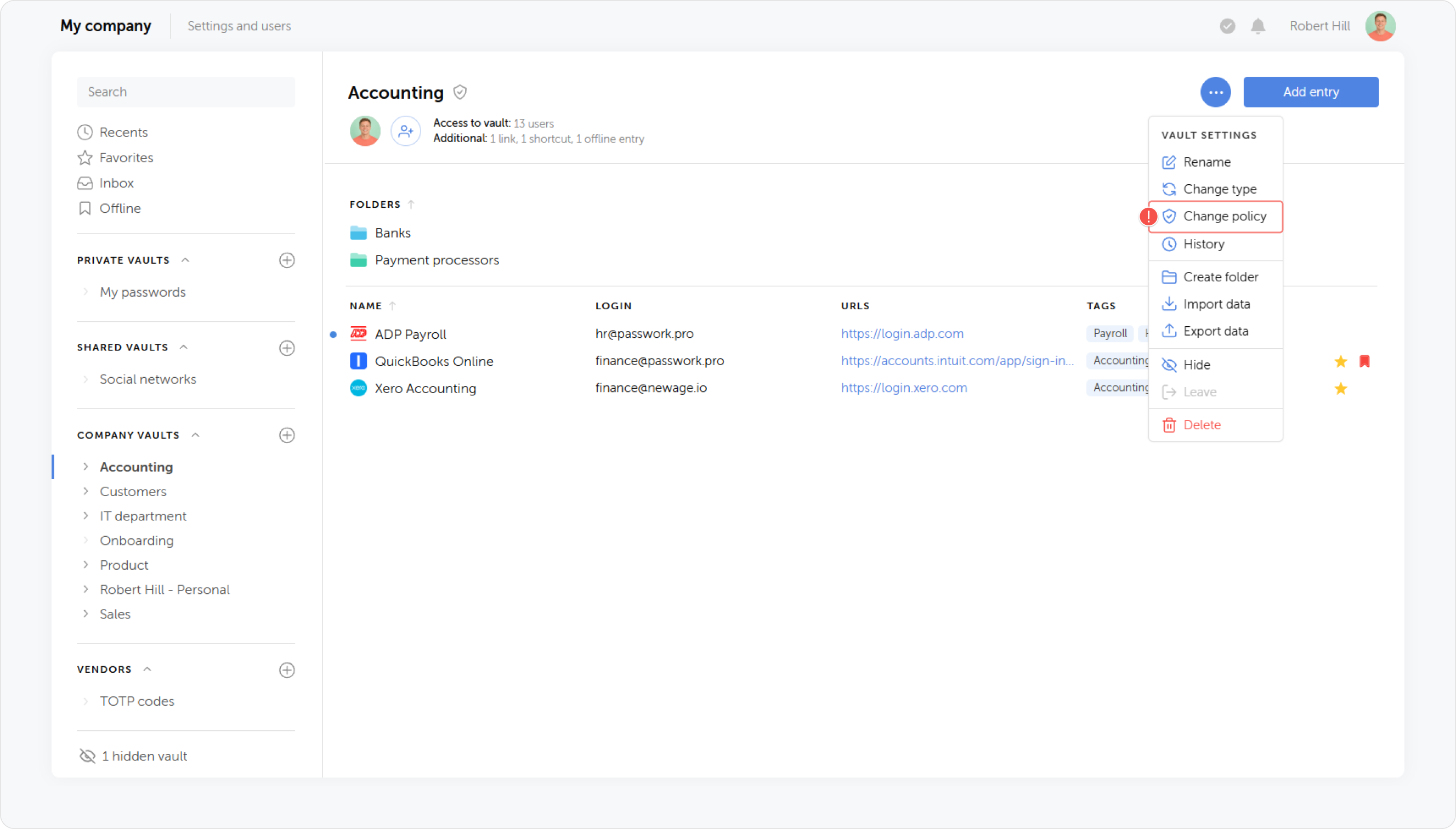
Users with the Administrator access level in a directory can change the policy of the corresponding vault or folder.
Open the vault or folder action menu and click Change policy.
Choose the policy you want to set from the dropdown list and click Save.
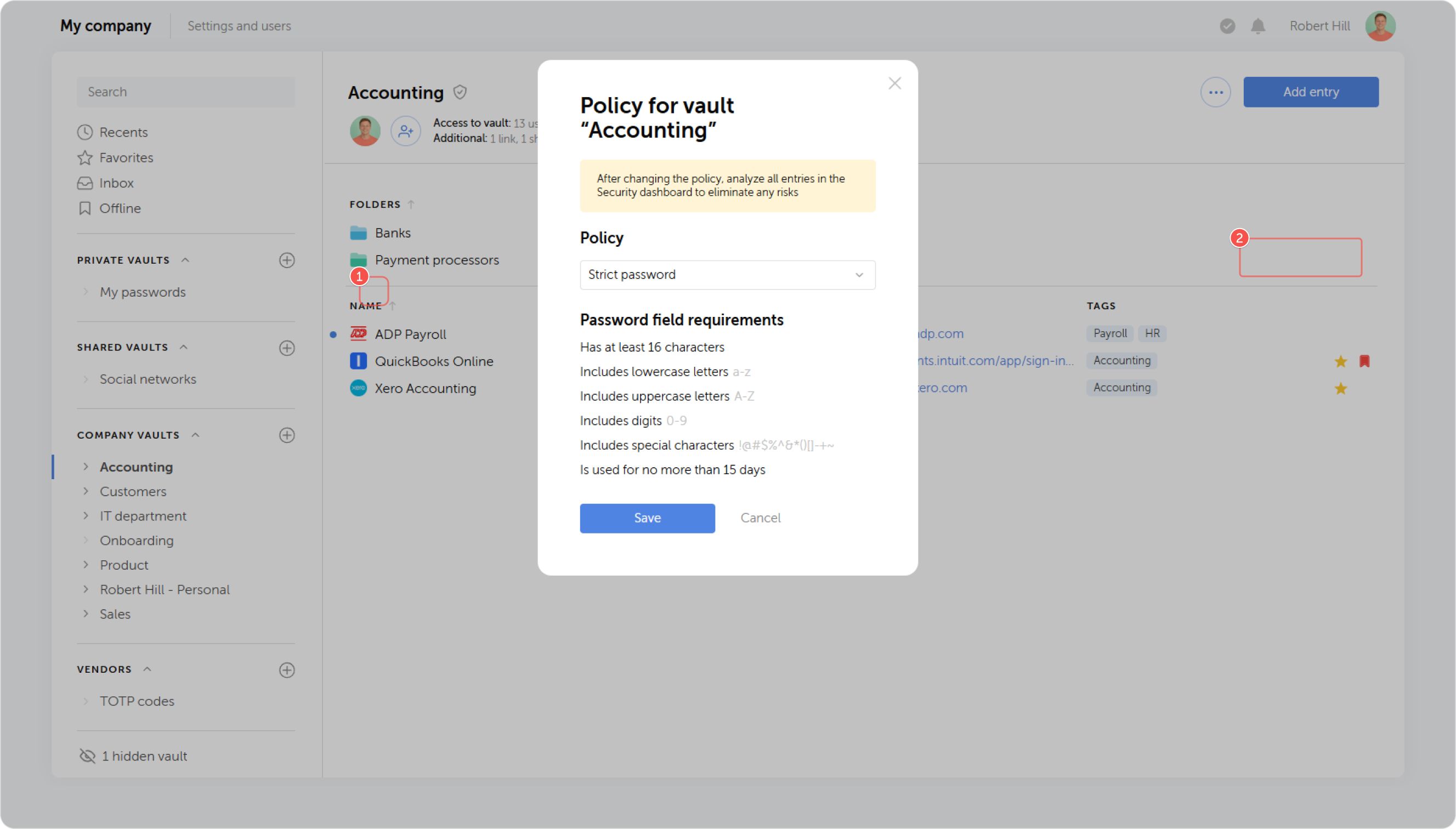
The selected policy will be applied to the directory and all its nested folders and entries, unless they have an explicitly set policy.
To entries
You can also assign a policy to an individual entry.
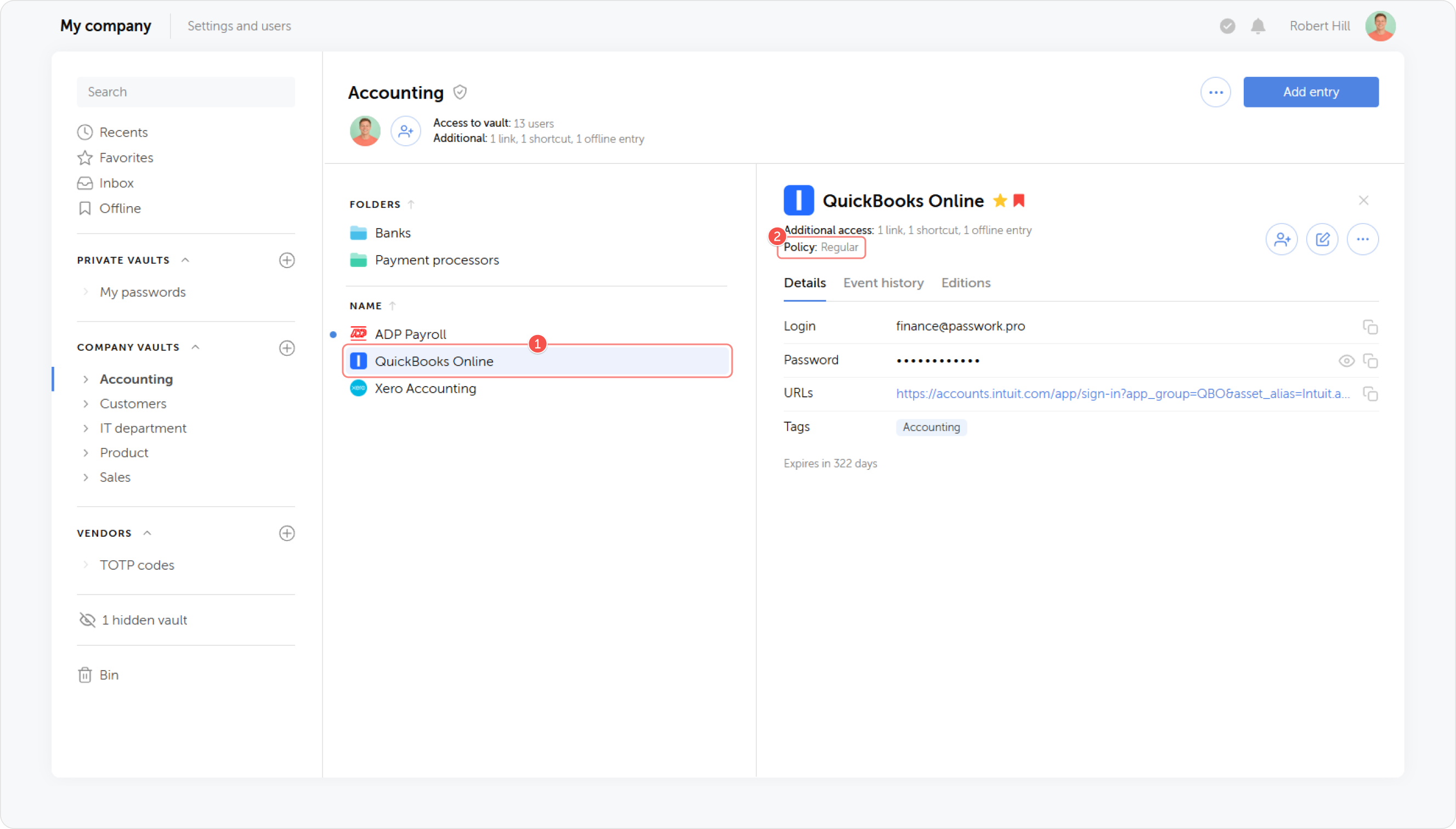
Open the entry you want to set a policy for and click on the Policy line under the entry header.
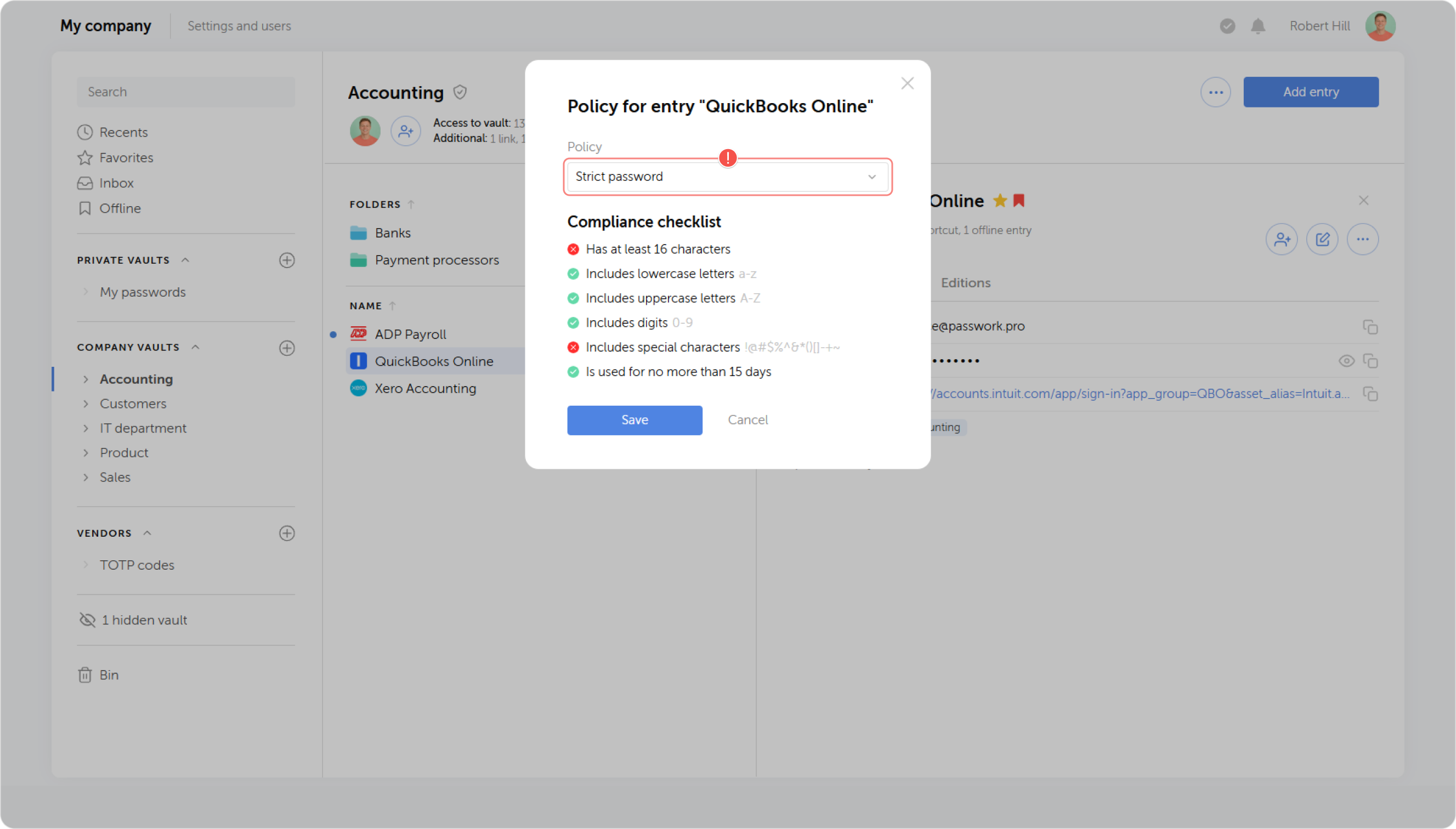
Select a policy from the dropdown list. The compliance checklist will show if the current password meets the new policy requirements. Click Save to apply the policy.
Policy inheritance
Policies are inherited similarly to access levels.
- When a new vault is created, it is assigned the Regular policy by default.
- When a new folder or entry is created, it inherits the policy of its parent directory.
- You can reset an explicitly set policy by selecting the inherited policy in the policy selection menu.
Compliance control
Passwork helps ensure that passwords meet your organization's requirements at every stage: from generation to regular security audits.
Adding and editing entries
When adding or editing an entry, a dynamic compliance checklist appears that lets you know whether the password meets the policy or not.
By default, you can save a entry even if its password does not meet the policy requirements. If the warning is ignored, the administrators will receive a corresponding notification.
Administrators can forbid saving non-compliant passwords in the Vault management's Settings section by disabling the Allow saving of entries with passwords that do not meet policy requirements option
Generating passwords
The password generator automatically adapts to the policy of the current entry. If you haven't saved any custom generator settings, the generated password will always match the policy requirements.
If your custom generator settings conflict with the current policy, the generator will warn you. You can use the Auto settings checkbox to quickly reset your settings to current policy values.

Monitoring in Security dashboard
The Security dashboard relies on password policies to analyze your entries.
- Weak entries are those that do not meet the complexity requirements of their assigned policy.
- Old entries are those that have exceeded the password lifespan defined in their assigned policy.
The dashboard table includes a Policy column and a REQ. (requirements) column with colored dots indicating compliance.