

Von 1Password
Dieser Artikel enthält Anweisungen zur Migration von 1Password zum Passwork-Unternehmenspasswortmanager. Der Migrationsprozess ist so organisiert, dass Accounts sicher bleiben, Ihre vertraute Datenstruktur erhalten bleibt und das Team schnell wieder arbeitsfähig ist.
Weitere Informationen zu Formaten, Feldzuordnungen und Importoptionen finden Sie unter Datenimport
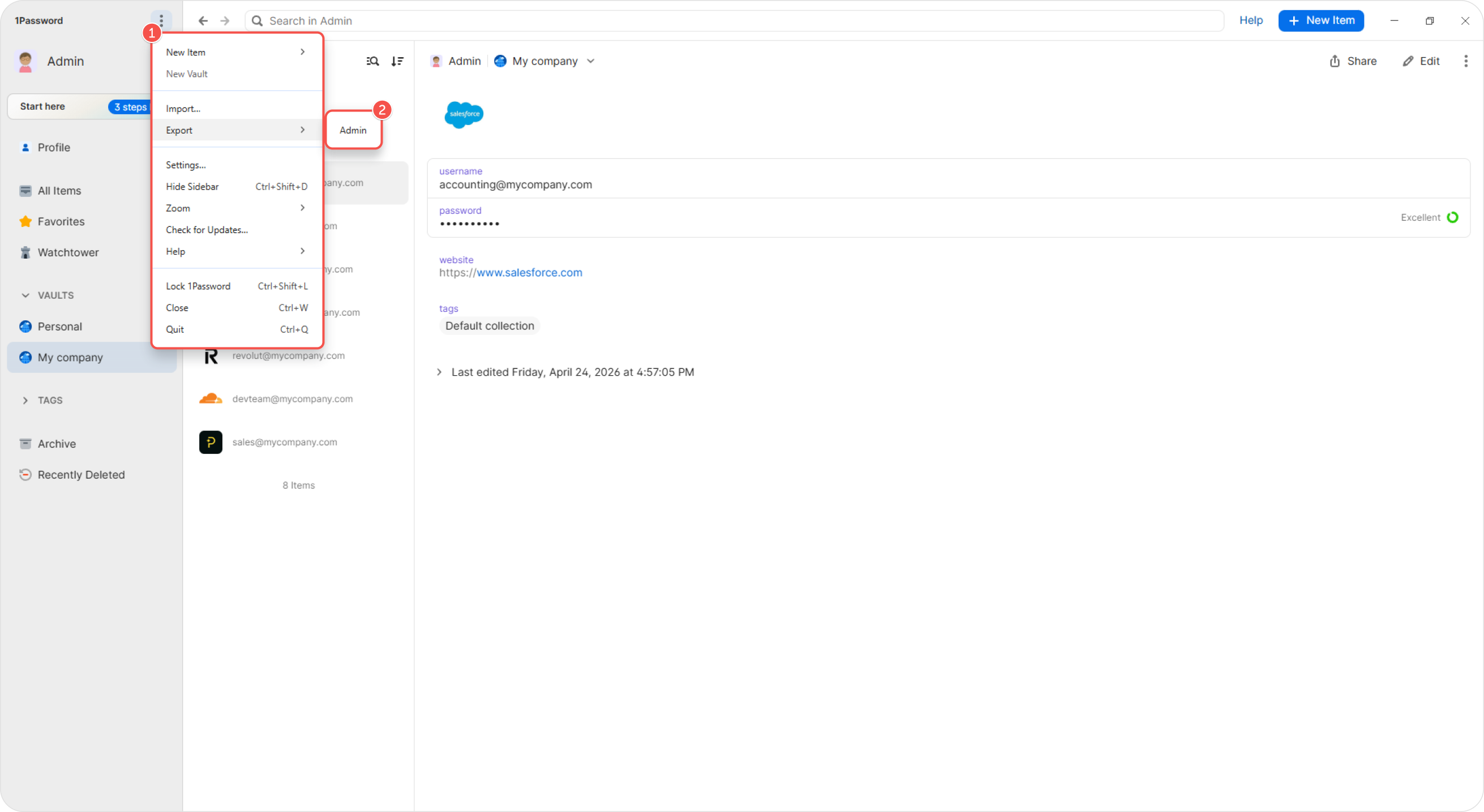
Starten Sie die 1Password Desktop-App und klicken Sie auf die drei Punkte in der oberen linken Ecke des Fensters. Wählen Sie im Dropdown-Menü Export und wählen Sie dann den Benutzer aus, dessen Daten Sie exportieren möchten.
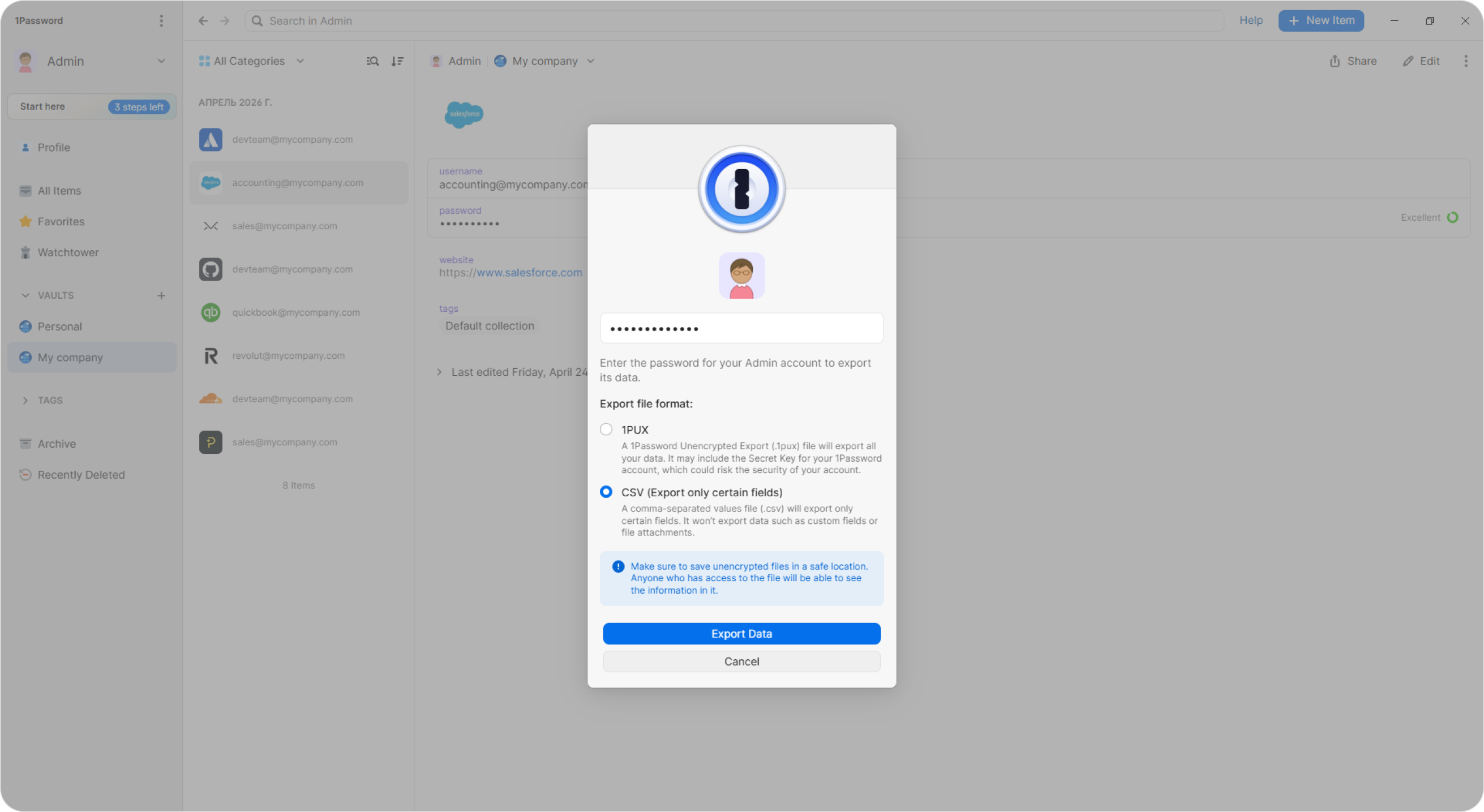
Geben Sie im angezeigten Fenster das Passwort für den ausgewählten Account ein und wählen Sie ein Exportformat. Wählen Sie CSV und klicken Sie auf Export data.
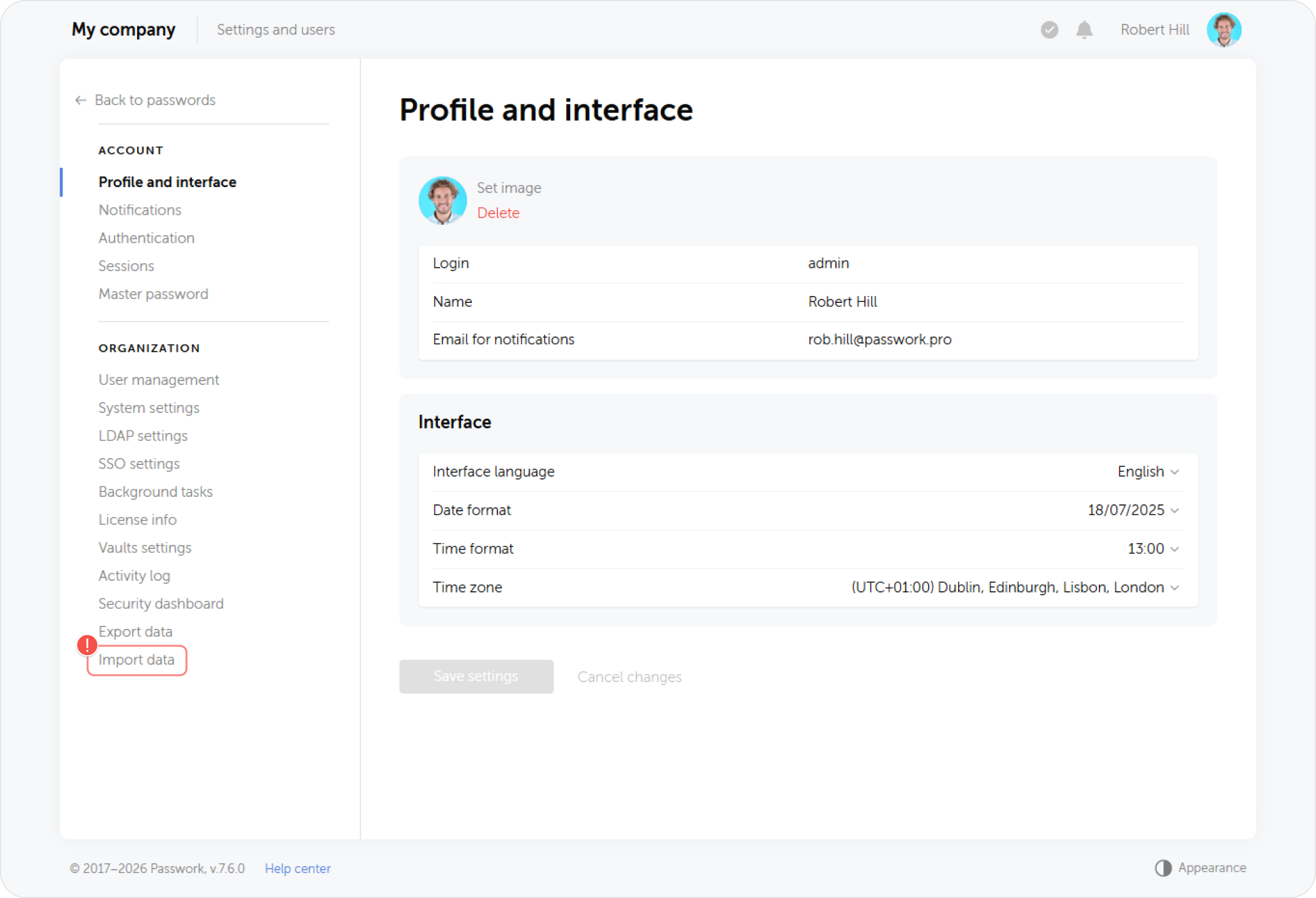
Gehen Sie zu Passwork und öffnen Sie die Einstellungsseite. Wählen Sie Data import am Ende der Liste.
Klicken Sie im nächsten Fenster auf Choose file.
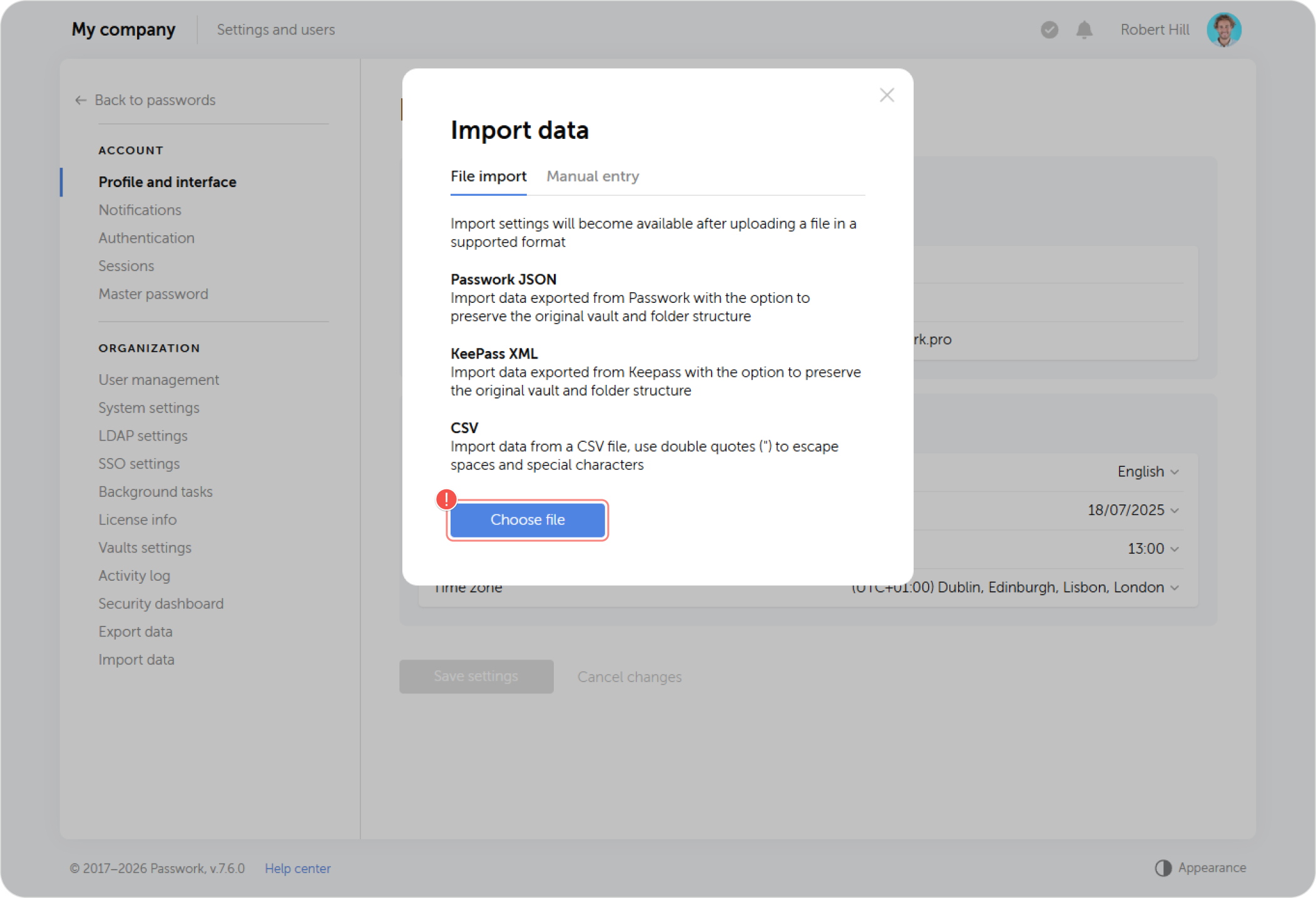
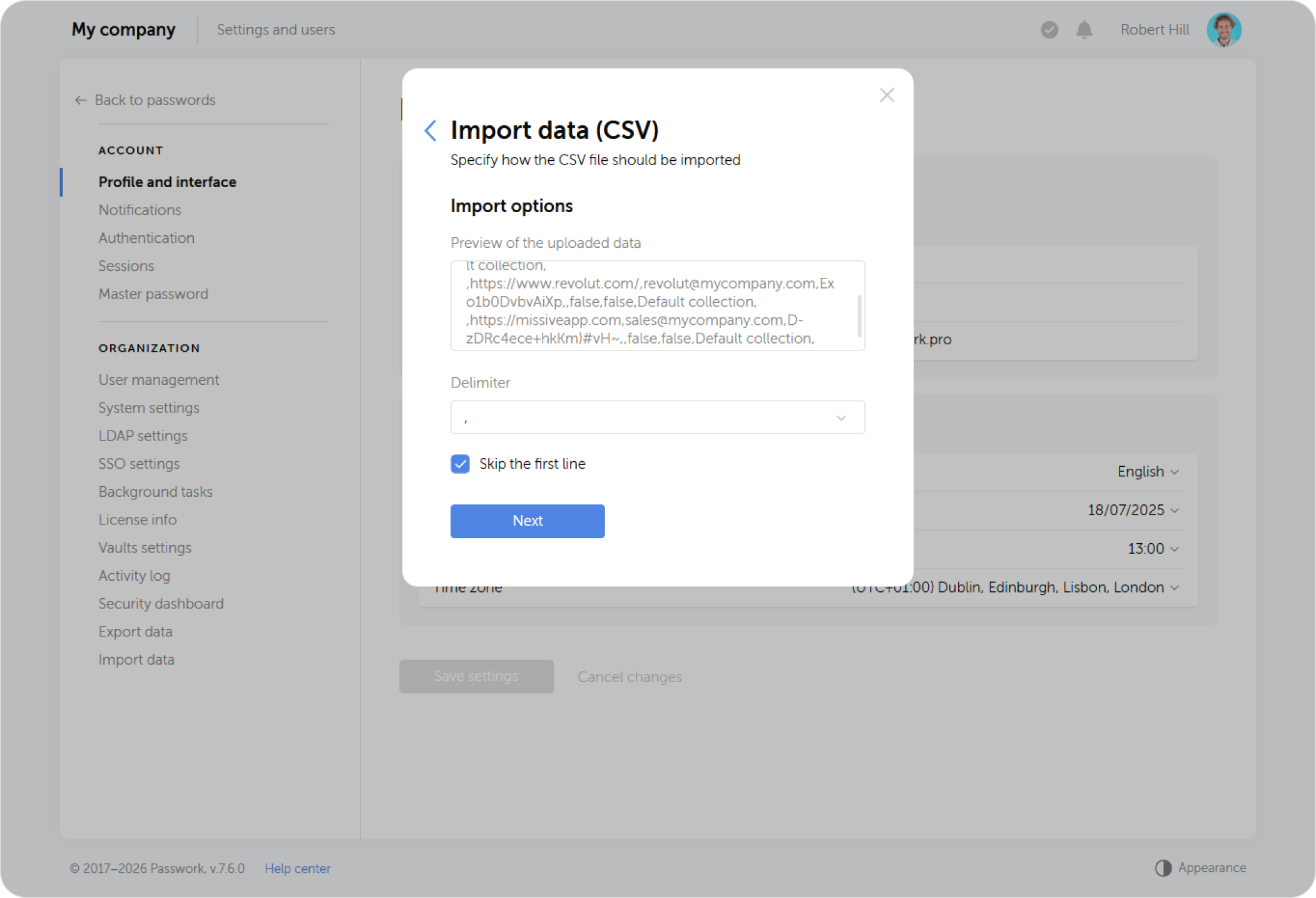
Laden Sie die zuvor gespeicherte Datei mit den exportierten Daten hoch. Wählen Sie beim CSV-Import das Trennzeichen (Komma) und aktivieren Sie das Überspringen der ersten Zeile.
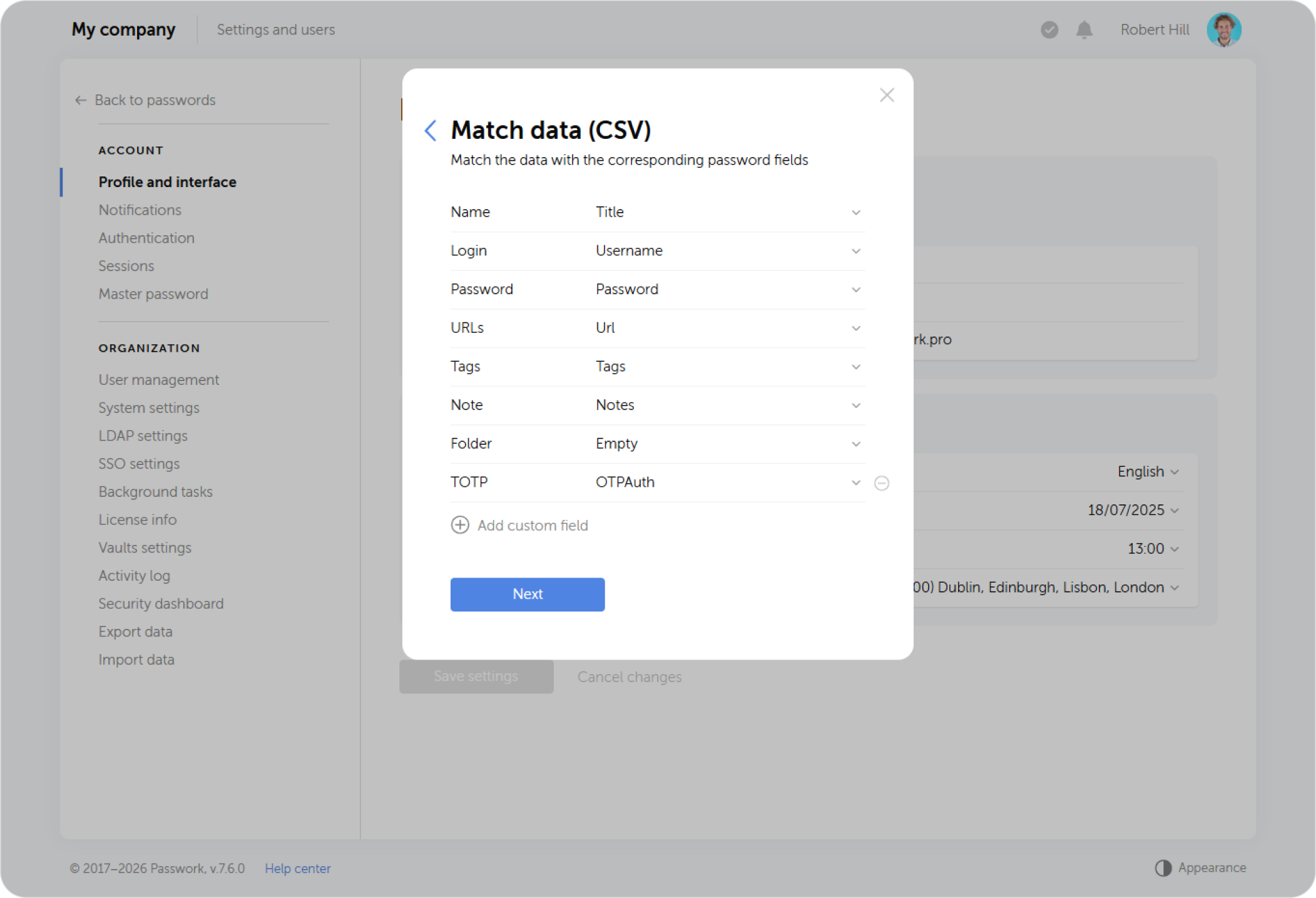
Ordnen Sie die Passwortkarten-Felder in Passwork den Spalten aus der Datei zu (Login, Passwort, URL, Notiz usw.) wie im Screenshot gezeigt. Einige Felder können leer bleiben, da 1Password keine entsprechenden Datenkategorien hat.
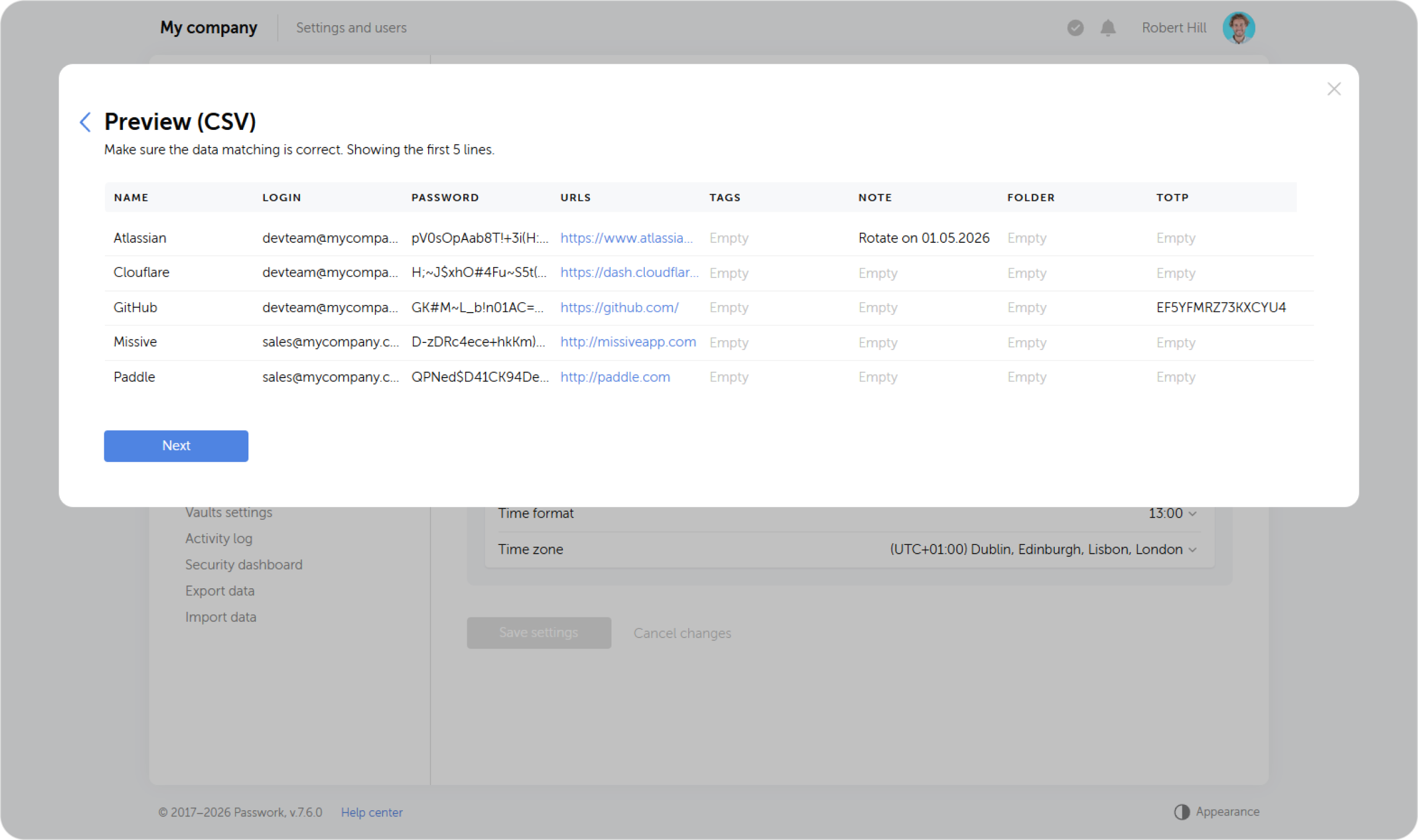
Überprüfen Sie im nächsten Schritt, ob die Zuordnung korrekt ist.
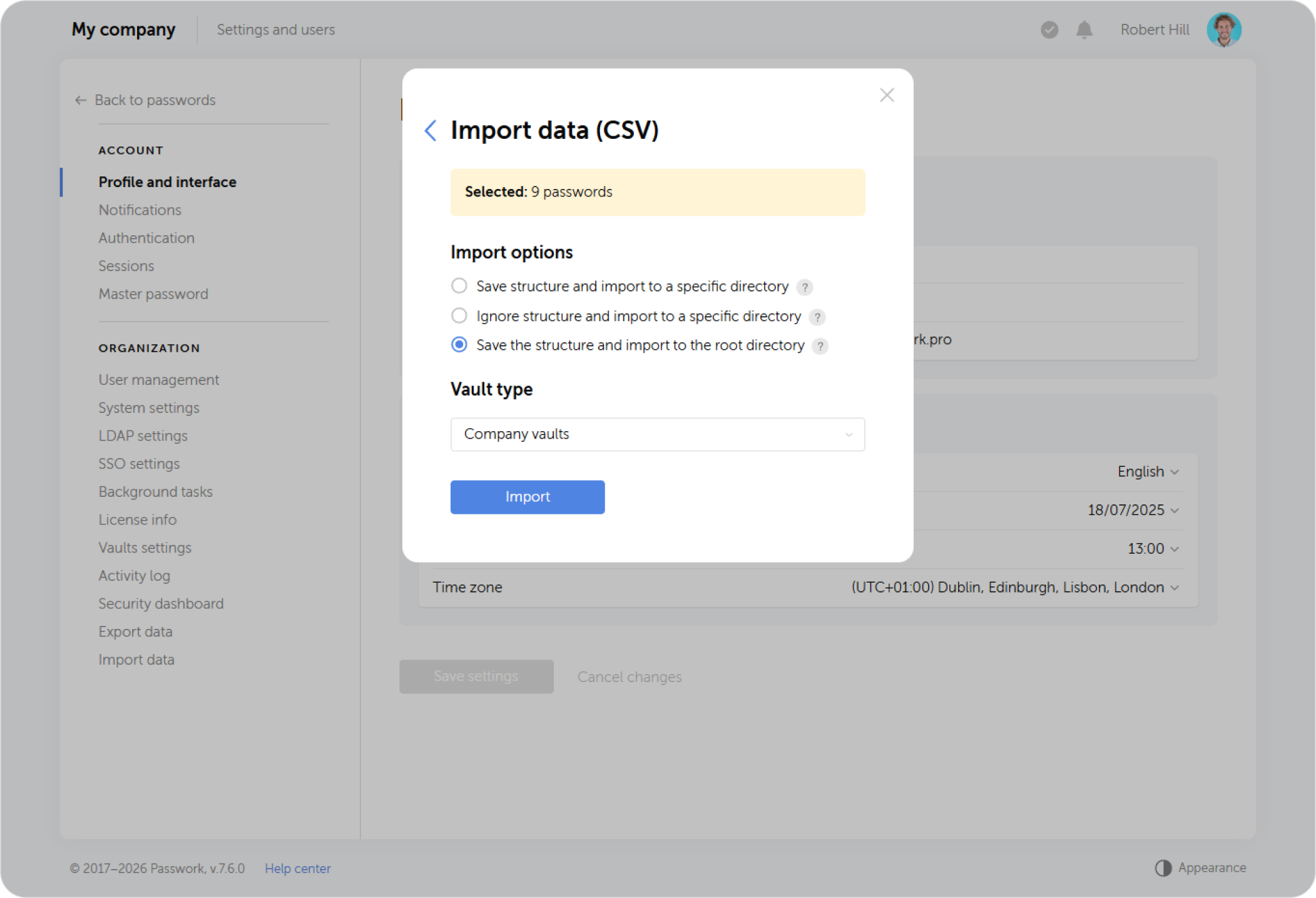
Wählen Sie im letzten Schritt die Importmethode und das Verzeichnis aus, in das die Daten importiert werden sollen.