

From RoboForm
This article provides instructions for migrating from RoboForm to the Passwork corporate password manager. The migration process is organized to keep accounts secure, preserve your familiar data structure, and help the team get back to work quickly.
For more details about formats, field mapping, and import options, see Data import
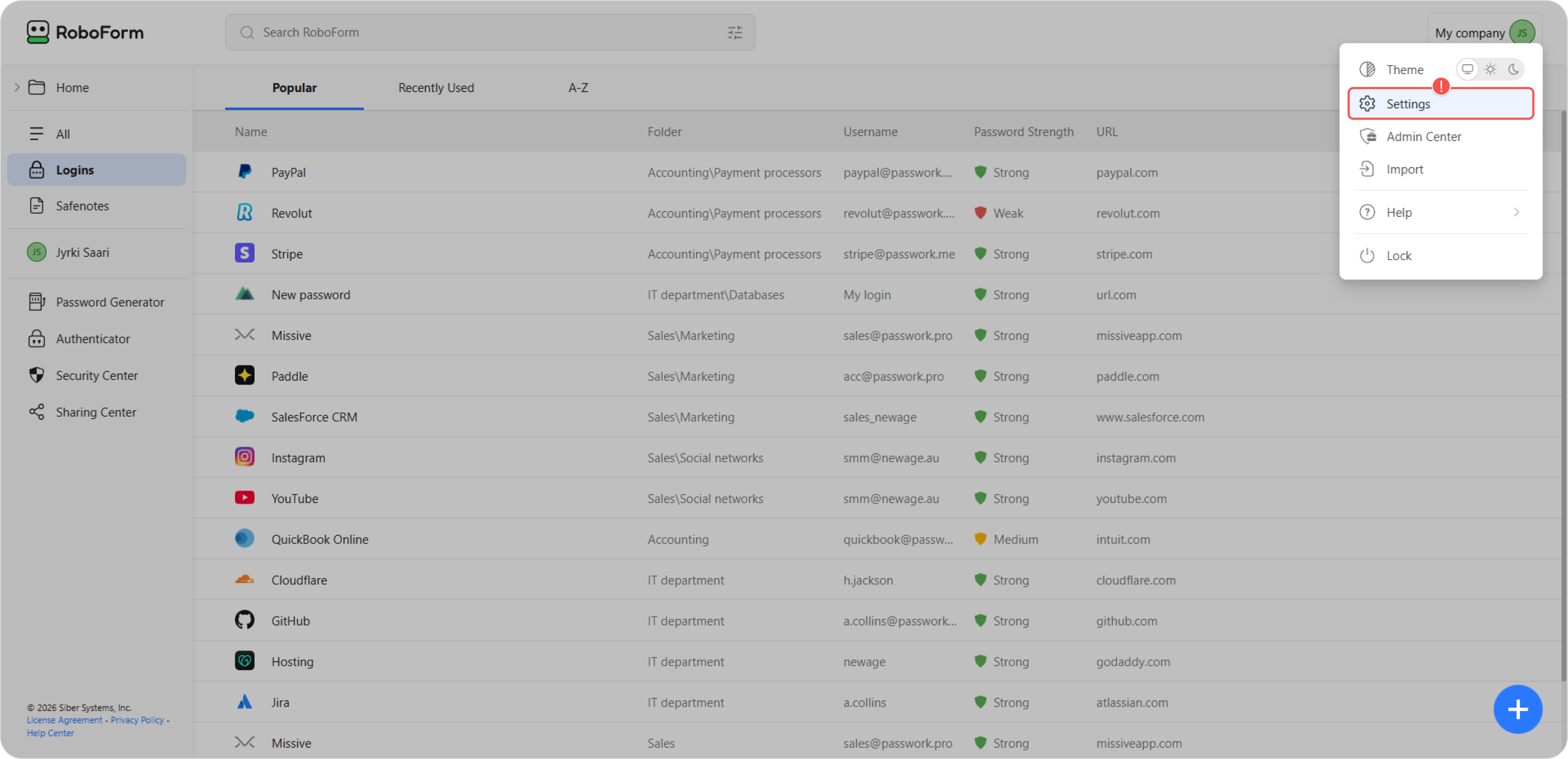
Log into your Roboform account and select Settings from the dropdown menu in the top right corner of the app.
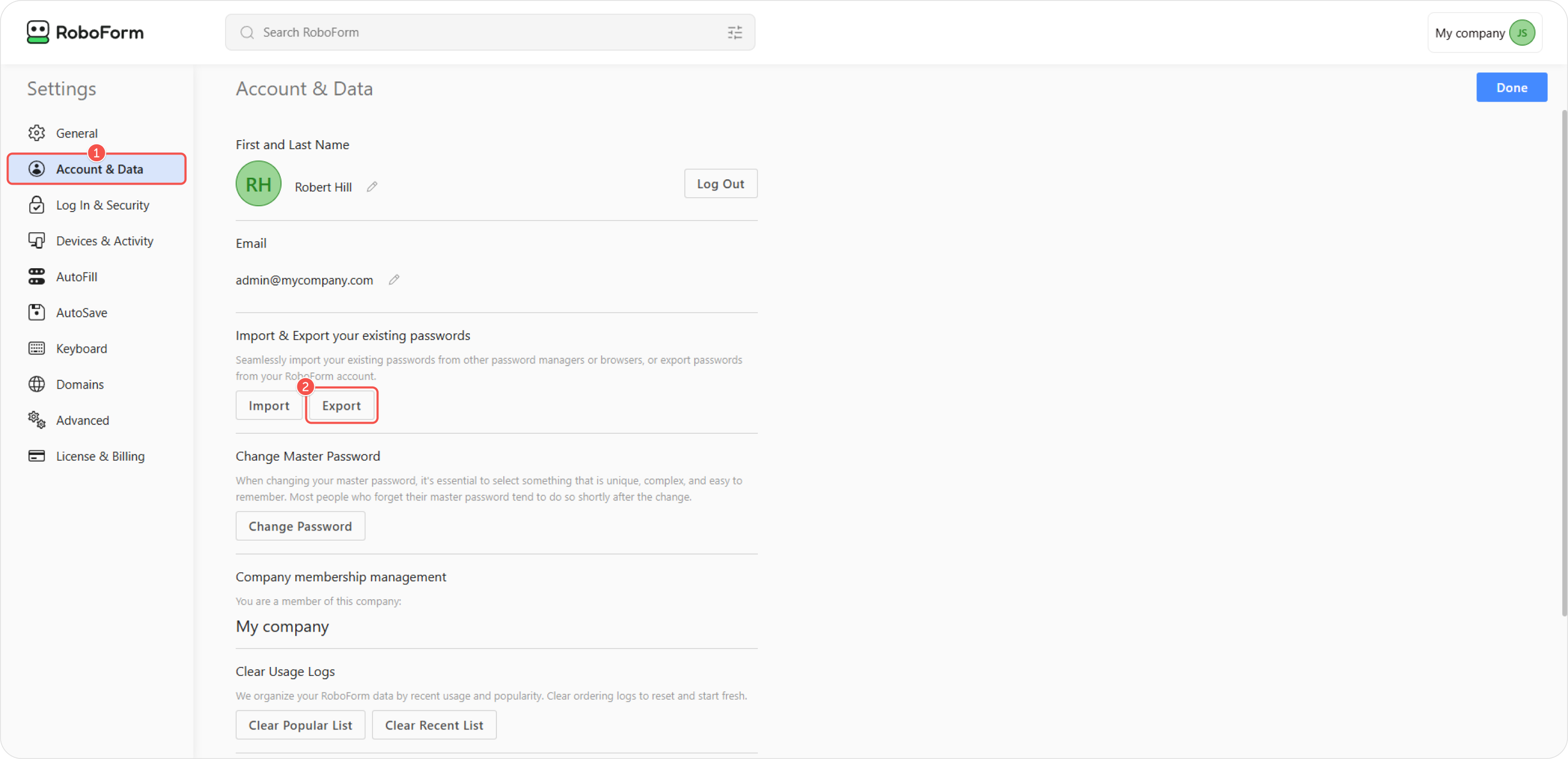
In the Settings menu, open the Account & Data section, and click Export.
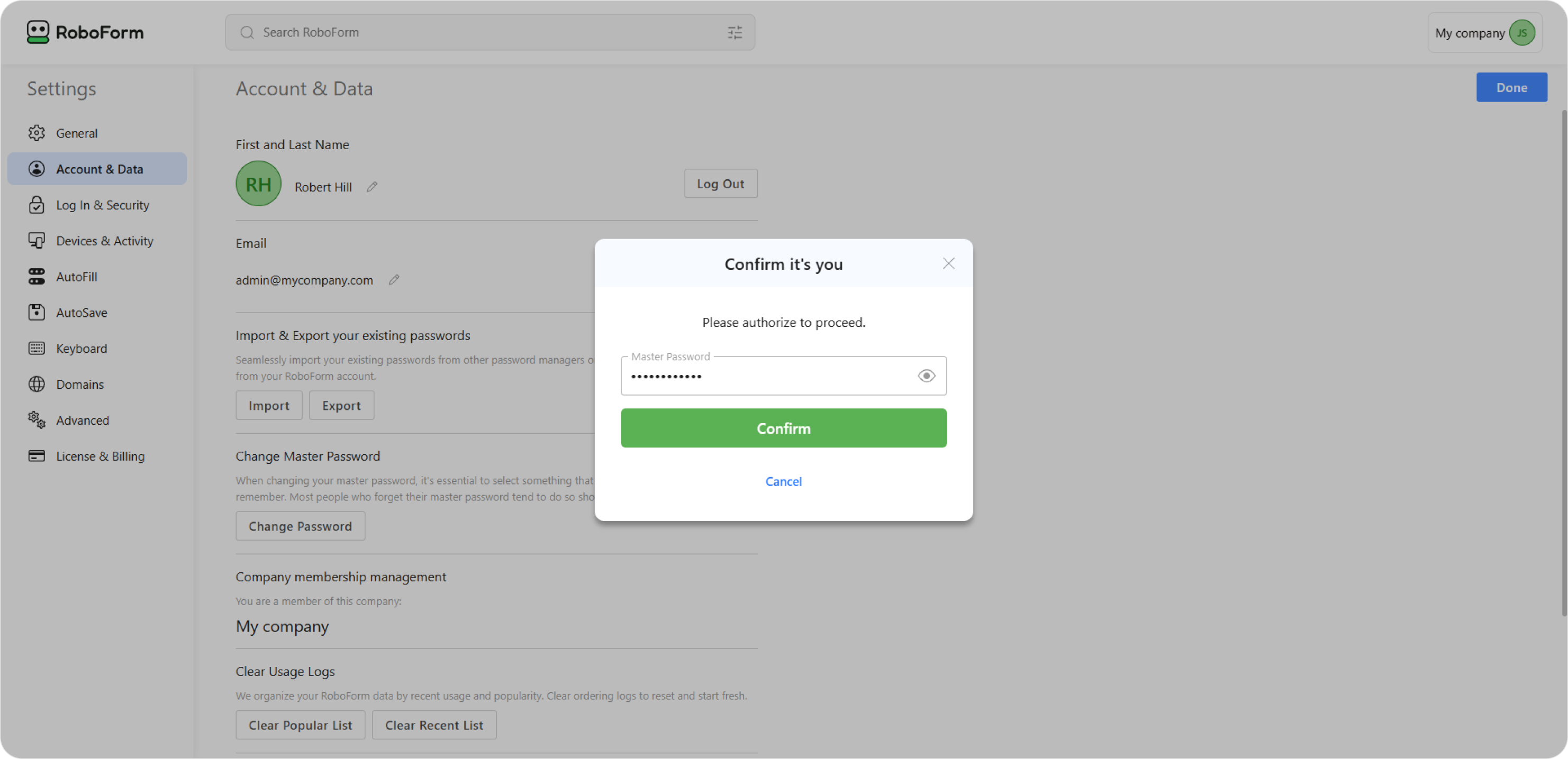
To confirm the export, the system will ask you to enter your RoboForm account master password.
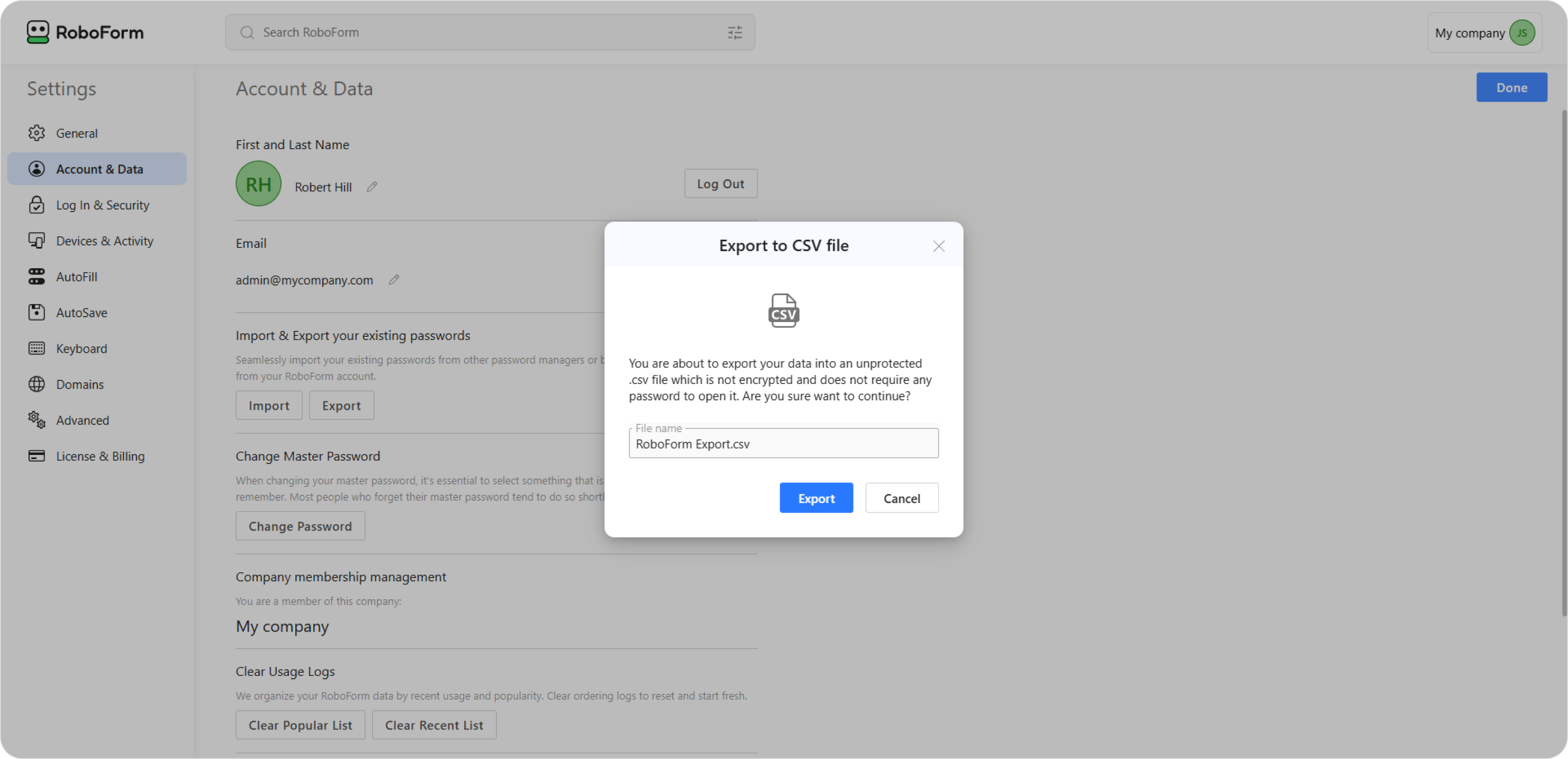
Choose the name for the .CSV file and click Export to download it.
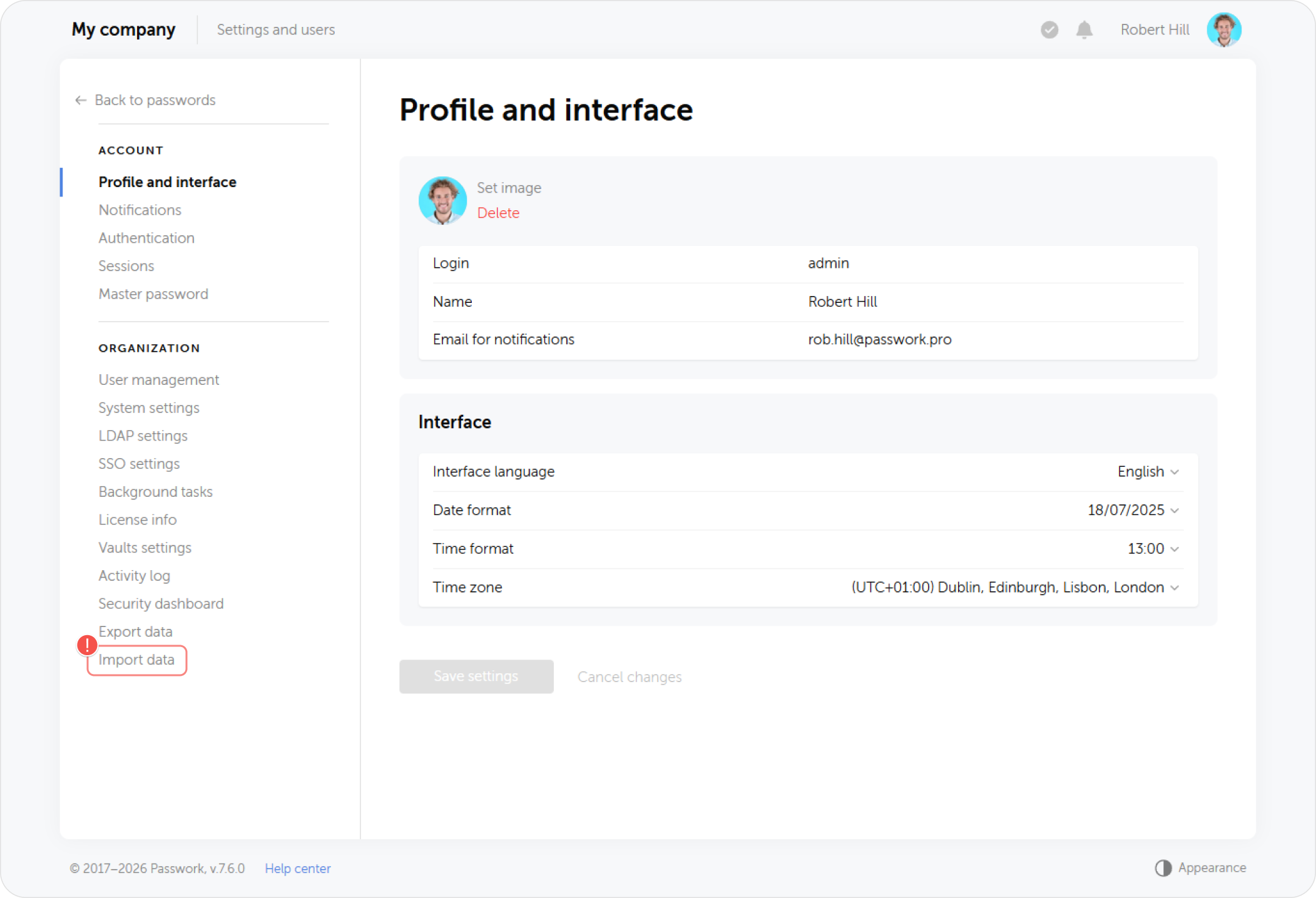
Go to Passwork and open the settings page. Select Import data at the bottom of the list.
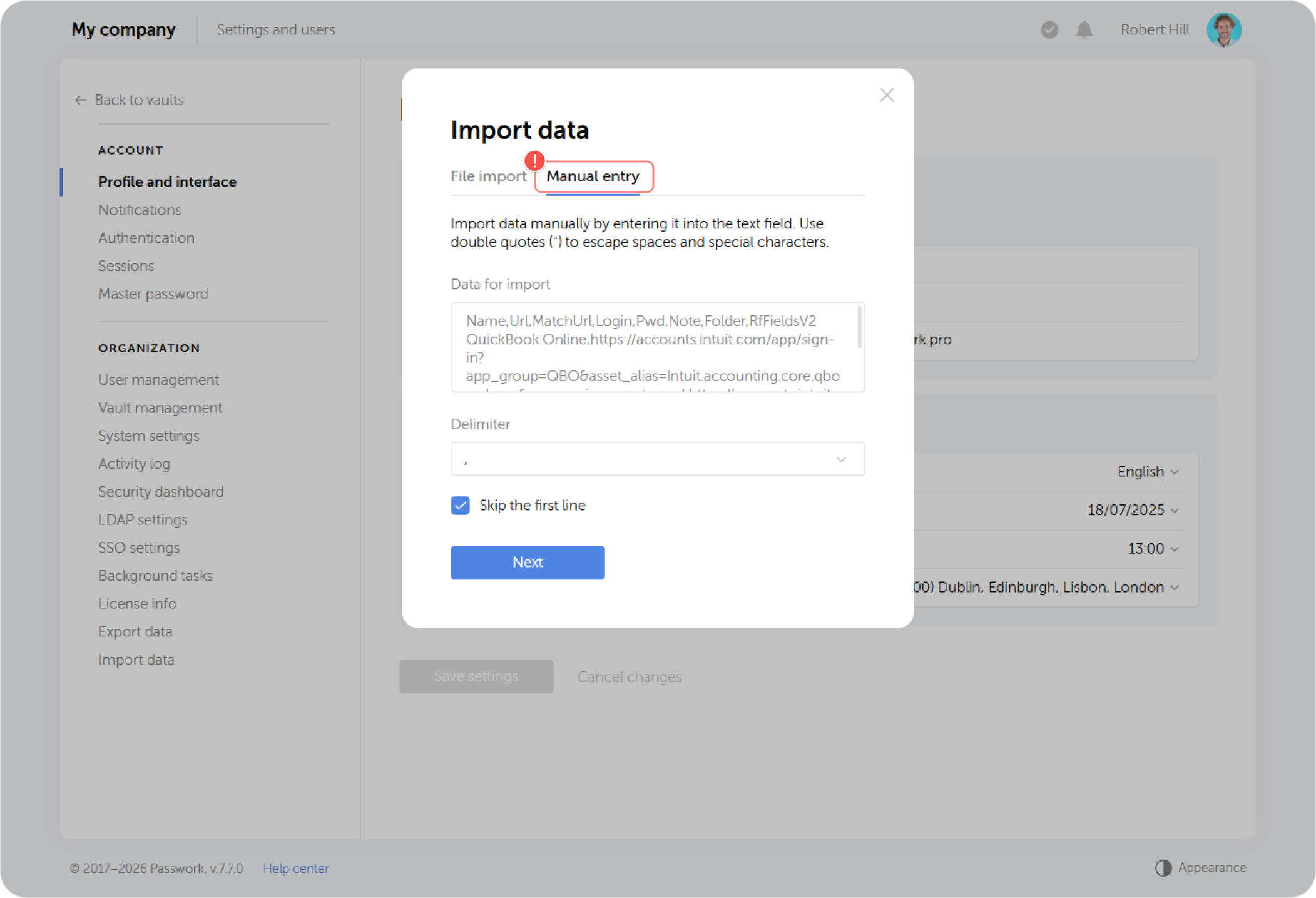
In the next window, switch to the Manual tab and paste the .CSV file's contents. Choose comma as the delimiter and skip the first line.
Match the password card fields in Passwork with the columns from the file (login, password, URL, note, etc.) as shown in the screenshot. Some fields may remain empty because RoboForm does not have equivalent data categories.
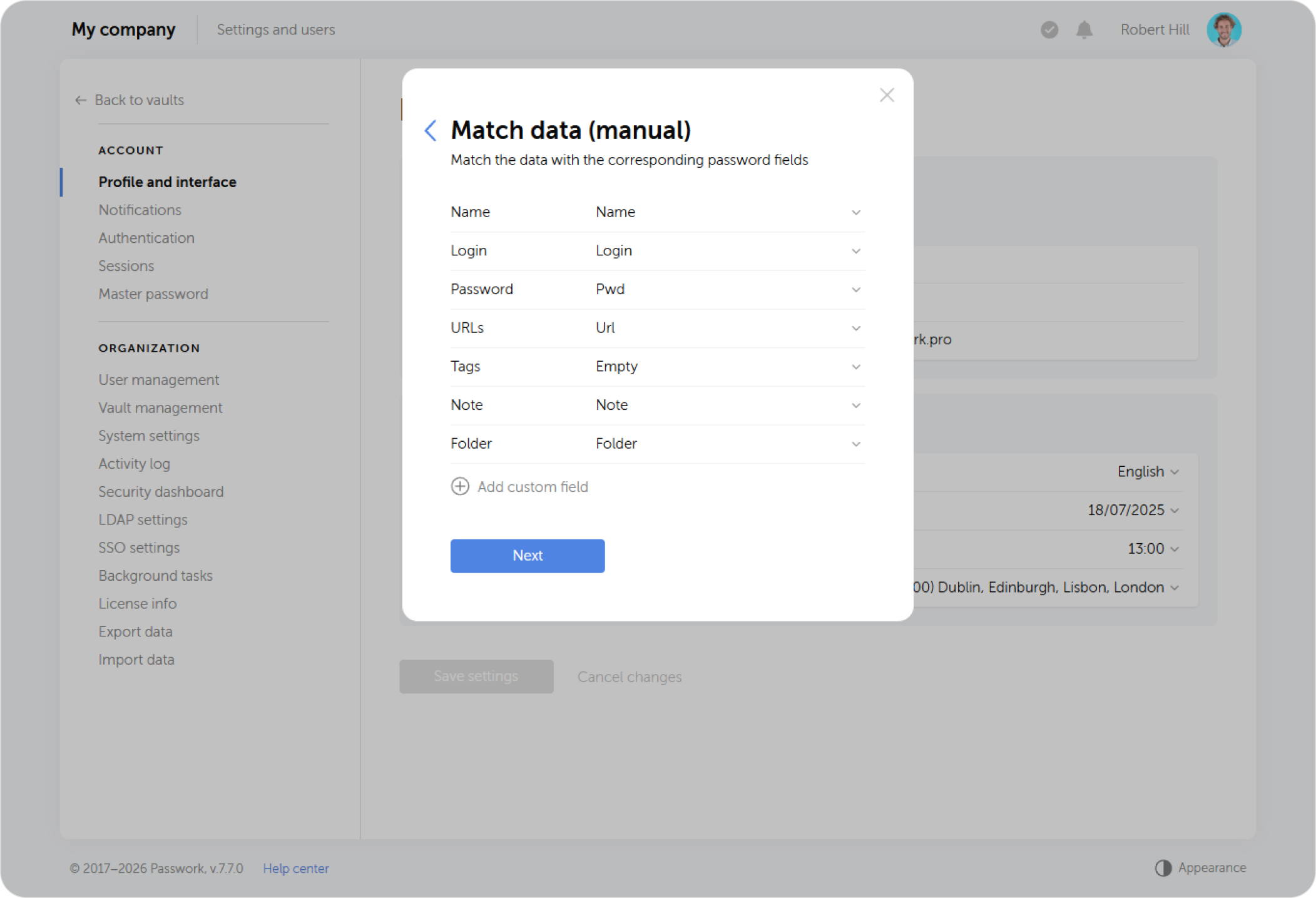
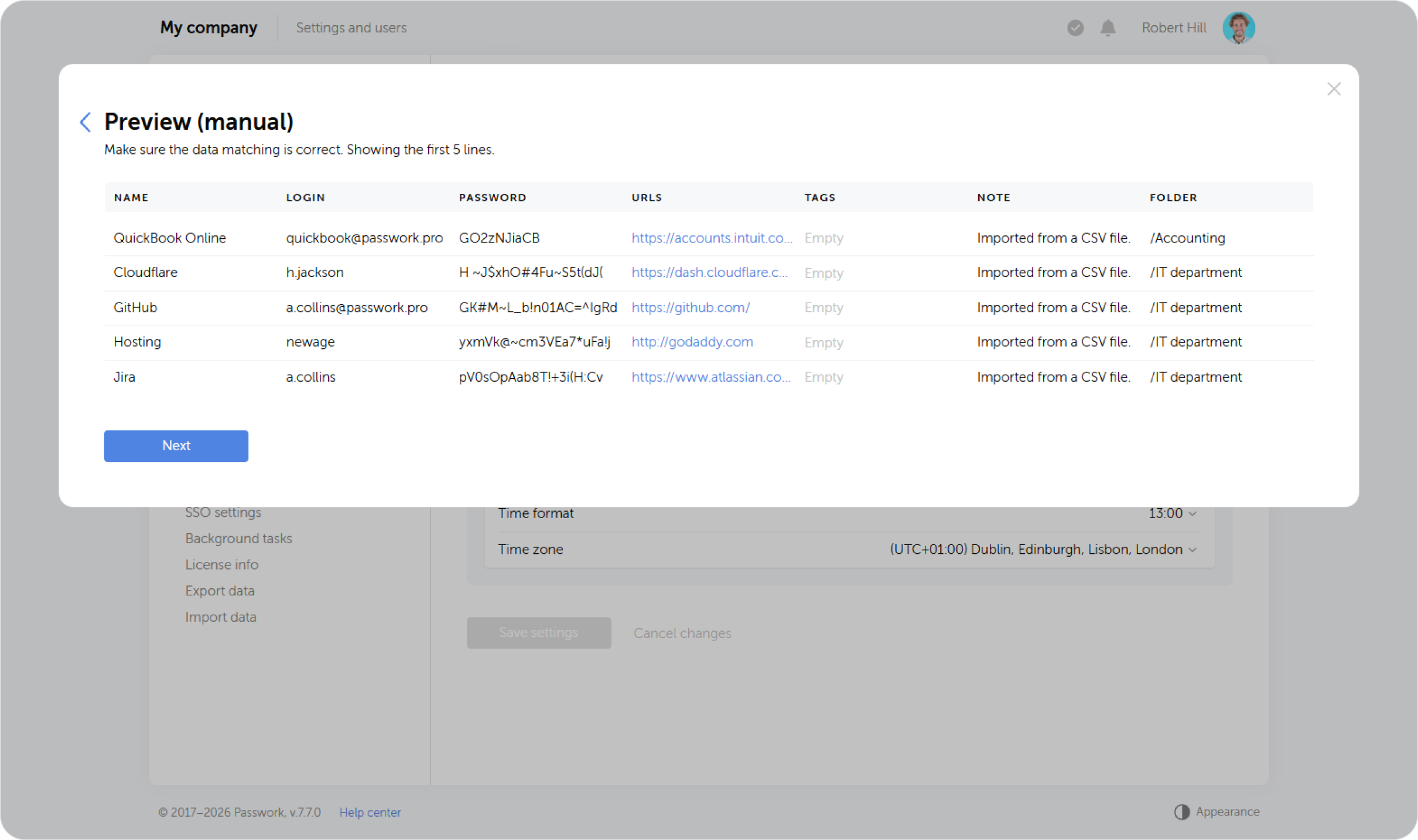
At the next step, verify that the mapping is correct.
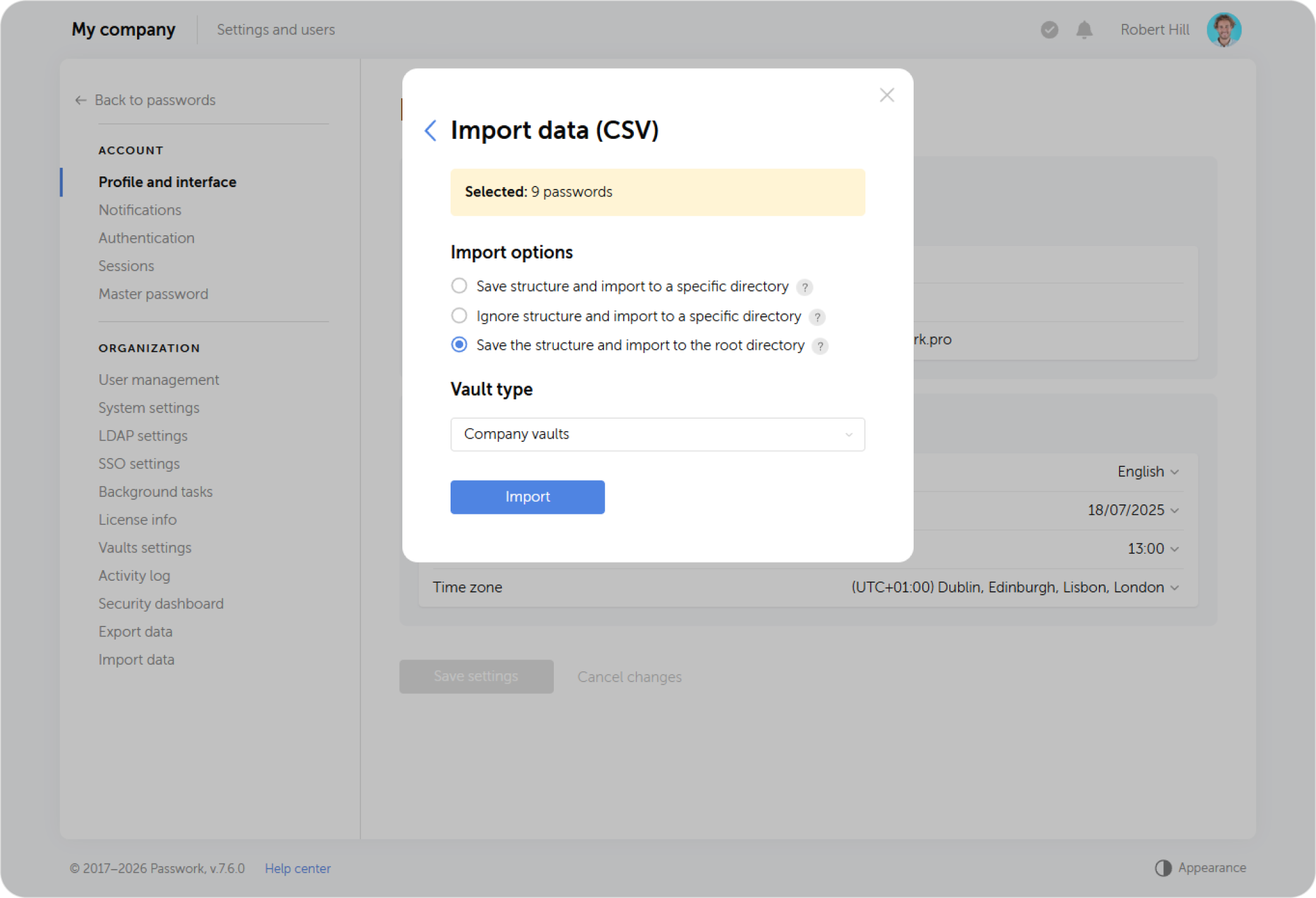
At the final step, select the import method and the directory where the data will be imported.