

Desde LastPass
Este artículo proporciona instrucciones para migrar de LastPass al gestor de contraseñas corporativo Passwork. El proceso de migración está organizado para mantener las cuentas seguras, preservar la estructura de datos familiar y ayudar al equipo a retomar el trabajo rápidamente.
Para más detalles sobre formatos, asignación de campos y opciones de importación, consulte Importación de datos
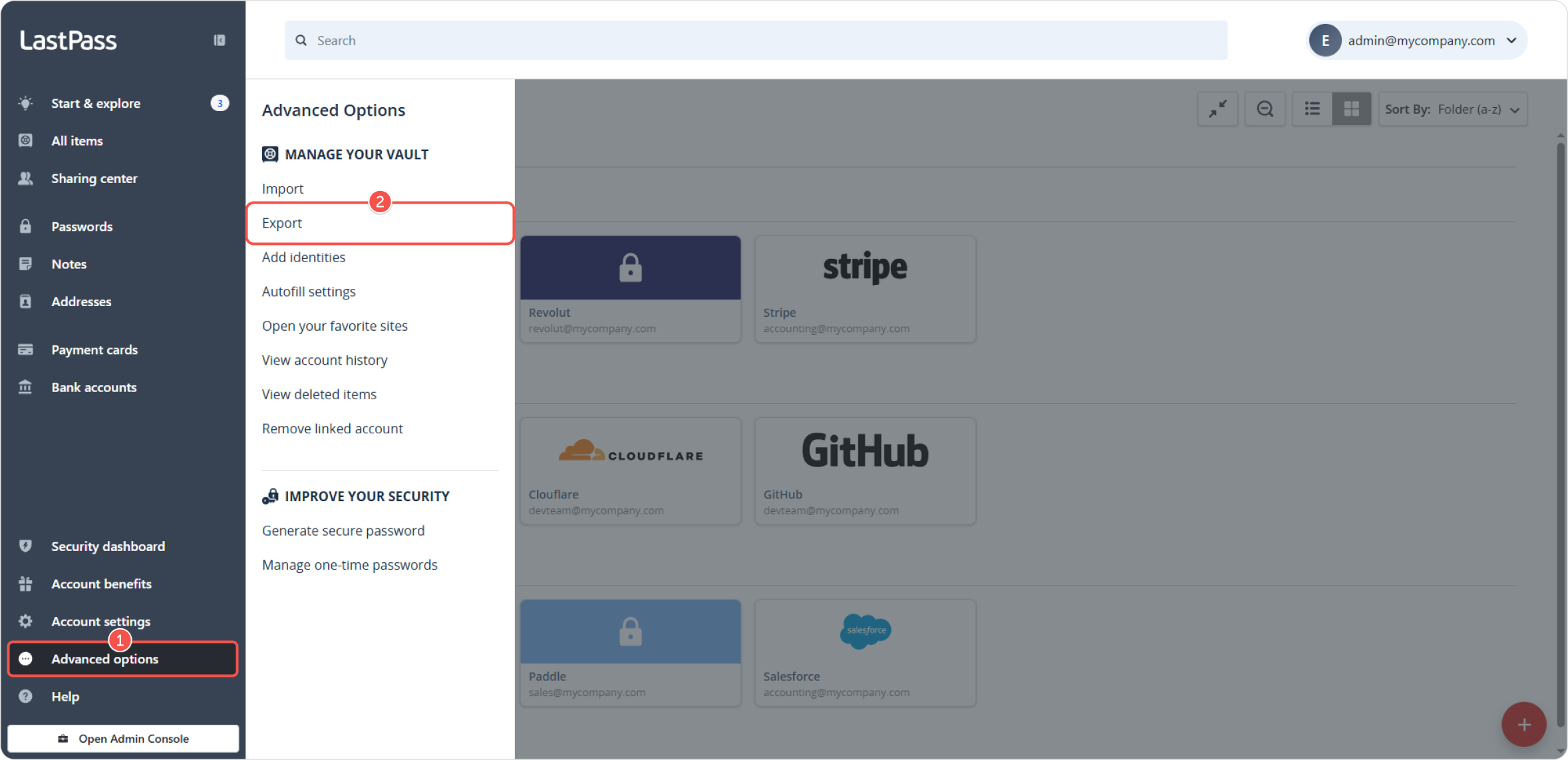
Abra la página de inicio de la aplicación web de LastPass y seleccione Advanced options. En el menú que se abre, haga clic en Export. El sistema enviará entonces una solicitud de confirmación de la exportación a su correo electrónico.
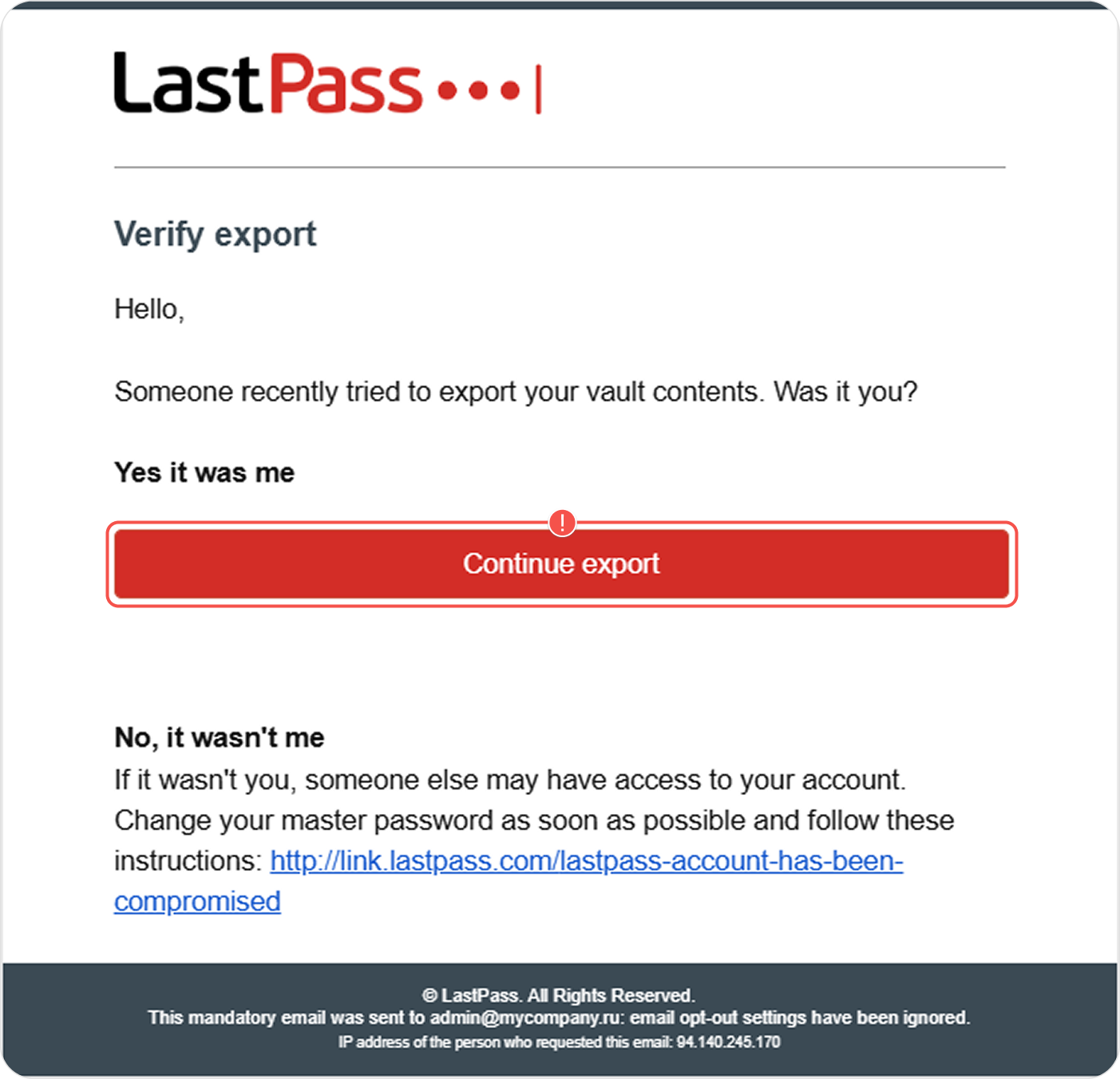
En el correo electrónico que reciba, haga clic en Continue export para continuar con la exportación.
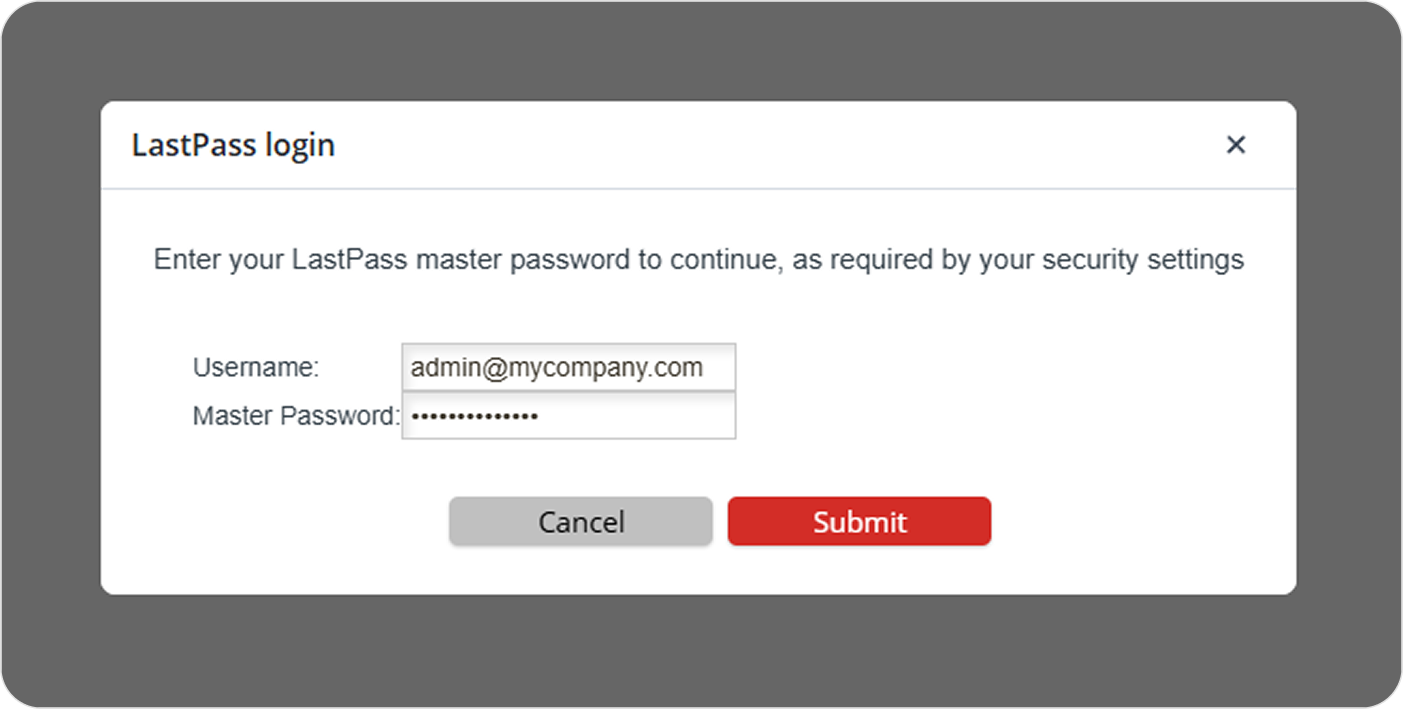
Para confirmar la exportación, el sistema le pedirá que introduzca la contraseña maestra de su cuenta de LastPass. Tras introducirla correctamente, el archivo .CSV se descargará automáticamente en su equipo. Si no es así, compruebe la configuración de descarga automática de su navegador.
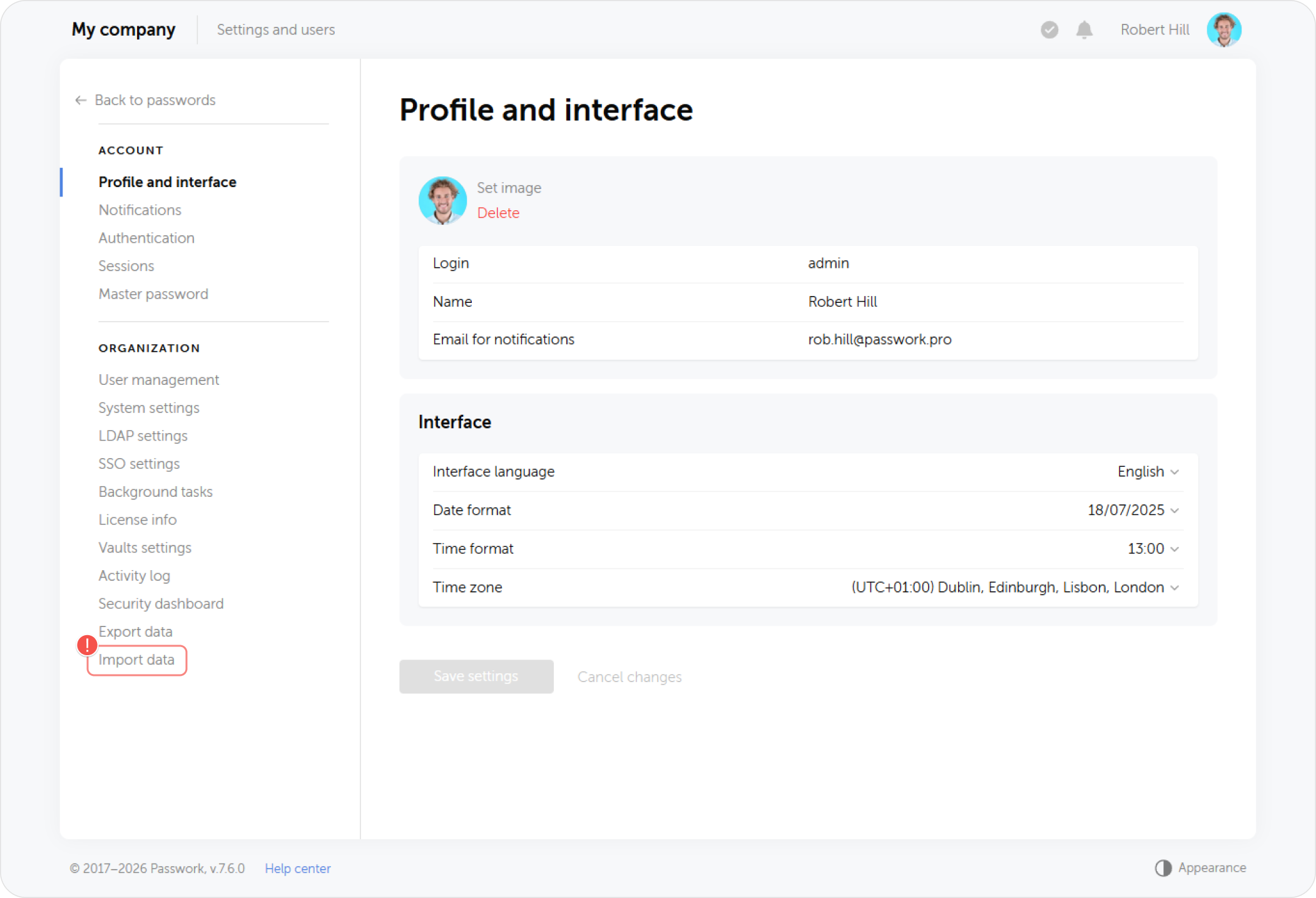
Acceda a Passwork y abra la página de configuración. Seleccione Data import al final de la lista.
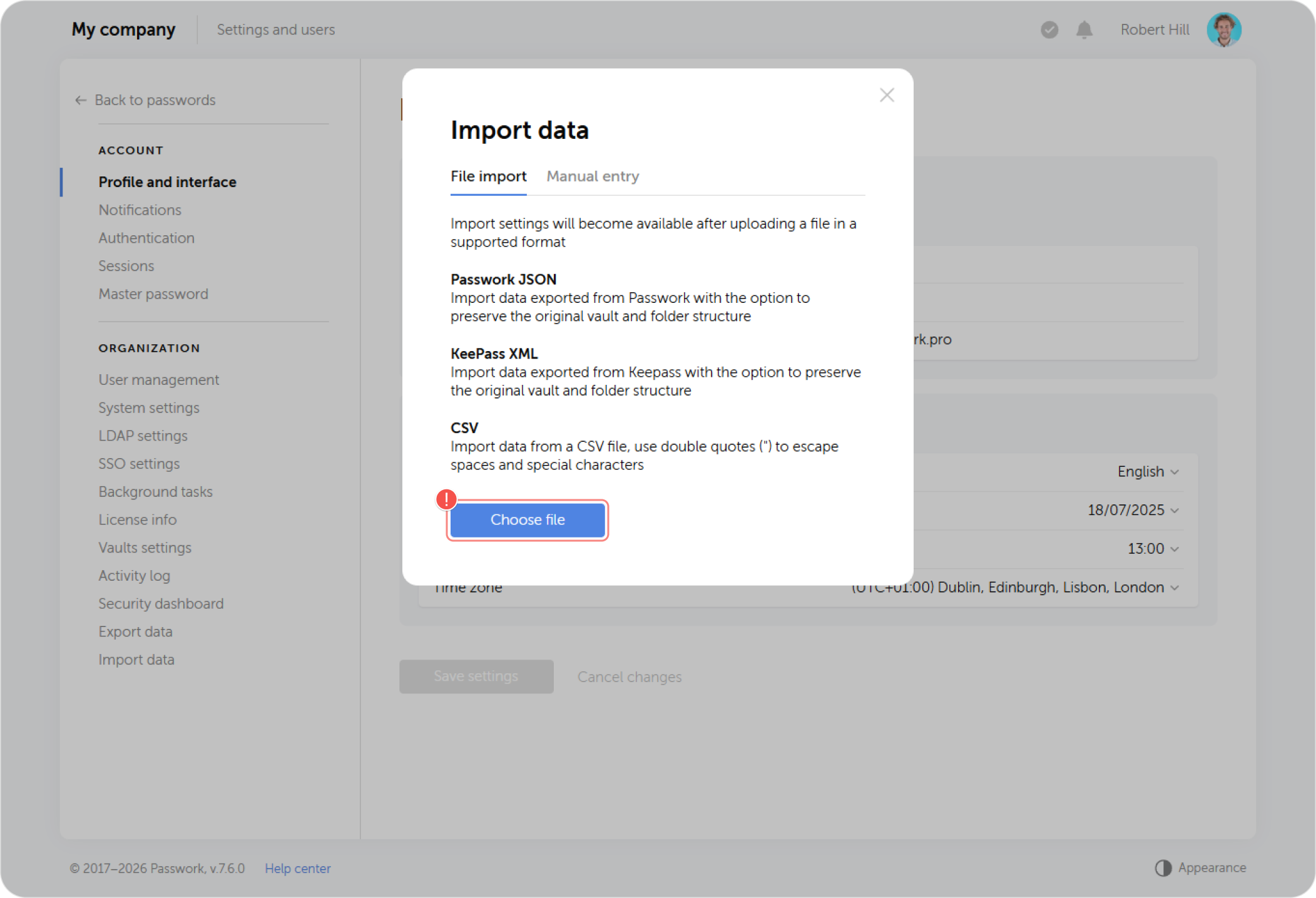
En la ventana siguiente, haga clic en Choose file
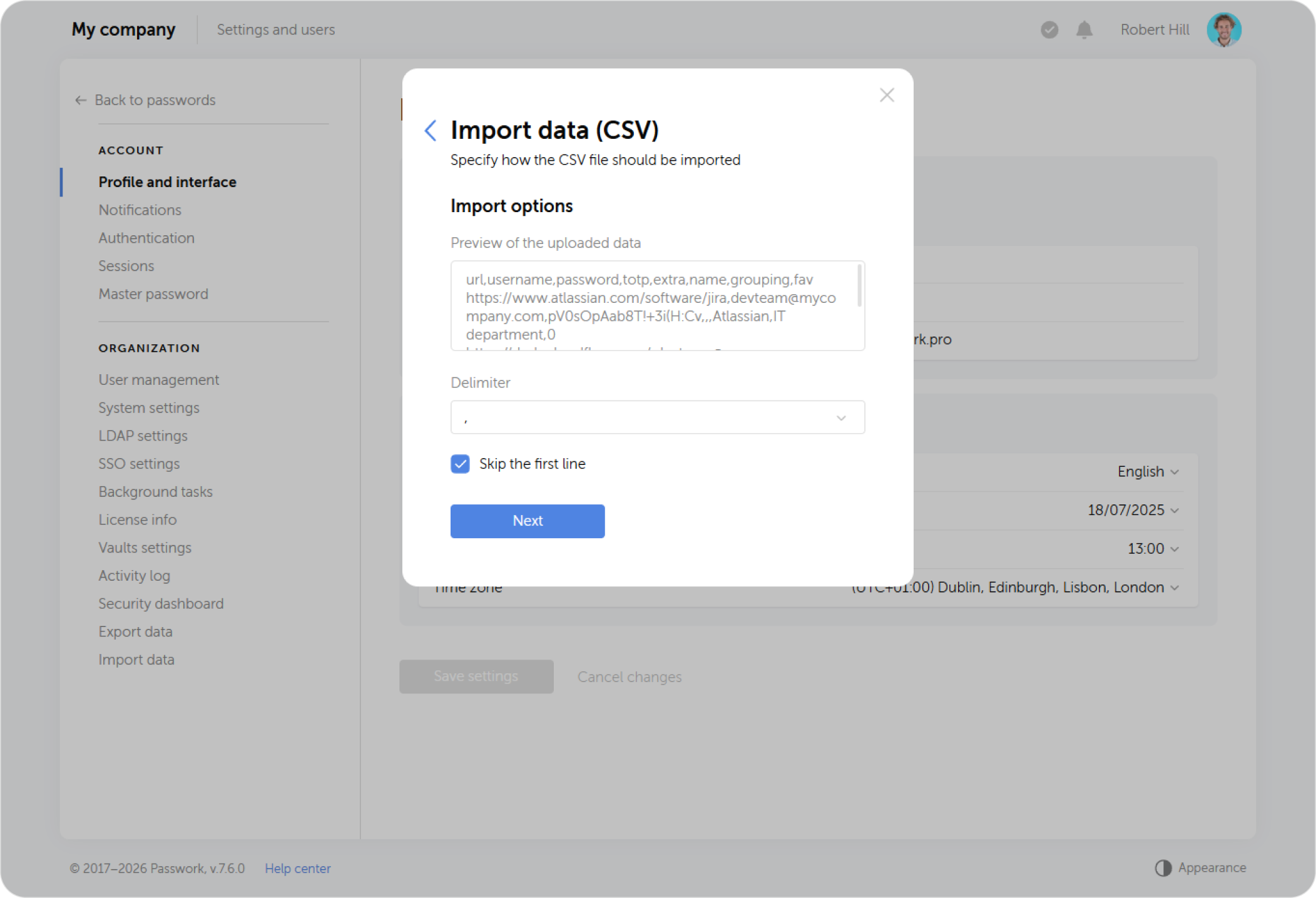
Cargue el archivo que guardó previamente con los datos exportados. Al importar CSV, elija el delimitador (coma) y active la opción de omitir la primera fila.
Asocie los campos de la tarjeta de contraseña en Passwork con las columnas del archivo (inicio de sesión, contraseña, URL, nota, etc.) como se muestra en la captura de pantalla. Algunos campos pueden quedar vacíos porque LastPass no tiene categorías de datos equivalentes.
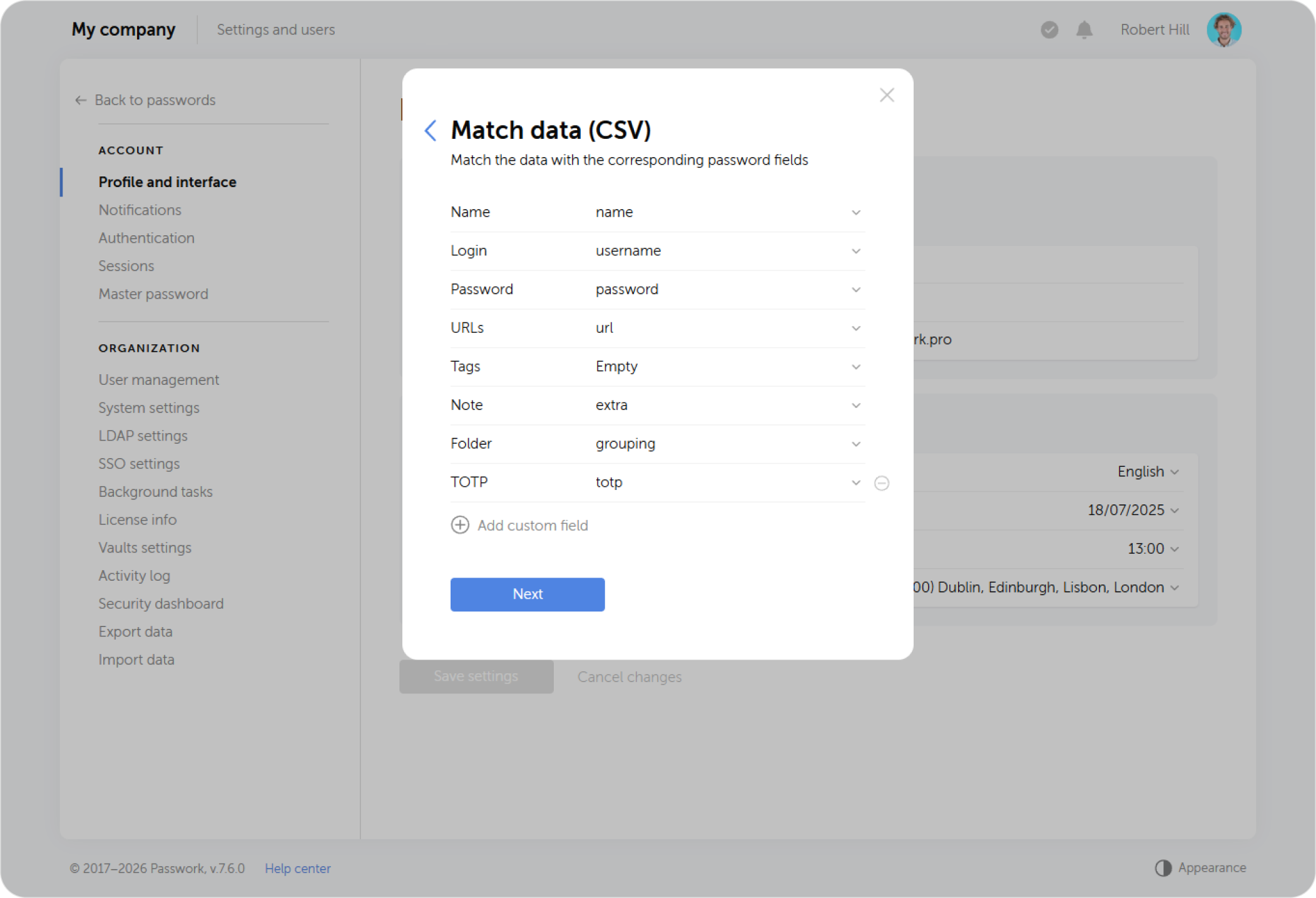
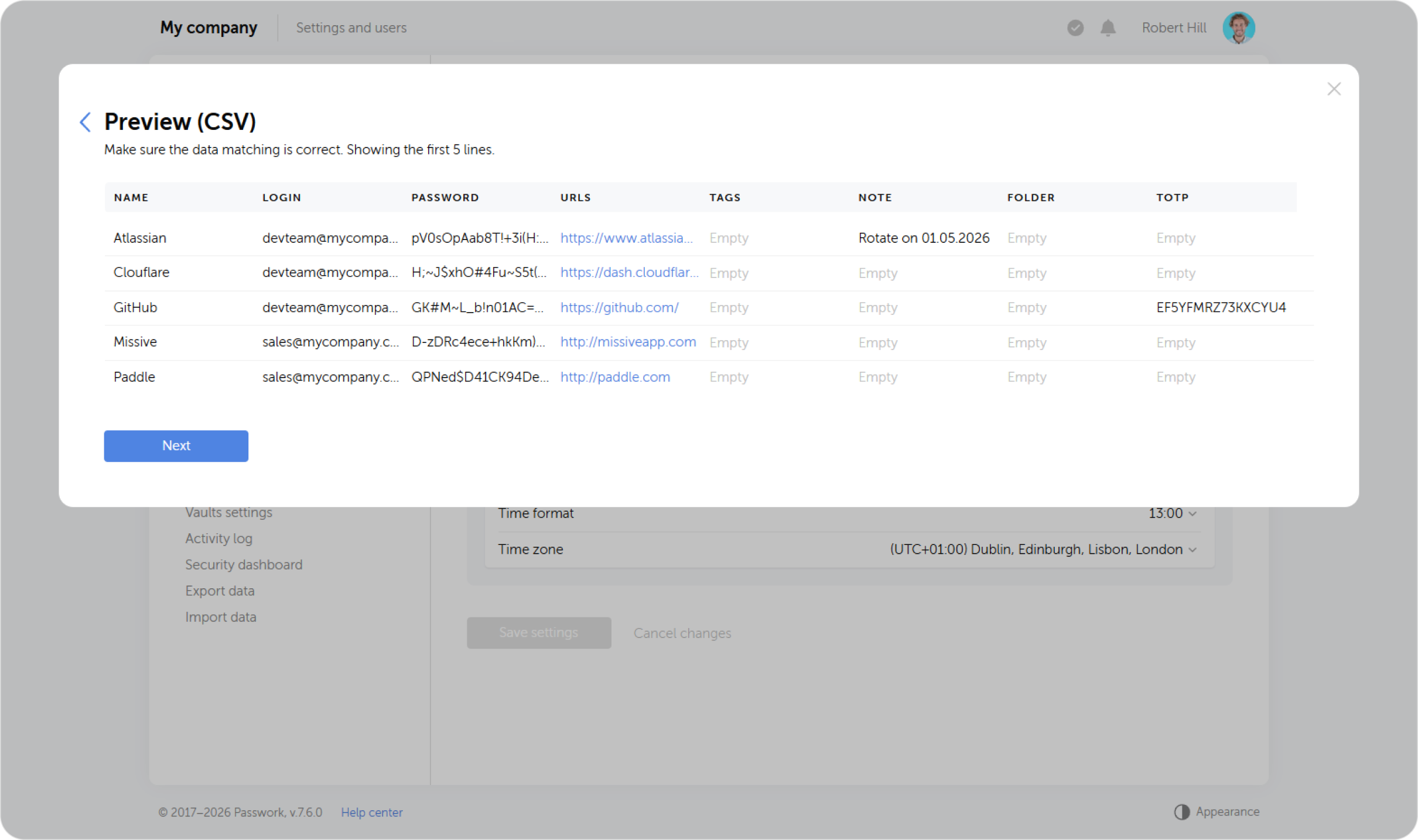
En el siguiente paso, verifique que la asignación sea correcta.
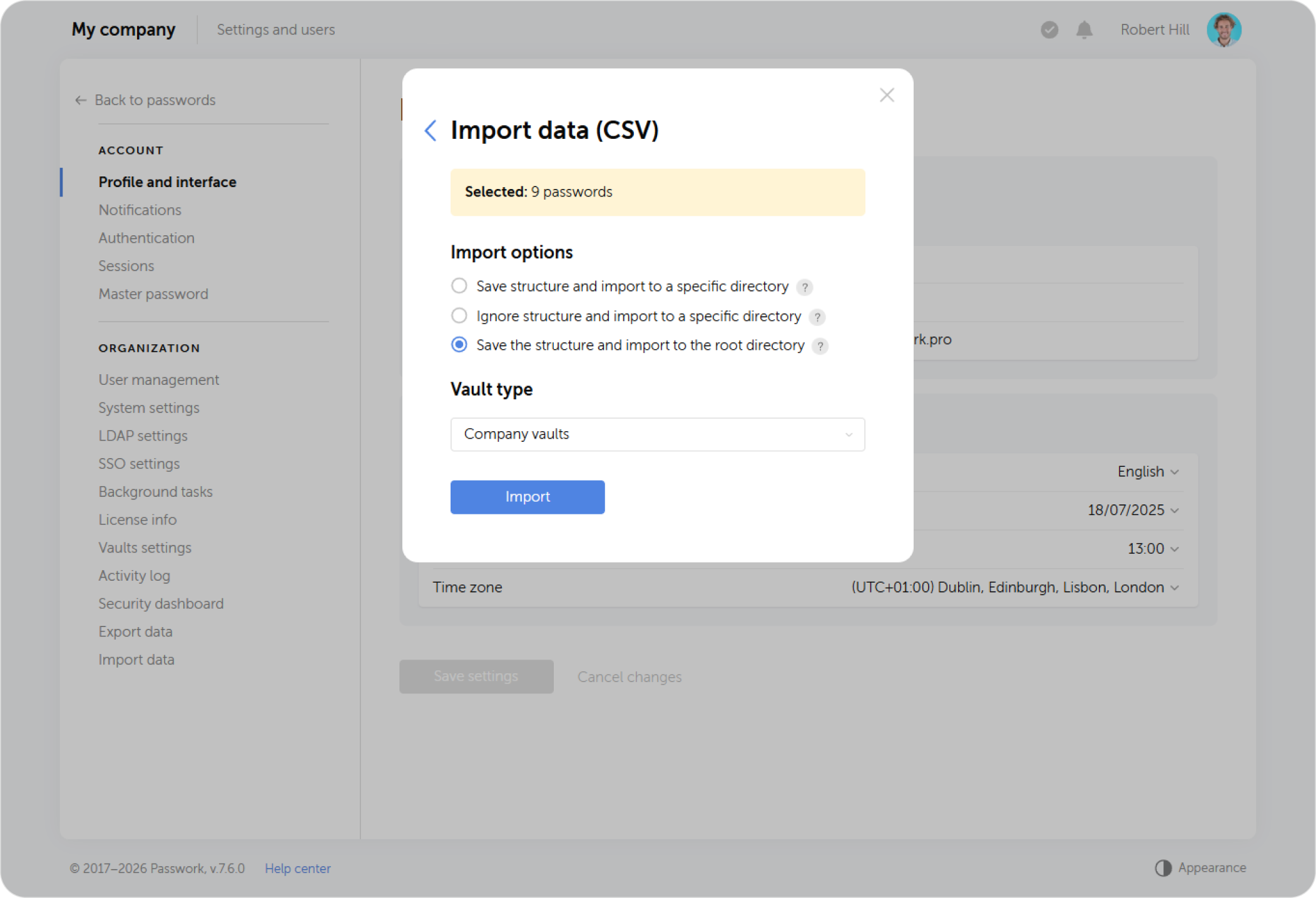
En el paso final, seleccione el método de importación y el directorio donde se importarán los datos.