



Get started with Passwork
Thanks to its intuitive interface, it's very easy to start using Passwork right after setting it up.
This guide offers a comprehensive overview of the key Passwork features you'll frequently use.
1. Create an account and join your team
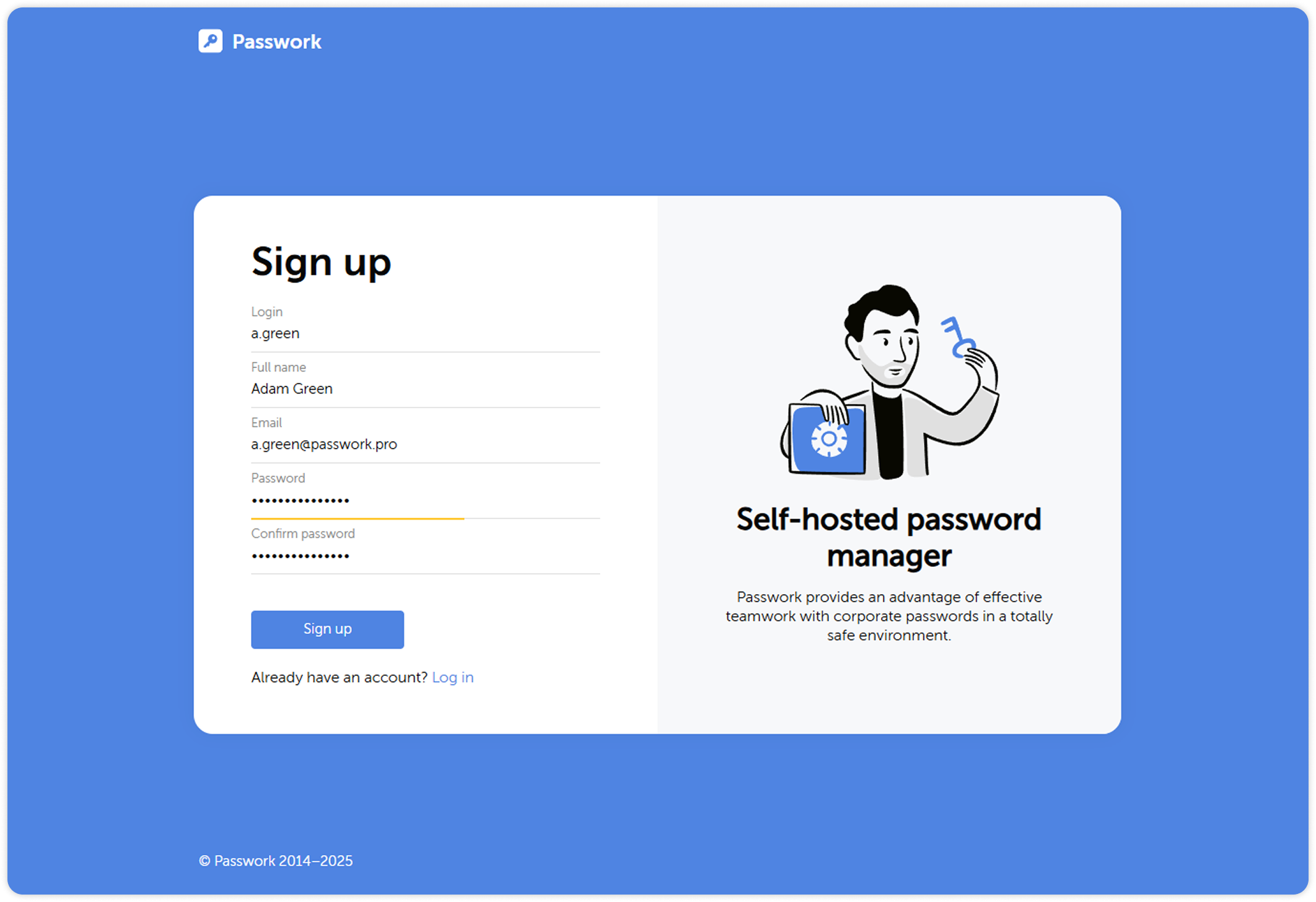
To register an account, go to the Passwork Sign up page at the address provided by your administrator. Enter your login, password, email, and click Sign up:
2. Get to know the interface
Each time you log in, you will see the main window of Passwork. It is divided into three sections: the Top panel, Content pane on the right side and the Navigation pane on the left.
- Top panel contains the company and user name, Settings and users menu, Account settings, and quick access buttons for notifications and background tasks
- Navigation pane allows quick access to the most frequently used sections of Passwork
- Content pane shows the elements you selected in the Navigation pane or Top panel
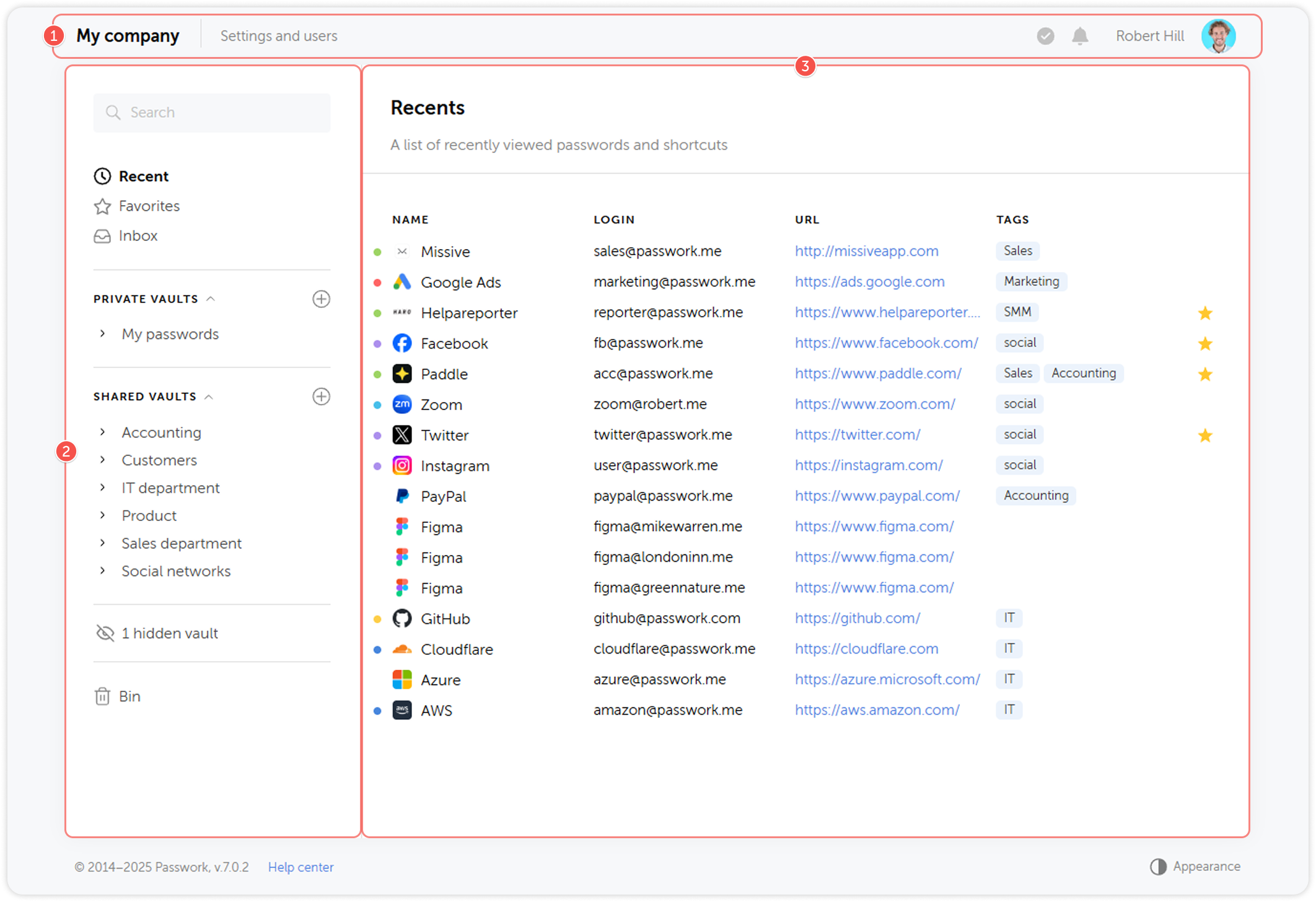
- Top panel
- Navigation pane
- Content pane
3. Create a vault
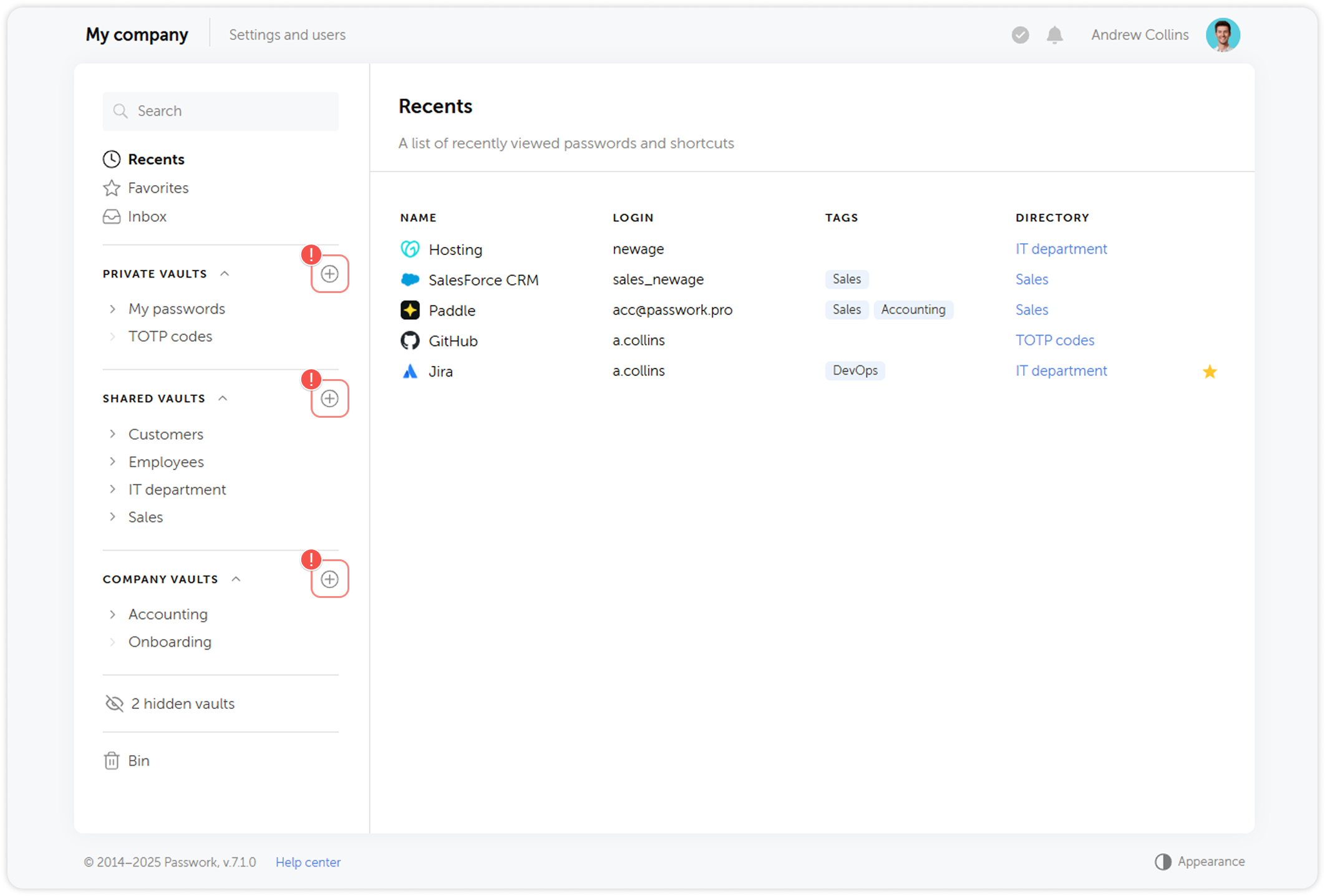
Passwork Vaults store folders and passwords, and can be kept private or shared with other users.
You can create vaults with a folder-based multi-level structure for different projects, departments and other divisions within your company.
To create a vault, click on the Plus icon:
4. Create a folder
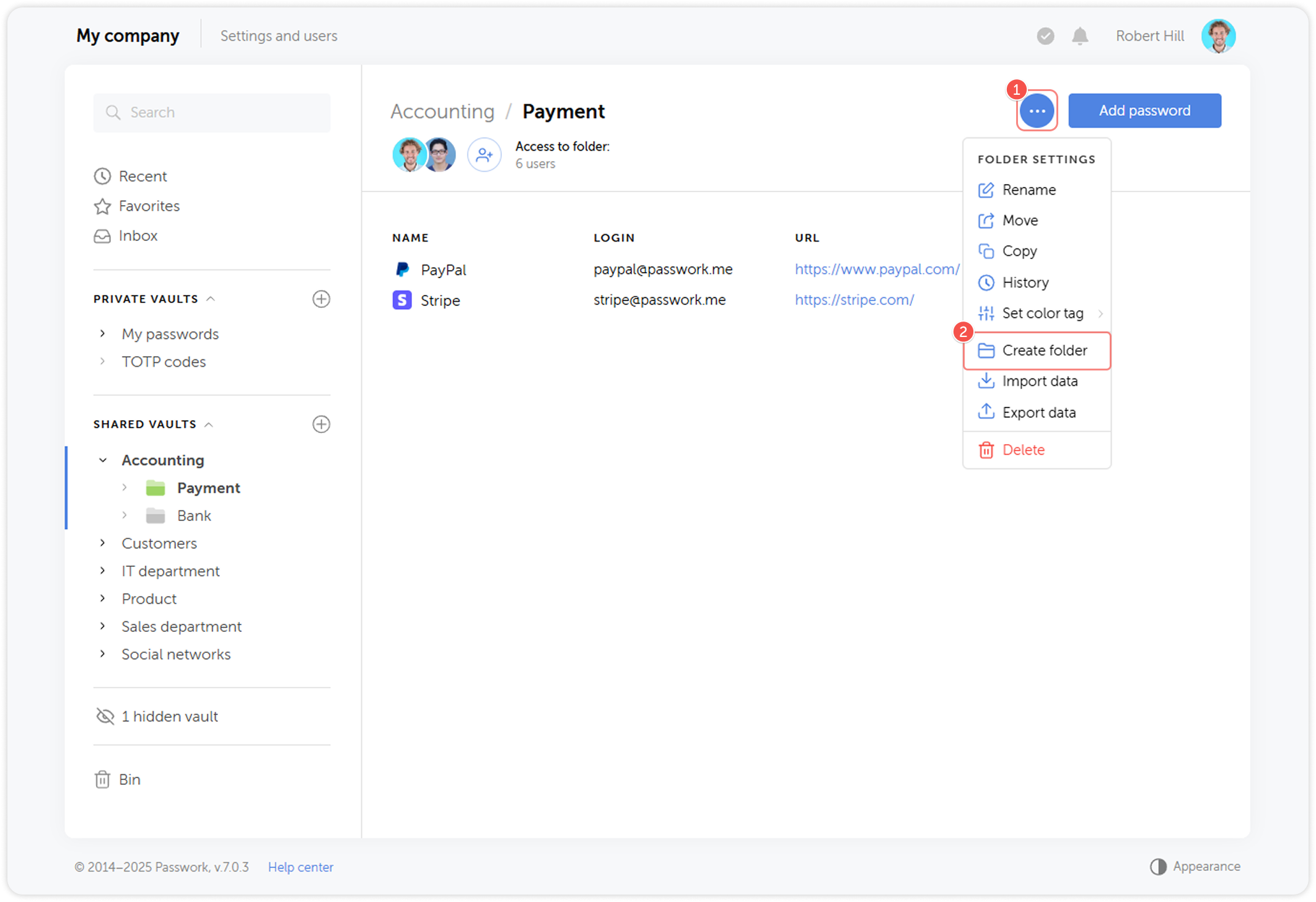
Create folders with nested structure support to organize your passwords better.
To create one, open Vault settings dropdown menu and click Create folder:
5. Create a password
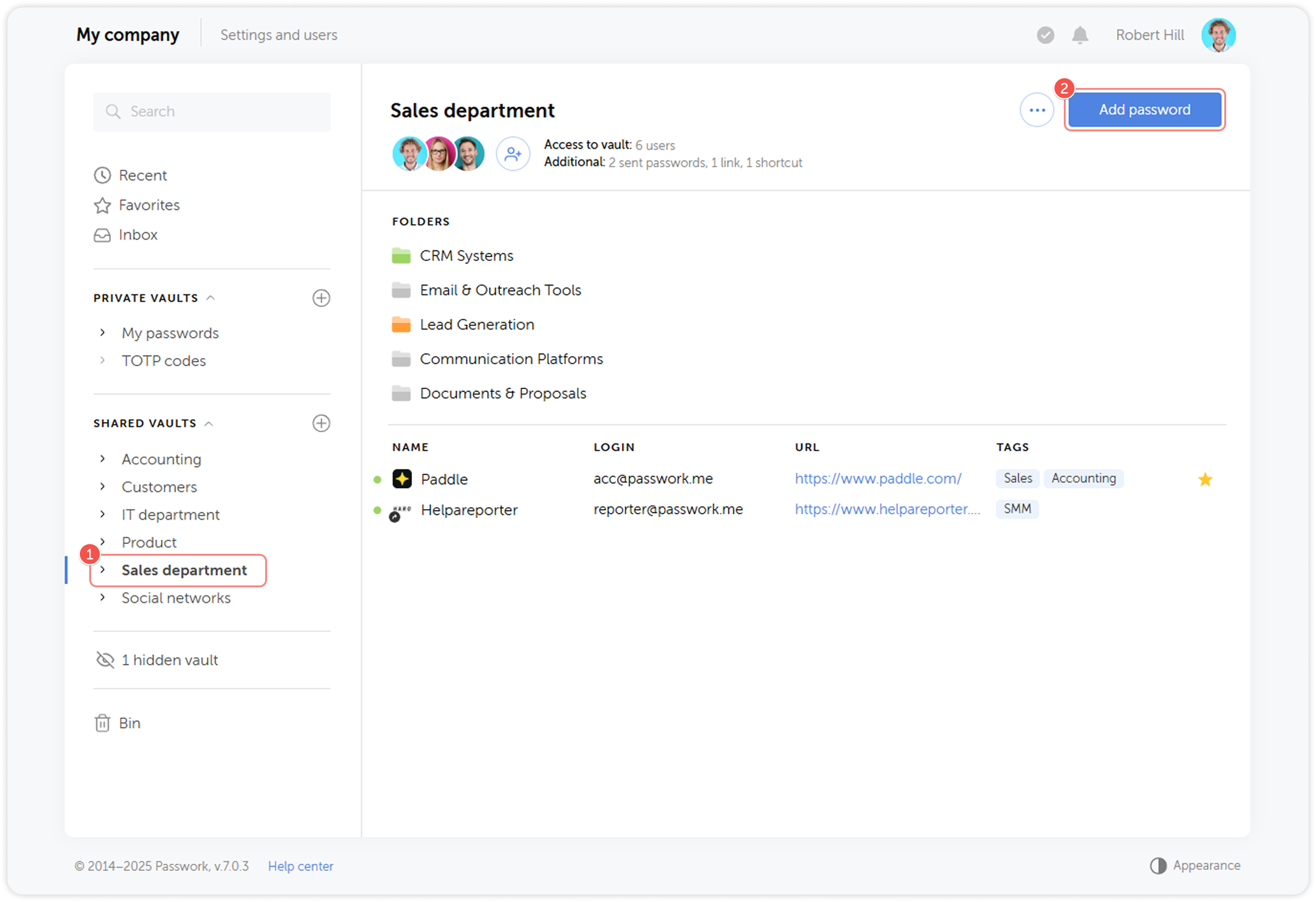
Open a vault or a folder you want to create a password in and click Add password in the top right corner:
6. Share a password
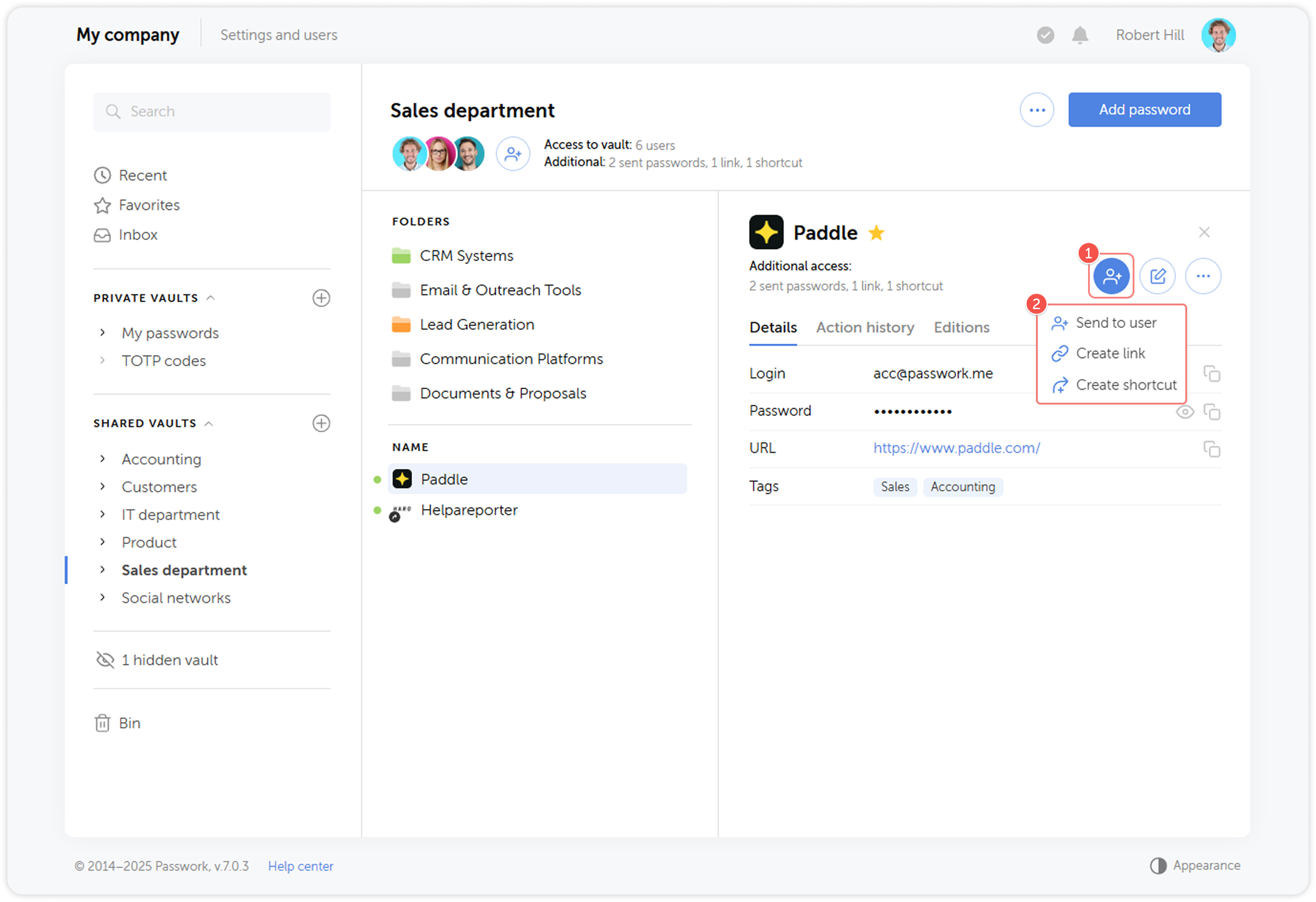
You can quickly send a password to another user, create a link, or a shortcut to the password with the Share menu:
7. Install the mobile app and browser extension
Passwork Self-hosted app and official Passwork browser extension provide most of the functionality available in the desktop version of Passwork. They will let you use Passwork from different devices and:
- Access and manage your vaults, folders and passwords
- Search by text, colors and tags
- Share passwords
- Create strong passwords with an inbuilt generator
- Automatically fill in the login forms
To install the mobile client or the browser extension, follow the instructions provided on the linked pages.