


Password card
Passwork was made to conveniently and securely store your passwords and other credentials.
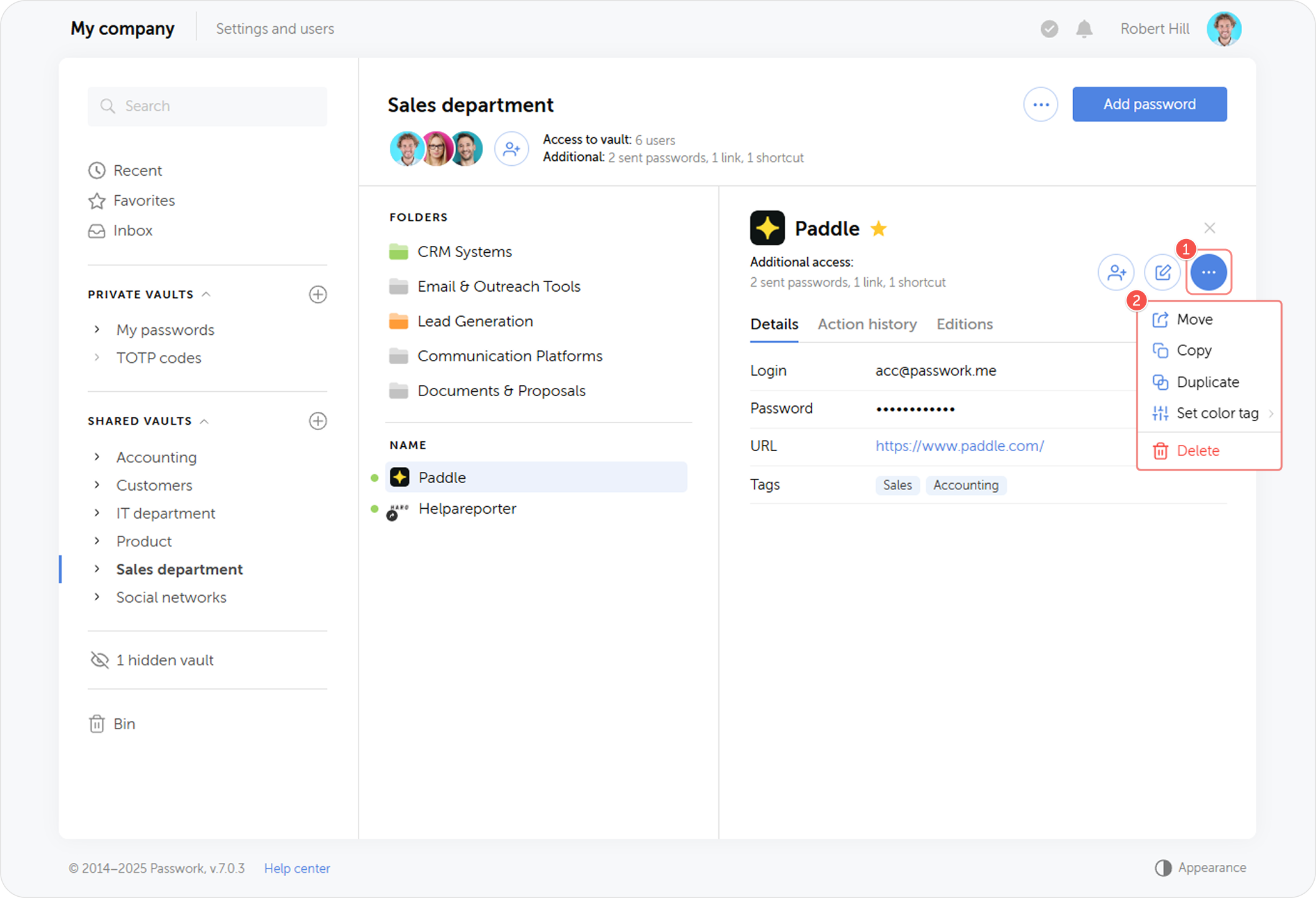
All password data is presented in the form of password cards. A password card contains all the information about a particular password, including its previous versions and action history. Additionally, the card provides all the tools for managing a password.
Select a vault or a folder and click on any password to open its password card.
Password action panel
The Password action panel holds the controls for password management. It is found at the top of the card when you open one.
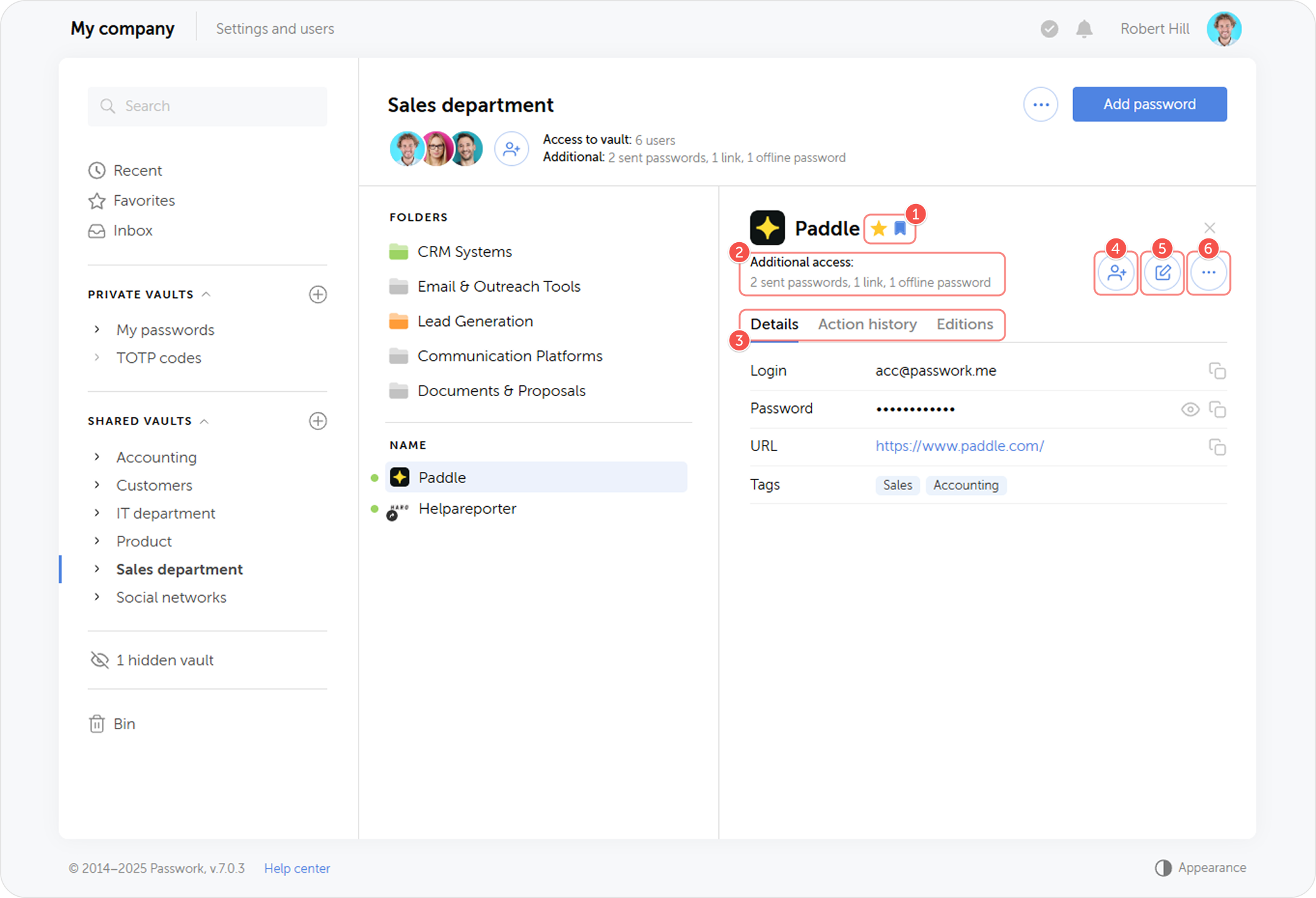
- Favorite and Offline tags
- Information on additional access
- Password details, action history and password editions
- Share password
- Edit password
- Password actions
Password details
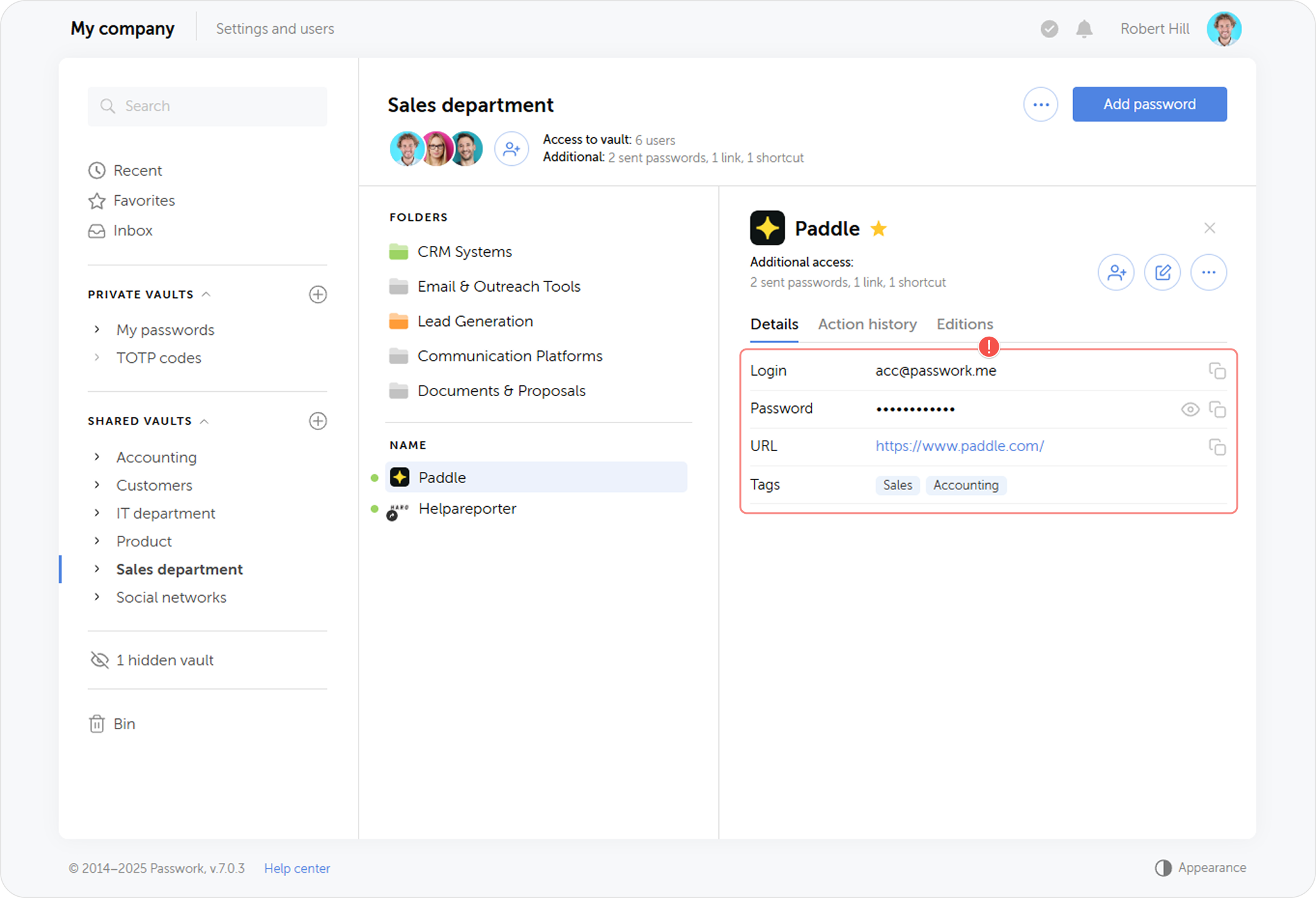
This section displays all the information about the password, such as login, password, URL, notes, tags, color labels, and attached files.
Favorite passwords
Favorites are a list of passwords bookmarked for quick access. Each Passwork user has their own list of favorite passwords. You can add a password to Favorites by clicking the star icon. For more details, see the Favorites page.
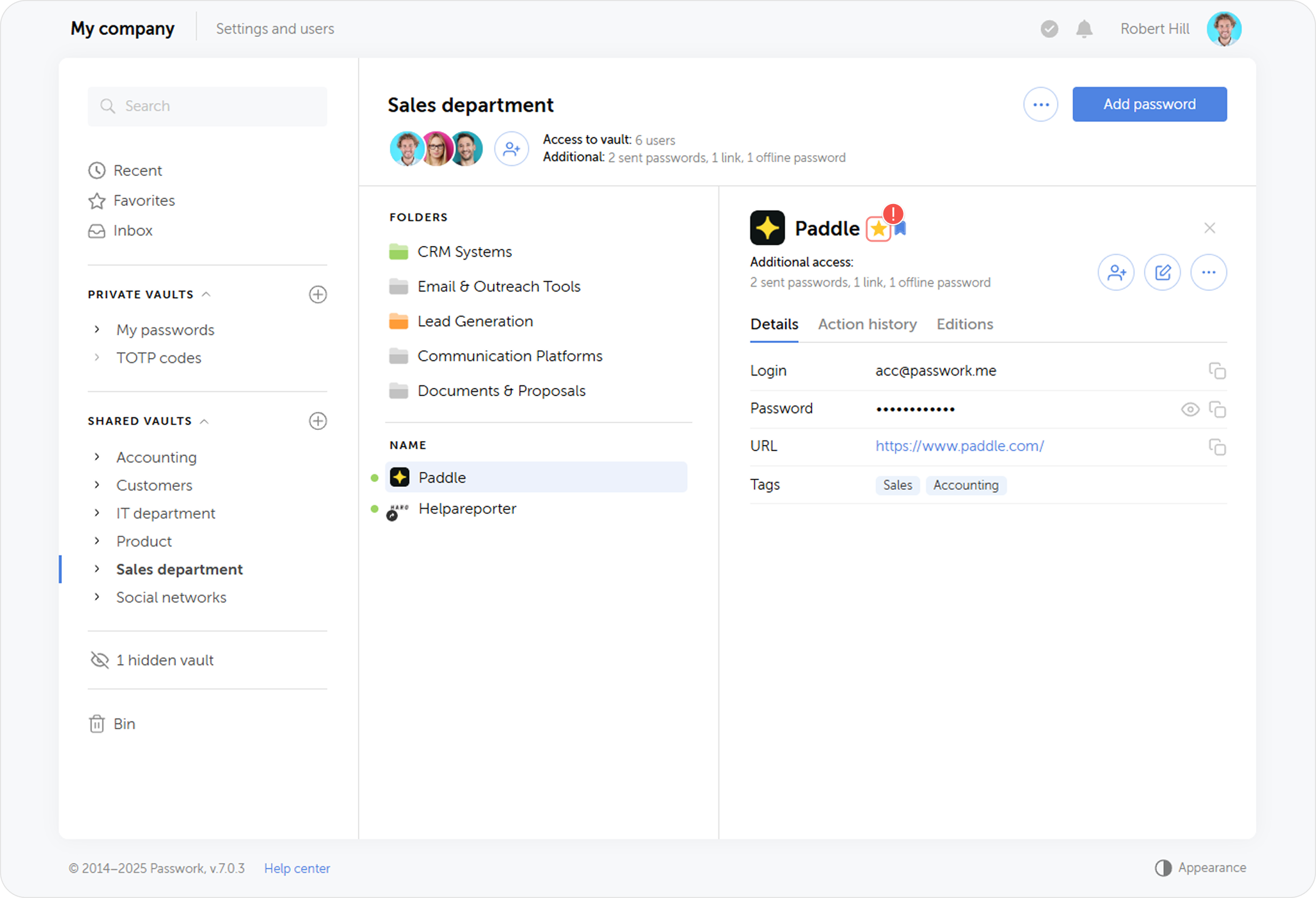
Offline passwords
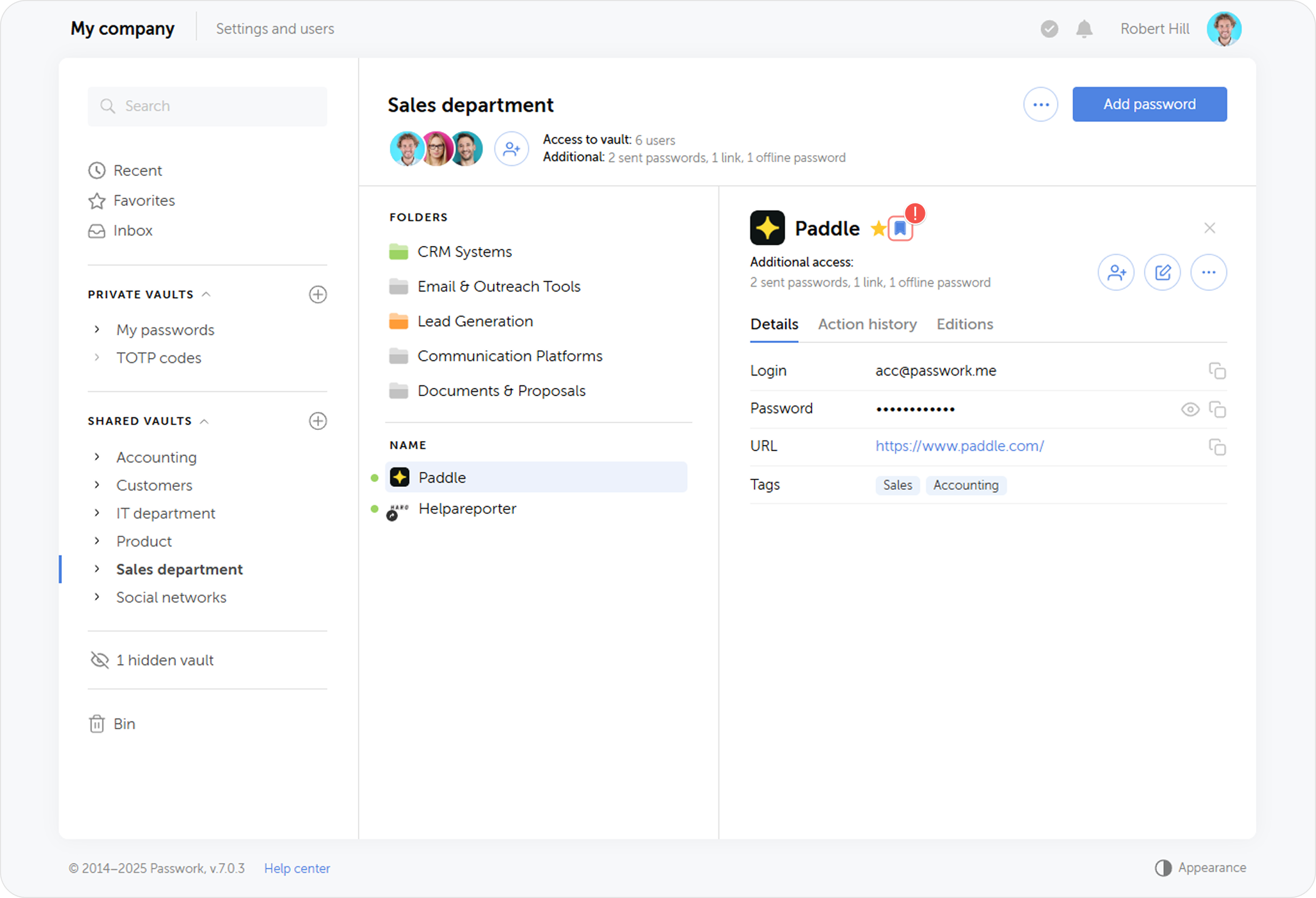
Offline passwords — are passwords marked for download and synchronization on your devices. This feature lets you retain access to important passwords without connection to a server. You can add a password to Offline by clicking the bookmark icon. For more details, see the Offline page.
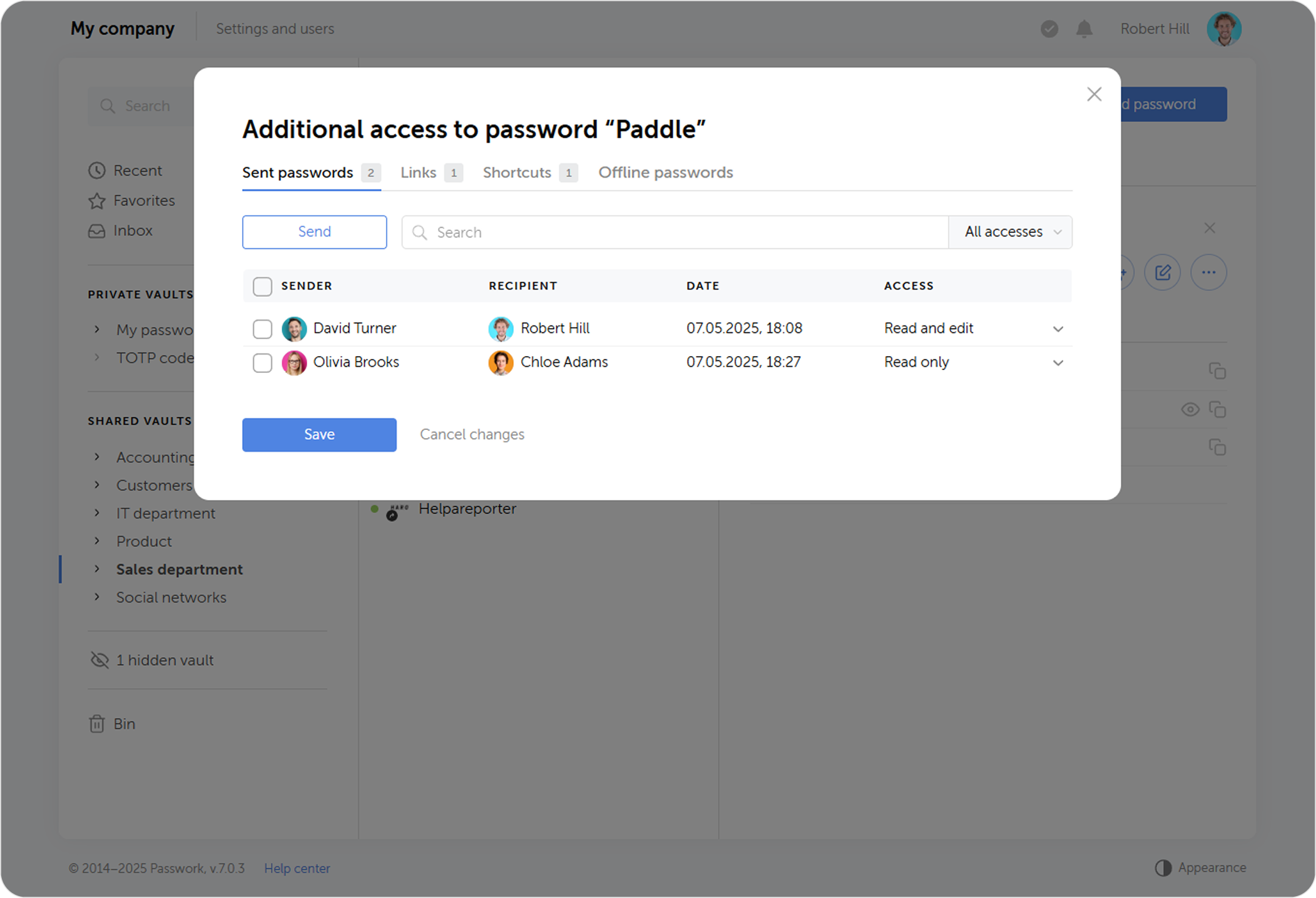
Additional access
Additional access window displays links, shortcuts, as well as users with whom the selected password was shared and users who saved this password.
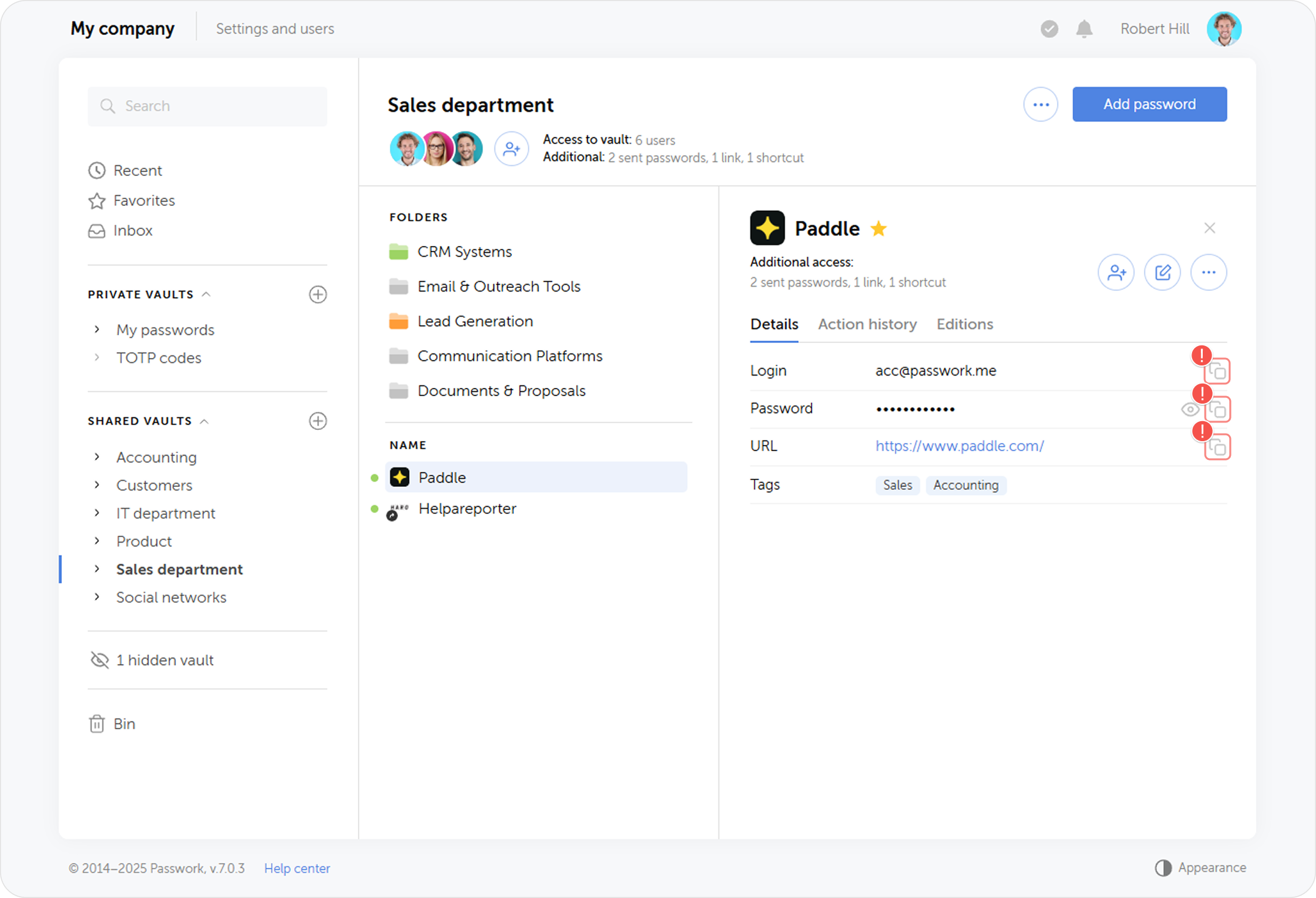
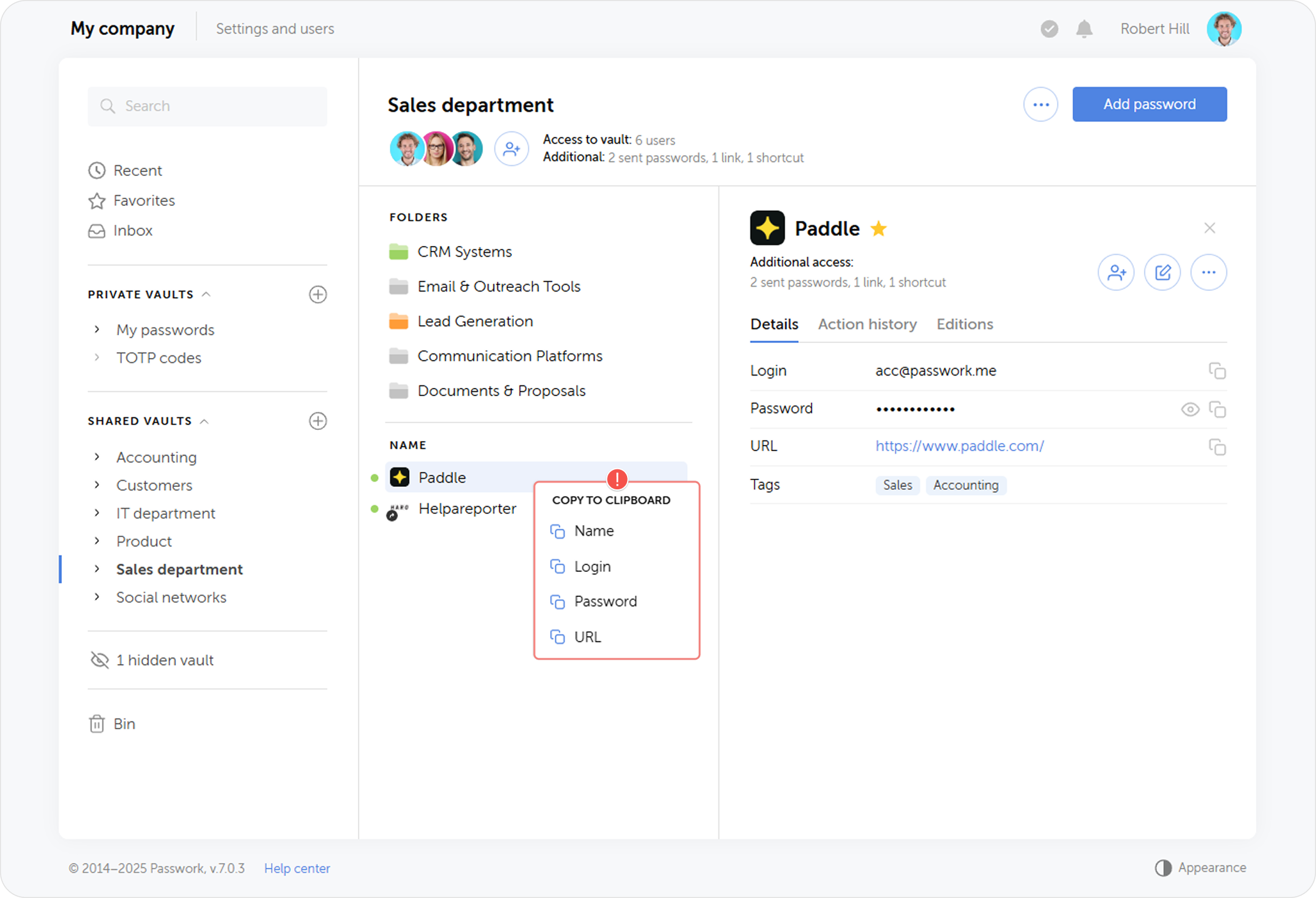
Copy to clipboard
You can quickly copy the login, password, or URL fields into the clipboard.
Additionally, you can copy the data to the clipboard by right-clicking on the password.
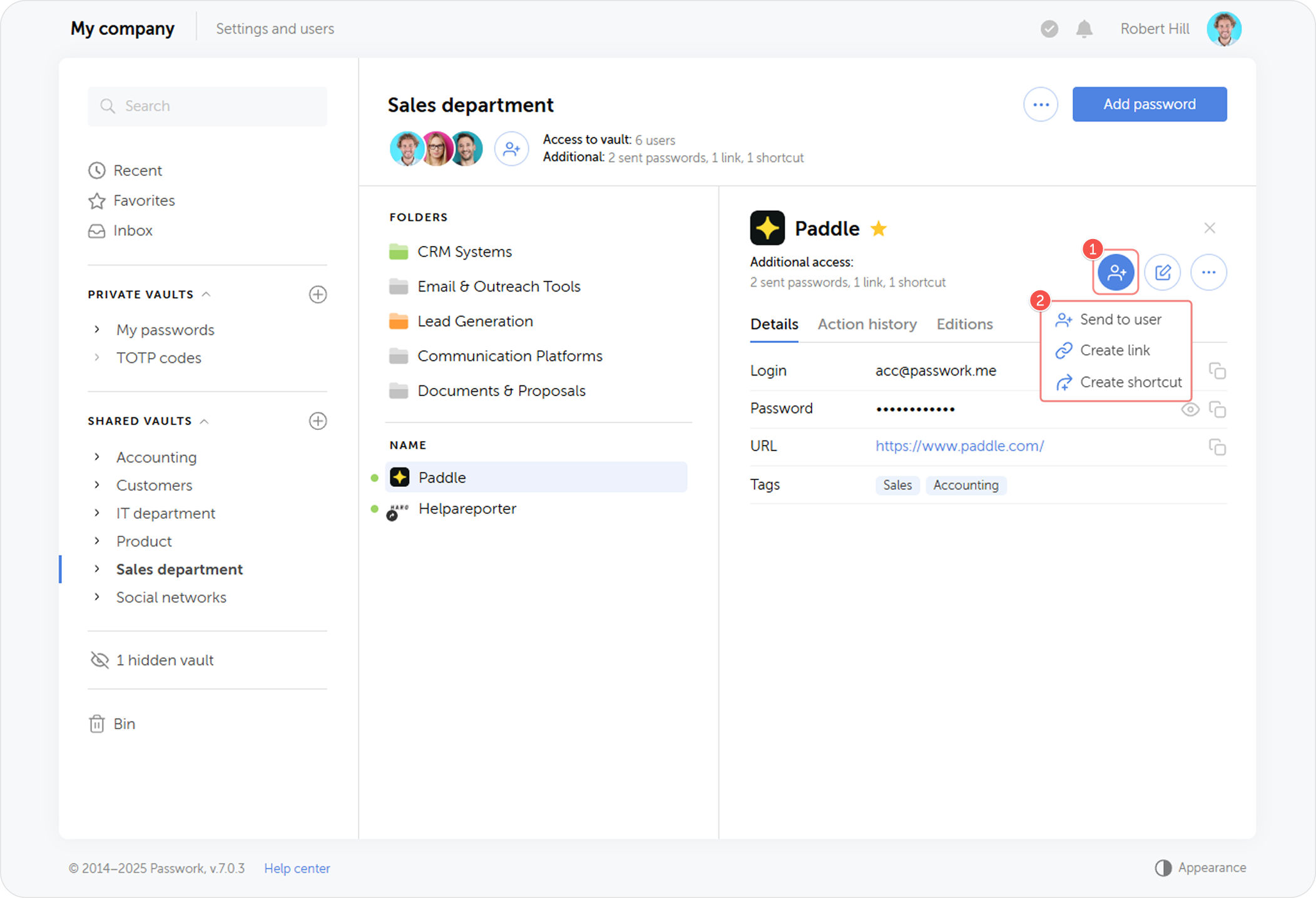
Share password
Share menu allows you to quickly send a password to another user, create a link, or a shortcut to the password. For more details, see the Share password section.
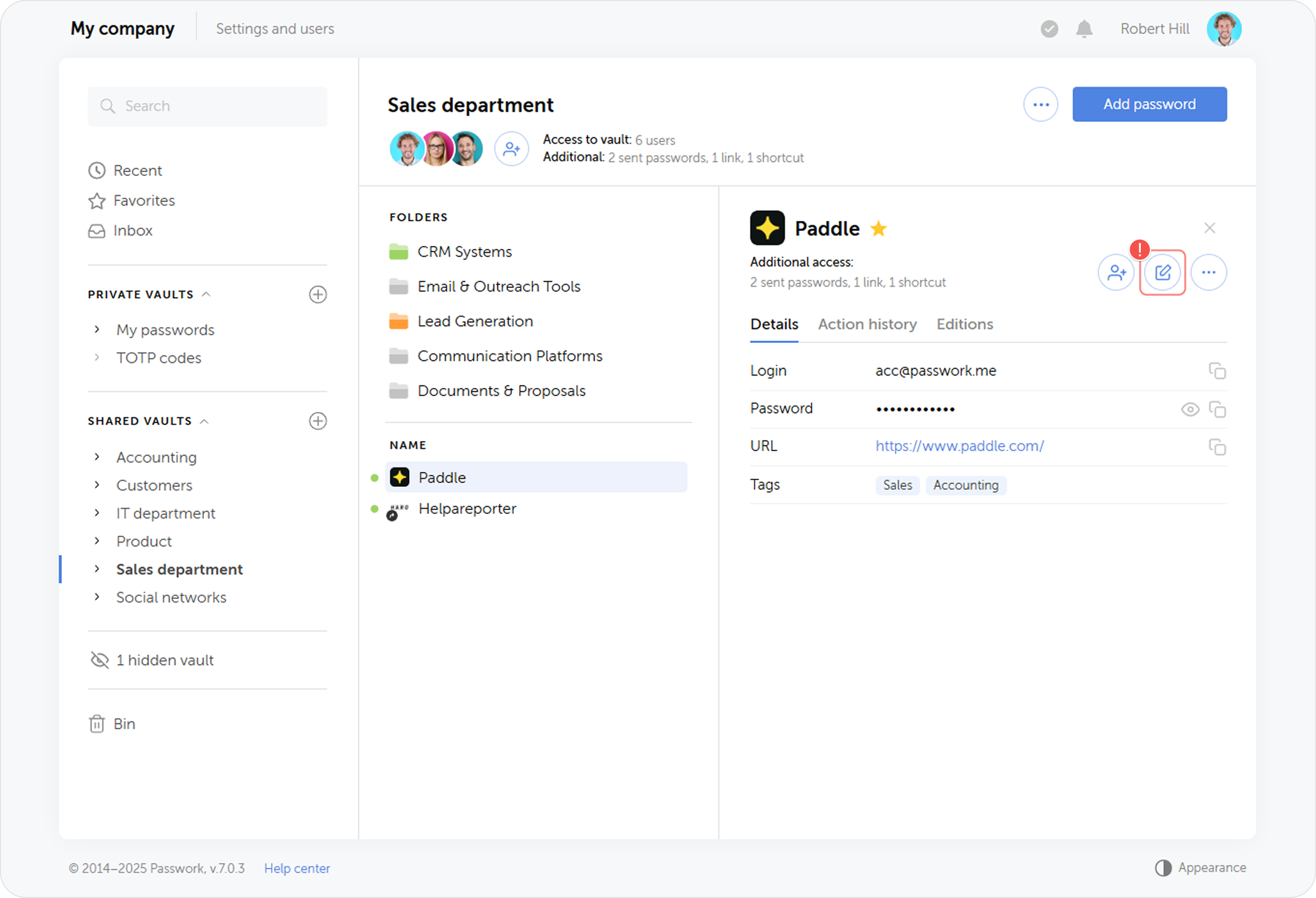
Edit password
Click the Edit password button to modify the password information.
Password editions and action history
In these tabs you can view the previous versions of the password and the history of recent actions with the selected password. See more about editions and action history here.
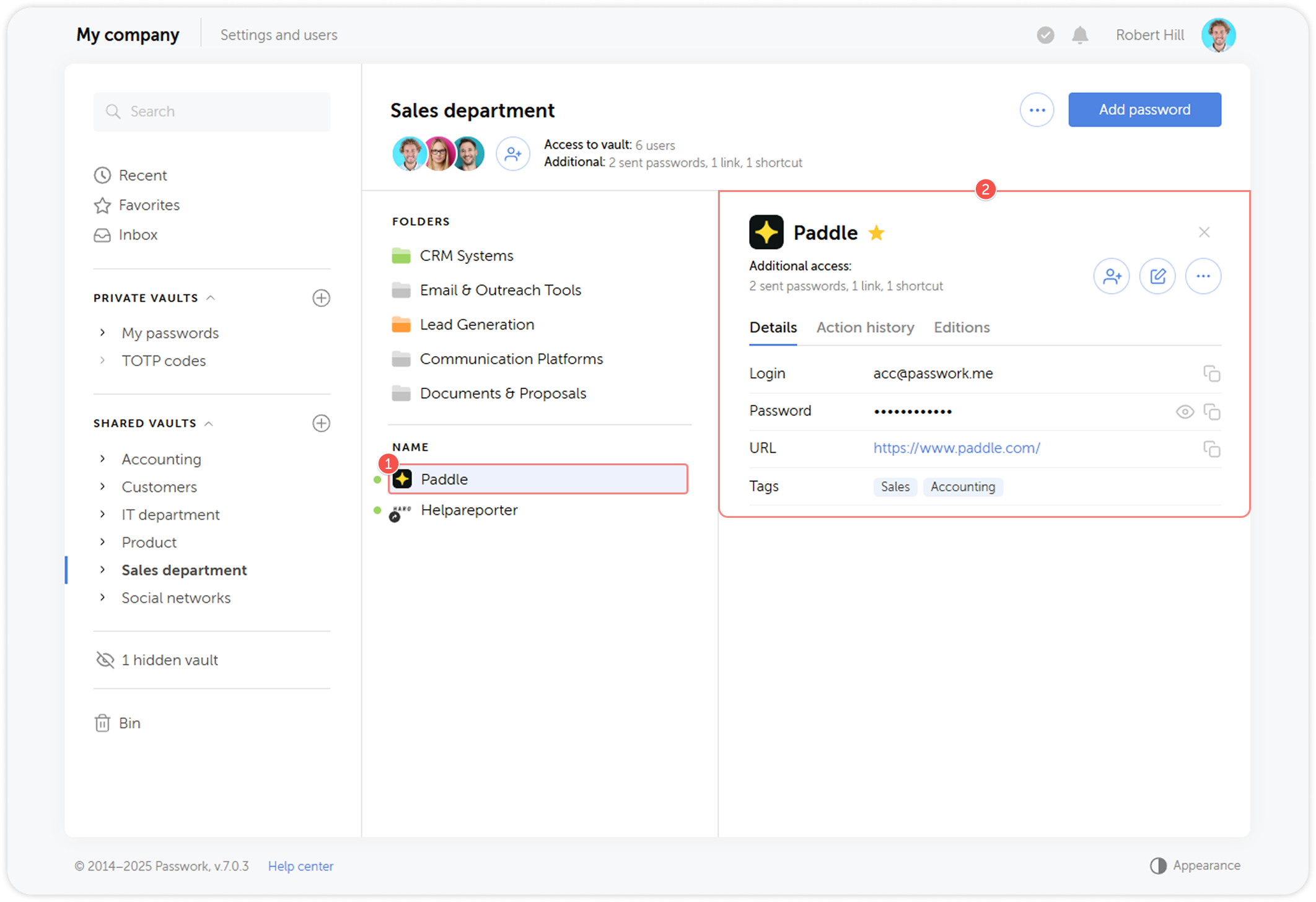
Password actions menu
Through the Password actions menu you can move, copy, duplicate, set color tag and delete password.