


From Bitwarden
We ,ade it easy to migrate from Bitwarden to an on-premise version of Passwork with a tailor-made API-based script. The migration process is organized to keep accounts secure, preserve your familiar data structure, and help the team get back to work quickly.
What the script does
For more detailed technical information on this script, see our documentation page
The script imports passwords from a proprietary Bitwarden JSON file into Passwork by connecting to your Passwork server via API.
Prerequisites
- Access to Bitwarden account to export the data.
- Access to an on-premise version of Passwork and valid API credentials. Following variables can be set in the import file itself, or as parameters.
- Passwork host URL
--host passwork.local - Access token
--token - Master key
--master-key
- Passwork host URL
- Python 3 installed to run the script.
Optional
- Session refresh token
--refresh-token - Vault
--vault-idthe data will be imported into. If not set, new vaults will be created to mirror your Bitwarden collections. - Collections
--collectionsto be imported. If not set, all collections from the file will be imported.
Step 1. Download the script
Step 2. Export data from Bitwarden
This guide uses the web version of Bitwarden as an example, since organization data can be exported only through Bitwarden's web interface.
If you wish to export individual vault data through the browser extension, desktop or mobile app, consult the relevant section of Bitwarden manual.
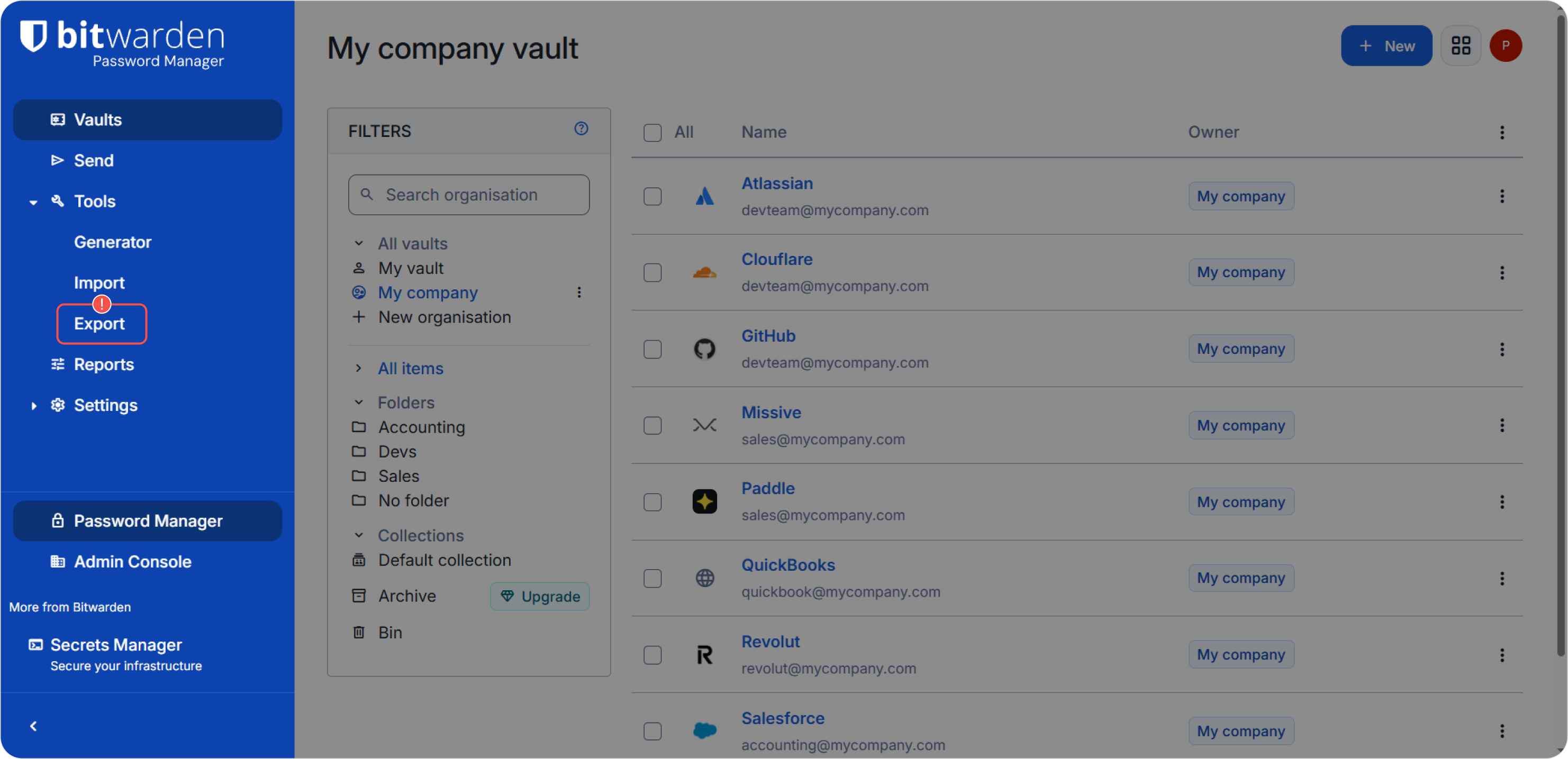
Open Bitwarden in your browser and go to Tools → Export.
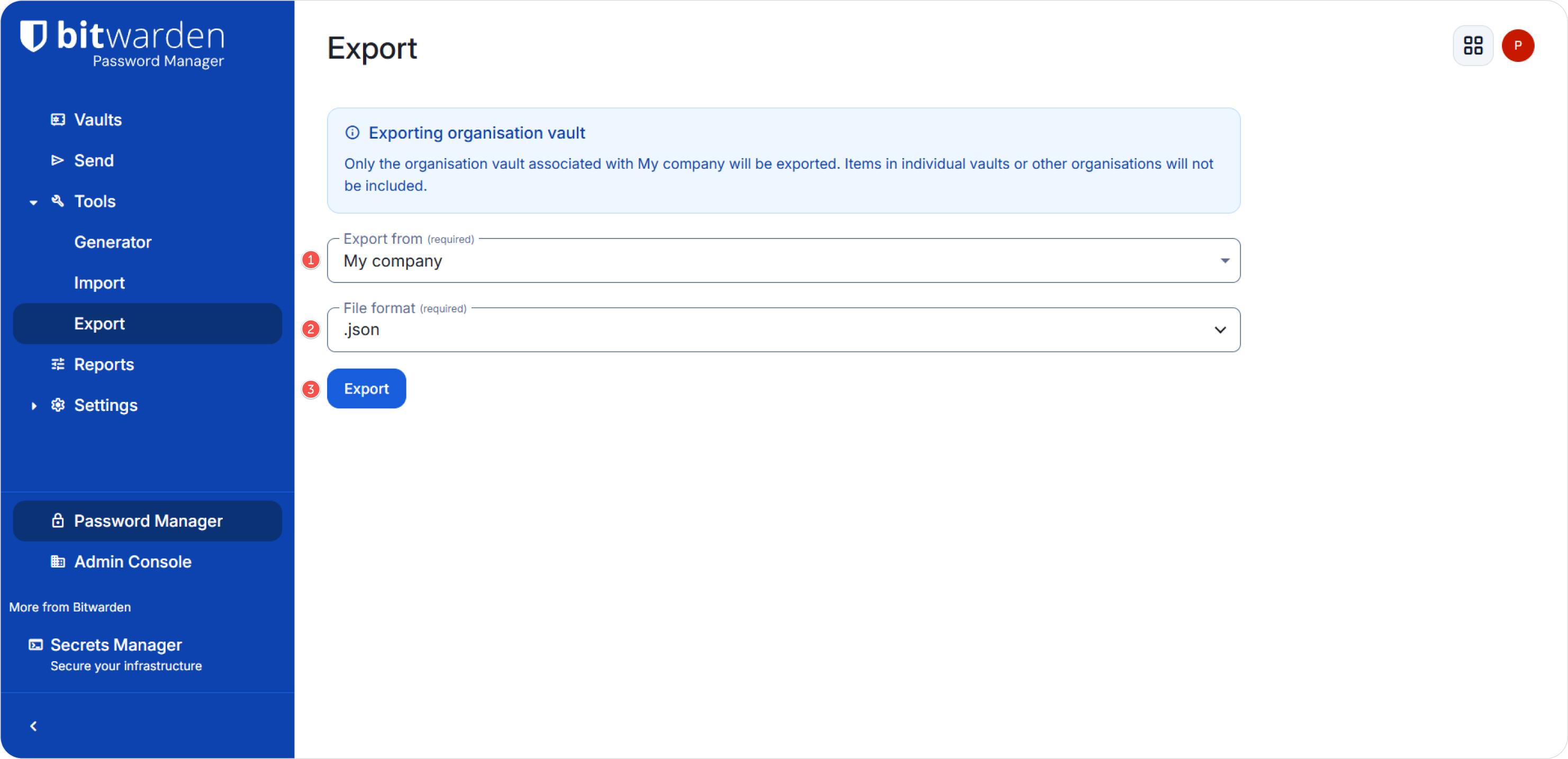
Choose whether you want to export entire organization data or a particular vault, then select the JSON format, and click Export.
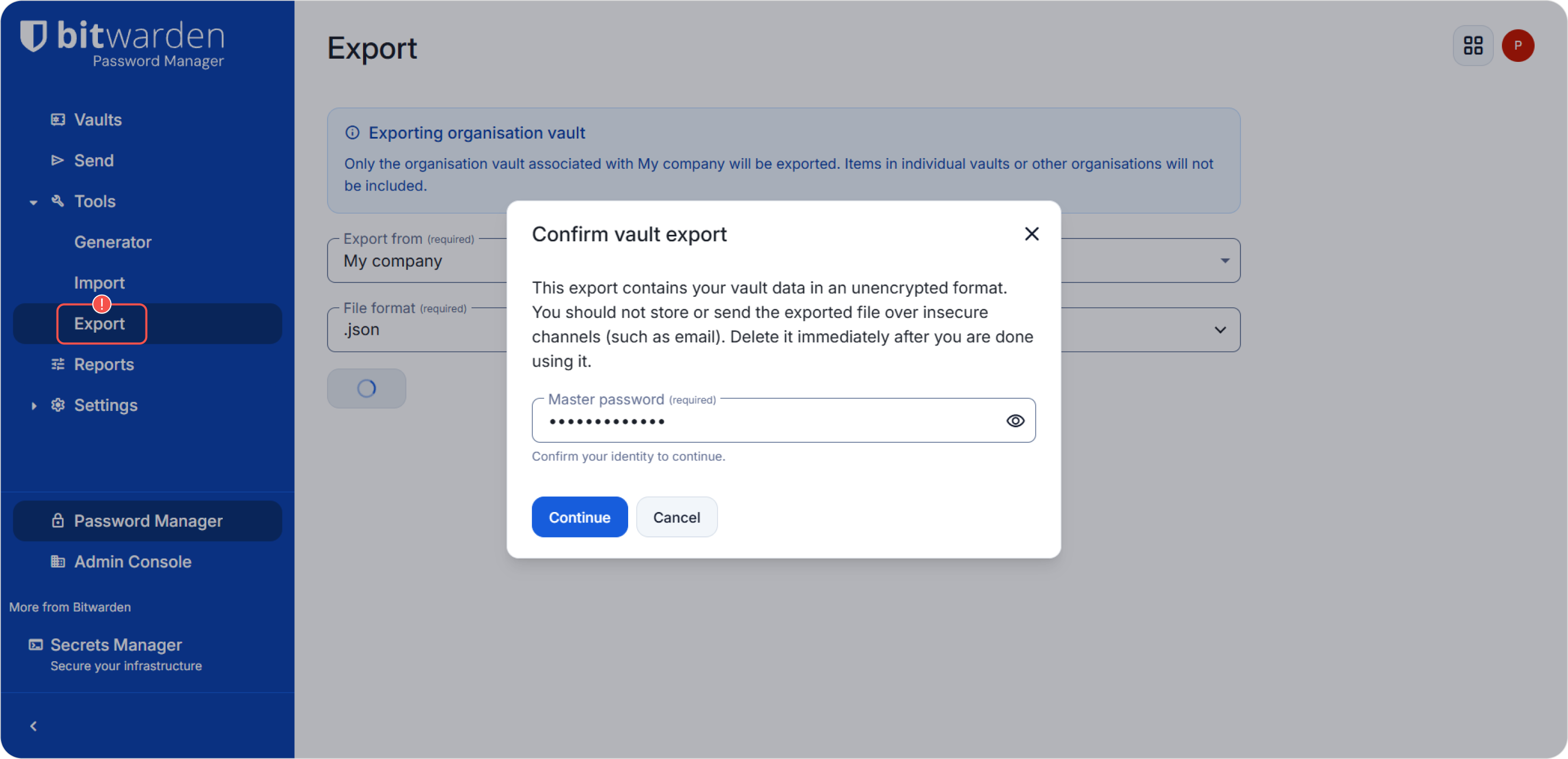
When prompted, confirm the action by entering your Bitwarden master password and continue.
The .JSON file will be downloaded to your computer automatically. If it does not, check your browser’s automatic download settings. You will use it as the source file for the import script.
Step 3. Run the Passwork import script
Run the script using the following command:
python3 -m import bitwarden_export_123456.json [options]
Required parameters
Following variables can be set in the import file itself, or as CLI options.
-host— the Passwork host/URL the script will connect to.-token— the access token used to connect. It can be generated in the API access section of the Authentication page.-master-key— the master key. It can be generated in the API access section of the Authentication page.
Optional parameters
-refresh-token— refresh token for renewing the session. It can be generated in the API access section of the Authentication page.--vault-id— Passwork's vault ID the data will be imported into. If not set, new vaults will be created to mirror your Bitwarden collections.-collections— collections to be imported. Provide collection IDs or collection names, separated by commas. If not specified, all collections present in the file will be imported.
Example
python3 -m import bitwarden_org_export_20260429115843.json \\
  --host <https://passwork.local> \\
  --token eM9wXVue0RpUsT66pvJjSc7XB8nsKXk+VVlaQhcqHNE= \\
  --refresh-token letOAiic7b2eMt8p+TK4UKk9KxNKzYycAIQr2eGseWY= \\
  --master-key dUzhsB0u6EhMw50XpubAaH/hbHOnSZUBFOd9PhIN2Bwndbcfum9a2skZFiM8Z3MHliNtfPIAE7LqigmneEdd6g== \\
  --vault-id 69ea12f2f397bfb4db0466b2 \\
  --collections test,1
Step 4. Interactive prompts
If you did not specifiy optional parameters such as --vault-id or --collections in the command line, the script may ask for them in interactive mode:
Input comma-separated list of collection IDs or names to export (optional):
Input Passwork vault ID to import data to (optional):
To skip these prompts, press ENTER.
Step 5. Confirmation and logging
Before importing, the script prints a summary of what will be imported and requests your confirmation:
The following collections will be exported: Private vault
Continue operation? (Y/N):
Enter Y to proceed or N to cancel.
During execution the script creates a log file named like:
import-2026-04-27_20-05-42.log
You can use the log to review what was imported or for troubleshooting purposes.
Script help
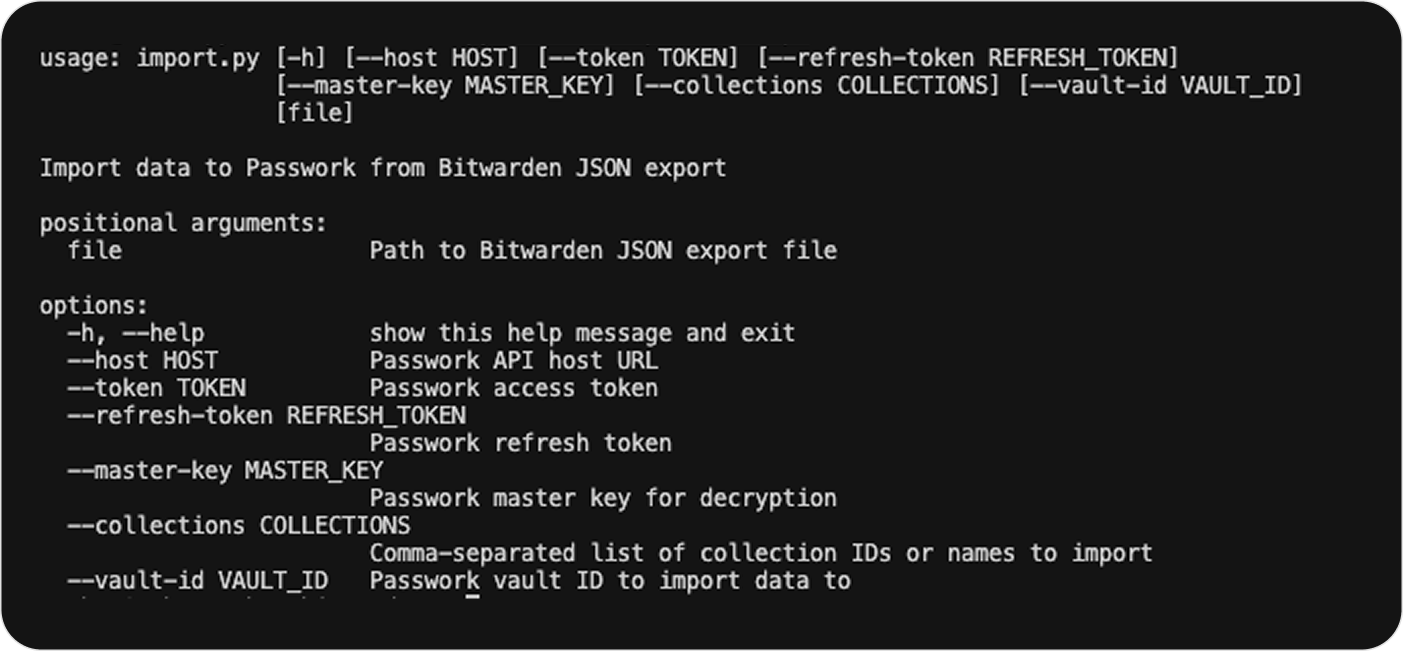
To view all options and usage details use the following command:
python3 -m import --help