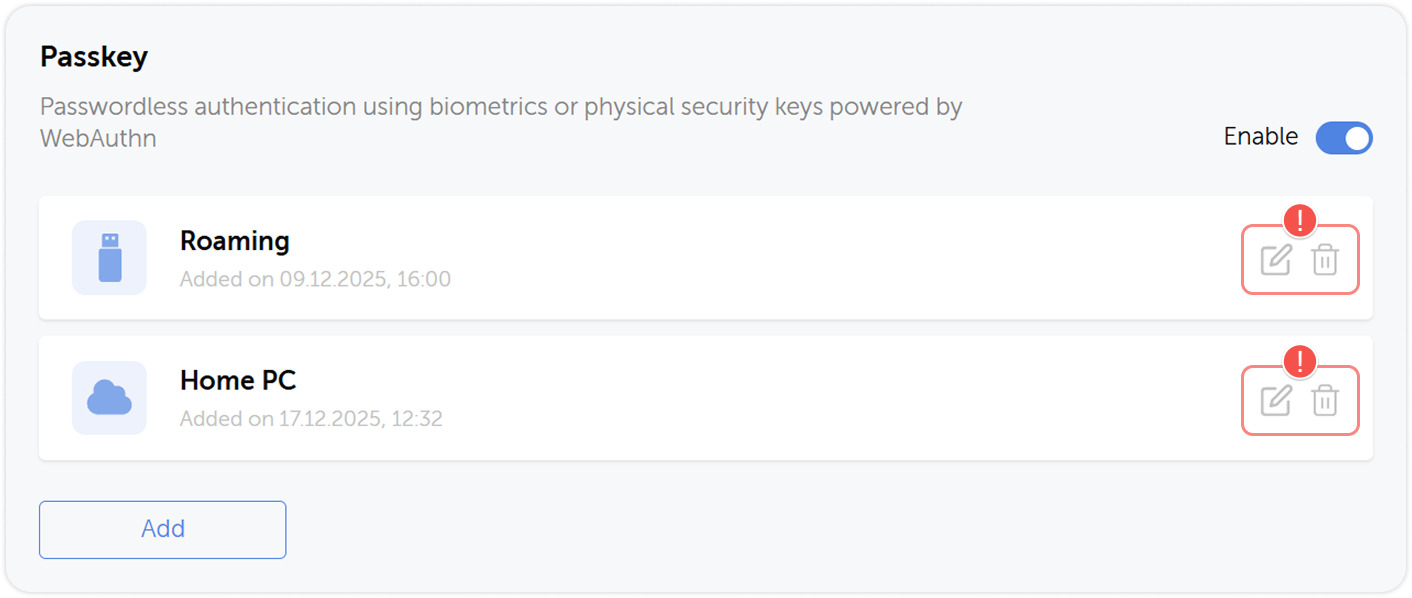



Sign-in methods
On the Authentication page you can add new sign-in methods and manage existing ones. Use it to change your local password or enable passwordless authentication via biometrics or physical security keys powered by WebAuthn.
Here you can also configure two-factor authentication and generate API tokens.
You can access the Authentication page either from the Settings and users menu or by choosing the corresponding option in the dropdown menu in the top right corner.
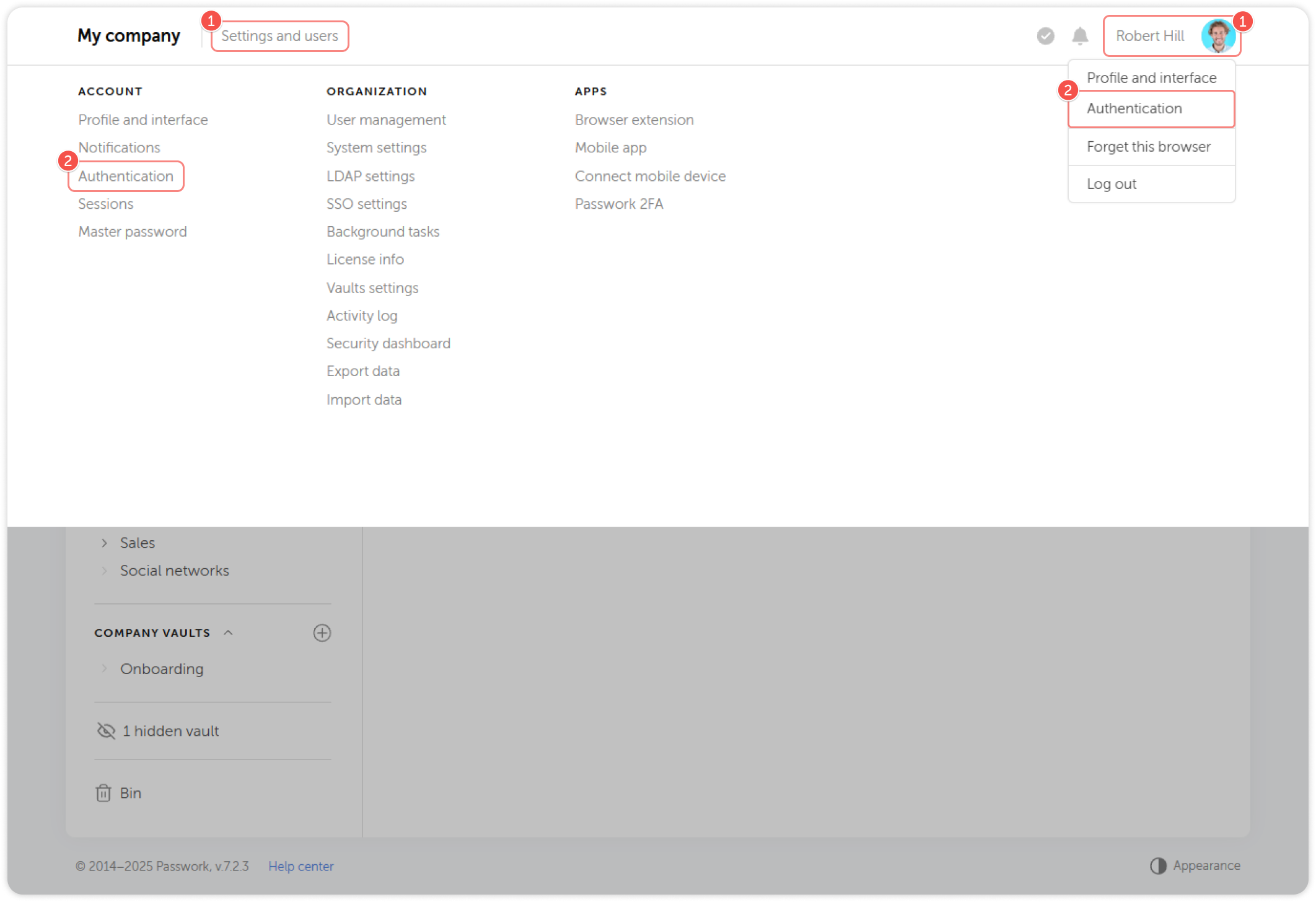
- Click Settings and users or on your username
- Choose Authentication
To be able to make changes on this page, unlock it for editing by clicking on  in the top right corner. The page locks automatically after 5 minutes.
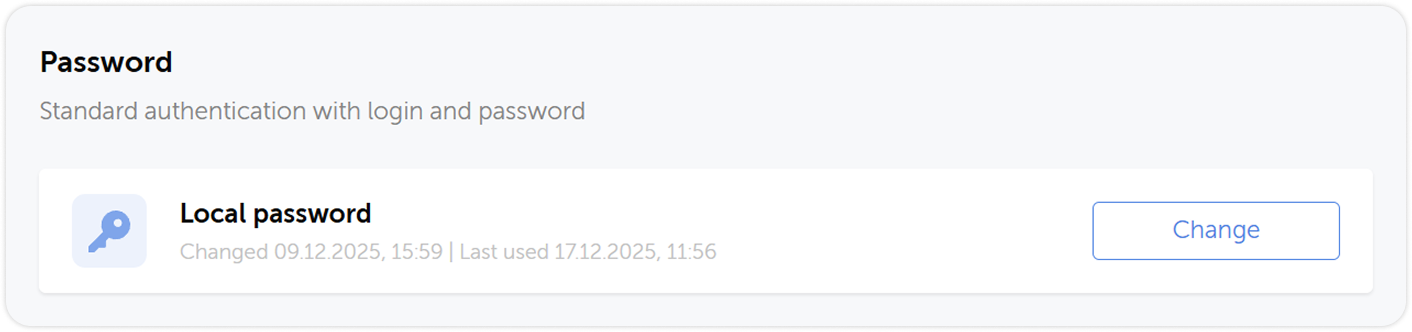
Local password
To change the local password you will need to enter your current password. If you forgot your password, please contact your administrator to reset it.
Passkey
An ability to use passkeys for sign-in instead of passwords is controlled by the corresponding option in the role settings
A passkey is an authentication method based on cryptography: instead of typing in the password, key ownership is verified. The key can be stored on your device — in this case biometrics or a PIN are used to sign in — or on a physical security key. Passwork is compatible with WebAuthn-based security keys and platform authenticators such as Face ID, Touch ID and Windows Hello.
Add passkey
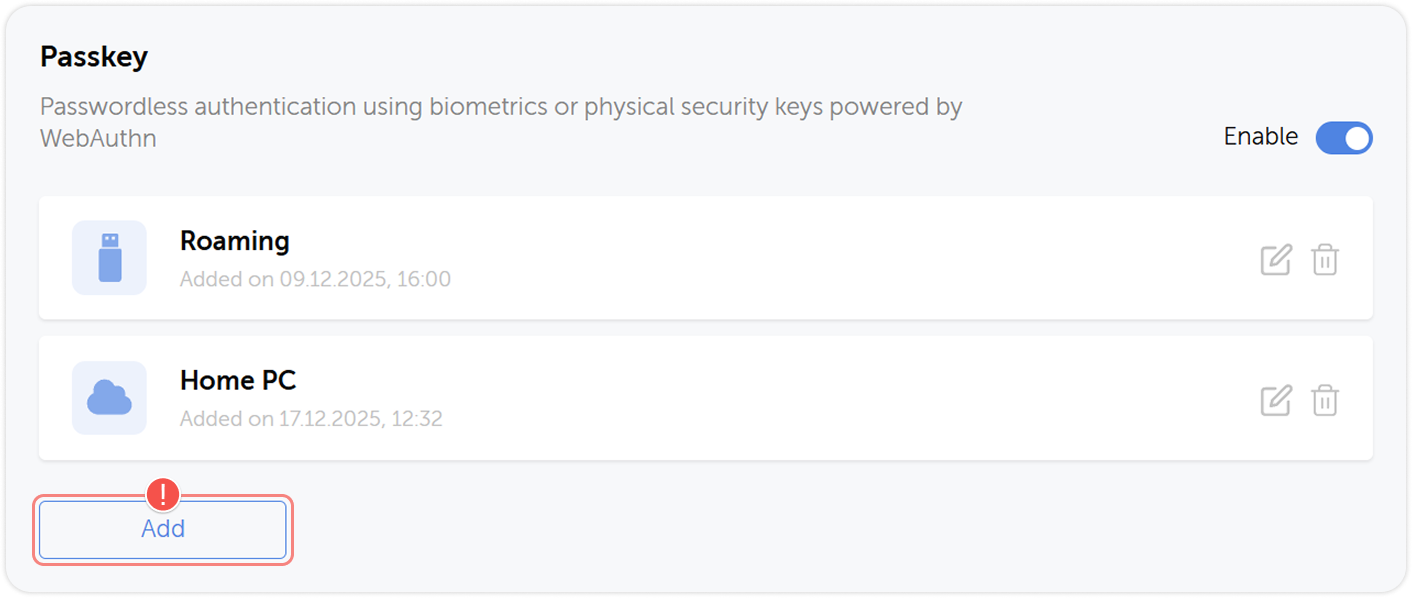
To add a passkey, unlock the page using the icon at the top if necessary, then click Add in the Passkey block.
Manage passkeys
You can rename your connected passkeys and delete them using the buttons for the corresponding passkey.