



Access rights
You can grant users access to a specific vault or folder by configuring their Access rights.
To do so, open a user's page from the list on the User management page:
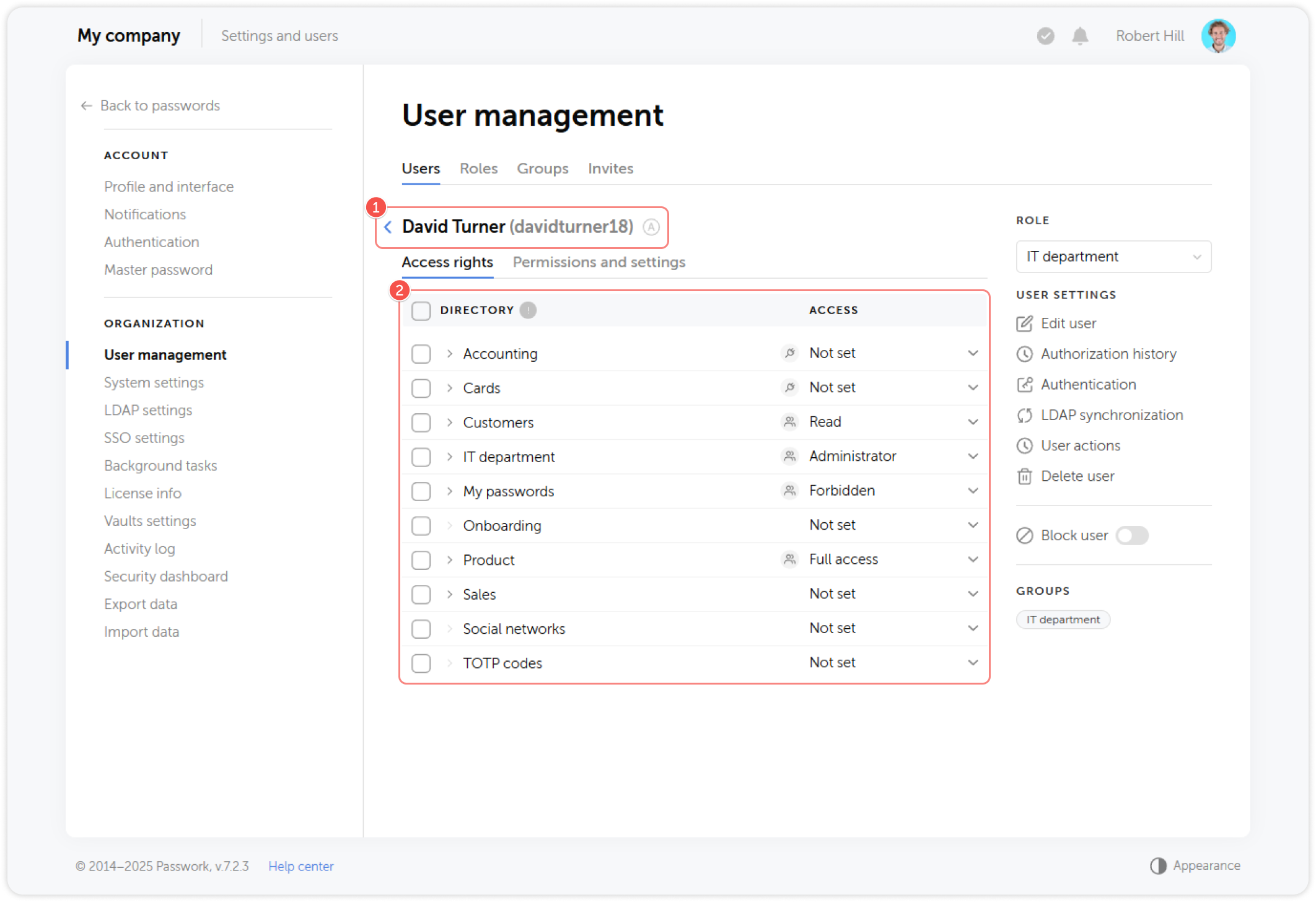
- Login and status of a selected user
- List of vaults and folders and the associated access level
Select the required access level for a vault or a folder from the drop-down menu in the Access column:
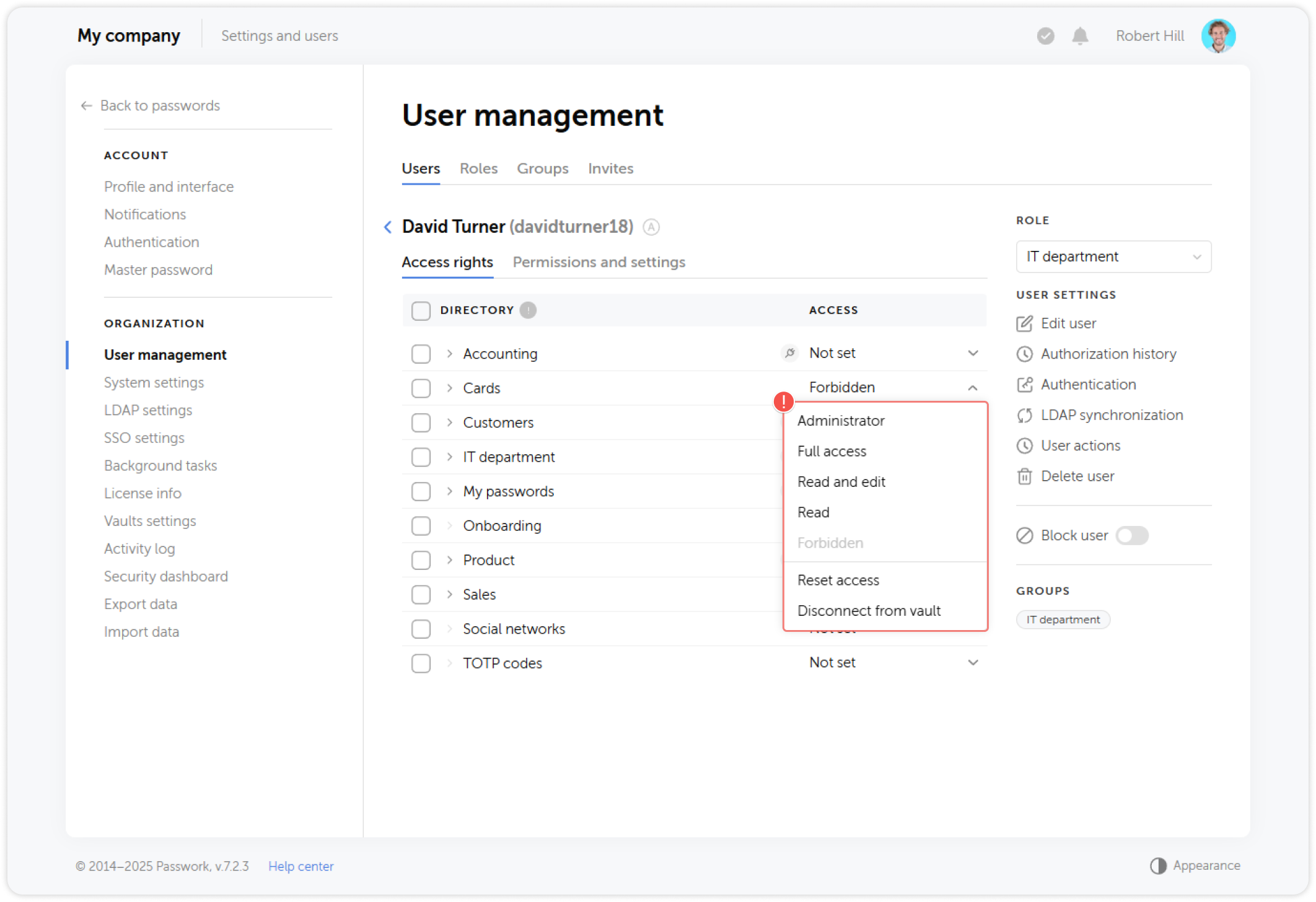
You can set the following access levels for the vaults and folders of your Passwork:
- Forbidden: A vault won't be accessible to the user.
- Read only: Rights to browse passwords and folders.
- Read and edit: Rights to create, browse and edit passwords and folders.
- Full access: Rights to perform any actions with passwords and folders, with the exception of vault deletion and user management.
- Administrator: Rights to perform any actions with passwords, folders and user access management.
- Connect without access: adds user to a vault or folder, but not grants them any rights.
To apply group-based access for a user, click the Reset access option.
If the option Disconnect from vault is selected, the user will completely lose access to the vault. They will only be able to join after being added again by the administrator.
Users connected without access will automatically inherit group's access level without creating a request when added to a group with access rights to the corresponding vault
Correspondence of access levels to available actions
Check with the table below to see what actions are available at each access level.
Working with directories:
| Action | Forbidden | Read | Read and edit | Full access | Administrator |
|---|---|---|---|---|---|
| View directory | ❌ | ✅ | ✅ | ✅ | ✅ |
| Edit directory | ❌ | ❌ | ❌ | ✅ | ✅ |
| Directory action history | ❌ | ❌ | ❌ | ✅ | ✅ |
| Add/import folders, passwords, shortcuts | ❌ | ❌ | ✅ | ✅ | ✅ |
| Export | ❌ | ❌ | ❌ | ✅ | ✅ |
| View accesses | ❌ | ❌ | ❌ | ✅ | ✅ |
| Manage accesses | ❌ | ❌ | ❌ | ❌ | ✅ |
| Copy directories (only folder) | ❌ | ❌ | ✅ | ✅ | ✅ |
| Move directories (only folders)* | ❌ | ❌ | ❌ | ❌ | ✅ |
| Delete vaults | ❌ | ❌ | ❌ | ❌ | ✅ |
| Delete folders | ❌ | ❌ | ❌ | ✅ | ✅ |
- — If moving subfolders is prohibited, moving the root folder is also unavailable.
Working with passwords and shortcuts:
| Action | Forbidden | Read | Read and edit | Full access | Administrator |
|---|---|---|---|---|---|
| View passwords and shortcuts | ❌ | ✅ | ✅ | ✅ | ✅ |
| Edit passwords and shortcuts | ❌ | ❌ | ✅ | ✅ | ✅ |
| Use Security dashboard | ❌ | ❌ | ❌ | ✅ | ✅ |
| Passwords and shortcuts action history | ❌ | 🔧 | 🔧 | ✅ | ✅ |
| View password editions | ❌ | 🔧 | 🔧 | ✅ | ✅ |
| Copy/duplicate password | ❌ | ❌ | ✅ | ✅ | ✅ |
| Move password/shortcut | ❌ | ❌ | ❌ | ⚠️ | ✅ |
| Delete password/shortcut | ❌ | ❌ | ❌ | ✅ | ✅ |
⚠️ — If system settings block copying of nested objects for current access level, the root folder will be copied without these objects.
🔧 — Access depends on system settings.
Additional password access:
| Action | Forbidden | Read | Read and edit | Full access | Administrator |
|---|---|---|---|---|---|
| Create links | ❌ | 🔧 | 🔧 | 🔧 | 🔧 |
| Create read-level links | ❌ | 🔧 | 🔧 | 🔧 | 🔧 |
| Create read-and-edit-level links | ❌ | ❌ | 🔧 | 🔧 | 🔧 |
| Create shortcuts | ❌ | ❌ | 🔧 | 🔧 | 🔧 |
| View your links, sent passwords and shortcuts | ❌ | ❌ | ❌ | ✅ | ✅ |
| Manage your links, sent passwords and shortcuts | ❌ | ❌ | ❌ | ✅ | ✅ |
| Fully view additional access | ❌ | ❌ | ❌ | ✅ | ✅ |
| Fully manage additional access | ❌ | ❌ | ❌ | ✅ | ✅ |
Bin:
| Action | Forbidden | Read | Read and edit | Full access | Administrator |
|---|---|---|---|---|---|
| View and manage deleted objects | ❌ | ❌ | ❌ | ❌ | 🔧 |
Miscellaneous:
| Action | Forbidden | Read | Read and edit | Full access | Administrator |
|---|---|---|---|---|---|
| Inherit downward access without the ability to change it | ✅ | ❌ | ❌ | ❌ | ✅ |