



Two-factor authentication
We always recommend enabling two-factor authentication to increase the security of your account
Two-factor authentication protects your sensitive information by adding an extra layer of security during sign-in. 2FA requires two separate types of sign-in confirmation, making unauthorized access difficult even if the password gets compromised.
To set up 2FA, you will need Passwork 2FA mobile app or a third-party app that supports TOTP technology, such as Google Authenticator or Microsoft Authenticator.
Two-factor authentication settings
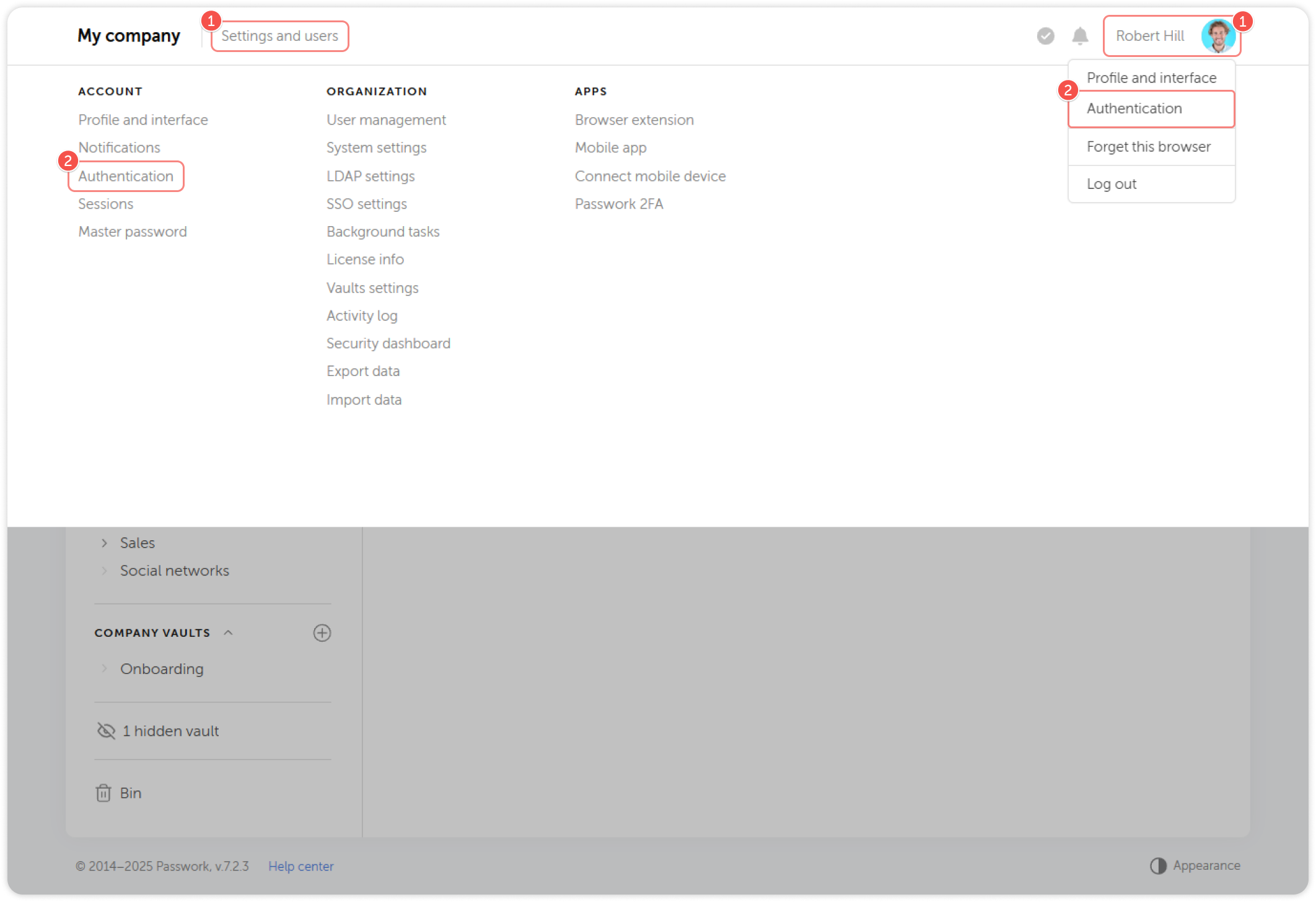
Two-factor authentication settings can be customized in the Two-factor authentication (2FA) section of the Authentication page. You can access the page either from the Settings and users menu or by choosing the corresponding option in the dropdown menu in the top right corner.
To be able to make changes on this page, unlock it for editing by clicking the  icon in the top right corner. The page locks automatically after 5 minutes.
2FA methods
You can use Passwork 2FA and other TOTP code generation apps, as well as biometrics and physical security keys for two-factor authentication.
Passwork 2FA and TOTP
To set up 2FA, you will need the Passwork 2FA mobile app or any third-party app that supports TOTP technology, such as Google Authenticator or Microsoft Authenticator.
To connect 2FA, follow the steps below:
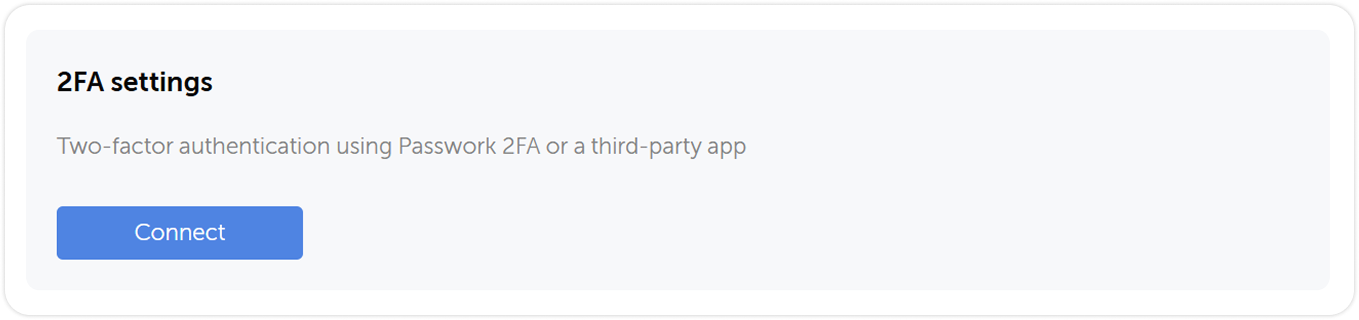
In the Two-factor authentication section click Connect.
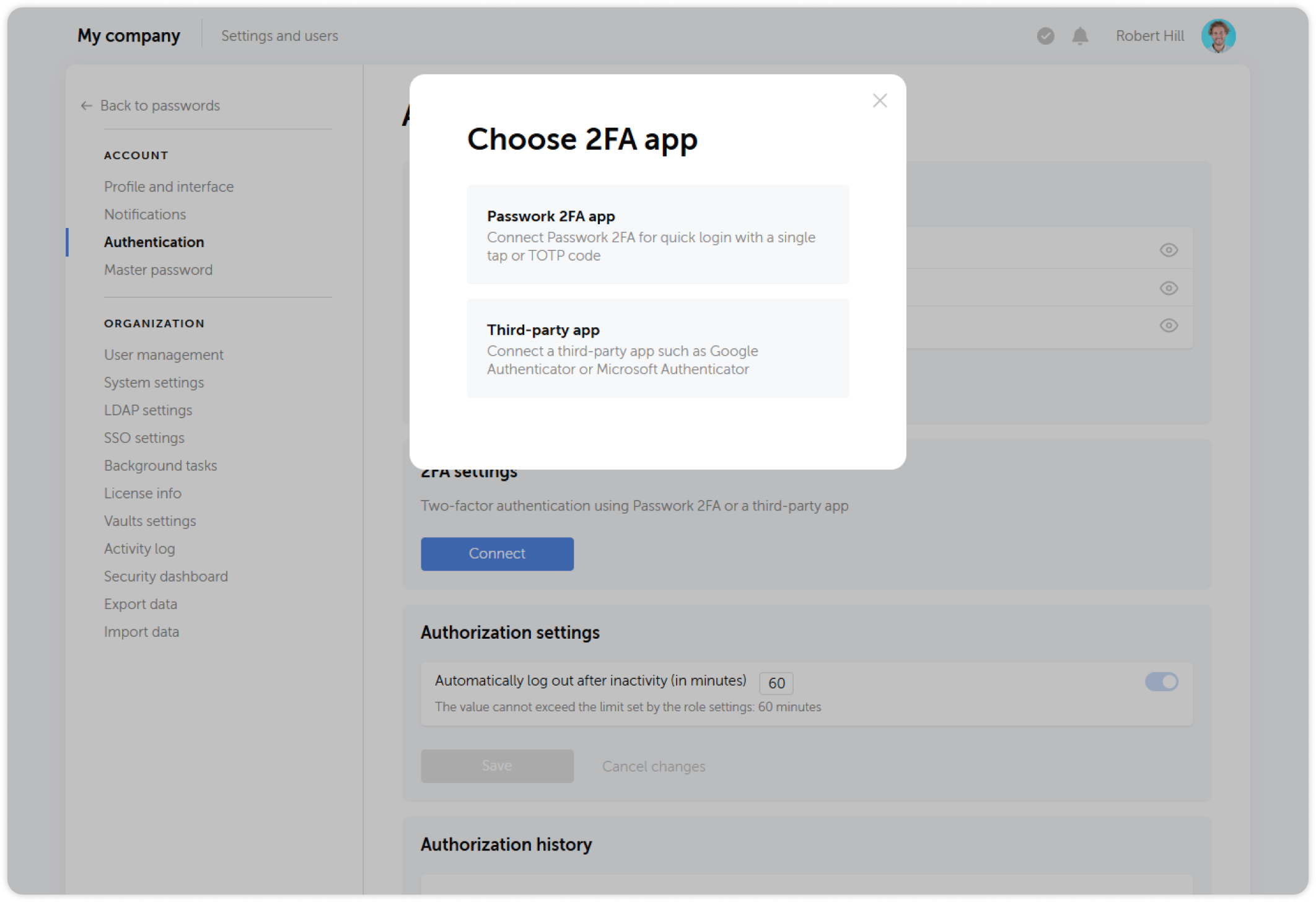
And choose the 2FA method you are going to use.
Passwork 2FA app
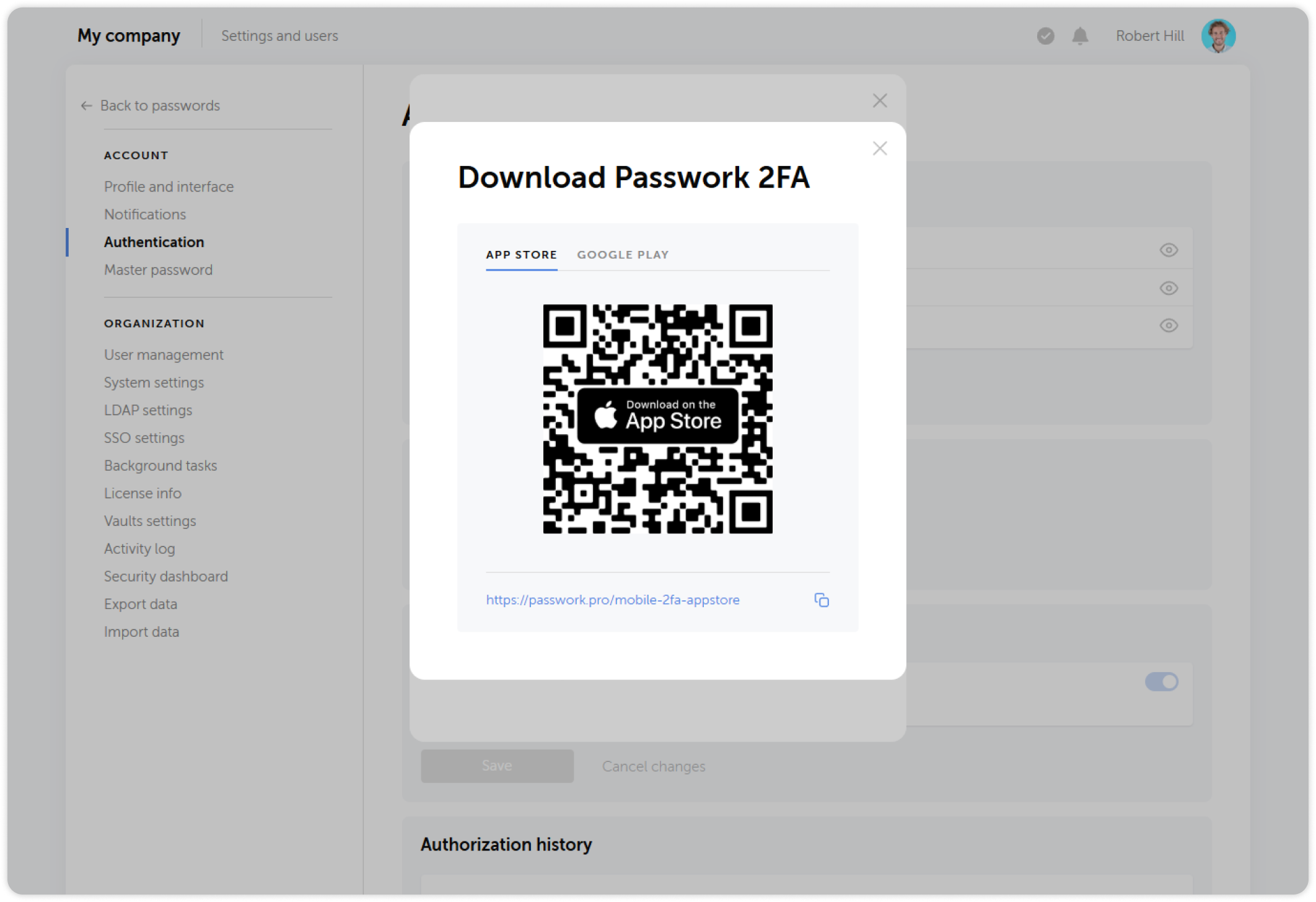
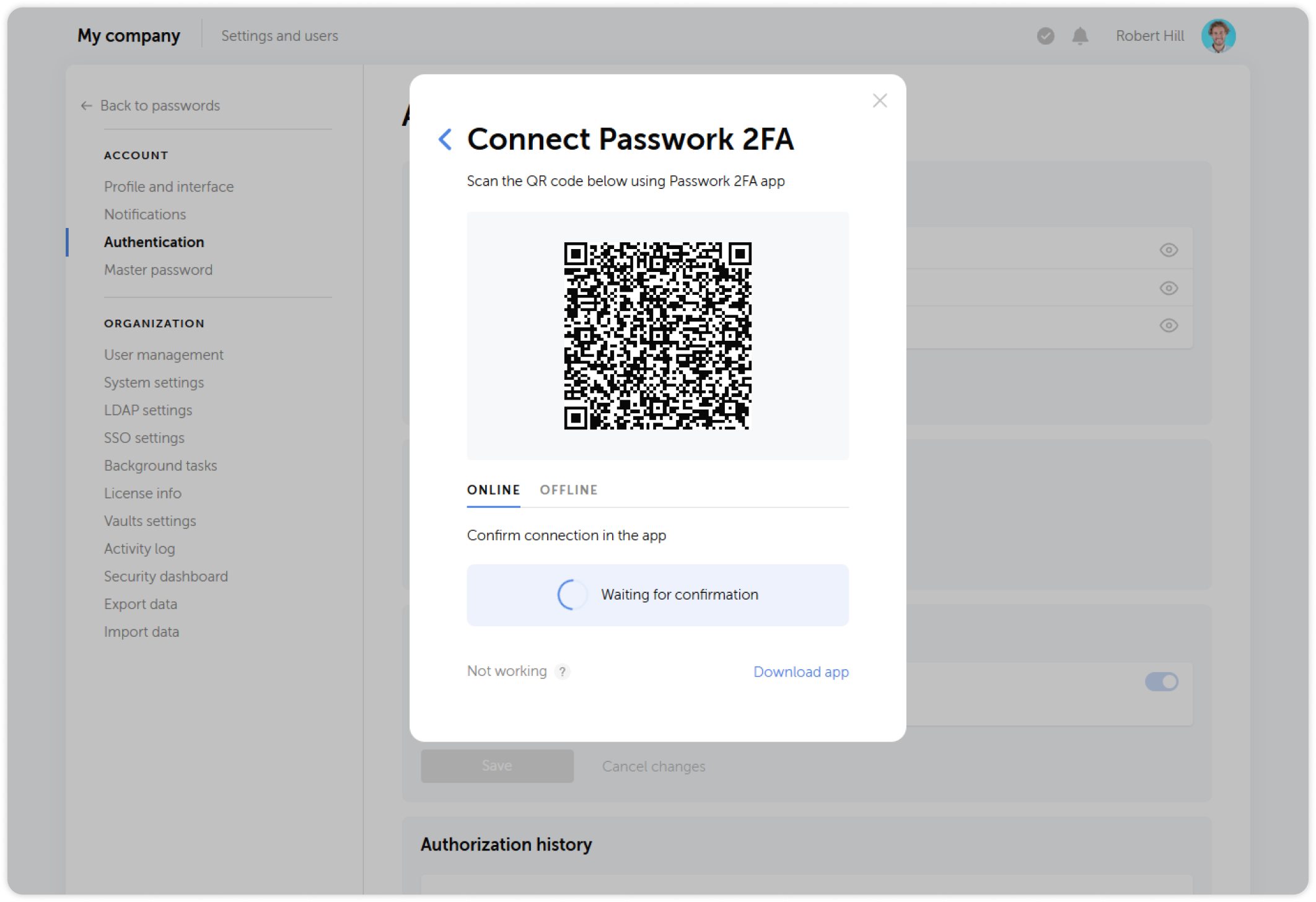
If your Passwork server is connected to the Internet and you wish to log into Passwork in one tap, choose the Passwork 2FA option and scan the QR code using the app.
If the application is not yet installed on your mobile device, you can get it from App Store or Google Play.

One-time password (TOTP)
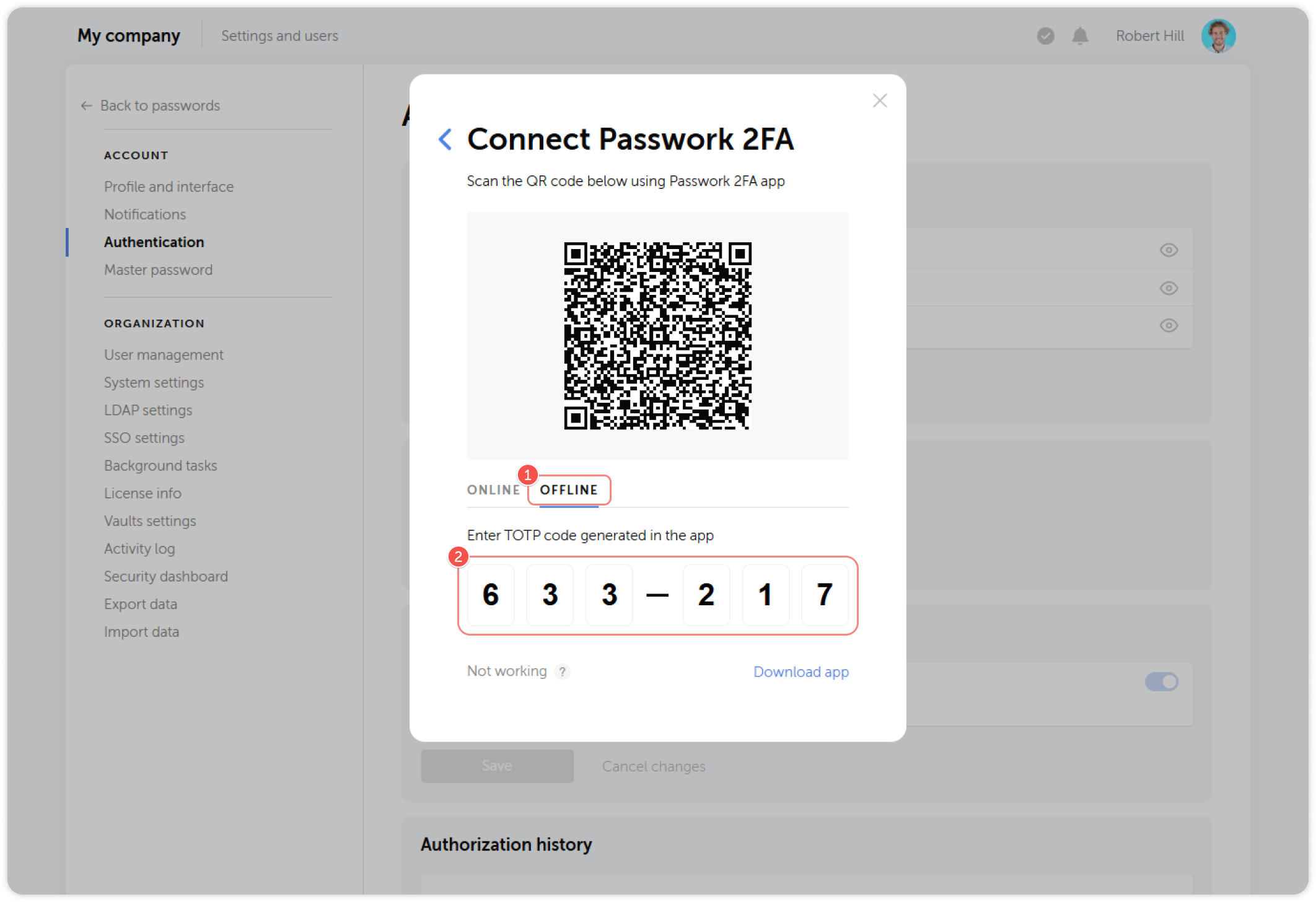
If Internet connection is not available, or you wish to use a third-party authentication app, choose the One-time password option.
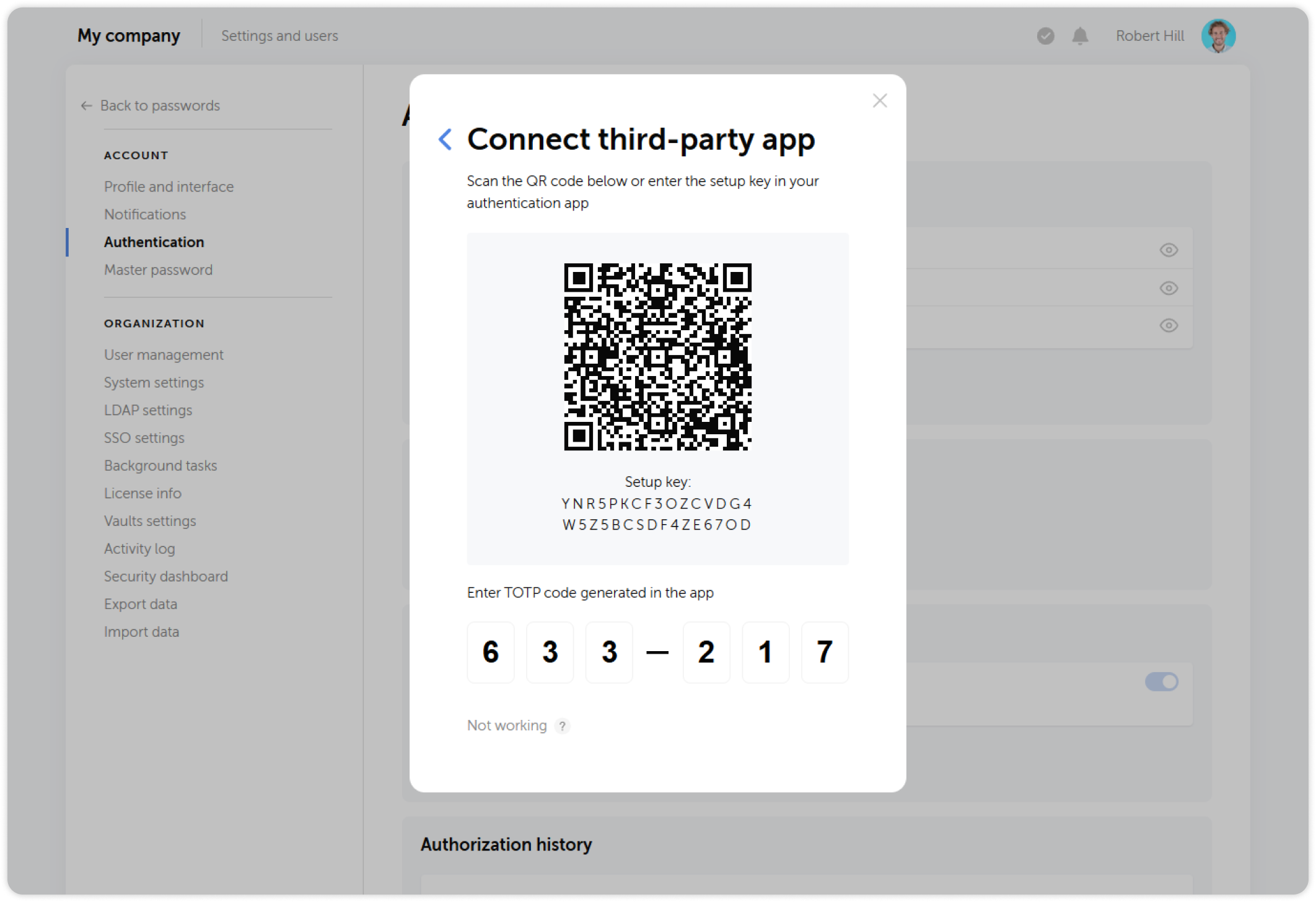
You can use any third-party application, such as Google Authenticator or Microsoft Authenticator, to set up two-factor authentication within Passwork.
Connect an app by scanning the QR code and entering a one-time password.
Biometrics and security keys
You can use biometrics and physical security keys based on WebAuthn to confirm sign-ins.
Click Add in the Biometrics and security keys section and follow the instructions on the screen to add your type of 2FA.
Managing 2FA connection
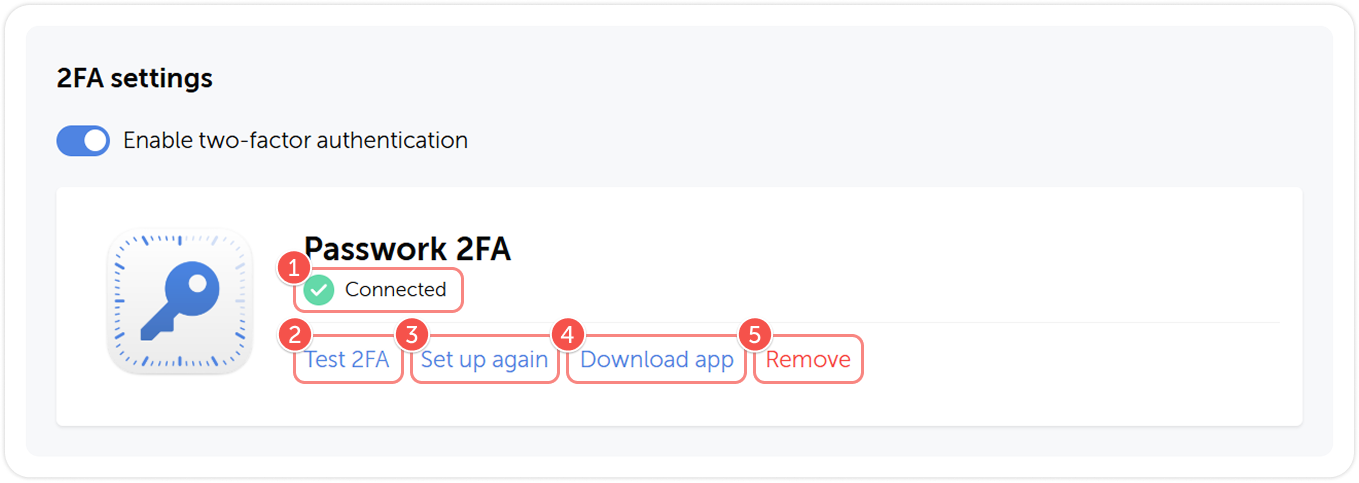
After setting up two-factor authentication, you will be able to view the connected authenticator, remove it, or replace it with another one. You can disable two-factor authentication and then re-enable it as needed without having to set it up again.
Mobile app
- Enable or disable 2FA
- Delete the connected method
- Set up a new connection
Biometrics and security keys
- Delete the connected passkey
- Add a new passkey