
A KeePass to Passwork migration decides where each password belongs, who can reach it, and how you prove the result works — before anyone retires the old workflow. If you're still weighing whether to move at all, Password and access management for SMBs: Is KeePass enough? covers that question. This guide assumes the decision is made and walks through the mechanics.
Key takeaways
- Export KeePass to a controlled XML or CSV file, never to an unmanaged location.
- Choose the format deliberately: XML for hierarchy, CSV for flat, mapped data.
- Retain the KeePass source until the migration passes a documented acceptance test.
Plan your KeePass to Passwork migration before you export
Confirm the destination vault, the responsible owner, the access model, and the rollback point before you export KeePass. The rollback point is the untouched source database retained until acceptance is signed off. Without this step, a credential migration turns into an uncontrolled file transfer with no owner and no way back.
Before touching the export function, work through these steps:
- Build a source inventory of groups, entry counts, and any attachments or custom fields.
- Assign an owner for every shared credential, especially IT and service accounts.
- Flag obsolete or duplicate entries for exclusion rather than importing dead weight.
- Confirm who is authorized to run the export and the import.
- Draft the target vault and folder plan in Passwork before any data moves.
- Set a maintenance window if the credentials in scope touch production systems.
Authorization deserves extra attention when a contractor or managed service provider is involved. Third-party involvement accounted for 48% of breaches, up from 30% the year before, per Verizon's 2026 Data Breach Investigations Report. If an outside party handles the export or import, apply the same approval, least-privilege access, and time limit you would apply to an internal administrator.
Plan access in Passwork before import. A standalone KeePass export does not define the users, groups, or rights that should govern the destination. Map owners and required access deliberately, and configure the required vault and folder access rights before records are available to users.
A migration should preserve or deliberately improve access, because Passwork grants vault and folder rights explicitly rather than deriving them from a KeePass export.
Choose KeePass XML or CSV before exporting
Use KeePass XML when retaining hierarchy matters. Use CSV only when a flat table and manual field mapping are acceptable. Every password manager uses its own database layout — KeePass's own documentation is explicit that no shared standard exists to lean on. CSV and XML do not guarantee that another product will interpret field meanings or hierarchy in the same way. Validate the export before importing it.
| Choose | When it fits | Verify before import | Main caution |
|---|---|---|---|
| KeePass XML | Folders and groups matter and the target supports KeePass XML. | Folder paths, entry counts, title, username, password, URL, notes, and any special fields. | XML portability still depends on how many fields the target actually reads. |
| CSV | A flat import is acceptable, or the data needs explicit column mapping. | Delimiter, header row, encoding, column-to-field map, and a sample of non-ASCII data. | KeePass's documented CSV specification covers only title, username, password, URL, and notes; attachments and other metadata are excluded there. |
Neither format guarantees that every attachment, custom field, history entry, or permission will transfer. Create an exception register early so these items get reviewed before cutover.
Export KeePass without creating an unmanaged secret
Treat the export as a temporary credential dataset, not as an ordinary document. Create it only on an approved administrator workstation. Keep it in a restricted local location and retain it only long enough to import and verify the data.
Keep the export off email, chat, and personal cloud storage entirely. Your organization's own data-handling policy, not a specific tool recommendation, should govern how and when the file gets destroyed.
A workable sequence looks like this:
- Back up and open the source KeePass database.
- Export the chosen format (XML or CSV) to the restricted local path.
- Name the file with a date and scope, but no secrets, in the filename itself.
- Record the file's location and the operator who created it.
- Confirm the file has not been accidentally shared or synced anywhere.
- Import it promptly rather than letting it sit.
Pair strong, unique passwords with phishing-resistant MFA, and make a password manager part of your standard credential controls. A temporary export may sit outside the source vault's normal access controls. Keep it on an approved administrator workstation and remove it after import and acceptance checks.
Prepare the Passwork destination and import the data
Create the destination vault and its intended access model before you upload a file. Passwork's import tool accepts JSON, KeePass XML, and CSV into a chosen vault, folder, or the root directory.
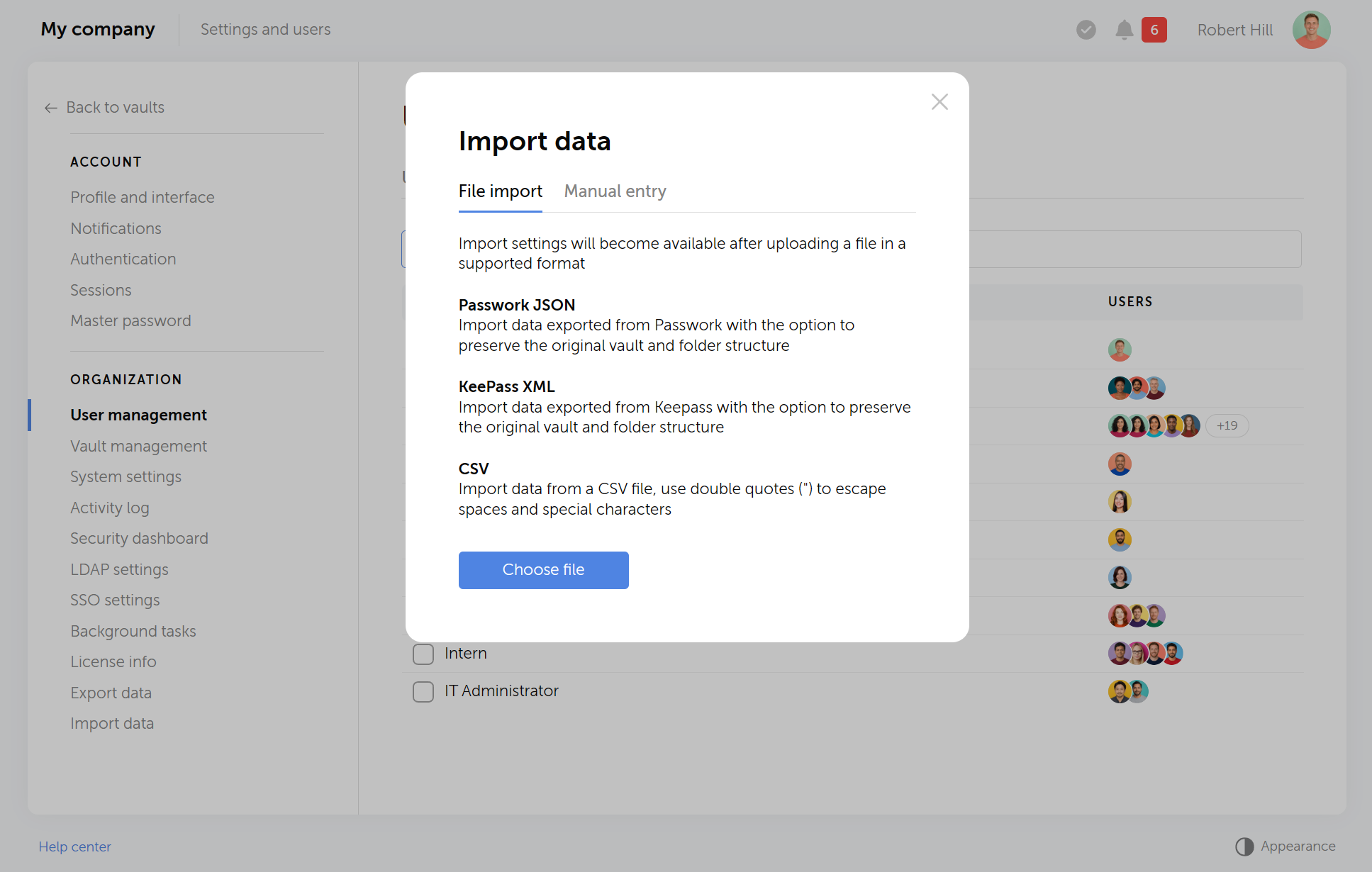
XML imports can preserve the source structure or flatten it, and CSV imports include a preview step with delimiter and field-mapping controls.
Work through the import in this order:
- Create or select the destination vault.
- Decide whether to preserve or ignore the source folder structure.
- Configure vault and folder access rights before inviting anyone to use it.
- Choose Import data and upload the exported file.
- For CSV, set the delimiter and review the preview carefully.
- Map each source column or field to the correct Passwork password-card field.
- Before a production import, use the preview to confirm the destination, delimiter, and field mapping.
- For a large or business-critical scope, run a pilot in a separate test instance or an isolated test vault with no normal-user access. Confirm the mapping and exception process there before importing into the production vault.
- Complete the production import once the pilot checks out.
Passwork documents five access levels: Forbidden, Read only, Read and edit, Full access, and Administrator. It also has a separate "Connect without access" option for users linked to a vault without direct rights. Apply least privilege by default and widen access only when a specific role requires it.
Run the KeePass-to-Passwork Migration Acceptance Test
A successful import proves that records were created. A successful migration proves that the records, structure, access, and evidence meet an agreed acceptance standard. The KeePass-to-Passwork Migration Acceptance Test is a six-control checklist that converts "the import finished" into a documented, sign-off-ready result.
| Control | What to test | Pass condition |
|---|---|---|
| 1. Record count | Compare the planned KeePass entry count with imported records, accounting for documented exclusions. | Any difference has an owner and a written reason. |
| 2. Hierarchy | Compare a representative set of source group paths with Passwork vault and folder paths. | Required folders exist in the chosen destination structure. |
| 3. Credential sampling | Open a risk-based sample: privileged accounts, shared IT accounts, Unicode entries, URLs, and long notes. | Title, username, password, URL, and notes are correct, with no unexpected truncation. |
| 4. Exception register | Review attachments, custom fields, history, and unsupported record types. | Every exception is migrated manually, transformed, accepted as excluded, or scheduled for rotation. |
| 5. Access test | Test one authorized user and one user who should be denied; test service accounts in a controlled window. | Authorized users have only the intended access; unauthorized users are denied. |
| 6. Audit and cutover evidence | Capture the operator, time, scope, outcome, and any exception decision. | The migration is reviewable and ready for sign-off. |
Passwork's vault history records password additions, edits, deletions, and access changes with timestamps and acting users. Where the required role setting is enabled, the system-wide Activity log adds a broader audit trail.
Use this evidence to support control 6, not to replace controls 1 through 5. Logs confirm what happened after import. They don't confirm the data or access were correct in the first place.
Cut over safely and retire the temporary export
Cut over only after the technical owner and access owner sign off. Then communicate the new location, remove the temporary export, and retain the source database for the agreed rollback window.
The finish sequence:
- Communicate the new working location to affected teams.
- Update any documented operational procedures that reference the old vault.
- Rotate high-risk, shared, and previously exposed credentials according to policy.
- Remove access to the temporary export file.
- Retain the original KeePass source in the approved rollback location for the agreed period.
- Retire the old shared workflow once both owners approve.
A person who has left the team or lost authorization may still remember an old password, even after the vault itself is locked down. Rotate credentials whenever an offboarding or risk event justifies it, not only when the migration finishes. Passwork's offboarding guidance draws the same line between removing access and rotating the credential itself.
Conclusion
Choose XML or CSV, build the destination access plan, and import the data. Keep the result provisional until all six controls pass. Skipping validation can leave missing attachments, incomplete field mappings, or unintended access undiscovered until after cutover.
If your team is replacing a shared KeePass workflow, start with Passwork's import guide to load the data, then configure vault and folder access rights before cutover. For a broader look at planning an enterprise-wide credential migration beyond this one format, see why 1-click password manager migration doesn't exist in 2026.

Ready to move off a shared KeePass file for good? Explore how Passwork structures vaults, folders, and access rights.
Frequently asked questions
Can Passwork import a KeePass KDBX file directly?
Passwork's documented import formats are JSON, KeePass XML, and CSV, not KDBX directly. Export the KeePass database to a supported format first, then check the current import guide before scheduling a migration, since supported formats can change between releases.
Should I use KeePass XML or CSV for Passwork?
Use KeePass XML when hierarchy matters and the destination supports it. Use CSV for a flat, deliberately mapped import instead. Either way, verify field coverage and log exceptions, because format support does not guarantee parity for every metadata type across products.
How do I know the migration worked?
Import success alone is not enough. Run the six Migration Acceptance Test controls: record count, hierarchy, credential sampling, exception register, access test, and audit evidence. Passing all six gives you a documented go or no-go decision instead of a guess.
When can I delete the KeePass export file?
Delete it after the import and acceptance checks are complete, following your organization's retention and secure-handling policy. Keep this separate from the KeePass source database retained in your approved rollback location. Do not delete the only known-good source database before the technical owner signs off.
 Passwork Team
 Alex Muntyan
 Alex Muntyan
Table of contents
- Key takeaways
- Plan your KeePass to Passwork migration before you export
- Choose KeePass XML or CSV before exporting
- Export KeePass without creating an unmanaged secret
- Prepare the Passwork destination and import the data
- Run the KeePass-to-Passwork Migration Acceptance Test
- Cut over safely and retire the temporary export
- Conclusion
- Frequently asked questions
Table of contents
- Key takeaways
- Plan your KeePass to Passwork migration before you export
- Choose KeePass XML or CSV before exporting
- Export KeePass without creating an unmanaged secret
- Prepare the Passwork destination and import the data
- Run the KeePass-to-Passwork Migration Acceptance Test
- Cut over safely and retire the temporary export
- Conclusion
- Frequently asked questions

Self-hosted password manager for business
Passwork provides an advantage of effective teamwork with corporate passwords in a totally safe environment. Double encryption and zero-knowledge architecture ensure your passwords never leave your infrastructure.
Learn more