

Picture a Monday morning. Someone on the marketing team needs to post on Instagram. The person who knows the password is out sick. Someone asks in Slack. Someone else pastes it. Now that password lives in a chat log, on a personal phone, and possibly on a laptop that left the company six months ago.
Securing this workflow does not require a complex IT initiative or months of planning. You can eliminate these vulnerabilities in a single afternoon.
A team password manager (a shared, encrypted vault) allows your team to store and access credentials without ever sending them over email or Slack. It grants precise control over who sees which passwords and lets you revoke access instantly when an employee leaves. Most teams deploy the system in a few hours.
Key takeaways
- The root of password chaos: Most small business credentials accumulate in Slack channels, spreadsheets, and personal browsers because teams lack a centralized system, creating easy entry points for attackers.
- The browser limitation: Browser-saved passwords belong to individual accounts and lack secure sharing, role-based access control, and audit logs, making them unsuitable for team environments.
- The offboarding blind spot: Disabling a departing employee’s email leaves vendor portals, social media, and shared inboxes accessible. These unmonitored credentials remain active for months unless systematically tracked and rotated.
- Modern password standards: The latest NIST guidelines recommend against forced 90-day password resets. Mandatory rotations lead to predictable patterns, which actively weakens security.
- An afternoon setup: Transitioning to a dedicated team password manager takes a few hours. For organizations with strict data residency requirements, self-hosted deployment keeps all credential data entirely within their own infrastructure.
Where your team's passwords actually live right now
In most small businesses, passwords end up scattered across Slack messages, shared spreadsheets, personal browser accounts, and sticky notes — not because people are careless, but because no dedicated system was ever put in place. According to the 2025 Verizon Data Breach Investigations Report, 22% of all confirmed breaches begin with stolen or compromised credentials, and 88% of attacks against basic web applications involve stolen logins.
Here's where passwords typically end up:
- A Slack DM or group chat — searchable by anyone in the workspace
- A spreadsheet called
passwords_final_v3.xlsxon a shared drive - Someone's personal browser, tied to their personal Google account
- A shared Notes app that three people have access to and nobody manages
- Someone's personal password manager account that the company doesn't control
This accumulates one shared login at a time. Nobody decided to store passwords in Slack. It just happened because there was never a better option. Attackers go for the easiest door. A password pasted into a chat channel is a very easy door.
Why saving passwords in your browser isn't enough for a team
Browser-saved passwords work fine for one person managing their own accounts. For a team, the model breaks down at the first moment someone needs to share access, leave the company, or hand off a project — because browser passwords are tied to one person's account and were never designed to be shared or managed across a group.
The core problem: browser-saved passwords belong to one person's device and account. When that person leaves, those passwords either go with them or stay locked in an account the company no longer controls. There's a harder risk: all passwords saved in a browser are stored together, so one compromised device or account means everything leaks — not just one password.
Sharing is the other gap. There's no way to give a teammate access to a browser-saved password without typing it out, screenshotting it, or pasting it into a messenger. According to Heimdal Security's 2025 analysis, 94% of leaked passwords were reused or duplicated across multiple accounts — exactly the pattern that informal sharing encourages.
There's also no audit trail. No record of who logged into the email marketing tool at 11pm on a Friday. No way to revoke access to one specific account without changing the password everywhere and telling everyone the new one, which starts the whole cycle again.
The browser is a personal tool pressed into team service. It was never built for this.
| Feature | Browser password manager | Dedicated team password manager |
|---|---|---|
| Stores passwords | Yes | Yes |
| Shares passwords safely with teammates | No | Yes |
| Controls who can see which passwords | No | Yes |
| Revokes access when someone leaves | No | Yes — one click |
| Keeps a log of who accessed what | No | Yes |
| Works across all apps and devices | Partially | Yes |
| Supports self-hosted deployment | No | Yes (select tools) |
The problem nobody talks about — when an employee leaves
Most businesses handle offboarding by disabling email, collecting the laptop, and removing the person from Slack. That covers only a fraction of the actual access problem. The passwords that person knew (to shared tools, vendor portals, social media accounts, and the office Wi-Fi) almost never make it onto the checklist. And that access rarely gets flagged quickly — IBM's Cost of a Data Breach Report 2025 found that credential-based breaches take an average of 246 days to identify and contain. That's 8 months of open access before anyone notices something is wrong.
Think about a customer support manager who's been with the company for two years. They knew the password to the helpdesk software, the shared support inbox, the social media scheduler, the company's Canva account, and the Wi-Fi. None of those are covered by "disable their Google Workspace account." SSO — the "log in with Google" button — only covers apps that are connected to your identity provider. Most tools a typical small business uses aren't.
The 3-question offboarding audit
When someone leaves, ask these three questions before their last day:
- What shared accounts did they have access to? Think beyond email — software subscriptions, social media, vendor portals, shared inboxes, Wi-Fi.
- Which of those passwords need to be changed? Any account they accessed regularly that isn't covered by SSO.
- Who is responsible for changing them? Name a specific person. "Someone from IT" is not an answer if you don't have an IT department.
This audit takes 15 minutes the first time — but it only works if you already know what accounts exist and who had access to them. Without that inventory, the 15 minutes turns into a conversation that ends with "I think they had access to that, not sure." Without a password manager, question three is a negotiation — who has time, who knows which accounts exist, who will actually follow through. With one, it's a checklist: open the Security dashboard, see every credential that person touched, rotate exactly those.
What a team password manager actually does
A team password manager is a shared, encrypted vault where everyone accesses the passwords they need — and only those. It replaces scattered credentials with one controlled system. Most teams are fully set up within an afternoon.
Here's what to look for when choosing one:
- Role-based access control (RBAC). The marketing team sees the social media passwords. Finance sees the accounting software logins. The CEO sees everything. When someone joins, you add them to their team's vault and they have access immediately. When they leave, you revoke their access in one step — and Passwork's Security Dashboard immediately shows every password they had access to, so you can rotate exactly those credentials. No guesswork, no manual audit of who had what.
- Zero-knowledge encryption means passwords are encrypted on your device before they reach the server. The server stores ciphertext, not credentials — so neither the hosting infrastructure nor the system administrator can read what's inside. Access to the server doesn't equal access to the passwords.
- Audit trails. Every login, every password view, every change is logged. If something goes wrong, you know exactly who accessed what and when — not a rough estimate.
- Easy onboarding. A tool nobody uses is not a security tool. Look for a setup process that doesn't require a dedicated IT project: import from CSV, browser extension, clear folder structure from day one.
- A UI your team will actually use. Friction is the enemy of adoption. If finding a password takes more than three clicks, people go back to Slack.
- Two-factor authentication. A second confirmation required at login means a stolen master password alone isn't enough to get in. Non-negotiable for any business account.
For businesses with strict data requirements (healthcare, finance, legal) some tools can be hosted on your own servers rather than a third-party cloud. Passwork is built specifically for self-hosted deployment, keeping all credential data inside your own infrastructure. Teams that want to see how making password security feel less like a chore is possible will find the model straightforward to adopt.
The new password rules: What the latest NIST guidelines actually say
The U.S. National Institute of Standards and Technology (NIST) updated its password guidelines in 2025, and the headline finding is counterintuitive: forced password rotation — making employees change their password every 60 or 90 days — makes security worse. NIST SP 800-63B now explicitly recommends against mandatory periodic resets unless there is evidence of compromise.
The reason is predictable human behavior. When people are forced to change passwords constantly, they make the smallest possible change: Summer2024! becomes Summer2025!. The structure stays the same, the pattern is obvious, and the result is no more secure than before — just more annoying.
What NIST recommends instead:
- Longer passwords — a passphrase like
correct-horse-battery-stapleis stronger thanP@$$w0rd1and far easier to remember - No forced rotation unless there is evidence of a breach or compromise
- Checking new passwords against known breach databases so that already-leaked credentials are rejected at the point of creation
If your company policy still mandates 90-day resets, it's worth revisiting. A good team password manager handles the hard parts automatically — generating strong, unique passwords for every account and flagging any that have appeared in known breach databases.
How to set up password management for your team — a practical starting point
Getting a team password manager running doesn't require technical expertise or a dedicated IT person. These five steps will get your team's passwords out of Slack and spreadsheets and into a shared, encrypted vault — most teams complete the process in a single afternoon.
The 5-step team vault setup
- Audit what you have. Spend 30 minutes listing every shared account your team uses — software subscriptions, social media profiles, vendor portals, shared inboxes, Wi-Fi passwords. Don't try to be exhaustive. Get the obvious ones down first; the rest will surface as you go.
- Pick a tool that fits your team. For most small businesses, a cloud-based team vault works well and requires no technical setup. If your business handles sensitive client data and needs everything stored in-house, look for tools that offer self-hosted deployment — meaning the software runs on your own servers, not the provider's cloud. Either way, prioritize tools that offer zero-knowledge encryption and two-step login.
- Set up password vaults by team or function. Marketing gets the marketing passwords. Finance gets the finance passwords. Keep the structure simple — you can always add more vaults later. Complexity at setup is the main reason teams abandon the tool in week two.
- Migrate one team first. Don't try to move the whole company at once. Start with one department, get them comfortable with the workflow, then expand. A smooth rollout with five people beats a chaotic one with fifty.
- Update your offboarding checklist. Add one line: "Remove from password vault." That's the whole change. The system handles the rest.
How Passwork handles this in practice
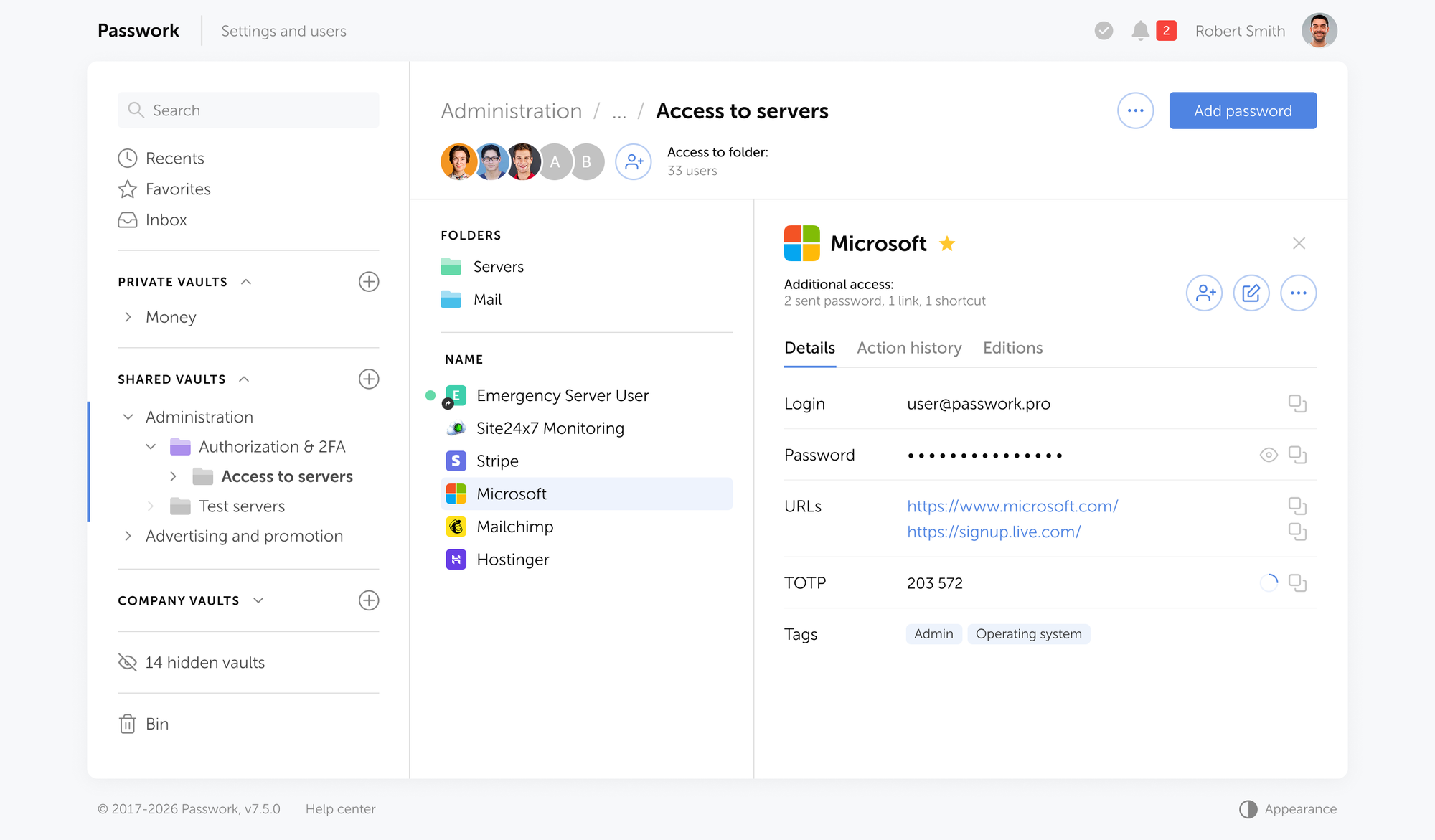
Passwork is a password and secrets manager built for business teams. It gives IT administrators a single place to store, share, and control access to credentials — without relying on browser vaults, shared spreadsheets, or messenger threads.
Here's what it covers directly:
- Shared vault with structured access. Passwords are organized into folders by team or function. Marketing sees what marketing needs. DevOps sees what DevOps needs. Nobody sees more than their role requires.
- Role-based access control. Permissions are assigned to roles, not individuals. Adding a new hire to the right role gives them immediate access to the credentials they need. Removing a departing employee revokes it instantly across every shared folder.
- Security Dashboard for offboarding. When someone leaves, the dashboard shows every credential they had access to. Rotate exactly those — nothing more, nothing less. No reconstruction from memory, no guesswork about what they could see.
- SSO integration. Passwork connects to your existing identity provider via SAML. If you already manage access through Active Directory or a similar system, Passwork fits into that structure rather than sitting outside it.
- Deployment options. Passwork runs as a cloud service or as a self-hosted installation on your own infrastructure. For teams in healthcare, finance, or legal — where credential data cannot leave the organization's servers — self-hosted deployment keeps everything inside your own perimeter.
The features above aren't new concepts — RBAC, audit logs, and SSO exist in enterprise tools that take months to deploy. Passwork packages them for teams that don't have a dedicated security department and need to be running by Friday.
Getting your team's passwords under control

The technology is the easy part. A team password manager is straightforward to set up, and most teams notice the difference within a week — fewer "does anyone have the login for X?" messages, no more password spreadsheets, and a clean answer to "what happens when someone leaves."
The harder work is the first few weeks: auditing what credentials already exist, deciding who owns which folders, and retiring whatever system you've been using until now. Start with the audit. Everything else follows from knowing what you actually have.
Passwork runs in the cloud or on your own servers — your choice. Teams with data residency requirements or internal security policies that rule out third-party cloud storage can deploy it on-premises. Everyone else can be up and running in the cloud the same day.
Frequently asked questions

Do we really need a team password manager if we're a small team?
Yes. Small teams are often more exposed precisely because there's no dedicated IT person watching for problems. A team password manager takes about an afternoon to set up and removes one of the most common entry points for breaches — shared credentials with no access controls. The smaller the team, the faster the setup.
Is it safe to put all our passwords in one place?
A reputable password manager is far safer than the alternatives — Slack messages, spreadsheets, or sticky notes. The data uses zero-knowledge encryption, meaning even if someone broke into the provider's servers, the passwords would be unreadable. The risk of consolidation is much lower than the risk of scattered, uncontrolled credentials.
What about apps that support "log in with Google"?
SSO covers apps connected to your identity provider, but most small businesses use a mix of SSO-compatible and non-compatible tools. A team password manager handles everything SSO doesn't reach — vendor portals, legacy software, shared social media accounts, and any tool that requires its own login.
How do we get the team to actually use it?
The tool only works if people use it consistently. The fastest path to adoption: make it easier than the alternative. If the vault is set up, populated with the passwords people actually need, and accessible on their devices from day one, most people switch without friction. Mandate it for shared accounts first, personal workflow habits follow.
 Alex Muntyan
 Alex Muntyan
 Alex Muntyan
Table of contents
- Key takeaways
- Where your team's passwords actually live right now
- Why saving passwords in your browser isn't enough for a team
- The problem nobody talks about — when an employee leaves
- What a team password manager actually does
- The new password rules: What the latest NIST guidelines actually say
- How to set up password management for your team — a practical starting point
- How Passwork handles this in practice
- Getting your team's passwords under control
- Frequently asked questions
Table of contents
- Key takeaways
- Where your team's passwords actually live right now
- Why saving passwords in your browser isn't enough for a team
- The problem nobody talks about — when an employee leaves
- What a team password manager actually does
- The new password rules: What the latest NIST guidelines actually say
- How to set up password management for your team — a practical starting point
- How Passwork handles this in practice
- Getting your team's passwords under control
- Frequently asked questions

Self-hosted password manager for business
Passwork provides an advantage of effective teamwork with corporate passwords in a totally safe environment. Double encryption and zero-knowledge architecture ensure your passwords never leave your infrastructure.
Learn more