
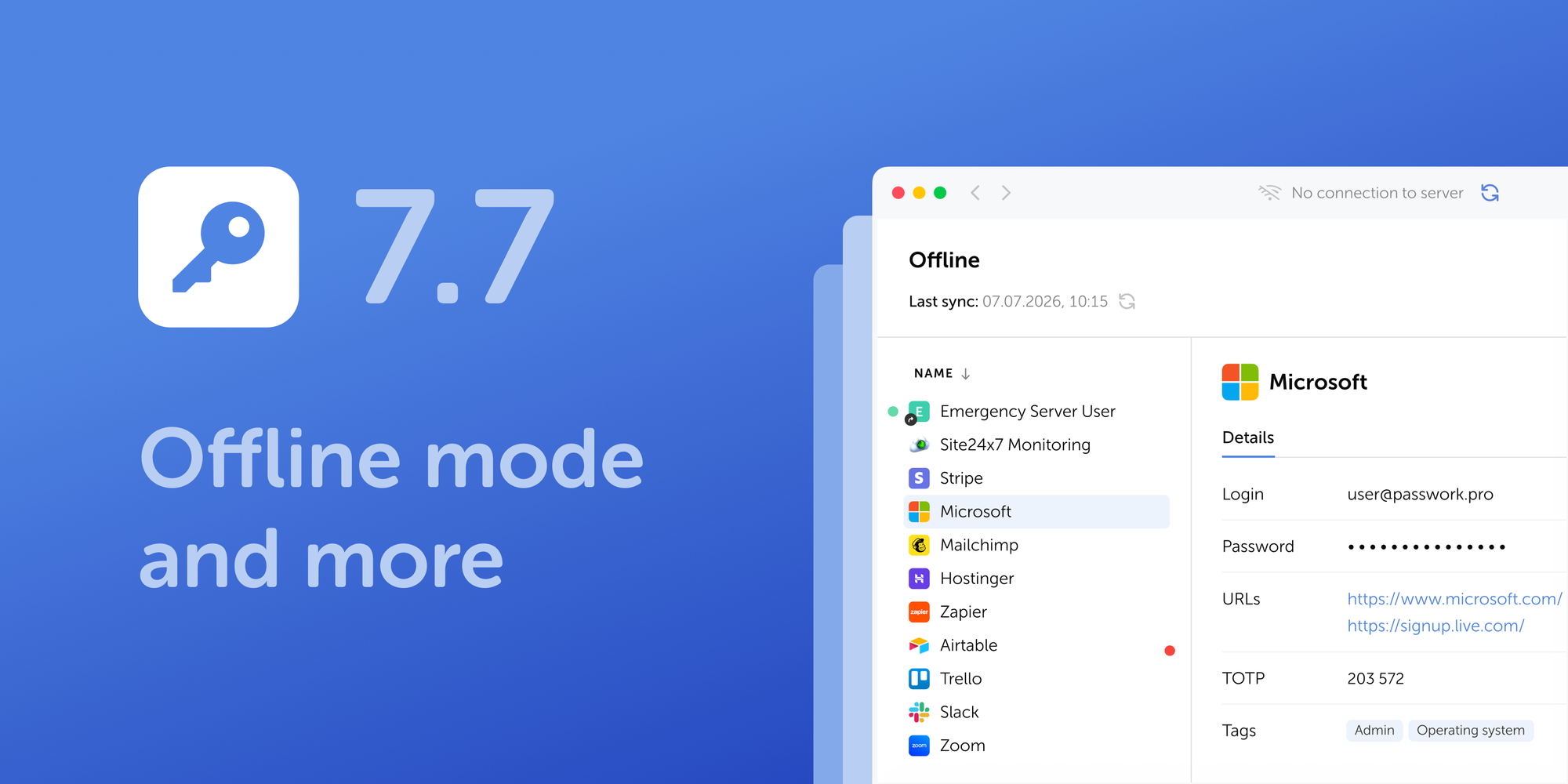
Passwork's latest release focuses on one problem every distributed team eventually runs into: what happens to password access when the connection drops. Passwork 7.7 adds secure offline mode to both desktop and mobile apps, while keeping admins fully in control of what gets cached locally.
What's new in version 7.7
- Offline mode. View passwords on desktop and mobile without a live server connection. A two-step opt-in keeps caching deliberate: nothing lands on a device unless a user marks it and enables it there.
- Read-only by design. Offline records can be viewed, not edited. Any change still requires an active connection.
- Full admin oversight. Role-based permissions control who gets offline access, how long a device can stay unsynced, and how many records it can hold.
- Complete audit trail. Every offline download and action syncs back to the Activity log and security dashboard once the device reconnects.
- Automatic cache expiration. Records vanish from a device on their own if it doesn't sync within the admin-set timeframe.
- File attachment controls. Administrators can now disable file attachments to records across the entire organization.
- Update-time request lockout. The system now holds off incoming user requests while an update is being applied, preventing conflicts mid-deployment.
- Mobile app upgrades. Adds org-wide screenshot and recording blocks and cross-folder search, alongside the new offline capability.
- New onboarding guides. Five role-based tracks (users, managers, IT admins, DevOps, and security specialists) covering setup, integrations, and compliance checklists.
Secure offline access for desktop and mobile apps
Users can now open password records even when their device has no connection to the server. Getting there takes two deliberate steps, so nothing ends up on a device by accident.
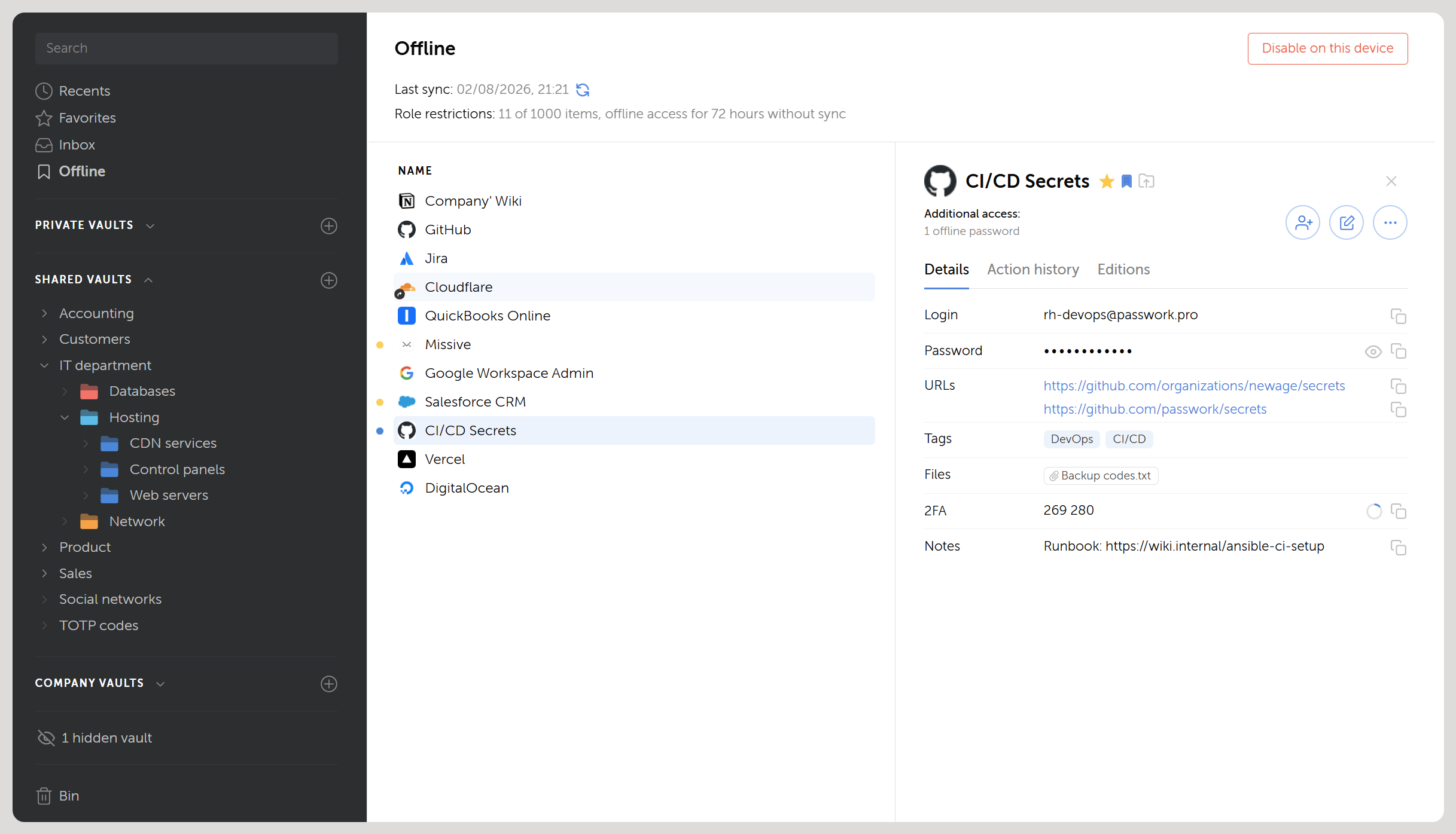
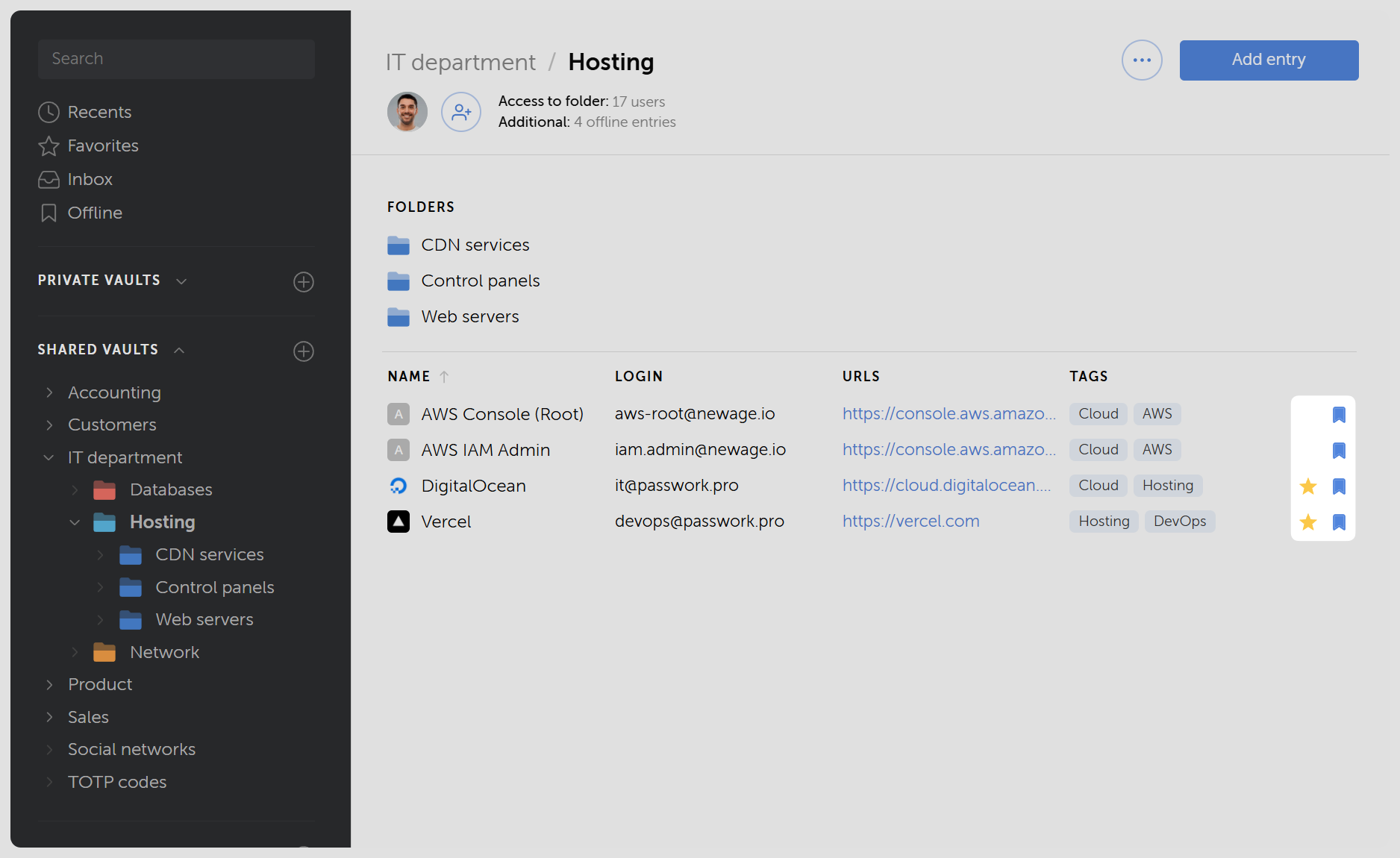
First, a user marks specific record with an offline icon , available both in the password info card and in the general password list. This adds selected records to a synced list visible across all that user's devices under the Offline tab in the navigation panel — at this point nothing is downloaded or available offline yet.
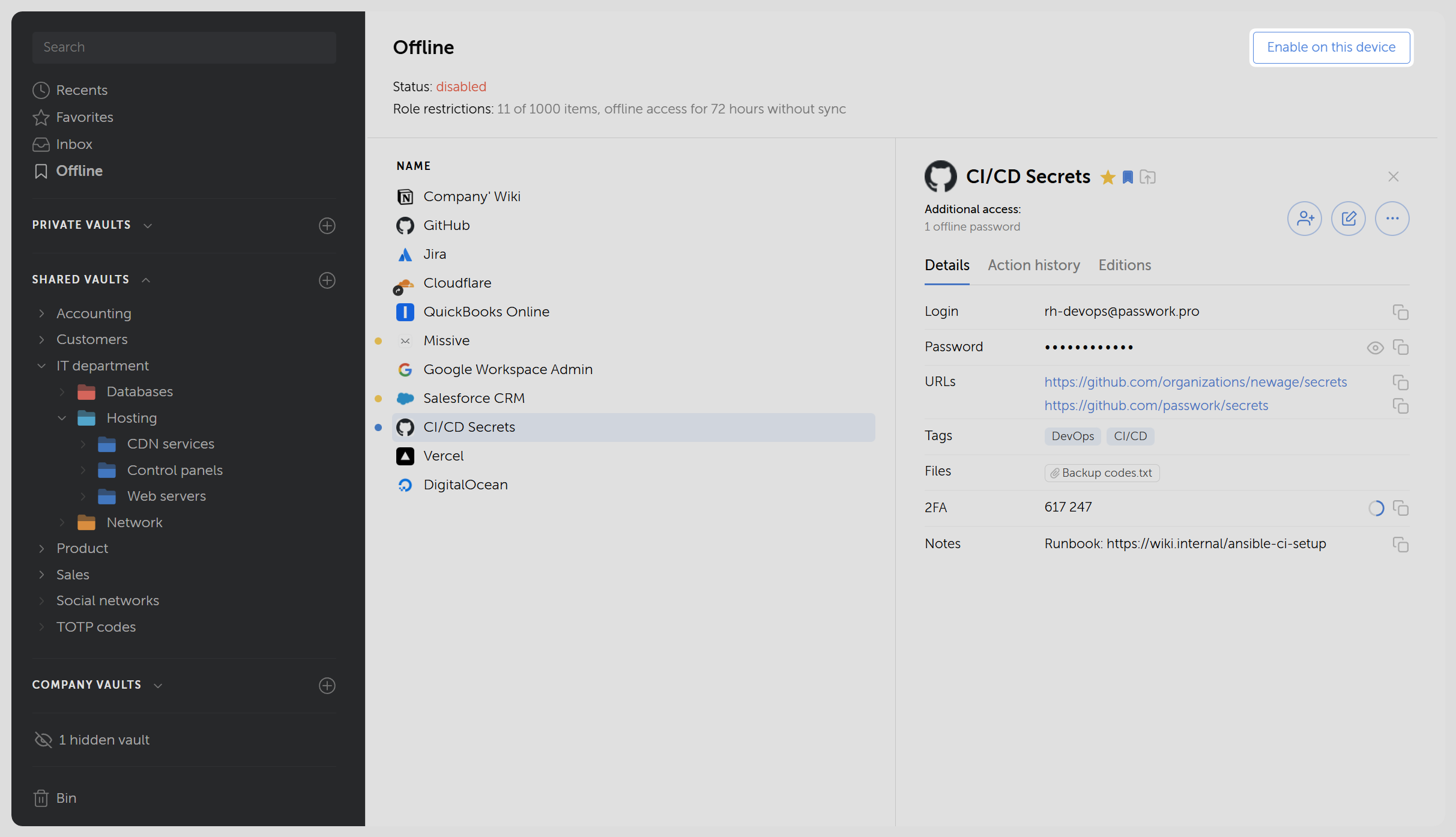
Second, on a device, the user opens the Offline tab in the desktop or mobile app and selects Enable on this device. Only then does Passwork pull the encrypted records into a local cache on that specific device.
When opening the desktop or mobile app without an internet connection, only records previously saved for offline access are available. If the server becomes unreachable mid-session, the app offers three options:
- Sign out of the desktop or mobile app
- Retry the connection to the server
- Switch to offline mode to view only cached records
Once connectivity returns, Passwork syncs the cache and uploads a log of every offline view to the server.
Admin controls, visibility, and risk tracking
Offline access is governed at the role level and doesn't run unchecked. Admins retain full control over who uses it and how it's tracked.
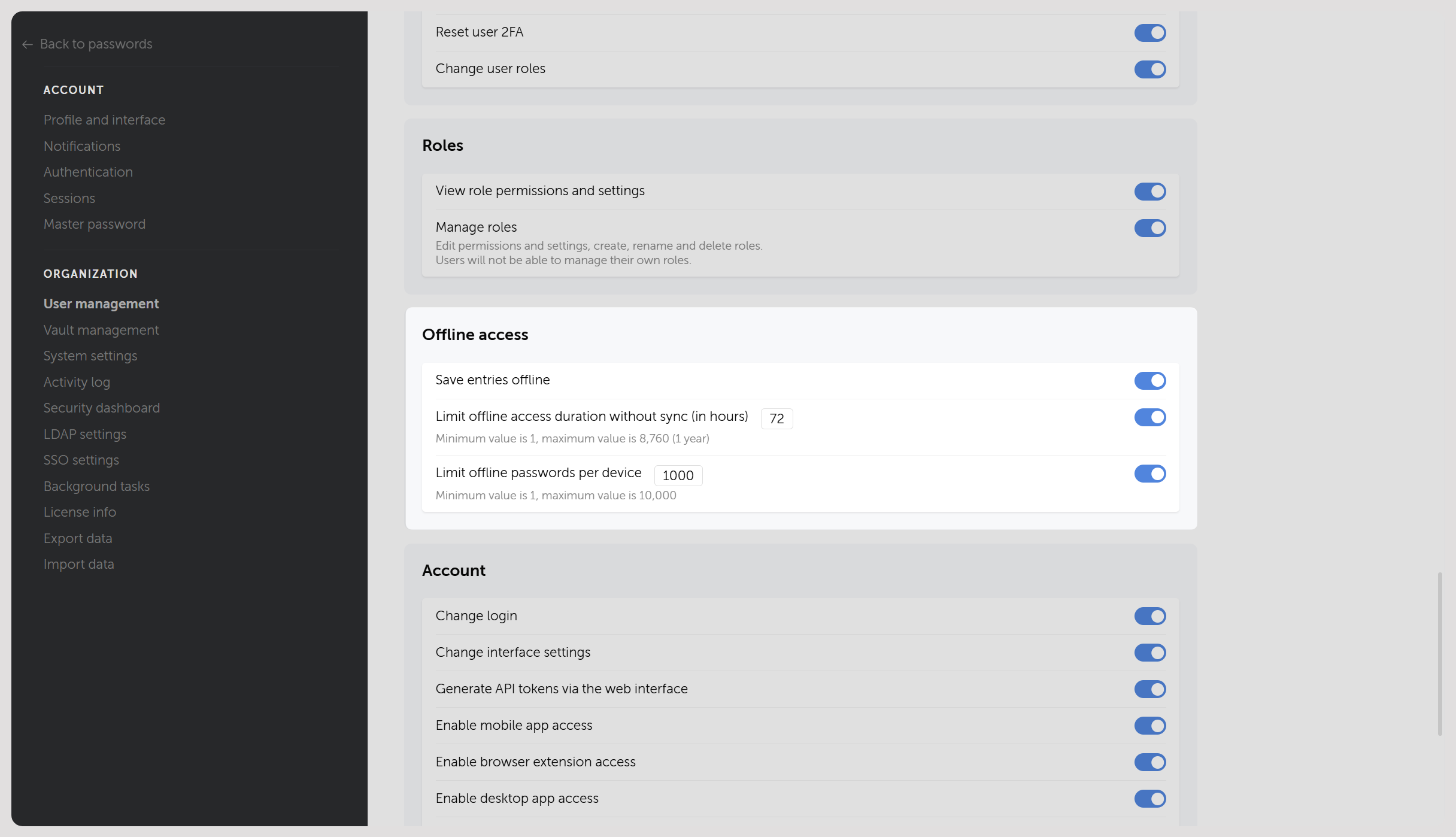
Role-based permissions
Administrators decide which roles can use offline access, how long a device can go unsynced before its cache is wiped, and how many records a single device can hold.
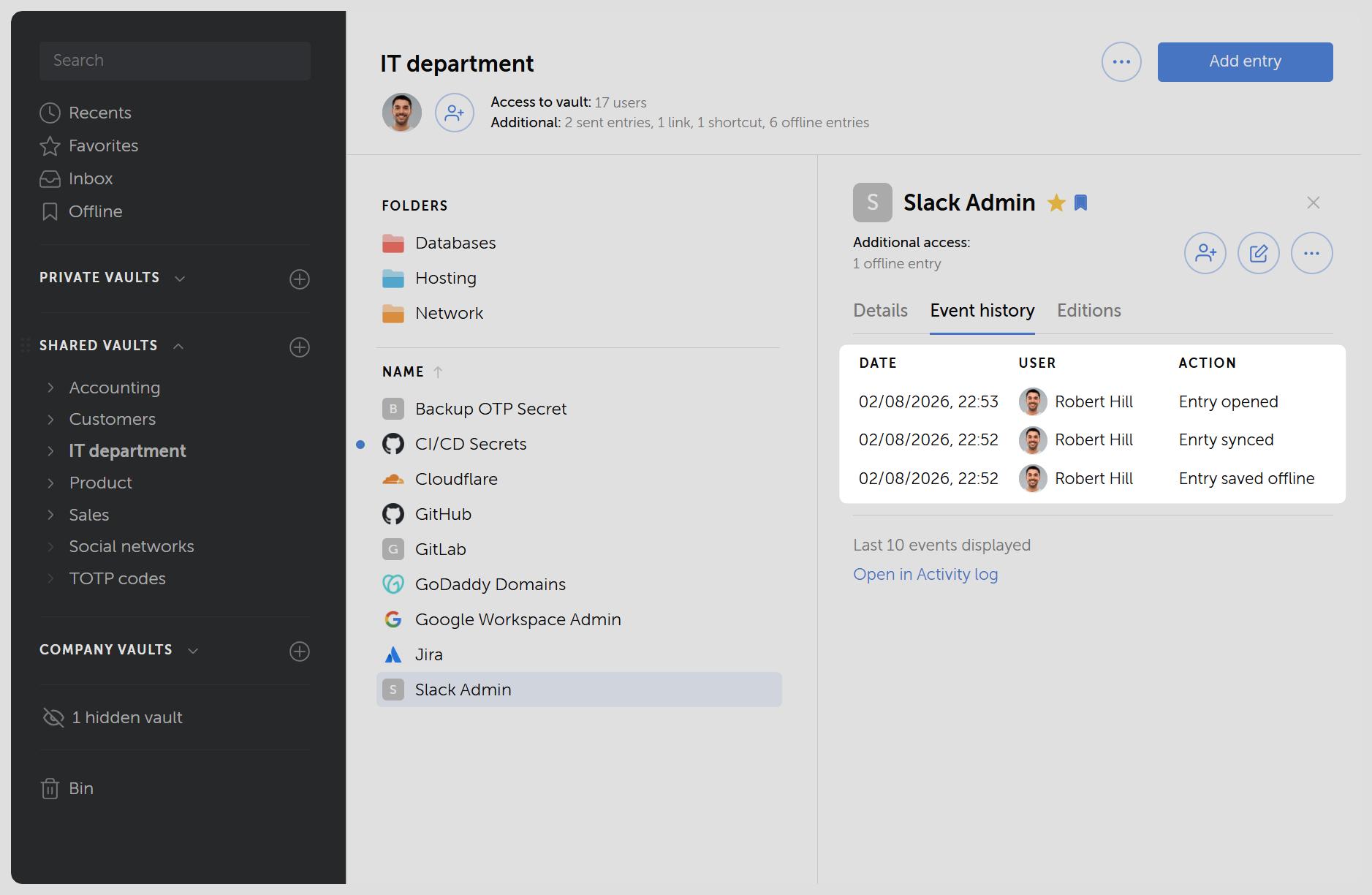
Full audit trail
Every offline download appears in the event log and on the security dashboard. All actions performed on offline records are also reflected in the Activity log once the device syncs, just like any other password. This gives security teams the same level of oversight over offline access as they already have over online activity.
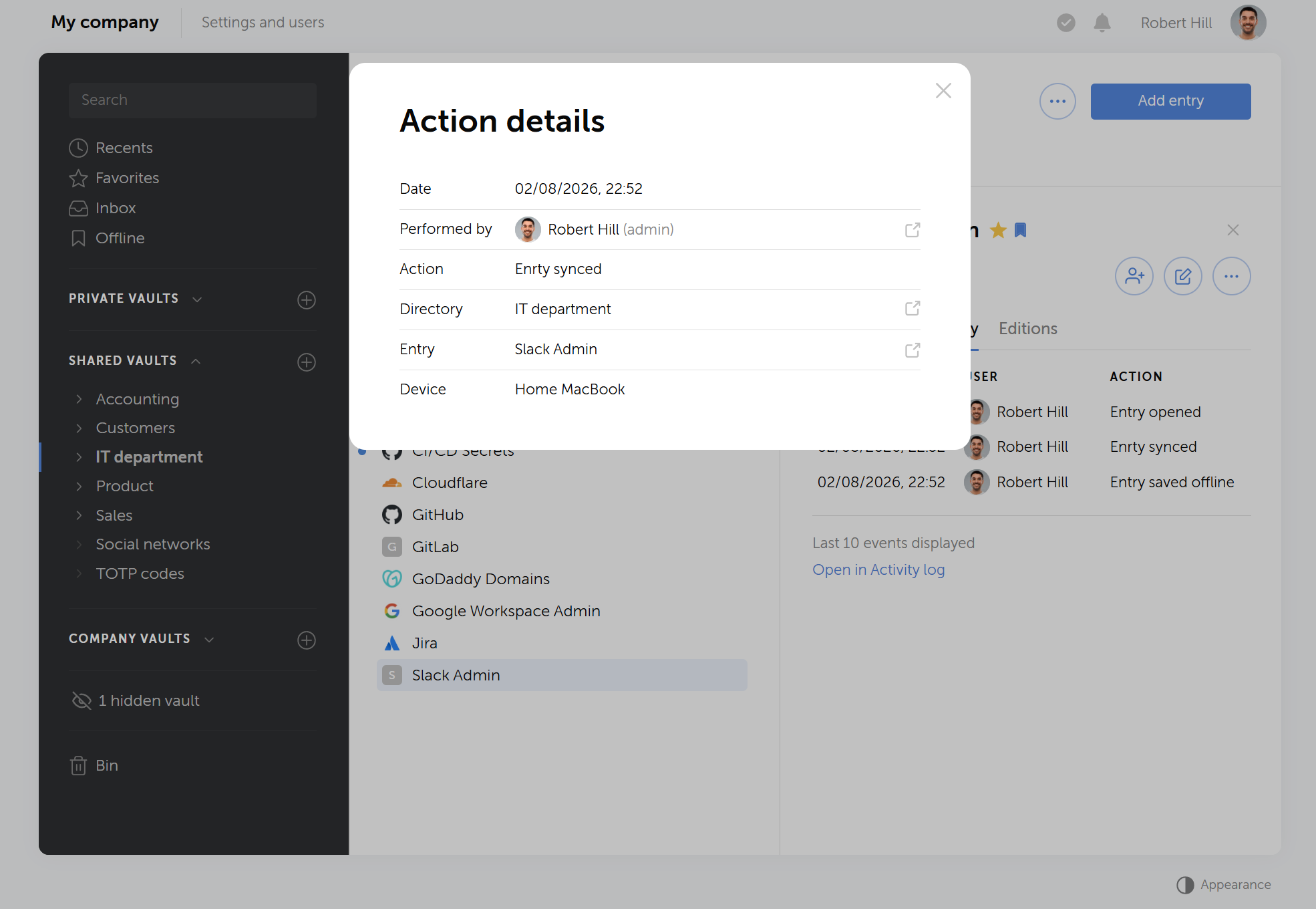
Device-level insight
Admins can see who cached a record, on which device, and when that device last synced. The access modal for a folder or vault also displays the user and device name, so admins can trace offline activity down to the specific device without leaving the permissions view.
Exposure tracking
Passwork Security panel treats an offline record as a potential exposure the moment it lands in a local cache, whether or not the user actually opens it. This follows the same logic already applied to viewed records.
Default-off policy
After upgrading to version 7.7, the feature is enabled by default only for Owner and Administrator roles. Everyone else starts with it off.
Offline essentials
- Where it works. Records can be marked for offline access from any app and web client, but viewing them offline is only available in the mobile and desktop apps. It must be enabled separately on each device.
- What data is available. Without a connection, users can only view passwords they've already added to the offline list and synced beforehand.
- Automatic expiration. If a device doesn't sync within the timeframe set by the administrator, cached records are automatically wiped.
- Role settings. Administrators set the rules for users: how many records can be stored per device and how long they remain valid without syncing.
- Admin control. Administrators decide which roles can use offline access at all and can disable it entirely for specific roles. Every cached record stays visible in the Activity log and access modals, showing which user cached it, on which device, and when it last synced.
- Activity tracking. Once a device reconnects, all actions performed offline sync to the Activity log, appearing alongside the record's regular history — giving admins full visibility, just as with any online activity.
Offline limitations
- Read-only. In offline mode, records can only be viewed. Creating, editing, or deleting a password requires a connection to the server.
- Revocation. Revoking access to a record doesn't wipe the local copy instantly — the change only takes effect once the device comes back online.
- Plan availability. Offline access is available only in the Advanced plan.
File attachment controls
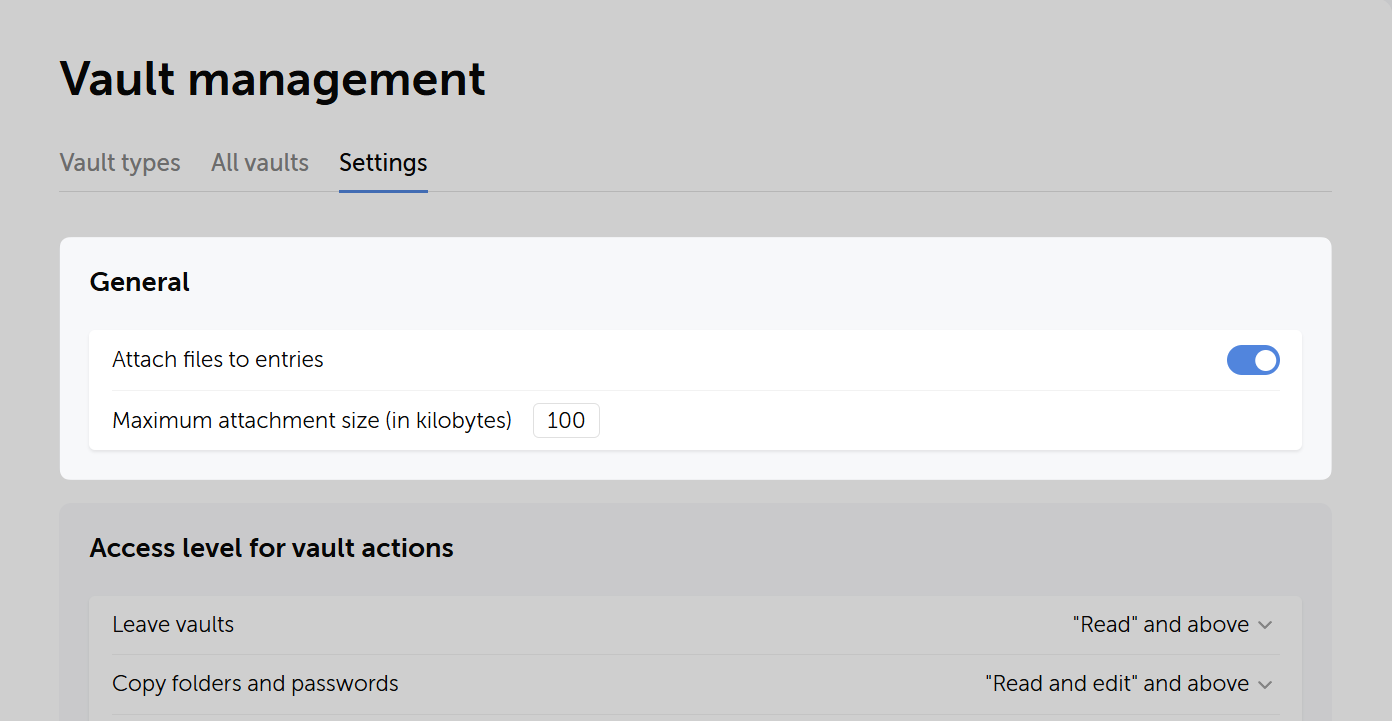
Administrators can now disable file attachments to records across the entire organization. Once turned off, users can't add files to any password record, regardless of role or vault permissions. The setting is located under Vault management → Settings → General.
Search and navigation improvements
Search results now include a URLs column alongside a parent directory column for folders, making it easier to identify where items live without opening them. The search bar now activates automatically as soon as you start typing. We also removed substring splitting in search queries, so results now match your intent more accurately.
Desktop and mobile apps
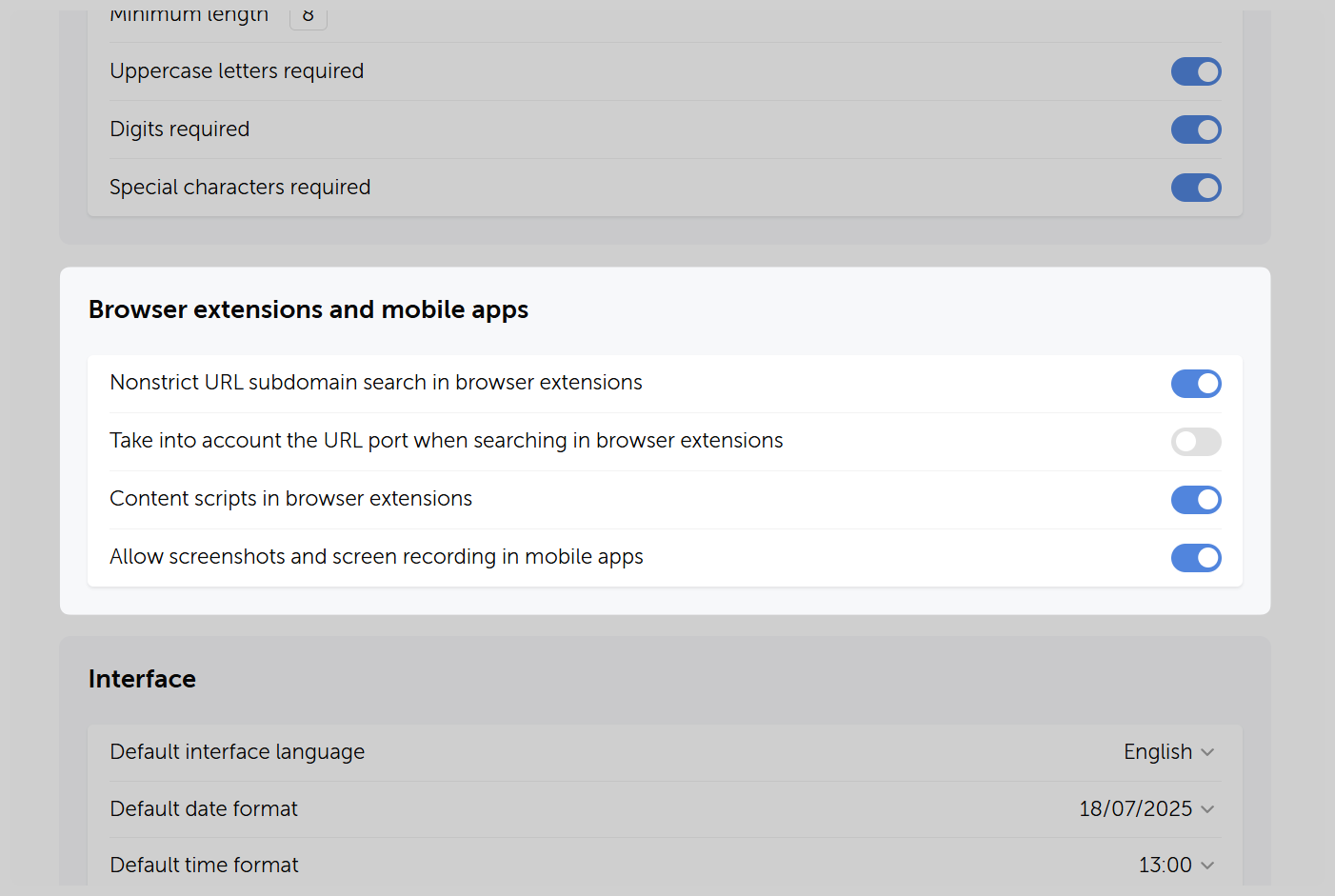
Both desktop and mobile apps now include the offline access implementation described above. Mobile picks up additional updates: org-wide controls to block screenshots and screen recording (System settings → Browser extensions and mobile apps) and search across folders instead of just individual records. Also added MSI package download support for the desktop app.
New: Onboarding guides
Alongside the release, we published a full onboarding section built around five roles — users, department managers, IT administrators, DevOps engineers, and security specialists. Each guide covers exactly what someone in that role needs to configure on day one, with no assumption of prior familiarity with the product.
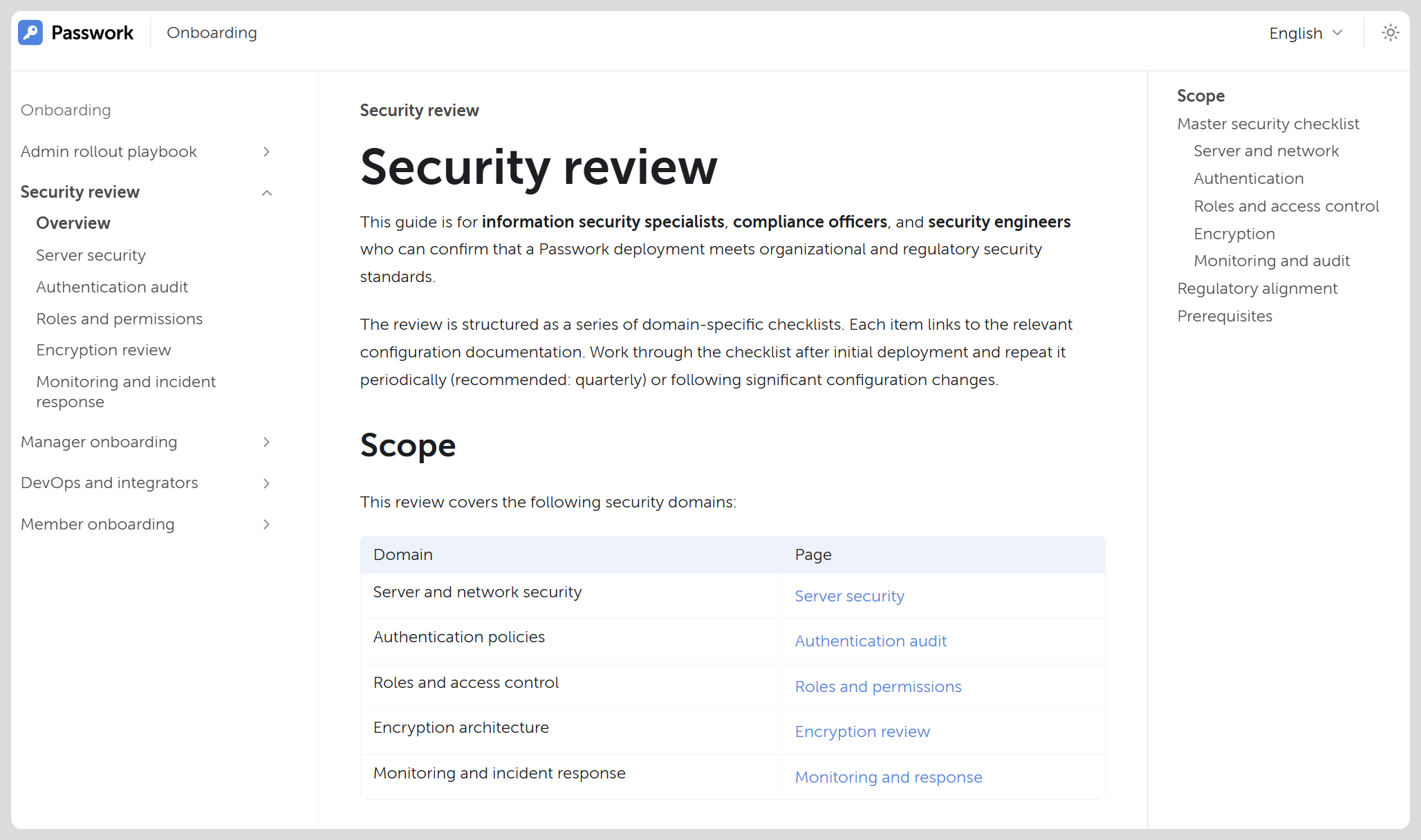
Administrators rolling out Passwork organization-wide get a playbook covering LDAP and SSO integration, vault structure, and bulk user provisioning. DevOps teams get a separate track for CLI and SDK usage, service accounts, and secret injection into CI/CD pipelines. Security and compliance officers can work through checklists mapped to ISO 27001, GDPR, and NIST.
 Passwork Team
 Passwork Team
 Alex Muntyan
Table of contents
Table of contents

Self-hosted password manager for business
Passwork provides an advantage of effective teamwork with corporate passwords in a totally safe environment. Double encryption and zero-knowledge architecture ensure your passwords never leave your infrastructure.
Learn more