

Passwork stores every credential in a three-level structure: vaults, folders, and password records, encrypted with AES-256 on client-side for zero-knowledge protection. Where a credential lives, and who can reach it, depends on the vault type it sits in. A personal User vault the owner controls, or a Company or custom vault where administrators keep permanent oversight.
That distinction matters because credentials rarely stay where they started. An engineer stores a database password in their personal vault, shares it with two colleagues through Inbox, and six months later nobody remembers who owns it or whether the access list still matches the team. The same pattern creates three recurring risks:
- a critical account can depend on one employee who happens to hold it
- access can outlive the reason it was granted in the first place
- the company loses track of who owns and uses a given credential
Passwork's storage model addresses this by making vault structure and access rules the source of truth, not ad hoc sharing between colleagues. This guide walks through how that structure works, from vault types down to record-level encryption, and where server-side and client-side encryption fit.
Key takeaways
- The storage hierarchy runs vault → folder → record. A shortcut reuses one record elsewhere without duplicating it.
- A record is the credential card. It holds a login, URLs, notes, files, and custom fields alongside the password, not just the password itself.
- Role, group, and vault type are three separate access layers: role controls settings, group controls vault access, vault type controls creation rules.
- Placement decides security as much as encryption strength does: shared credentials belong in a company vault, never a private one.
- Server-side encryption is always on. Client-side encryption is optional, adds a zero-knowledge layer, and trades convenience for a master password that can't be recovered if forgotten.
The storage hierarchy: Vault, folder, record
Passwork organizes every credential in three levels.
- A vault is the top-level encrypted container and the point where access is first granted.
- A folder sits inside a vault, can nest to mirror a real team or project, and inherits the vault's access by default, though you can tighten access on a specific folder to isolate a sensitive subtree without splitting off a new vault.
- A record is the credential card itself.
A fourth object, the shortcut, lets you reuse one record in a different vault or folder. It links to the original instead of copying it, so editing the record updates every shortcut with it. Whether someone can actually edit through a shortcut depends on the access level it was given — a shortcut can be shared as Read-only, for example, letting someone view the record without being able to change it.
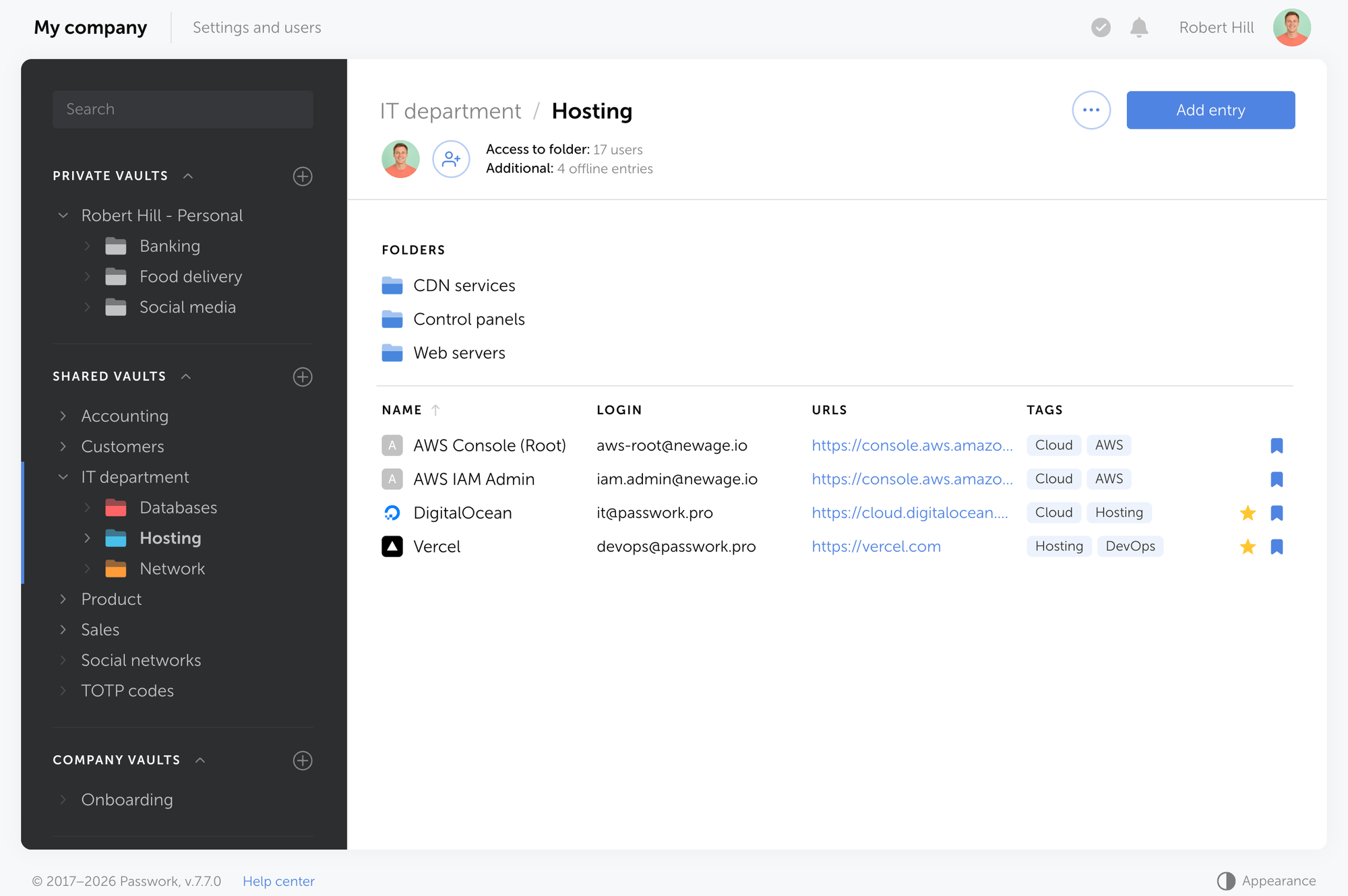
An IT Infrastructure vault might contain a Production servers folder holding a vpn-gateway-admin record. The structure mirrors the actual team, so access decisions made at the vault level cascade down sensibly.
Records: The credential card behind the password
Of the three levels, the record is where the actual credential lives but it holds more than just a password. A password entry in Passwork is called a record, and it can include:
- a login
- a password
- one or more URLs
- tags
- a note
- an attached file
- custom fields for extra logins, extra passwords, or TOTP (time-based one-time password) codes
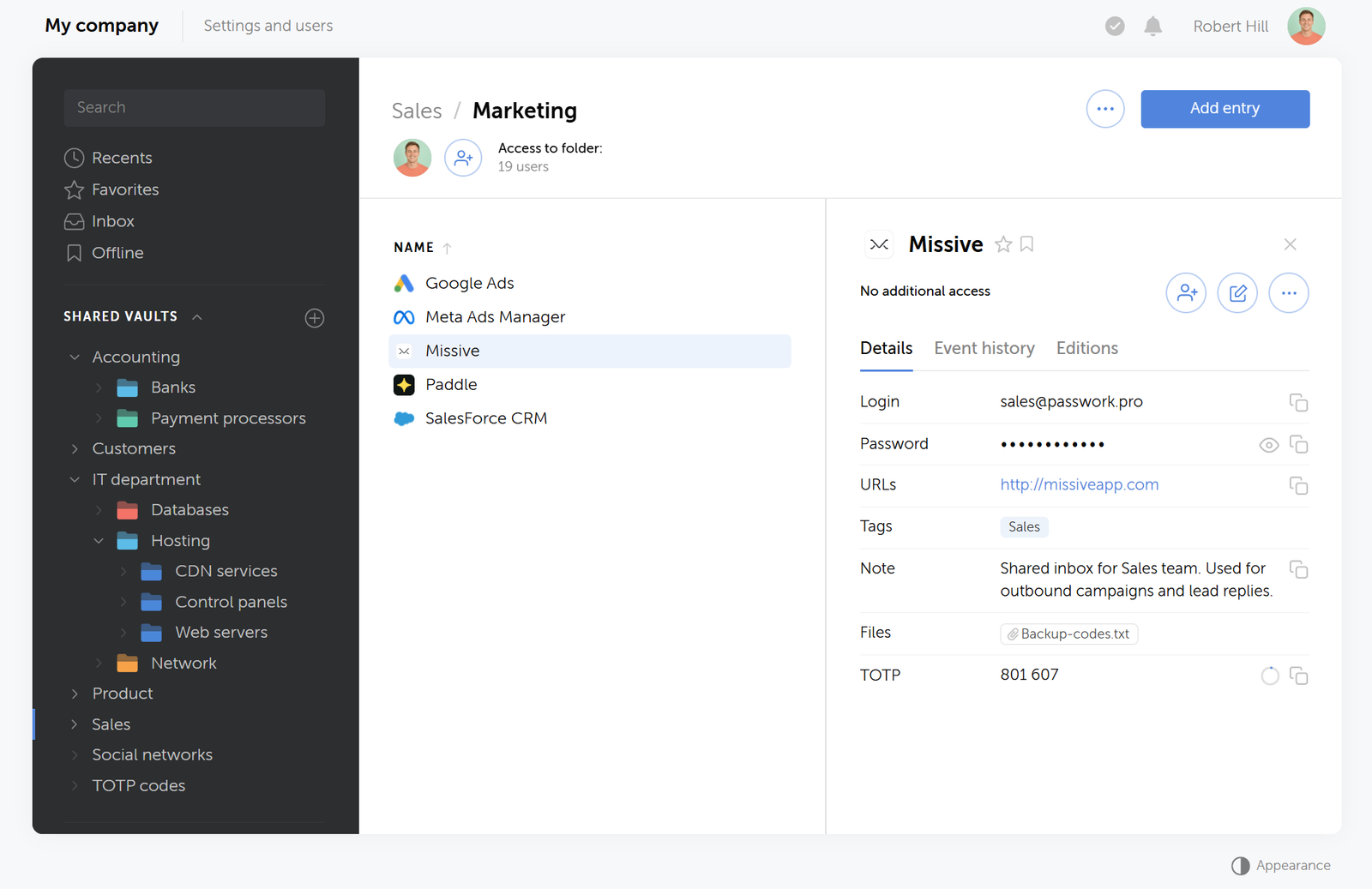
The password is one field on that card. A production database record, for example, can carry the main login and password, a note on server ownership, an environment tag, and a TOTP custom field for two-factor login, all in one searchable object instead of scattered notes. If a system has a break-glass admin account, add it as a second custom field on the same entry instead of creating a disconnected record that's easy to lose track of.
Roles and group: Two permission layers
Passwork splits permissions into two systems that control different things.
- A role decides what a user can do at the system level: inviting people, connecting LDAP (Lightweight Directory Access Protocol), viewing the activity log, managing licenses.
- A group decides what that same user can see or edit inside a specific vault or folder.
Every user holds exactly one role. The built-in roles are Owner, Administrator, and Member. Admins can also create custom roles, such as an Auditor who can view logs and permissions but can't create, edit, or delete records. Roles govern settings and features, including vault-management tabs, LDAP configuration, and API access. They don't, by themselves, open a single vault.
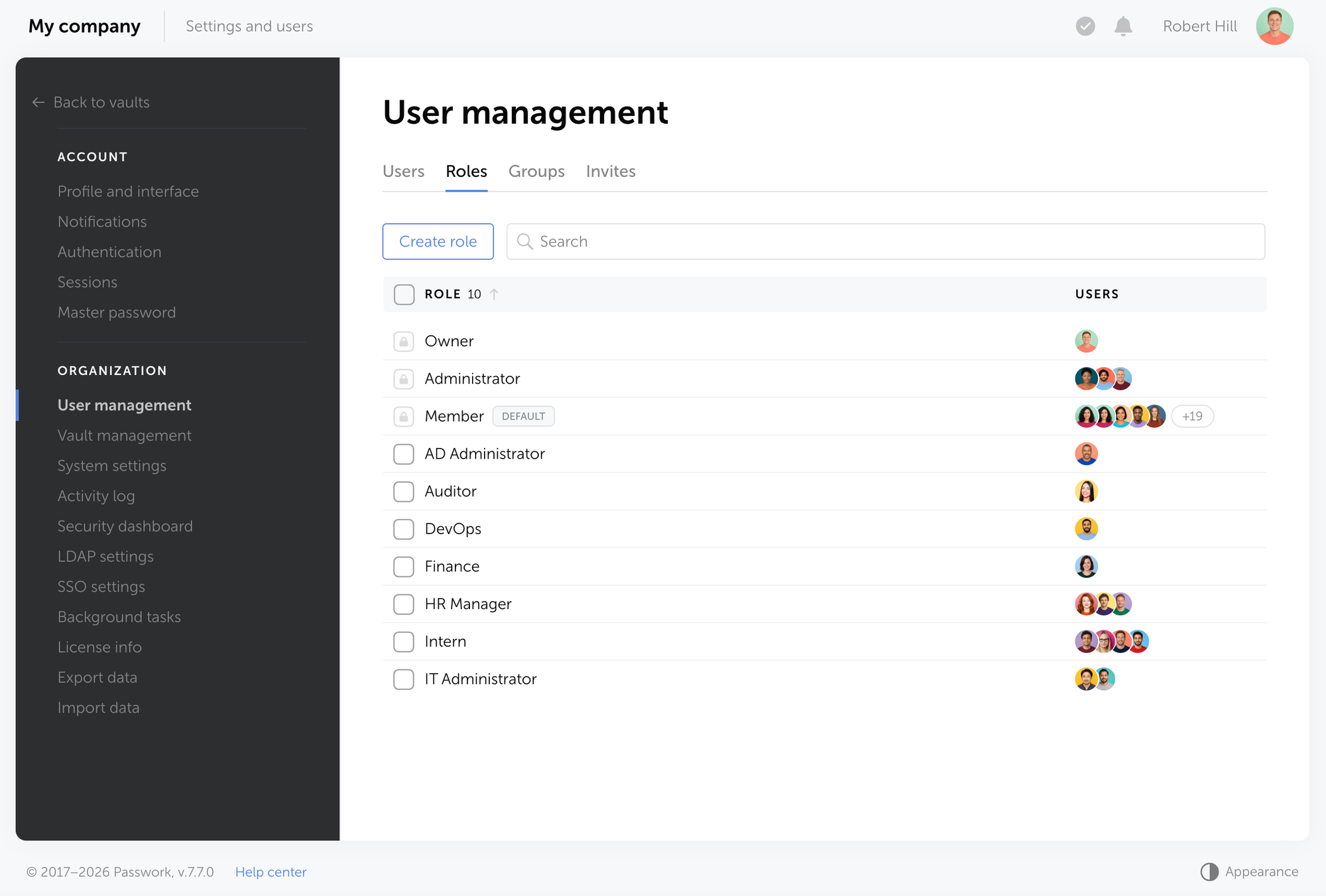
A group is how a set of people gets access to a vault or folder, at a level ranging from Read up to Full access and Administrator. A user can belong to several groups at once, and their real access to any entry comes from their group's level, not their role.
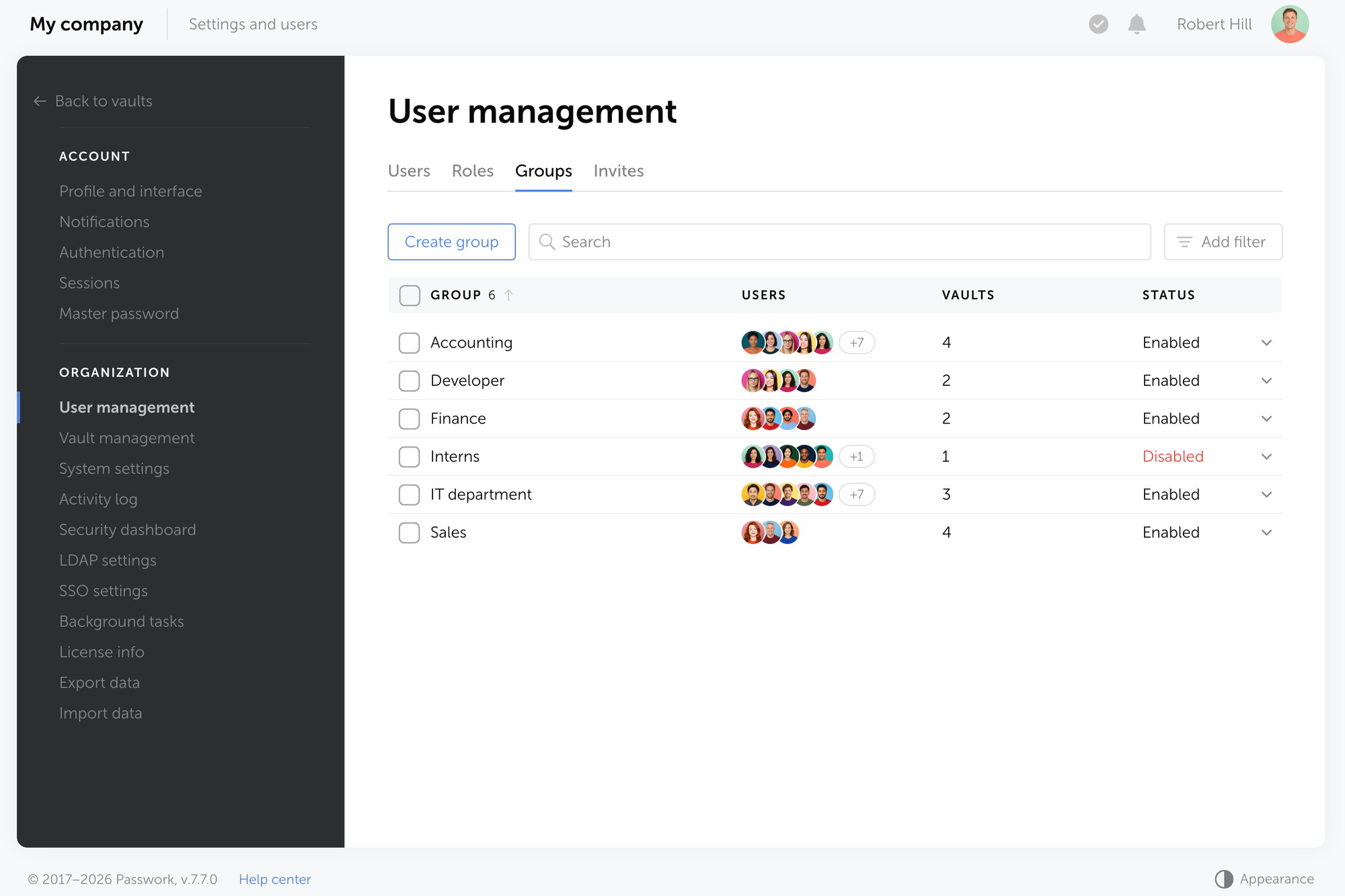
Groups are the lever for everyday access
The efficient pattern is group-first: put people into groups and let each group's existing vault access do the work, rather than adding individual users one at a time, which stops scaling past a handful of people. A user added to a group inherits its access immediately. Disable the group, and every member loses that access at once. Re-enable it, and access returns automatically.
For organizations on Active Directory or LDAP, the same pattern extends further: an AD or LDAP security group maps to a Passwork group already connected to the right vaults, so adding someone to the AD group grants Passwork access without a separate manual step.
Vault types: Policy for a category of vaults
A vault type is a policy template for a category of vaults, not a role and not a group. It controls two things: who can create a vault of this type, and which administrators get added automatically to every vault created under it. You can also restrict what the creator is allowed to do inside vaults of that type, such as letting someone create a vault without letting them invite other users.
Passwork ships with two built-in types.
- A user vault is private by default to its creator and becomes shared the moment the owner grants someone else access.
- A company vault is available to its creator and to corporate administrators, who are added automatically and can't be removed or demoted, which keeps the vault under organizational control even if the creator leaves.
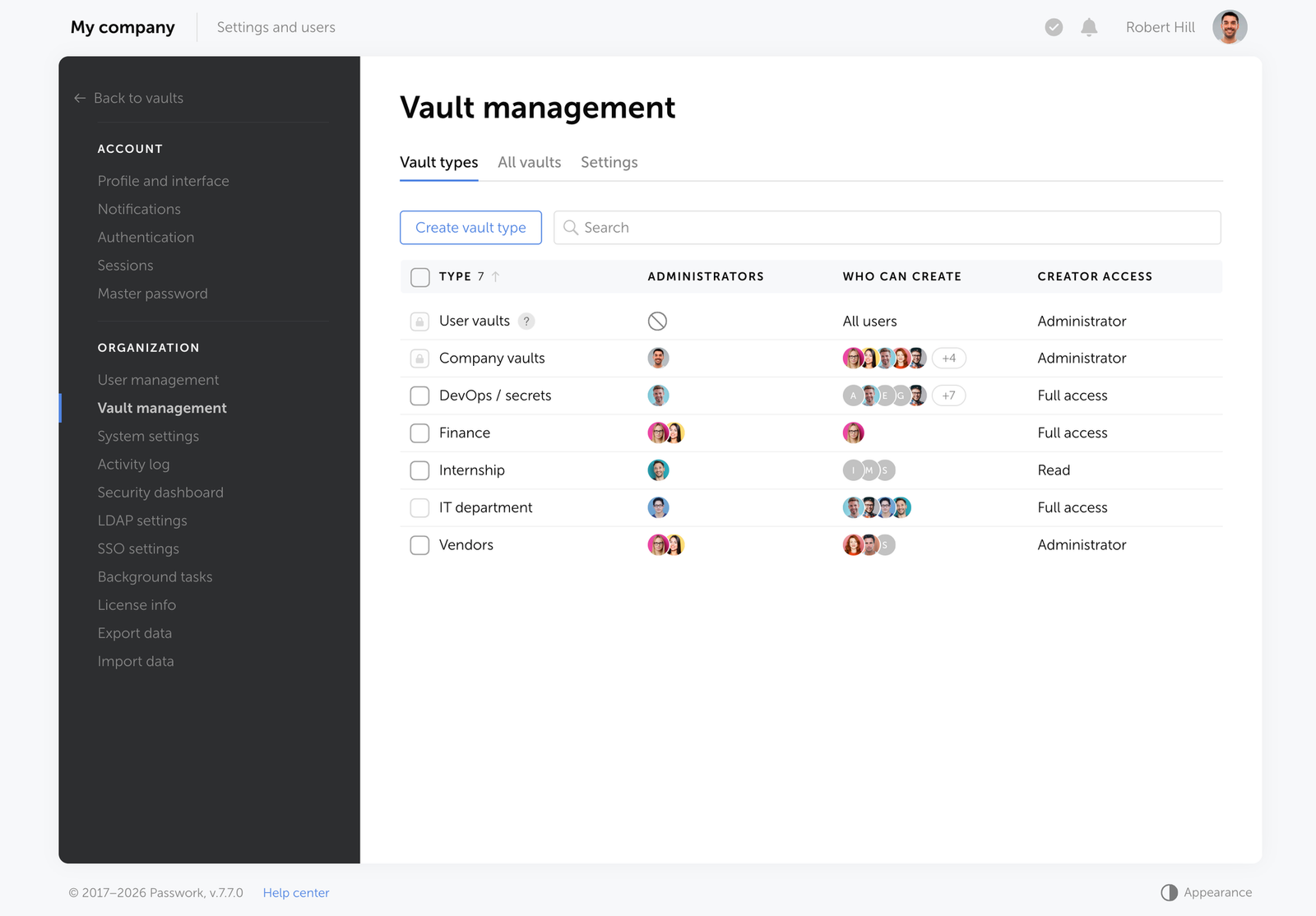
Custom vault types, such as Finance, HR, or IT, apply the same mechanism under names that match your org chart, and you decide who's allowed to create each type: specific users, groups, roles, or everyone.
Vault placement: Why it matters as much as password strength
A user vault is for personal credentials that belong to one person. A company vault is for anything a team needs to keep working. Mixing this up is the most common onboarding mistake.
When a shared service account, a vendor login, or a department credential ends up in someone's private vault, the whole team quietly depends on that one person. If they're on leave, switch roles, or leave the company, the credential is locked away until an administrator intervenes. The fix is procedural: any credential more than one person needs goes into a company vault from day one, with access granted through a group rather than to the individual.
Least privilege: Applying it at the vault and folder level
Least privilege means giving people the minimum access they need, and in Passwork that's applied at the vault and folder layer, not per record.
- Grant access through groups, not individual users, whenever more than one person needs it.
- Start new members at Read and raise access only when the job requires it.
- Use folder-level overrides, including a Forbidden setting, to block a sensitive subtree even for members with broader vault access.
- Limit vault Administrator rights to the owner plus one documented backup.
- Reserve direct password sharing for controlled exceptions, not as a routine substitute for vault or folder access.
Encryption: The two-layer model
Vaults, folders, and groups define where credentials belong and who should be able to use them. Encryption protects the data inside that model.
Passwork uses two encryption layers:
- Server-side encryption (SSE) requires no setup or configuration. Every object is additionally encrypted with AES-256 before it reaches the database.
- Client-side encryption (CSE) adds a zero-knowledge layer. Data is encrypted in the browser or app before it leaves the device, using keys derived from the user’s master password. The server sees only ciphertext and cannot decrypt it, even with full database access.
CSE derives its keys entirely on the client, which is what makes the zero-knowledge guarantee real: the master password unlocks a private key, which unlocks the vault key, which unlocks the entry itself. Passwork's servers never hold a key that can read that chain, so adding a member means transferring the vault key over RSA encryption directly between users, and every new connection passes through an approval step by design.
The same design shapes recovery. With no copy of the master password or its keys on the server, nobody can decrypt a vault from the server side. A forgotten account gets reset by an administrator, then re-approved by vault admins, a checkpoint that stops a compromised login from quietly reclaiming access. CSE protects passwords, custom fields, and attachments this way.
Encryption handles confidentiality. Who's authorized to use that data is a separate layer, governed by controls like NIST SP 800-53 Rev. 5, AC-6. The two work together: encryption keeps a credential unreadable at rest, vault placement and group access decide who should reach it.
Related reading
For a closer look at how the zero-knowledge key chain actually works and what it does and doesn't protect against, see What is zero-knowledge encryption? How it works in 5 minutes.
Sharing: Direct send, shortcuts, and links
Passwork supports three ways to share a credential outside normal vault membership. Sending a password directly gives someone standing access to one entry, at Read or Read and edit, without adding them to the vault. Edits apply to the original record.
A shortcut, covered earlier, reuses a record elsewhere without duplicating it. A link shares access with someone outside Passwork entirely, no account required, either reusable until it expires or single-use and gone three minutes after opening, with expiration windows from one hour to unlimited.
None of these three grant vault-wide rights, and none are automatically temporary except a single-use link's short window. Revoke sent passwords, shortcuts, and links once the business need ends, on a schedule such as after a project closes.
Onboarding and offboarding: Putting the model to work
The real test of this structure is what happens when someone joins or leaves.
- New hire. Add them to the group matching their department. They inherit that group's vault access immediately, or after an admin approves the connection request.
- Departure. Remove them from their groups or disable the account. Access tied to those groups disappears at once. Before closing out, confirm anything they managed personally, like a service account they set up, actually lives in a company vault, and check the Activity log for their recent actions on shared vaults.
Correct vault placement and group-first access are what turn a departure into a short, repeatable checklist.
API, logs, desktop and mobile access: The same rules at scale
The API and CLI (command-line interface) operate on the same records, vaults, and access rules as the web interface, so scripted access follows the same role/group/vault-type logic as clicking through the UI.
Every action against a vault, folder, or entry is recorded in the Activity log, and what a given user can see there depends on their own role and vault access, the same split covered above.
The browser extension, desktop and mobile apps read from the same vault structure. There's no separate mobile-only storage to learn.
Setting up a new credential category step-by-step
- Decide if the credential is personal or team-owned.
- Place team-owned credentials in a company vault, not a private one.
- Build folders around real boundaries: environment, project, or service.
- Fill in login, URL, tags, and custom fields on the record.
- Grant access through a group, not individual users.
- Start the group at Read and raise access only when needed.
- Set a vault type if the category needs its own creation and admin rules.
- Limit vault Administrator rights to the owner plus one backup.
- Decide on CSE based on your threat model and appetite for recovery overhead.
- Review group membership and sharing links on a regular schedule.
Conclusion
Keeping role, group, and vault type in separate lanes, placing shared credentials in company vaults from the start, and deciding deliberately whether CSE's zero-knowledge guarantee is worth its recovery trade-off: that's the discipline behind this whole model. Start by auditing one department: check whether its shared credentials sit in a company vault, confirm access runs through a group, and go from there.

If your team manages shared service accounts or department credentials, Passwork gives you the vault structure, group-based access, and encryption options to keep them under control. Get started with Passwork.
Frequently asked questions
Is a password in Passwork just a password field?
No. A record can include a login, URLs, tags, a note, a file, and custom fields for extra logins, passwords, or TOTP codes. The password is one field on a larger credential card.
What's the difference between a role, a group, and a vault type?
A role controls what a user can do system-wide, like inviting people. A group controls access to specific vaults and folders. A vault type sets creation rules and default administrators for a category of vaults. All three work independently.
Should shared credentials go in a private vault?
No. A private vault belongs to one person. If that person is unavailable, the team loses access. Put shared credentials in a company vault and grant access through a group instead.
What happens to access when a group is disabled?
Every member loses the access that group granted, immediately. Re-enabling the group restores it automatically. This is why group-first grants make offboarding fast: disable one group instead of chasing individual permissions.
 Passwork Team
 Passwork Team
 Passwork Team
Table of contents
- Key takeaways
- The storage hierarchy: Vault, folder, record
- Records: The credential card behind the password
- Roles and group: Two permission layers
- Vault types: Policy for a category of vaults
- Least privilege: Applying it at the vault and folder level
- Encryption: The two-layer model
- Sharing: Direct send, shortcuts, and links
- Onboarding and offboarding: Putting the model to work
- API, logs, desktop and mobile access: The same rules at scale
- Setting up a new credential category step-by-step
- Conclusion
- Frequently asked questions
Table of contents
- Key takeaways
- The storage hierarchy: Vault, folder, record
- Records: The credential card behind the password
- Roles and group: Two permission layers
- Vault types: Policy for a category of vaults
- Least privilege: Applying it at the vault and folder level
- Encryption: The two-layer model
- Sharing: Direct send, shortcuts, and links
- Onboarding and offboarding: Putting the model to work
- API, logs, desktop and mobile access: The same rules at scale
- Setting up a new credential category step-by-step
- Conclusion
- Frequently asked questions

Self-hosted password manager for business
Passwork provides an advantage of effective teamwork with corporate passwords in a totally safe environment. Double encryption and zero-knowledge architecture ensure your passwords never leave your infrastructure.
Learn more