
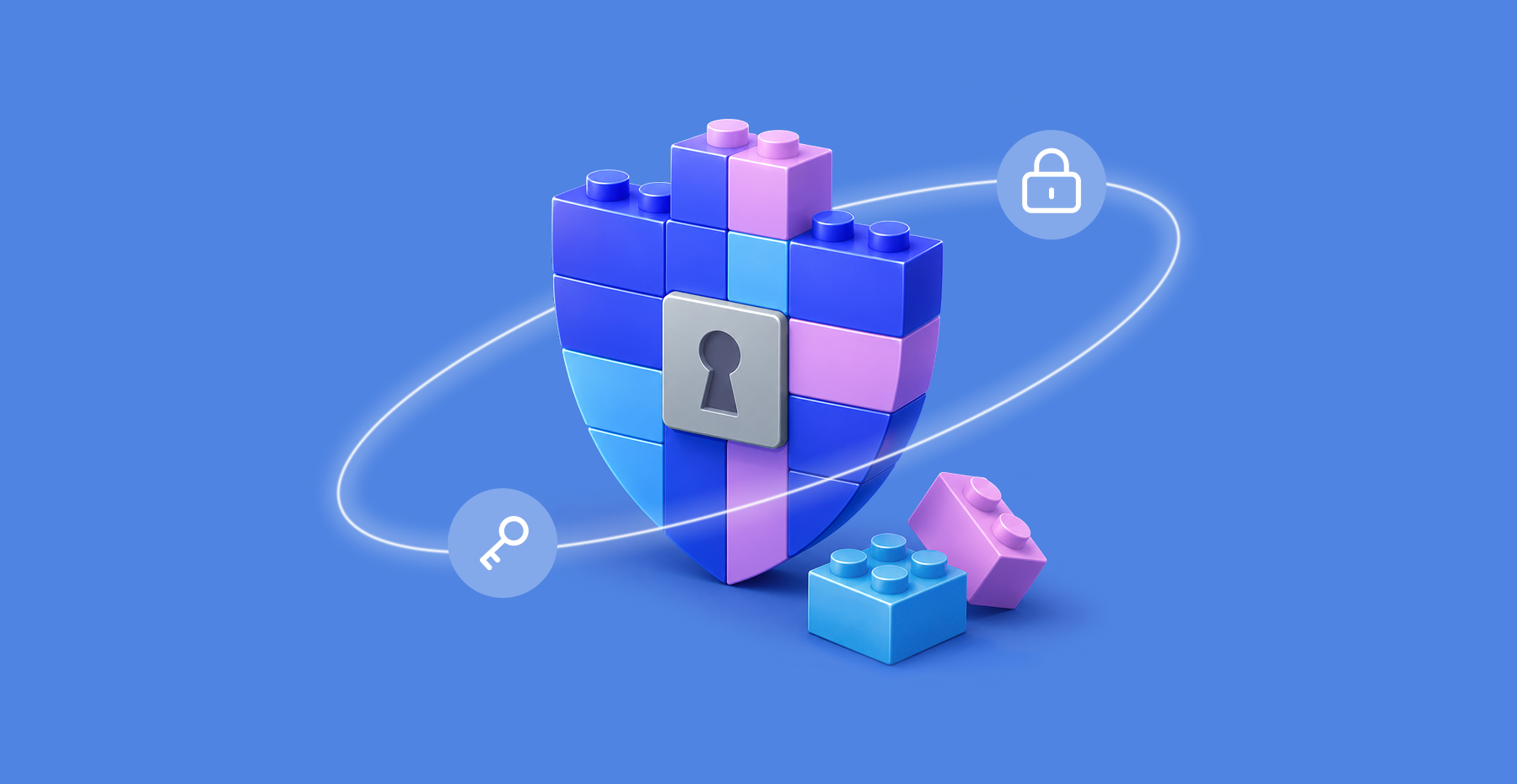
Teach children password security with one repeatable habit: create a unique passphrase, protect it with a second sign-in step, and ask for help when a login or message looks wrong. A password is the secret that opens an account.
Most families only think about this after something happens: a Roblox account taken over by a stranger, a classmate who guessed a password from a birthday, a message that looks like it's from the school asking to "confirm" a login. The Create, Protect, Recover routine below takes about ten minutes to teach and keeps working as a child moves from their first gaming account to the school and email logins they manage alone.
Key takeaways
- A password rule sticks when the child understands what it protects: ask what they'd hate to lose, and the argument makes itself.
- The lesson changes with age: a six-year-old just needs the privacy rule, a teenager needs independence with a safety net for mistakes.
- Length beats complexity: a long passphrase is easier for a child to remember and harder to guess than one loaded with symbols.
- A password alone isn't enough: 2FA or a passkey stops most takeovers even if the password leaks.
- A fast, no-blame report beats a perfect password: reporting a mistake early is what actually limits the damage.
Create a password and motivation to protect important things
A password protects the things your child cares about online, including schoolwork, game progress, messages, photos, and personal information. Describe it as a key to a digital room: someone who gets the key may enter the room, change what is inside, or lock its owner out.
This analogy gives children a reason to care without frightening them. Start by showing your child what each account holds.
| What it protects | Why it matters |
|---|---|
| School account | It may contain assignments, messages, and personal details. |
| Gaming account | It may hold saved progress, purchases, and conversations. |
| Social account | It can contain photos, contacts, and private messages. |
| Email account | It may provide the reset route for other accounts. |
Give the email password special attention. Email services often receive password-reset links for other accounts, so access to email may lead to access elsewhere. CEOP Education (the UK National Crime Agency's child safety programme) advises families to use a separate, strong password for email.
Ask what your child wants to keep safe in each account. Their answer might be a drawing, a message from a friend, or saved game progress. Password safety for kids makes more sense when the password protects something they value.
Teach children password security in a way that is age-appropriate
Teach children password security by matching responsibility to their age, confidence, and account type. Give every account its own long passphrase, then increase independence gradually. Keep a clear route for asking for help with forgotten passwords, suspicious messages, lost devices, and account recovery.
A passphrase is a longer password made from several words. Choose words the child can remember but other people cannot connect to them. Leave out names, birthdays, school names, addresses, pets, favourite teams, and details posted online.
Each account needs a different passphrase. If a reused password appears in a data breach, someone can try it on the child's other accounts.
NIST's 2025 consumer guidance recommends at least 15 characters when a password is required and treats length as the main priority. Use that figure as guidance for parents rather than a test the child must pass. A password manager can store long passwords that are difficult to remember.
Avoid forcing children to add symbols and numbers unless the website requires them. Substituting a number for a letter often creates an easy-to-predict pattern. Follow the website's rules while prioritising length and uniqueness.
Ages 5–8: Learn the privacy rule
Children in this age range can learn that a password stays secret from friends, classmates, other players, and strangers. A parent or guardian may help them create, enter, store, or recover it.
Keep the lesson short. Say: "This password opens your account. We keep it private, and you can always ask me for help."
Ages 9–12: Create a passphrase together
Let the child choose several unrelated words. Check that the words contain no personal facts, then explain that the finished passphrase belongs to one account.
Ask the child to explain the rule back to you. If they can describe why password reuse is risky, they have understood the reason behind the rule.
Teens: Hand over responsibility gradually
Teens can create and store their own passwords, review recovery options, and manage a second sign-in check. Agree in advance on what they should do if they lose access or respond to a suspicious message.
Respect their growing privacy while keeping a no-shame help rule. Reporting a mistake early should lead to calm action. UNICEF's online privacy checklist for parents recommends giving older children age-appropriate responsibility for their privacy and security.
Try this tonight: The five-minute passphrase check
- Choose one low-risk account your child already uses.
- Ask what information or activity the account protects.
- Check that its password is unique and contains no personal facts.
- Decide where the family will store it safely.
- Practice this sentence: "Something looks wrong with my account, so I need help."
Protect the password after it is made
A good passphrase works only when the family can keep it private, store it safely, and recover the account if something goes wrong. Start with email, school, gaming, shopping, and social accounts. They may contain personal information, saved purchases, private messages, or payment details.
Use the Create, Store, Add a Second Check plan:
- Create a unique password for each account. Use a long passphrase when the child needs to type or remember it. Let a password manager generate a random password when memorisation is unnecessary.
- Store it securely. A password manager is a tool that creates and stores different passwords so the family does not need to remember them all. Its master password opens the password vault, so the responsible parent should create and protect it carefully.
- Add a second check. Two-factor authentication (2FA) adds another check after the password. This might be an approval on a device or a code from an app. You may also see this called 2-step verification, 2SV, or MFA.
Turn on 2FA for important accounts when the service offers it. Keep recovery codes private and store them separately from the password. Anyone with a working recovery code may be able to enter the account.
A passkey lets someone approve a sign-in with a device PIN, fingerprint, or face scan instead of typing a password. If you see this option, check how the account can be recovered if the device is lost or replaced.
The UK's National Cyber Security Centre recommends passkeys where supported and 2-step verification where passkeys are unavailable. Recovery options still differ by service and the child's age.
Recognize phishing and keep the password private
Give children one exact boundary: "Never share a password with a friend, classmate, other player, or stranger." Younger children may need help from a parent or guardian. As children become more independent, agree on recovery and reporting rules instead of demanding access to every account.
A request for a password can sound friendly or urgent. Another player might offer free game items. A message that seems to come from school might claim the child's account will close unless they sign in immediately.
Phishing is a fake message or website that tries to steal a password, verification code, or personal information. Children do not need to judge every message alone. Teach them to pause and ask for help.
Pause before you sign in
- Stop. Do not reply or enter a password.
- Do not click the link. Show the message to a trusted adult.
- Open the official app, use an existing bookmark, or type a known address.
The FTC gives the same advice. Contact an organisation through an app, phone number, or website you already know is genuine, rather than using details in the suspicious message.
A game message might say, "Confirm your account now to keep your items." Tell your child to stop. If appropriate, take a screenshot and ask an adult to check the account through the normal app.
Never blame a child for clicking. Shame delays reporting. A quick report gives the family more time to change the password, review activity, and stop further changes.
Recover an account without panic
Recover an account through the service's official route, change the exposed password, and check what happened. The child should tell a trusted adult first. Together, they can review recent activity, remove unknown devices, restore the second sign-in check, and store new recovery details safely.
Use the Recover part of the Create, Protect, Recover routine:
- Tell a trusted adult. Explain what happened, including any link opened, password entered, code shared, purchase noticed, or unexpected sign-in reported.
- Open the official service. Use its known app, a saved bookmark, or an address that the parent types directly. Avoid links and phone numbers from the suspicious message.
- Reset the password. Follow the service's official account-recovery process on a familiar, updated device. Create a new, unique password. If the old password was reused, change it on every account where it appears.
- Review account activity and devices. Look for unfamiliar sign-ins, messages, purchases, profile changes, or recovery addresses. Sign out of devices the family does not recognise, if the service offers that option.
- Restore account protection. Turn 2FA back on, confirm that the passkey still works, and replace any recovery codes that may have been exposed. Treat recovery codes as private credentials and store them securely.
What to check after a reset
- The new password is unique.
- The recovery email address or phone number is correct.
- Unknown devices have been signed out where possible.
- 2FA or the passkey remains active.
- Purchases, messages, and profile changes look familiar.
- Saved passwords on shared devices have been updated.
- Parental controls and privacy settings remain correct.
Recovery steps differ by service. For example, Google says that changing the password of a supervised child account turns off 2-Step Verification. Families using that account type need to turn it on again after the reset.
Make password security a family habit
To teach children password security, practise the Create, Protect, Recover routine until asking for help feels normal. Start with one account today: review its passphrase, add a second sign-in check if available, and ask your child who they would tell if a login looked wrong.
Frequently asked questions
What is a safe way for a child to make a password?
Help them create a long, unique passphrase, which is a password made from several words, for each account. Leave out names, birthdays, school names, teams, and other easy-to-guess personal facts. A parent can help younger children store the passphrase and recover the account safely.
Should children share passwords with parents?
Children should never share passwords with friends, classmates, other players, or strangers. Younger children often need a parent or guardian's help to create, store, or recover accounts. As children gain independence, agree on recovery and safety rules together, with a clear process for requesting help.
What should a child do if a message asks for a password?
They should stop and ask a trusted adult before clicking a link, replying, or entering any information. Open the official app or type a known website address instead. This pause helps protect against phishing messages and fake websites designed to steal login details.
Is two-factor authentication useful for children's accounts?
Yes. Two-factor authentication adds a second check after the password, such as approval on a device or a code from an app. Turn it on for important accounts when available. Check how the family can recover that second step if the device is lost, replaced, or damaged.
 Passwork Team
 Alex Muntyan
 Passwork Team
Table of contents
Table of contents

Self-hosted password manager for business
Passwork provides an advantage of effective teamwork with corporate passwords in a totally safe environment. Double encryption and zero-knowledge architecture ensure your passwords never leave your infrastructure.
Learn more