

A password-management rollout becomes effective only when end users can turn their first invitation into a secure, repeatable everyday workflow. Passwork supports this with role-based onboarding: each group gets a scenario built around what they need to do on the platform.
- Department managers — set up team structures and delegate access without involving IT for every request
- IT administrators and system owners — deploy the platform, configure vaults, and manage organization-wide settings
- DevOps engineers and integrators — connect Passwork to existing infrastructure through the API and CLI
- Security specialists and compliance officers — configure audit logging, access policies, and controls tied to regulatory requirements
- End users — move from their first invitation to secure daily work
This guide focuses on the last scenario: what end users go through, step by step, from the moment they receive an invitation.
The user journey at a glance
The User Onboarding scenario takes approximately 15–30 minutes and covers five stages: activating the account, installing everyday tools, securing sign-in, learning the core actions, and working with shared credentials in the right vaults.
The sequence helps users move from gaining access to establishing the habits they will need later: using Passwork where credentials are required, generating passwords instead of creating them manually, and understanding where personal and corporate credentials belong. This focus on usability is reflected in Passwork being named Best for User Interface in Software Advice’s 2026 selection.
Start with the right sign-in and account setup
The first step depends on how the organization has configured Passwork. Employees may authenticate through Single Sign-On (SSO) with a corporate identity provider, through Lightweight Directory Access Protocol (LDAP) integration with Active Directory, or with a local Passwork account. Local account registration may also require administrator approval.
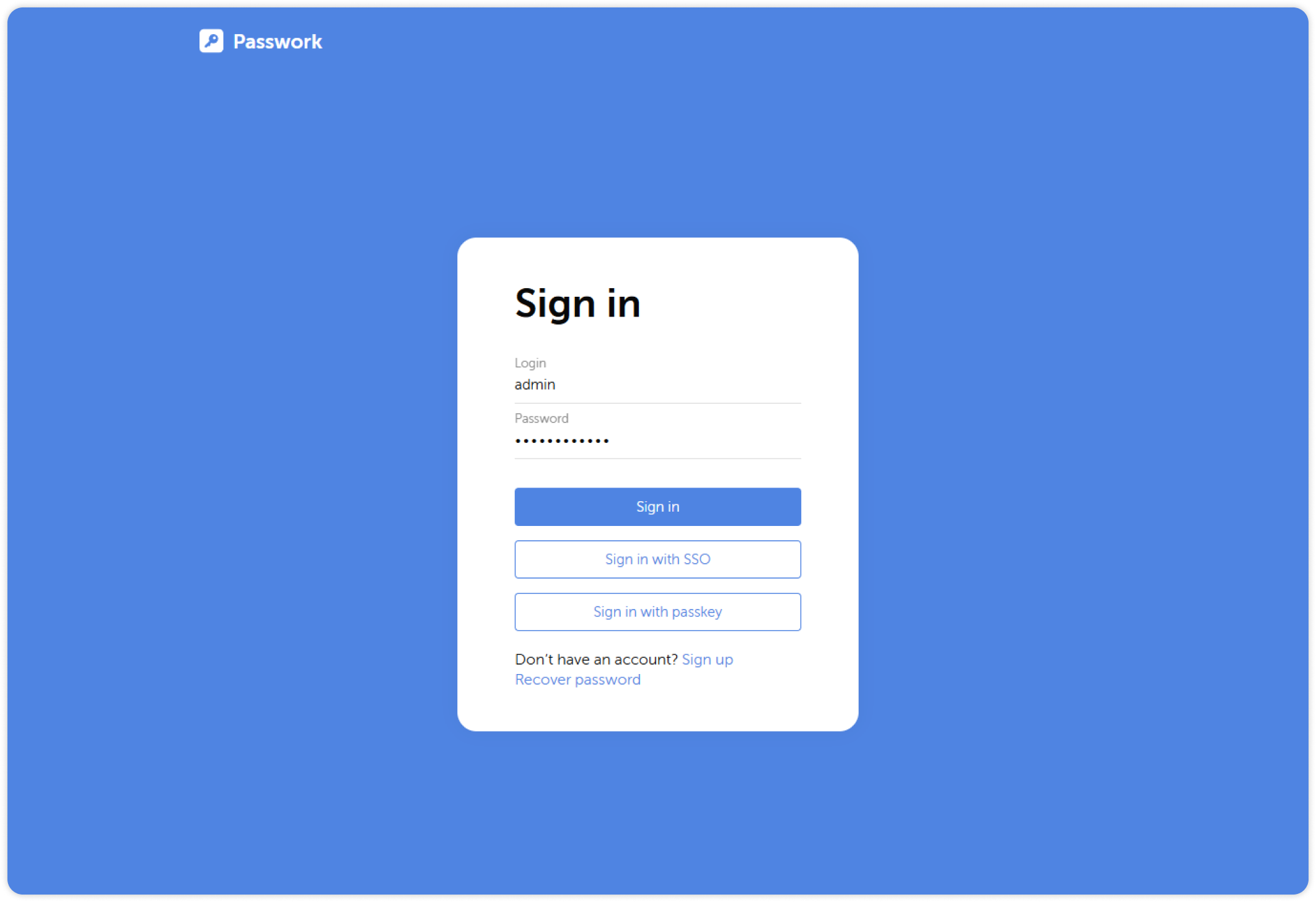
Organizations using client-side encryption add the master password. Passwork uses it to encrypt the user’s private key on the device, and the master password itself is never transmitted to the server. It must be different from the user’s Passwork login password, where applicable, and from their domain or SSO password. Unlike a regular account password, it has no recovery mechanism. An administrator can reset it, but doing so results in the loss of the user’s private encrypted data.
Make the secure workflow convenient
Once the account is active, Passwork moves closer to where employees use credentials. The browser extension provides autofill, password generation, and vault access directly in the browser. After installing the extension from the browser’s store, users enter their organization’s Passwork URL in the host address field and sign in with their credentials. The mobile app brings the same workflow to iOS and Android, while a Windows and Linux desktop application can be deployed in environments where a browser extension is less suitable. Availability depends on organizational permissions and configuration.
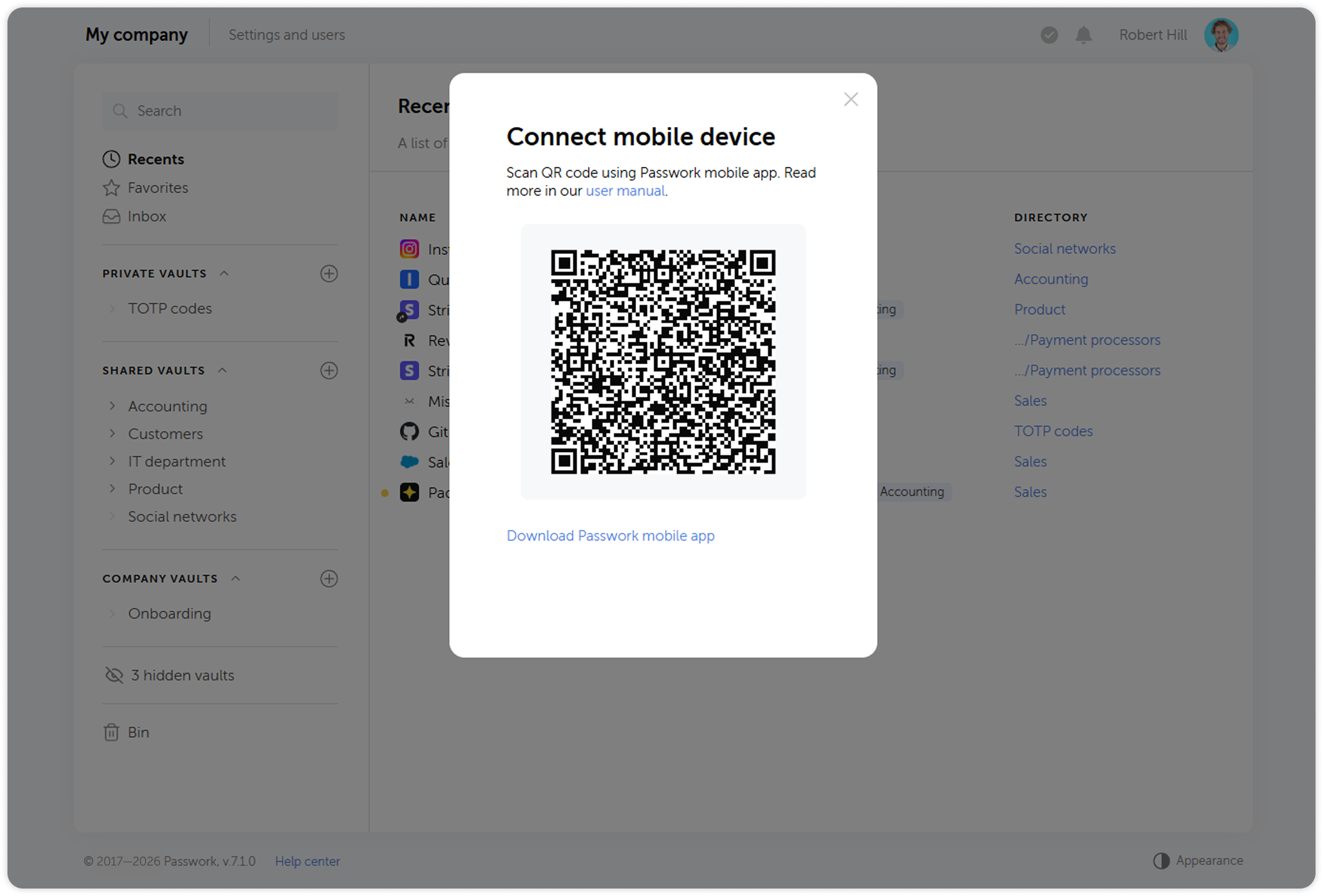
The mobile app is connected from the desktop version of Passwork by scanning a QR code, giving users a straightforward way to authorize the app for their organization.
We also recommend disabling the browser's built-in password manager after installing the extension. Running both can create autofill conflicts and make the intended workflow less predictable.
Convenience here serves a security purpose: routine tasks such as signing in or creating a credential can happen inside the managed workflow instead of around it.
Secure the account before routine work begins
Account protection comes early in the Users scenario. Two-factor authentication (2FA) adds another verification step to sign-in, so possession of the account password alone is insufficient for access.
Depending on organizational policy and configuration, users can connect the Passwork 2FA app, a Time-based One-Time Password (TOTP) authenticator such as Google Authenticator or Microsoft Authenticator, or WebAuthn-compatible security keys and biometric authentication.
Passkeys may also be available when enabled for the user’s role. They use device biometrics or a compatible physical security key for passwordless authentication, and users can register multiple passkeys for different devices.
Putting these options into the initial user journey helps make account protection part of setup rather than a task employees have to remember later.
Teach the three everyday actions
Most employees only need a small set of actions to start working productively:
- Save a credential
- Generate a password
- Use autofill
Together, these three actions cover much of the daily interaction an employee has with a password manager.
When adding an entry, users provide its name, login, password, URL, and optional description. The URL has a practical role beyond documentation: Passwork uses it to match saved credentials with the appropriate website for autofill. An incorrect or missing URL can prevent the expected entry from appearing.
For new accounts and password changes, users can generate credentials either while creating an entry or through the browser extension. Password length and character sets can be configured in the generator, while the organization's own password policy should determine the requirements employees follow.
Put personal and shared credentials in the right place
Knowing where to save a credential is as important as knowing how to save one.
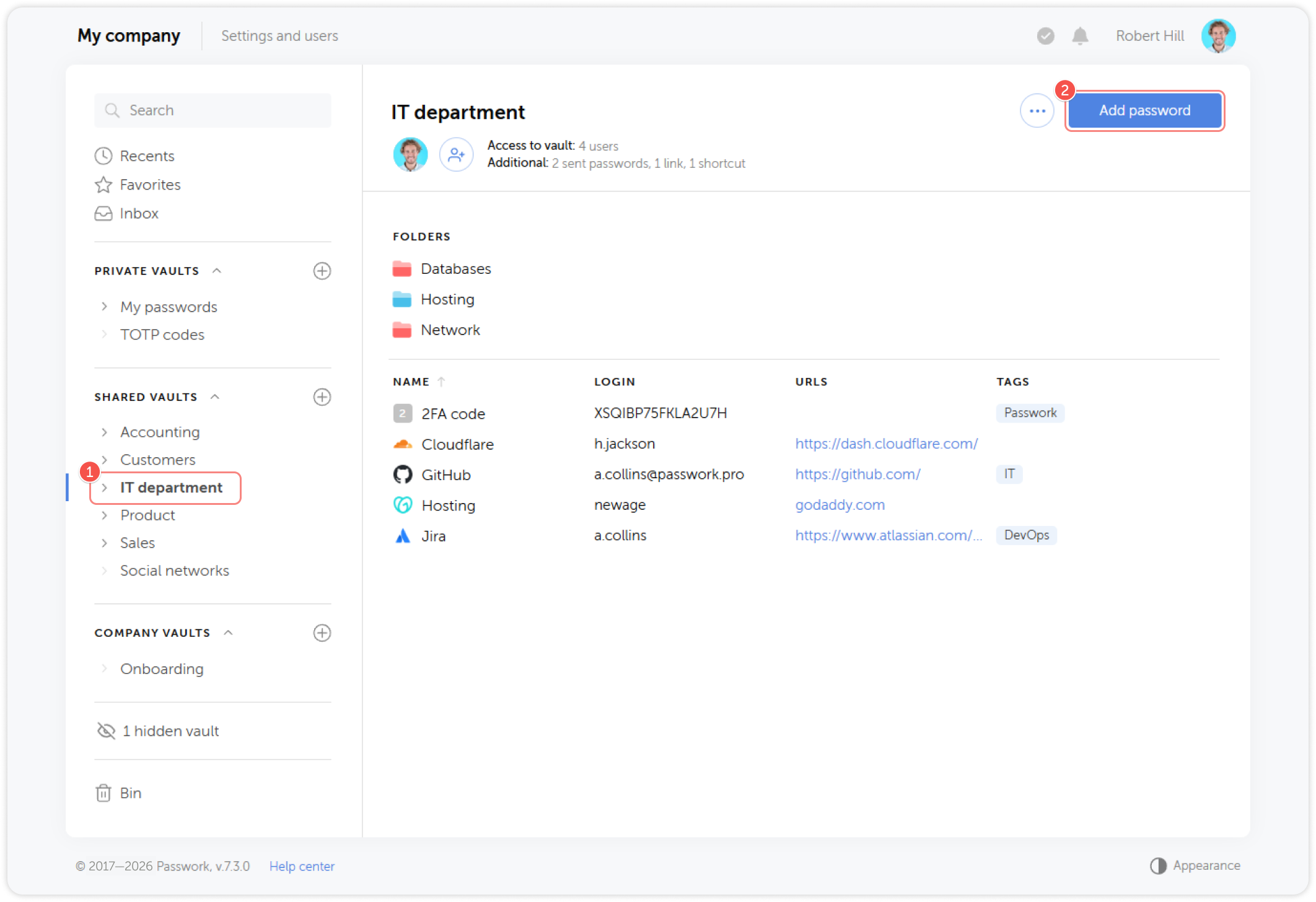
A private vault is visible only to its user and is intended for personal credentials and notes. Corporate vaults hold credentials used by a team or department, including shared service accounts, with access managed by the vault owner or administrator.
The distinction has an operational consequence. A team credential stored in someone’s private vault remains available only to that person. Storing it in the appropriate corporate vault keeps it accessible to colleagues who have the required permissions, including when the original employee is unavailable.
Users only see corporate vaults and folders they have permission to access. When something required for their work is missing, the onboarding guide directs them to request access from their department manager or Passwork administrator rather than create a parallel storage arrangement.
Use the guide as part of your rollout
For implementation teams, the Users scenario can become part of the rollout communication itself. Send it with the Passwork invitation and tell employees who can help with missing vault access or account issues.
Keep the message focused on the user journey. Authentication methods, client-side encryption, 2FA options, passkeys, and application availability depend on the organization’s configuration, so employees need the path relevant to their environment rather than administrative details about every possible setup.
A deployed password manager becomes useful when employees know how to incorporate it into their daily work. The Passwork Users guide connects account activation with that outcome: secure sign-in, convenient access to credentials, a few repeatable actions, and a clear distinction between private and corporate data.
Share the User onboarding scenario scenario with new employees as part of your Passwork rollout and give them a defined path from invitation to everyday use.

If your team shares credentials through spreadsheets, chat, or browser storage, Passwork gives you a self-hosted vault with RBAC, audit logging, and one-click offboarding, without enterprise pricing. Set up Passwork on your infrastructure and stop wondering who still has the Wi-Fi password from three hires ago.
 Passwork Team
 Passwork Team
 Passwork Team
Table of contents
Table of contents

Self-hosted password manager for business
Passwork provides an advantage of effective teamwork with corporate passwords in a totally safe environment. Double encryption and zero-knowledge architecture ensure your passwords never leave your infrastructure.
Learn more